
We all know the feeling. You hand your phone to a friend to show them a picture, and suddenly your heart drops. What if they swipe too far? What if they see that dating app, your banking details, or that mobile game you spend way too much time playing? Our phones hold our entire lives, and it makes total sense that you want to keep some of that information private. You do not have to delete your favorite tools and lose all your data just to feel secure.
Today, you can easily hide apps on iPhone using a few simple tricks built right into iOS. This guide breaks down exactly how to clean up your screen and lock down your privacy.
Why You Might Want to Hide Apps on Your iPhone
People choose to tuck away certain applications for plenty of normal, everyday reasons. Understanding exactly why you want to conceal something helps you pick the best method for the job. You might just want a cleaner screen, or you might need hardcore security for sensitive data. Whatever your reason, Apple gives you the tools to manage your digital space on your own terms. Taking a few minutes to organize your device can save you a lot of stress down the road.
|
Reason for Hiding |
Description |
Best Method to Use |
|
Privacy Protection |
Keeping banking, dating, or health records away from snooping eyes. |
iOS 18 Face ID Lock or Screen Time |
|
Visual Declutter |
Removing utility tools you rarely use from your main swiping pages. |
Move to App Library |
|
Focus & Productivity |
Hiding social media and games so you stop mindless scrolling. |
Hide Entire Home Screen Pages |
Protecting Your Privacy
The biggest reason to hide apps on iPhone is basic privacy. You likely have crypto wallets, journaling apps, or confidential work platforms installed. Keeping these off your primary swiping screens adds a solid layer of security. If someone is looking over your shoulder on the train, or if a family member borrows your device to make a quick call, your private data stays completely out of sight.
Decluttering Your Digital Space
You do not need every single icon taking up space on your home screen. Think about your smart home controllers, airline apps, or utility tools. You probably open them once a month. Getting them out of the way reduces screen clutter. A minimalist layout looks much better and makes it way easier to find the stuff you actually use daily.
Minimizing Distractions
If your thumb automatically taps Instagram or TikTok every time you unlock your screen, hiding the icon can break the habit. Adding a little bit of friction makes you think twice before opening a time-wasting app. If you have to search for it, you give your brain a few seconds to realize you should be working instead.
Method 1: Remove Apps from the Home Screen
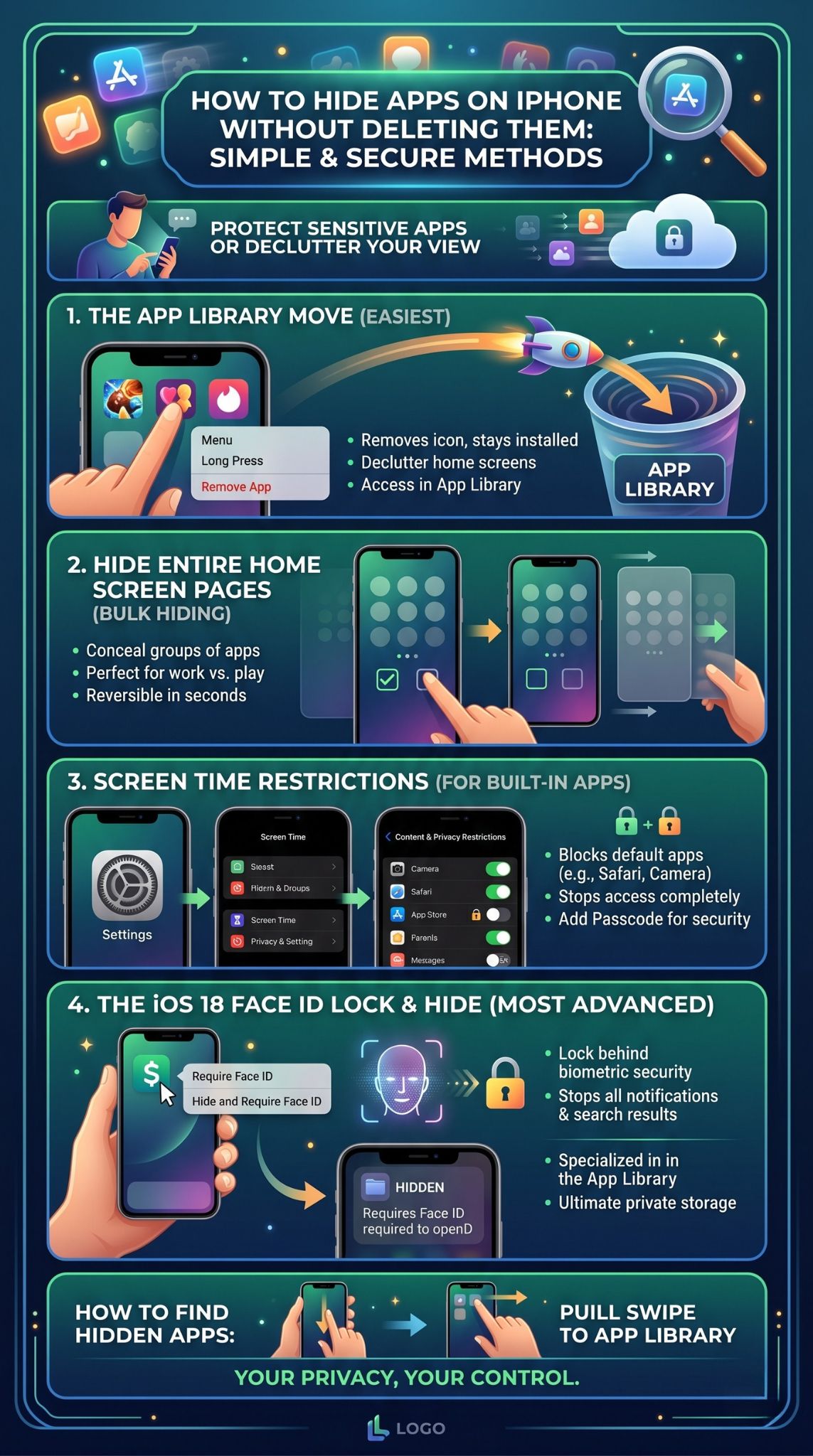
The absolute fastest way to get an icon out of sight is to send it to the App Library. Apple introduced this feature to stop users from having ten pages of messy screens. When you use this method, the app stays fully installed and logged in. You just will not see it unless you swipe all the way to the right side of your phone. It is perfect for tools you want to keep but rarely open.
|
Feature |
Details |
|
Difficulty Level |
Extremely Easy |
|
Data Loss? |
None. You stay logged in. |
|
Where it Goes |
The App Library (swipe right to the end) |
|
Best For |
Casual decluttering and hiding unused utilities. |
Step-by-Step Instructions
Removing an icon from your main view takes about three seconds. Here is how you do it:
- Unlock your device and find the icon you want to hide.
- Tap and hold your finger on the icon until a menu pops up.
- Tap the red text that says Remove App.
- A second menu will ask if you are sure. Tap Remove from Home Screen.
The app vanishes from your page immediately. To open it later, just swipe left until you hit the App Library and type the name into the top search bar.
Method 2: Hide Entire Home Screen Pages
Sometimes you need to hide a whole batch of apps at once. Maybe you have a folder of games you want to hide from your kids during the school week, or a page of work tools you want to ignore on the weekend. You can actually hide whole pages with a few taps. It is a brilliant way to shift your phone from “work mode” to “play mode” without moving individual icons around.
|
Feature |
Details |
|
Time Required |
1 Minute |
|
Reversible? |
Yes, instantly reversible. |
|
Organization |
Keeps your icon layout perfectly intact. |
|
Best For |
Weekend vs. Workday setups, hiding grouped apps. |
How to Edit Your Home Screen Pages
You can make a page invisible and bring it back whenever you want. Follow these steps:
- Tap and hold an empty spot on your screen until the icons start to wiggle.
- Look at the bottom of the screen. Tap the little pill shape with dots in it.
- You will see a zoomed-out view of all your pages.
- Uncheck the circle under the page you want to hide.
- Tap Done in the top right corner.
That page is now gone from your regular swiping view. When Monday rolls around and you need your work apps back, just repeat the steps and check the circle again.
Method 3: Use Screen Time to Hide Built-in Apps
The App Library trick is great, but anyone who knows how iPhones work can easily swipe over and find what you hid. If you want to put default Apple tools on total lockdown, you need to use Screen Time. This tool was built for parental control, but it works flawlessly for personal privacy. When you turn off a built-in app here, the icon completely disappears from the entire phone.
|
Screen Time Setting |
What It Does |
|
Content & Privacy Restrictions |
The master switch to block specific phone features. |
|
Allowed Apps |
Lets you toggle default apps (Camera, Safari, Mail) on or off. |
|
Screen Time Passcode |
A 4-digit code that prevents others from changing your settings. |
Setting Up Content and Privacy Restrictions
This method only works for pre-installed Apple software like Safari or the App Store. Here is the setup:
- Open your Settings app.
- Scroll down and tap Screen Time.
- Tap on Content & Privacy Restrictions.
- Toggle the master switch at the top to the “On” position.
- Tap Allowed Apps.
- Turn off the green switch next to any app you want to vanish.
If you turn off Safari, the browser completely disappears. Remember to set up a Screen Time passcode in the previous menu so nobody else can turn it back on.
Method 4: Hide Apps from iPhone Search
Here is a major flaw with simply moving things to the App Library: the search bar. If someone grabs your unlocked phone, pulls down on the screen, and types a letter, Siri Suggestions will show them exactly what you tried to hide. To properly hide apps on iPhone, you must cut them off from the search engine. This makes them significantly harder for a snooping friend to uncover.
|
Search Feature |
Why You Should Disable It |
|
Show App in Search |
Prevents the app from showing up when typing in the search bar. |
|
Suggest App |
Stops Siri from proactively recommending the app based on your habits. |
|
Suggestion Notifications |
Blocks random Siri alerts related to the hidden app. |
Disabling Siri Search Suggestions
You need to go into your settings to break the link between the search bar and your private app.
- Open the Settings app.
- Tap on Siri & Search.
- Scroll down until you find the exact app you want to hide. Tap it.
- Under the “While Searching” section, turn off Show App in Search.
- Under the “Suggestions” section, turn off Show on Home Screen and Suggest App.
Now, even if someone searches for the exact name, it will not pop up. They would have to dig manually through your App Library to find it.
Method 5: Create a Hidden App Folder
If you do not want to dig through settings menus, you can use a classic optical illusion. Folders on iOS can have multiple pages. By burying a private icon deep inside a folder full of boring utility tools, you make it highly unlikely anyone will ever spot it. When someone looks at the folder on your main screen, they only see the tiny icons on the first page.
|
Folder Strategy |
Details |
|
The “Cover” Apps |
Calculator, Compass, Voice Memos, Settings. |
|
Visual Trickery |
The main screen only shows a preview of the first 9 apps in a folder. |
|
Accessibility |
Very easy to access for you, but hard for others to notice. |
Setting Up a Multi-Page Folder
This is an old-school trick, but it still works perfectly for casual privacy.
- Tap and hold your private app until it jiggles.
- Drag it directly on top of a boring app (like the Calculator) to create a folder.
- Open that new folder.
- Drag your private app to the right edge of the screen to push it to a second page.
- Drop it there.
Now, when you glance at the home screen, the folder just looks like a boring utility folder. The secret app stays totally out of sight on page two.
Method 6: Conceal App Store Purchases
Sometimes the threat to your privacy is not someone holding your physical phone. If you use Apple Family Sharing, anyone in your family group can see your entire download history. If you download a sensitive app, delete it, and think you are safe, think again. Your family can see you downloaded it and even install it on their own devices. You have to scrub it from your digital receipt list.
|
Purchase History Element |
How to Manage It |
|
App Store Profile |
Access your account by tapping your picture in the App Store. |
|
Purchased List |
Shows every free and paid app you have ever downloaded. |
|
The “Hide” Button |
Removes the record of the app from Family Sharing views. |
Hiding Your Download History
You can easily clear specific downloads from your shared Apple ID history.
- Open the App Store.
- Tap your profile picture in the top right corner.
- Tap Purchased (or My Purchases if you use Family Sharing).
- Find the app you want to keep secret in the list.
- Swipe left on the app’s name to reveal a red Hide button.
- Tap it. The app is now scrubbed from your visible history.
Method 7: Lock and Hide Apps on iPhone (iOS 18 Feature)
With the release of iOS 18, Apple finally gave users the exact feature they have been begging for. You can now formally lock an app behind Face ID, and you can even send it to a dedicated “Hidden” folder in the App Library. This is the ultimate way to hide apps on iPhone because it relies on biometric security. Even if someone finds the icon, they cannot open it without your face or your passcode.
|
iOS 18 Feature |
What it Provides |
|
Require Face ID |
Locks the app where it stands. Requires a face scan to open. |
|
Hide and Require Face ID |
Removes all notifications, hides the icon, and locks it in a secure folder. |
|
The Hidden Folder |
A special folder at the bottom of the App Library that requires Face ID to view. |
Using Face ID to Secure and Hide Apps
If your phone is updated to iOS 18 or later, this is the most secure method available.
- Press and hold the app icon you want to secure.
- Tap the option that says Require Face ID.
- A menu will pop up. Tap Hide and Require Face ID.
- The app will disappear from your home screen. It will not send you notifications, and it will not show up in searches.
- To find it, go to your App Library, scroll to the very bottom, and tap the Hidden folder. It will scan your face to reveal what is inside.
How to Find Hidden Apps on Your iPhone
You successfully hid everything, but now you actually need to use your tools. Finding them again is simple once you know where to look. Depending on which method you used above, the retrieval process is slightly different. Let’s break down how to track down your hidden stuff so you are never locked out of your own data.
|
Hiding Method Used |
How to Find It Again |
|
Removed from Home Screen |
Swipe right to the App Library and use the search bar. |
|
Hidden Home Screen Page |
Long-press the screen, tap the page dots, and re-check the circle. |
|
Disabled via Screen Time |
Go to Settings > Screen Time > Allowed Apps and toggle back on. |
|
iOS 18 Hidden Folder |
Scroll to the bottom of the App Library and tap the “Hidden” folder. |
Searching the App Library
If you just used the basic method to remove an icon from the home screen, finding it is incredibly fast. Swipe all the way to the right past all your pages. Tap the search bar at the top of the App Library. Type the name. The app will pop right up, and you can tap it to launch it instantly.
Using the Universal Search
If you forgot to turn off Siri Search Suggestions, you do not even need to go to the App Library. Just pull down on the middle of any regular home screen. Type the name of the app. It will appear at the very top of the list under “Top Hit.”
Reversing Screen Time Restrictions
If you used the Screen Time method for built-in tools like Safari, searching will not work. You have to turn it back on manually. Go to Settings, tap Screen Time, tap Content & Privacy Restrictions, and enter your passcode. Go to Allowed Apps and flip the green switch back on. The app will immediately pop back onto your home screen.
Final Thoughts
Keeping your digital life private should not be a hassle. Whether you are handing your phone to a toddler to watch cartoons or showing a coworker a funny photo, you deserve peace of mind. By using the built-in iOS features we covered today, you can easily control exactly what people see. From sending icons to the App Library and tweaking Siri search results, to utilizing the powerful new Face ID locks in iOS 18, it has never been easier to hide apps on iPhone. Take a few minutes to clean up your screens today. You will end up with a cleaner, faster, and much more secure device.
Frequently Asked Questions (FAQs)
Will hiding an app delete my saved login data?
No. None of these hiding methods uninstall the software. Your passwords, saved files, game progress, and user preferences remain completely safe and untouched on your device memory.
Do hidden apps still use my battery and background data?
Yes. Even if you hide the icon from your screen, the app can still refresh in the background. If you want to stop this, go to Settings > General > Background App Refresh, and toggle off the specific app.
If I hide an app in iOS 18, will I still get text message alerts from it?
No. When you use the “Hide and Require Face ID” feature in iOS 18, Apple automatically silences all push notifications and incoming calls from that specific app so it does not accidentally reveal your secret.
Can I hide the actual App Library itself?
No, Apple currently does not provide a way to disable or hide the App Library. It will always remain as the final page when swiping right on your home screen.
Does hiding an app stop it from showing up in my battery usage stats?
No. If you use the app, it will still appear in your Settings under the Battery section. Someone looking closely at your battery consumption history could see the name of the app and how long you used it.