
Smartphones carry our entire lives inside them. From private text messages and banking details to embarrassing selfies, your phone knows everything about you. Because of this deep connection to our personal lives, digital privacy features have skyrocketed in popularity over the last few years. One of the most talked-about features is the ability to tuck specific applications out of sight. While tucking things away is perfectly fine for organizing a cluttered home screen, it can become a massive headache when you suspect someone is keeping secrets.
You might be a concerned parent trying to keep an eye on what your kids are downloading after school. Perhaps you are worried that a shady third-party app or a strange file you downloaded accidentally installed malicious software on your device. Or maybe you just tucked away a dating app a few months ago and completely forgot how to access it. Whatever your specific situation looks like, figuring out how to find hidden apps on Android is actually a very straightforward process.
This guide will break down every single method you need to know. We will walk you through native smartphone settings, look at sneaky ways developers disguise their software, and uncover hidden tracking files that run silently in the background of your phone.
Why Do People Hide Apps on Android?
Understanding the motivation behind hiding software helps you know exactly what to look for when you start your search. People do not just make software disappear for no reason. Typically, users hide their software for personal privacy, to bypass parental controls, to hide malicious activities, or just to clean up their screens. Knowing these reasons helps you narrow down whether you are looking for a simple native setting toggle or a deeply embedded piece of stalkerware that requires a full system scan to remove.
|
Reason for Hiding |
Common Examples |
Threat Level |
|
Personal Privacy |
Dating profiles, banking tools, private galleries |
Low |
|
Parental Control Evasion |
Social media, unapproved games, messaging tools |
Medium |
|
Malicious Spyware |
Location trackers, keystroke loggers, remote viewers |
High |
|
Carrier Bloatware |
Pre-installed carrier hubs, redundant manufacturer tools |
Low |
Personal Privacy
The vast majority of people hide things simply because they value their privacy. We constantly hand our phones to friends to show them a funny video, or we let our kids borrow them to play games. During these moments, the last thing you want is someone accidentally opening your mobile banking dashboard or swiping into a gallery of private photos. Hiding these specific icons gives users peace of mind when their unlocked device is in someone else’s hands.
Parental Control Circumvention
Kids are incredibly tech-savvy these days. When parents set up screen time limits or install family safety software, teenagers quickly look for workarounds. They often download secondary browsers, unapproved social media platforms, or games, and then use built-in system features or third-party launchers to keep those icons off the main screen. If you are a parent, checking for these invisible icons is a routine part of enforcing digital boundaries.
Malicious Software and Spyware
This is the most alarming reason you might need to search your device. Hackers, scammers, and even suspicious romantic partners sometimes install stalkerware on a target’s phone. These malicious programs are designed to be completely invisible. They never show up on the home screen. Instead, they run quietly in the background, harvesting your location data, reading your text messages, and sometimes even recording audio through your microphone.
Bloatware and Unused Apps
When you buy a brand new phone from a carrier, it usually comes packed with software you did not ask for and will never use. These are called bloatware. Because carriers often lock these files so you cannot delete them, the only way to get them out of your way is to hide them. Many users simply sweep these useless tools under the rug to keep their app drawer looking clean and organized.
How to Find Hidden Apps in the App Drawer
The most logical place to start your search is the app drawer itself. Manufacturers like Samsung, OnePlus, and Xiaomi build native hiding features directly into their customized user interfaces. These tools do not delete the software; they simply remove the shortcut icon from your visual menu. To find hidden apps on Android devices using these native features, you just need to know which menus to tap and which gestures to use to reveal the secret list.
|
Phone Brand |
Hiding Method |
How to Access |
|
Samsung |
Home Screen Settings |
Tap three dots in the app drawer, select Settings, tap Hide apps |
|
OnePlus |
Hidden Space |
Swipe right from the main app drawer |
|
Xiaomi/Poco |
Security App |
Open Security app, scroll to Hide Apps |
Unhiding Apps on Samsung Devices
Samsung makes it incredibly easy to tuck things away using their One UI launcher. This is arguably the most common method you will encounter.
First, you need to navigate to your home screen. From there, swipe up from the bottom of your display to open your main app drawer. Look at the top right corner of your screen right next to the search bar. You will see three small vertical dots. Tap those dots to open a drop-down menu and select the Settings option.
Scroll down through the home screen settings menu until you see an option labeled Hide apps on Home and Apps screens. Tap on this. The next screen will show you a dedicated section at the very top displaying every single icon currently tucked away. To bring one back, simply tap the minus sign attached to the icon. Make sure you hit the Done button at the bottom of the screen before leaving the menu, or your changes will not save.
Unhiding Apps on OnePlus and OxygenOS
OnePlus takes a slightly different approach with a feature literally called the Hidden Space. It acts like a secondary, invisible drawer.
To access it, open your main app drawer by swiping up from your home screen. Instead of scrolling up and down, swipe your finger horizontally to the right. This gesture pulls up the Hidden Space. If the phone owner set up a security measure, you will need to enter a PIN code or scan a fingerprint to get in.
Once you are inside, you will see all the invisible software. If you want to move something back to the regular menu, press and hold your finger on the icon until a small menu pops up. Tap the Unhide option, and the icon will immediately teleport back to its normal location.
Unhiding Apps on Xiaomi and Poco Devices
Devices running MIUI or the newer HyperOS manage their privacy features through a dedicated security hub rather than the launcher settings.
You need to locate the native Security application that comes pre-installed on every Xiaomi device. Open it and scroll down until you find a feature labeled Hide Apps. The system will likely ask you to verify your identity with a screen lock pattern or biometric scan.
Once authenticated, you are presented with a massive list of everything installed on the phone. The ones that are currently invisible will have their toggle switches flipped on. To make them visible again, just flip the toggle switch off.
Checking the Device Settings to See Hidden Apps
If the software was hidden using a custom launcher downloaded from the internet, or if it is a nasty piece of malware designed to evade the app drawer entirely, the previous tricks will not help you. However, no piece of software can hide from the core Android operating system. The system settings menu acts as an absolute master list of everything consuming storage space on the hardware.
|
Setting Menu |
What It Shows |
What to Look For |
|
App Management |
Every installed package |
Suspicious names or totally blank icons |
|
App Sizes |
Storage used by each file |
Tiny files that do not seem to have a purpose |
|
System Apps |
Core operating system files |
Oddly named files pretending to be system tools |
Using the App Management Menu
Every single application, regardless of what it is or how it got there, must be registered with the Android operating system to function. Because of this strict rule, the system settings menu is the ultimate source of truth.
Start by opening your main Settings menu. Scroll down until you see a section named Apps, App Management, or Apps and Notifications depending on your phone brand. Tap into it, and then select the option that says See all apps or Manage apps.
This generates a massive alphabetical list. Take your time scrolling through this list. You are looking for anything that seems out of place. This includes weirdly named utility tools you do not remember downloading, suspicious games, or files that just have generic names like System Update but have a non-standard logo.
Identifying Blank or Nameless Apps
People who build stalkerware use a very clever visual trick to avoid detection in this master list. They actually remove the text name and the graphical icon from their software code.
When you are scrolling through your master app list, you need to look very closely at the spaces between the listed items. You are looking for a completely blank white space where a name should be, a transparent icon, or a generic little green Android robot logo. Since they sort alphabetically, blank names often sit at the very top or the very bottom of the list. If you tap on a blank space and it opens an information page showing storage usage and permissions, you have definitely found malware. Tap the uninstall button immediately.
Finding Hidden Apps Using Special Access Permissions
The most dangerous types of invisible software cannot do their dirty work without deep system permissions. Stalkerware needs permission to read your screen, intercept your text messages, and track your GPS location. By checking which files hold these powerful keys, you can easily find hidden apps on Android that are acting maliciously.
|
Permission Type |
What It Controls |
Why Spyware Needs It |
|
Device Admin |
Screen locking, wiping data |
Prevents you from deleting the spyware |
|
Notification Access |
Reading incoming alerts |
Stealing text messages and two-factor codes |
|
Accessibility |
Screen reading, automated tapping |
Logging keystrokes and recording passwords |
Device Admin Apps
Device Administrator access is a special tier of permissions. It allows software to lock your screen, wipe your entire phone, or block itself from being uninstalled.
To check who has this power, open your Settings menu and look for Security and Privacy. You may need to dig a little deeper into a submenu called Other security settings or Advanced. Tap on Device admin apps.
You should only see a couple of things here. Usually, Google’s Find My Device is listed, and maybe a security portal if you use your phone for corporate work. If you see a random utility tool, a blank icon, or a generic name holding admin privileges, that is a massive red flag. You must toggle the admin switch off first; otherwise, the system will not let you uninstall the file.
Notification Access and Accessibility Services
Hackers use notification access to read your incoming WhatsApp messages and steal your bank’s two-factor authentication codes before you even open them. They use accessibility services to record every single letter you type on your keyboard.
Open Settings, go to Notifications, and find Device and app notifications. Read through the list of software that is allowed to read your alerts. Turn off anything suspicious.
Next, go back to Settings and find the Accessibility menu. Look closely at the section usually labeled Downloaded apps or Installed services. Accessibility tools are meant for screen readers and helpful UI tweaks. If a random game or utility tool has accessibility permissions turned on, it is almost certainly recording your screen activity. Turn it off and delete it.
How to Spot Disguised Apps
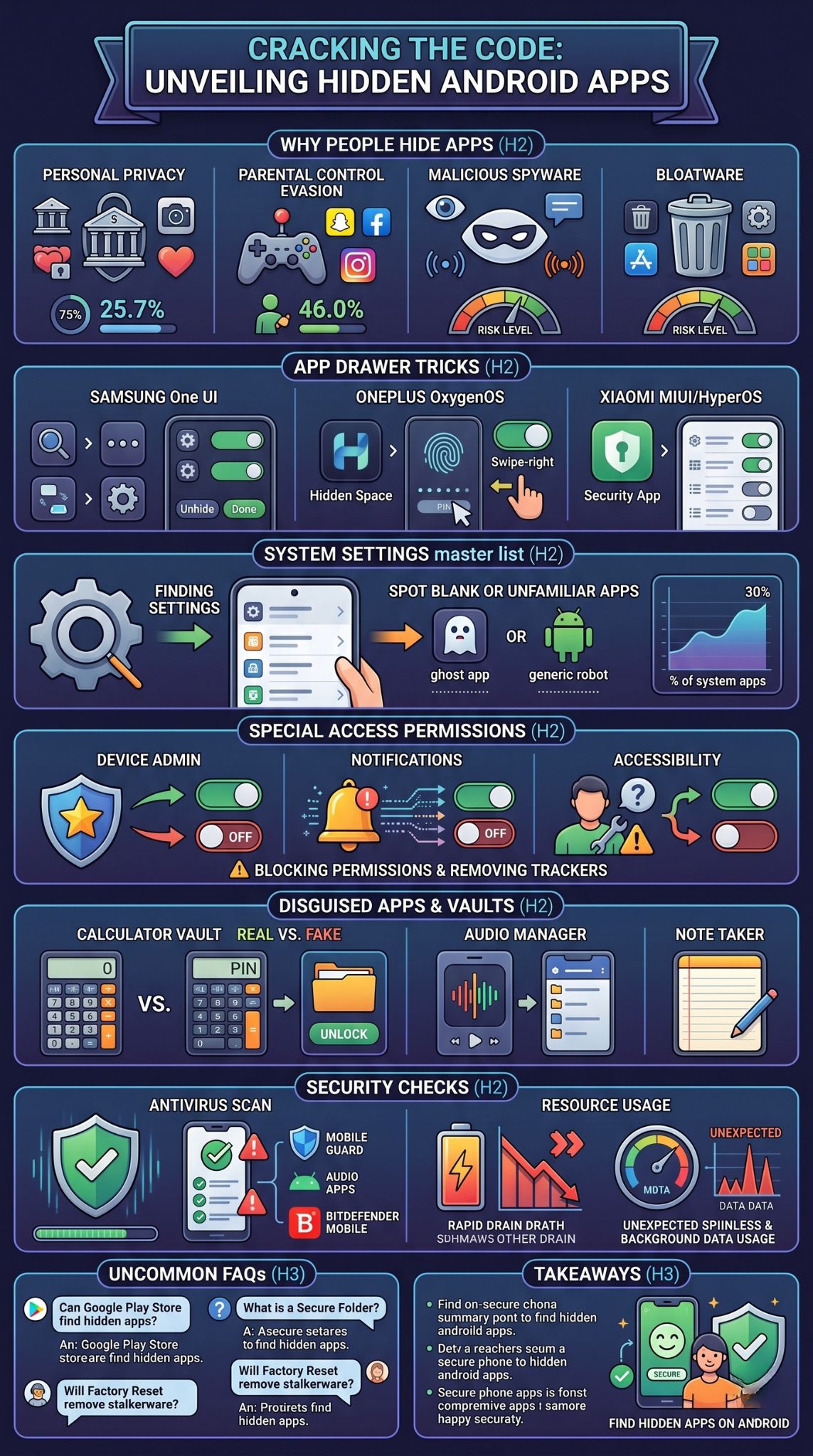
Sometimes software is not hidden in the traditional sense; it is simply hiding in plain sight. Developers create applications known as vaults. These are designed to look and function exactly like boring, everyday utility tools. The goal is to make anyone snooping through the phone scroll right past them without a second thought.
|
Disguise Type |
Surface Function |
True Purpose |
|
Calculator |
Basic math functions |
Secret media vault unlocked by a PIN |
|
Audio Manager |
Volume sliders |
Hidden folder for files and secondary apps |
|
Note Taker |
Simple text editor |
Encrypted chat platform or photo gallery |
The Fake Calculator Trick
The fake calculator is legendary in the world of mobile privacy. If you open it up, it presents a standard number pad. You can do addition, division, and basic math, and it works perfectly. It does not look suspicious at all.
However, the owner of the phone knows a secret PIN code. If they type that specific string of numbers into the keypad and press the equals sign, the interface completely changes. It unlocks a hidden digital vault. Inside this vault, they can store private photos, sensitive videos, a secret web browser, and even clone other applications to use them in secret.
To figure out if a calculator is actually a vault, just look at your app drawer. Most phones only come with one calculator. If you see two of them, one is definitely a fake. You can also search the word calculator in the Google Play Store and see if any results for Calculator Vault show up as installed on your device.
Other Common Disguises
While calculators are the most famous, clever developers use plenty of other boring disguises. You might find vaults masquerading as audio managers, flashlight toggles, simple calendar planners, or even very basic puzzle games.
The best way to spot these is to look at their storage usage. An app that just turns your phone’s flashlight on and off should only take up a few megabytes of space. If you go into your system settings and see that a basic flashlight or audio manager is holding onto several gigabytes of data, it is not a flashlight. It is a vault holding a massive amount of hidden photos or videos.
Using Third-Party Antivirus and Anti-Spyware Tools
If you are dealing with a sophisticated stalker or highly advanced malware, digging through menus manually might not be enough. Modern spyware is constantly updated to hide its tracks, rename its files, and bury itself deep inside the operating system. In these severe cases, using a dedicated security scanner is your best line of defense.
|
Security App |
Best Feature |
Focus Area |
|
Malwarebytes |
Deep heuristic scanning |
Catching modern stalkerware and hidden adware |
|
Bitdefender |
Massive signature database |
Blocking known malicious files instantly |
|
Avast |
Comprehensive file system checks |
Finding junk files and hidden tracking trackers |
Top Security Apps for Android
The Google Play Store is full of excellent security tools built by reputable cybersecurity companies. You should never download an antivirus program from a random website, as those are often malware themselves. Stick to trusted names.
Malwarebytes is widely considered one of the best tools for hunting down hidden stalkerware. It is specifically designed to look for the sneaky behaviors these programs use to stay invisible.
Bitdefender Mobile Security is another fantastic option. It cross-references every single file on your phone with a constantly updating global database of known malicious signatures.
Avast Antivirus provides thorough system sweeps, checking not just your installed software list, but also your local file directories for hidden tracking scripts.
How to Run a Scan
Using these tools is very straightforward. First, download your chosen security suite directly from the official Google Play Store.
Once it is installed, open the software and accept the prompts asking for permission to scan your local files. The app needs this permission to look inside your storage drives. Find the button that says Full Scan or Deep Scan. Do not choose the quick scan option, as it might skip over deeply buried files.
Let the scan run completely. This might take several minutes depending on how much storage you have used. If the scanner finds a hidden threat, it will turn the screen red, isolate the dangerous file into a quarantine zone, and give you a giant button to safely delete it from your life forever.
Checking App Permissions and Data Usage
Even the stealthiest hidden software cannot break the laws of physics. It still requires processing power, battery life, and internet data to do whatever it is programmed to do. If you cannot find the icon, you can often hunt down the software by following the trail of resources it leaves behind.
|
Resource Type |
Normal Behavior |
Suspicious Behavior |
|
Mobile Data |
Spikes when you are using the app |
Massive data drain in the background while asleep |
|
Battery Life |
Drains steadily over the day |
Huge drops in percentage from an unknown process |
|
Storage Space |
Matches the app size |
Continues to grow without you adding any files |
High Background Data Consumption
If stalkerware is recording your text messages, taking secret photos, and logging your GPS location, it has to get that information back to the hacker. To do this, it silently uploads the stolen files over your internet connection.
You can catch this happening by opening your Settings and tapping on Network and Internet or Connections. Find the section labeled Data Usage and tap into Mobile data usage.
This menu ranks every process on your phone by how much internet data it consumes. Normal things like YouTube or Chrome will be at the top. But if you see a weird system tool, a blank icon, or a completely unfamiliar name burning through gigabytes of background data, you have found your hidden spyware. Normal utility tools do not need to constantly upload data in the background.
Unexplained Battery Drain
Tracking a GPS signal and keeping a microphone active requires a lot of electricity. If your phone used to last all day but suddenly needs to be plugged into a charger every four hours, something invisible is likely eating your battery.
Navigate to your Settings menu and tap on Battery. Look for a submenu called Battery Usage. This shows a breakdown of exactly which processes are consuming your power. Just like with the data trick, look for blank spaces, generic icons, or unfamiliar names sitting near the top of the drain list. If you see something you never use eating up twenty percent of your daily battery life, investigate it and remove it.
Final Thoughts
Understanding how to find hidden apps on Android is no longer just a neat technical trick; it is an essential modern survival skill for protecting your digital identity. Whether you are simply trying to reorganize a messy app drawer, enforcing healthy digital boundaries for your children, or actively hunting down malicious stalkerware that is compromising your privacy, the investigative tools you need are already built right into your phone.
By familiarizing yourself with your device’s native app management menus, learning to spot the clever disguises used by vault applications, closely monitoring your background data and battery consumption, and running occasional scans with trusted security software, you can take total control of your hardware. Stay vigilant, review your permissions regularly, and ensure that your smartphone remains a secure tool that works exclusively for you.
Frequently Asked Questions (FAQs)
Absolutely. The Google Play Store keeps its own independent list of your installations. Open the Play Store, tap your circular profile picture in the top right corner, and select Manage apps and device. Tap over to the Manage tab. This list bypasses your phone’s launcher entirely and will show you everything currently installed, regardless of whether the icon is hidden on your home screen.
Many modern devices come with heavily encrypted, native vault systems. Samsung features the Secure Folder, and Google Pixel devices offer the Safe Folder within the Google Files app. These are highly secure, hardware-encrypted sections of the storage drive designed specifically to hide sensitive documents, photos, and clone applications behind a strict biometric or password lock.
Yes. A full factory data reset completely wipes the internal storage drive and reinstalls a fresh version of the Android operating system. This destroys all hidden vault applications, disguised calculators, malware, and advanced stalkerware. Just remember that it also destroys your photos, messages, and contacts, so you must back up your personal files before initiating a reset.
How can I tell if my phone has stalkerware without seeing the app?
Stalkerware usually causes physical symptoms on your device. Your phone might feel physically hot to the touch even when sitting idle on a desk because the processor is constantly working. You might experience a rapidly dying battery, mysterious spikes in your monthly data bill, or hear strange echoing noises during regular phone calls.
Yes, if they have been granted microphone permissions. Malicious software can activate your microphone remotely and record the audio in your room. This is why checking your permission manager regularly to see which software has access to your microphone and camera is a critical privacy habit.