
Your iPhone hotspot can save the day when Wi-Fi fails, but it can also test your patience when pages crawl, videos buffer, and your laptop acts like it has gone back to dial-up. If your iphone hotspot slow problem started after an iOS update, a carrier change, a weak 5G signal, or a long work session, don’t panic yet. Most hotspot speed problems come from simple issues: poor cellular signal, crowded networks, the wrong hotspot band, Low Data Mode, background downloads, carrier limits, or device settings that need a reset.
The tricky part is knowing where to start. A slow hotspot is not always an iPhone problem. Sometimes your iPhone is only passing along a weak mobile signal. Sometimes the connected laptop is eating bandwidth in the background. Sometimes your plan includes hotspot data but slows it after a limit. This guide breaks it down in plain English, step by step, so you can test the real cause and fix it without wasting an hour inside Settings.
Quick Answer: Why Is My iPhone Hotspot Slow?
An iPhone hotspot is usually slow because the iPhone has weak cellular reception, the carrier is limiting hotspot data, the connected device is too far away, Low Data Mode is active, too many devices are connected, or background apps are using bandwidth. Apple also notes that Personal Hotspot depends on a wireless carrier plan that supports it, and the number of connected devices can vary by carrier and iPhone model.
Fast Checks Before You Change Anything
Start with the basics. Check your signal bars, test cellular speed directly on the iPhone, move closer to a window, disconnect extra devices, and restart both the iPhone and the connected device. Apple also recommends restarting the hotspot device and the connecting device when Personal Hotspot is not working properly.
|
Possible Cause |
What It Looks Like |
Fast Fix |
|
Weak mobile signal |
Slow on every connected device |
Move near a window or open area |
|
Carrier hotspot limit |
Fast at first, then slow later |
Check plan hotspot allowance |
|
Too many devices |
Speed drops when others connect |
Keep one device connected |
|
Low Data Mode |
Apps load slowly, media quality drops |
Turn Low Data Mode off temporarily |
|
Wi-Fi band issue |
Older device connects poorly |
Try Maximize Compatibility |
|
Laptop background downloads |
Hotspot works, but data drains fast |
Pause updates and cloud sync |
What “iPhone Hotspot Slow” Really Means
A slow hotspot can mean different things. Download speed may be low, upload speed may be weak, ping may be high, or the connection may keep dropping. For normal browsing, download speed matters most. For video calls, online work tools, gaming, and file uploads, upload speed and latency matter too.
Slow Speed Is Not Always the Same as No Connection
If your device connects but loads slowly, focus on signal, data mode, hotspot band, and carrier limits. If your device cannot connect at all, check Personal Hotspot settings, password, iOS updates, and carrier support first. Apple says users should make sure Allow Others to Join is turned on and check that the carrier has enabled Personal Hotspot on the plan.
|
Problem Type |
Common Sign |
Best First Step |
|
Slow download |
Websites open late |
Test cellular speed on iPhone |
|
Slow upload |
Files take forever |
Check signal and network congestion |
|
High ping |
Video calls lag |
Move location or use USB |
|
Drops often |
Laptop disconnects |
Restart devices and update software |
|
Hotspot missing |
No Personal Hotspot option |
Check cellular data and carrier plan |
|
Password error |
Device rejects password |
Recheck hotspot password |
Why Your iPhone Hotspot Gets Slow in 2026
The biggest reason is still the simplest one: your hotspot uses your mobile network first, then shares that connection over Wi-Fi, Bluetooth, or USB. If the mobile signal is weak, the hotspot will also be weak. A 5G icon does not always mean strong speed. Signal quality, tower congestion, indoor walls, carrier rules, and your plan all matter.
1. Weak Cellular Signal
Your iPhone hotspot cannot create speed that your mobile network does not provide. If your iPhone has one or two bars, the connected laptop will likely feel slow too. Move the iPhone near a window, away from thick walls, and away from metal surfaces. In many homes, one side of the room can be much faster than the other.
2. Network Congestion
Hotspot speed often drops during busy hours. This can happen in apartments, offices, schools, events, stations, and city centers. Your phone may show 5G, but the tower may be serving too many people at once. If your hotspot works well late at night but poorly in the evening, congestion is a likely reason.
3. Carrier Hotspot Limits
Many mobile plans treat hotspot data separately from phone data. Some plans include limited high-speed hotspot data, then slow tethering after the limit. Personal Hotspot requires a carrier plan that supports it, and extra fees may apply depending on the carrier.
4. Low Data Mode
Low Data Mode can reduce background network use and save data. It can stop apps from using network data in the background, turn off Background App Refresh, reduce streaming quality, stop automatic downloads and backups, and pause iCloud Photos updates. That can help with data saving, but it can also make the experience feel restricted.
|
Cause |
Why It Slows Hotspot |
What To Try |
|
Weak signal |
Poor mobile input speed |
Move the iPhone |
|
Congestion |
Tower is overloaded |
Try another time or location |
|
Hotspot cap |
Carrier slows tethering |
Check plan details |
|
Low Data Mode |
Background activity is limited |
Turn off for testing |
|
Older laptop Wi-Fi |
Band compatibility issue |
Use Maximize Compatibility |
|
Battery saving |
Device may reduce activity |
Plug in the iPhone |
Check These iPhone Settings First
Before resetting anything, check the settings that affect Personal Hotspot directly. Open Settings, tap Personal Hotspot, and make sure Allow Others to Join is on. Stay on that screen while connecting the other device, especially if the hotspot does not appear quickly.
Personal Hotspot Settings
Go to Settings > Personal Hotspot. Check the hotspot password, the network name, and Allow Others to Join. The network name matches your iPhone name, so a confusing device name can make people connect to the wrong hotspot. You can change the Personal Hotspot name by changing the iPhone name under Settings > General > About > Name.
Cellular Data Settings
Go to Settings > Cellular. Make sure Cellular Data is on. If you use Dual SIM, check that the correct line is being used for data. iPhone cellular settings also allow users to view cellular data usage by app, which helps when one app is quietly using too much data.
5G Settings
On iPhone 12 models and later with a 5G data plan, users may see options such as 5G Auto, Allow More Data on 5G, and LTE. 5G Auto can switch to LTE when 5G does not offer better performance, while Allow More Data on 5G enables higher-data features for apps and system tasks.
|
Setting |
Where To Find It |
What To Check |
|
Allow Others to Join |
Settings > Personal Hotspot |
Must be on |
|
Wi-Fi Password |
Settings > Personal Hotspot |
Use the correct password |
|
Cellular Data |
Settings > Cellular |
Must be on |
|
Data Mode |
Settings > Cellular > Cellular Data Options |
Avoid Low Data Mode during testing |
|
Voice & Data |
Cellular Data Options |
Test 5G Auto, 5G On, or LTE |
|
iPhone Name |
Settings > General > About |
Make it easy to identify |
How to Fix iphone hotspot slow Issues Step by Step
Use this order. It moves from easy fixes to deeper resets. Don’t start with Reset Network Settings unless the simple fixes fail, because it removes saved Wi-Fi networks, passwords, cellular settings, VPN settings, and APN settings.
Step 1: Restart Both Devices
Restart your iPhone and the device using the hotspot. This clears small software glitches and broken network sessions. It sounds basic, but it works often enough to be worth doing first. After restarting, turn on Personal Hotspot again and reconnect.
Step 2: Turn Airplane Mode On and Off
Turn Airplane Mode on for 10–15 seconds, then turn it off. This forces the iPhone to reconnect to the mobile network. After the signal returns, test the hotspot again. This can help when the iPhone is stuck on a weak tower connection.
Read Also: How to Find Lost iPhone Even If Powered Off
Step 3: Move the iPhone
Put the iPhone near a window, higher on a desk, or closer to an open area. Keep the connected laptop or tablet close to the iPhone. Hotspot Wi-Fi is not meant to cover a whole house like a router.
Step 4: Disconnect Extra Devices
One iPhone hotspot shared across a laptop, tablet, smart TV, and another phone will slow down fast. Disconnect everything except the main device. Then test again. If speed improves, the issue is bandwidth sharing, not the iPhone itself.
Step 5: Pause Background Downloads
On the connected laptop, pause cloud sync, Windows Update, macOS updates, Steam downloads, Google Drive, OneDrive, Dropbox, iCloud sync, and browser downloads. A laptop can quietly use more hotspot data than a phone in just a few minutes.
Step 6: Test USB Tethering
If Wi-Fi hotspot is unstable, try USB. USB tethering can give a steadier connection because the phone shares internet through a cable instead of Wi-Fi. It also helps keep the iPhone charged during longer work sessions.
|
Fix |
Difficulty |
Best For |
|
Restart devices |
Easy |
Random slowdowns |
|
Airplane Mode toggle |
Easy |
Weak or stuck mobile signal |
|
Move iPhone |
Easy |
Poor indoor reception |
|
Disconnect devices |
Easy |
Shared bandwidth issues |
|
Pause downloads |
Easy |
Laptop data drain |
|
USB tethering |
Medium |
Stable work sessions |
|
Reset Network Settings |
Advanced |
Persistent network bugs |
Should You Turn On Maximize Compatibility?
Maximize Compatibility is useful, but it is not a magic speed button. On supported devices, it can help older laptops, tablets, or consoles connect more reliably. However, turning on Maximize Compatibility can reduce internet performance and Wi-Fi security for connected hotspot devices.
When Maximize Compatibility Helps
Turn it on if your older laptop cannot see the hotspot, connects but drops often, or refuses to join. It can help with devices that struggle to connect to newer hotspot settings.
When To Keep It Off
Keep it off when your connected device already supports modern Wi-Fi well and you want better speed. If your hotspot becomes slower after turning it on, turn it off again and reconnect. For speed, newer devices usually perform better without compatibility mode.
|
Maximize Compatibility Setting |
Best Use Case |
Possible Downside |
|
On |
Older devices, connection problems |
Lower performance and security |
|
Off |
Newer laptops and phones |
Older devices may not connect |
|
Test both |
Unclear cause |
Takes only a minute |
|
Use USB instead |
Work calls, uploads, stability |
Needs cable |
Fix Slow iPhone Hotspot on Mac, Windows, iPad, and Android
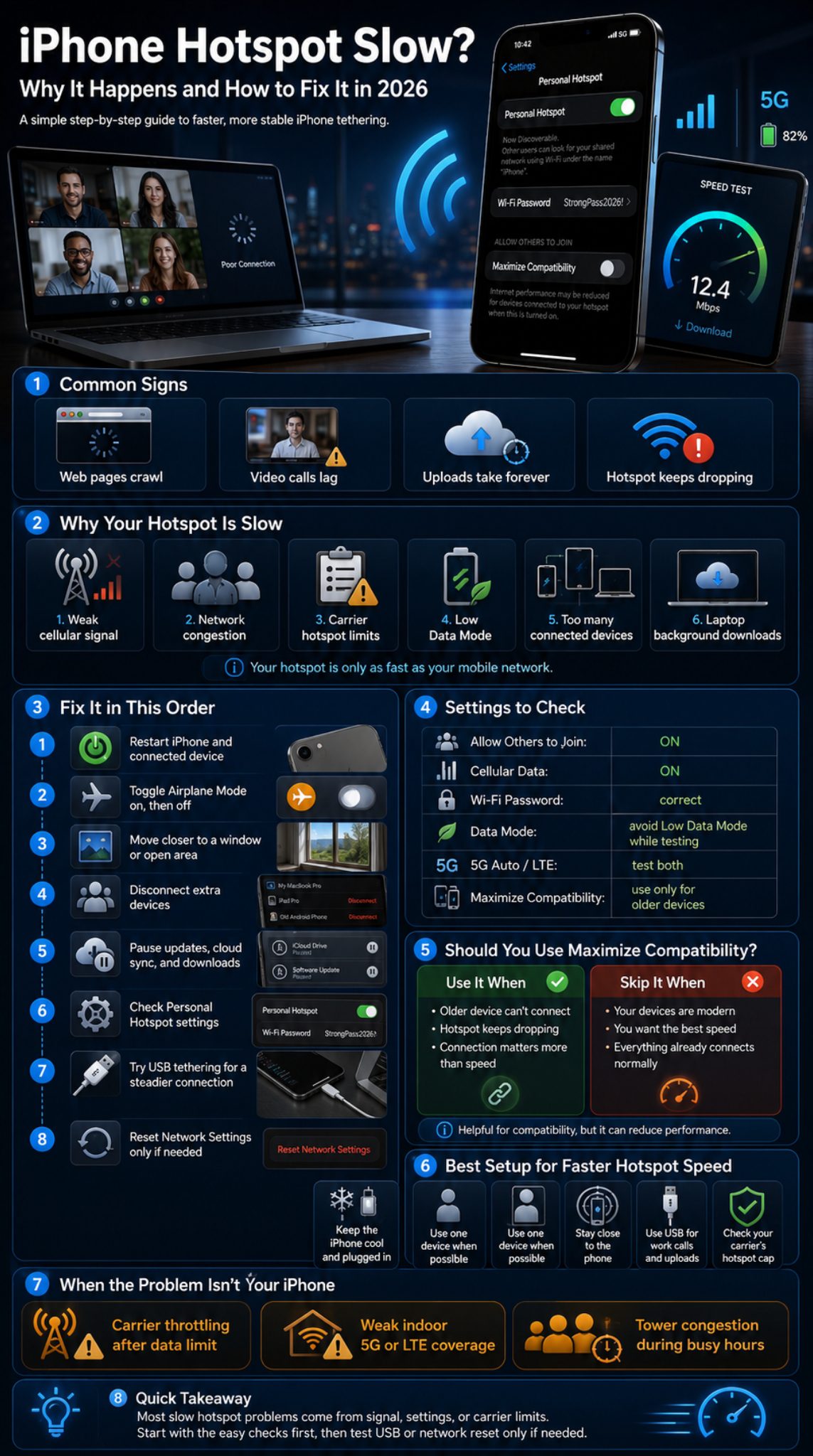
The connected device matters as much as the iPhone. A Mac syncing iCloud files, a Windows laptop downloading updates, or an Android tablet struggling with the Wi-Fi band can all make the hotspot feel bad. Test with another device if possible. If one device is slow but another works fine, the iPhone is probably not the main problem.
On Mac
Turn Wi-Fi off and on. Forget the hotspot network and reconnect. Pause iCloud Drive sync, Photos sync, app updates, and large downloads. If the Mac still struggles, use USB tethering for a more stable connection.
On Windows
Forget the hotspot network and reconnect with the correct password. Disable automatic Windows updates for the session, pause OneDrive, and close game launchers. If using USB, keep Apple Devices or iTunes for Windows updated.
On iPad or Android Tablet
Move the tablet closer to the iPhone. Turn Wi-Fi off and on. Reconnect to the hotspot. If the tablet is older, test Maximize Compatibility. If it improves connection but lowers speed, choose stability when browsing and turn it off again when speed matters.
|
Device |
Common Problem |
Fix |
|
Mac |
iCloud sync using data |
Pause sync or use USB |
|
Windows laptop |
Updates and OneDrive |
Pause background tasks |
|
iPad |
Wrong network or weak signal |
Reconnect nearby |
|
Android tablet |
Band compatibility |
Try Maximize Compatibility |
|
Smart TV |
Heavy streaming load |
Lower video quality |
|
Game console |
High downloads and latency |
Avoid hotspot for big downloads |
Why 5G Does Not Always Make iPhone Hotspot Faster
5G can be fast, but it is not guaranteed. Your real speed depends on the carrier, signal strength, tower load, indoor reception, and plan limits. In some places, LTE may be steadier than 5G. That is why testing matters.
Try 5G Auto, 5G On, or LTE
If your hotspot is slow on 5G, test LTE for a few minutes. 5G Auto can help balance speed and battery life by switching between 5G and LTE when needed.
Allow More Data on 5G
Allow More Data on 5G can enable higher-data features, such as better video quality, faster updates, and richer app performance. But it can also burn through mobile data quickly, so use it carefully if your plan has limits.
|
Network Mode |
When To Use |
What To Watch |
|
5G Auto |
Daily use and battery balance |
May switch to LTE |
|
5G On |
Testing speed in strong 5G area |
Can use more battery |
|
LTE |
Weak or unstable 5G areas |
May be steadier |
|
Allow More Data on 5G |
High-quality media and work |
Uses more data |
|
Low Data Mode |
Limited plans |
May reduce experience |
Battery, Heat, and Background Apps Can Slow Hotspot Too
Hotspot sharing uses cellular data, Wi-Fi, processing power, and battery at the same time. If the iPhone is hot, low on battery, or running too many background tasks, the connection may feel worse. This is common during long work sessions, travel, or video meetings.
Keep the iPhone Cool and Plugged In
Place the iPhone on a desk instead of under a pillow, blanket, or laptop. Remove a thick case if the phone gets hot. Plug it into power during long hotspot sessions. A cooler phone with steady power usually performs better than a hot phone trying to save battery.
Close Heavy Apps
Close apps that stream, upload, sync, or use location constantly. Check Settings > Cellular to see which apps are using data. This helps you spot apps that quietly use mobile data in the background.
|
Issue |
Sign |
Fix |
|
Low battery |
Hotspot drops or slows |
Plug in |
|
Heat |
iPhone feels warm |
Cool it down |
|
Cloud uploads |
Upload speed weak |
Pause sync |
|
Streaming apps |
Data drains fast |
Close unused apps |
|
Too many tabs |
Laptop feels slow |
Close heavy browser tabs |
|
App updates |
Sudden speed drop |
Pause downloads |
When Reset Network Settings Makes Sense
Reset Network Settings is useful when Personal Hotspot has been slow for days, after an iOS update, after switching SIM or eSIM, or when devices refuse to connect normally. But it should come after easier checks. This reset clears saved Wi-Fi networks, passwords, cellular settings, VPN settings, and APN settings.
How To Reset Network Settings
Go to Settings > General > Transfer or Reset iPhone > Reset > Reset Network Settings. After the iPhone restarts, reconnect to your mobile network and turn Personal Hotspot back on. You will need to re-enter Wi-Fi passwords later.
When To Contact Your Carrier
Contact your carrier if Personal Hotspot is missing, greyed out, blocked, or slow only after a certain amount of data. Your plan may not include full hotspot support, or it may reduce speed after a hotspot data limit.
|
Action |
Use It When |
Warning |
|
Reset Network Settings |
Persistent hotspot bugs |
Removes saved Wi-Fi passwords |
|
Update iOS |
Hotspot issue after bugs |
Needs battery and time |
|
Update carrier settings |
SIM/eSIM problems |
May not always appear |
|
Contact carrier |
Hotspot missing or capped |
Plan rules vary |
|
Contact Apple Support |
Hardware or system issue suspected |
Use after carrier check |
Practical Tips to Keep Your iPhone Hotspot Fast
The best fix is prevention. Keep your iPhone close to the connected device, use USB for serious work, monitor hotspot data, and avoid using it like a home router. A hotspot is great for travel, backup internet, emails, dashboards, and meetings. It is not ideal for huge downloads, 4K streaming, gaming patches, or multiple users at once.
Best Setup for Work
For remote work, use USB tethering when possible. Keep the iPhone plugged in. Pause cloud sync and software updates. Use one connected device. If you need a video call, close streaming tabs and avoid downloading files during the call.
Best Setup for Travel
Check your carrier roaming rules before relying on hotspot abroad. Some plans limit hotspot use while roaming. Keep offline copies of important files, maps, tickets, and documents so a slow hotspot does not ruin your day.
|
Use Case |
Best Setup |
|
Video meeting |
USB tethering, phone plugged in |
|
Email and browsing |
Wi-Fi hotspot is fine |
|
File upload |
Strong signal, USB preferred |
|
Streaming |
Lower video quality |
|
Travel work |
Check roaming and data limits |
|
Emergency backup |
Keep hotspot password ready |
Final Thoughts
An iphone hotspot slow issue is annoying, but it is usually fixable once you test it in the right order. Start with signal strength, restart both devices, disconnect extra users, pause background downloads, and check Low Data Mode. Then test Maximize Compatibility only if the connected device has trouble seeing or staying connected to the hotspot. If Wi-Fi is still unstable, USB tethering is often the cleanest option for work.
If nothing improves, check your carrier plan. Many hotspot problems are not caused by the iPhone at all. They come from plan limits, tower congestion, weak indoor coverage, or tethering restrictions. Reset Network Settings only after the simple fixes fail, and remember that it removes saved Wi-Fi and network settings. The goal is simple: find whether the bottleneck is the iPhone, the carrier, the connected device, or the local signal. Once you know that, the fix becomes much easier.
Frequently Asked Questions About iphone hotspot slow
Why is my iPhone hotspot slow even with 5G?
5G does not always mean fast speed. Your hotspot can still be slow if the 5G signal is weak, the tower is crowded, or your carrier slows hotspot data after a limit. Try moving the iPhone, testing LTE, and checking your plan.
Does Maximize Compatibility make iPhone hotspot faster?
Not usually. It can help older devices connect better, but it may reduce internet performance and Wi-Fi security for devices connected to the hotspot. Use it when connection stability matters more than speed.
Is USB tethering faster than Wi-Fi hotspot on iPhone?
USB tethering can be more stable, especially for laptops and long work sessions. It avoids some Wi-Fi interference and keeps the iPhone connected to power. Speed still depends on your mobile network.
Can Low Data Mode slow down hotspot use?
Low Data Mode can make apps use less data in the background, reduce streaming quality, stop automatic downloads, and pause some updates. That can help save data, but it may also make online activity feel limited.
Why does my iPhone hotspot slow down after a few GB?
Your carrier may include a high-speed hotspot allowance and then reduce speed after you reach it. Check your plan details or contact your carrier. Personal Hotspot availability and connected-device limits can vary by carrier and iPhone model.
Why is my laptop slow on iPhone hotspot but my phone is fast?
The laptop may be downloading updates, syncing cloud files, or running background apps. Pause Windows Update, macOS updates, OneDrive, iCloud, Dropbox, Google Drive, Steam, and browser downloads before blaming the iPhone.
Should I reset network settings to fix slow hotspot?
Use it only after easier fixes fail. Reset Network Settings can help persistent network problems, but it removes saved Wi-Fi passwords, cellular settings, and VPN/APN settings.
Can too many connected devices slow iPhone hotspot?
Yes. Each connected device shares the same mobile data connection. For best speed, connect only one device, especially during video calls, uploads, or important work.