
You tap a video on X. The thumbnail appears, but the video doesn’t start. Maybe you get a spinning circle. Maybe it plays for three seconds and freezes. Sometimes the screen simply stays black.
If you’re dealing with X videos not playing, don’t assume the app is broken. Several things can cause the same symptom. Your connection may be unstable. X may have stored bad temporary data. A browser extension might be blocking part of the player. Data Saver can stop autoplay. A VPN may interfere with the connection.
And sometimes there’s nothing wrong with your device at all. The original video may have been deleted or restricted.
X’s own support pages recommend many of the fixes covered below, including checking your connection, restarting the app, testing without a VPN, updating software, clearing stored data, using private browsing, and disabling browser extensions.
The fastest approach is to rule things out one by one instead of changing every setting on your phone.
First, Figure Out What Kind of Video Problem You Have
Before deleting the app or resetting anything, test a few different videos.
Open videos from several unrelated accounts. If possible, open the same post on another device or through X.com.
That simple test can tell you a lot.
If every video fails on one phone but works on your laptop, the phone or X app is probably the problem.
If only one video refuses to play while everything else works, leave your device alone for now. That particular video may have been removed, restricted, or made unavailable.
Also, don’t confuse an autoplay setting with a playback problem. X allows users to stop videos from starting automatically. A video that waits for you to press Play isn’t necessarily broken.
|
What happens |
Where to look first |
|
No X videos play |
Network, app, browser, or X |
|
Only one video fails |
The post or original media |
|
Video keeps buffering |
Internet connection or VPN |
|
Videos don’t start automatically |
Autoplay or Data Saver |
|
X.com works but the app doesn’t |
X app |
|
App works but browser doesn’t |
Browser, cache, or extensions |
|
X fails everywhere |
Possible X service issue |
X Videos Not Playing? Try These Five Things First
When X videos not playing starts out of nowhere, begin with the easy fixes. There’s no reason to reinstall an app before you’ve tried a refresh.
1. Refresh X
Reload the post or pull down to refresh your timeline.
If you’re on X.com, reload the page.
Temporary loading errors happen. A fresh request may be all the player needs.
2. Close X and open it again
Fully close the X app and reopen it.
If you’re on desktop, close the tab and open X again.
This clears a stuck app session without changing your account or settings.
Read More: How to Schedule Posts on X Without Third-Party Apps
3. Try another video
Don’t troubleshoot your whole phone based on one bad post.
Open three or four videos from different accounts. If all of them work except one, the problem is probably tied to that video.
4. Switch networks
Turn off Wi-Fi and try mobile data.
If you’re already using mobile data, connect to Wi-Fi.
This is one of the quickest ways to tell whether the connection is causing the problem.
5. Restart your device
Restart your phone, tablet, or computer.
It’s basic advice because it works. Restarting clears temporary system states and refreshes network connections.
|
Quick check |
What it helps rule out |
|
Refresh X |
Temporary loading failure |
|
Reopen X |
Frozen app or browser state |
|
Try other videos |
Post-specific problem |
|
Change network |
Wi-Fi or mobile-data issue |
|
Restart device |
Temporary system glitch |
If none of those fixes help, start looking at your connection more closely.
Check Your Internet Connection and VPN
A timeline full of text can load on a connection that struggles with video.
That’s why X may appear to work normally while videos keep buffering.
The Wi-Fi icon on your phone isn’t a perfect measure of connection quality either. You can have a strong signal and still deal with congestion, packet loss, or poor routing.
Try these tests:
- Switch from Wi-Fi to mobile data.
- Try another Wi-Fi connection if you can.
- Open YouTube or another video-heavy service.
- Restart your router if several devices are having trouble.
- Disconnect your VPN for a minute and test X again.
X specifically recommends testing its service with a VPN switched off when you’re troubleshooting connection problems.
That doesn’t mean VPNs always break X. Many work perfectly well. But a particular server or route can cause trouble.
If videos start working as soon as the VPN is off, you have a useful clue. Try another VPN location or check the VPN app’s settings rather than changing everything else on your phone.
I’d avoid jumping straight into custom DNS settings or so-called internet booster apps. They make troubleshooting messier and often don’t address the real cause.
|
Test result |
What it suggests |
|
Works on mobile data |
Wi-Fi or router issue |
|
Works only on Wi-Fi |
Mobile network issue |
|
Works without VPN |
VPN routing may be involved |
|
Other video apps also fail |
Wider internet problem |
|
Only X has trouble |
Keep troubleshooting X |
Fix X Videos Not Playing on Android
If X videos not playing only happens inside the Android app, keep the troubleshooting focused there.
Update X
Open the Google Play Store and check for an update.
App bugs get fixed. Compatibility also changes as Android updates. Running an old X version can create problems that have already been patched.
Google recommends updating both the problem app and Android when an installed app stops working properly.
Force stop X
Android lets you completely stop an app and start it fresh.
The path varies by phone, but it’s usually similar to:
Settings > Apps > X > Force stop
Open X again and test a few videos.
Clear the X cache
This is one of the better Android-specific fixes to try before anything drastic.
The menu is usually close to:
Settings > Apps > X > Storage & cache > Clear cache
The wording may look slightly different on Samsung, Pixel, Xiaomi, OnePlus, Motorola, and other Android phones.
Clearing the cache removes temporary app files. It doesn’t normally erase your X account.
Clear app data if cache clearing doesn’t help
Still stuck?
Android also lets you clear the app’s stored data.
X recommends this as part of its Android troubleshooting process. Google lists it as a deeper fix for apps that continue to malfunction.
Try clearing the cache first. Clearing all app data is more disruptive and may reset app preferences.
Sign out and sign back in
A broken account session can occasionally cause strange app behavior.
Sign out, reopen X, and sign back in.
One warning: save unfinished posts first. X says drafts stored in the Android app can disappear when you log out.
Reinstall X
Leave this until later.
If updates, restart, cache clearing, and account sign-in haven’t helped, uninstall X and download a fresh copy from Google Play.
Again, save any drafts first.
|
Android fix |
When it makes sense |
|
Update X |
Start here |
|
Force stop |
App feels frozen |
|
Clear cache |
Videos repeatedly fail |
|
Clear data |
Cache didn’t help |
|
Sign out/in |
Possible account-session issue |
|
Reinstall |
Other app fixes failed |
Fix X Videos Not Playing on iPhone or iPad
iPhone troubleshooting is a little different from Android.
One useful feature is easy to miss: X itself gives iOS users controls for clearing stored media and web data.
Close and reopen X
If X is stuck, close it from the app switcher and reopen it.
Apple recommends this when an app isn’t responding or behaving normally.
There’s no need to make a habit of force-closing every app on your phone. Use it when something is actually wrong.
Restart your iPhone
Restart the device and test X again.
This takes a minute and can clear temporary app or network problems.
Update X and iOS
Open the App Store and check whether X has an update.
If the app is current, check:
Settings > General > Software Update
Apple recommends keeping both apps and system software up to date when dealing with app problems.
Clear X’s media storage
X lets you clear media stored by the app without uninstalling it.
Go to:
Settings and privacy > Accessibility, display, and languages > Data usage > Media storage > Clear media storage
This is worth trying if videos, images, or media previews are behaving strangely.
Clear X’s web storage
In the same Data usage area, you’ll also find web-storage controls.
X lets you clear stored web-page data from within the app.
Try this before jumping straight to an uninstall.
Test the same video in Safari
Open X.com in Safari and load the video there.
If the video works in Safari but still fails in the X app, that’s a strong sign the problem sits inside the app rather than your internet connection.
Sign out or reinstall X
If nothing else works, remove and add your account again or reinstall X.
Apple and X both recommend reinstalling an app after simpler troubleshooting steps fail.
Save drafts before signing out or uninstalling. X says unsent drafts stored in the iOS app may be lost.
|
iPhone/iPad fix |
Why try it |
|
Reopen X |
Clear stuck app state |
|
Restart device |
Reset temporary system issue |
|
Update X/iOS |
Fix compatibility problems |
|
Clear media storage |
Remove stored X media |
|
Clear web storage |
Reset stored web data |
|
Test Safari |
Separate app and network issues |
|
Reinstall X |
Last major app-level fix |
Fix X Videos in Chrome, Edge, Firefox, or Safari
If videos work in the X app but not on your computer, your browser becomes the obvious place to look.
X says it supports recent versions of Chrome, Firefox, Safari, Edge, and other browsers based on Chromium or WebKit.
An old browser can cause trouble. So can extensions.
Update your browser
Install the latest stable version available for your computer.
Then restart the browser.
Open X in a private window
Try the same post in:
- Chrome Incognito
- Edge InPrivate
- Firefox Private Browsing
- Safari Private Browsing
X recommends private browsing as one of its troubleshooting steps.
Why is this useful?
A private window usually starts with less stored site data, and many extensions don’t run there automatically.
If the video suddenly plays, your normal browser profile is probably where the problem lives.
Old or damaged site data can cause parts of a web app to stop behaving properly.
Clear cookies and cached files for X, then sign back in.
You don’t necessarily need to wipe your entire browser history. If your browser allows it, clear X’s site data specifically.
Disable browser extensions
Extensions are a common source of weird website problems because they can change scripts, requests, cookies, ads, or page content.
Test these first:
- ad blockers;
- tracking blockers;
- script blockers;
- privacy extensions;
- security add-ons;
- extensions that modify website layouts.
Don’t uninstall everything at once.
Turn extensions off one by one and reload X. That way, you’ll know which one caused the conflict.
Try another browser
Open the same video somewhere else.
If it works in Firefox but not Chrome, for example, the problem is almost certainly tied to Chrome or that browser profile.
|
Browser fix |
What you’re testing |
|
Update browser |
Compatibility |
|
Private browsing |
Cache, cookies, extensions |
|
Clear site data |
Bad stored files |
|
Disable extensions |
Script or content interference |
|
Try another browser |
Browser-specific fault |
Check Autoplay and Data Saver
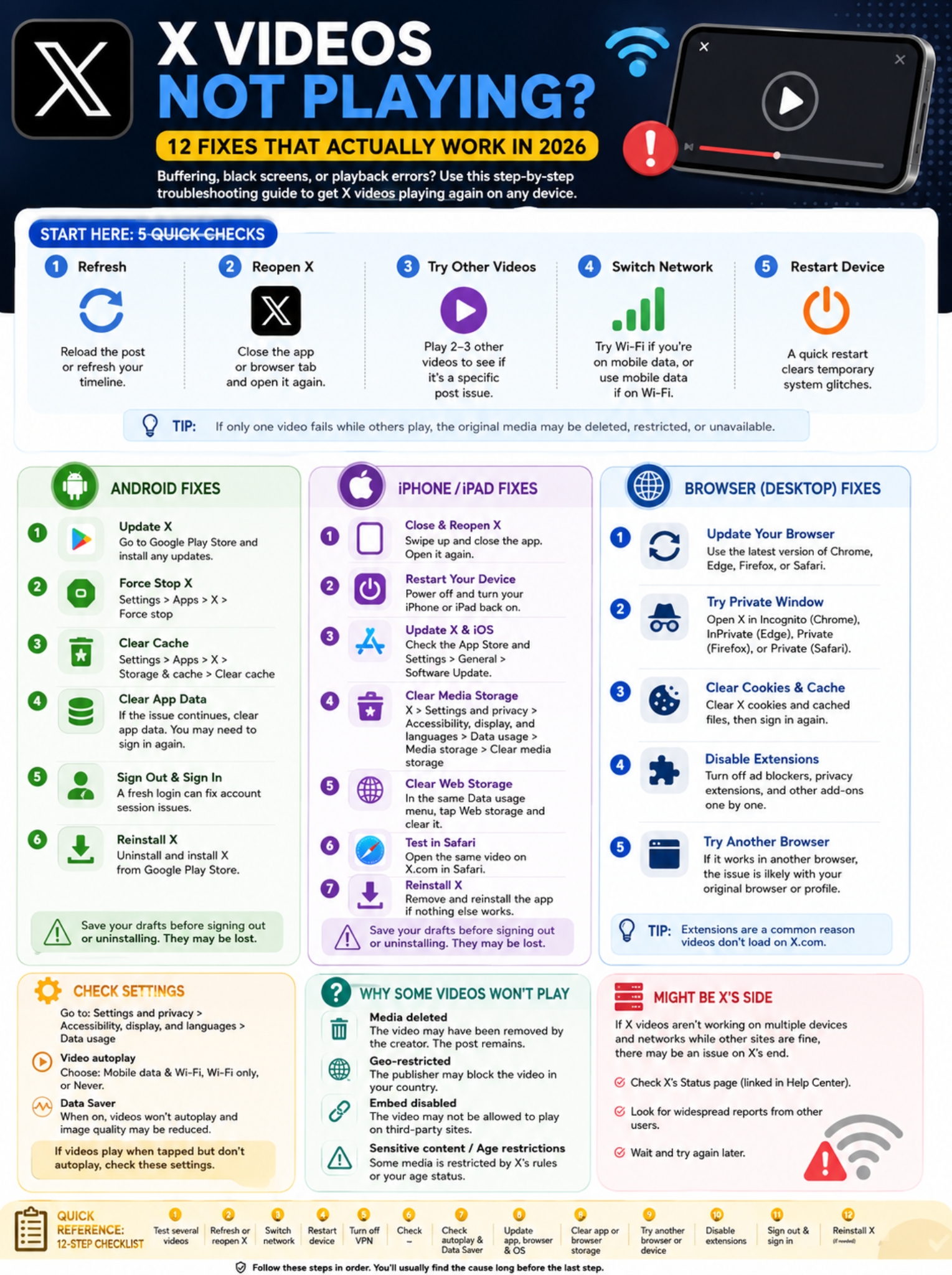
Here’s a common mix-up: autoplay not working doesn’t always mean video playback is broken.
X lets you decide whether videos should start automatically.
In the mobile app, go to:
Settings and privacy > Accessibility, display, and languages > Data usage > Video autoplay
Depending on the device, you’ll see choices along the lines of:
- mobile data and Wi-Fi;
- Wi-Fi only;
- never.
X.com has its own autoplay setting too.
Data Saver changes this behavior as well. When Data Saver is enabled, X reduces media usage and stops videos from autoplaying.
So ask yourself one simple question:
Does the video play when you tap it?
If yes, your player is probably fine. Check autoplay or Data Saver.
If you tap Play and still get a black screen, endless spinner, or error message, keep troubleshooting.
|
Setting |
What to expect |
|
Autoplay on |
Videos can start automatically |
|
Wi-Fi-only autoplay |
Automatic playback stops on mobile data |
|
Autoplay set to Never |
Tap to start videos |
|
Data Saver on |
Autoplay stops |
|
Manual playback fails too |
Something else is wrong |
Why Only Certain X Videos Won’t Play
This is where a lot of people waste time.
If nearly every X video works except one or two, don’t keep clearing your phone.
The problem may be on the publishing side.
The original media may have been deleted
X’s Media Studio documentation says a creator can delete media from their library after publishing it.
If they delete the video asset, the original post can remain visible while viewers see a playback error.
In other words, a post can still exist even when its video no longer does.
The video may be restricted by location
Publishers using Media Studio can apply geographic restrictions.
A video can be allowed in certain countries and blocked in others.
If one publisher’s content consistently refuses to play while regular X videos work, location restrictions are one possible reason.
Embedded playback may be disabled
Some publishers can also control whether their videos play when a post is embedded on another website.
That can create a confusing situation where the video fails on a news site or blog but works when you open the original post directly on X.
X places warnings around some adult or graphic content.
Its current support documentation says some sensitive-media warnings can’t be clicked through inside the X app for iOS.
Age rules also matter.
X restricts sensitive content for known users under 18. In places where age verification is required, users whose age hasn’t been confirmed may also lose access to sensitive media until X can establish that they meet the required age.
Don’t try to work around those rules by entering false account information.
|
Why one video fails |
What’s happening |
|
Video asset deleted |
Post may remain, video won’t |
|
Geo-restricted |
Publisher limits countries |
|
Embedded playback disabled |
Try opening it directly on X |
|
Sensitive-media restriction |
X’s media rules apply |
|
Age restriction |
Account eligibility matters |
When X Itself May Be the Problem
Sometimes your phone is innocent.
If videos suddenly stop working everywhere, test X in a few different ways:
- X app over Wi-Fi;
- X app over mobile data;
- X.com on a computer;
- X on another phone or tablet.
If none of those combinations work, while YouTube and other sites are fine, the problem may be on X’s side.
X links to an official Status resource through its Help Center.
You can also check whether large numbers of users are reporting the same issue, but treat those reports as a clue rather than proof.
A widespread outage won’t be fixed by clearing your cache ten times.
|
What fails |
What it points to |
|
One phone |
Phone or app |
|
One browser |
Browser |
|
One network |
Network or VPN |
|
One post |
Video itself |
|
Several devices and networks |
Possible X outage |
Final Thoughts
When X videos not playing becomes a problem, resist the urge to start changing everything on your phone.
Test first.
Open several videos. Refresh X. Change networks. Restart the device. Turn off your VPN for a quick check.
If the issue only appears on Android, update the app, force stop it, and clear its cache before going further.
On iPhone, use X’s built-in media and web storage controls. They’re easier than reinstalling the whole app and often overlooked.
On desktop, try a private browser window early. It’s one of the quickest ways to expose problems caused by cookies, cache, or extensions.
And remember: not every broken video is yours to fix. The uploader may have deleted the file, restricted it by country, disabled embedded playback, or posted content that’s limited by X’s sensitive-media rules.
For most people, this order makes sense:
|
Step |
What to try |
|
1 |
Test several X videos |
|
2 |
Refresh or reopen X |
|
3 |
Switch Wi-Fi/mobile data |
|
4 |
Restart your device |
|
5 |
Temporarily turn off VPN |
|
6 |
Check autoplay and Data Saver |
|
7 |
Update X, browser, and OS |
|
8 |
Clear app or browser storage |
|
9 |
Try another browser or device |
|
10 |
Disable browser extensions |
|
11 |
Sign out and back in |
|
12 |
Reinstall X if nothing else works |
Work down the list instead of jumping around. You’ll usually find the cause long before you reach step 12.
Frequently Asked Questions
Why does an old X post show a playback error?
The post can stay online even after the original video file is removed.
X says deleting previously published media from Media Studio can cause a playback error on posts that used that media.
Why does an X video work on X.com but not on another website?
The publisher may have disabled embedded playback.
Try opening the original post directly on X. If it works there, the website embed may be the issue.
Can I clear X’s cache on an iPhone?
Not through the same Android-style system button.
However, X provides its own Media storage and Web storage controls inside the iOS app. You can clear both from the Data usage menu.
Why won’t X videos autoplay on mobile data?
Check the Video autoplay setting.
It may be set to Wi-Fi only. Data Saver can also stop autoplay.
Does turning autoplay off stop videos from working?
No.
Autoplay only controls whether a video starts by itself. You should still be able to tap Play.
If manual playback doesn’t work either, look for another cause.
Can an ad blocker stop X videos?
Yes, it’s possible.
X warns that browser extensions and software such as ad blockers can interfere with site functions. Test X in a private window or temporarily disable extensions one at a time.
Why can’t I open some sensitive videos in the X app on iPhone?
X says some sensitive-content warnings can’t be clicked through in its iOS app.
Age and account restrictions can also prevent access to certain media.
Should I clear Android app data before reinstalling X?
It’s worth trying.
Start with the cache because it’s less disruptive. If that doesn’t work, clearing app data is a reasonable next step. Reinstall only after the simpler fixes fail.
|
Question |
Short answer |
|
Old video gives an error |
Original media may be gone |
|
Embed won’t play |
Publisher may block embeds |
|
Can iPhone clear X storage? |
Yes, inside X |
|
No autoplay on mobile |
Check autoplay/Data Saver |
|
Can extensions interfere? |
Yes |
|
Sensitive video blocked |
X restrictions may apply |