
Closing the wrong browser tab is a tiny mistake with a big mood swing. One second you’re comparing prices, reading a report, filling out a form, or collecting sources for work. The next second, the tab is gone, and you’re staring at a blank space like your browser personally betrayed you.
The good news is simple: you can usually recover closed browser tabs in a few seconds. Most modern browsers keep a short memory of recently closed tabs and windows. You can bring them back with a shortcut, the browser history menu, a restore session option, or synced tabs from another device.
This guide covers Chrome, Microsoft Edge, Firefox, Safari, Opera, Brave, Vivaldi, Android, and iPhone. It also explains what to do after a crash, what happens in private browsing, and how to avoid losing important tabs again.
|
Quick Detail |
Best Option |
|
Fastest recovery method |
Keyboard shortcut |
|
Best for old closed pages |
Browser history |
|
Best after crash |
Restore previous session |
|
Best on mobile |
Recent tabs or history |
|
Hardest to recover |
Private or incognito tabs |
Quick Answer: How to Recover Closed Browser Tabs Fast
The fastest way to recover closed browser tabs on most desktop browsers is to press Ctrl + Shift + T on Windows or Linux. On Mac, use Command + Shift + T. In Safari on Mac, use Shift + Command + T to reopen the last closed tab.
This shortcut usually reopens the most recently closed tab first. Press it again, and the browser may reopen the tab closed before that. Chrome, Edge, Firefox, Opera, and Brave all support similar closed-tab recovery shortcuts on desktop.
This is the best method when you closed a tab a few seconds ago and have not cleared your history or closed the browser repeatedly.
Desktop Shortcut Cheat Sheet
|
Browser |
Windows/Linux |
Mac |
Best Use |
|
Chrome |
Ctrl + Shift + T |
Command + Shift + T |
Recently closed tabs |
|
Edge |
Ctrl + Shift + T |
Command + Shift + T |
Last closed tab |
|
Firefox |
Ctrl + Shift + T |
Command + Shift + T |
Recently closed tabs/windows |
|
Safari |
Not available on Windows |
Shift + Command + T |
Last closed tab/window |
|
Opera |
Ctrl + Shift + T |
Command + Shift + T |
Last closed tab |
|
Brave |
Ctrl + Shift + T |
Command + Shift + T |
Last closed tab |
|
Vivaldi |
Closed tabs menu or shortcut |
Closed tabs menu or shortcut |
Tabs and windows |
When the Shortcut Works Best
Use the shortcut when you just closed a tab by accident. It works best before you open many new tabs, close more windows, clear history, or restart the browser again.
If the shortcut does not bring back the page, do not panic. Your next best move is to open browser history and search for the page manually.
Know What Kind of Tab Loss You Have
Not all closed tabs are the same. A single closed tab is easy to restore. A full browser window is still possible. A crashed browser can often be recovered. But private tabs, cleared history, and overwritten sessions are harder.
Before trying every fix, pause for a second. Ask yourself what happened. Did you close one tab? Did the whole browser shut down? Did your laptop restart? Did you use private browsing? The answer decides your best recovery path.
|
Situation |
Best First Step |
Recovery Chance |
|
One tab closed |
Use shortcut |
High |
|
Whole window closed |
Use shortcut or History |
High |
|
Browser crashed |
Look for restore prompt |
Good |
|
Old page lost |
Search browser history |
Medium |
|
History cleared |
Check synced devices |
Low to medium |
|
Incognito/private tab closed |
Usually not recoverable |
Low |
If You Closed One Tab
Press Ctrl + Shift + T or Command + Shift + T. This is the cleanest fix. If it does not work, open browser history and search for the page title, site name, or keyword.
If You Closed a Whole Window
Try the same shortcut first. Many browsers treat a closed window as something you can reopen. If you had many tabs open in one window, check the browser’s recently closed windows section.
If Your Browser Crashed
Reopen the browser and look for a restore message. If you do not see one, check History, Recently Closed Tabs, or Recently Closed Windows.
How to Recover Closed Browser Tabs in Google Chrome
Chrome is the most used browser worldwide, so this is where many users start. To recover closed browser tabs in Chrome, start with the shortcut. If that fails, use History. If Chrome crashed or your computer restarted, check whether Chrome offers to restore the previous session.
Chrome’s tab recovery works best when you act quickly. If you clear browsing data, browse for a long time, or close more sessions, older tabs may become harder to find.
|
Chrome Recovery Method |
Steps |
Best For |
|
Keyboard shortcut |
Ctrl/Command + Shift + T |
Recently closed tabs |
|
History menu |
Menu > History |
Older pages |
|
Recently Closed |
History > Recently Closed |
Closed windows |
|
Startup setting |
Continue where you left off |
Future protection |
|
Sync |
Tabs from other devices |
Cross-device recovery |
Use the Chrome Shortcut
Open Chrome and press Ctrl + Shift + T on Windows or Command + Shift + T on Mac. Repeat the shortcut if you closed more than one tab.
Chrome usually reopens closed tabs in reverse order. That means the last tab you closed comes back first.
Check Chrome History
Click the three-dot menu in the top-right corner. Go to History. Look under recently closed items first.
If you do not see the page, open the full History page and search by website name, article title, product name, or topic.
Restore a Closed Chrome Window
If you closed a window with many tabs, do not panic-click everywhere. Press Ctrl + Shift + T once. If Chrome still remembers that window, it may bring the whole group back.
If not, go to History and look for a recently closed window group.
How to Recover Closed Browser Tabs in Microsoft Edge
Microsoft Edge has several built-in recovery options. You can use the keyboard shortcut, right-click the title bar, search History, or set Edge to open tabs from the previous session.
This makes Edge helpful for people who work with many tabs. It is especially useful if you use Collections, research folders, or multiple project windows.
|
Edge Recovery Option |
Where to Find It |
Best For |
|
Shortcut |
Ctrl/Command + Shift + T |
Quick recovery |
|
Title bar |
Right-click blank title bar area |
Recent tabs |
|
History |
Three dots > History |
Older pages |
|
Previous session |
Settings > Start, home, and new tabs |
Restart recovery |
|
Collections |
Edge Collections panel |
Saved research |
Use Ctrl + Shift + T in Edge
Press Ctrl + Shift + T on Windows. On Mac, press Command + Shift + T.
This opens the last closed tab and switches you to it. Press it again if you need to recover more recently closed tabs.
Use the Edge History Menu
Open Edge, click the three-dot menu, and choose History. If the tab was closed a while ago, this is better than relying only on the shortcut.
You can scan the list or search for the page by name.
Set Edge to Open Previous Tabs
Go to Settings, then Start, home, and new tabs. Under startup options, choose to open tabs from the previous session.
This helps if you want Edge to bring back your tabs whenever you restart the browser.
Read Also: Microsoft Bing Chatbot and Edge Browser Get Massive AI Upgrades
How to Recover Closed Browser Tabs in Mozilla Firefox
Firefox has strong session recovery tools. It can reopen closed tabs, closed windows, and previous sessions. If Firefox does not show a restore prompt, you can check History for recently closed tabs or windows.
Firefox is also a good browser for people who often work with long research sessions. Still, recovery depends on history and session data. If you clear that data, Firefox has less to work with.
|
Firefox Recovery Option |
Steps |
Best For |
|
Shortcut |
Ctrl/Command + Shift + T |
Last closed tab |
|
Recently Closed Tabs |
History menu |
Several closed tabs |
|
Recently Closed Windows |
History menu |
Closed browser windows |
|
Restore Previous Session |
History menu |
Crash/restart recovery |
|
Sync |
Firefox account |
Other devices |
Use the Firefox Shortcut
Press Ctrl + Shift + T on Windows or Command + Shift + T on Mac.
This reopens the last closed tab. Repeat the shortcut if you closed several tabs and want to move backward through them.
Use Recently Closed Tabs
Open the menu, go to History, and choose Recently Closed Tabs. This is useful when you closed more than one tab and do not want to keep pressing the shortcut blindly.
It also gives you more control because you can pick the exact tab you want.
Restore a Previous Firefox Session
If Firefox closed unexpectedly, open History and select Restore Previous Session. This works best when Firefox still has session data available.
If the session was overwritten, cleared, or replaced, recovery may be limited.
How to Recover Closed Browser Tabs in Safari
Safari works a little differently from Chrome, Edge, and Firefox, especially on iPhone. On Mac, the shortcut is simple. On iPhone, you need to use the tab screen and long-press the new tab button.
Safari users should also remember that Apple devices can sync tabs through iCloud. That means a page you lost on one device may still be open or visible on another Apple device.
|
Safari Device |
Recovery Method |
Best For |
|
Mac |
Shift + Command + T |
Last closed tab or window |
|
Mac |
History menu |
Older pages |
|
iPhone |
Tabs screen > hold New Tab |
Recently closed tabs |
|
iPad |
Tabs screen options |
Recently closed tabs |
|
Apple devices |
iCloud tabs |
Cross-device lookup |
Recover Closed Safari Tabs on Mac
Open Safari and press Shift + Command + T. This reopens the last tab you closed.
You can also open the History menu and look for recently closed pages. This is useful if the shortcut does not bring back the page you need.
Recover Closed Safari Tabs on iPhone
Open Safari on your iPhone. Tap the Tabs button. Then touch and hold the New Tab button and choose from the list of recently closed tabs.
This method is useful when you accidentally close a tab while switching between pages on your phone.
Check Safari History
If the recently closed tab list does not show what you need, open History and search manually.
This works for normal browsing, but not for private browsing after the private session is closed.
How to Recover Closed Tabs in Opera, Brave, and Vivaldi
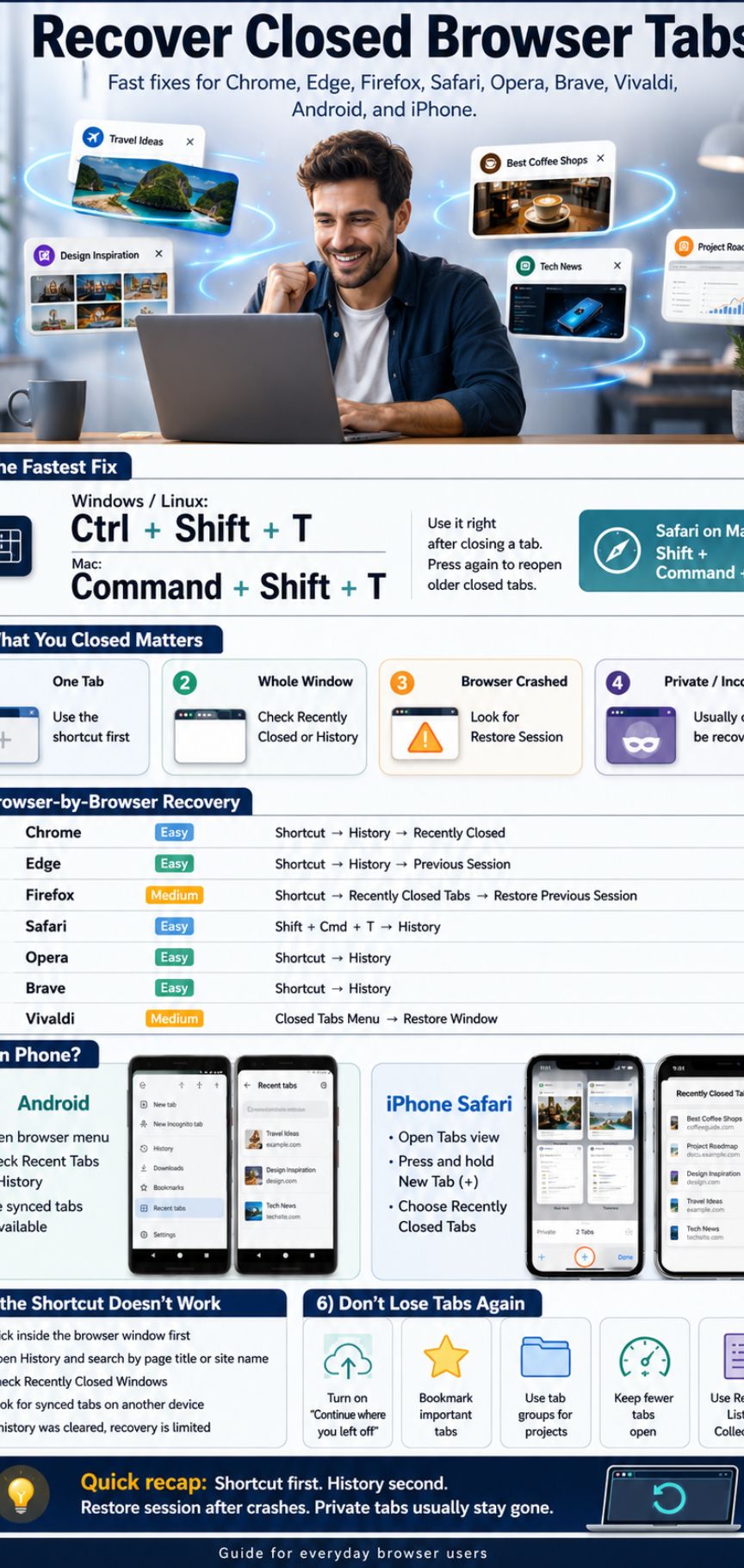
Many alternative browsers use similar recovery habits, but each has small differences. Opera and Brave use familiar keyboard shortcuts. Vivaldi also gives users a closed tabs menu for reopening tabs and windows.
This section is useful because not everyone uses the “big four” browsers. Some readers use privacy-first browsers, productivity browsers, or browsers with workspaces and advanced tab tools.
|
Browser |
Fast Recovery |
Extra Option |
|
Opera |
Ctrl/Command + Shift + T |
History and tab menu |
|
Brave |
Ctrl/Command + Shift + T |
History page |
|
Vivaldi |
Closed Tabs menu |
Restore windows |
|
Samsung Internet |
History or tab manager |
Synced tabs if enabled |
Recover Closed Tabs in Opera
In Opera, press Ctrl + Shift + T on Windows or Command + Shift + T on Mac. This reopens the last closed tab.
If the shortcut does not find the page, open Opera History and search there.
Recover Closed Tabs in Brave
Brave works a lot like Chrome because it is based on Chromium. Press Ctrl + Shift + T on Windows or Command + Shift + T on Mac.
If that does not work, open History and search for the page.
Recover Closed Tabs in Vivaldi
Vivaldi has a useful Closed Tabs menu. It keeps a list of previously closed tabs and windows within the latest session.
For closed windows, you may be able to select the window and restore all tabs together.
How to Recover Closed Browser Tabs on Android and iPhone
Mobile browsers do not always behave like desktop browsers. You may not have the same keyboard shortcut. Tabs can also be suspended, refreshed, grouped, or removed when the app updates or the phone runs low on memory.
Still, mobile recovery is not hopeless. Start with recent tabs, history, or synced tabs. If you use the same browser account on desktop and mobile, check both devices.
|
Mobile Browser |
Recovery Path |
Best For |
|
Chrome Android |
Three dots > Recent tabs or History |
Recently closed pages |
|
Edge Android |
Menu > History |
Older pages |
|
Firefox Android |
History or synced tabs |
Signed-in users |
|
Safari iPhone |
Tabs > hold New Tab |
Recently closed tabs |
|
Samsung Internet |
Tabs/History |
Phone browsing |
Recover Closed Tabs in Chrome on Android
Open Chrome, tap the three-dot menu, and check Recent tabs or History.
If sync is turned on, you may also see tabs from your laptop, tablet, or another phone.
Recover Closed Tabs in Safari on iPhone
Safari on iPhone gives you a recently closed tabs list. Open the tab screen, touch and hold the New Tab button, and choose from recently closed tabs.
This is the easiest way to bring back a Safari tab that disappeared by mistake.
Use Sync as a Backup
If you were signed in to Chrome, Firefox, Edge, or Safari with sync enabled, look at your other devices.
A tab closed on your phone may still be open on your desktop. A tab lost on your desktop may still appear in mobile history.
What to Do After a Browser Crash or Restart
A crash feels worse than a single closed tab because you may lose an entire session. The best move is to reopen the browser once and look for a restore prompt.
Do not keep closing and reopening the browser repeatedly. That can make recovery harder.
|
Crash Situation |
What to Try First |
What to Avoid |
|
Browser crashed |
Restore prompt |
Repeated restarts |
|
Computer restarted |
Previous session option |
Clearing history |
|
Window disappeared |
Recently Closed Windows |
Opening too many tabs |
|
Session missing |
Browser history |
Installing unknown tools |
|
Important work lost |
Account activity pages |
Panic-clicking |
Look for the Restore Button
Chrome, Edge, Firefox, and other browsers may show a restore message after an unexpected shutdown.
Click it before opening new tabs.
Check Recently Closed Windows
A closed window may show as one item with several tabs. This is common when you close a window with a full work session inside it.
If you see a grouped window in history, restore that instead of reopening pages one by one.
Search Your History by Memory
Use words you remember: site name, article topic, product title, email subject, city name, or file name.
Browser history search is underrated. It often saves the day when shortcuts fail.
Why Ctrl + Shift + T May Not Work
Sometimes the famous shortcut does nothing. That does not always mean your tab is gone. It may mean the browser window is not active, the closed tab is too old, the session was overwritten, or another app captured the shortcut.
Private browsing is another reason. Incognito and private windows are designed not to keep normal browsing history after the session ends. So if you close a private tab, normal recovery methods usually cannot bring it back.
|
Problem |
Likely Cause |
Fix |
|
Shortcut does nothing |
Browser not active |
Click browser window first |
|
Wrong tab reopens |
More recent tab was closed |
Press shortcut again |
|
No tab appears |
History cleared or private mode |
Check synced devices |
|
Shortcut conflicts |
App or extension issue |
Use History manually |
|
Session missing |
Browser overwritten session |
Search history |
Make Sure the Browser Is Selected
Click inside the browser window first. Then try the shortcut again.
If your cursor is inside another app, the command may not reach the browser.
Use History Instead
Do not waste time pressing the same shortcut twenty times. Open History and search for the page.
This is often faster and cleaner.
Think About Private Browsing
If the page was opened in Incognito, InPrivate, or Private Browsing, recovery is usually limited.
That is the point of those modes.
Can You Recover Closed Tabs After Clearing History?
This is where the answer gets less cheerful. If you cleared browsing history and session data, your browser may no longer have the information needed to restore tabs.
You can still try a few backup routes, but success is not guaranteed. Look for the page in synced tabs, bookmarks, downloads, account activity, saved passwords, emails, notes, or messaging apps.
|
Recovery Route |
When It Helps |
|
Synced tabs |
Same browser account on another device |
|
Bookmarks |
Page was saved earlier |
|
Downloads |
You downloaded something from the page |
|
Account history |
Logged-in sites like YouTube or Google Docs |
|
Email/search |
Link was sent or saved elsewhere |
|
Browser cache tools |
Risky and not always worth it |
Check Other Devices
If sync is enabled, your phone or tablet may still remember the page.
Check the same browser account on all devices.
Search Your Accounts
For logged-in services, search inside the account. You may find recent documents, watched videos, viewed orders, support tickets, or project pages.
This works well for cloud tools, shopping accounts, video platforms, and productivity apps.
Be Careful With Recovery Software
Avoid random “tab recovery” tools. Some are unnecessary, outdated, or unsafe.
Use official browser features first.
How to Avoid Losing Important Tabs Again
The best tab recovery method is not needing recovery at all. That sounds boring, but it saves a lot of frustration. If you often work with many tabs, set up a few habits that protect your sessions.
Use bookmarks for permanent pages. Use tab groups for active projects. Use Reading List or Collections for pages you plan to read later. Turn on previous session restore if you like to continue work from the same tabs every day.
|
Prevention Tip |
Best For |
|
Bookmark all tabs |
Research sessions |
|
Use tab groups |
Project organization |
|
Turn on session restore |
Daily workflows |
|
Use Reading List |
Articles and references |
|
Use Collections in Edge |
Research and planning |
|
Keep fewer tabs open |
Faster browsing |
Turn On Session Restore
Many browsers let you reopen the previous session when the browser starts. This is useful if you usually continue the same work every day.
It is also helpful after a restart or accidental shutdown.
Bookmark Important Tabs
If a page matters, bookmark it. If a whole group of pages matters, save all open tabs into a bookmark folder.
This is especially helpful for writers, students, researchers, shoppers, and office workers.
Use Tab Groups
Tab groups help you keep related pages together. Use one group for research, another for shopping, another for writing, and another for tools.
It feels small, but it keeps your browser from turning into a digital junk drawer.
Final Thoughts
You can usually recover closed browser tabs if you act quickly. Start with Ctrl + Shift + T on Windows or Command + Shift + T on Mac. For Safari on Mac, use Shift + Command + T. If the shortcut does not work, check History, Recently Closed Tabs, Recently Closed Windows, or synced tabs.
For crashes, look for the restore prompt before doing anything else. For mobile, use recent tabs, history, or Safari’s recently closed tab list on iPhone. For private browsing or cleared history, be realistic. The browser may not have anything left to restore.
The safer long-term habit is simple: bookmark important pages, use tab groups, and turn on session restore if you work with many tabs every day.
|
Key Takeaway |
What to Remember |
|
Fastest fix |
Ctrl/Command + Shift + T |
|
Best backup |
Browser history |
|
Best crash fix |
Restore session prompt |
|
Best prevention |
Bookmarks and tab groups |
|
Biggest limitation |
Private mode and cleared history |
FAQs About Recover Closed Browser Tabs
These questions cover search intent that readers often have after the main guide.
|
FAQ Topic |
Short Answer |
|
Fast recovery |
Use the reopen shortcut |
|
Old tabs |
Check history |
|
Private tabs |
Usually not recoverable |
|
Crashed session |
Look for restore session |
|
Mobile tabs |
Use recent tabs or history |
Can I Recover a Tab I Closed Yesterday?
Yes, if your browser history still has it. Open History and search by page title, site name, or topic.
The shortcut may not go that far back, but history often does.
Can I Recover Closed Browser Tabs Without History?
Sometimes. Check synced tabs on another device, bookmarks, downloads, emails, notes, or account activity on the site you used.
If all history and session data were deleted, recovery becomes much harder.
Why Did My Browser Restore the Wrong Tab?
Most browsers reopen closed tabs in reverse order. If you closed three tabs after the one you wanted, you may need to press the shortcut several times.
This is normal and does not mean the feature is broken.
Can I Recover Tabs After Closing All Tabs on iPhone?
In Safari, open the tab screen, touch and hold the New Tab button, and choose from recently closed tabs.
If the tab is not there, check Safari History.
Does Ctrl + Shift + T Work in Every Browser?
No, but it works in many major desktop browsers, including Chrome, Edge, Firefox, Opera, and Brave.
Safari on Mac uses Shift + Command + T instead.
Can Browser Extensions Recover Closed Tabs?
Some tab manager extensions can save sessions, but they work best when installed before the problem happens.
Do not install random recovery tools after losing tabs unless they are trusted and well-reviewed.
Are Closed Incognito Tabs Recoverable?
Usually, no. Incognito and private browsing modes are built to avoid saving normal browsing history after the session ends.
That means closed private tabs are normally gone once the private session ends.