
Instead, Snapchat sits on Sending, throws up Failed to Send, or leaves the Snap hanging there with no clear reason why.
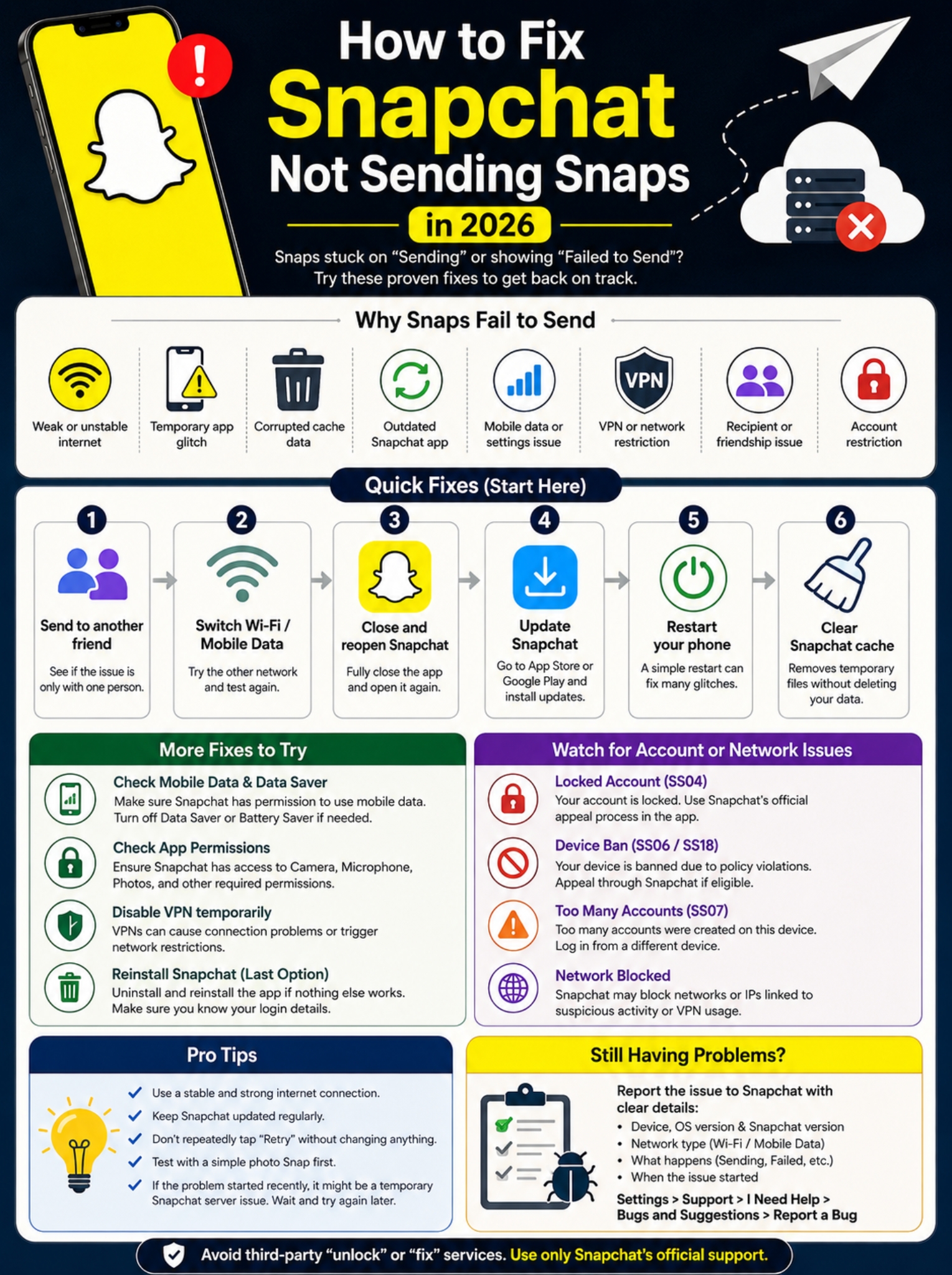
If you’re dealing with snapchat not sending snaps, don’t rush to delete the app or assume something is wrong with your account. Most of the time, the cause is much simpler. Your internet may be unstable. Snapchat may need an update. The app could be stuck. Your phone may be restricting mobile data. Or the problem may only affect one friend.
I’ve found that the fastest way to fix this kind of problem is to start small and work through the obvious causes first. There’s no point reinstalling Snapchat if switching from bad Wi-Fi to mobile data solves it in seconds.
Here’s the order that makes the most sense.
Why Is Snapchat Not Sending Snaps?
Sending a Snap sounds simple, but several things have to work in the background.
Snapchat needs access to your internet connection. The app has to upload the photo or video. Snapchat’s servers then need to process it and deliver it to the other person.
If any part of that chain breaks, your Snap can get stuck.
|
Possible cause |
What you may notice |
What to check first |
|
Weak internet |
Snap stays on Sending |
Switch networks |
|
Temporary app glitch |
Send button works but nothing happens |
Restart Snapchat |
|
Cache problem |
Repeated loading or sending errors |
Clear cache |
|
Old app version |
Snapchat acts strangely after an update cycle |
Update the app |
|
Mobile data restriction |
Works on Wi-Fi, fails on cellular |
Check phone settings |
|
VPN issue |
Connection or login errors |
Turn off VPN temporarily |
|
Recipient-specific issue |
Only one person is affected |
Send to someone else |
|
Account problem |
Login or lock errors appear |
Check Snapchat’s warning |
|
Snapchat-side issue |
Several features stop at once |
Retry later |
Before changing anything, try sending a plain photo Snap to a second friend.
That one test can tell you a lot.
If it works, your phone and account are probably fine. The problem may be tied to one conversation.
If it fails for everyone, move on to your connection.
Snapchat Not Sending Snaps? Try These Quick Fixes First
You don’t need to change ten settings at once.
Start with the easiest checks.
|
Fix |
How long it takes |
What it tells you |
|
Send to another friend |
Under a minute |
Whether one recipient is the issue |
|
Switch Wi-Fi/mobile data |
Under a minute |
Whether the network is the problem |
|
Restart Snapchat |
Under a minute |
Whether the app is temporarily stuck |
|
Update Snapchat |
A few minutes |
Whether you’re using an old version |
|
Restart your phone |
A few minutes |
Whether the phone or network process is stuck |
|
Clear Snapchat cache |
A few minutes |
Whether temporary app data is causing trouble |
1. Send a Snap to Someone Else
This is the quickest test.
Take a basic photo. Don’t add music, a Lens, stickers, or a long video. Send it to another friend.
If that Snap sends normally, stop troubleshooting your entire phone.
The original issue may involve that specific account, friendship status, conversation, or recipient.
If the second Snap fails too, keep going.
2. Switch Between Wi-Fi and Mobile Data
A Wi-Fi symbol doesn’t always mean you have a good internet connection.
Your phone can stay connected to a router even when that router is barely reaching the internet.
Turn Wi-Fi off and try mobile data.
Already using mobile data? Connect to a reliable Wi-Fi network instead.
If Snapchat works immediately after switching connections, you’ve found your strongest clue.
The problem is probably your original network, not Snapchat itself.
3. Close Snapchat Completely
Don’t just swipe to another app and come back.
Open the recent-apps screen and close Snapchat fully. Then reopen it.
This clears many small app glitches without touching your account or settings.
Once the app opens again, create a fresh Snap and test it.
Don’t keep hammering Retry on the same failed upload over and over. A fresh Snap gives you a cleaner test.
Check Your Internet Before Changing App Settings
When Snapchat won’t send, your internet connection deserves attention early.
A connection can feel “fast” and still be unstable. You may be able to load text, refresh a feed, or open a webpage while uploads keep failing.
Video uploads are especially sensitive to poor connections.
|
What happens |
What it probably means |
|
Snapchat fails only on Wi-Fi |
Wi-Fi/router issue is likely |
|
Snapchat fails only on cellular |
Mobile data setting or carrier issue |
|
Both fail, other apps work |
Snapchat itself is more likely |
|
Both fail, other apps fail too |
Broader internet problem |
|
Turning off VPN fixes it |
VPN or network routing may be involved |
Test Another App
Open a browser and load a new webpage.
Then try an app that needs a live connection.
If everything else is struggling too, don’t waste time digging through Snapchat settings. Your internet is the bigger problem.
You can also switch Airplane Mode on briefly, then turn it off again. That forces your phone to reconnect to its wireless networks.
It’s a small trick, but it often clears a flaky connection.
Turn Off Your VPN for a Minute
If you use a VPN, disconnect it and test Snapchat again.
A VPN changes how your traffic reaches the internet. In some cases, that can cause connection problems or trigger network-related restrictions.
That doesn’t mean VPNs are automatically bad for Snapchat. It simply means they’re worth removing from the equation while you troubleshoot.
If Snapchat starts working with the VPN off, you have a useful answer.
And one warning: avoid random “Snapchat unlock” or “account fixer” tools. If a site asks for your Snapchat username and password, that’s a red flag.
Update Snapchat and Restart Your Phone
If your connection looks fine, check the app itself.
Snapchat changes regularly. An older version can sometimes behave badly after backend changes or new releases.
|
Action |
iPhone |
Android |
|
Check for Snapchat update |
App Store |
Google Play |
|
Close the app |
App switcher |
Recent apps |
|
Restart phone |
Power controls |
Power menu |
|
Retest |
Send a fresh Snap |
Send a fresh Snap |
Update Snapchat
On iPhone:
- Open the App Store.
- Tap your profile icon.
- Check the available updates.
- Update Snapchat if one is waiting.
On Android:
- Open Google Play.
- Search for Snapchat.
- Tap Update if you see the option.
If no update is available, move on.
Restart Your Phone
Yes, it’s basic. It also works more often than people like to admit.
A restart refreshes network services, background processes, and temporary memory.
Turn the phone off completely, give it a moment, then switch it back on.
Open Snapchat and test a simple Snap before launching a dozen other apps.
Clear Snapchat Cache Without Wiping Your Memories
If snapchat not sending snaps is still your problem, the cache is worth checking.
Snapchat stores temporary files to help the app load faster. Usually, that’s useful. Sometimes those files become outdated or messy and the app starts acting strangely.
Clearing the cache gives Snapchat a cleaner starting point.
|
Question |
Answer |
|
Will it delete Memories? |
No |
|
Will it delete Chats? |
No |
|
Will it delete saved Snaps? |
Snapchat says no |
|
Why do it? |
To remove temporary app files |
|
Is it the same as wiping app data? |
No |
How to Clear Snapchat Cache
The menu names may vary a little depending on your phone and Snapchat version, but you’ll generally do this inside Snapchat.
Try:
- Open Snapchat.
- Tap your profile.
- Tap the gear icon.
- Look under My Privacy & Data or the app’s data controls.
- Find Clear Cache.
- Confirm.
Use Snapchat’s own cache option first.
That’s different from clearing all app storage through your phone settings, which is a much bigger reset.
Check Mobile Data, Data Saver, and Battery Settings
Here’s a useful clue:
If Snapchat works on Wi-Fi but fails on mobile data, the app may not have full cellular access.
|
Setting |
What it can affect |
|
Cellular data disabled |
Snapchat can’t use mobile internet |
|
Android Data Saver |
May limit background data |
|
Battery Saver |
Can restrict background activity |
|
Snapchat Data Saver |
Changes how media loads |
|
Weak carrier signal |
Uploads may stall |
iPhone: Check Cellular Access
On iPhone, go to:
Settings > Cellular
Scroll down until you find Snapchat.
Make sure cellular data is turned on for the app.
If that switch is off, Snapchat may work perfectly on Wi-Fi and fail the second you leave it.
Android: Check Data Saver
Android phones can limit how apps use mobile data.
Search your Settings app for:
- Data Saver
- Background data
- Unrestricted data
The wording differs between Samsung, Pixel, Xiaomi, OnePlus, and other brands.
You don’t need to give every app unlimited access. You’re just checking whether Snapchat is being restricted.
Snapchat Has Its Own Data Saver Too
This catches people out because there are two different things called Data Saver.
Android may have a system-wide Data Saver.
Snapchat also has its own data-saving mode.
Snapchat’s version changes how some media loads while you’re on mobile data. If Snapchat behaves oddly only on cellular, turn its Data Saver off briefly and test again.
Check Battery Saver
Battery-saving modes can also limit background activity.
If Snapchat works while you’re staring at the app but stalls when you lock the phone or switch apps, Battery Saver could be part of the problem.
Turn it off temporarily and test.
If nothing changes, you can turn it straight back on.
Check Snapchat Permissions
Permissions usually matter more when you’re creating a Snap than when you’re sending one, but they’re still worth checking if several Snapchat features have stopped working.
|
Permission |
Why it matters |
|
Camera |
Needed to take photo and video Snaps |
|
Microphone |
Needed for audio in video Snaps |
|
Photos/media |
Needed to upload saved photos and videos |
|
Location |
Used for location-based features |
|
Notifications |
Used for alerts and messages |
If Snapchat can’t open the camera, check Camera permission.
If videos record with no sound, check Microphone permission.
If Snapchat won’t access photos from your gallery, check Photos or Media access.
But if you can create a Snap normally and it simply won’t send, don’t get stuck on permissions. Internet, app state, and account issues are still more likely.
Why Snapchat Gets Stuck on Sending or Shows Failed to Send
The exact message on screen can help narrow things down.
|
What you see |
What to check |
|
Stuck on Sending |
Internet or temporary app glitch |
|
Failed to Send |
Network, app, or Snapchat-side issue |
|
Only one friend affected |
Recipient or friendship issue |
|
Snaps and Chats both fail |
Connection or wider Snapchat problem |
|
Login also fails |
Account or network restriction |
|
SS06, SS18, or SS07 |
Device/account restriction |
Only One Person Is Affected
If Snaps work with everyone except one friend, don’t reset your phone.
First check:
- Can you still see their profile?
- Does Chat work?
- Can you send Snaps to other people?
- Does reopening the conversation change anything?
One failed conversation doesn’t automatically mean you’ve been blocked.
There are several possible reasons, including account changes, friendship changes, connection problems, or a temporary glitch.
Don’t jump to the most dramatic explanation first.
Chats and Snaps Both Fail
That’s a stronger sign of a connection or wider app problem.
Switch networks. Restart the app. Clear the cache.
If everything inside Snapchat feels broken at the same time, treating it as a simple “one Snap failed” problem probably won’t get you far.
Don’t Confuse a Sending Problem With an Account Restriction
Sometimes snapchat not sending snaps is only one part of a bigger problem.
If Snapchat shows a specific error code, pay attention to it.
|
Error |
What it may indicate |
|
SS04 |
Locked account |
|
SS06 / SS18 |
Device ban |
|
SS07 |
Device restricted after too many accounts |
|
Network blocked message |
Network/IP/VPN issue |
|
Temporary access warning |
Account or login restriction |
If you’re seeing one of these warnings, clearing the cache probably isn’t going to solve it.
That’s no longer a normal sending glitch.
Use Snapchat’s official support or appeal process.
Avoid paying anyone who claims they can “unban” your phone or restore access instantly. That’s exactly the kind of situation scammers target.
Should You Reinstall Snapchat?
Reinstalling can help, but it shouldn’t be your first move.
Do the easier fixes first.
|
Before reinstalling |
Why it matters |
|
Know your login details |
You’ll need them afterward |
|
Check recovery details |
Helps if verification appears |
|
Make sure important Memories are backed up |
Avoid unnecessary risk |
|
Update Snapchat first |
Less disruptive |
|
Clear cache first |
Often enough |
|
Restart your phone |
Quick and simple |
If none of those steps changes anything, reinstalling Snapchat makes sense.
A fresh installation replaces the app’s local files and can clear problems that survive a normal restart.
Before you remove the app, make sure you can log back into the correct account.
After reinstalling, don’t immediately turn on every VPN, battery restriction, or data-saving feature again.
Test Snapchat first.
That makes it easier to see whether the clean installation fixed the problem.
What to Do If Nothing Works
At this point, you’ve already tested the obvious causes.
That’s useful.
If Snapchat still won’t send, write down what you’ve learned before reporting the issue.
|
Detail |
What to note |
|
Device |
iPhone, Samsung, Pixel, etc. |
|
OS version |
Your current iOS or Android version |
|
Snapchat version |
Installed app version |
|
Network |
Wi-Fi, mobile data, or both |
|
Error |
Sending, Pending, Failed |
|
Scope |
One friend or everyone |
|
When it started |
Approximate time/date |
|
Error code |
Copy it exactly |
A report that says “Snapchat is broken” doesn’t give support much to work with.
A report that says, “Photo Snaps fail to everyone on both Wi-Fi and cellular, but Chats still work” is much more useful.
The more specific you are, the easier it is to separate an app bug from a local phone problem.
The Best Order to Troubleshoot Snapchat
If you want the shortest version of this guide, use this order.
|
Step |
What to do |
Move on if… |
|
1 |
Send to another friend |
It still fails |
|
2 |
Switch Wi-Fi/mobile data |
It still fails |
|
3 |
Restart Snapchat |
It still fails |
|
4 |
Update Snapchat |
It still fails |
|
5 |
Restart the phone |
It still fails |
|
6 |
Clear Snapchat cache |
It still fails |
|
7 |
Check data restrictions |
It still fails |
|
8 |
Turn off VPN temporarily |
It still fails |
|
9 |
Check account warnings |
You see an error code |
|
10 |
Reinstall Snapchat |
Regular fixes didn’t help |
|
11 |
Report the bug |
Problem remains |
The order matters.
You want to rule out the easy stuff before doing anything disruptive.
There’s no reason to reinstall Snapchat, reset network settings, or mess with account recovery if your Wi-Fi is simply having a bad day.
Final Thoughts
When snapchat not sending snaps becomes a regular problem, keep the troubleshooting simple.
Start with another friend. Switch networks. Restart Snapchat. Update the app. Restart your phone. Clear the cache. Then check mobile data, Data Saver, VPN, and battery restrictions.
Most sending problems can be narrowed down without deleting your account, resetting your phone, or trying risky third-party tools.
If Snapchat gives you a specific lock or device-ban warning, treat that as a separate account issue and follow the official support process.
And if the app still refuses to send after you’ve tested multiple networks and basic fixes, report the bug with clear details.
The goal isn’t to try every fix you can find online. It’s to figure out exactly where the problem starts, then fix that one thing.
Frequently Asked Questions
Why can I receive Snaps but not send them?
Downloading and uploading don’t behave exactly the same way.
Your connection may be good enough to receive content but too unstable to upload a Snap properly.
Try another network first. If that doesn’t help, restart Snapchat and clear its cache.
Can long videos or heavily edited Snaps fail more often?
They can be harder to upload on a weak or unstable connection.
Try sending a plain photo Snap.
If the simple Snap goes through but a long video doesn’t, your connection or the size of that upload may be the issue.
Why does Snapchat work on Wi-Fi but not mobile data?
Your phone may be blocking or restricting Snapchat’s cellular access.
On iPhone, check Snapchat under Settings > Cellular.
On Android, look at Data Saver, background data, and unrestricted-data settings.