
The Action Button is one of those iPhone features that looks small but can change how you use your phone.
At first, it feels like a simple replacement for the old Ring/Silent switch. Press it, hold it, and your iPhone does something. That’s the basic idea.
But the real magic starts when you connect it to the Shortcuts app.
That’s where iphone action button shortcuts become useful. You can use the button to open your camera, start a voice recording, switch on Work Focus, launch a travel menu, control smart lights, or run an Apple Intelligence shortcut on supported models.
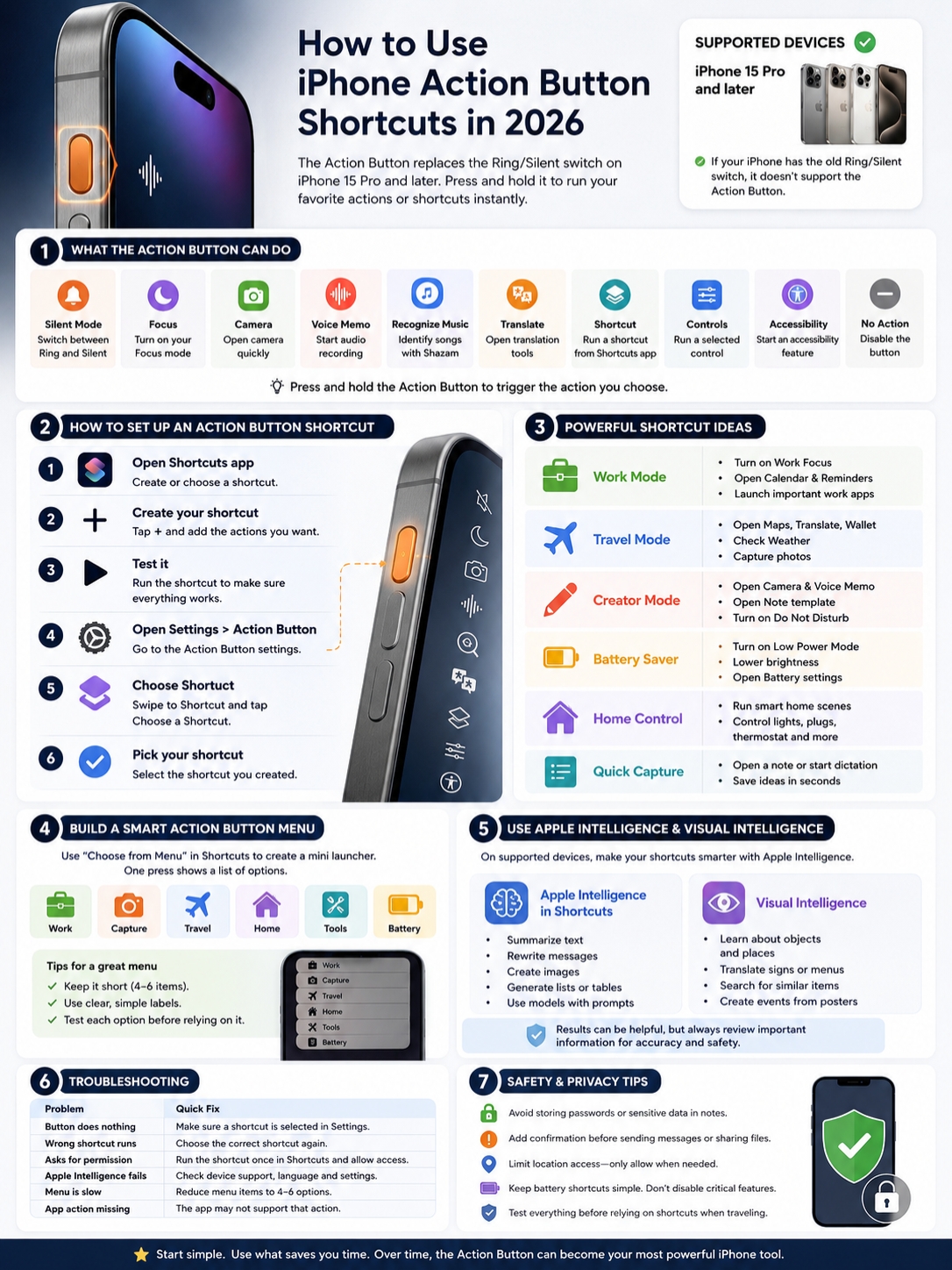
Apple says the Action Button appears on supported iPhones instead of the Ring/Silent switch. You can assign it to Silent Mode, Focus, Camera, Visual Intelligence, Flashlight, Voice Memo, Recognize Music, Translate, Magnifier, Controls, Shortcut, Accessibility, or No Action.
The best part? It works with a press and hold. That means you’re less likely to trigger it by accident.
Set it up well, and it feels like your iPhone finally has a real shortcut button.
What the Action Button Does in 2026
|
Action Button feature |
What it does |
Best use |
|
Silent Mode |
Switches between Ring and Silent |
Users who miss the old mute switch |
|
Focus |
Turns on a selected Focus mode |
Work, sleep, driving, or reading |
|
Camera |
Opens a camera mode quickly |
Photos, videos, and selfies |
|
Voice Memo |
Starts audio recording |
Ideas, interviews, and quick notes |
|
Recognize Music |
Identifies songs with Shazam |
Cafes, events, and travel |
|
Translate |
Opens translation tools |
Trips and conversations |
|
Shortcut |
Runs one shortcut from the Shortcuts app |
Custom workflows |
|
Controls |
Runs a selected control |
Quick toggles |
|
Accessibility |
Starts a chosen accessibility feature |
Vision, hearing, or motor support |
The Action Button isn’t just another app icon. You don’t tap it once like a screen button. You press and hold it.
That press-and-hold action runs whatever you picked in Settings > Action Button.
For most users, the best option is Shortcut. This lets the button run a shortcut from Apple’s Shortcuts app.
You can keep it simple and open one app. Or you can build a small menu that gives you several options from one button press.
That’s where the feature starts to feel personal.
Which iPhones Support the Action Button?
Apple describes Action Button shortcut support as available on iPhone 15 Pro or later.
Here’s the easy way to check:
- If your iPhone has the old Ring/Silent switch, it doesn’t have the Action Button.
- If your iPhone has the newer Action Button, you’ll find it under Settings > Action Button.
- If that menu doesn’t appear, your iPhone doesn’t support the feature.
Older iPhones can still use the Shortcuts app. They can also use Siri, widgets, Back Tap, and Control Center.
They just can’t assign a shortcut to the physical Action Button.
|
Step |
What to do |
Why it matters |
|
1 |
Open the Shortcuts app |
Build or choose your shortcut first |
|
2 |
Create a new shortcut |
Set the action you want |
|
3 |
Add actions |
Tell the shortcut what to do |
|
4 |
Test it |
Catch mistakes early |
|
5 |
Open Settings > Action Button |
Go to the button settings |
|
6 |
Choose Shortcut |
Connect the button to Shortcuts |
|
7 |
Pick your shortcut |
Make the button run it |
Start in the Shortcuts app. Don’t rush this part.
A shortcut is only useful if it works every time you press the button.
Here’s the setup:
- Open the Shortcuts app.
- Tap the + button.
- Tap Add Action.
- Choose what you want the shortcut to do.
- Rename the shortcut.
- Tap Done.
- Run the shortcut once to test it.
- Open Settings.
- Tap Action Button.
- Swipe to Shortcut.
- Tap Choose a Shortcut.
- Pick the shortcut you created.
That’s it.
For your first shortcut, keep things easy. Don’t build a 12-step routine right away. Start with one action you use every day.
Easy First Shortcut: Open an App
The simplest Action Button shortcut is “Open App.”
It sounds basic, but it’s useful.
Good app choices include:
- Notes
- Camera
- Voice Memos
- Google Maps
- Translate
- ChatGPT
- Calendar
- Reminders
Create a shortcut with the Open App action. Pick the app. Save it. Then assign it to the Action Button.
Now you can press and hold the button to open that app instantly.
Not flashy. Very practical.
Best Action Button Shortcut Ideas for Daily Use
|
Shortcut idea |
What it can do |
Best for |
|
Work Mode |
Turn on Focus, open Calendar, show tasks |
Office users |
|
Travel Mode |
Open Maps, Translate, Wallet, and Weather |
Travelers |
|
Creator Mode |
Open Camera, Notes, and Voice Memos |
Writers, bloggers, and creators |
|
Battery Saver |
Turn on Low Power Mode and lower brightness |
Heavy phone users |
|
Home Control |
Run a smart home scene |
HomeKit users |
|
Quick Capture |
Open a note or start dictation |
Students and busy workers |
The best iphone action button shortcuts aren’t the most complex ones. They’re the ones you use without thinking.
A shortcut should save time. It shouldn’t feel like another thing to manage.
Work Mode Shortcut
A Work Mode shortcut can help you start the day faster.
It can:
- Turn on Work Focus
- Open Calendar
- Show today’s reminders
- Open Notes
- Lower media volume
- Open your email or team chat app
This works well if your phone is part of your work routine.
One press, and your iPhone shifts into work mode.
Travel Mode Shortcut
A travel shortcut can be a lifesaver when you’re moving around.
You can create a small menu with:
- Maps
- Translate
- Wallet
- Weather
- Camera
- Notes
This is helpful in airports, hotels, taxis, restaurants, and new cities.
You don’t want to search for apps when you’re carrying bags or standing in line. The Action Button can put your travel tools in one place.
Creator Mode Shortcut
If you create content, use the Action Button as a capture tool.
A Creator Mode shortcut can:
- Open Camera
- Start a voice memo
- Open a note template
- Turn on Do Not Disturb
- Open your editing app
This works well for bloggers, journalists, YouTubers, podcasters, and social media managers.
Ideas disappear fast. A good shortcut helps you grab them before they’re gone.
Read Also: How to Fix iPhone Not Charging Past 80%
Battery Saver Shortcut
A Battery Saver shortcut can help when your iPhone is running low.
It can:
- Turn on Low Power Mode
- Lower screen brightness
- Open Battery settings
- Reduce non-essential actions
Keep this shortcut simple.
Don’t make it turn off Wi-Fi, Bluetooth, or location unless you really need that. A battery shortcut should help, not break your normal phone use.
Build a Smart Action Button Menu
|
Menu item |
Action |
Why it helps |
|
Work |
Focus, Calendar, Reminders |
Starts your work setup |
|
Capture |
Camera, Notes, Voice Memo |
Saves ideas fast |
|
Travel |
Maps, Translate, Wallet |
Helps outside the home |
|
Home |
Smart lights or scenes |
Controls devices quickly |
|
Tools |
Calculator, Magnifier, QR scanner |
Handles small tasks |
|
Battery |
Low Power Mode, Battery settings |
Saves power |
Here’s the catch: the Action Button can only run one main action at a time.
But there’s a smart workaround.
Build a menu shortcut.
In the Shortcuts app, use Choose from Menu. This lets your shortcut show a list of options. Each option can do something different.
For example, create one shortcut called Action Menu.
Add options like:
- Work
- Capture
- Travel
- Home
- Tools
- Battery
Then add the right actions under each menu item.
After that, assign this one menu shortcut to the Action Button.
This is one of the best ways to use iphone action button shortcuts because one button becomes a tiny launcher.
Keep the Menu Short
Don’t turn your Action Button menu into another messy Home Screen.
Keep it to 4 to 6 items.
Good labels:
- Work
- Notes
- Camera
- Travel
- Home
- Battery
Weak labels:
- My Daily Productivity Shortcut
- Things I Might Need
- Useful Apps
- Random Tools
Short labels are faster. You’ll know what to tap without thinking.
Use Apple Intelligence and Visual Intelligence Carefully
|
Feature |
What it can do |
Important note |
|
Apple Intelligence in Shortcuts |
Summarize text, create images, use models |
Needs supported device and settings |
|
Visual Intelligence |
Helps with objects, places, text, and signs |
Requires Apple Intelligence |
|
Use Model action |
Sends a prompt through a model |
Always check the output |
|
Text tools |
Rewrite, summarize, proofread, list, table |
Availability may vary |
|
ChatGPT extension |
Can work with Apple Intelligence features |
Requires setup and support |
Apple Intelligence makes Action Button shortcuts more interesting.
On supported iPhones, you can build shortcuts that summarize copied text, rewrite a message, turn notes into a list, create a table, or send a request to a supported model.
That can be useful.
But there’s an important catch: Apple Intelligence doesn’t work on every iPhone. Apple says it needs supported models, the right iOS version, enough storage, and supported language settings.
So don’t build your whole workflow around Apple Intelligence unless your device supports it.
Useful Apple Intelligence Shortcut Ideas
Here are a few practical ideas:
- Summarize copied text from an article
- Rewrite a message in a clearer tone
- Turn messy notes into bullet points
- Create a table from copied information
- Open Visual Intelligence from the Action Button
- Send a quick prompt to a model
These shortcuts are great for writers, students, editors, marketers, and anyone who handles lots of text.
Just remember: AI output still needs a human check.
Visual Intelligence Shortcut Ideas
Visual Intelligence can help you learn more about what’s in front of you.
You can use it to:
- Scan a poster and create a Calendar event
- Translate a menu while traveling
- Identify an object or place
- Search for similar products
- Ask a question about something you see
This can be handy, especially when traveling.
But don’t rely on it for serious decisions. For medical, legal, financial, or safety-related information, verify the result from a trusted source.
Advanced Shortcut Ideas for Power Users
|
Advanced idea |
What it does |
Who should use it |
|
Location-aware menu |
Shows different actions at home, work, or outside |
Power users |
|
Focus-based shortcut |
Changes behavior based on Focus mode |
Professionals |
|
Smart home scene |
Runs lights, plugs, thermostat, or scenes |
HomeKit users |
|
AI assistant launcher |
Opens ChatGPT or another assistant |
Researchers and creators |
|
Quick contact action |
Calls or texts a chosen person |
Family or emergency use |
|
Car app shortcut |
Uses a supported vehicle app action |
Compatible car owners |
Once you’re comfortable, you can make your Action Button much smarter.
Location-Aware Action Button
A location-aware shortcut changes based on where you are.
For example:
- At home: show smart home controls
- At work: open Calendar and Reminders
- Outside: open Maps and Translate
This takes more setup, but it can feel very smooth once it works.
Test it several times before you rely on it.
Focus-Based Action Button
You can also make the shortcut react to your current Focus mode.
For example:
- Work Focus: open project tools
- Sleep Focus: turn on a low-brightness flashlight
- Personal Focus: open music or reading apps
- Travel Focus: open maps and translation tools
This is a smart way to make one button act differently without changing the Action Button setting every day.
Smart Home Shortcut
If you use Apple Home or a smart home app with Shortcuts support, the Action Button can control your home.
You can use it to:
- Turn lights on or off
- Start a “Movie Night” scene
- Adjust a thermostat
- Turn on a smart plug
- Open garage or gate controls, if supported
Be careful with sensitive devices. For locks, gates, cameras, and security systems, use confirmation steps where possible.
Troubleshooting: Why Your Action Button Shortcut Isn’t Working
|
Problem |
Likely cause |
Quick fix |
|
Button does nothing |
No specific shortcut selected |
Reopen Action Button settings |
|
Wrong shortcut runs |
Old shortcut is still assigned |
Pick the correct shortcut again |
|
Shortcut asks for permission |
First-time access prompt |
Run it once inside Shortcuts |
|
Apple Intelligence step fails |
Unsupported device, language, or region |
Check Apple Intelligence settings |
|
Menu feels slow |
Too many menu items |
Keep 4–6 options |
|
App action is missing |
App doesn’t support that action |
Use another app or action |
The most common mistake is simple.
People select Shortcut in Action Button settings but forget to choose the actual shortcut below it.
If you don’t pick one, the button may do nothing.
Fix 1: Reassign the Shortcut
Go to:
Settings > Action Button > Shortcut > Choose a Shortcut
Select the correct shortcut again.
Then press and hold the Action Button to test it.
Fix 2: Test the Shortcut Manually
Open the Shortcuts app and run the shortcut there.
If it fails inside the app, the Action Button isn’t the problem. The shortcut itself needs fixing.
Common causes include:
- Deleted note or folder
- Renamed Focus mode
- Missing app permission
- Removed third-party app
- Unsupported Apple Intelligence action
- Broken menu step
Fix 3: Approve Permissions Early
Some shortcuts need access to your:
- Location
- Photos
- Contacts
- Calendar
- Reminders
- Microphone
- Files
- Third-party apps
Run a new shortcut once after creating it. This gives you a chance to approve permissions before you actually need the shortcut.
Only allow access that makes sense.
Privacy, Safety, and Battery Tips
|
Safety tip |
Why it matters |
Better habit |
|
Don’t store passwords in notes |
Plain text can be exposed |
Use a password manager |
|
Add confirmation before sending |
Stops accidental messages |
Review before sharing |
|
Limit location use |
Protects privacy |
Use location only when needed |
|
Avoid messy battery toggles |
Some settings break normal use |
Keep battery shortcuts simple |
|
Test before travel |
Offline or app issues can break shortcuts |
Run travel tools before leaving |
Shortcuts can do a lot across apps. That’s useful, but it also means you should be careful.
Don’t create shortcuts that expose:
- Passwords
- Bank details
- Private IDs
- Recovery codes
- Client information
- Sensitive medical details
Be extra careful with shortcuts that send messages, share files, post online, or open private data.
When in doubt, add a confirmation step.
One extra tap is better than sending the wrong message or exposing private information.
Final Thoughts
|
Main lesson |
What to do |
|
Start simple |
Assign one shortcut you use daily |
|
Use menus |
Turn one button into several tools |
|
Test everything |
Run shortcuts before relying on them |
|
Check device support |
Apple Intelligence features need compatible devices |
|
Protect privacy |
Avoid exposing sensitive data |
The best iPhone action button shortcuts don’t need to be complicated.
They just need to save time.
Start with one shortcut you’ll use every day. Open Notes. Start a voice memo. Launch Camera. Turn on Work Focus. That’s enough.
Once that feels natural, build a small menu with four or five options.
In 2026, the Action Button is one of the quickest ways to make your iPhone feel more personal. It puts your favorite tasks right under your thumb. It also makes the Shortcuts app feel less hidden and more useful.
Keep it simple. Keep it safe. Test it before you need it.
That’s how you get real value from iphone action button shortcuts.
FAQs About iPhone Action Button Shortcuts
|
FAQ |
Short answer |
|
Can the Action Button run more than one shortcut? |
Yes, through a menu shortcut |
|
Can it change based on time or place? |
Yes, with Shortcuts logic |
|
Can it use Apple Intelligence? |
Yes, on supported devices |
|
Can it open third-party apps? |
Yes, if the app supports Shortcuts or Controls |
|
Can older iPhones use it? |
No, older models without the Action Button cannot |
Can I make the Action Button do different things at different times?
Yes. Build a shortcut with logic.
It can check the time, Focus mode, location, or other conditions. Then it can run different actions.
Example:
- Morning: open Calendar
- Work hours: turn on Work Focus
- Travel: open Maps
- Night: turn on Flashlight
Can I make the Action Button show a list of shortcuts?
Yes. Use Choose from Menu in the Shortcuts app.
This lets one shortcut show several options. Then each option can run a different action.
It’s one of the easiest ways to get more value from the Action Button.
Why does my Action Button do nothing?
You probably chose Shortcut, Controls, or Accessibility but didn’t select the specific item under it.
Go back to Settings > Action Button and choose the exact shortcut, control, or accessibility feature you want.
Can I use the Action Button for Shazam?
Yes. Apple includes Recognize Music as an Action Button option.
It uses Shazam to identify music playing nearby or on your iPhone.
Can I use the Action Button for ChatGPT?
Yes.
You can create a shortcut that opens the ChatGPT app. On supported Apple Intelligence devices, you may also use model-based shortcut features where available.
Just remember that Apple Intelligence support depends on your iPhone model, iOS version, language, region, and settings.
Is the Action Button better than Back Tap?
For many people, yes.
The Action Button is physical and easier to trigger on purpose. Back Tap is still useful, especially on older iPhones, but it can be less reliable with thick cases or accidental taps.
Can I use Action Button shortcuts for smart home controls?
Yes. If your smart home devices work with Apple Home or an app that supports Shortcuts, you can use the Action Button to control scenes, lights, plugs, and other devices.
For locks, cameras, and security devices, use extra caution.