
Your phone buzzes. You pull it out of your pocket, expecting a text from a friend or an important work email. Instead, it’s a food delivery app telling you about a 5% discount on sandwiches. You put the phone away, only for it to vibrate again two minutes later with a social media tag.
If this sounds familiar, you are experiencing the modern nightmare of app overload. App developers design these alerts specifically to hijack your attention. But you own the device, which means you dictate the rules. If you want to know how to turn off iphone notifications in bulk, you have plenty of native iOS tools at your disposal.
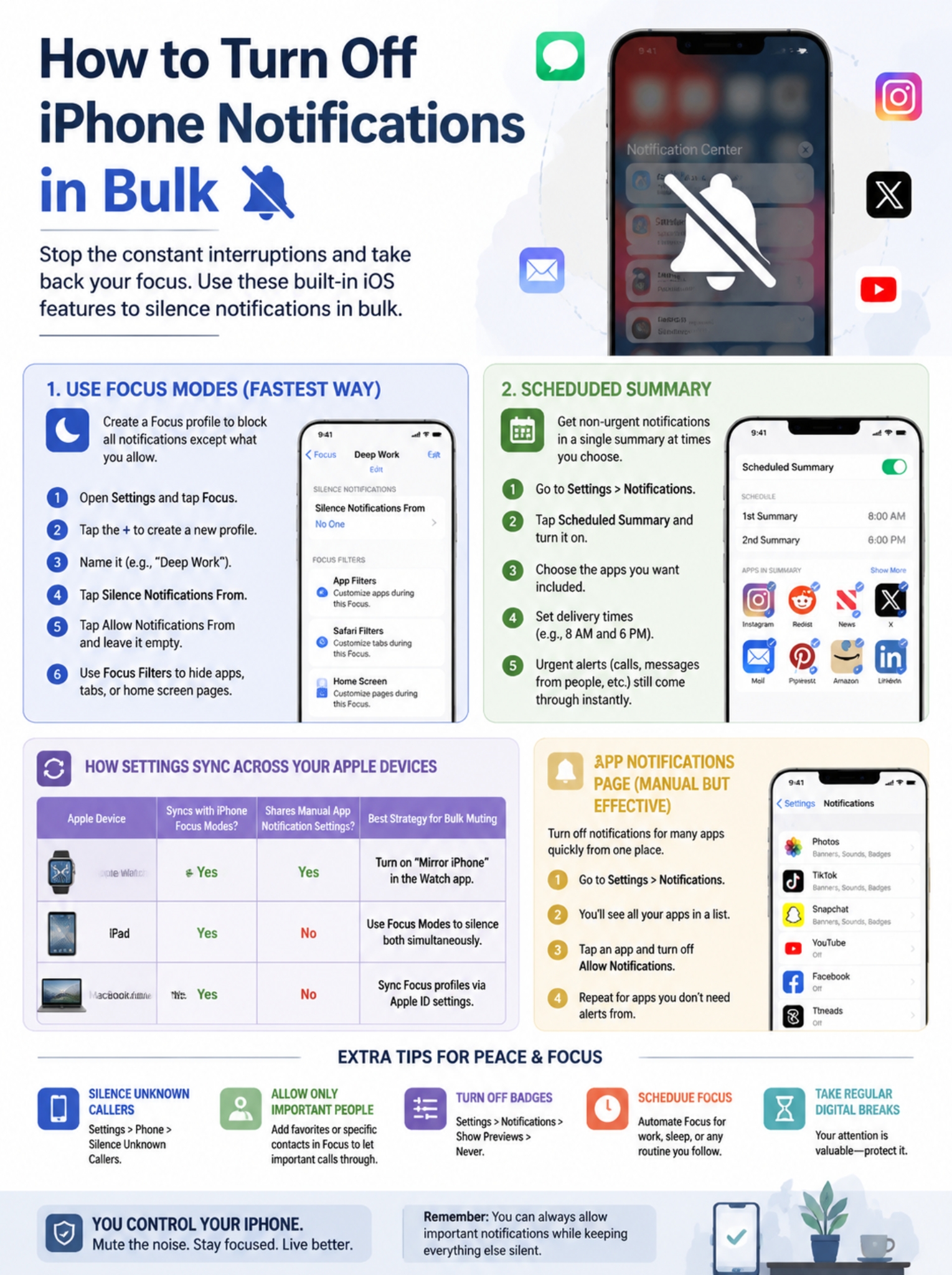
Apple doesn’t provide a massive “Select All > Delete” button for permissions. Doing so would break critical functions like banking fraud alerts or emergency calls. Instead, the smartest way to handle this is by using system-wide overrides. Let’s dive straight into the best methods to silence the noise, batch your alerts, and reclaim your digital peace.
The Apple Ecosystem: How Alerts Sync Across Devices
Before you start flipping switches on your iPhone, you need to understand how Apple handles your data across its ecosystem. If you own a Mac, an iPad, or an Apple Watch, fixing your phone might not fix your overall distraction problem. Apple pushes alerts across iCloud, meaning an app you silence on your phone might still pop up on your laptop screen.
To effectively manage this, you need to use features that communicate across all your hardware. Focus profiles, for example, share their status across iCloud. If you activate a lockdown mode on your iPhone, your Mac immediately respects that same rule. However, manual app-by-app settings do not always sync this way.
Here is exactly how you make sure your bulk-muting efforts carry over to every screen you own.
Table: How iOS Settings Sync Across Devices
| Apple Device | Syncs with iPhone Focus Modes? | Shares Manual App Notification Settings? | Best Strategy for Bulk Muting |
| Apple Watch | Yes (Enabled by default) | Yes (Mirrors iPhone settings) | Turn on “Mirror iPhone” in the Watch app. |
| iPad | Yes (If “Share Across Devices” is on) | No (Managed locally per app) | Use Focus Modes to silence both simultaneously. |
| MacBook / iMac | Yes (If “Share Across Devices” is on) | No (Requires Mac System Settings) | Sync Focus profiles via Apple ID settings. |
Use Focus Modes to Turn Off iPhone Notifications Instantly
The absolute fastest way to turn off iphone notifications in bulk is by building a strict Focus Mode. Think of Focus as “Do Not Disturb” on steroids. Instead of just silencing everything, you get to act as a bouncer, deciding exactly who and what gets past the velvet rope.
By default, creating a blank Focus profile blocks every third-party app on your phone. You don’t have to turn off 100 switches; you just turn on one.
-
Open Settings and tap Focus.
-
Tap the + symbol in the upper right corner to build a custom profile.
-
Name it something obvious, like “Deep Work” or “Total Silence”.
-
On the next screen, look for Silence Notifications From.
-
Tap Allow Notifications From and leave the list completely empty.
-
Scroll down to Focus Filters (a newer iOS feature). Here, you can actually hide your Safari tabs, mute specific Apple Mail accounts, or even hide specific Home Screen pages that contain distracting apps.
Now, whenever you need absolute silence, pull down your Control Center and tap your new Focus profile. Instantly, all app alerts are paused.
Table: Building the Perfect Focus Profiles
| Profile Name | Who Gets Through | Apps That Get Through | Best Time to Activate |
| Zero Distractions | Nobody | None | Studying, deep work, movie theaters. |
| Office Hours | Co-workers, Boss | Slack, Outlook, Authenticator | 9 AM to 5 PM, Monday through Friday. |
| Family Time | Family Contacts Only | Messages, Phone | Weekends, dinner time, holidays. |
| Sleep | Favorites (Emergencies) | None (Screen dims automatically) | Midnight to 7 AM (Scheduled daily). |
Scheduled Summary: Batching Your Casual Alerts
You probably don’t want to miss everything. You just don’t want an Instagram comment interrupting a meeting. The iOS Scheduled Summary fixes this by holding back non-urgent alerts and delivering them in a single, neat bundle once or twice a day.
This feature fundamentally changes how you interact with your device. Instead of reacting to pings all day, you review a digest on your own time.
To set this up:
-
Go to Settings > Notifications.
-
Tap Scheduled Summary and toggle it on.
-
Apple will show you a list of your apps, sorted by which ones ping you the most.
-
Select all your social media, shopping apps, news outlets, and games.
-
Pick your delivery times. The standard setup is one drop at 8:00 AM and one at 6:00 PM.
If an app is placed in the summary, it will never vibrate your phone or light up your lock screen again. It waits patiently in the background until the scheduled time.
Table: Apps to Send to Scheduled Summary
| App Type | Send to Summary? | Reason |
| Social Media | Yes | High volume, low urgency. Drives the most distraction. |
| E-commerce / Retail | Yes | Mostly marketing spam and sales pitches. |
| News / Sports Scores | Yes | Great for evening reading, rarely requires immediate action. |
| Banking / Credit Cards | No | You need fraud alerts immediately. |
| Rideshare / Food Delivery | No | Drivers need you to respond in real-time. |
Screen Time: The Secret Bulk Mute Trick
Most people think Screen Time is just for monitoring how many hours they waste on TikTok, or for parents restricting their kids’ iPads. However, it operates as a phenomenal backdoor method to turn off iphone notifications in bulk.
When an app hits a Screen Time limit and locks out, iOS completely freezes its ability to push notifications to your screen. If you struggle with late-night scrolling, you can use the Downtime feature to kill app access and silence alerts simultaneously.
-
Go to Settings > Screen Time.
-
Tap Downtime and set a schedule (e.g., 10:00 PM to 7:00 AM).
-
Next, tap Always Allowed and select the apps you actually need during those hours (Phone, Messages, Maps).
-
When 10:00 PM hits, every other app on your phone greys out. An hourglass icon appears next to the app names.
-
While locked, those apps cannot send you push alerts.
This works better than a Focus Mode if you suffer from a lack of self-control, as it actually prevents you from opening the app on impulse.
Read Also: How to Set Custom Ringtones on iPhone Without iTunes
Table: Screen Time vs. Focus Modes for Notification Management
| Feature | Primary Function | What Happens to the App? | Best For |
| Focus Modes | Filters incoming alerts. | App remains accessible and usable. | Busy professionals wanting quiet work time. |
| Downtime | Blocks access completely. | App greys out and pauses alerts. | Nighttime detoxes and breaking bad habits. |
| App Limits | Caps daily usage. | Locks app after a set time limit. | Limiting endless scrolling on social media. |
Group Chats and Social Media: Silencing the Worst Offenders
Sometimes the problem isn’t 50 different apps; it’s one app causing 90% of the noise. Group chats on iMessage, WhatsApp, or Telegram are notorious for destroying phone batteries and attention spans. If you don’t want to bulk mute your entire phone, you can surgically silence these specific pain points.
Muting iMessage Group Chats: Open the Messages app, find the noisy group chat, and swipe left on it. Tap the purple bell icon with a slash through it. You will still receive all the texts, and you can read them whenever you want, but your phone won’t make a sound.
Silencing WhatsApp Without Deleting It: WhatsApp allows for granular muting. Open the app, swipe left on a chat, tap More, and select Mute. You can choose 8 hours, 1 week, or Always.
Killing Social Media Badges: Those little red numbers on your app icons (badges) are psychologically designed to create a false sense of urgency. Even if you turn off banners, seeing a red “14” over your email app creates stress. Go to Settings > Notifications > select the app > toggle off Badges. The red number vanishes permanently.
Table: Fixing the Biggest Notification Offenders
| Offender | Action to Take | Result |
| iMessage Group Chats | Swipe left > Tap Purple Bell | Silences the specific thread, allows individual texts. |
| WhatsApp Groups | Swipe left > More > Mute > Always | Stops vibrations and banners for that group forever. |
| Red Badge Icons | Settings > Notifications > App > Badges Off | Removes visual clutter from the Home Screen. |
| Instagram Live Alerts | In-app settings > Push Notifications > Live | Stops the annoying “XYZ started a live video” ping. |
How to Stop Apple’s Built-In System Alerts
Third-party apps aren’t the only culprits. iOS itself pushes a surprising amount of alerts, ranging from Siri suggestions to automated Shortcut notifications.
Stop Siri Suggestions: Siri constantly watches how you use your phone and suggests actions on your Lock Screen. Go to Settings > Siri & Search > toggle off Allow Notifications. This stops Siri from randomly suggesting you open Spotify or call your mom.
Silence iOS Shortcuts: If you set up custom automations in the Shortcuts app, Apple forces a banner notification every time the automation runs. To stop this, open the Shortcuts app, tap Automation at the bottom, select your task, and toggle off Notify When Run.
Manage Live Activities: Live Activities are the persistent widgets tracking your Uber or sports scores on your Lock Screen. If they distract you, go to Settings > FaceID & Passcode (or TouchID), scroll down to Allow Access When Locked, and toggle off Live Activities.
Table: Taming iOS System Notifications
| System Alert Type | Where to Disable It | What It Stops |
| Siri Suggestions | Settings > Siri & Search | Stops lock screen app recommendations. |
| Shortcuts Automations | Shortcuts App > Automations | Kills the drop-down banner when a task runs. |
| Live Activities | Settings > FaceID & Passcode | Removes live tracking widgets from the lock screen. |
| Government/AMBER Alerts | Settings > Notifications (Scroll to bottom) | Disables extreme weather and test alerts. |
Uncommon FAQs About Managing iPhone Alerts
Does putting my phone face down stop notifications?
Yes. iPhones have a built-in feature called “Facedown Detection.” If your phone is lying screen-down on a flat surface, the screen will not light up when a notification arrives, though the phone will still vibrate if you haven’t muted it. This saves battery and limits visual distraction.
Can certain contacts bypass my bulk-muted Focus Mode?
Yes. If you go into your Contacts app, select a person, tap Edit, and tap Ringtone, you can turn on Emergency Bypass. This ensures their calls and texts will always make a sound, even if your phone is on a strict “Total Silence” Focus Mode or the physical silent switch is engaged.
Will deleting an app permanently remove its notification permissions?
Yes. If you delete an app, its ability to push alerts is completely revoked from the Apple push server. If you redownload the app a year later, it has to ask for your permission all over again.
How do I clear a massive backlog of old notifications instantly?
Pull down your Notification Center from the top of the screen. Look for the small X icon next to the “Notification Center” text. Long-press that X, and tap Clear All Notifications. Your screen wipes clean in one second.
Final Thoughts
Your smartphone is a tool, not a boss. You do not have to live at the mercy of every developer trying to boost their daily active user metrics.
By taking five minutes to build a strict Focus profile, moving your casual reading apps into a Scheduled Summary, and turning off those anxiety-inducing red badges, you completely change your relationship with your device. Learning how to turn off iphone notifications in bulk gives you your time back. Start by routing your social media to a 6:00 PM summary today—you will notice the mental clarity almost immediately.