
An emergency is the worst time to figure out how your phone works.
You might have one free hand. Your screen might be locked. You may only have a few seconds to call for help.
That’s why a proper iphone emergency sos setup is worth doing before you need it. Your iPhone can call local emergency services, alert trusted contacts, share your location, and show key medical details from the Lock Screen.
Newer models can do even more. Crash Detection may call for help after a serious car crash. An iPhone 14 or later may also connect to emergency services through satellite when cellular and Wi-Fi coverage are unavailable.
Most of these settings take only a few minutes to check. Here’s how to set them up properly.
What Emergency SOS Can Do on an iPhone
Emergency SOS isn’t a separate app. It’s a group of safety features built into iOS.
Its main job is simple: help you contact emergency services quickly. You can start a call with the physical buttons, use the Emergency Call slider, or make a call from the locked passcode screen.
After the call ends, your iPhone may send a message to your emergency contacts. That alert can include your current location and later location changes, depending on network access and regional support.
Your iPhone can also display a Medical ID without unlocking the rest of the device. That gives first responders access to selected details such as allergies, medications, medical conditions, blood type, and emergency contacts.
|
Feature |
What It Does |
What You Need to Do |
|
Emergency Call |
Calls the local emergency number |
Review the button shortcuts |
|
Emergency contact alerts |
Texts selected people after the call |
Add contacts in Medical ID |
|
Location updates |
Shares your location when available |
Check location access |
|
Medical ID |
Shows selected health details while locked |
Create and update Medical ID |
|
Crash Detection |
May call after a severe car crash |
Check the setting on supported models |
|
Emergency SOS via satellite |
Texts responders when you’re off-grid |
Use a supported iPhone in an eligible country |
Some features depend on your country, mobile network, iPhone model, and iOS version. That matters, especially when travelling.
It’s also smart to know the emergency number used in the country you’re visiting. Your phone can help, but it can’t replace basic preparation.
iPhone Emergency SOS Setup: Configure the Button Shortcuts
Start with the main SOS controls.
Open Settings > Emergency SOS.
On most iPhones, you’ll see options such as Call with Hold and Release and Call with 5 Presses. You can turn on one or both.
|
Setting |
What You Do |
When It Helps |
|
Call with Hold and Release |
Hold the side button and either volume button |
Easy to remember in a stressful moment |
|
Call with 5 Presses |
Press the side button five times quickly |
Useful when holding the phone with one hand |
|
Emergency Call slider |
Drag the slider after the SOS screen appears |
Starts the call without waiting for the countdown |
|
India shortcut |
Press the side button three times |
Regional shortcut used in India |
Turn On Call With Hold and Release
Follow these steps:
- Open Settings.
- Tap Emergency SOS.
- Turn on Call with Hold and Release.
To use it, press and hold the side button and either volume button. The emergency sliders will appear.
You can drag the Emergency Call slider right away. You can also keep holding the buttons until the countdown ends.
This is usually the easiest shortcut to remember. The same button combination also brings up the power-off and Medical ID sliders, so you’ll see your options on one screen.
There is one downside. A tight case, a crowded bag, or pressure on the buttons can trigger the countdown by mistake. Pay attention to the warning sound and screen.
Turn On Call With 5 Presses
In Settings > Emergency SOS, turn on Call with 5 Presses.
Once enabled, pressing the side button five times quickly starts the emergency countdown in most regions.
This option can help when you can’t comfortably hold two buttons. It’s also useful when you need to act fast without looking at the screen.
India uses a different shortcut. Apple says three quick presses of the side button can start Emergency SOS there. The exact behaviour may also depend on accessibility settings.
Don’t Test the Full Countdown
It’s fine to open the SOS screen and learn where the sliders are.
Don’t let the normal countdown finish just to see what happens. That may place a real call to emergency services.
Cancel before the call connects. The satellite feature has a separate demo mode, but the standard Emergency SOS call does not.
Add Emergency Contacts and Build a Useful Medical ID
The button shortcut is only one part of your iphone emergency sos setup.
The next step is adding emergency contacts and completing your Medical ID in the Health app.
Emergency contacts are people you trust to receive an alert after an emergency call. They could be a partner, parent, sibling, adult child, close friend, or caregiver.
They don’t replace the police, fire service, ambulance service, or another public emergency number.
|
Medical ID Field |
Why It Can Help |
|
Emergency contacts |
Alerts trusted people after an emergency call |
|
Allergies and reactions |
Warns responders about known risks |
|
Medications |
Gives useful treatment information |
|
Medical conditions |
Adds important health context |
|
Blood type |
May help during an emergency assessment |
|
Primary language |
Helps responders communicate |
|
Show When Locked |
Makes selected details visible without the passcode |
How to Add an Emergency Contact
- Open the Health app.
- Tap your profile picture.
- Tap Medical ID.
- Tap Edit.
- Scroll to Emergency Contacts.
- Tap Add Emergency Contact.
- Choose someone from your Contacts app.
- Select your relationship to that person.
- Tap Done.
You can add more than one person.
Choose contacts who are likely to answer and who can act if they receive an alert. An outdated number is no help in an emergency, so check the details carefully.
It’s also worth telling each person that you’ve added them. They should know that an SOS alert may include your location.
Apple doesn’t allow you to add 911, 999, 112, or another public emergency number as an emergency contact. Those services are contacted separately.
Complete Medical ID Carefully
While you’re in Medical ID, review the rest of the information.
Add only details that are current and useful. Pay special attention to medications, allergies, medical conditions, and your preferred language.
Old information can cause confusion. If you stopped taking a medication months ago, remove it.
Turn on Show When Locked. This lets a first responder open your Medical ID from the Emergency screen without getting access to your photos, messages, email, or apps.
You may also see Share During Emergency Call. This setting can share supported Medical ID details with emergency responders in certain regions.
Apple currently says automatic Medical ID sharing during emergency calls is supported in the United States and Canada. Other emergency data features vary by country.
Check Location Access and the Messages App
Emergency contact alerts work better when your iPhone can share the right information.
Two details are easy to overlook: location access and the Messages app.
Go to:
Settings > Privacy & Security > Location Services > System Services
Make sure Emergency Calls & SOS is turned on.
|
Check |
Where to Find It |
Why It Matters |
|
Emergency location access |
Privacy & Security > Location Services > System Services |
Helps supported emergency services and contacts receive location data |
|
Messages app |
Keep Apple Messages installed and selected |
Needed for automatic contact notifications |
|
Contact numbers |
Review Contacts and Medical ID |
Prevents alerts going to an old number |
|
iOS updates |
Settings > General > Software Update |
Keeps safety features current |
Apple says location may still be used during an emergency call for safety reasons, even when regular Location Services are off. Still, leaving Emergency Calls & SOS enabled is the safer choice.
The Messages app matters too.
Apple warns that emergency contacts may not receive automatic alerts if the Messages app has been deleted or isn’t selected as the phone’s text messaging app.
That’s easy to miss if you’ve changed default apps.
Check these settings again after moving to a new iPhone, restoring a backup, or changing your messaging setup.
Read Also: How to Recover Deleted Photos on iPhone
Review Crash Detection on Supported iPhones
Crash Detection is available on iPhone 14 and later models running supported versions of iOS.
Apple designed it to detect severe passenger vehicle crashes, including front impacts, side impacts, rear impacts, and rollovers.
It can’t detect every accident. Think of it as a backup, not a guarantee.
|
What Happens |
iPhone Response |
|
A severe crash is detected |
The phone sounds an alarm and shows an alert |
|
You don’t respond |
A 30-second countdown starts |
|
The countdown ends |
The iPhone may call emergency services |
|
The call connects |
A recorded message may share your estimated location |
|
Emergency contacts are set |
They may receive a crash alert and your location |
Crash Detection is turned on by default on supported devices.
To check it:
- Open Settings.
- Tap Emergency SOS.
- Find Call After Severe Crash.
- Make sure it is enabled.
If you pair your iPhone with an Apple Watch, turning Crash Detection off on one device may affect the other.
If your phone detects a crash, it first sounds an alarm and gives you time to respond. You can call emergency services or dismiss the alert.
If you don’t respond, the phone starts another countdown. Once that ends, it may place the call automatically.
If an unwanted call connects, don’t simply hang up. Stay on the line and tell the operator it was accidental. That prevents responders from treating the silent call as a possible emergency.
Prepare Emergency SOS via Satellite Before Going Off-Grid
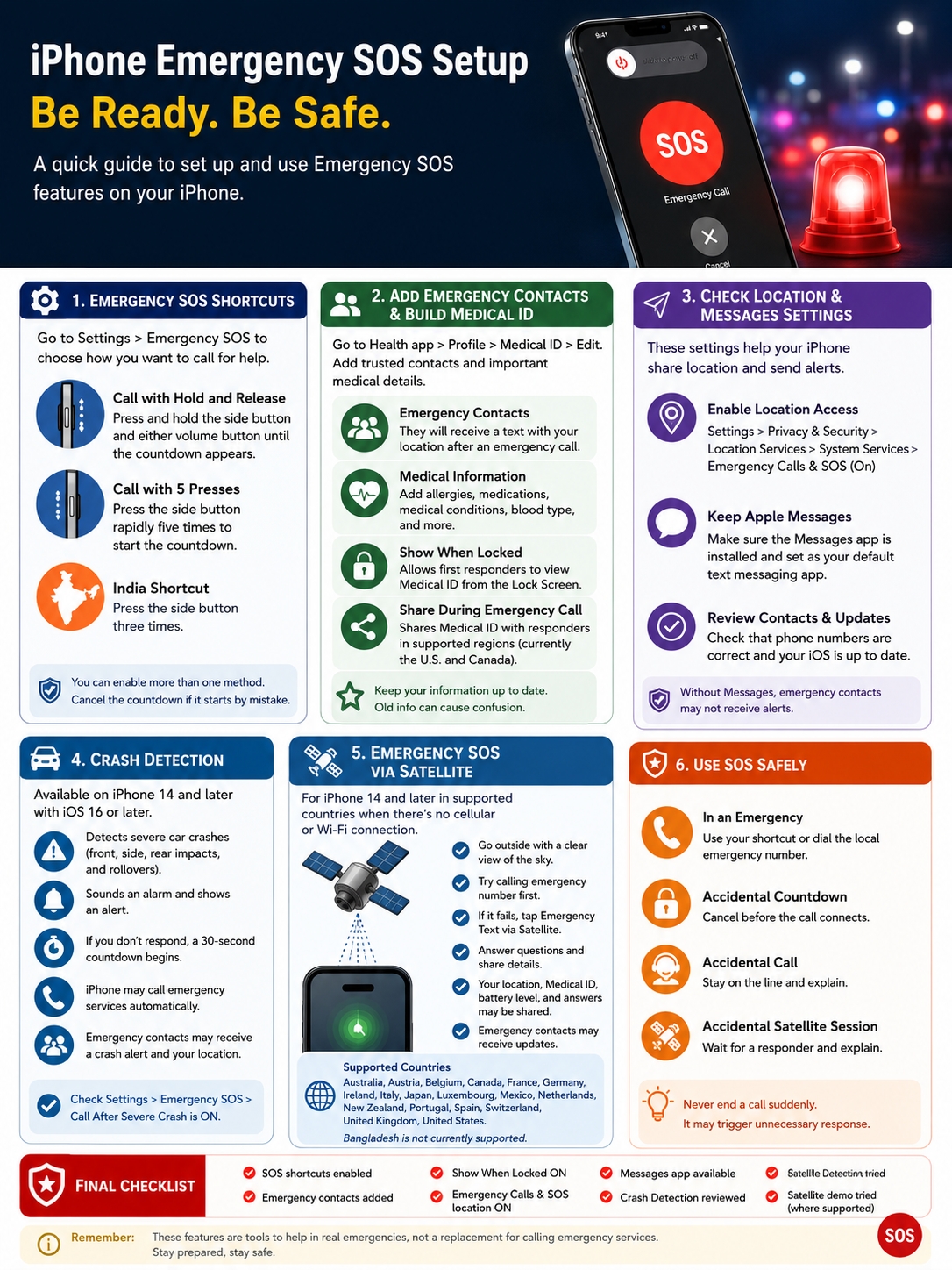
Emergency SOS via satellite works on iPhone 14 and later models in supported countries and regions.
It’s designed for places where neither cellular service nor Wi-Fi is available.
This doesn’t turn your iPhone into a normal satellite phone. It allows you to send a structured emergency text while the phone connects to a satellite.
|
Requirement |
What Apple Says |
|
Compatible device |
iPhone 14 or later |
|
Network condition |
No working cellular or Wi-Fi connection |
|
Location |
Outdoors with a clear view of the sky and horizon |
|
Software |
Latest compatible iOS version recommended |
|
Availability |
Limited to supported countries and regions |
|
Cost |
Apple currently includes satellite features free for two years after activation |
As of July 13, 2026, Apple lists Emergency SOS via satellite in:
- Australia
- Austria
- Belgium
- Canada
- France
- Germany
- Ireland
- Italy
- Japan
- Luxembourg
- Mexico
- The Netherlands
- New Zealand
- Portugal
- Spain
- Switzerland
- The United Kingdom
- The United States
Bangladesh isn’t on Apple’s current availability list.
That means users in Bangladesh should not expect Emergency SOS via satellite to appear unless Apple expands the service there.
Try the Satellite Demo Before a Trip
The demo is one of the best parts of the system because it lets you practise without contacting emergency services.
On a supported iPhone:
- Open Control Center.
- Tap the cellular or connectivity control.
- Tap Satellite.
- Select Try Demo.
- Choose Try Emergency SOS.
You may also find the demo under Settings > Emergency SOS.
Go outside before starting. You need a fairly clear view of the sky and horizon.
Trees, tall buildings, mountains, and canyon walls can slow or block the connection.
Apple says a message may take about 30 seconds in good conditions. Under light or medium foliage, it may take more than a minute.
That delay can feel long when you’re standing still and watching the screen. Trying the demo once makes the process much less confusing.
What Happens During a Satellite Emergency
Start by trying to call the local emergency number.
Even if your normal carrier has no signal, another available network may still carry the emergency call.
If the call doesn’t connect and satellite service is available, your iPhone may show Emergency Text via Satellite.
Tap it, then choose Report Emergency.
You’ll answer a short set of questions about what happened. You can also choose whether to alert your emergency contacts.
The iPhone may share:
- Your location
- Your elevation
- Your battery level
- Your answers to the emergency questions
- Your Medical ID
- Your emergency contact information
The screen then shows you which direction to turn so the phone can stay connected to the satellite.
Emergency contacts using compatible Apple devices may receive a transcript of the conversation. Other phones may receive a standard text alert.
Your contacts can see the information, but they can’t join the emergency conversation with responders.
Use Emergency SOS Safely and Handle Accidental Calls Properly
In a real emergency, use whichever method you can remember fastest.
Hold the side and volume buttons, use the five-press shortcut, drag the Emergency Call slider, or tap Emergency on the locked passcode screen.
|
Situation |
What to Do |
|
You have mobile service |
Call the local emergency number |
|
The iPhone is locked |
Tap Emergency on the passcode screen |
|
Your normal carrier has no signal |
Try the emergency call anyway |
|
You have no cellular or Wi-Fi |
Use satellite SOS if your iPhone and region support it |
|
You started the countdown by mistake |
Cancel before the call connects |
|
An accidental call connected |
Stay on the line and explain |
|
You started a satellite session by mistake |
Wait for a responder and explain |
What to Do After an Accidental SOS Call
Accidental calls happen.
A phone case may press the buttons. A child may tap the screen. Crash Detection may mistake a sudden impact for a collision.
If the call hasn’t connected, cancel it.
If someone answers, don’t hang up. Tell the operator clearly that the call was accidental and that no help is needed.
A silent hang-up can look suspicious. Emergency services may call back or send help because they can’t confirm that you’re safe.
The same rule applies to an accidental satellite session. Stay in the conversation until a responder replies, then explain what happened.
Final Thoughts
A solid iphone emergency sos setup comes down to a few simple checks.
Turn on the button shortcuts you can remember. Add trusted emergency contacts. Complete your Medical ID. Check location access and make sure the Messages app is available.
If you have an iPhone 14 or later, review Crash Detection too. Travellers heading into remote areas should also check whether satellite SOS works at their destination.
|
Final Safety Check |
Recommended Status |
|
Call with Hold and Release reviewed |
Done |
|
Call with 5 Presses reviewed |
Done |
|
Emergency contacts checked |
Done |
|
Medical ID updated |
Done |
|
Show When Locked enabled |
Done |
|
Emergency Calls & SOS location enabled |
Done |
|
Messages app available |
Done |
|
Crash Detection reviewed |
Done |
|
Satellite demo tried where supported |
Done |
Check everything again after changing your phone, medication, emergency contacts, mobile settings, or default messaging app.
It only takes a few minutes. In a real emergency, those few minutes of preparation could make a serious difference.
Frequently Asked Questions
|
Question |
Quick Answer |
|
Why didn’t my contacts get an alert? |
Check the Messages app and contact numbers |
|
Does SOS unlock the whole iPhone? |
No |
|
Can I add 911, 999, or 112 as a contact? |
No |
|
Can satellite SOS work while travelling? |
Often, but regional and purchase restrictions apply |
|
Does “SOS Only” mean the phone is broken? |
Not necessarily |
|
Is satellite SOS available in Bangladesh? |
Not on Apple’s current list |
Why Didn’t My Emergency Contacts Receive an Alert?
Start by checking the phone numbers saved in Medical ID.
Then make sure Apple’s Messages app is installed and selected for text messaging. Apple says automatic emergency contact alerts may not work without it.
Location and network access can also affect what gets sent.
Does Emergency SOS Unlock My iPhone?
No.
A person can use the Emergency screen to place a call. They can also view your Medical ID if you turned on Show When Locked.
They can’t open your photos, messages, email, banking apps, or other private content.
Can I Add 911, 999, or 112 as an Emergency Contact?
No.
Emergency contacts must be people saved in your Contacts app.
Your iPhone calls public emergency services separately through the Emergency SOS feature.
Can Travellers Use Emergency SOS via Satellite?
In many cases, yes, as long as they are physically located in a supported country or region.
However, Apple applies restrictions based on where some iPhone models were purchased.
Apple currently excludes iPhones bought in Armenia, Belarus, China mainland, Kazakhstan, Kyrgyzstan, and Russia. Hong Kong and Macao models require an iPhone 16e or later.
Check Apple’s latest regional guidance before travelling.
What Does “SOS” or “SOS Only” Mean in the Status Bar?
It usually means your iPhone isn’t connected to its normal mobile network.
In Australia, Canada, and the United States, Apple says the phone may still be able to make emergency calls through another carrier.
That status doesn’t automatically mean your iPhone is damaged. It often points to a network or coverage issue.
Is Emergency SOS via Satellite Available in Bangladesh?
Not at the moment.
Bangladesh wasn’t included in Apple’s supported country list as of July 13, 2026.
People in Bangladesh can still use normal emergency calling when a supported mobile network is available. They should not rely on Apple’s satellite feature unless the company officially expands it to the country.