
Blue ticks can make an ordinary WhatsApp message feel urgent.
You may want to check a work request before replying. Perhaps a family member has sent a long update, or you need time to think before answering a sensitive question. Once those ticks turn blue, the sender knows you opened the message.
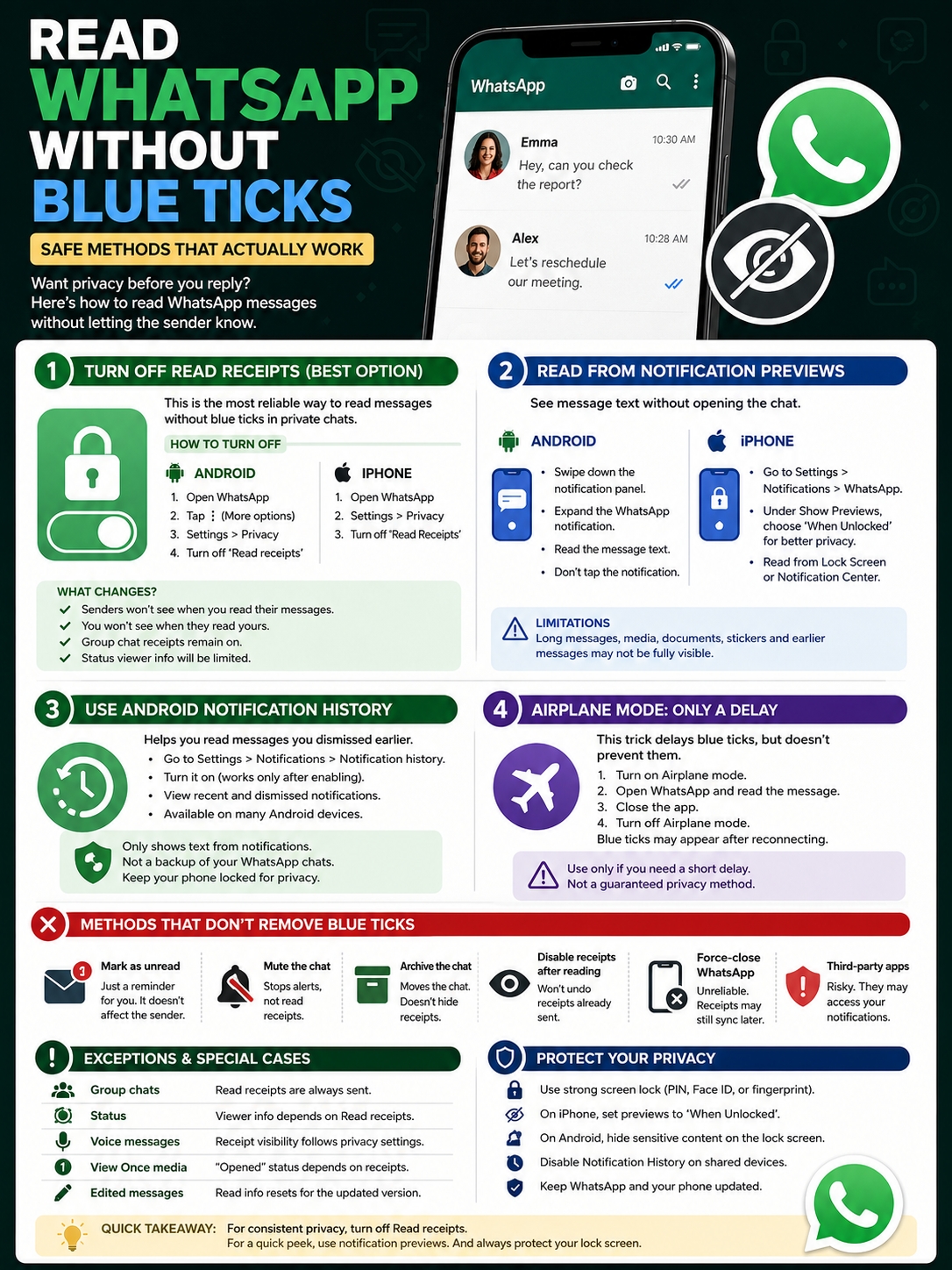
The easiest way to read WhatsApp without blue ticks is to switch off Read receipts before opening the chat. You can also read short messages through notification previews without entering WhatsApp.
That doesn’t mean every trick you see online works. Airplane mode may delay a read receipt, but it won’t always stop it. Marking a chat as unread only adds a reminder for you. It doesn’t erase blue ticks from the sender’s screen.
Group chats also play by different rules.
Here’s what actually works on Android and iPhone, where the limits are, and which popular tricks aren’t worth relying on.
What WhatsApp Checkmarks Really Mean
|
Symbol |
What it means |
What you should know |
|
One gray tick |
WhatsApp sent the message |
It may not have reached the other phone |
|
Two gray ticks |
The message reached the recipient |
The person may have read it with receipts off |
|
Two blue ticks |
The message was read |
This usually applies to private chats |
|
Played indicator |
A voice message was played |
Its visibility follows privacy settings |
One gray tick means WhatsApp successfully sent the message from your device. Two gray ticks mean it reached the recipient’s phone or another linked device.
Two blue ticks usually mean the person opened and read the message.
The word “usually” matters. Someone can read a private message while keeping the ticks gray if they have disabled Read receipts. Poor internet access can also delay updates.
Blue ticks aren’t connected to your Last Seen and Online settings. Hiding your online status won’t automatically hide read receipts. WhatsApp treats them as separate privacy controls.
Group conversations work differently. Read receipts stay active in groups, even when you switch them off for private chats. The ticks turn blue after every participant has read the message. The sender can also open Message Info to see who has received and read it.
How to Read WhatsApp Without Blue Ticks Using Privacy Settings
|
What changes |
Result |
|
Private chats |
Senders won’t see blue ticks |
|
Messages you send |
You won’t see other people’s blue ticks |
|
Group chats |
Read receipts stay active |
|
WhatsApp Status |
Viewer information becomes limited |
|
Best for |
Regular, long-term privacy |
Turning off Read receipts is the most dependable option. It’s built into WhatsApp, works on Android and iPhone, and doesn’t rely on temporary workarounds.
Turn Off Read Receipts on Android
- Open WhatsApp.
- Tap the three-dot menu in the top-right corner.
- Choose Settings.
- Tap Privacy.
- Find Read receipts.
- Turn the switch off.
The menu may look slightly different on Samsung, Pixel, Xiaomi, OnePlus, and other Android phones. The control should still sit inside WhatsApp’s Privacy settings.
Turn Off Read Receipts on iPhone
- Open WhatsApp.
- Tap Settings.
- Open Privacy.
- Find Read Receipts.
- Turn the switch off.
Do this before you open the message.
If WhatsApp has already sent the receipt, switching the setting off afterward won’t pull it back. There’s no undo button for a blue tick.
The Setting Works Both Ways
WhatsApp makes this a two-way privacy setting.
When you turn it off:
- Other people won’t see when you read their private messages.
- You won’t see when they read yours.
- Group receipts will still appear.
- WhatsApp Status viewer details will become less visible.
You may no longer see who viewed your Status. Other users may also stop seeing your name when you view theirs.
For anyone who regularly wants to read WhatsApp without blue ticks, this is the cleanest choice. You change the setting once and use the app normally.
Read Messages From Notification Previews
|
Device |
What to use |
Main limitation |
|
Android |
Notification shade |
Long messages may be cut off |
|
iPhone |
Lock Screen or Notification Center |
Message text may be visible to others |
|
Both |
Expanded notification previews |
Media and earlier messages may be missing |
Notification previews are handy when you don’t want to disable read receipts for every conversation.
The basic rule is simple: read the notification without tapping it.
Opening the WhatsApp chat can trigger the receipt. Looking at the text inside a standard notification normally doesn’t open the conversation.
Still, notification behavior can vary between phones and app versions. Use WhatsApp’s official Read receipts setting when you need certainty.
Read WhatsApp Notifications on Android
When a message arrives:
- Swipe down from the top of the screen.
- Find the WhatsApp notification.
- Tap the small arrow or drag down to expand it.
- Read the visible text.
- Don’t tap the body of the notification.
Expanded Android notifications may show several recent messages from the same chat. This works well for short conversations, but long messages can still be shortened.
You may also see buttons such as Reply, Mark as read, or Archive.
Avoid pressing Mark as read. That does exactly what the label says. Replying also makes it obvious that you saw the message, even if the ticks don’t update straight away.
Read WhatsApp Notifications on iPhone
On newer iPhone versions, you can manage WhatsApp alerts through:
Settings > Apps > WhatsApp > Notifications
You may also find WhatsApp under:
Settings > Notifications > WhatsApp
Make sure notifications are allowed. Then check the Show Previews setting.
You’ll usually see three choices:
- Always: Shows message text even when the phone is locked.
- When Unlocked: Reveals the text after Face ID, Touch ID, or a passcode.
- Never: Hides the message content.
When Unlocked gives you the best balance. You can read the preview after unlocking your phone, but people nearby can’t see the full message on the Lock Screen.
Touching and holding a notification may show more text. Tapping it opens WhatsApp, which can send a read receipt.
Where Notification Previews Fall Short
Previews won’t always show everything. You may miss:
- Parts of a long message
- Earlier messages in a busy chat
- Full images and videos
- Documents
- Poll options
- Stickers
- Quoted-message context
- View Once content
They’re useful for a quick check, not for reading an entire conversation.
Use Android Notification History for Dismissed Messages
|
Feature |
What it does |
|
Availability |
Supported on many Android phones |
|
Stores |
Recent and dismissed notifications |
|
Typical period |
The current day or last 24 hours |
|
Works retroactively |
No |
|
Main drawback |
Stores only notification content |
Have you ever cleared a WhatsApp notification and then wished you had read it first? Android Notification History may help.
On supported phones, it keeps a record of recent and dismissed alerts. That can include the text WhatsApp showed in the original notification.
To turn it on:
- Open your phone’s Settings.
- Tap Notifications.
- Find Notification history.
- Switch it on.
Some phones place the feature under Advanced settings or a similar menu.
Notification History only starts recording after you enable it. It won’t recover alerts that arrived before that point.
It also isn’t a secret backup of your WhatsApp account. It may show a message preview, but it won’t store full conversations, voice recordings, videos, or documents.
Still, it can help you read WhatsApp without blue ticks after accidentally dismissing an alert.
Read Also: How to Lock WhatsApp Chats with Password
Don’t Ignore the Privacy Risk
Notification History can expose more than you expect.
Anyone who unlocks your phone may be able to see old previews, including private conversations, verification codes, financial alerts, and work messages.
Consider leaving it off when:
- You share your phone.
- Colleagues use your device.
- Your phone is often left unattended.
- You receive sensitive personal or financial messages.
A strong screen lock matters just as much as your WhatsApp settings.
Does the Airplane Mode Trick Work?
|
Step |
What may happen |
|
Turn on airplane mode |
WhatsApp loses internet access |
|
Open the message |
The receipt can’t sync immediately |
|
Close WhatsApp |
The read status may remain queued |
|
Reconnect |
WhatsApp may send the receipt later |
Airplane mode is one of the oldest WhatsApp tricks online.
The idea sounds reasonable. Disconnect the phone, open the message, close the app, and reconnect. Because the phone was offline, WhatsApp couldn’t send the blue ticks while you were reading.
The problem comes later.
WhatsApp may store the read status and send it as soon as the app reconnects. Force-closing the app before going online doesn’t guarantee anything either.
Results can vary depending on:
- Your phone model
- The WhatsApp version
- Background app settings
- The operating system
- Whether another linked device is online
Airplane mode can buy you a little time. It shouldn’t be your main privacy method.
Use it when a short delay is enough. Turn off Read receipts when you need a reliable result.
Popular Tricks That Don’t Remove Blue Ticks
|
Method |
Does it work? |
What it really does |
|
Mark as unread |
No |
Adds a reminder for you |
|
Mute the chat |
No |
Stops sounds and alerts |
|
Archive the chat |
No |
Moves it from the main list |
|
Disable receipts after reading |
No |
Changes future receipt behavior |
|
Force-close WhatsApp |
Unreliable |
May not stop queued syncing |
|
Use a third-party reader |
Risky |
Gives another app access to notifications |
Marking a Chat as Unread
This is one of the most misunderstood WhatsApp features.
When you mark a chat as unread, WhatsApp places an unread indicator beside it. That helps you remember to reply later.
The sender doesn’t see that change. If the ticks already turned blue, they stay blue.
Think of it as a personal reminder, not a privacy tool.
Muting a Conversation
Muting controls notifications. It can stop sounds, vibrations, and pop-up alerts.
It has no effect on read receipts. Open the conversation with receipts enabled, and the sender can still get blue ticks.
Archiving a Chat
Archiving removes a conversation from your main chat list. It helps clean up WhatsApp, but it doesn’t change what the sender sees.
Open an archived chat and the normal receipt rules still apply.
Turning Off Receipts After Opening the Message
This won’t reverse a receipt that WhatsApp has already sent.
The setting needs to be off before you enter the conversation.
Using Third-Party Message Readers
Some apps promise to collect WhatsApp messages and let you read them secretly. Most work by requesting access to your notifications.
That permission can expose much more than WhatsApp. The app may also see:
- Login codes
- Banking alerts
- Email previews
- Private work messages
- Health-related notifications
- Personal conversations
The small convenience isn’t worth handing an unknown app that level of access.
Stick with WhatsApp’s privacy settings or Android’s built-in Notification History.
Group Chats, Voice Notes, Status, and View Once Messages
|
WhatsApp feature |
What happens |
|
Private chat |
Read receipts can be switched off |
|
Group chat |
Receipts stay active |
|
Status |
Viewer details depend on Read receipts |
|
Voice message |
Receipt visibility follows privacy settings |
|
View Once media |
Opened status depends on receipts |
|
Edited message |
Read details reset for the new version |
Group Chats Still Send Read Receipts
Turning off Read receipts doesn’t hide your activity in WhatsApp groups.
The sender can open Message Info and see which members received and read the message. Blue ticks appear when every person in the group has read it.
You may be able to check part of a group message through a notification preview. That works for short updates, but it quickly becomes messy in an active group.
Voice Message Receipts Follow Privacy Settings
Older WhatsApp guides often claim that voice-note receipts always appear, even when blue ticks are disabled.
That advice is now outdated.
WhatsApp’s current guidance says voice-message receipt visibility follows the privacy settings enabled on the account.
That means you shouldn’t rely on old articles or screenshots when checking this feature. WhatsApp changes its behavior over time.
WhatsApp Status Uses the Same Setting
When Read receipts are off, you may not see who viewed your Status. Other people may also stop seeing that you watched theirs.
This catches many users by surprise because the setting affects more than private chats.
View Once Content Is Different
View Once photos, videos, and voice messages must be opened inside WhatsApp. You can’t see the full content through a standard notification preview.
When Read receipts are enabled, the sender may see an Opened status after you view the item.
The same caution applies here: change your privacy settings before opening sensitive content.
Edited Messages Reset Read Information
When someone edits a message, WhatsApp resets its read information for the updated version.
That lets the sender check who has seen the edit, even if those people had read the original message earlier.
It’s a small detail, but it matters in group conversations and time-sensitive discussions.
Keep Private Messages Off Your Lock Screen
|
Setting |
Convenient choice |
Safer choice |
|
iPhone previews |
Always |
When Unlocked |
|
Android lock-screen content |
Show everything |
Hide sensitive text |
|
Notification History |
On |
Off on shared phones |
|
Phone security |
Basic PIN |
Strong PIN and biometrics |
Avoiding blue ticks can create a different privacy problem.
A notification preview may keep the sender from seeing a receipt, but it can also put the full message on your Lock Screen. Anyone nearby may be able to read it.
A safer setup looks like this:
- Turn off Read receipts for private chats.
- Set iPhone previews to When Unlocked.
- Hide sensitive notification content on Android.
- Use Face ID, fingerprint unlock, or a strong PIN.
- Review which apps have notification access.
- Disable Notification History on shared devices.
- Avoid unofficial WhatsApp apps.
This gives you control on both sides. The sender doesn’t automatically see that you read the message, and people around you can’t glance at the conversation.
Final Thoughts
|
Your situation |
Best choice |
|
You want ongoing privacy |
Turn off Read receipts |
|
You need a quick look |
Read the notification preview |
|
You cleared an Android alert |
Check Notification History |
|
You’re reading a group message |
Use a preview, but expect group receipts |
|
You only need a delay |
Try airplane mode |
|
The message is sensitive |
Change settings before opening it |
The best way to read WhatsApp without blue ticks is to turn off Read receipts before opening the chat. It’s simple, built into the app, and far more reliable than temporary tricks.
Notification previews work well when you only need to glance at a short message. Android Notification History can also recover some cleared previews if you enabled it in advance.
Don’t expect marking a message unread, muting a chat, or archiving it to hide anything from the sender. Those features help you manage conversations, but they don’t control receipts.
Airplane mode may delay the blue ticks. It may also send them as soon as the phone reconnects.
Keep the exceptions in mind. Group-chat receipts stay active. Status viewer information changes when receipts are off. Voice-message receipts follow your privacy settings, while View Once content must be opened inside WhatsApp.
Most importantly, protect your Lock Screen. There’s little point hiding blue ticks if anyone standing next to you can read the whole message.
Frequently Asked Questions
|
Question |
Quick answer |
|
Can I disable receipts for one person? |
No standard per-contact option exists |
|
Does being online prove I read a chat? |
No |
|
Can Notification History show deleted text? |
Sometimes |
|
Does editing reset receipt information? |
Yes |
|
Does replying reveal that I read it? |
Yes |
Can I Turn Off Blue Ticks for One WhatsApp Contact?
No. WhatsApp’s Read receipts setting applies to private conversations as a whole. There’s no standard option to disable it for one person while leaving it on for everyone else.
Group chats remain outside this setting.
Does My Online Status Prove I Read Someone’s Message?
No. Being online only means WhatsApp was open and connected.
You could have been reading another conversation, changing a setting, making a call, or checking your Status.
The person may assume you saw the message, but online status isn’t proof.
Can Android Notification History Show a Deleted WhatsApp Message?
Sometimes.
If Notification History was already enabled and the original WhatsApp alert contained the message text, the preview may remain in the history after the sender deletes it.
It won’t reliably recover photos, videos, voice messages, or text that never appeared in a notification.
Does Editing a WhatsApp Message Reset Its Read Receipts?
Yes. WhatsApp resets receipt information for the edited version.
This allows the sender to see who has viewed the updated message.
Can I Reply From a Notification Without Triggering Blue Ticks?
Don’t rely on it.
Notification actions can behave differently across devices and app versions. More importantly, sending a reply makes it obvious that you read the message, whether the ticks change or not.
Does Turning Off Read Receipts Hide My Status Views?
Yes. When Read receipts are off, other people may not see that you viewed their Status.
You may also lose access to the list of people who viewed your own Status.