
Let’s be honest. We all have chats we don’t want others to see. Maybe it’s a personal conversation. Maybe it’s work-related. Or maybe it’s just something private that doesn’t need extra eyes on it.
That’s usually when people start looking for ways to lock whatsapp chats.
The good news is, you don’t need any sketchy apps anymore. WhatsApp now gives built-in privacy tools that do the job pretty well. You can lock chats using your fingerprint, Face ID, phone PIN, or even a Secret Code.
It’s simple. It stays inside WhatsApp. And it actually works.
In this guide, I’ll walk you through everything step by step. No complicated jargon. Just real, usable instructions.
What Is WhatsApp Chat Lock?
Chat Lock is basically a privacy layer for individual chats. Instead of locking your whole phone or app, you only lock specific conversations.
Once you lock a chat, it disappears from your normal chat list and moves into a separate Locked Chats folder. You’ll need fingerprint, Face ID, PIN, or passcode to open it.
It doesn’t delete anything. It doesn’t block anyone. It just adds a barrier before someone can peek inside.
Chat Lock vs Archive vs App Lock
People mix these up all the time, but they’re very different.
|
Feature |
What it does |
How strong it is |
When to use |
|
Chat Lock |
Protects specific chats |
Strong |
Private conversations |
|
Archive |
Hides chats from list |
Weak |
Inbox cleanup |
|
App Lock |
Locks full WhatsApp |
Strong |
Full privacy |
What Chat Lock Actually Does
- Keeps chats inside a locked folder
- Hides message previews (in most cases)
- Requires authentication to open
- Works only on your device
Why You Might Want to Lock WhatsApp Chats
You don’t really think about privacy until someone scrolls your phone.
It happens fast. A friend borrows your phone. A coworker opens a message. A family member checks something for you.
That’s usually enough for private chats to get exposed.
Everyday situations where Chat Lock helps
- Sharing your phone for calls or photos
- Kids using your device
- Quick handovers at work
- Accidental scrolling by others
Why built-in protection matters
Third-party “locker apps” used to be popular. But they often ask for too many permissions or stop working after updates.
WhatsApp’s built-in option is cleaner. Safer. And honestly, less hassle.
|
Situation |
Without Chat Lock |
With Chat Lock |
|
Shared phone |
Chats exposed |
Chats protected |
|
Notifications |
Visible previews |
Hidden content |
|
Privacy risk |
High |
Lower |
How to Lock WhatsApp Chats on Android
On Android, this feature is built right into WhatsApp. You don’t need extra tools.
Step-by-step
- Open WhatsApp
- Press and hold the chat
- Tap the menu (three dots)
- Select “Lock Chat”
- Confirm with fingerprint or PIN
That’s it. The chat moves into Locked Chats.
Read Also: How to Backup WhatsApp from iPhone to Android
How to find locked chats
- Open WhatsApp
- Scroll to the top of chat list
- Open Locked Chats
- Unlock with fingerprint or PIN
Quick Android summary
|
Action |
Result |
|
Lock chat |
Moves to secure folder |
|
Unlock |
Requires biometric or PIN |
|
Access |
Hidden from normal list |
How to Lock WhatsApp Chats on iPhone
iPhone users get a similar experience using Face ID or Touch ID.
Step-by-step
- Open WhatsApp
- Open the chat you want
- Tap contact name at the top
- Select Chat Lock
- Turn it on using Face ID or passcode
Once done, the chat is protected instantly.
How to open locked chats
- Open WhatsApp
- Swipe down in chat list
- Tap Locked Chats
- Verify with Face ID
iPhone summary
|
Step |
What happens |
|
Enable lock |
Chat gets protected |
|
Verify identity |
Face ID or passcode needed |
|
Access folder |
Hidden chat area opens |
WhatsApp Secret Code (Extra Privacy Layer)
This is where things get a bit more private.
Secret Code lets you hide your locked chats completely. Instead of seeing a Locked Chats folder, you only reveal it by typing a code inside WhatsApp search.
Think of it like a hidden door.
What it does
|
Feature |
Meaning |
|
Custom code |
Separate from phone PIN |
|
Hidden folder |
Locked chats disappear |
|
Search unlock |
Type code to reveal |
How to set it up
- Open Locked Chats
- Go to chat lock settings
- Tap Secret Code
- Create your code
- Confirm it
Simple, but powerful.
App Lock vs Chat Lock (Simple Difference)
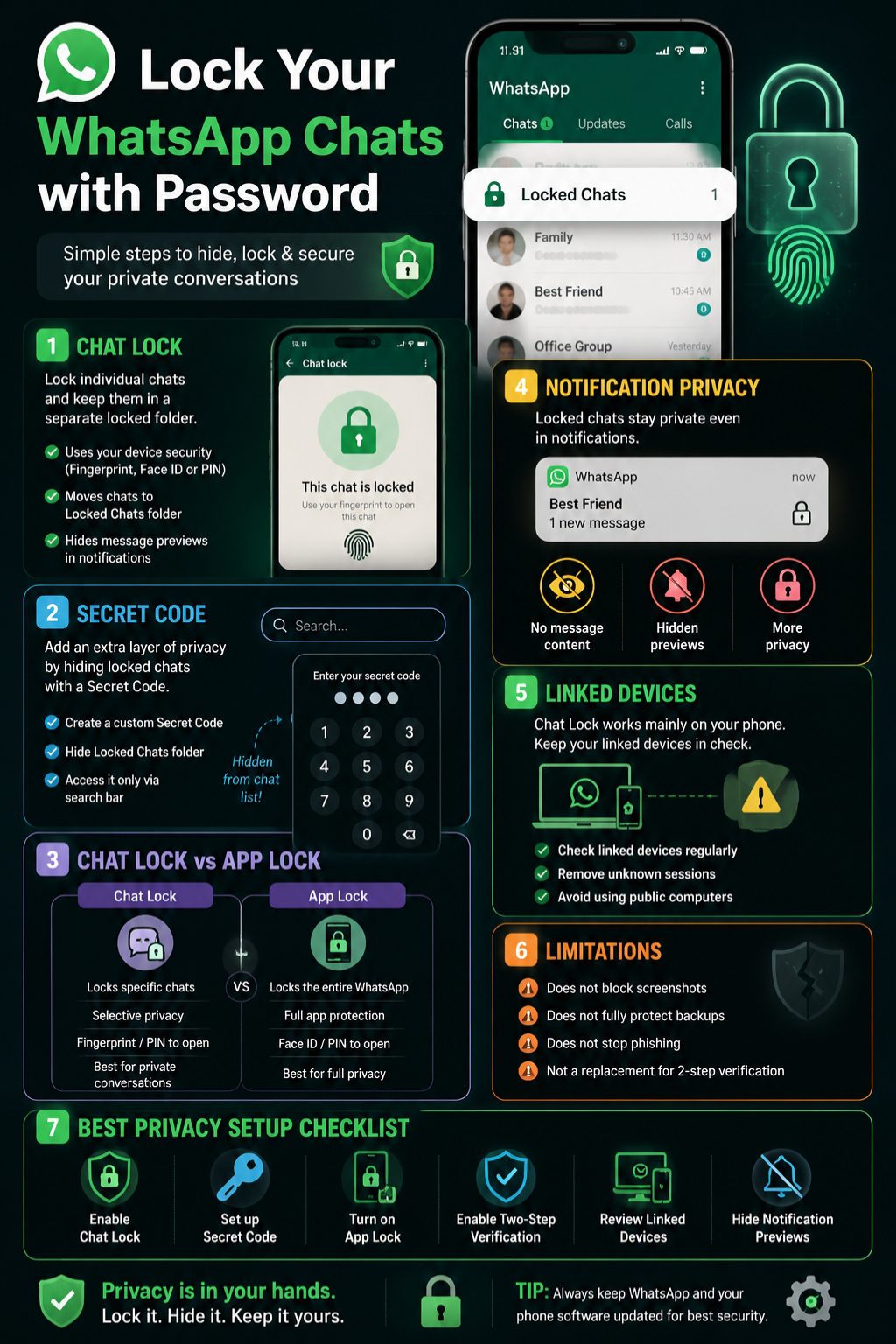
Let’s clear this up once and for all.
App Lock protects everything inside WhatsApp. Chat Lock protects only selected chats.
Side-by-side view
|
Feature |
What it protects |
Best for |
|
Chat Lock |
Specific chats |
Personal privacy |
|
App Lock |
Entire app |
Full security |
|
Secret Code |
Hidden chats |
Extra privacy layer |
If you want real protection, you can use all three together.
What Happens to Notifications?
Even if a chat is locked, messages can still trigger notifications.
But here’s the key point: content is usually hidden.
What you might see
- Contact name only
- No message preview
- Limited lock screen info
Notification control tips
|
Setting |
What to do |
|
Lock screen preview |
Turn off |
|
WhatsApp notifications |
Hide content |
|
Sensitive chats |
Mute if needed |
Small changes here make a big difference.
WhatsApp Web and Linked Devices
This is something many people forget.
Chat Lock mainly protects your phone. But linked devices like WhatsApp Web behave a bit differently.
What you should do
- Check linked devices regularly
- Remove anything you don’t recognize
- Avoid using public computers
- Log out after use
|
Action |
Why it matters |
|
Check devices |
Prevent unknown access |
|
Remove old sessions |
Improve privacy |
|
Avoid shared PCs |
Reduce risk |
What Chat Lock Does NOT Do
This is important. Chat Lock is helpful, but it’s not a full security system.
Limitations
- Doesn’t stop screenshots
- Doesn’t fully protect backups
- Doesn’t secure linked devices completely
- Doesn’t stop phishing attempts
- Doesn’t replace two-step verification
|
Area |
Protection level |
|
On-device privacy |
Strong |
|
Account security |
Medium |
|
External threats |
Weak |
Extra Privacy Settings Worth Turning On
If you care about privacy, don’t stop at Chat Lock.
Two-step verification
Adds an extra PIN when logging in again. This helps protect your account if someone tries to take it over.
Encrypted backups
Keeps your chat backups safe in cloud storage with encryption.
Profile privacy controls
You can control:
- Last seen
- Profile photo
- About section
- Status visibility
Disappearing messages
Messages auto-delete after a set time. Useful for sensitive chats.
|
Feature |
Why it helps |
|
Two-step verification |
Stops account takeover |
|
Encrypted backups |
Protects stored data |
|
Disappearing messages |
Reduces message history |
Common Problems and Quick Fixes
Things don’t always work perfectly. Here’s what usually goes wrong.
Chat Lock not showing
- Update WhatsApp
- Restart your phone
- Wait for feature rollout
Fingerprint not working
- Re-register fingerprint
- Check system settings
- Restart device
Locked chats missing
- Try Secret Code in search
- Check correct account
|
Problem |
Fix |
|
Missing feature |
Update app |
|
Biometric issue |
Reset fingerprint |
|
Hidden chats |
Use Secret Code |
Chat Lock vs Other Security Tools
Here’s a quick breakdown to keep things clear.
|
Tool |
What it does |
|
Chat Lock |
Locks selected chats |
|
App Lock |
Locks full WhatsApp |
|
Secret Code |
Hides locked chats |
|
Two-step verification |
Protects account login |
Final Thoughts
If you want to lock whatsapp chats, start simple. Use Chat Lock for personal conversations. Add Secret Code if you want hidden access. Turn on App Lock if you want full protection.
No single feature does everything. But together, they make WhatsApp a lot more private without making it annoying to use.
That’s really the point. Keep things simple, but keep them secure.
FAQs
Can I lock just one WhatsApp chat?
Yes. You can lock individual chats anytime.
Does Chat Lock work for groups?
Yes, it works for both groups and personal chats.
Can I use fingerprint instead of a password?
Yes. Most phones support biometric lock.
What if I forget Secret Code?
You may need to reset it through WhatsApp settings.
Does Chat Lock hide photos and videos?
Not always. Check your media settings separately.
Can someone bypass Chat Lock?
Only if they already have access to your phone unlock method.