
Your iPhone probably spends hours sitting on a charger every day. Most of that time, the screen does nothing. StandBy changes that.
With iPhone StandBy mode, your charging phone can become a bedside clock, a photo frame, a calendar display, or a small information hub. You can check the weather, follow a timer, control music, view reminders, or keep an eye on an ongoing Live Activity without picking up the phone.
The setup is simple, but a few details matter. Your iPhone must be charging, lying on its side, and staying still. You also need iOS 17 or later.
The experience varies slightly by model. iPhones with an Always-On display can keep StandBy visible for longer. Other supported models still run it, but the screen eventually goes dark and needs a tap or a small movement to wake.
This guide walks through the full setup, customization options, privacy controls, charging tips, and the most common fixes.
What Is iPhone StandBy Mode?
StandBy is a full-screen landscape display that appears while your iPhone is charging. Apple introduced it with iOS 17.
It isn’t a separate app, so there’s nothing to download or open. You control it through Settings > StandBy.
Once active, StandBy can show large clocks, photos, widgets, notifications, incoming calls, Siri responses, media controls, and supported Live Activities. The layout uses large text and controls because Apple designed it to be read from a distance.
That makes it useful on a nightstand, work desk, kitchen counter, or shelf.
StandBy works with wired charging, compatible Qi wireless chargers, and MagSafe. You don’t need to buy a MagSafe stand just to use it. A cable and a basic phone stand will do the job.
MagSafe does offer one useful extra. Your iPhone can remember which StandBy view you used at a specific MagSafe charging location. You could keep a clock beside your bed and widgets at your desk without switching them manually every time.
|
Requirement |
What You Need |
|
Software |
iOS 17 or later |
|
Compatible device |
An iPhone that supports iOS 17 or newer |
|
Power |
Wired, Qi wireless, or MagSafe charging |
|
Position |
Landscape orientation, resting on its side |
|
Stability |
The phone must stay still |
|
Always-On display |
Optional, but useful for a persistent screen |
How to Turn On iPhone StandBy Mode
StandBy is often enabled automatically after an iOS update. Still, it’s worth checking the setting before troubleshooting anything else.
Follow these steps:
- Open Settings.
- Scroll down and tap StandBy.
- Turn on the main StandBy switch.
- Connect your iPhone to a charger.
- Rotate it into landscape orientation.
- Rest it on its side using a stand or stable surface.
- Keep it still.
- Press the side button if StandBy doesn’t appear.
The position is important. A phone lying flat on a wireless charging pad may charge normally but fail to open StandBy. It needs to sit on its side in landscape orientation.
A vertical phone will usually show the normal Lock Screen instead.
Give the phone a few seconds after placing it on the stand. Moving it around while testing can stop StandBy from starting.
|
Step |
What to Do |
What Should Happen |
|
1 |
Turn on StandBy in Settings |
The feature becomes available |
|
2 |
Connect a charger |
The phone detects external power |
|
3 |
Rotate the phone sideways |
Landscape mode activates |
|
4 |
Keep the phone still |
StandBy stays open |
|
5 |
Press the side button |
The phone locks and shows StandBy |
|
6 |
Swipe across the screen |
The main view changes |
How to Customize iPhone StandBy Mode
The main StandBy screen has three views:
- Widgets
- Photos
- Clocks
Swipe left or right to move between them. Swipe up or down to change the content within the current view.
It takes a little experimenting to find the setup that suits each room. A bright photo display might look great in the living room but feel distracting beside the bed. A large digital clock may be perfect at night but waste space on a work desk.
Edit the Widget View
The widget screen shows two Smart Stacks side by side. Each stack can contain several widgets that you scroll through vertically.
To edit one:
- Touch and hold the widget stack.
- Unlock the iPhone if prompted.
- Tap the add button to add a widget.
- Drag widgets to change their order.
- Tap the minus button to remove one.
- Adjust Smart Rotate or Widget Suggestions if those options appear.
Useful widgets include:
- Calendar
- Weather
- Reminders
- Batteries
- Home controls
- Podcasts
- Music
- News
- Clock
Available widgets depend on the apps installed on your phone. Some third-party apps support StandBy-friendly widgets, while others only offer Home Screen versions.
Interactive widgets can also handle simple actions. You may be able to complete a reminder, pause audio, or control a smart-home accessory without opening the full app.
Choose Which Photos Appear
The photo view can display featured images or pictures from a selected album.
I’d avoid leaving it on a broad photo collection in a shared room. Screenshots, receipts, work documents, or personal photos can appear when you least expect them.
A better approach is to create a dedicated StandBy album. Add only the photos you’re comfortable displaying publicly.
Pick a Clock Style
StandBy offers several clock designs, including:
- Digital
- Analog
- Solar
- Float
- World Clock
Swipe up or down to move between them. Touch and hold the clock to open available editing controls, such as accent colors.
For a bedroom, choose a clock with large numbers and low visual clutter. On a desk, World Clock can be useful if you work with people in other time zones.
|
View |
Best For |
Useful Setup |
|
Widgets |
Desk or kitchen |
Calendar, weather, reminders |
|
Photos |
Living room or shelf |
A carefully selected album |
|
Digital clock |
Bedside table |
Large, easy-to-read numbers |
|
World Clock |
Remote work |
Key international time zones |
|
Live Activities |
Ongoing tasks |
Timers, media, or supported updates |
Why StandBy Doesn’t Stay On for Every iPhone
StandBy and Always-On display are two separate features.
StandBy controls what appears while the phone is charging in landscape orientation. Always-On display decides whether the screen can remain visible while the iPhone is locked.
Apple currently lists the following models as supporting Always-On display:
- iPhone 14 Pro and iPhone 14 Pro Max
- iPhone 15 Pro and iPhone 15 Pro Max
- iPhone 16 Pro and iPhone 16 Pro Max
- iPhone 17
- iPhone 17 Pro and iPhone 17 Pro Max
- iPhone Air
Standard iPhone 14, iPhone 15, and iPhone 16 models don’t have Apple’s Always-On display.
That doesn’t mean StandBy won’t work on them. It will. The main difference is that the screen eventually turns off.
You can wake it by:
- Tapping the display
- Gently nudging the table or stand
- Asking Siri to activate StandBy
On supported Always-On models, go to:
Settings > StandBy > Display
Depending on the model and software version, you may see:
- Automatically: Turns the display off when the room is dark and the phone isn’t being used.
- After 20 Seconds: Switches the screen off after 20 seconds.
- Never: Keeps the StandBy screen visible while the feature remains active.
Even an Always-On iPhone may turn the display off in certain situations. This can happen when the phone is covered, face down, in Low Power Mode, connected to CarPlay, used as a Continuity Camera, or running Sleep Focus.
It may also go dark around your usual bedtime or when you move away while wearing a paired Apple Watch.
|
iPhone Type |
What to Expect |
|
Model with Always-On display |
StandBy can remain visible |
|
Supported model without Always-On |
StandBy works, but the screen sleeps |
|
iPhone without iOS 17 support |
StandBy is unavailable |
|
Phone disconnected from power |
StandBy stops working |
Night Mode, Notifications, Live Activities, and Siri
StandBy includes several features that are easy to overlook.
Use Night Mode in a Dark Room
Night Mode changes clocks, widgets, and photos to a dim red color when the room gets dark.
The red tint is easier on the eyes than a bright white or blue display. It also makes the phone less distracting on a bedside table.
Night Mode reacts to the surrounding light. It isn’t tied to a fixed schedule, so it may not activate if the room is still fairly bright.
Manage Notification Privacy
StandBy can show incoming notifications in a large format. That’s useful when the phone is across the room, but it can also expose private information.
Review your preview settings before using StandBy in an office, bedroom, or shared living space.
Go to:
Settings > Notifications > Show Previews
Choose one of these options:
- Always
- When Unlocked
- Never
You can also open an individual app under Notifications and change its settings separately.
For messaging, email, banking, and work apps, When Unlocked is usually the safer choice.
Read Also: How to Back Up iPhone Without iCloud
Follow Live Activities
Supported Live Activities can expand into a larger StandBy view. These may include:
- Timers
- Media playback
- Sports updates
- Food delivery progress
- Ride status
- Other ongoing app events
The exact features depend on the app. Not every app supports Live Activities, and the activity usually needs to be active before it appears.
Use Siri From Across the Room
Siri works with StandBy and can show larger visual responses.
You can ask Siri to:
- Set or check a timer
- Play music
- Check the weather
- Create a reminder
- Turn StandBy on or off
- Control compatible Home devices
This is especially useful in the kitchen or when the phone is beyond easy reach.
|
Feature |
What It Does |
Where It Helps |
|
Night Mode |
Uses a dim red display |
Bedroom |
|
Notification controls |
Hides sensitive previews |
Shared rooms |
|
Live Activities |
Enlarges ongoing updates |
Desk or kitchen |
|
Siri |
Handles voice commands |
Hands-free use |
|
Calls |
Shows incoming caller details |
Across the room |
The Best Ways to Use StandBy at Home
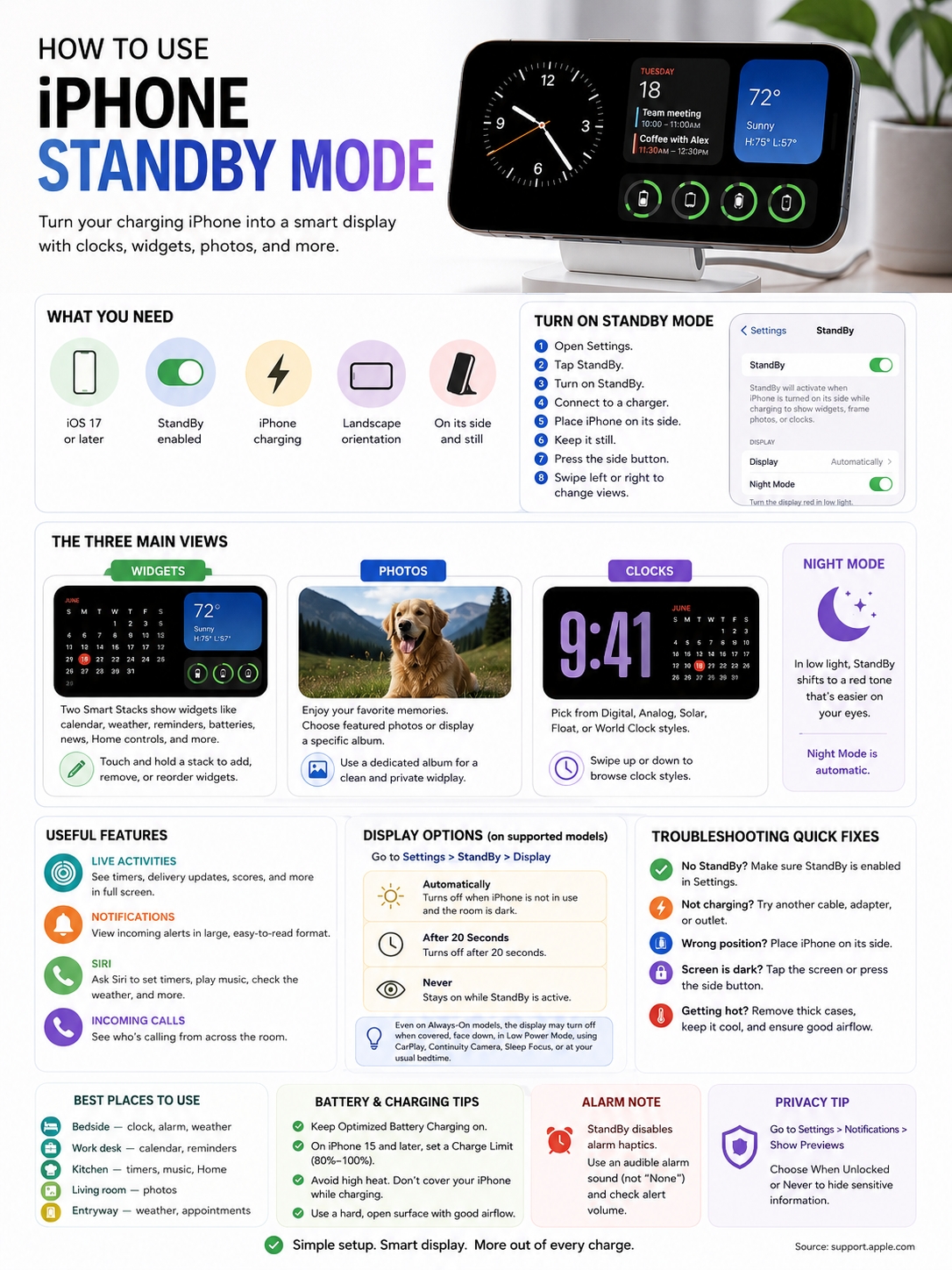
StandBy becomes much more useful when each charging spot has a clear purpose.
Beside the Bed
Use a large clock, Night Mode, and a simple weather widget.
Test your alarm before depending on it. Apple says alarm haptics are disabled while the iPhone is in StandBy. Choose an audible alarm sound rather than setting the sound to None.
Silent mode and Do Not Disturb don’t block a properly configured alarm, but your alert volume still matters.
At Your Work Desk
Try pairing Calendar with Reminders, Batteries, Weather, or World Clock.
This gives you useful information at a glance without opening another tab or unlocking the phone every few minutes.
Avoid filling both widget stacks with constantly changing content. A steady calendar-and-reminders setup often works better than a busy dashboard.
In the Kitchen
Timers, music controls, weather, and Home widgets make the most sense here.
You can check a countdown, pause a podcast, or control a connected light without touching several screens.
In the Living Room
Use the photo view with a hand-picked album.
A charging phone won’t replace a full digital photo frame, but it can make better use of a screen that would otherwise stay dark.
At the Door
Weather, appointments, and reminders can give you a quick check before leaving home.
A simple setup might show rain conditions on one side and your next calendar event on the other.
|
Location |
Recommended View |
Why It Works |
|
Bedroom |
Clock and Night Mode |
Easy to read without bright light |
|
Work desk |
Calendar and reminders |
Keeps tasks visible |
|
Kitchen |
Timer and media controls |
Useful while cooking |
|
Living room |
Selected photo album |
Works like a basic photo frame |
|
Entryway |
Weather and appointments |
Helpful before heading out |
Charging and Battery Tips
StandBy keeps the iPhone connected to power, so it’s fair to wonder whether using it overnight harms the battery.
Apple’s battery guidance focuses mainly on heat, charging habits, and normal chemical aging. Apple doesn’t identify StandBy itself as a separate battery-health risk.
The biggest thing to watch is temperature.
Keep the phone and charger on a hard, open surface. Don’t place them under a pillow, blanket, clothing, or papers. Wireless charging can generate extra warmth, especially if the phone is poorly aligned or trapped inside a thick case.
Apple recommends avoiding charging in ambient temperatures above 95°F or 35°C. When an iPhone gets too warm, iOS may slow or pause charging until the temperature drops.
Keep Charging Optimization Enabled
Optimized Battery Charging learns your routine and reduces the time the battery spends fully charged.
On iPhone 15 and later, go to:
Settings > Battery > Charging
You can choose a Charge Limit between 80 and 100 percent in 5 percent steps.
On iPhone 14 and earlier, go to:
Settings > Battery > Battery Health & Charging
Leaving Apple’s charging optimization turned on is a sensible choice, especially if the phone sits on a StandBy charger overnight.
|
Battery Factor |
What to Do |
|
Optimized Battery Charging |
Leave it enabled |
|
Charge Limit |
Adjust it on iPhone 15 and later |
|
Excessive heat |
Disconnect the phone and let it cool |
|
Thick case |
Remove it if charging becomes hot |
|
Ventilation |
Keep the phone and charger uncovered |
|
Direct sunlight |
Move the setup to a cooler spot |
How to Fix StandBy When It Isn’t Working
Most StandBy problems come down to settings, charging, position, or movement.
Work through these checks in order.
Confirm StandBy Is Turned On
Open Settings > StandBy and check the main switch.
If it’s already on, turn it off, wait a few seconds, and switch it back on.
Make Sure the Phone Is Charging
Look for the charging symbol on the screen.
If it isn’t charging:
- Try another cable
- Check the power adapter
- Use another wall outlet
- Clean visible debris from the charging port
- Reposition the phone on the wireless charger
StandBy won’t stay active without external power.
Check the Position
Place the phone horizontally on its side.
Don’t leave it upright in portrait mode or flat on a charging pad. Use a stand that holds it securely at a readable angle.
Keep It Still
Movement can prevent StandBy from starting. Put the phone down, stop adjusting it, and wait a few seconds.
Press the Side Button
StandBy usually appears after the iPhone locks. Press the side button once if you still see the Home Screen or an app.
Check the Case and Charger Alignment
Thick cases, metal attachments, magnetic wallets, and poorly aligned accessories can interrupt wireless charging.
Remove the case temporarily and test again.
Restart and Update the iPhone
A restart can clear a temporary software glitch.
You should also check:
Settings > General > Software Update
Install an available stable update, then test StandBy again.
|
Problem |
Likely Cause |
What to Try |
|
Nothing appears |
StandBy is disabled |
Turn it on in Settings |
|
Normal Lock Screen appears |
Wrong position |
Rotate the phone sideways |
|
Screen goes dark |
No Always-On support |
Tap the screen to wake it |
|
Wireless charging stops |
Poor alignment or case issue |
Reposition the phone |
|
Night Mode stays off |
The room is too bright |
Test in darker conditions |
|
Notifications don’t appear |
Focus or app settings |
Review Notifications and Focus |
|
Phone gets hot |
Heat is limiting charging |
Disconnect it and let it cool |
|
Widgets look outdated |
The app hasn’t refreshed |
Open the app and check permissions |
Final Thoughts
iPhone StandBy mode works best when you keep the setup simple.
Use a large clock beside the bed. Put calendar and reminder widgets on your desk. Keep timers and music controls in the kitchen. Choose a safe photo album for shared rooms.
The basic setup takes only a few steps: enable StandBy, connect the charger, rotate the iPhone, keep it still, and press the side button.
From there, focus on the details that matter most. Hide sensitive notifications. Test your alarm. Keep the charger ventilated. Check whether your model supports Always-On display.
StandBy won’t replace a dedicated smart display for everyone. Still, it makes a charging iPhone far more useful than a dark screen sitting on a table.
|
Final Check |
Recommended Action |
|
Setup |
Enable StandBy and rotate the phone sideways |
|
Display |
Check whether your model supports Always-On |
|
Privacy |
Hide sensitive notification previews |
|
Bedroom use |
Turn on Night Mode and test the alarm |
|
Charging |
Keep the phone stable, cool, and uncovered |
|
Widgets |
Choose only the information you actually need |
Frequently Asked Questions
|
Question |
Quick Answer |
|
Is MagSafe required? |
No |
|
Can StandBy work with a cable? |
Yes |
|
Does it work without charging? |
No |
|
Can older supported iPhones use it? |
Yes, but the display may sleep |
|
Can MagSafe stands remember different views? |
Yes |
|
Do alarm haptics work in StandBy? |
No |
Does StandBy Work With a Regular Charging Cable?
Yes. Connect the correct Lightning or USB-C cable for your iPhone, then place the phone horizontally on a stand.
MagSafe and wireless charging are optional.
Why Does StandBy Turn Off After a Few Seconds?
Your iPhone may not support Always-On display. The display timing setting may also be set to switch off automatically.
Low Power Mode, Sleep Focus, CarPlay, Continuity Camera, and other system conditions can also darken an Always-On screen.
Can Different MagSafe Chargers Show Different Views?
Yes. StandBy can remember your preferred view at each MagSafe charging location.
You might use a clock on the bedroom charger, widgets at your desk, and photos in the living room.
Will My Alarm Still Ring in Silent Mode?
Yes. Silent mode and Do Not Disturb don’t stop a properly configured alarm.
However, StandBy disables alarm haptics. Make sure the alarm has a sound selected and check the Ringtone and Alerts volume.
Can I Hide Messages and Email Previews?
Yes. Open Settings > Notifications > Show Previews and choose When Unlocked or Never.
You can also change notification settings for individual apps.
Can StandBy Show Sports Scores or Delivery Updates?
Yes, when the app supports Live Activities and an activity is currently running.
Support varies by app, league, service, and region.
Why Can’t I Find the StandBy Display Menu?
Some display-duration controls depend on Always-On hardware.
A supported iPhone without Always-On display can still use StandBy, but it may not offer the same timing choices.