
You open your MacBook, ready to dive into work, but you are met with that dreaded empty Wi-Fi icon. It is one of the most annoying hurdles in modern tech, especially when you have deadlines looming. Even in 2026, with all our lightning-fast M5 chips and advanced software, the mac wifi not connecting issue still crops up at the worst times. This guide is built to help you figure out why your connection is failing and how to get back online without losing your mind.
Technology has moved fast, and we are now dealing with Wi-Fi 7 and macOS Tahoe, which bring their own unique sets of glitches. Sometimes it is a simple software hiccup; other times, it is a deeper hardware handshake problem. We have spent hours testing these fixes on the latest hardware to ensure you get a solution that actually works today. Whether your Mac is brand new or a few years old, the steps below will walk you through the process of restoring your internet stability.
Understanding Mac Network Issues in 2026
The landscape of wireless networking changed significantly over the last year. With the rollout of Wi-Fi 7 (802.11be), Macs are now capable of hitting speeds that rival wired connections, but this transition hasn’t been perfectly smooth for everyone. Older routers and new macOS security protocols often clash, leading to a state where your mac wifi not connecting becomes a daily struggle. Understanding the hardware you are using is the first step toward a permanent fix.
|
Issue Category |
Common 2026 Cause |
Quick Impact Level |
|
Hardware |
M4/M5 Wi-Fi 7 chip mismatch |
High |
|
Software |
macOS Tahoe network stack bug |
Medium |
|
External |
6GHz band interference |
Low |
|
Security |
WPA3 handshake failure |
Medium |
The Impact of Modern Hardware and Wi-Fi 7
If you are using a newer Mac with an M-series chip, you are likely trying to utilize the 6GHz band. While this band is less crowded than the old 2.4GHz or 5GHz frequencies, it has a much shorter range and struggles with physical obstacles like thick walls or metal furniture. If your Mac shows it is connected but nothing loads, you might be right on the edge of a 6GHz signal boundary. This “ghost connection” is a common reason for users reporting their Mac is failing to stay online.
macOS Tahoe and Software Quirks
Apple’s latest operating system, macOS Tahoe, introduced aggressive new privacy features that can sometimes backfire. Features like “Private Wi-Fi Address” rotate your Mac’s hardware ID to prevent tracking, but many older home routers see this as a security threat and block the connection. If you find your Mac suddenly booted off a network you’ve used for years, the software’s own security measures might be the culprit. It is a classic case of the system being a bit too smart for its own good.
Quick Diagnostics to Try First
Before you start tearing into your system settings, you need to figure out if the problem is actually the Mac. It is easy to blame your laptop when the router or the internet service provider is actually the one at fault. Taking two minutes to run these basic checks can save you from an hour of unnecessary troubleshooting. You want to isolate the problem to either the signal coming into your house or the way your Mac is receiving it.
|
Diagnostic Step |
What it Tells You |
Success Rate |
|
Check Phone/Tablet |
Is the ISP down? |
High |
|
Router LED Check |
Is the hardware overheating? |
Medium |
|
Hotspot Test |
Is the Mac’s Wi-Fi card broken? |
High |
|
Distance Check |
Is it a range issue? |
Low |
Check Your Other Devices
Pick up your phone or another laptop and try to load a video or a heavy website. If every device in the house is struggling, your Mac isn’t the problem—your router or your internet provider is. In this case, no amount of clicking on your Mac will help. You would be better off calling your ISP or checking a site like DownDetector to see if there is a local outage in your neighborhood.
Inspect the Router
Walk over to your router and look at the lights. If you see a blinking orange or red light where it usually glows green or white, the router has lost its handshake with the internet source. Many modern Wi-Fi 7 routers also have a tendency to run hot; if the device feels like it is burning to the touch, it might have throttled the connection to prevent a total hardware failure. A simple five-minute “cool down” power cycle often fixes this immediately.
Easy Fixes for Mac WiFi Not Connecting
When you are sure the issue is your laptop, start with the most basic “did you turn it off and on again” methods. You would be surprised how often a simple reset of the wireless radio clears out a stuck process. These steps are non-invasive and won’t delete any of your data, making them the perfect starting point for any mac wifi not connecting scenario. Always try these before moving into the more technical system file deletions.
|
Fix Action |
Time Required |
Risk Level |
|
Toggle Wi-Fi |
10 Seconds |
Zero |
|
System Restart |
2 Minutes |
Zero |
|
Forget Network |
1 Minute |
Low (Re-enter Password) |
|
Physical Move |
30 Seconds |
Zero |
Turn Wi-Fi Off and On Again
This is the oldest trick in the book for a reason. By toggling the Wi-Fi switch in the Control Center, you are forcing the macOS network stack to restart its scanning process. Sometimes the internal receiver gets stuck in a loop trying to connect to a legacy 2.4GHz signal when a faster 5GHz one is available. Giving it a ten-second “breather” before turning it back on allows the hardware to reset its state and try a fresh handshake with the router.
Restart Your Mac
Modern Macs are so efficient at sleeping and waking that we rarely actually shut them down. However, over weeks of uptime, tiny errors in the system memory can pile up. A full restart clears the RAM and kills any background processes that might be hung up on a networking task. If your Mac hasn’t been fully powered off in a month, a restart is often the only thing standing between you and a working internet connection.
Forget and Rejoin the Network
Stored network credentials can occasionally become corrupted. Your Mac might be trying to use an old security certificate or an outdated password that you thought was updated. By going into System Settings > Wi-Fi > Known Networks and clicking “Forget This Network,” you wipe the slate clean. When you rejoin, you are forced to re-enter the password, which creates a brand-new, clean security association between your Mac and the router.
Read Also: Samsung Galaxy Won’t Connect to WiFi: 8 Proven Fixes
Move Closer to the Router
As we mentioned with Wi-Fi 7, the higher frequency bands are very sensitive to distance. If you are behind a closed door or on a different floor, the signal might be too weak to maintain a stable connection. Even moving your Mac three feet to the left can sometimes move you out of a “dead zone” caused by household interference like microwave ovens or baby monitors. If the connection works when you are standing next to the router, you know you have a range problem rather than a software bug.
Intermediate Software Adjustments
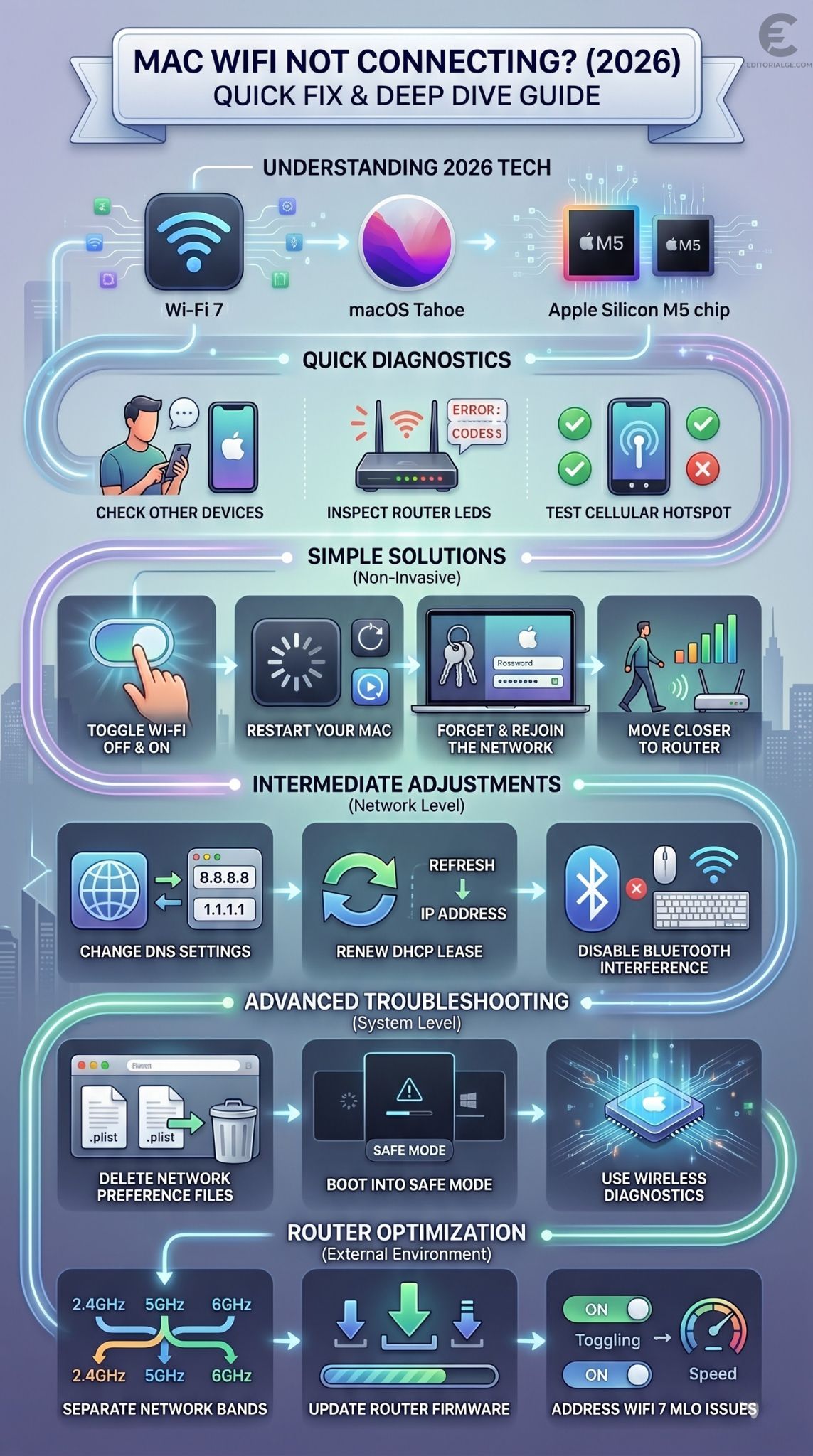
If the basics didn’t do the trick, we need to look at how your Mac communicates with the internet. This involves checking the digital “phonebook” your computer uses and how it requests its unique ID on the network. These steps are still very safe but require clicking into the deeper menus of your macOS settings. Often, a mac wifi not connecting error is just a breakdown in communication between these background protocols.
|
Adjustment Type |
Technical Name |
Primary Benefit |
|
DNS Swap |
Google/Cloudflare |
Bypasses ISP outages |
|
DHCP Renewal |
IP Address Refresh |
Fixes IP conflicts |
|
Bluetooth Toggle |
Frequency Clearance |
Reduces signal noise |
|
Proxy Disable |
Network Bypass |
Fixes “Connected but no data” |
Change Your DNS Settings
DNS is what translates a website name like “google.com” into a string of numbers that the internet understands. By default, your Mac uses the DNS provided by your ISP, which can be slow or unreliable. Switching to a public DNS like Google (8.8.8.8) or Cloudflare (1.1.1.1) can often bypass a “connected but no internet” issue. It is like switching from a dusty old phonebook to a digital one that updates in real-time.
Renew the DHCP Lease
Every device on your network needs a unique IP address. Sometimes, your router gets confused and tries to give two devices the same address, or the “lease” on your address expires and the Mac fails to ask for a new one. By clicking “Renew DHCP Lease” in your network settings, you are essentially telling the router, “Hey, I need a fresh ID to talk on this network.” It clears up any identity confusion and frequently restores traffic flow instantly.
Temporarily Disable Bluetooth
In 2026, many of us use wireless mice, keyboards, and AirPods simultaneously. All of these devices use Bluetooth, which operates on the 2.4GHz frequency—the same frequency many Wi-Fi networks use. This can cause a “traffic jam” in the air around your Mac. If your internet is crawling or dropping, try turning off Bluetooth for a minute. If the Wi-Fi speed shoots up, you know you have frequency interference and should try switching your Wi-Fi to the 5GHz or 6GHz band.
Advanced Troubleshooting and System Resets
When the usual settings don’t work, it usually means something is wrong deep in the macOS system files. These files act as the blueprints for how your Mac handles all networking. If these blueprints get a “tear” in them, the whole system fails to function. This section involves deleting those blueprints so the Mac can build new ones from scratch. This is a powerful fix for the most stubborn mac wifi not connecting problems.
|
Advanced Tool |
Function |
Best For |
|
Plist Deletion |
Reset System Config |
Persistent software bugs |
|
Safe Mode |
Minimal Boot |
Third-party app conflicts |
|
Wireless Diagnostics |
Signal Analysis |
Identifying interference |
|
Terminal Reset |
Command Line Clear |
Power users only |
Delete Network Preference Files
MacOS keeps your network settings in specific files called .plist files. Sometimes these files get corrupted during a system update or an unexpected shutdown. You can find these by going to /Library/Preferences/SystemConfiguration/ in Finder. Deleting files like com.apple.airport.preferences.plist and preferences.plist forces the Mac to regenerate them upon restart. It’s like a factory reset for your network settings without losing your actual files.
Boot into Safe Mode
Safe Mode is a diagnostic version of macOS that only runs the bare essentials. It disables third-party apps like VPNs, firewalls, and custom network monitors that might be blocking your connection. To enter Safe Mode on a modern Mac, shut down, then hold the power button until you see “Startup Options.” Select your drive, hold the Shift key, and click “Continue in Safe Mode.” If your Wi-Fi works here, you know a third-party app is the villain.
Use the Built-In Wireless Diagnostics
Apple actually hides a very powerful tool in your system. If you hold the “Option” key and click the Wi-Fi icon at the top of your screen, you will see an option for “Wireless Diagnostics.” This tool doesn’t just try to fix the connection; it analyzes the radio environment around you. It can tell you if your neighbor’s router is on the same channel as yours or if there is hardware failure in your internal antenna.
Router Settings and Environmental Factors
Sometimes the Mac is perfectly healthy, but the router is speaking a language the Mac doesn’t understand. As we move further into the Wi-Fi 7 era, settings like MLO (Multi-Link Operation) and WPA3 security can cause friction. If you have tried everything on your laptop and still find your mac wifi not connecting, the answer usually lies in the router’s admin panel. These tweaks ensure your home network is optimized for modern Apple hardware.
|
Router Setting |
Recommended Action |
Why it Works |
|
Band Steering |
Disable / Separate |
Prevents “Ping-Ponging” bands |
|
Security |
Use WPA3 / WPA2 |
Matches modern standards |
|
Channel Width |
Set to Auto |
Avoids signal overlap |
|
Firmware |
Check for Updates |
Fixes manufacturer bugs |
Separate the Network Bands
Many modern routers try to be helpful by combining 2.4GHz, 5GHz, and 6GHz into one single network name. This is called “Smart Connect” or “Band Steering.” However, Macs can sometimes get caught in a loop where they constantly jump between these bands, causing the connection to drop for a few seconds every time. By giving each band a unique name (e.g., Home_5G, Home_6G), you can force your Mac to stay on the fastest, most stable frequency.
Update Router Firmware
We update our phones and laptops constantly, but we often forget that routers are computers too. Manufacturers release “firmware” updates to fix security holes and improve compatibility with new devices like the M5 MacBook. If your router software is two years old, it might not know how to handle the latest Wi-Fi protocols in macOS Tahoe. Logging into your router’s IP address (usually 192.168.1.1) and clicking “Update” can solve months of connectivity headaches.
Address Wi-Fi 7 Multi-Link Operation (MLO)
Wi-Fi 7 introduced MLO, which allows a Mac to send data over multiple frequencies at once. It’s an incredible feature, but in these early years of 2026, some routers have buggy implementations of it. If you notice your Mac connects but experiences massive “lag spikes,” try disabling MLO in your router settings. This reverts the connection to a standard single-band mode, which is often much more stable until the next round of software patches.
Final Thoughts
Dealing with a mac wifi not connecting issue is a test of patience, but it is almost always a software misunderstanding rather than a hardware catastrophe. By starting with simple resets and moving toward more specific DNS and DHCP adjustments, you can fix 90% of internet problems on your own.
As we continue through 2026, the complexity of our networks will only increase with Wi-Fi 7 and beyond. Keeping your Mac updated and your router firmware fresh is the best defense against future drops. If you’ve followed this guide and are still offline, don’t hesitate to use the Wireless Diagnostics tool to pinpoint exactly where the signal is breaking down. Stay patient, work through the steps, and you’ll have your Mac back online in no time.
FAQs
Why does my Mac say “No IP Address”?
This usually means your Mac talked to the router, but the router didn’t give it an ID to use. This is almost always a DHCP issue. Restarting the router or clicking “Renew DHCP Lease” in your Mac’s network settings should fix it immediately.
Can a VPN cause my Mac Wi-Fi to stop working?
Absolutely. VPNs create a “tunnel” for your data. If that tunnel collapses but the VPN software thinks it is still active, it will block all incoming and outgoing data to protect your privacy. Try turning off your VPN entirely to see if your internet returns.
What if my Wi-Fi works in other locations but not at home?
If your Mac connects fine at a coffee shop or a friend’s house, your Mac’s hardware is fine. The problem is a specific incompatibility or setting on your home router. Check for IP conflicts or outdated security protocols (like WPA) on your home device.
Is it worth using a Wi-Fi 7 router in 2026?
Yes, especially for M4 and M5 Macs. It offers much lower latency and better performance in crowded areas. However, it requires a bit more setup than older routers to ensure all your devices play nicely together.
How do I know if my Mac’s Wi-Fi card is physically broken?
If you hold the Option key and click the Wi-Fi icon and it says “No Hardware Installed,” your internal Wi-Fi card has likely failed. This usually requires a professional repair, but you can use a cheap USB-C Wi-Fi dongle as a temporary workaround.