
If you own a Samsung Galaxy phone, you have probably had this moment at least once: you press the Side key to turn off your phone, but Bixby opens instead. It feels small at first. Then it happens again. And again. That is when most users start searching for how to disable bixby samsung settings properly.
The honest answer is simple: you usually cannot remove Bixby completely like a normal downloaded app. Samsung says Bixby cannot be fully uninstalled from Galaxy phones, but you can stop it from appearing often by changing the Side button, leaving Bixby, and clearing Bixby data.
That matters because Samsung phones are everywhere. StatCounter listed Samsung with 19.11% of worldwide mobile vendor market share in April 2026, so this is not a tiny problem affecting a few users.
This guide shows you the safest way to stop Bixby from interrupting your phone use.
|
Quick Article Info |
Details |
|
Main problem |
Bixby opens from the Side key, voice wake-up, or Bixby button |
|
Best fix |
Remap the Side key and turn off Bixby wake-up settings |
|
Can Bixby be deleted? |
Not fully on most Samsung Galaxy phones |
|
Safe for beginners? |
Yes, if you use built-in Samsung settings |
|
Risky method avoided |
ADB package removal |
Can You Really Disable Bixby Samsung Permanently?
You can disable Bixby in a practical way, but not always in a full uninstall way. That difference is important. Many tutorials promise to “delete Bixby forever,” but most Samsung users only need to stop the accidental launches.
Samsung’s own support page says you cannot uninstall Bixby entirely, but you can remove your Bixby account and data from the phone. After that, Bixby will need setup again if you want to use it later.
So, “permanently” should mean this: Bixby should not open when you hold the Side key, should not wake up when you speak, and should not keep your old Bixby data active.
|
What Users Want |
What Is Actually Possible |
|
Delete Bixby like a normal app |
Usually not possible |
|
Stop Bixby from opening with the Side key |
Yes |
|
Turn off voice wake-up |
Yes |
|
Remove Bixby account data |
Yes, through Leave Bixby |
|
Use Google Assistant instead |
Yes |
|
Remove system packages with ADB |
Possible for advanced users, but risky |
What “Permanently” Means On A Galaxy Phone
For most readers, the goal is not to hack the phone. The goal is peace. You want the power button to act like a power button. You want your phone to stop listening for “Hi, Bixby.” You want Bixby out of the way.
A safe permanent setup usually includes four actions: remap the Side key, turn off voice wake-up, clear Bixby data, and leave Bixby if you never use it.
Why Bixby Still Exists On Samsung Phones
Bixby is Samsung’s own digital assistant. Samsung describes it as a tool for controlling Galaxy features, apps, connected devices, Quick Commands, and SmartThings devices.
That is why Samsung keeps it built into many Galaxy phones. Some users like it for device controls. Others find it unnecessary. This guide is for the second group.
Before You Start: Check Your Samsung Model And One UI Version
Samsung settings can look different from one Galaxy phone to another. A Galaxy S24, Galaxy A54, Galaxy Z Flip, and older Galaxy S10 may not show the exact same Bixby menu. Samsung also notes that available screens and settings can vary by carrier, software version, and device model.
Before changing anything, check your phone model and One UI version. This helps you follow the right method and avoid confusion if a menu name looks slightly different.
You do not need to be technical. You only need to know whether your phone has a modern Side key or an older dedicated Bixby button.
|
Device Type |
Common Bixby Trigger |
Best First Step |
|
New Galaxy S series |
Side key long press |
Change Side key to Power off menu |
|
Galaxy Z Fold or Z Flip |
Side key long press |
Customize Side button |
|
Galaxy A series |
Side/Power key or app shortcut |
Check Advanced features |
|
Older Galaxy S8/S9/S10 |
Dedicated Bixby button |
Remap Bixby key |
|
Galaxy tablets |
Side key or Bixby app |
Adjust Bixby settings |
How To Check Your One UI Version
- Open Settings.
- Tap About phone.
- Tap Software information.
- Look for One UI version.
If your settings menu does not match this article word for word, use the search bar inside Settings. Search for “Side button,” “Bixby,” “Voice wake-up,” or “Digital assistant.”
Why This Step Saves Time
Many users jump straight into Apps and try to uninstall Bixby. That often leads nowhere. The cleaner route is to identify the trigger first. Is Bixby opening from the button, voice command, home screen, or app shortcut?
Once you know the trigger, the fix becomes much easier.
How To Disable Bixby Samsung Side Key Settings
The Side key is the biggest reason people want to disable Bixby. On many recent Galaxy phones, the old Power button and Bixby button have been combined into one Side button. Samsung says this button can open Bixby, launch apps, open the camera, or show the Power off menu depending on your settings.
If Bixby opens when you press and hold the Side key, this is the first setting you should change. It is safe, fast, and easy to reverse.
|
Side Key Action |
Recommended Setting |
|
Press and hold |
Power off menu |
|
Double press |
Camera or your preferred app |
|
Short press |
Keep as screen on/off |
|
Emergency access |
Keep unchanged |
|
Bixby launch |
Turn off or avoid |
Step-By-Step: Remap The Side Key
- Open Settings.
- Tap Advanced features.
- Tap Side button.
- Find the Press and hold or Long press section.
- Choose Power off menu.
Now press and hold the Side key to test it.
Samsung’s support page says choosing Power off menu makes the power menu appear when you press and hold the Side button. That menu includes options such as power off, restart, emergency call, and medical information.
What If You Cannot Find “Side Button”?
Try these paths:
- Settings > Advanced features > Side key
- Settings > Advanced features > Side button
- Swipe down twice > tap the Power icon > Side key settings
- Settings search bar > type “Side button”
Samsung uses both “Side button” and “Side key” wording depending on device, region, and software version.
Turn Off Bixby Voice Wake-Up
Changing the Side key solves button problems. But Bixby can still wake up by voice. If your phone responds to “Hi, Bixby” or a similar sound, you need to adjust voice wake-up settings.
Samsung says Bixby Voice wake-up allows users to call Bixby hands-free by saying “Hi, Bixby.” It also includes wake-up phrase choices, sensitivity controls, voice recognition options, and a setting that allows wake-up while media is playing.
This section matters if Bixby opens while you are watching videos, listening to music, talking near your phone, or using earbuds.
|
Voice Wake-Up Setting |
What To Do |
|
Wake-up phrase |
Turn off if available |
|
Wake-up sensitivity |
Set to Low |
|
Wake up when media is playing |
Turn off |
|
Respond to my voice |
Delete or reset if needed |
|
Voice recordings |
Delete if you want a cleaner reset |
How To Adjust Bixby Voice Wake-Up
- Open Settings.
- Tap Advanced features.
- Tap Bixby.
- Tap Voice registration.
- Find Voice wake-up options.
- Turn off wake-up if the option appears.
- If you want to keep Bixby but reduce mistakes, set Wake-up sensitivity to Low.
Samsung lists Low, Medium, and High as wake-up sensitivity options. It also mentions extra settings such as Wake up when media is playing and Delete all voice recordings.
Read Also: How to Block Spam Calls on Samsung Galaxy
Why Bixby May Wake Up By Mistake
Voice assistants listen for patterns, not perfect human meaning. A phrase in a video, a noisy room, or a similar-sounding word can sometimes trigger them. Lowering sensitivity helps, but turning off wake-up is better if you do not use Bixby at all.
Restart your phone after making the change. It is not always required, but it helps confirm the setting sticks.
Leave Bixby And Remove Your Bixby Data
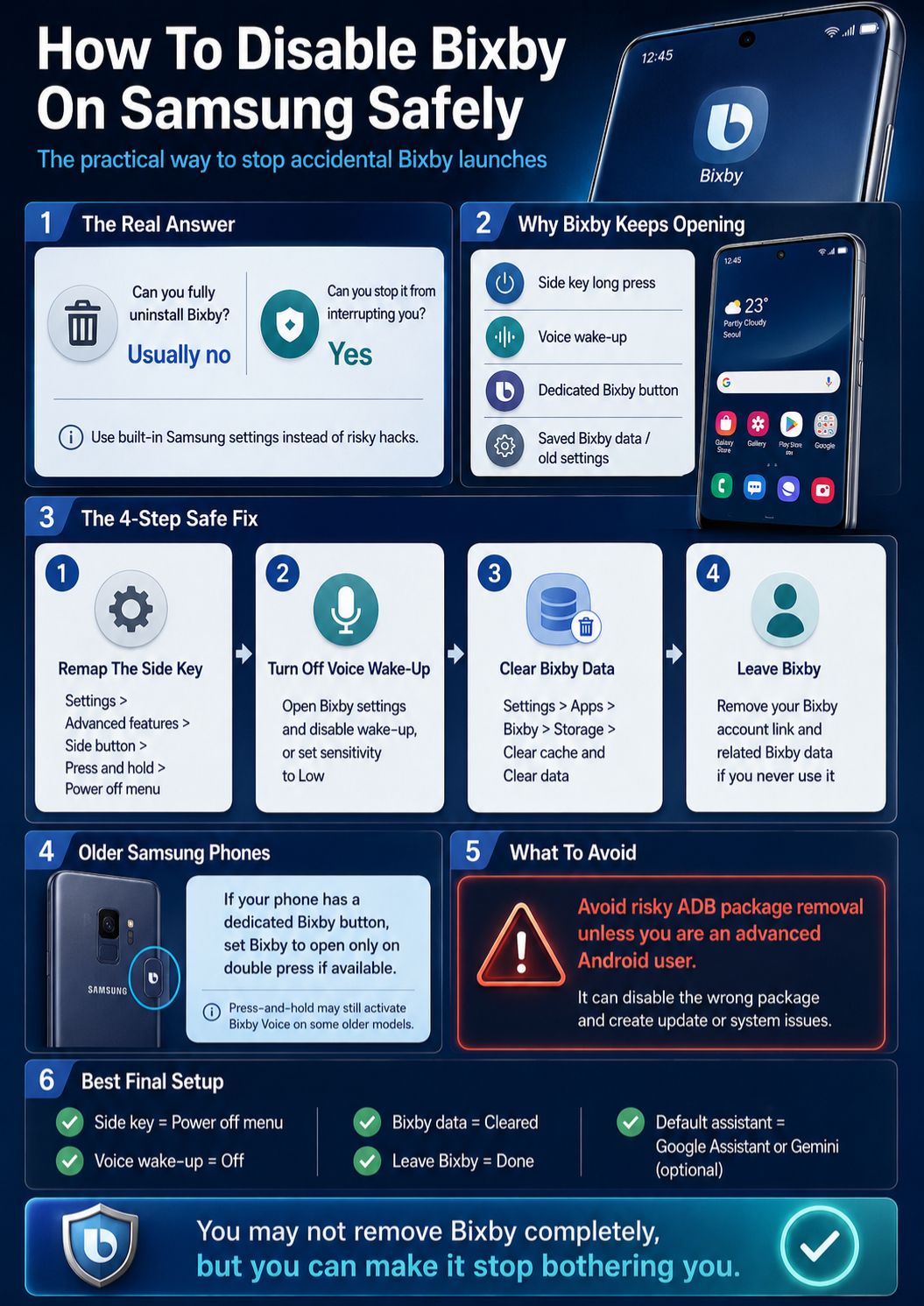
If you want the strongest built-in option, use Leave Bixby. This does not uninstall the Bixby app from the system. It removes your Bixby account connection and Bixby-related data from the phone.
Samsung says removing the Bixby account deletes associated Bixby data and removes the service from the Samsung account. Samsung also notes that after removing the account, you need to register Bixby again if you want to use it later.
This is the closest safe option for users who never want to use Bixby.
|
Leave Bixby Detail |
What It Means |
|
Removes Bixby account link |
Yes |
|
Deletes Bixby-related data |
Yes |
|
Removes Bixby system app |
No |
|
Requires Samsung account login |
Usually yes |
|
Can Bixby be used later? |
Yes, but setup is needed again |
How To Leave Bixby
- Open Settings.
- Tap Advanced features.
- Tap Bixby.
- Scroll down and tap Leave Bixby.
- Tap Leave Bixby again.
- Read the information on the screen.
- Tap OK.
- Enter your Samsung account details if asked.
- Confirm the delete request.
Samsung’s remap support page gives this same general path and says users must enter Samsung account credentials before confirming the delete request.
Read The Warning Before You Confirm
Do not rush this step. If you use Bixby for reminders, voice commands, routines, or Samsung account-based features, leaving Bixby may remove data you still care about.
For users who never use Bixby, this is usually fine. For users who use Modes and Routines, check your routines first.
Reset Bixby Voice From App Settings
Sometimes Bixby keeps acting strangely even after you change the Side key. In that case, reset Bixby Voice. This clears stored app data and makes Bixby behave like it is fresh again.
Samsung says clearing Bixby cache and data resets previous Bixby data. Its support page also says that after resetting Bixby, users may need to complete setup again if they want to use it.
This method is helpful after a software update, backup restore, or repeated accidental launches.
|
Reset Option |
What It Does |
|
Clear cache |
Removes temporary app files |
|
Clear data |
Resets Bixby app data |
|
Disable app |
Stops launch where supported |
|
Restart phone |
Helps apply changes |
|
Reopen Bixby later |
Requires setup again |
How To Reset Bixby Voice
- Open Settings.
- Tap Apps.
- Search for Bixby.
- Tap Bixby or Bixby Voice.
- Tap Storage.
- Tap Clear cache.
- Tap Clear data.
- Tap Delete or OK to confirm.
- Go back and tap Disable if your phone shows that option.
- Restart your phone.
Samsung’s setup guide also says users may need to tap the filter icon in Apps and enable Show system apps if Bixby does not appear in the app list.
What If “Disable” Does Not Appear?
Do not panic. Some models and software versions hide or remove the Disable option for system apps. In that case, clearing cache and data is still useful. Then go back and make sure the Side key no longer launches Bixby.
Disable Bixby On Older Samsung Phones With A Bixby Button
Older Samsung phones are a little different. Some models had a dedicated Bixby button, especially devices like the Galaxy S8 series, S9 series, Note 9, and S10-era phones. Samsung says devices such as the Galaxy Note 9, S8 series, and S10 or earlier models may have a dedicated Bixby button on the left side.
These phones may not let you fully turn the button into “nothing.” But you can reduce accidental launches.
|
Older Phone Issue |
Best Fix |
|
Dedicated Bixby button opens too easily |
Set Bixby to double press if available |
|
Single press opens Bixby |
Remap single press to another app |
|
Long press still opens Bixby |
Turn off voice wake-up and clear data |
|
No full disable option |
Use reset and remap settings |
|
Old software |
Update One UI if available |
How To Remap The Bixby Button
- Open Settings.
- Tap Advanced features.
- Tap Bixby.
- Tap Bixby key.
- Choose Double press to open Bixby if available.
Use single press for another app or action if your phone allows it.
Samsung notes that the Bixby button customization option may only appear on devices that have a dedicated Bixby key. It also says users can remap the Bixby key to launch other apps or actions.
The Limitation With Older Devices
On some older models, pressing and holding the Bixby button may still activate Bixby Voice. Samsung states that for dedicated Bixby button devices, pressing and holding the button will always activate Bixby Voice.
That is why older phones may need a mix of settings: remap the button, turn off voice wake-up, clear Bixby data, and avoid assigning Bixby to shortcuts.
Replace Bixby With Google Assistant Or Another Assistant
Some users do not hate voice assistants. They just do not want Bixby. If you use Google Assistant, Gemini, or another Android assistant, you can make your phone feel more natural by changing the default assistant.
Samsung also says Galaxy phones come with Google Assistant, and users can use that instead of Bixby if they prefer.
This is useful if you want voice search, smart home control, reminders, or quick answers without using Samsung’s assistant.
|
Assistant Choice |
Best For |
|
Bixby |
Samsung device controls and SmartThings |
|
Google Assistant |
Google services and Android search |
|
Gemini |
AI-style help and Google ecosystem tasks |
|
No assistant |
Privacy-focused or distraction-free users |
|
Samsung Modes and Routines |
Automation without voice commands |
How To Change The Default Assistant App
- Open Settings.
- Tap Apps.
- Tap Choose default apps.
- Tap Digital assistant app.
- Select your preferred assistant.
- Confirm the change.
The exact wording can vary by Android and One UI version. If you cannot find it, search Settings for “default assistant” or “digital assistant.”
Should You Keep Any Bixby Features?
This depends on how you use your phone. Bixby can control Galaxy settings, Samsung apps, SmartThings devices, and other Samsung ecosystem features. Samsung promotes Bixby as a way to control Galaxy devices, connected devices, Quick Commands, and SmartThings-enabled products.
If you use Samsung’s ecosystem heavily, you may not want to remove every Bixby-related feature. You may only want to stop the button shortcut.
Fix Common Problems After You Disable Bixby
Most users solve the problem after changing the Side key. But if Bixby still appears, check the trigger again. It may not be the same trigger you fixed.
A phone can launch Bixby from the Side key, a dedicated Bixby button, voice wake-up, app shortcut, lock screen behavior, or older saved settings. Fixing one does not always fix all of them.
|
Problem |
Most Likely Cause |
Quick Fix |
|
Bixby opens when holding Side key |
Side key still set to Bixby |
Change Long press to Power off menu |
|
Bixby opens during audio |
Wake-up during media is on |
Turn off media wake-up |
|
Bixby appears after update |
Settings changed or reset |
Recheck Side key and Bixby settings |
|
Bixby not visible in Apps |
System apps hidden |
Enable Show system apps |
|
Power menu missing |
Side key mapped to assistant |
Use Side + Volume Down or Quick Settings |
Bixby Still Opens When I Hold The Power Button
Go back to Settings > Advanced features > Side button. Make sure Long press is set to Power off menu. Then restart the phone.
If you need to power off the phone before fixing the setting, Samsung says many newer Galaxy phones can show the power menu by pressing Side and Volume down together. You can also use the Power icon in Quick Settings.
Bixby Came Back After A Software Update
This can happen after a major One UI update or device restore. Go through the main settings again: Side button, Bixby voice wake-up, default assistant, and Bixby app data.
I Cannot Find Bixby In The App List
- Open Settings > Apps.
- Tap the filter icon.
- Turn on Show system apps.
- Search for Bixby again.
Samsung’s own reset instructions mention this Show system apps step when finding Bixby under Apps.
Should You Use ADB To Remove Bixby Completely?
ADB stands for Android Debug Bridge. It is a developer tool that can disable or remove apps from a user profile. Some advanced Android users use it to remove system packages they do not want.
But for most readers, ADB is not the right answer. It is easy to disable the wrong package. It can cause errors, remove useful Samsung features, or make updates harder to troubleshoot.
The built-in Samsung settings are safer. They also solve the actual problem for most users.
|
Method |
Difficulty |
Risk Level |
Best For |
|
Side key remap |
Easy |
Low |
Everyone |
|
Voice wake-up off |
Easy |
Low |
Everyone |
|
Leave Bixby |
Medium |
Low to medium |
Non-Bixby users |
|
Clear Bixby data |
Easy |
Low |
Troubleshooting |
|
ADB removal |
Advanced |
High |
Experienced Android users |
Why ADB Is Not Recommended Here
This guide is meant for normal Samsung users, not developers. If the goal is to stop Bixby from interrupting you, you do not need command-line tools.
Use ADB only if you fully understand package names, backup methods, restore commands, and Android system behavior. Even then, a Samsung software update may restore or change some packages later.
The Safer “Almost Permanent” Setup
For most people, the best setup is:
- Set Side key long press to Power off menu.
- Turn off Bixby voice wake-up.
- Clear Bixby cache and data.
- Leave Bixby if you never use it.
- Set Google Assistant or Gemini as the default assistant if needed.
That gives you a clean result without breaking system features.
Privacy Notes Before You Turn Off Bixby
Bixby is tied to voice input, Samsung account data, device actions, and personalization. So, privacy-conscious users should not only remap the button. They should also review voice wake-up and stored data.
Samsung says removing your Bixby account and data erases Bixby data and deletes the service from your Samsung account. It also says users can remove Bixby through the Samsung Privacy Portal.
If you used Bixby before, check what you want to keep before clearing everything.
|
Privacy Area |
What To Check |
|
Voice registration |
Delete voice recordings if available |
|
Samsung account |
Leave Bixby if you do not use it |
|
App storage |
Clear Bixby cache and data |
|
SmartThings |
Check connected device commands |
|
Routines |
Review Modes and Routines before deleting data |
What To Do Before Removing Data
- Check if you use Bixby Routines or Modes and Routines.
- Review Bixby reminders.
- Delete voice recordings if available.
- Read Samsung’s confirmation screen carefully.
- Back up important phone data before major changes.
Does This Stop All Samsung AI Features?
No. Bixby is separate from many Samsung phone features. Turning off Bixby does not automatically remove Galaxy AI, Samsung keyboard tools, camera features, or Android assistant settings.
That is good news. You can stop Bixby interruptions without stripping your phone down.
Final Thoughts
The best way to disable bixby samsung features is to avoid risky shortcuts and use the settings Samsung already gives you. Start with the Side key. That fixes the most annoying problem for most users. Then turn off voice wake-up, lower sensitivity, and clear Bixby data if needed.
If you never use Bixby, go one step further and leave Bixby from the Advanced features menu. That removes your Bixby account link and related data, although the system app may still remain on the phone.
The key is to be realistic. You may not be able to uninstall Bixby completely from every Galaxy device, but you can make it stop bothering you. And for most users, that is the real win.
|
Best Final Setup |
Why It Works |
|
Side key set to Power off menu |
Stops accidental button launches |
|
Voice wake-up turned off |
Stops unwanted voice triggers |
|
Bixby data cleared |
Resets old settings |
|
Leave Bixby completed |
Removes account-linked Bixby data |
|
Default assistant changed |
Makes your preferred assistant easier to use |
Frequently Asked Questions About Disable Bixby Samsung Settings
Can I Disable Bixby Without Signing In To A Samsung Account?
You can remap the Side key and adjust some phone settings without signing in again. But leaving Bixby or removing account-linked Bixby data may require your Samsung account credentials.
Why Does My Samsung Phone Open Bixby Instead Of The Power Menu?
On many recent Galaxy phones, the traditional Power button and Bixby button were merged into the Side button. If the long-press action is set to Bixby, holding the button opens Bixby instead of the Power off menu.
Does Clearing Bixby Data Delete My Samsung Account?
No. Clearing Bixby app data resets Bixby-related app data on the phone. It does not delete your Samsung account. Leaving Bixby removes Bixby-related account data from the service.
Can I Disable Bixby And Still Use Samsung Routines?
Usually, yes. Samsung’s newer automation feature is called Modes and Routines. Still, check your routines before removing Bixby data, especially if you created older routines connected to Bixby.
Is Bixby The Same As Galaxy AI?
No. Bixby is Samsung’s digital assistant. Galaxy AI refers to Samsung’s broader AI features across supported Galaxy devices. Disabling Bixby does not automatically disable every AI feature on your phone.
Why Is There No Disable Button For Bixby On My Phone?
Some Samsung system apps do not show a normal Disable button on every model or software version. If you do not see it, use Side key remapping, Leave Bixby, voice wake-up settings, and Clear data instead.
Will A Factory Reset Remove Bixby?
No. A factory reset may erase your data and settings, but Bixby is part of Samsung’s system software on supported devices. After setup, Bixby-related options may appear again.