
Resetting a Mac feels simple until you realize what is actually at stake. Your photos, documents, app licenses, browser passwords, iCloud data, Apple Account, and even the next owner’s ability to use the device can all be affected by one wrong step.
So, if you want to reset mac factory settings safely, don’t rush straight to the erase button. A proper Mac reset has three parts: protect your data, remove your personal account connections, and choose the right reset method for your Mac model.
The good news is that Apple has made this much easier on newer Macs. Many modern models can use Erase All Content and Settings, which removes settings, data, and apps while keeping the installed operating system in place. Older Intel Macs may still need macOS Recovery, Disk Utility, and a fresh macOS reinstall.
This guide explains both methods in plain language, so you can reset your Mac before selling, trading, gifting, recycling, or starting fresh.
What Happens When You Reset Mac Factory Settings?
A factory reset removes your personal data from the Mac and returns it to a clean setup state. That means your user accounts, files, settings, installed apps, saved networks, and local personal data should be removed from the machine. On supported Macs, Apple’s Erase All Content and Settings feature does this quickly while keeping the currently installed macOS version in place.
This is different from restarting your Mac. A restart only turns the computer off and on again. It is also different from a basic macOS reinstall, which may repair system files without fully removing your personal data if you do not erase the disk first.
A factory reset is most useful when you are selling the Mac, giving it to someone else, returning a work device, fixing major software problems, or cleaning years of clutter. But it should always come after a proper backup.
Factory Reset vs Restart vs Reinstall
A restart is a quick refresh. It helps with frozen apps, memory issues, and small system glitches.
A macOS reinstall replaces or refreshes the operating system. Depending on the method, it may not erase your personal files.
A factory reset is the bigger step. It wipes your data and prepares the Mac for a new setup.
|
Action |
What It Does |
Best For |
|
Restart |
Turns the Mac off and on again |
Small glitches and frozen apps |
|
Reinstall macOS |
Refreshes the system software |
System errors or damaged macOS files |
|
Factory reset |
Erases personal data and settings |
Selling, gifting, trading, or starting fresh |
|
Erase All Content and Settings |
Removes data while keeping current macOS |
Supported newer Macs |
|
Recovery Mode erase |
Erases disk and reinstalls macOS |
Older Intel Macs |
Before You Reset: Back Up Everything That Matters
The most important step is not the reset. It is the backup. Once your Mac is erased, getting files back can be hard or impossible unless you already saved them somewhere else.
Apple’s Time Machine can automatically back up files such as apps, music, photos, email, and documents to an external storage device. Apple also recommends using a backup disk with at least twice the storage capacity of your Mac where possible.
You can also copy files manually to an external drive or use cloud storage such as iCloud Drive, Google Drive, OneDrive, or Dropbox. But don’t assume cloud sync is the same as a full backup. Open your cloud account on another device and check that the important files are really there.
What You Should Back Up First
Start with the obvious files: documents, photos, videos, downloads, work folders, and desktop items. Then check the things people often forget.
Save browser bookmarks, exported passwords, software license keys, invoices, client files, tax documents, video projects, design files, and app settings. If you use creative tools, development software, or business apps, check whether you need to deactivate the license before resetting.
Backup Options for Mac Users
Time Machine is the easiest full-backup option for many Mac users. It is built into macOS and works well with external storage.
Manual backup gives you more control, but it is easier to miss hidden folders or app data.
Cloud backup is convenient, but it depends on storage limits, sync settings, and internet speed.
|
Backup Method |
Best Use |
What to Watch |
|
Time Machine |
Full Mac backup |
Needs external storage |
|
iCloud Drive |
Apple ecosystem files |
May not include everything |
|
Manual copy |
Important folders only |
Easy to miss hidden data |
|
Google Drive or OneDrive |
Work files and documents |
Sync must finish first |
|
App-specific export |
Passwords, bookmarks, licenses |
Must be done before erasing |
Sign Out and Remove Personal Account Connections
If you are keeping the Mac, this step is still helpful. If you are selling, gifting, trading, or recycling it, this step is essential.
Your Mac may be connected to iCloud, Find My, Messages, FaceTime, the App Store, Music, and older iTunes authorizations. Apple’s preparation guide tells users to sign out of Apple services when they cannot use Erase All Content and Settings, including iCloud and iMessage. For older macOS versions, Apple also lists iTunes deauthorization.
This matters because the next owner should not see your account, and you should not leave the Mac tied to your Apple Account.
Turn Off Find My and Understand Activation Lock
Activation Lock is useful when your Mac is lost or stolen. But it can create trouble if you sell the Mac without removing it properly.
Apple says Activation Lock requires your Apple Account password or device passcode before someone can turn off Find My, erase the Mac, or reactivate and use it.
So before handing the Mac to someone else, make sure Find My is off and the device is no longer attached to your Apple Account.
Sign Out of Apps and Services
Apple services are not the only accounts to check. Many third-party apps stay linked to the device.
Sign out of Adobe, Microsoft 365, Dropbox, Google Drive, Slack, Zoom, VPN apps, password managers, cloud backup tools, banking apps, tax apps, and business software. If an app has a device limit, deauthorize the Mac before erasing it.
|
Account or Service |
Why It Matters |
What to Do |
|
Apple Account |
Controls iCloud, Find My, purchases |
Sign out before selling |
|
Find My |
Can trigger Activation Lock |
Turn it off |
|
iMessage and FaceTime |
Keeps personal communication tied to Mac |
Sign out |
|
Adobe or Microsoft apps |
May count against device limits |
Deactivate if needed |
|
Cloud storage apps |
May keep syncing private files |
Sign out and unlink device |
|
Password managers |
Protects saved logins |
Sign out and verify sync |
How to Reset Mac Factory Settings With Erase All Content and Settings
This is the best method for many newer Macs. It is faster, cleaner, and easier than using Disk Utility manually.
Apple says Erase All Content and Settings is available only on Macs with Apple silicon or the Apple T2 Security Chip running macOS Monterey 12 or later. In macOS Ventura 13 or later, the path is System Settings, General, Transfer or Reset, then Erase All Content and Settings. In macOS Monterey 12, Apple lists the option from the System Preferences menu bar.
This is the easiest way to reset mac factory settings if your Mac supports it.
Who Should Use This Method?
Use this method if your Mac has an M-series chip, such as M1, M2, M3, M4, or later. You can also use it on supported Intel Macs with the Apple T2 Security Chip.
You should also be able to log in to an administrator account. If you cannot access the Mac normally, you may need Recovery Mode instead.
Read Also: How to Speed Up Slow Mac in 2026: Complete Guide
Step-by-Step: Erase All Content and Settings
Follow this flow:
- Back up your Mac.
- Connect the Mac to power.
- Open the Apple menu.
- Choose System Settings.
- Click General.
- Open Transfer or Reset.
- Click Erase All Content and Settings.
- Enter your administrator password.
- Review what will be erased.
- Enter your Apple Account password if asked.
- Confirm the erase.
- Wait while the Mac restarts.
Apple notes that after the erase, the Mac activates, restarts again, and then shows Setup Assistant. If you are selling, giving away, or trading in the Mac, Apple recommends leaving it in the out-of-box state instead of continuing through setup.
|
Step |
What You Do |
Why It Matters |
|
Back up |
Save your files first |
Prevents data loss |
|
Open Transfer or Reset |
Start the official reset flow |
Uses Apple’s safest simple method |
|
Enter admin password |
Confirms permission |
Stops unauthorized erasing |
|
Sign out of Apple services |
Removes account links |
Helps prevent ownership issues |
|
Stop at Setup Assistant |
Leave Mac ready for next user |
Best for selling or gifting |
How to Reset an Older Intel Mac With macOS Recovery
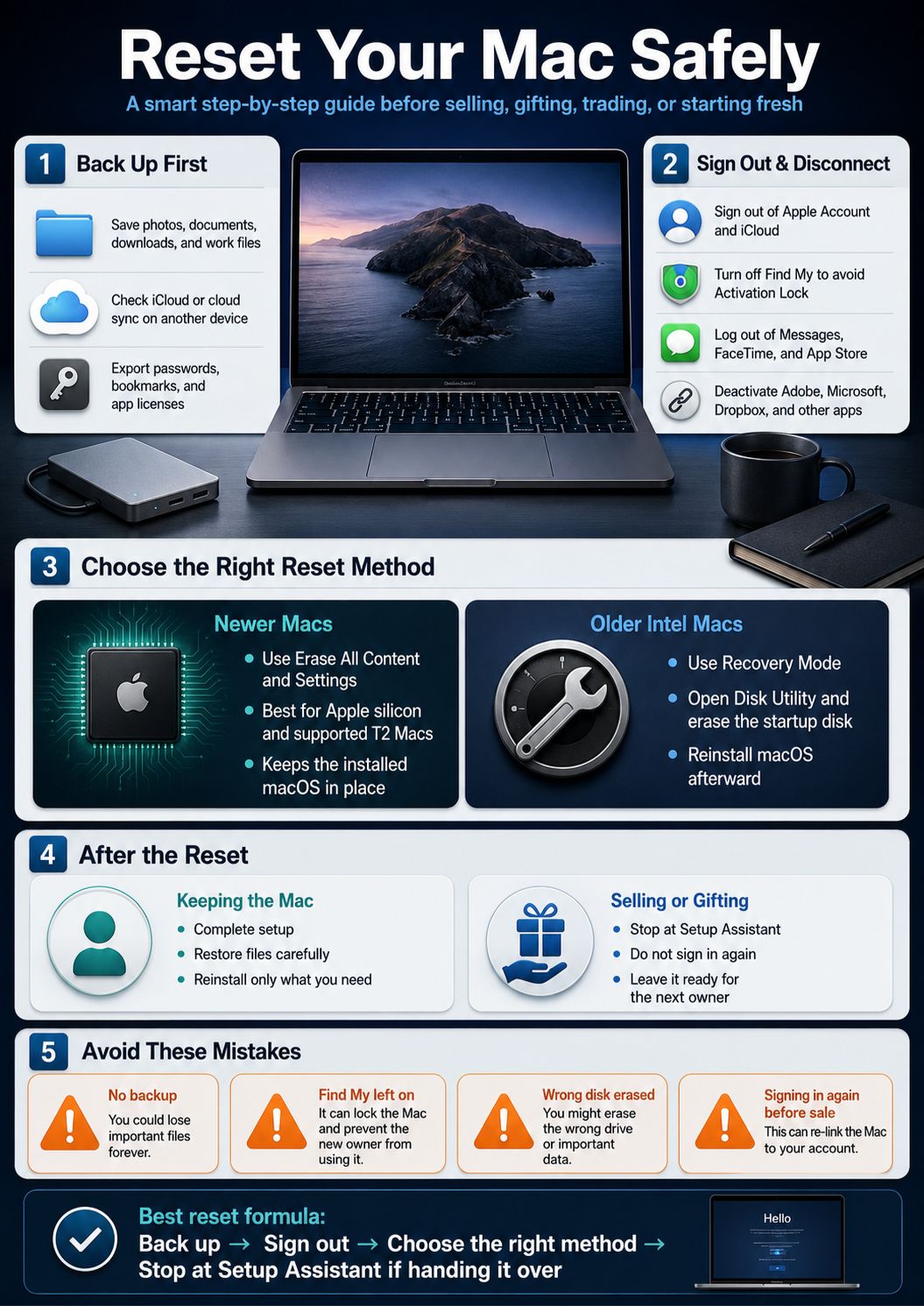
Not every Mac has Erase All Content and Settings. If your Mac is older, you may need to erase the startup disk and reinstall macOS manually.
Apple’s guide for Intel-based Macs without the Apple T2 Security Chip uses macOS Recovery. The steps include restarting and holding Command-R, opening Disk Utility, choosing the volume, selecting APFS, erasing the volume group, quitting Disk Utility, and reinstalling macOS.
This method takes more care. You are working with the startup disk, so read each screen before clicking.
Start macOS Recovery
On an Intel Mac, restart the computer and immediately press and hold Command-R. Keep holding until the recovery screen appears.
If the Mac asks for a password, enter the correct administrator, firmware, or Apple Account password. If you do not know it, stop and use Apple’s account recovery or support options.
Erase the Startup Disk
In macOS Recovery, open Disk Utility. Select the startup volume or volume group. For most modern macOS versions, APFS is the right format.
After erasing the disk, quit Disk Utility and choose Reinstall macOS. Keep the Mac connected to power and Wi-Fi while installation finishes.
Leave the Mac Ready for the Next Owner
If the Mac is for you, finish setup and restore your files.
If it is for someone else, stop when Setup Assistant appears. Do not create a new account. Let the new owner complete setup with their own Apple Account.
|
Recovery Step |
What It Means |
Important Note |
|
Command-R |
Opens macOS Recovery |
Mainly for Intel Macs |
|
Disk Utility |
Lets you erase the startup disk |
Choose the correct volume |
|
APFS |
Modern Mac file system |
Best for most recent macOS versions |
|
Reinstall macOS |
Installs a clean system |
Needs power and internet |
|
Setup Assistant |
First-start screen |
Stop here if selling |
What to Do If Erase All Content and Settings Is Missing
This is a common problem. The option may not appear even if the article or video you are following says it should.
Apple says Erase All Content and Settings requires macOS Monterey 12 or later and a Mac with Apple silicon or the Apple T2 Security Chip. If your Mac does not meet those requirements, you need another erase method.
The option can also be missing if you are not using an administrator account, the Mac is managed by a company or school, or the system has restrictions.
Check Your Mac Model and macOS Version
Click the Apple menu and choose About This Mac. Check whether the chip says Apple M-series or Intel.
Then check the macOS version. If the Mac runs Big Sur or earlier, the newer erase option will not be available.
Use Recovery Mode If Needed
If your Mac is not eligible, don’t force it. Use macOS Recovery and Disk Utility instead.
For a work or school Mac, contact the IT department. Managed devices may have profiles or restrictions that you should not remove on your own.
|
Problem |
Likely Reason |
Best Fix |
|
Button is missing |
Unsupported Mac or old macOS |
Use Recovery Mode |
|
Cannot continue |
Not an admin user |
Log in as admin |
|
Apple Account prompt appears |
Find My or Activation Lock |
Enter correct account password |
|
Mac is managed |
Company or school profile |
Contact IT |
|
Reset fails midway |
Disk or system issue |
Try Recovery Mode |
How to Protect Your Privacy Before Selling or Giving Away a Mac
A Mac can hold years of personal information. Even if you mostly use cloud apps, your machine may still store local copies, cached files, downloads, messages, browser data, and account tokens.
A proper reset helps remove this information, but privacy starts before the erase. You should know what data exists, where it syncs, and what accounts still trust the Mac.
This is especially important for journalists, business owners, students, freelancers, editors, designers, and anyone who handles private client files.
Check Personal Data Hotspots
Look beyond the Documents folder. Check Downloads, Desktop, Pictures, Movies, Music, Notes, Photos, Mail, Messages, browser profiles, and app-specific folders.
If you use Safari, Chrome, Firefox, or Edge, make sure your bookmarks and passwords are either backed up or synced safely.
Remove the Mac From Trusted Devices
After resetting, check your Apple Account device list. If the Mac still appears and you no longer own it, remove it.
If Activation Lock appears and you no longer have the device, Apple says you can remove a device from iCloud on the web when applicable, or start a support request if you need help and have proof of purchase.
|
Privacy Area |
What to Check |
Why It Matters |
|
Browser profiles |
Passwords, history, bookmarks |
Protects logins |
|
Messages and Mail |
Personal conversations |
Prevents exposure |
|
Cloud sync apps |
Local synced files |
Stops private file access |
|
Apple Account devices |
Trusted device list |
Removes old Mac access |
|
Find My |
Activation Lock status |
Avoids next-owner problems |
Common Mistakes to Avoid When You Reset Mac Factory Settings
The biggest mistake is thinking the reset itself is the whole job. It is not. The reset is only safe when the preparation is done well.
Another mistake is erasing the Mac before checking whether the backup works. A backup is only useful if you can actually access it.
People also forget software licenses. Some paid apps have activation limits. If you wipe the Mac before deactivating them, you may have to contact support later.
Mistake 1: Trusting iCloud Without Checking
iCloud is useful, but it is not always a full backup of your whole Mac. Some files may be local only. Some folders may not be included. Some large files may not finish syncing.
Before erasing, open iCloud or another cloud service on a different device and confirm the files are there.
Mistake 2: Setting Up the Mac Again Before Selling
If you reset the Mac for a buyer, do not sign back in after the erase. Leave the Mac at Setup Assistant.
That gives the next owner a clean start and avoids attaching the device to your account again.
|
Mistake |
Why It Causes Trouble |
Better Move |
|
No backup |
Files may be gone forever |
Back up first |
|
Backup not checked |
Missing files may go unnoticed |
Test the backup |
|
Find My left on |
Can trigger Activation Lock |
Turn it off |
|
Wrong disk erased |
Can break installation flow |
Read Disk Utility carefully |
|
Signed in again after reset |
Reconnects your account |
Stop at Setup Assistant |
How Long Does a Mac Factory Reset Take?
The reset itself may be quick on newer Macs, especially when using Erase All Content and Settings. The full process can still take longer because backup, account checks, file syncing, and reinstalling macOS may take time.
A small Mac with a recent backup can be ready quickly. A Mac with years of photos, videos, and project files may take hours to back up before you even start the reset.
Older Intel Macs can take longer because Recovery Mode may need to download or reinstall macOS.
What Affects Reset Time?
The biggest factors are storage size, backup method, internet speed, Mac model, macOS version, and whether the disk has errors.
Time Machine’s first backup can take longer than later backups because future backups only need to copy changed files. Apple also notes that Time Machine makes hourly, daily, and weekly backups automatically once configured.
Don’t Interrupt the Process
Keep the Mac plugged in. Don’t close the lid during reinstall. Don’t turn it off because it looks stuck for a few minutes.
If the reset or reinstall clearly fails, restart into Recovery Mode and try again.
|
Task |
Rough Time Range |
Notes |
|
Quick file check |
10–20 minutes |
Depends on organization |
|
Time Machine backup |
30 minutes to several hours |
First backup may take longer |
|
Erase All Content and Settings |
Usually faster |
Supported newer Macs |
|
Recovery erase and reinstall |
Longer |
Depends on internet speed |
|
Post-reset setup |
10–30 minutes |
Only if you are keeping the Mac |
What to Do After the Reset
After the reset, your next step depends on whether you are keeping the Mac or passing it to someone else.
If you are keeping it, complete Setup Assistant, sign in with your Apple Account, update macOS, restore files, reinstall apps, and turn on a fresh backup plan.
If you are selling, gifting, or trading in the Mac, leave it at the setup screen. Clean the device, pack the charger, remove personal stickers, and keep proof of sale or trade-in records.
If You Are Keeping the Mac
Set it up like a new device. Install only the apps you actually need. This is a good chance to avoid bringing old clutter back.
Restore files carefully. Don’t blindly copy everything if the reason for the reset was performance trouble.
If You Are Giving It to Someone Else
Do not enter your Apple Account after the reset. Let the next owner set up the Mac themselves.
If they see Activation Lock, you may need to remove the device from your Apple Account or help them with proof of purchase through Apple’s support process.
|
Situation |
What to Do After Reset |
What to Avoid |
|
Keeping the Mac |
Set up, update, restore files |
Restoring unnecessary clutter |
|
Selling the Mac |
Stop at Setup Assistant |
Signing in again |
|
Gifting to family |
Let them set up their account |
Leaving your data behind |
|
Trade-in |
Follow trade-in instructions |
Shipping before erasing |
|
Recycling |
Remove personal data first |
Sending it with accounts active |
Troubleshooting Problems During a Mac Factory Reset
Most resets go smoothly, but problems can happen. The Mac may ask for an Apple Account password. Disk Utility may not show the drive. Reinstalling macOS may fail. Or the Mac may still appear linked to a previous owner.
Do not panic. These problems usually point to account protection, disk trouble, internet issues, or unsupported reset methods.
The safest move is to understand the message before clicking around.
Mac Asks for Apple Account Password
This is often connected to Find My, Activation Lock, or Apple services.
Enter the Apple Account used on the Mac. If you bought the Mac used and do not know the account, contact the previous owner. Apple’s Activation Lock guidance says business or school-owned devices should be handled by the organization’s IT department.
macOS Reinstall Fails
Check Wi-Fi first. Then restart into Recovery Mode and try again.
If Disk Utility cannot see the internal drive, the Mac may have a storage issue. At that point, Apple Support or an authorized service provider is safer than guessing.
|
Problem |
Possible Cause |
Practical Fix |
|
Apple Account prompt |
Find My or Activation Lock |
Use correct account password |
|
No erase option |
Unsupported Mac |
Use Recovery Mode |
|
Reinstall fails |
Weak internet or disk issue |
Retry with stable connection |
|
Disk not visible |
Storage or volume problem |
Check Disk Utility view or seek support |
|
Previous owner lock |
Mac still tied to old account |
Ask owner to remove it |
Final Thoughts
The safest way to reset mac factory settings is to slow down before the erase step. Back up your files, check iCloud, save app licenses, sign out of Apple services, turn off Find My, and choose the reset method that matches your Mac.
For newer supported Macs, Erase All Content and Settings is the simplest route. For older Intel Macs, macOS Recovery and Disk Utility are still useful. Either way, the goal is the same: remove your personal data, protect your privacy, and leave the Mac ready for a clean setup.
A factory reset should feel like handing over a clean notebook. No locked drawers. No missing files. No confused buyer. Just a Mac that is ready for its next chapter.
Frequently Asked Questions About Resetting a Mac
These questions cover search queries that often come up after the main reset steps.
Can I Reset a Mac Without the Password?
Sometimes, but not always. If Activation Lock or Find My is active, you may need the Apple Account password connected to the Mac. This protects stolen or lost devices from being erased and reused without permission.
Does Factory Reset Remove Viruses From a Mac?
A full erase and clean macOS reinstall can remove many software-level problems. But if the issue is tied to a browser account, cloud sync, suspicious extension, or restored backup, the problem can come back.
Will Factory Reset Make My Mac Faster?
It can help if the Mac is slow because of clutter, broken settings, too many startup apps, or software conflicts. It will not fix weak hardware, failing storage, low memory, or an old Mac that no longer handles modern apps well.
Can I Reset Only Settings Without Deleting Files?
On Mac, a true factory reset is meant to remove your data. If you only want to fix settings, try creating a new user account, removing startup apps, clearing storage, or reinstalling macOS without erasing first.
Should I Remove My SIM, SD Card, or External Drives Before Resetting?
Yes. Disconnect external drives, SD cards, USB storage, and accessories you do not need. This helps avoid confusion in Disk Utility and protects external data from accidental erasing.
Can the Next Owner Restore My Deleted Files?
On modern Macs using Apple’s official reset tools, the process is designed to remove your personal data safely. For extra peace of mind, follow Apple’s erase steps, remove Activation Lock, and verify the Mac starts at Setup Assistant.