
So your Windows 11 PC is acting up—slow, buggy, or randomly crashing—and you’re thinking about a reset. But the thought of losing all your documents, pictures, and downloads is terrifying. Good news: Windows 11 has a built-in feature that lets you reset Windows 11 keep files. That means you can refresh your system without wiping out your personal stuff.
This guide will walk you through everything—from prep to troubleshooting—so you can safely reset your PC, choose between Cloud download or Local reinstall, and understand what’s kept and what’s removed. Even if your PC won’t boot, you’ll know your options.
What Does “Reset Windows 11 Keep Files” Actually Mean?
Resetting with Keep my files doesn’t magically save everything on your PC. It’s more selective, focused on preserving your personal files while removing apps and settings that might be causing trouble.
What Windows 11 Keeps
- Documents, Pictures, Videos, and Music
- Files on Desktop and Downloads (check locations)
- OneDrive-synced content
- User-created folders within standard directories
|
Item |
Kept or Removed |
|
Desktop Files |
Kept |
|
Documents Folder |
Kept |
|
Downloads |
Usually Kept |
|
Videos & Music |
Kept |
|
Non-standard folders |
Check backup |
What Windows 11 Removes
- Installed desktop apps and third-party programs
- Drivers installed outside default Windows packages
- Custom system settings (display, sound, power, privacy)
- Some manufacturer utilities and apps
What Might Change
Even with your files intact, expect changes in:
- Default browser and startup apps
- Printer or scanner setups
- VPN connections or network settings
- Some Microsoft Store apps needing re-login
When Should You Reset Windows 11 Without Losing Files?
Resetting isn’t a cure-all. Knowing when to use Keep my files prevents frustration.
Good Reasons to Reset
- PC is slow or cluttered
- Frequent crashes or app errors
- Broken settings or system files
- Persistent Windows Update failures
Easier Fixes to Try First
- Restart PC
- Install pending Windows updates
- Update drivers
- Run Windows Security scan
- Free up storage or clean temporary files
Read Also: Windows 11 Taskbar Not Working: Quick Fixes
When Keep My Files Isn’t Enough
- Selling or giving away the PC
- Severe malware or account compromise
- Wanting a completely fresh Windows setup
|
Situation |
Recommended Option |
|
Slow PC |
Reset this PC, Keep my files |
|
Minor software glitch |
Update/Restart |
|
Malware |
Remove everything or manual cleanup |
|
Selling PC |
Remove everything |
Before You Reset: Safety Checklist
A safe reset starts with preparation.
1. Back Up Important Files
Even if Windows keeps files, errors happen. Use:
- External drives
- OneDrive, Google Drive, Dropbox
- Network or NAS storage
2. Save App Licenses and Credentials
Make a note of:
- Microsoft 365 or Office credentials
- Adobe or creative software licenses
- VPN logins and passwords
- Game launcher accounts
3. List Installed Apps
Windows may show removed apps, but keeping your own list is smarter. Screenshot or note essential apps.
4. Check BitLocker/Device Encryption
Ensure you know the recovery key. Without it, you may get locked out.
5. Connect to Power
A reset takes time. Power loss mid-reset can cause bigger issues.
6. Internet Access
Cloud download requires a stable internet connection. Local reinstall does not.
7. Free Up Storage
Windows needs enough free space to complete the reset without errors.
|
Step |
Action |
Notes |
|
Backup |
Save critical files |
Use cloud or external drives |
|
Credentials |
Save app logins |
Prevent reinstallation hassle |
|
Storage |
Clear space |
Avoid reset failures |
|
Power |
Plug in laptop |
Prevent mid-reset power loss |
Cloud Download vs Local Reinstall: Which One Should You Choose?
Windows 11 offers two reinstall methods when you reset.
Cloud Download
- Downloads fresh Windows files from Microsoft servers
- Best for corrupted or broken system files
- Requires internet and several GB of data
Local Reinstall
- Uses files already on your PC
- Works offline
- Faster if system files are intact
|
Method |
Pros |
Cons |
|
Cloud Download |
Fresh Windows files |
Needs internet, large download |
|
Local Reinstall |
Fast, offline |
May fail if local files are corrupted |
How to Reset Windows 11 PC Without Losing Files
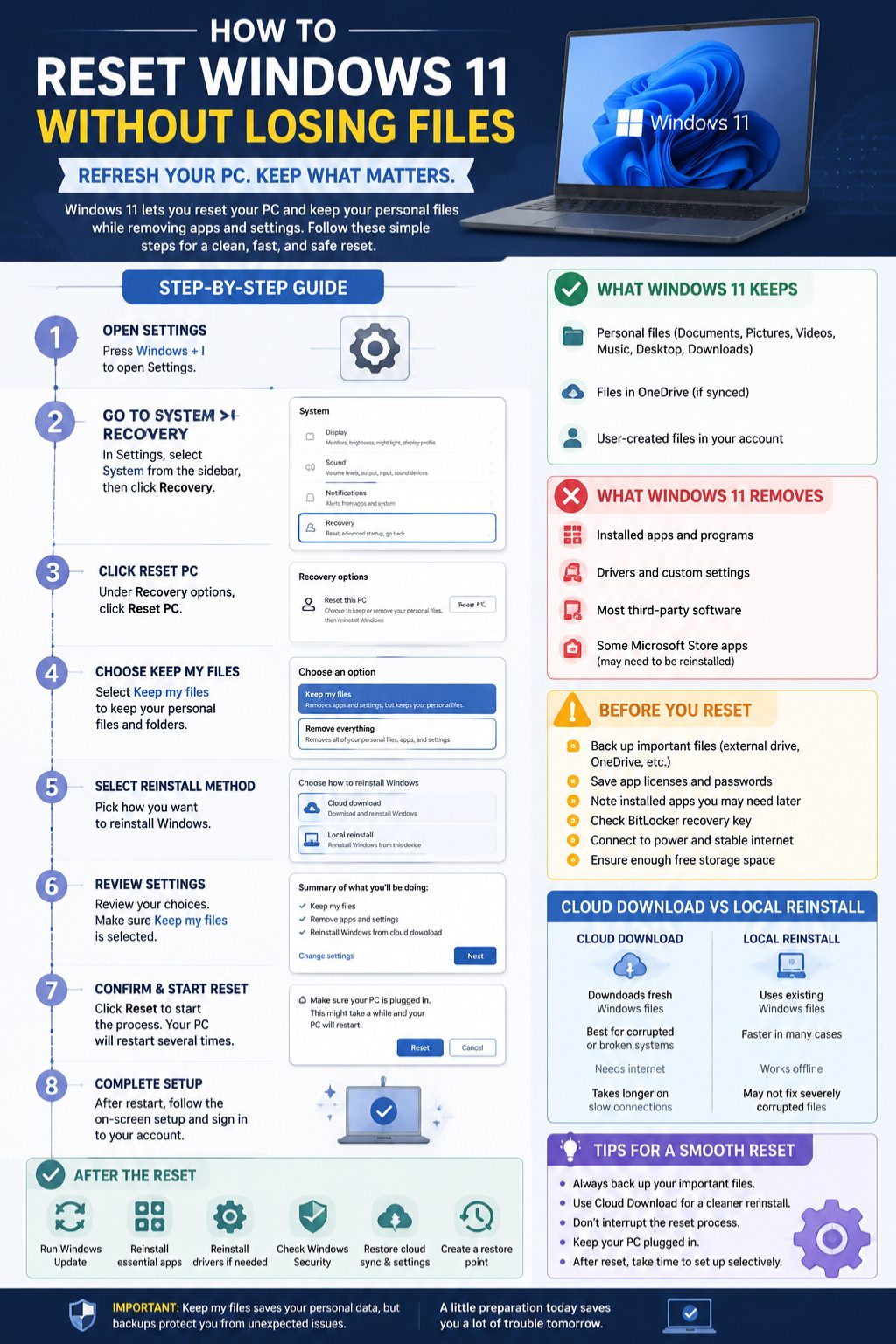
Follow these steps carefully.
Step 1: Open Settings
Press Windows + I or Start > Settings
Step 2: Go to System > Recovery
Recovery houses all reset and repair tools
Step 3: Click Reset PC
Find it under Recovery options
Step 4: Select Keep My Files
Ensures personal files stay while apps and settings are removed
Step 5: Choose Cloud Download or Local Reinstall
Pick based on your internet and system health
Step 6: Review Additional Settings
Double-check what’s being removed or kept
Step 7: Confirm and Start Reset
Keep PC plugged in; do not interrupt
Step 8: Complete Windows Setup
- Sign in to Microsoft account
- Reconnect Wi-Fi and cloud storage
- Reinstall essential apps and drivers
|
Step |
Action |
Tip |
|
1 |
Open Settings |
Windows + I shortcut |
|
2 |
System > Recovery |
Confirm Windows version |
|
3 |
Reset PC |
Keep my files selected |
|
4 |
Cloud/Local |
Choose based on speed/internet |
|
5 |
Start Reset |
Don’t interrupt |
|
6 |
Setup |
Sign in, reconnect accounts |
Reset When PC Won’t Boot
Use Windows Recovery Environment:
- Sign-in screen > Hold Shift + Restart > Troubleshoot > Reset this PC
- Automatic Repair screen > Advanced options > Reset this PC
This works even if the system cannot start normally.
What Happens After Reset?
Files Are Preserved
Check Documents, Desktop, Pictures, Downloads, and OneDrive
Apps Are Removed
Reinstall essential desktop apps: Chrome, Office, creative tools, VPNs
Settings Are Reset
Display, audio, power, and printer settings may need adjustment
Windows Updates & Drivers
Install updates and check drivers to ensure smooth operation
|
Item |
Post-reset Status |
|
Personal Files |
Kept |
|
Apps |
Removed |
|
Settings |
Reset |
|
Updates |
Need reinstall |
Common Problems During Reset
|
Problem |
Fix |
|
Stuck Reset |
Wait, plug in, or use Recovery Environment |
|
Reset Failed |
Try Cloud download or recovery media |
|
Cloud Download Error |
Wired internet, turn off VPN, free storage |
|
Local Reinstall Error |
Run disk check, use Cloud download |
|
Apps Missing |
Expected; reinstall manually |
|
Files Missing |
Check OneDrive or backup; search folders |
Reset vs System Restore vs Clean Install
|
Method |
Best For |
Limitations |
|
Reset Keep Files |
Fix performance, system errors |
Removes apps/settings |
|
System Restore |
Undo recent changes |
Only if restore points exist |
|
Clean Install |
Selling PC, malware, corrupted system |
Deletes everything, more setup |
Will Reset Remove Viruses?
- Keep my files may not remove infected files
- Remove everything is more thorough
- Always scan before and after reset
Does Reset Improve Performance?
- Yes, if clutter or corrupted files were causing slowness
- No, if hardware or persistent malware is the root cause
Best Practices Before & After Reset
Before Reset: Backup, save licenses, check encryption, plug in, free up storage
After Reset: Check files, run updates, reinstall drivers and apps, restore cloud, create restore point
Final Thought
Resetting your PC doesn’t have to be stressful. Choosing reset windows 11 keep files is a safe way to refresh Windows while preserving your documents and photos. Back up important data, plan app reinstallation, and follow the steps carefully. After a clean reset, your PC will feel fresh, faster, and more organized.
FAQs (Uncommon & Practical)
Can I reset Windows 11 while offline?
Yes, Local reinstall works without internet, but Cloud download needs a connection.
Will Keep my files preserve OneDrive offline files?
Yes, but make sure they are synced before reset.
Do I need to reinstall printer drivers?
Usually, yes. Some may auto-install; others need manual installation.
Will Windows reset affect multiple accounts?
Each user account’s files are preserved under Keep my files, but apps and settings are removed per account.
Can I undo a Windows 11 reset?
Not fully. Once reset completes, rollback isn’t possible; backups are the safest fallback.