
Your iPhone is great, but notifications can take over. Emails, messages, social apps—they all scream for attention at once. That’s where iPhone Focus Mode comes in. It’s more than just a silent mode—it lets you filter alerts, limit distractions, and stay in control of your digital life.
In this guide, we’ll walk you through how to set up Focus Mode properly, create custom profiles, schedule it for your routines, and use filters to make it actually work for you. By the end, you’ll see how small tweaks can give big focus wins.
What Is iPhone Focus Mode?
Focus Mode is Apple’s way of helping you control interruptions. You pick who can reach you, which apps are allowed to send notifications, and when it’s active. It works across devices, so you don’t have to manage each iPhone, iPad, or Mac separately.
How Focus Mode Is Different From Silent Mode
Silent mode only mutes your phone. Focus Mode decides who and what can break through. You could be in a meeting, yet still let your boss’s messages through.
|
Feature |
Silent Mode |
Focus Mode |
|
Mutes sound |
✅ |
✅ |
|
Blocks notifications selectively |
❌ |
✅ |
|
Custom schedules |
❌ |
✅ |
|
Works across Apple devices |
❌ |
✅ |
How Focus Mode Is Different From Do Not Disturb
Do Not Disturb is basically Focus Mode’s simple cousin. It silences everything. Focus Mode offers profiles like Work, Personal, Sleep, Driving, Fitness, and custom options. It’s smarter because you can schedule, filter, and customize notifications without missing critical alerts.
Why You Should Use iPhone Focus Mode
Notifications are helpful, but constant pings steal attention. Focus Mode lets you reclaim your time:
- Stay productive during work hours.
- Protect sleep with fewer late-night distractions.
- Drive safely by limiting notifications.
- Enjoy personal time without work interruptions.
|
Benefit |
Focus Mode Impact |
|
Work productivity |
Keeps only work contacts/apps active |
|
Sleep quality |
Silences non-essential alerts |
|
Safety |
Driving Focus prevents distractions |
|
Personal time |
Blocks work notifications after hours |
Who Benefits Most From Focus Mode?
- Students
- Remote workers
- Parents
- Freelancers & creators
- Anyone overwhelmed by constant notifications
How to Turn On Focus Mode on iPhone
You can enable Focus Mode two ways:
Quick Method From Control Center
- Swipe to open Control Center.
- Tap Focus.
- Select a Focus profile (Work, Sleep, Driving, etc.).
- Set duration if needed.
- Turn off manually or let the schedule end.
Full Setup Method From Settings
- Open Settings > Focus.
- Tap a Focus profile or + to create one.
- Select allowed contacts and apps.
- Customize Home/Lock Screens.
- Add schedules and filters.
|
Method |
Best For |
Notes |
|
Control Center |
Quick activation |
Temporary, simple |
|
Settings |
Full customization |
Permanent profiles, schedules, filters |
How to Set Up iPhone Focus Mode Properly
- Go to Settings > Focus.
- Choose an existing Focus or Add.
- Pick a Focus type or create custom.
- Select allowed contacts and apps.
- Customize screens.
- Add schedules (time, location, app).
- Add Focus filters.
- Test for a day, then adjust.
Choose the Right Focus Type First
|
Focus Type |
Best Use |
|
Work |
Office hours, meetings |
|
Personal |
Family time, evenings |
|
Sleep |
Bedtime & wake-up routine |
|
Driving |
Road safety |
|
Fitness |
Workouts & health sessions |
|
Reading |
Books, research |
|
Custom |
Any specific routine |
Allow the Right People
Allow contacts selectively. Blocking everyone can backfire.
- Work Focus: manager, teammates, calendar alerts
- Sleep Focus: family, emergency contacts
- Personal Focus: friends, family
Read Also: How to Recover Lost Contacts on iPhone in 2026
Allow Only Useful Apps
Limit distractions. Only let apps that matter through:
- Work: Calendar, Slack, Gmail, Teams
- Study: Notes, Learning apps
- Sleep: Health, Clock
- Fitness: Health, Music
Best iPhone Focus Mode Settings for Daily Use
Work Focus Setup
- Allow work contacts/apps
- Hide distracting Home Screen pages
- Schedule during work hours
- Silence social media
|
Setting |
Recommendation |
|
Contacts |
Manager, teammates |
|
Apps |
Slack, Gmail, Calendar, Reminders |
|
Screen |
Hide non-work pages |
|
Schedule |
9 AM–5 PM |
Sleep Focus Setup
- Emergency contacts only
- Silence apps
- Simple Lock Screen
- Connect with Apple Health sleep schedule
Personal Focus Setup
- Silence work apps
- Allow family/friends
- Use personal Home Screen
- Schedule after work hours
Driving Focus Setup
- Turn on automatic while driving
- Allow urgent calls
- Auto-reply where needed
- Use Siri/CarPlay hands-free
How to Schedule Focus Mode on iPhone
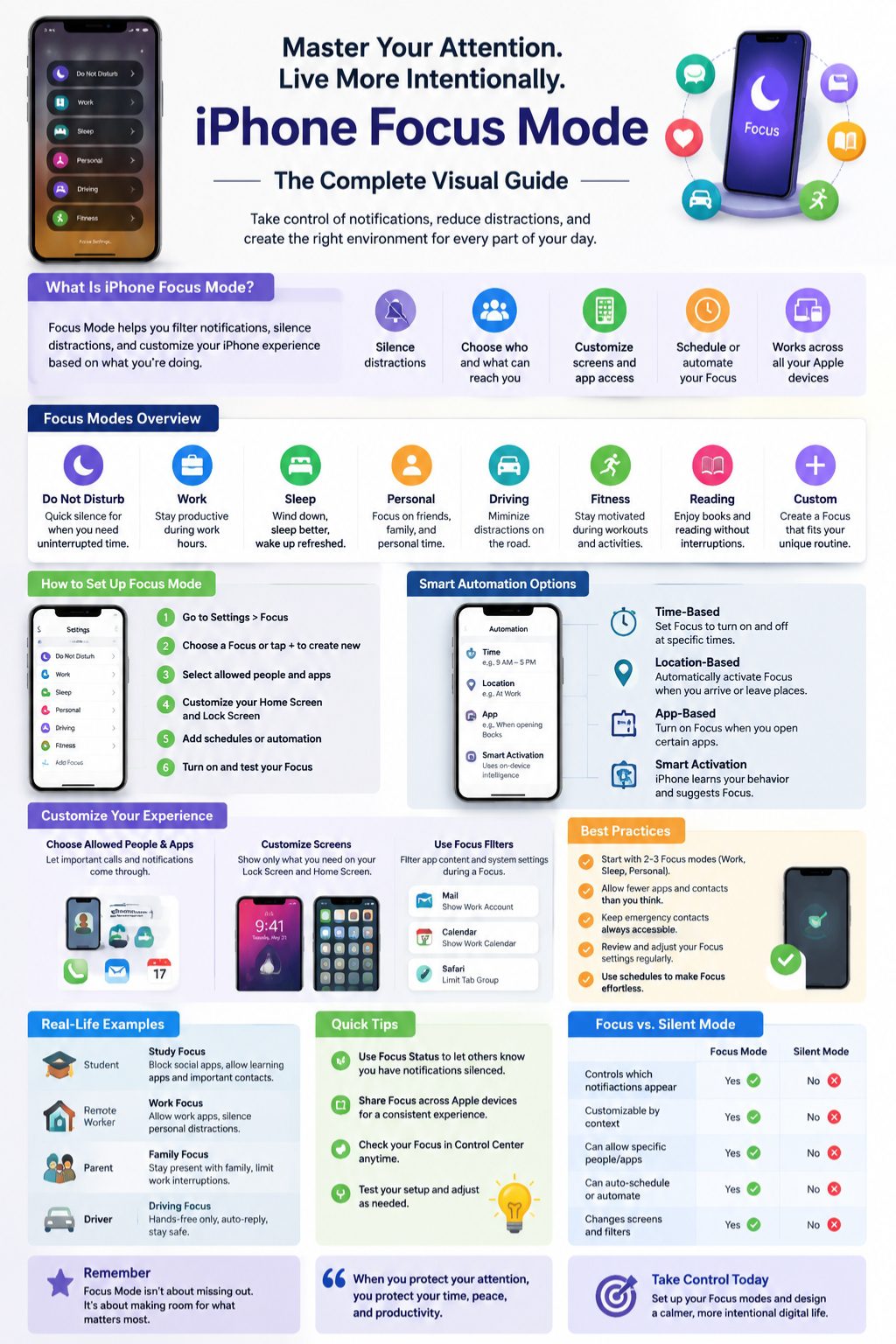
Focus Mode shines when scheduled.
Time-Based
- Work: 9 AM–5 PM
- Sleep: 11 PM–6:30 AM
- Study: 7 PM–9 PM
Location-Based
- Work Focus at office
- Personal Focus at home
- Fitness Focus at gym
App-Based
- Reading Focus when opening Books
- Work Focus when opening Slack
- Fitness Focus when opening workout apps
How to Use Focus Filters on iPhone
Filters tailor apps to your Focus:
- Mail: show only work account
- Calendar: show only personal or work events
- Messages: allow only selected contacts
- Safari: limit tabs or content
|
Filter |
Example Use |
|
|
Work-only during Work Focus |
|
Calendar |
Personal-only during Personal Focus |
|
Messages |
Favorites allowed, others blocked |
Customizing Home and Lock Screens
- Work Focus: Productivity apps
- Sleep Focus: Calm Lock Screen
- Study Focus: Hide social media pages
- Personal Focus: Personal apps/widgets
- Fitness Focus: Health & Music apps
|
Focus |
Screen Tip |
|
Work |
Only work apps visible |
|
Sleep |
Simple, calming wallpaper |
|
Study |
Hide social media pages |
|
Personal |
Personal apps & widgets |
|
Fitness |
Health, Music, Tracker |
Common iPhone Focus Mode Mistakes to Avoid
- Allowing too many apps
- Blocking important contacts
- Forgetting schedules
- Using one Focus for all situations
- Overcomplicating filters
|
Mistake |
Fix |
|
Too many apps |
Allow essentials only |
|
Important contacts blocked |
Add family/emergency |
|
Forgetting schedules |
Use automation |
|
One profile for all |
Create separate profiles |
|
Complex filters |
Start simple |
Practical Tips for Using Focus Mode
- Start with Work, Sleep, Personal
- Limit apps
- Allow emergency contacts
- Review settings monthly
- Test setups
Suggested 7-Day Beginner Setup Plan
|
Day |
Task |
|
1 |
Turn on Do Not Disturb manually |
|
2 |
Create Work Focus |
|
3 |
Select allowed contacts/apps |
|
4 |
Add schedule |
|
5 |
Create Sleep Focus |
|
6 |
Customize Home Screen |
|
7 |
Review notifications and adjust |
Quick Comparison: Focus Mode Options
|
Focus |
Use |
Allowed Notifications |
|
Do Not Disturb |
Quick silence |
Emergency only |
|
Work |
Office & deep work |
Work apps & contacts |
|
Sleep |
Bedtime |
Family & emergency |
|
Personal |
Family time |
Friends, family |
|
Driving |
Safety |
Hands-free calls |
|
Fitness |
Workout |
Fitness & music |
|
Reading |
Books & research |
Reading apps |
|
Custom |
Special routines |
Depends on activity |
Final Thoughts
Focus Mode isn’t a magic solution. It works best when you pick what’s important and stick to it. Start with Work, Sleep, and Personal, then add more profiles as needed. Let the iPhone handle the small interruptions so you can focus on what really matters. Using iPhone Focus Mode can transform daily routines without feeling strict or robotic.
Frequently Asked Questions
What does iPhone Focus Mode do?
Controls notifications by activity, letting only selected people and apps through.
Can people still call me?
Yes, if allowed in your Focus settings.
Why does Focus Mode turn on automatically?
Schedules, locations, app triggers, or smart activation can start Focus.
Does it block alarms?
No, standard alarms still work.
Can I hide apps on Home Screen?
Yes, Focus can show selected Home Screen pages.
Does it work across devices?
Yes, when Share Across Devices is enabled.
What’s the best setup for beginners?
Start with Work, Sleep, and Personal Focus profiles.