
The taskbar is one of those things you barely notice until it stops working. Then suddenly, even opening an app feels annoying. The Start button won’t respond. Search does nothing. Pinned apps disappear. The clock may freeze. Sometimes the whole taskbar just vanishes like it packed a bag and left Windows behind.
If you’re dealing with the windows 11 taskbar not working issue, don’t panic yet. Most of the time, the problem is not as serious as it looks. It may be a frozen Windows Explorer process, a recent update, a broken search process, corrupted system files, or a display driver problem.
This guide starts with the easiest fixes first. Then it moves to deeper repairs only if the quick steps fail. The goal is simple: get your taskbar working again without jumping straight into a full Windows reset.
Why the Windows 11 Taskbar Stops Working
The Windows 11 taskbar is not just a row of icons. It connects with Windows Explorer, the Start menu, Search, system tray, notifications, pinned apps, and background shell processes. When one of these parts freezes, the taskbar may stop responding.
In many cases, the problem starts after sign-in, sleep mode, a Windows update, or a background process crash. It can also happen after installing a new driver, using a third-party customization tool, or shutting down the PC incorrectly.
The problem may look serious, but the cause is often simple. A stuck Explorer process can make the entire taskbar feel broken. That is why restarting Windows Explorer is usually the best first step.
|
Common Cause |
What It Can Break |
First Fix to Try |
|
Frozen Windows Explorer |
Taskbar, desktop, pinned apps |
Restart Windows Explorer |
|
Recent Windows update |
Taskbar, Start menu, Explorer |
Check or uninstall updates |
|
Broken Search process |
Search box, Start search |
Restart SearchHost.exe |
|
Corrupted system files |
Start, taskbar, Settings |
Run SFC and DISM |
|
Bad display driver |
Flickering or missing taskbar |
Update or roll back driver |
|
Third-party customization tools |
Start menu and taskbar layout |
Disable or uninstall the tool |
Windows Explorer Can Freeze the Taskbar
Windows Explorer does more than open folders. It also helps run the desktop shell. So when Explorer gets stuck, the taskbar may freeze too. This is why restarting Windows Explorer is often the fastest fix.
Windows Updates Can Both Cause and Fix the Issue
A Windows update can sometimes trigger bugs. But updates can also fix known taskbar and Explorer problems. That is why checking Windows Update is still worth doing before going into advanced repair steps.
Search and Start Menu Problems Can Look Like Taskbar Problems
Sometimes the taskbar itself is fine, but the Search box or Start menu fails. Users still describe this as “taskbar not working” because the broken part sits on the taskbar.
Quick Signs of the Windows 11 Taskbar Not Working
Before fixing anything, identify the exact problem. This saves time. A frozen taskbar, missing icons, broken search bar, and disappeared taskbar may need different steps.
The most common sign is a taskbar that looks normal but does not respond to clicks. Another common issue is the Start button opening slowly or not opening at all. Some users also see missing icons, blank space, or a taskbar that disappears after login.
If the issue started after an update, driver installation, or new customization app, remember that detail. It can help you choose the right fix faster.
|
Symptom |
Likely Cause |
Best First Step |
|
Taskbar does not respond |
Explorer frozen |
Restart Windows Explorer |
|
Start menu does not open |
Shell or Start process issue |
Restart Explorer, then run SFC |
|
Search box does not work |
Windows Search issue |
Restart SearchHost.exe |
|
Icons disappear |
Settings, cache, or Explorer issue |
Restart Explorer and check taskbar settings |
|
Taskbar missing after login |
Explorer or display issue |
Restart PC or Explorer |
|
Taskbar flickers |
Driver or update issue |
Check display drivers |
Taskbar Is Frozen
The cursor moves, but clicking icons does nothing. The clock may stop updating. Pinned apps may not open. This usually points to Explorer or shell-related trouble.
Taskbar Icons Are Missing
The taskbar area may still be visible, but app icons, Wi-Fi, sound, battery, or search may disappear. This can happen after updates, display changes, or Explorer glitches.
Start Menu and Search Are Broken
If the Start menu and Search do not open, treat it as a wider Windows shell issue. Restarting Explorer is still the best first move.
Fix 1: Restart Windows Explorer
This is the first fix you should try. It is quick, safe, and does not remove your files. In many cases, it brings the taskbar back in seconds.
Restarting Explorer refreshes the desktop shell. Your screen may flash for a moment. That is normal. Some File Explorer windows may close, but your personal files stay safe.
This fix works well because Windows Explorer controls key parts of the desktop experience. When it crashes or freezes, the taskbar often freezes with it.
|
Step |
What to Do |
|
1 |
Press Ctrl + Shift + Esc |
|
2 |
Open Task Manager |
|
3 |
Find Windows Explorer |
|
4 |
Right-click it |
|
5 |
Select Restart |
|
6 |
Wait for the taskbar to reload |
How to Restart Explorer from Task Manager
Press Ctrl + Shift + Esc to open Task Manager. If you see the small view, click More details. Find Windows Explorer under Processes, right-click it, and choose Restart.
What to Do If Explorer Is Not Listed
Click Run new task in Task Manager. Type explorer.exe and press Enter. This can manually restart the desktop shell if Explorer has fully crashed.
When This Fix Works Best
Use this when the taskbar is frozen, icons do not respond, the Start button is stuck, or the taskbar disappears for a short time.
Fix 2: Restart Your PC Properly
Yes, “restart your PC” sounds basic. But it works more often than people like to admit. A real restart clears temporary glitches, reloads services, and refreshes Windows processes.
Do not confuse restart with sleep mode. Many laptops only sleep when you close the lid. Sleep can carry the same frozen process into the next session.
If the taskbar stopped working after waking from sleep, a proper restart should be your second step after restarting Explorer.
|
Restart Method |
Best For |
Notes |
|
Start menu restart |
Normal cases |
Works if Start opens |
|
Ctrl + Alt + Delete |
Frozen taskbar |
Use power icon from security screen |
|
Power button restart |
Last resort |
Use only if Windows fully hangs |
|
Shift + Restart |
Advanced repair |
Opens recovery options |
Use Ctrl + Alt + Delete If the Taskbar Is Frozen
Press Ctrl + Alt + Delete. Click the power icon. Choose Restart. This works even when the taskbar and Start menu do not respond.
Read Also: How to Fix Windows 11 Black Screen After Login
Avoid Hard Shutdown Unless Needed
Holding the power button should be the last option. It can interrupt updates, file transfers, or system repairs.
After Restarting
Check whether the taskbar works before opening many apps. If it breaks again after opening a specific app, that app may be part of the problem.
Fix 3: Check Windows Update
Windows Update is a double-edged sword. Sometimes an update introduces a bug. Other times, a later update fixes it. So you should check updates before doing heavy repairs.
Windows updates often include security patches, bug fixes, driver improvements, and stability updates. If Microsoft has already fixed a known Explorer or taskbar issue, Windows Update may solve the problem.
Still, be careful with optional preview updates. They may include early fixes, but they can also bring new problems. For a work computer, stable updates are usually the safer choice.
|
Step |
Path |
|
1 |
Press Windows + I |
|
2 |
Go to Windows Update |
|
3 |
Click Check for updates |
|
4 |
Install available stable updates |
|
5 |
Restart the PC |
Install Stable Updates First
Install normal security and cumulative updates first. These often include reliability fixes for Windows components.
Be Careful with Optional Preview Updates
Preview updates can contain fixes, but they can also include new bugs. On a work computer, install them only when you need a specific fix.
Check Update History
If the taskbar stopped working right after an update, open Update history. Note the latest update name and date.
Fix 4: Uninstall a Recent Windows Update
Use this step only if the taskbar problem clearly started after a Windows update. Do not remove updates randomly.
This is useful when Windows starts, but the taskbar freezes after sign-in. It is also useful when Settings will not open normally and the problem appeared right after a recent update.
If you use a work or school computer, check with your IT team before uninstalling updates. Some updates may be required for security or policy reasons.
|
Situation |
What to Do |
|
Problem started after update |
Uninstall latest quality update |
|
PC cannot reach desktop |
Use Windows Recovery Environment |
|
Update keeps reinstalling |
Pause updates briefly after uninstalling |
|
Work PC |
Check with IT before removing updates |
Uninstall from Settings
Open Settings. Go to Windows Update. Select Update history. Click Uninstall updates. Remove the latest update if it matches the time the taskbar issue started.
Uninstall from Recovery Mode
If Windows is hard to use, enter Windows Recovery Environment. Choose Troubleshoot, Advanced options, then Uninstall Updates.
Do Not Remove Security Updates Without Reason
Security updates protect your PC. Remove one only when it clearly caused the problem and you have no better fix.
Fix 5: Use SFC to Repair System Files
If the windows 11 taskbar not working issue keeps coming back, system files may be damaged. This can happen after failed updates, forced shutdowns, storage problems, or software conflicts.
System File Checker, also called SFC, checks protected Windows system files and repairs missing or corrupted files. It is one of the safest built-in tools to try when Windows components behave strangely.
SFC is especially useful when the taskbar issue appears together with other problems, such as Settings not opening, File Explorer crashing, Start menu failure, or random system errors.
|
Command |
Purpose |
|
sfc /scannow |
Scans and repairs system files |
|
Run as administrator |
Required for proper repair |
|
Restart after scan |
Helps apply repairs |
|
Run DISM if SFC fails |
Repairs Windows image health |
How to Run SFC
Press Ctrl + Shift + Esc. Open Task Manager. Click Run new task. Type cmd. Check Create this task with administrative privileges. Then run:
sfc /scannow
Wait until the scan reaches 100%. Do not close the window early.
What SFC Results Mean
If Windows says no integrity violations were found, system files may be fine. If it says corrupt files were repaired, restart the PC and test the taskbar. If it says some files could not be repaired, move to DISM.
When SFC Helps Most
SFC is useful when the taskbar, Start menu, Settings, and Explorer all behave strangely. It is also useful after failed updates.
Fix 6: Run DISM for Deeper Windows Repair
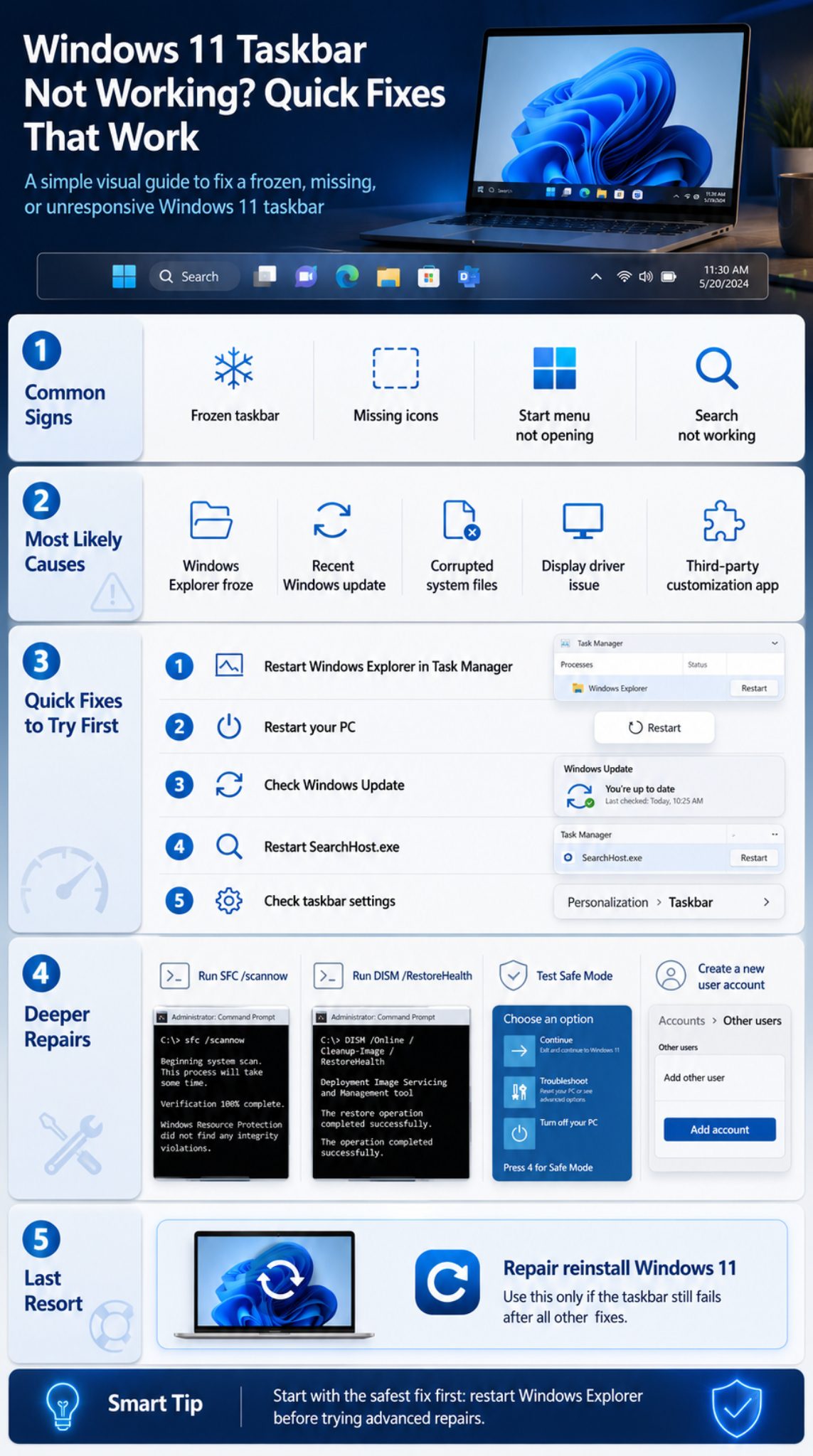
DISM is the next step when SFC does not fix the issue. It repairs the Windows image that SFC uses as a source for healthy system files.
Think of it this way: SFC repairs system files, while DISM repairs the deeper Windows image that supports those files. If the source itself is damaged, DISM can help before you run SFC again.
This fix takes longer than restarting Explorer, but it is still safer than resetting Windows. It is a smart middle step before you move to recovery options.
|
Command |
What It Does |
|
DISM /Online /Cleanup-Image /CheckHealth |
Checks for detected corruption |
|
DISM /Online /Cleanup-Image /ScanHealth |
Runs a deeper scan |
|
DISM /Online /Cleanup-Image /RestoreHealth |
Repairs the Windows image |
|
sfc /scannow |
Run again after DISM |
How to Run DISM
Open Command Prompt as administrator. Run this command:
DISM /Online /Cleanup-Image /RestoreHealth
Wait for it to finish. Then run sfc /scannow again. Restart the computer afterward.
Do Not Panic If It Looks Stuck
DISM may pause at certain percentages. Let it continue. Closing it early can waste time or leave the repair unfinished.
When DISM Is Worth Trying
Use DISM when the taskbar issue survives restarts, Explorer restarts, Windows updates, and SFC.
Fix 7: Fix Windows Search on the Taskbar
Sometimes the taskbar works, but Search does not. You click the search box, and nothing happens. Or it opens but cannot find apps, files, or settings.
If only Search is broken, do not reset the whole PC. Start with the Search process and indexing settings first. Search problems can often be fixed without touching the rest of Windows.
This is also useful when the Start menu opens, pinned apps work, and only the search area feels broken.
|
Search Issue |
Best Fix |
|
Search box does not open |
Restart SearchHost.exe |
|
Search opens but finds nothing |
Run Search and Indexing troubleshooter |
|
File search is slow |
Rebuild or check indexing |
|
Web results look odd |
Check Windows Search settings |
|
Search breaks after update |
Check Windows Update |
Restart SearchHost.exe
Open Task Manager. Go to the Details tab. Find SearchHost.exe. Right-click it and choose End task. Windows should restart the process automatically.
Run Search and Indexing Troubleshooter
Open Settings. Go to System, then Troubleshoot, then Other troubleshooters. Run Search and Indexing. Apply the recommended fix.
Check If Search Is the Only Broken Part
If Start, pinned apps, and system tray work fine, your issue is probably Windows Search, not the whole taskbar.
Fix 8: Check Taskbar Settings
Not every taskbar issue is a crash. Sometimes the taskbar is hidden, moved by display settings, or missing certain icons because of personalization settings.
This is a good fix for missing icons, hidden taskbar behavior, or multi-monitor confusion. It is also one of the easiest checks because it does not require command lines or system repair tools.
If your taskbar appears only when you move the mouse near the bottom of the screen, auto-hide may be turned on. That is a setting, not a system failure.
|
Setting |
What to Check |
|
Automatically hide taskbar |
Turn off if taskbar keeps disappearing |
|
Taskbar items |
Re-enable Search, Task View, Widgets |
|
System tray icons |
Show needed icons |
|
Multiple displays |
Show taskbar on all monitors |
|
Taskbar alignment |
Choose center or left |
Open Taskbar Settings
Press Windows + I. Go to Personalization. Select Taskbar. Open Taskbar behaviors and review the settings.
Turn Off Auto-Hide
If the taskbar appears only when you move the mouse to the bottom edge, auto-hide is probably enabled. Turn it off if you want the taskbar always visible.
Check Multiple Monitors
If you use two screens, the taskbar may show on one display but not the other. Enable taskbar on all displays if needed.
Fix 9: Update or Roll Back Display Drivers
A display driver problem can make the taskbar flicker, vanish, or render badly. This is common after graphics driver updates, monitor changes, or Windows updates.
This step matters more if your screen flashes, the desktop turns black, icons look broken, or the taskbar appears after a delay.
Display driver problems can also affect laptops with external monitors. If the taskbar works on one screen but not another, check both display settings and driver updates.
|
Driver Action |
Use It When |
|
Update driver |
Driver is old or unstable |
|
Roll back driver |
Problem started after driver update |
|
Reinstall driver |
Current driver may be broken |
|
Check GPU app |
NVIDIA, AMD, or Intel tool has newer driver |
|
Restart after driver change |
Needed for clean testing |
Update the Display Driver
Press Windows + X. Open Device Manager. Expand Display adapters. Right-click your graphics device. Choose Update driver.
Roll Back the Driver
If the taskbar broke after a graphics update, open the same driver properties and choose Roll Back Driver if the option is available.
Use Manufacturer Drivers Carefully
NVIDIA, AMD, and Intel drivers can help, especially for gaming PCs and laptops. But avoid beta drivers unless you know why you need them.
Fix 10: Disable Third-Party Taskbar Customization Tools
Windows 11 taskbar customization tools can be useful. But they can also break after Windows updates. Apps that modify Explorer, Start, right-click menus, themes, or the taskbar are more likely to cause shell problems.
This does not mean every customization tool is bad. It means you should test Windows without them before blaming the operating system.
A tool that worked perfectly last month may stop working after a Windows update. This is common with apps that deeply modify the Windows interface.
|
Tool Type |
Possible Problem |
|
Start menu replacement |
Start button may stop opening |
|
Taskbar style app |
Icons may disappear |
|
Explorer patching tool |
Desktop or taskbar may freeze |
|
Theme modifier |
Visual glitches may appear |
|
Old Windows 10 shell tool |
Windows 11 conflict |
Disable Startup Apps
Open Task Manager. Go to Startup apps. Disable taskbar, Start menu, theme, or Explorer customization tools. Restart the PC.
Uninstall Recently Added Tools
If the issue started after installing a customization app, uninstall it and restart Windows.
Watch for Update Conflicts
A tool that worked last month may break after a Windows update. Always check whether the app developer has released a compatible version.
Fix 11: Test the Taskbar in Safe Mode
Safe Mode helps you find out whether Windows itself is broken or something else is interfering. It loads Windows with a limited set of drivers and services.
If the taskbar works in Safe Mode, that is a helpful clue. It usually means a startup app, driver, or background service is causing the problem in normal mode.
If the taskbar still does not work in Safe Mode, the problem may be deeper. It could involve system files, Windows components, or the user profile.
|
Safe Mode Result |
Meaning |
|
Taskbar works |
Startup app, driver, or service may be causing the issue |
|
Taskbar still broken |
Windows files or profile may be damaged |
|
Screen works better |
Display driver may be involved |
|
Search still fails |
Windows Search or profile issue |
|
Start works normally |
Third-party shell conflict possible |
How to Enter Safe Mode
Open Settings. Go to System, then Recovery. Under Advanced startup, choose Restart now. Then select Troubleshoot, Advanced options, Startup Settings, Restart, and choose Safe Mode.
What to Do in Safe Mode
Do not judge performance too much. Safe Mode is basic by design. Just test whether the taskbar responds.
Next Step After Safe Mode
If the taskbar works in Safe Mode, disable startup apps, uninstall recent software, or roll back drivers.
Fix 12: Create a New User Account
Sometimes Windows is fine, but your user profile is damaged. In that case, the taskbar may fail only on your account.
A new account is a clean test. If the taskbar works there, your old profile may have broken shell settings, startup items, or account-level corruption.
This fix is useful when other people can use the same PC without taskbar problems, but your account keeps breaking.
|
Test |
What It Shows |
|
Taskbar works in new account |
Old user profile likely damaged |
|
Taskbar fails in new account |
System-wide issue likely |
|
Start works in new account |
Old Start layout or profile issue |
|
Search works in new account |
Old indexing/profile issue |
|
Icons return in new account |
Old taskbar settings may be broken |
Create a New Account
Open Settings. Go to Accounts. Select Other users. Add a new user account. Sign out and test the taskbar from the new account.
Do Not Delete the Old Account Immediately
Back up your Desktop, Documents, Downloads, Pictures, and browser data first. Make sure the new account works properly before removing anything.
When This Fix Is Useful
Use this if the windows 11 taskbar not working problem affects only one user profile.
Fix 13: Use System Restore
System Restore can undo recent system changes without deleting personal files. It is useful if the taskbar broke after a driver, app, or update.
This fix only works if restore points already exist. Some PCs have System Restore disabled, so not everyone will see a useful restore point.
System Restore may remove recently installed apps, drivers, or settings. It should not delete your personal files, but backing up important files is still a good habit.
|
Use System Restore When |
Avoid It When |
|
Problem started after app install |
You have no restore point |
|
Problem started after driver update |
You cannot risk removing recent apps |
|
Taskbar broke suddenly |
Malware is suspected |
|
Other fixes failed |
Files are not backed up |
|
You need a system rollback |
PC is managed by workplace IT |
How to Open System Restore
Press Windows + R. Type rstrui.exe. Press Enter. Choose a restore point from before the taskbar issue started.
What System Restore Changes
It may remove recent apps, drivers, and system settings. It should not delete personal files.
Back Up Important Files First
Even though System Restore is designed to keep personal files, a backup is still smart.
Fix 14: Repair Reinstall Windows 11
If nothing works, a repair reinstall may be needed. This is not the same as rushing into a full reset.
Use this when the taskbar, Start menu, Settings, Search, and Explorer keep failing even after SFC, DISM, Safe Mode, and account testing.
A repair reinstall can refresh Windows system files while keeping personal files in many cases. Still, you should back up anything important before starting.
|
Repair Option |
Best For |
|
Fix problems using Windows Update |
Repairing current Windows version |
|
System Restore |
Undoing recent changes |
|
Reset this PC |
Last-resort repair |
|
Clean install |
Severe system damage |
|
Recovery drive |
PC that cannot boot properly |
Use the Built-In Repair Option
Open Settings. Go to System. Select Recovery. Look for the repair option that reinstalls the current Windows version. Follow the on-screen instructions.
Back Up Before Repairing
Even repair options that keep files should not be treated casually. Back up important files first.
Use Reset as the Last Step
Resetting Windows takes more time and may remove apps. Try all safer fixes first.
What Not to Do When the Taskbar Breaks
When Windows misbehaves, it is tempting to download random repair tools or copy registry commands from forums. Be careful. A small taskbar issue can become a bigger system problem if you apply the wrong fix.
The safer approach is simple. Restart Explorer, reboot, check settings, update Windows, repair system files, and test Safe Mode before using risky fixes.
You should also avoid deleting system folders, disabling random services, or making registry changes without a backup. Those fixes may look quick, but they can create new problems.
|
Avoid This |
Why |
|
Random “PC repair” tools |
May add malware or junk software |
|
Registry edits without backup |
Can break Windows settings |
|
Deleting system files |
Can damage Windows |
|
Resetting too early |
Time-consuming and unnecessary |
|
Ignoring repeated crashes |
May hide driver or system corruption |
Do Not Use Random Registry Fixes First
Registry edits should be used only when you fully understand the change. Always back up the registry first.
Do Not Install Unknown Fix Tools
Most taskbar problems do not need third-party repair apps. Built-in Windows tools are enough for most cases.
Do Not Ignore Repeated Freezing
If the taskbar keeps freezing every few days, check drivers, updates, startup apps, storage health, and system files.
Quick Troubleshooting Path for Windows 11 Taskbar Not Working
Here is the easiest order to follow. Start at the top and stop when the taskbar works again.
This order keeps risk low. It also avoids wasting time on advanced repairs when a simple Explorer restart may solve the problem.
The main idea is to move from fast fixes to deeper repairs. Do not start with reset, registry edits, or random tools.
|
Order |
Fix |
Difficulty |
Risk |
|
1 |
Restart Windows Explorer |
Easy |
Low |
|
2 |
Restart the PC |
Easy |
Low |
|
3 |
Check taskbar settings |
Easy |
Low |
|
4 |
Check Windows Update |
Easy |
Low |
|
5 |
Restart Windows Search |
Easy |
Low |
|
6 |
Run SFC |
Medium |
Low |
|
7 |
Run DISM |
Medium |
Low |
|
8 |
Update or roll back display driver |
Medium |
Medium |
|
9 |
Test Safe Mode |
Medium |
Low |
|
10 |
Create new user account |
Medium |
Medium |
|
11 |
Use System Restore |
Medium |
Medium |
|
12 |
Repair reinstall Windows |
Advanced |
Medium |
Best First Fix
Restart Windows Explorer. It is fast, safe, and directly connected to the taskbar.
Best Fix After an Update
Check for newer updates first. If the issue started immediately after a specific update, consider uninstalling that update.
Best Fix for Repeated Problems
Run SFC and DISM, then test Safe Mode. Repeated taskbar failure usually means a deeper conflict or corruption.
Final Thoughts
The windows 11 taskbar not working problem is frustrating, but it is usually fixable. Start with the easy steps. Restart Windows Explorer. Restart the PC. Check taskbar settings. Then move to Windows Update, Search repair, SFC, and DISM.
If the issue started after an update, do not rush into resetting your PC. Check update history, install newer patches, or uninstall the recent update if needed. If the taskbar works in Safe Mode or a new user account, the problem is probably tied to a driver, startup app, customization tool, or user profile.
The best rule is simple: fix the smallest possible thing first. Most taskbar issues do not need a full Windows reset. A calm step-by-step approach usually gets the desktop back to normal without risking your files.
FAQs About Windows 11 Taskbar Not Working
Why is my Windows 11 taskbar not responding after login?
This often happens when Windows Explorer or another shell process freezes during sign-in. Restart Windows Explorer from Task Manager first. If the problem keeps happening, check Windows Update and run SFC.
Why does my taskbar disappear only on one monitor?
Your multiple display settings may be controlling where the taskbar appears. Go to Settings, Personalization, Taskbar, and Taskbar behaviors. Enable taskbar on all displays if you want it on every screen.
Can low storage cause the Windows 11 taskbar to stop working?
Low storage can cause updates, cache files, and system processes to behave badly. It may not directly break the taskbar every time, but it can make Windows unstable. Free up space and restart the PC.
Why does the taskbar freeze after waking from sleep?
Sleep mode can resume a frozen Explorer, driver, or shell process instead of fully reloading it. Restarting the PC usually helps. Updating display and chipset drivers may also reduce the problem.
Can a bad graphics driver affect the taskbar?
Yes. A display driver problem can cause flickering, missing UI parts, black screens, or delayed desktop loading. Update or roll back the display driver if the taskbar issue started after a driver change.
Is restarting Windows Explorer safe?
Yes. It may refresh the desktop and close open File Explorer windows, but it does not delete your files. It is one of the safest first fixes for taskbar problems.
Should I reset Windows 11 if the taskbar is broken?
Not at first. Try restarting Explorer, updating Windows, checking taskbar settings, running SFC and DISM, testing Safe Mode, and creating a new user account first. Resetting should be a last resort.