
A OnePlus phone is supposed to feel fast. That is why it feels so annoying when apps take longer to open, gestures stutter, the keyboard lags, or the camera freezes right when you need it.
If your OnePlus phone slow issue started recently, do not panic yet. A slow phone does not always mean weak hardware or an old device. In many cases, the real problem is storage, a buggy app, heat, background activity, or a software update that needs a little cleanup.
The good news is simple. You can fix most OnePlus performance issues without replacing the phone. You just need to follow the right order. Start with the safe fixes first, then move to deeper troubleshooting only if the problem continues.
This guide shows how to speed up a OnePlus phone in 2026 using practical steps that work for OxygenOS and modern Android devices.
Quick Answer: How to Speed Up a Slow OnePlus Phone
If your OnePlus feels slow, start with the basics before touching advanced settings. Restart the phone, update OxygenOS, update your apps, and check available storage. Google says Android phones can start having issues when less than 10% of storage is free, so storage cleanup should not be ignored.
Next, look at apps. A single bad app can cause lag, heat, battery drain, or freezing. Clear cache for the problem app, remove apps you do not use, and test Safe Mode if the whole phone feels slow. Use factory reset only at the end, after backup.
Fast checklist before deep troubleshooting
Try these steps first:
- Restart the phone.
- Update OxygenOS.
- Update all apps from Google Play.
- Keep at least 10% storage free.
- Remove unused apps and large files.
- Clear cache for slow apps.
- Check battery usage.
- Test Safe Mode.
- Reset only after backup.
|
Problem |
First thing to check |
Best starting fix |
|
Apps open slowly |
Storage and app updates |
Free storage and update apps |
|
Phone freezes randomly |
Bad app or system bug |
Restart and test Safe Mode |
|
Slow after update |
OxygenOS and app compatibility |
Update apps and wait for patch |
|
Gaming lag |
Heat and graphics settings |
Cool phone and lower settings |
|
Camera delay |
Storage and camera cache |
Clear camera cache and free space |
OnePlus Phone Slow: What Usually Causes It?
The phrase OnePlus phone slow can mean many things. Some users mean the whole system is lagging. Others mean the camera is slow, games stutter, or apps freeze after an OxygenOS update. You need to know the cause before choosing the fix.
Most slowdowns come from five areas: low storage, app problems, background activity, heat, or software bugs. Older models may also struggle if the battery is weak or the phone no longer gets smooth update support. That does not mean every issue is permanent.
Low storage can hurt daily performance
Storage affects more than photos and downloads. Android needs free space for app cache, temporary files, updates, camera processing, and system tasks. When storage gets too tight, even a powerful OnePlus phone can feel heavy.
Clear old downloads, large videos, duplicate images, offline movies, unused games, and messaging app media. WhatsApp and Telegram folders often hide a lot of junk. If you record 4K video, storage can disappear faster than expected.
Background apps can quietly drain resources
Apps do not always stop when you leave them. Messaging apps, social media, shopping apps, weather widgets, VPNs, and location-based apps may keep working in the background. That can slow the phone and drain battery.
This does not mean every background app is bad. You need alerts from email, banking, work, and messaging apps. The problem starts when too many low-priority apps keep syncing, refreshing, and sending notifications all day.
Heat can reduce performance
OnePlus phones, like other Android phones, protect themselves when they get hot. Gaming, fast charging, hotspot use, video recording, and direct sunlight can raise temperature quickly. When that happens, the phone may slow down to control heat.
If lag appears only while charging or gaming, heat is likely part of the problem. Remove the case, stop heavy apps, and let the device cool before judging performance.
|
Cause |
What it looks like |
What to do |
|
Low storage |
Slow app launch, camera delay |
Delete large files and unused apps |
|
Bad app |
Lag after installing one app |
Clear cache or uninstall it |
|
Heat |
Slow while gaming or charging |
Cool phone and avoid heavy use |
|
Update issue |
Lag after OxygenOS update |
Update apps and check patch notes |
|
Battery aging |
Random drops, heat, shutdowns |
Check service or replacement options |
Update OxygenOS and Apps the Right Way
A slow OnePlus phone often improves after updates, but you should update carefully. OxygenOS updates can improve security, stability, animation smoothness, and system behavior. At the same time, major updates can create bugs on specific models or regions.
OnePlus says OxygenOS 16 rollout timing may vary by device model, country, and carrier. That means two people with similar phones may not receive the same update on the same day. Do not force unofficial firmware just because someone online received it earlier.
Read Also: OnePlus 11 Review: Key Features and Specifications
Check OxygenOS updates
Go to Settings and look for About device or System update. Menu names can vary by model and OxygenOS version. If an update is available, read the changelog first. Look for words like stability, performance, battery, camera, system, or security.
After a major update, give the phone some time. It may optimize apps and rebuild background processes. If the phone still lags after a couple of days, update apps and clear cache for apps that feel broken.
Update apps after a system update
Many people update OxygenOS but forget app updates. That creates problems. Apps need to stay compatible with newer Android and OxygenOS versions.
Open Google Play, go to Manage apps and device, and update important apps. Focus on browsers, banking apps, messaging apps, camera-related apps, social apps, maps, VPNs, and games. Restart the phone after big updates.
Avoid risky firmware shortcuts
Do not install random rollback packages, beta files, or region firmware from unknown sources. A wrong package can cause boot issues, broken banking apps, missing features, or update problems later.
|
Update task |
Why it matters |
Safe advice |
|
OxygenOS update |
Fixes bugs and security issues |
Use official update channel |
|
App update |
Improves compatibility |
Update from Google Play |
|
Beta software |
Gives early features |
Avoid on daily-use phones |
|
Rollback package |
Can fix bad updates |
Use only official instructions |
|
Patch check |
Helps after update lag |
Follow OnePlus Community and support |
Free Up Storage Before You Blame the Phone
If you want to speed up OnePlus phone performance, storage cleanup is one of the best places to start. Google’s Android guidance says phones can begin having issues when less than 10% of storage is free. That is a clear sign to keep some breathing room.
Do not only delete one or two photos. Look for the real storage hogs. Videos, games, downloads, offline streaming files, and chat media usually take the most space. Camera lag and gallery delay often improve after cleanup.
What to delete first
Start with files you will not miss. Open Downloads and remove old PDFs, APK files, ZIP files, duplicate images, and screenshots. Then check your video folder. A few long clips can take more space than hundreds of photos.
Next, open WhatsApp, Telegram, Messenger, or similar apps. These apps often store videos, voice notes, forwarded media, and documents. Delete large files inside the app if possible, so you do not remove something important by mistake.
Move files instead of deleting everything
You do not need to delete memories. Move important photos and videos to cloud storage, an external drive, or a computer. Keep only what you use often on the phone.
If your phone has 128GB storage, try to keep at least 13GB free. More free space is better if you record videos, play large games, or install many apps.
Clear cache, but understand what it does
Cache is temporary data. Clearing cache can help if an app is slow or glitchy. But clearing storage or app data is different. It can remove local files, settings, downloads, or login sessions.
|
Storage item |
Safe to delete? |
Notes |
|
Old downloads |
Usually yes |
Check important files first |
|
Duplicate photos |
Yes |
Use a trusted gallery or file tool |
|
Large videos |
Move first |
Back up before deleting |
|
APK files |
Usually yes |
Avoid unknown APKs anyway |
|
App cache |
Usually yes |
App may load slower once |
|
App data |
Be careful |
Can delete settings or local content |
Fix Slow Apps, Freezing, and OnePlus Phone Lagging Issues
Sometimes the whole phone is not slow. One app is. This is common with social apps, browsers, shopping apps, maps, camera, and games. If only one app freezes, do not reset the whole phone.
The better move is to fix that app first. Update it, clear its cache, force stop it, and check whether it has too many permissions or background activity. If the app started lagging after its own update, reinstalling may help.
Clear cache for problem apps
Long press the app icon, tap App info, open Storage usage, then tap Clear cache. This removes temporary files. It does not usually delete your account or personal app data.
Good apps to check include Chrome, Instagram, Facebook, TikTok, YouTube, Maps, Camera, Gallery, WhatsApp, Telegram, and large games. If the app still fails, check for updates or reinstall it.
Force stop apps that get stuck
Force stop can help when an app is frozen in the background. Use it for apps that keep crashing, loading forever, or draining battery after you close them.
Do not force stop system apps randomly. Also avoid force stopping important messaging or work apps if you rely on instant notifications.
Use Safe Mode to find bad apps
Safe Mode temporarily turns off downloaded apps. If the phone feels smooth in Safe Mode, one of your installed apps is likely causing the issue. Restart normally, then remove recently installed apps one by one.
This is one of the cleanest ways to diagnose a OnePlus phone slow problem without deleting everything.
|
App issue |
Fix |
When to use it |
|
App opens slowly |
Clear cache |
When one app feels heavy |
|
App freezes |
Force stop |
When app is stuck |
|
App crashes |
Update or reinstall |
When cache does not help |
|
Phone smooth in Safe Mode |
Remove bad app |
When third-party app causes lag |
|
App drains battery |
Restrict background use |
When it runs too much |
Reduce Background Load, Widgets, and Visual Effects
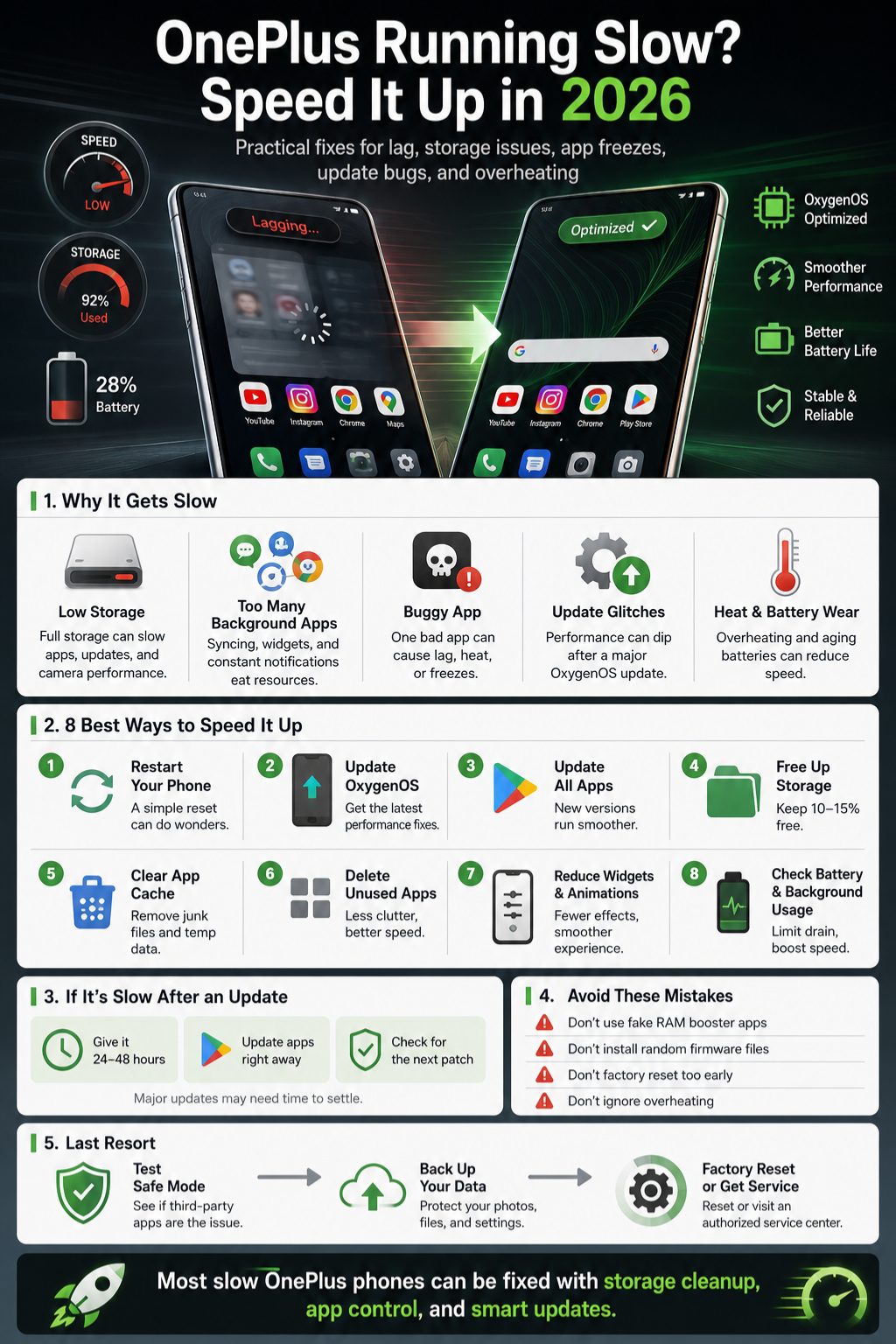
OnePlus phones often feel fast because of smooth animations and high refresh rate screens. But visual smoothness depends on available resources. If your phone is older, full of apps, or running hot, heavy visuals can make lag easier to notice.
You do not need to turn your phone into a boring device. Just remove extras you do not use. Heavy widgets, live wallpapers, floating tools, third-party launchers, and constant notifications can all add background load.
Remove heavy widgets and live wallpapers
Live wallpapers look nice, but they can use battery and graphics resources. Weather widgets, social feed widgets, finance widgets, and calendar widgets can refresh often. Remove the ones you barely check.
Use a clean home screen for a few days and see how the phone behaves. If the lag improves, add only the widgets you really need.
Reduce animations
Animation reduction can make the phone feel faster. Some users can do this through Accessibility settings. Advanced users can use Developer options and reduce animation scales.
Do not change random Developer options. Stick to animation scale only if you know what you are doing.
Review notifications and background access
Too many notifications wake apps all day. Turn off promotional alerts, shopping offers, game reminders, and social notifications you do not need. Keep important notifications for calls, messages, banking, work, and security.
|
Setting area |
What to change |
Expected result |
|
Live wallpaper |
Use static wallpaper |
Less visual load |
|
Widgets |
Remove unused widgets |
Cleaner home screen |
|
Notifications |
Disable low-value alerts |
Less background wake-up |
|
Animations |
Reduce speed |
Faster feeling |
|
Background apps |
Restrict non-essential apps |
Better battery and smoother use |
OnePlus Slow After Update: What You Should Do
A OnePlus slow after update problem is common enough that users often search for it right after a major OxygenOS release. The phone may feel warm, battery life may drop, and animations may stutter. Some of this can be temporary.
After a major update, the system may need time to settle. Apps may update in the background. Photos, files, and app data may re-index. Still, if lag continues, you should take action instead of waiting forever.
Give the update a short settling period
Use the phone normally for a day or two. Keep it charged, connect to Wi-Fi, and update apps. Avoid judging performance in the first hour after a large system update.
If the phone remains slow after that, restart it and check storage. Then clear cache for the apps that lag most.
Check community reports for your model
Search your exact model and update version. For example, OnePlus 12R OxygenOS 16 lag or OnePlus Nord CE4 slow after update. If many users report the same issue, it may be a build-specific bug.
In that case, wait for an official patch or contact support. Do not install random files from comments or forums.
Report the bug properly
When reporting a bug, include your model, OxygenOS version, region, when the issue started, affected apps, free storage, and whether the device overheats. Better details help support teams understand the issue.
|
After-update problem |
Possible reason |
Best fix |
|
Warm phone |
Background optimization |
Wait and restart |
|
App lag |
App compatibility |
Update apps |
|
Camera delay |
Cache or storage |
Clear cache and free space |
|
Battery drain |
Background activity |
Check battery usage |
|
System stutter |
Update bug |
Watch for official patch |
Fix Gaming Lag, Camera Delay, and Charging Slowdowns
Some OnePlus performance issues appear only during heavy use. Gaming, camera recording, fast charging, mobile hotspot, and video editing can push the phone harder than normal browsing. In these cases, heat matters a lot.
If the phone is smooth during normal use but slow during games, the issue may not be general lag. It may be thermal throttling, network delay, high graphics settings, or battery-saving limits.
OnePlus gaming lag fixes
Close heavy apps before gaming. Turn off downloads, screen recording, and floating windows unless needed. If the phone heats up, lower graphics settings and reduce frame rate. Ultra settings are not worth it if the frame rate keeps dropping.
Avoid gaming while fast charging. That creates heat from both the charger and the processor.
OnePlus camera lag fixes
Camera lag often comes from low storage, high-resolution modes, app cache, or heat. Clear the Camera app cache, free storage, and restart before recording important video.
If 4K or 8K video feels unstable, lower the resolution or frame rate. Older models may struggle with long high-resolution recording sessions.
Charging and lag connection
Fast charging is useful, but heat can slow the phone. If the phone lags while charging, remove the case, stop gaming, and let it cool. Use a compatible charger and cable.
|
Use case |
Common issue |
Practical fix |
|
Gaming |
Heat and frame drops |
Lower graphics and cool phone |
|
Camera |
Slow shutter or freeze |
Clear cache and free storage |
|
Charging |
Heat and lag |
Avoid heavy use while charging |
|
Hotspot |
Battery drain and heat |
Limit connected devices |
|
Video editing |
Heavy processing |
Close other apps first |
Things You Should Not Do to Speed Up a OnePlus Phone
When people get frustrated, they try risky fixes. That can make the phone worse. A slow OnePlus phone needs careful troubleshooting, not random booster apps or unsafe firmware files.
Avoid any app that promises one-tap speed, RAM boosting, instant cooling, or secret performance unlocks. Android already manages memory. Many cleaner apps run in the background, show ads, and add more clutter.
Do not install random cleaner apps
Cleaner apps often create the problem they claim to solve. They may keep sending notifications, scanning files, showing ads, and closing apps that Android will reopen anyway.
Use built-in Android and OxygenOS tools instead. Manual cleanup is slower, but it is safer.
Do not clear data without checking
Clear cache is usually safe. Clear data is not the same thing. It can remove app settings, offline files, local notes, downloads, or login sessions.
Before clearing data for WhatsApp, banking, notes, or work apps, make sure you have a backup.
Do not factory reset too early
Factory reset can help, but it is not the first fix. It removes your apps and local data. Try restart, updates, storage cleanup, cache fixes, battery checks, and Safe Mode first.
|
Risky action |
Why to avoid it |
Better option |
|
RAM booster app |
Adds background activity |
Remove unused apps manually |
|
Random firmware |
Can break updates |
Use official updates |
|
Clear app data blindly |
Can delete local data |
Clear cache first |
|
Factory reset first |
Wastes time and risks data |
Try basic fixes first |
|
Ignore overheating |
Can worsen performance |
Cool the phone |
When a Factory Reset or Repair Makes Sense
Factory reset should be the final software step. Use it when the phone stays slow after cleanup, updates, Safe Mode testing, and app fixes. Back up everything first. That includes photos, videos, contacts, WhatsApp, notes, two-factor codes, and work files.
If the phone is still slow after a clean reset, the problem may be hardware-related. Battery aging, water damage, storage failure, motherboard issues, or heat damage can affect performance. In that case, software tricks will not fully solve it.
Backup before reset
Check Google backup, photo backup, WhatsApp backup, authenticator apps, banking app access, and work profiles. Make sure you know your Google account password before resetting.
Charge the phone before reset. Do not reset during low battery.
Consider repair if hardware signs appear
Look for random restarts, swollen battery, charging problems, constant overheating, touch delay, camera failure, or lag after water damage. These signs need service attention.
Upgrade only when repair is not worth it
If the phone is very old, unsupported, storage-limited, and battery-worn, upgrading may make more sense than spending money on repairs. But do not replace it until you confirm the slowdown is not caused by storage or apps.
|
Situation |
Reset helps? |
Repair or upgrade? |
|
Years of app clutter |
Yes |
Not usually needed |
|
Bad update conflict |
Sometimes |
Wait for patch first |
|
Water damage |
Rarely |
Repair check needed |
|
Battery swelling |
No |
Stop using and service it |
|
Very old unsupported phone |
Limited |
Upgrade may make sense |
Final Thoughts
A slow phone is frustrating, but it is not always the end of the device. Most OnePlus lag comes from simple problems: full storage, outdated apps, background drain, heat, or a recent update that needs a patch.
Start with safe fixes. Restart the phone, update OxygenOS and apps, free storage, clear cache for problem apps, remove unused apps, and test Safe Mode. These steps solve many OnePlus phone slow complaints without factory reset.
If your OnePlus phone slow issue still comes back after all basic fixes, then it is time to look deeper. Back up your data, consider a factory reset, and check for battery or hardware problems. A clean, careful process will save you time, stress, and maybe even the cost of a new phone.
FAQs About OnePlus Phone Slow Issues
These FAQs cover smaller search questions that may not fit naturally inside the main guide.
Why is my OnePlus phone slow even with enough RAM?
RAM is only one part of performance. Low storage, heat, buggy apps, battery aging, background activity, or software bugs can still slow down a phone with plenty of RAM.
Does clearing cache delete my photos or contacts?
No, clearing app cache usually deletes temporary files only. But clearing app data or storage is different. That can remove local app content, settings, or login sessions.
How often should I restart my OnePlus phone?
Restart it when you notice lag, overheating, app freezing, or battery drain. A weekly restart is also a simple habit that helps clear temporary glitches.
Why is my OnePlus keyboard lagging?
Keyboard lag can come from low storage, too many clipboard items, a buggy keyboard app, heavy background apps, or system lag. Update the keyboard app and clear its cache if needed.
Can a full gallery make the OnePlus camera slow?
Yes. A full gallery and low storage can slow camera saving, preview loading, and video recording. Free space before recording long videos.
Should I turn off high refresh rate to make the phone faster?
Not always. High refresh rate makes the phone feel smoother, but it can use more battery. If the phone overheats or drains fast, try standard refresh rate for a day.
Is Safe Mode safe to use?
Yes. Safe Mode is a temporary diagnostic mode. It disables downloaded apps until you restart normally. It does not delete your data.
Why does my OnePlus slow down while charging?
Fast charging creates heat. If you game, stream, or record video while charging, the phone can get hotter and reduce performance.
Are OxygenOS beta updates safe for daily use?
Beta updates can include bugs. If the phone is your daily driver, stable releases are safer.
What if my OnePlus is slow after factory reset?
If the phone is still slow after a clean reset, check for hardware issues, battery problems, storage failure, heat damage, or an unresolved system bug. Contact OnePlus support if the issue continues.