
If your Facebook feed feels more like a shopping mall than a social app, you’re not alone. Sponsored posts, product ads, boosted pages, Reels ads, Marketplace prompts, and retargeting ads can make the experience tiring fast.
The good news is that you can block Facebook ads no extension in a practical sense by reducing, hiding, and controlling many of the ads you see. The honest part is this: you usually can’t remove every Facebook ad for free with only built-in settings.
That matters because many guides overpromise. They tell you there’s a secret switch that removes all sponsored posts. There isn’t one for most free users. What you can do is make Facebook less noisy, less creepy, and less repetitive without installing browser extensions or risky third-party apps.
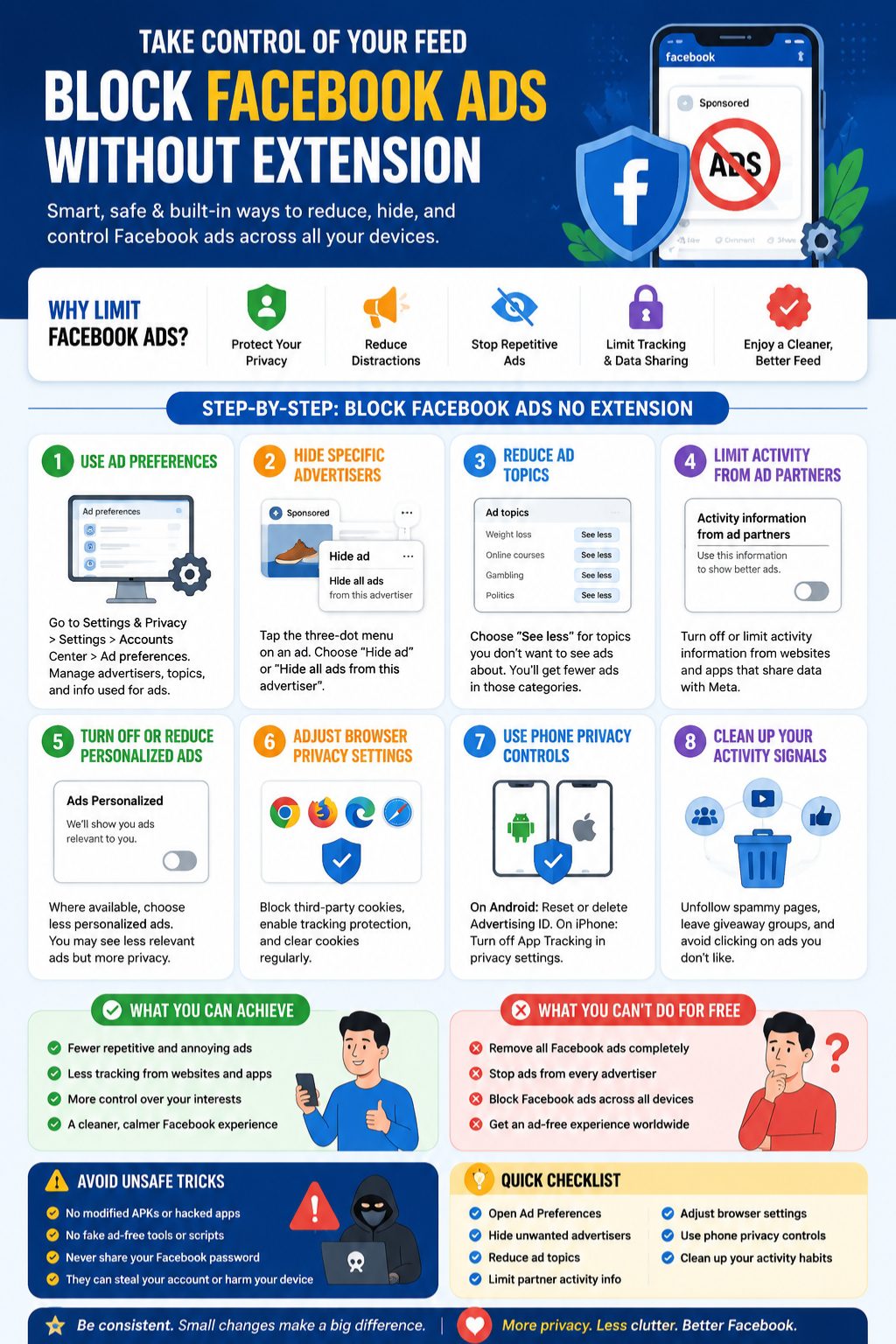
This guide walks you through the safest no-extension methods, including Facebook Ad Preferences, advertiser blocking, ad topic controls, activity data settings, browser privacy settings, and phone-level privacy options.
How to Block Facebook Ads No Extension: The Real Answer
You can’t fully erase all Facebook ads from a normal free account with one setting. Facebook is built around advertising, and Meta’s own financial reports show that ads remain a major part of the business. In Q1 2026, Meta reported 3.56 billion family daily active people and said ad impressions across its Family of Apps rose 19% year over year.
That scale explains why ads are everywhere. Facebook, Instagram, Messenger, and other Meta products are designed to show paid promotions to large audiences. So the smarter goal is not “make every ad vanish.” The better goal is to reduce bad ads, stop repeat advertisers, limit tracking, and clean up your feed.
What “without extension” means
In this article, “without extension” means you won’t use Chrome extensions, Firefox add-ons, script blockers, modified apps, or ad-blocking APK files. You’ll use settings already available inside Facebook, Meta Accounts Center, your browser, and your phone.
|
What you want |
Is it possible without extension? |
Best method |
|
Hide one bad ad |
Yes |
Use the three-dot menu on the ad |
|
Hide ads from one advertiser |
Yes |
Use Ad Preferences or ad menu |
|
Reduce certain ad topics |
Yes |
Use Ad Topics in Ad Preferences |
|
Limit ad personalization |
Often yes |
Use Accounts Center ad settings |
|
Stop all Facebook ads for free |
Usually no |
Not available for most free users |
|
Use official no-ads access |
Region-dependent |
Meta subscription where available |
Why Facebook Ads Follow You Around
Facebook ads often feel personal because they are shaped by signals. These can include your activity on Facebook, pages you follow, posts you interact with, your general location, information from advertisers, and activity from websites or apps that share data with Meta.
That’s why you may browse shoes, laptops, travel packages, or online courses outside Facebook and then see similar ads later. It doesn’t always mean Facebook listened through your microphone. In most cases, it means data sharing, cookies, pixels, app activity, or advertiser targeting did the work.
The common signals behind Facebook ads
Facebook may use your profile information, platform behavior, ad clicks, page follows, video watch patterns, Marketplace activity, and advertiser data. Some controls let you reduce these signals, but they don’t remove every ad source.
|
Signal type |
Example |
What you can do |
|
Facebook activity |
You watched many fitness videos |
Hide topics and change engagement habits |
|
Advertiser data |
A shop uploaded a customer list |
Review advertiser controls |
|
Website activity |
You visited a product page |
Limit activity information from ad partners |
|
App activity |
A shopping app shared data |
Use phone tracking controls |
|
Location-based targeting |
Local shop ads near your area |
Review location and ad settings |
Use Facebook Ad Preferences First
Facebook Ad Preferences is the main place to start. It gives you control over advertisers, ad topics, information used for ads, and some personalization settings. It won’t make Facebook ad-free, but it can make the ads less annoying.
On desktop, click your profile picture, open Settings and privacy, go to Settings, then open Accounts Center. From there, find Ad preferences. On mobile, open the Facebook app, tap Menu, go to Settings and privacy, then Settings, then Accounts Center and Ad preferences.
Read Also: How to Permanently Delete Facebook Account in 2026
What to check inside Ad Preferences
Start with advertisers you recently saw. Hide the ones you don’t want. Then check ad topics and choose “see less” for topics that bother you. After that, open the section about information used to show you ads.
|
Area in Ad Preferences |
What it does |
What to change |
|
Advertisers |
Shows brands that served you ads |
Hide repeat or unwanted advertisers |
|
Ad topics |
Groups ads by interest area |
Choose “see less” for unwanted topics |
|
Manage info |
Controls data used for ads |
Reduce personalization where possible |
|
Activity from ad partners |
Uses outside website and app activity |
Limit or turn off where available |
|
Social interactions |
Shows your actions near ads |
Restrict visibility if available |
Hide Ads From Specific Advertisers
This is one of the most useful no-extension fixes. If the same advertiser keeps showing up, don’t just scroll past it. Hide it. Facebook gives users ways to hide ads or advertisers from the feed and from Ad Preferences.
This works best when one brand, page, app, course seller, political advertiser, or online shop keeps repeating. It won’t block every similar ad from every other advertiser, but it can stop a lot of repeat clutter.
How to hide an advertiser from your feed
When you see an ad, tap or click the three-dot menu. Choose the option to hide the ad. If Facebook shows “Why am I seeing this ad?” open it and look for advertiser controls. In some cases, you can hide all ads from that advertiser.
|
Step |
Action |
Why it helps |
|
1 |
Tap the three-dot menu on the ad |
Opens ad controls |
|
2 |
Select “Hide ad” |
Removes that ad from your feed |
|
3 |
Open “Why am I seeing this ad?” |
Shows the targeting reason |
|
4 |
Hide advertiser if available |
Reduces repeat ads from that brand |
|
5 |
Repeat for stubborn advertisers |
Trains your ad experience over time |
Reduce Unwanted Ad Topics
Ad topics are broad categories Facebook uses to understand what kinds of ads may interest you. You may see topics around shopping, fitness, parenting, finance, travel, beauty, tech, online learning, or entertainment.
Choosing “see less” for a topic does not ban the topic forever. It tells Facebook you don’t want as many ads in that area. That’s still useful, especially for sensitive or repetitive categories.
Topics worth reviewing first
Start with topics that feel intrusive. These often include weight loss, loans, gambling-style games, dating, political ads, crypto-style offers, beauty products, online courses, and shopping retargeting.
|
Ad topic type |
Why users often reduce it |
Best action |
|
Weight loss |
Can feel personal or repetitive |
Choose “see less” |
|
Finance and loans |
Often aggressive or risky |
Choose “see less” and report scams |
|
Political content |
Can create feed fatigue |
Reduce topic where available |
|
Shopping |
Causes endless retargeting |
Hide advertisers and reduce topic |
|
Online courses |
Often repetitive after one click |
Hide advertiser and stop clicking |
Limit Activity Information From Ad Partners
This is one of the most important settings for people who feel Facebook is following them across the internet. Meta can receive activity information from websites, apps, and businesses that use its tools. That information can help shape ads.
For example, you may visit a travel website, browse flights, or add a product to a cart. Later, you see related ads on Facebook. Limiting activity information from ad partners can reduce that kind of retargeting.
Where to find the setting
Open Facebook Settings, go to Accounts Center, then Ad preferences. Look for Manage info and find Activity information from ad partners. The exact wording may change by region, but this is the area you want.
|
Setting |
What it affects |
Expected result |
|
Activity information from ad partners |
Outside website and app activity |
Less aggressive retargeting |
|
Manage info |
Profile and activity data used for ads |
Less personalized ads |
|
Ad preferences |
Overall ad controls |
Cleaner ad experience |
|
Off-Facebook activity |
Business activity shared with Meta |
Reduced outside tracking signals |
Turn Off or Reduce Personalized Ads Where Available
Some users have more ad choice options than others. This depends on country, account type, age, app version, and Meta’s current rollout. In some regions, users may see options for less personalized ads or paid ad-free subscriptions.
Turning off personalized ads does not always reduce the number of ads. It usually changes how ads are selected. You may see less targeted ads, but ads can still appear.
Should you reduce personalization?
Choose less personalization if privacy matters more to you than ad relevance. Keep personalization if you prefer ads that match your interests better. Don’t expect this setting to make Facebook ad-free.
|
Choice |
What happens |
Best for |
|
More personalized ads |
Ads may match your activity better |
Users who prefer relevance |
|
Less personalized ads |
Ads use fewer personal signals |
Privacy-focused users |
|
Paid no-ads option |
Removes ads where available |
Users in eligible regions |
|
No change |
Facebook keeps current settings |
Users who don’t mind ads |
Use Browser Privacy Settings Without Installing Extensions
Browser privacy settings won’t block every Facebook ad. Facebook serves many ads directly inside its own platform, so cookie blocking alone can’t remove them all. Still, browser settings can reduce cross-site tracking and retargeting.
This is useful if you use Facebook in Chrome, Edge, Firefox, or Safari. It also helps when you browse shopping sites, product pages, and news sites that share activity with ad platforms.
Browser settings to review
In Chrome, check third-party cookies and ad privacy settings. In Firefox, use Enhanced Tracking Protection. In Safari, turn on Prevent cross-site tracking. In Edge, review tracking prevention and cookie settings.
|
Browser |
Setting to review |
What it may reduce |
|
Chrome |
Third-party cookies and ad privacy |
Cross-site tracking |
|
Firefox |
Enhanced Tracking Protection |
Known trackers |
|
Safari |
Prevent cross-site tracking |
Third-party tracking |
|
Edge |
Tracking prevention |
Tracker-based profiling |
|
Any browser |
Clear cookies and site data |
Old retargeting signals |
Use Android and iPhone Privacy Controls
Most people use Facebook on mobile, so phone settings matter. Android and iPhone both include privacy controls that can limit some tracking across apps and websites. Again, these won’t remove all Facebook ads, but they can reduce the signals behind them.
On iPhone, App Tracking Transparency lets users decide whether apps can track activity across other companies’ apps and websites. On Android, users can reset or delete the advertising ID, depending on device version and settings.
Mobile settings that help
For iPhone, check Settings, Privacy & Security, then Tracking. For Android, check Settings, Privacy, then Ads. The exact path may vary by phone brand and Android version.
|
Device |
Setting |
What it helps with |
|
iPhone |
App Tracking Transparency |
Limits cross-app tracking |
|
iPhone |
Safari cross-site tracking prevention |
Reduces web tracking |
|
Android |
Reset Advertising ID |
Refreshes ad identifier |
|
Android |
Delete Advertising ID |
Limits identifier-based ads |
|
Android and iPhone |
App permissions |
Reduces unnecessary data access |
Clean Up Your Facebook Activity Signals
Sometimes the problem is not only Facebook’s ad system. It’s your own activity history. If you click every strange ad out of curiosity, watch long promotional videos, follow giveaway pages, or join spammy shopping groups, Facebook gets stronger signals.
The fix is boring but effective. Stop feeding the system bad signals. Hide ads instead of reacting to them. Unfollow low-quality pages. Leave spam groups. Stop clicking ads you don’t want to see again.
Don’t hate-click ads
A common mistake is clicking an annoying ad just to inspect it. That can make things worse. If you dislike an ad, hide it. If it looks like a scam, report it. Don’t comment, react, or click through unless you want more of that topic.
|
Activity |
Possible ad impact |
Better action |
|
Clicking bad ads |
More similar ads |
Hide instead |
|
Angry reacting |
Still counts as engagement |
Use hide or report |
|
Watching promo videos |
More ads in that niche |
Skip or hide |
|
Following shopping pages |
More product ads |
Unfollow low-value pages |
|
Joining giveaway groups |
More spammy ads |
Leave the group |
Avoid Unsafe “Ad-Free Facebook” Tricks
A lot of fake solutions target frustrated users. These include modified Facebook apps, unknown APK files, browser scripts, shady “ad-free” login tools, and websites that ask for your Facebook password.
Avoid them. They can steal your login, expose private messages, install malware, or break your account. A cleaner feed is not worth losing your account.
Red flags to watch for
If a tool asks for your Facebook password, avoid it. If an APK promises a free ad-free Facebook app, avoid it. If a guide tells you to paste unknown code into your browser console, avoid it.
|
Risky method |
Why it is unsafe |
Safer option |
|
Modified Facebook APK |
Malware or account theft |
Official Facebook app settings |
|
Unknown browser script |
Can steal session data |
Built-in ad controls |
|
Login-based ad blocker |
May capture credentials |
Never share login |
|
Fake “premium unlock” app |
Scam risk |
Use official subscription only |
|
Random extension clone |
Privacy risk |
Browser’s own privacy settings |
Best No-Extension Setup for Desktop, Android, and iPhone
The best setup is a mix of small actions. No single setting fixes everything. But together, they reduce repeat ads, lower tracking, and make your feed feel less crowded.
For desktop users, start with Ad Preferences and browser privacy settings. For Android users, add advertising ID controls. For iPhone users, use tracking permissions and Safari privacy settings.
Quick setup checklist
Do these in order: open Ad Preferences, hide repeat advertisers, reduce ad topics, limit activity from ad partners, review browser settings, review phone settings, and clean up your feed behavior.
|
User type |
Best setup |
Expected result |
|
Desktop user |
Ad Preferences plus browser privacy |
Less tracking and fewer repeat ads |
|
Android user |
Ad Preferences plus Advertising ID controls |
Less app-based ad targeting |
|
iPhone user |
Ad Preferences plus tracking controls |
Less cross-app tracking |
|
Heavy shopper |
Hide advertisers and clear signals |
Less product retargeting |
|
Privacy-focused user |
Limit partner activity and personalization |
Less personalized ads |
Common Problems After Changing Facebook Ad Settings
You may still see ads after changing settings. That doesn’t mean the settings failed. It means the settings control ad relevance, advertiser signals, and personalization. They usually don’t reduce Facebook’s total ad load for free users.
You may also see similar ads from different advertisers. That happens because many brands target the same audience. Hiding one advertiser doesn’t block an entire industry.
Why settings look different for different users
Facebook settings change by country, app version, account age, privacy laws, and product tests. Some users may see “Ad preferences.” Others may see similar controls inside Accounts Center. The safest move is to search Facebook settings for “ads,” “ad preferences,” or “activity information.”
|
Problem |
Why it happens |
What to do |
|
Ads still appear |
Free accounts usually still show ads |
Focus on reducing bad ads |
|
Similar ads appear |
Other advertisers target the same topic |
Reduce topic and hide more advertisers |
|
Settings are missing |
Regional or app-version differences |
Update app and search settings |
|
Retargeting continues |
Signals may come from many sources |
Limit partner activity and cookies |
|
Ads feel random |
Personalization was reduced |
Decide if privacy matters more |
Final Thoughts
The best way to block Facebook ads no extension is to be realistic and consistent. You’re not flipping one magic switch. You’re cutting down the signals that make ads repetitive, hiding advertisers that bother you, and using privacy settings that reduce tracking.
Start with Facebook Ad Preferences. Hide repeat advertisers. Choose “see less” for topics you dislike. Limit activity information from ad partners. Then tighten your browser and phone privacy settings.
That setup won’t make every sponsored post disappear from a free Facebook account. But it can make Facebook feel cleaner, calmer, and less invasive without installing risky tools.
FAQs
Can I really block Facebook ads no extension?
You can reduce and control Facebook ads without an extension, but you usually can’t remove every ad from a free account. The best approach is to use Ad Preferences, hide advertisers, reduce ad topics, and limit activity information from ad partners.
Why do Facebook ads come back after I hide them?
Hiding one ad removes that ad or advertiser, but other brands may still target similar interests. You may need to reduce the ad topic and hide several advertisers before the feed improves.
No. Clearing cookies may reduce some retargeting, especially in a browser. But Facebook can still show ads based on your Facebook activity and account-level signals.
Can I stop Facebook ads by using private browsing?
Private browsing can reduce local browser history and cookies after the session ends. It won’t stop Facebook from showing ads while you’re logged into your account.
Does Facebook listen to my microphone for ads?
Facebook has denied using microphone audio for ad targeting. Most “creepy” ad experiences are usually explained by website activity, app activity, advertiser data, location signals, or your own engagement patterns.
Is hiding an ad better than reporting it?
Use hide when the ad is simply annoying or irrelevant. Use report when the ad looks like a scam, impersonation, illegal product, misleading claim, or harmful content.
Will turning off personalized ads reduce the number of ads?
Usually no. It may make ads less personalized, but it does not always reduce how many ads you see.
Is an official no-ads subscription available everywhere?
No. Meta’s subscription for no ads is region-dependent. Availability, pricing, and terms can change, so users should check their own Facebook or Accounts Center settings.