
When tiktok not working on wifi becomes the problem, it feels weird. Your phone shows full WiFi bars. Other apps may open fine. But TikTok just spins, freezes, or says there’s no internet.
That’s frustrating. But it’s also fixable most of the time.
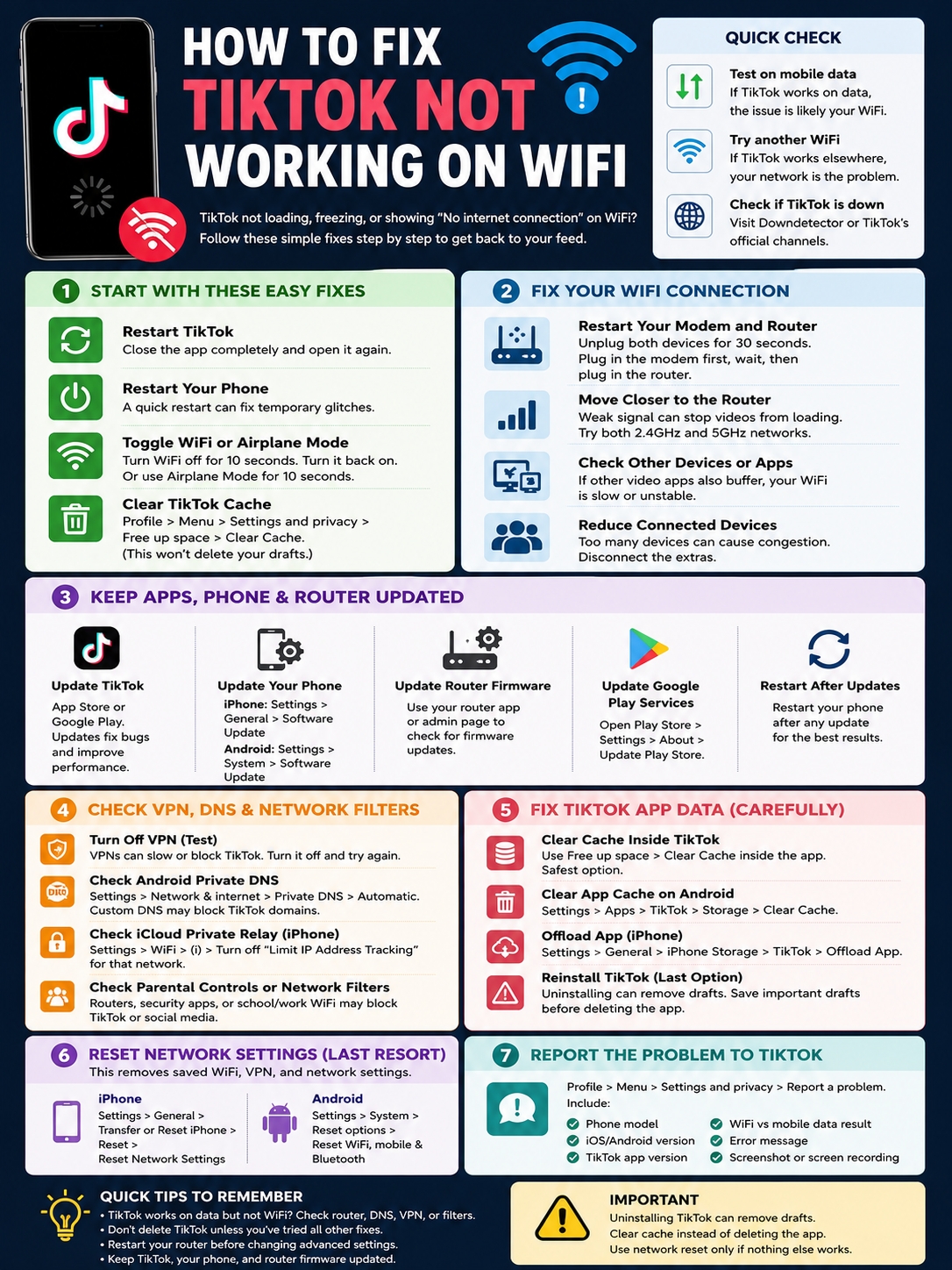
TikTok needs a steady connection because it loads videos, comments, sounds, search results, profile pages, ads, and LIVE streams in real time. A small WiFi issue can break that flow. So can an old app version, a messy cache, a VPN, a DNS problem, or a router setting.
The trick is to avoid random fixes. Don’t delete TikTok right away. That can remove drafts. TikTok’s own help pages warn that drafts may disappear if you uninstall and reinstall the app or switch devices.
Start small. Restart the app. Clear the cache. Restart your phone. Test mobile data. Then check your WiFi, router, VPN, DNS, and phone settings.
Let’s walk through it step by step.
Quick Check: Is TikTok, Your Phone, or WiFi the Problem?
Before you change settings, find where the problem starts. This saves time and keeps you from deleting things you don’t need to delete.
|
What Happens |
Likely Cause |
First Fix to Try |
|
TikTok works on mobile data but not WiFi |
Router, DNS, VPN, filter, ISP, or blocked network |
Restart router and test another WiFi |
|
TikTok fails on both WiFi and mobile data |
TikTok app, phone setting, account issue, or outage |
Restart app, update TikTok, check outage reports |
|
TikTok works on one phone but not another |
Phone-specific app or network setting |
Clear cache and check VPN/DNS |
|
TikTok fails on every device using the same WiFi |
Router, modem, ISP, or network block |
Restart modem/router |
|
Videos load but comments or LIVE fail |
Cache, feature bug, restriction, or server issue |
Clear cache and update TikTok |
Test TikTok on Mobile Data
Turn WiFi off. Open TikTok using mobile data.
If TikTok works, your account and app are likely fine. The issue is probably your WiFi network.
If TikTok still doesn’t work, the problem may be the app, your phone, your account, or TikTok itself.
Try Another WiFi Network
Connect to another WiFi network if you can. Use a friend’s WiFi, a mobile hotspot, or another home network.
If TikTok works there, your original WiFi is the problem. You may need to check the router, DNS, parental controls, VPN, firewall, or ISP.
Check if TikTok Is Down
Sometimes your phone is not the problem.
TikTok can have outages. When that happens, videos may not load, users may get login errors, or the app may behave strangely across many devices.
Check TikTok’s official channels, outage-reporting sites, or ask someone nearby to open TikTok. If everyone has the same issue, wait it out.
TikTok Not Working on WiFi: Start With These Safe Fixes
Don’t go straight to a full reset. Start with easy fixes first. These steps are safe and fast.
|
Fix |
Why It Helps |
Risk Level |
|
Restart TikTok |
Clears a stuck app session |
Very low |
|
Restart phone |
Refreshes system and network services |
Very low |
|
Toggle WiFi |
Reconnects your phone to the router |
Very low |
|
Clear TikTok cache |
Removes temporary app files |
Low |
|
Update TikTok |
Fixes bugs and improves stability |
Low |
Force Close TikTok and Reopen It
Close TikTok fully. Don’t just switch to another app.
On iPhone, open the app switcher and swipe TikTok away.
On Android, open recent apps and swipe TikTok away.
Wait a few seconds. Open TikTok again.
This simple step can fix a frozen feed, stuck comments, blank profiles, and short connection errors.
Restart Your Phone
A restart clears small system glitches. It refreshes WiFi, memory, background services, and app processes.
Yes, it sounds basic. But it works more often than people expect.
Toggle WiFi and Airplane Mode
Turn WiFi off for 10 seconds. Turn it back on.
Still stuck? Turn Airplane Mode on for 10 seconds. Then turn it off and reconnect to WiFi.
This forces your phone to rebuild the connection from scratch.
Clear TikTok Cache
TikTok stores temporary files to make the app load faster. Over time, those files can cause problems.
To clear TikTok cache:
- Open TikTok.
- Tap Profile.
- Tap the Menu button.
- Open Settings and privacy.
- Tap Free up space.
- Tap Clear next to Cache.
This won’t delete your account. It should not delete your posted videos either.
Still, be careful on the “Free up space” page. Cache, downloads, and drafts are separate. Don’t delete drafts unless you mean to.
Fix Your WiFi Before Blaming TikTok
If tiktok not working on wifi only happens at home, your WiFi may be connected but unstable.
Full WiFi bars don’t always mean a strong internet connection. Your phone may connect to the router, but the router may still have trouble reaching TikTok.
|
WiFi Fix |
What It Solves |
When to Try It |
|
Move closer to router |
Weak signal |
Videos buffer or stop |
|
Restart modem/router |
Temporary network glitch |
Multiple apps feel slow |
|
Check other devices |
Network-wide issue |
TikTok fails everywhere |
|
Disconnect extra devices |
Bandwidth congestion |
WiFi slows at night |
|
Try 2.4GHz or 5GHz |
Band-specific issue |
Signal works in some rooms only |
Restart Your Modem and Router
Unplug your modem and router.
Wait about 30 seconds. Plug the modem back in first. Let it fully start. Then plug in the router.
Once the lights settle, reconnect your phone and open TikTok.
This clears many router glitches without changing your settings.
Move Closer to the Router
TikTok is video-heavy. A weak WiFi signal may still load messages or simple web pages, but it can struggle with endless video playback.
Move closer to your router and test TikTok again.
If TikTok works near the router but fails in your room, the issue is coverage.
Try these quick fixes:
- Keep the router in an open space.
- Don’t hide it behind a TV.
- Keep it away from thick walls and metal objects.
- Avoid placing it near a microwave.
- Use mesh WiFi if your home is large.
- Test both 2.4GHz and 5GHz if your router shows both.
Check Other Video Apps
Open YouTube, Instagram Reels, Facebook videos, or Netflix.
If those apps also buffer, TikTok is not the only problem. Your WiFi is likely slow or unstable.
If only TikTok fails, keep checking app settings, VPN, DNS, and router filters.
Update TikTok, Your Phone, and Your Router
An old app can break after server-side changes. An outdated phone system can also cause app and connection problems.
|
Update Type |
Where to Check |
Why It Matters |
|
TikTok app |
App Store or Google Play |
Fixes bugs and crashes |
|
iOS |
Settings > General > Software Update |
Fixes system and network issues |
|
Android |
Settings > System > Software update |
Improves app compatibility |
|
Router firmware |
Router app or admin page |
Improves WiFi stability |
|
Google Play services |
Google Play settings |
Supports Android app updates |
Update TikTok
Open the App Store or Google Play. Search for TikTok. Tap Update if you see it.
App updates often fix loading bugs, crashes, login errors, and video playback problems.
Update Your Phone
If TikTok used to work fine and suddenly stopped, check your phone software.
On iPhone:
- Open Settings.
- Tap General.
- Tap Software Update.
On Android:
- Open Settings.
- Tap System.
- Tap Software update.
The exact wording may vary by phone brand.
Restart After Updating
After updating TikTok or your phone, restart the device. This helps the new files load cleanly.
Check VPN, DNS, Private Relay, and Network Filters
This is one of the biggest reasons TikTok works on mobile data but not WiFi.
Your WiFi may be using a VPN, DNS filter, parental control setting, firewall, or security app. Any of these can block or slow TikTok.
|
Setting |
Where It May Be |
How It Can Affect TikTok |
|
VPN |
Phone or router |
Sends TikTok through a slow or blocked server |
|
Private DNS |
Android |
Custom DNS may block TikTok domains |
|
iCloud Private Relay |
iPhone/iPad |
May conflict with some networks |
|
Parental controls |
Router or security app |
Can block social media apps |
|
School/work firewall |
Managed WiFi |
May block TikTok by policy |
Turn Off VPN for a Test
If you use a VPN, turn it off and open TikTok again.
If TikTok works after that, the VPN is the issue. Try another VPN server or keep the VPN off while using TikTok.
Also check whether your router has a built-in VPN.
Check Android Private DNS
Android lets you use Private DNS. That can help privacy, but a custom DNS provider can also block or fail certain app connections.
To test it:
- Open Settings.
- Tap Network & internet.
- Tap Private DNS.
- Choose Automatic.
- Save and test TikTok.
If TikTok starts working, your custom DNS was likely the problem.
Read Also: How to Download TikTok Videos Without Watermark in 2026
Check iCloud Private Relay on iPhone
Private Relay can affect how some networks handle traffic.
To test it on a specific WiFi network:
- Open Settings.
- Tap WiFi.
- Tap the info button beside your network.
- Turn off Limit IP Address Tracking.
Use this as a test. Don’t turn off privacy settings forever unless you know you need to.
Check Router Parental Controls
Modern routers often include family controls. These can block TikTok without blocking the whole internet.
Look for settings like:
- Social media block
- Video app block
- Bedtime mode
- App restrictions
- Device schedules
- Content filters
- Blocked websites or categories
If you’re on school, office, library, hotel, or café WiFi, TikTok may be blocked on purpose. Don’t try to bypass managed network rules.
Fix TikTok App Data Without Losing Drafts
TikTok app data can get messy. But drafts need extra care.
Before you delete anything, remember this: uninstalling TikTok can remove drafts.
|
Fix |
iPhone |
Android |
Draft Risk |
|
Clear TikTok cache inside TikTok |
Yes |
Yes |
Low |
|
Clear app cache from phone settings |
No |
Yes |
Low |
|
Offload app |
Yes |
No |
Lower than delete, but still use caution |
|
Delete and reinstall TikTok |
Yes |
Yes |
Higher risk |
|
Clear storage/data |
No |
Yes |
Higher risk |
Clear Cache Inside TikTok First
This is the safest app-level fix.
Go to:
Profile > Menu > Settings and privacy > Free up space > Clear Cache
This removes temporary files. It does not delete your account.
Clear TikTok Cache on Android
Android gives you another cache option in phone settings.
Steps may look like this:
- Open Settings.
- Tap Apps.
- Select TikTok.
- Tap Storage.
- Tap Clear cache.
Avoid Clear storage or Clear data unless you’re ready to sign in again and risk losing local app data.
Be Careful Before Reinstalling TikTok
Reinstalling TikTok can fix broken app files. But it can also remove drafts.
Before deleting TikTok:
- Save or post important drafts.
- Check your login method.
- Make sure you know your password.
- Confirm your email or phone number still works.
- Back up anything you don’t want to lose.
Only reinstall TikTok after safer fixes fail.
Reset Network Settings Only as a Later Fix
Network reset can help stubborn WiFi problems. But it also removes saved connection details.
Use it only after the easier fixes don’t work.
|
Device |
Reset Option |
What It Removes |
|
iPhone |
Reset Network Settings |
Saved WiFi networks, WiFi passwords, cellular settings, VPN, APN settings |
|
Android |
Reset WiFi, mobile & Bluetooth |
Saved WiFi, mobile, and Bluetooth settings |
|
Router |
Factory reset |
Router name, password, custom settings, controls |
Reset Network Settings on iPhone
Use this path:
- Open Settings.
- Tap General.
- Tap Transfer or Reset iPhone.
- Tap Reset.
- Tap Reset Network Settings.
After the reset, reconnect to WiFi and test TikTok.
Reset WiFi, Mobile, and Bluetooth on Android
The wording changes by phone brand, but it often looks like this:
- Open Settings.
- Tap System.
- Tap Reset options.
- Select Reset WiFi, mobile & Bluetooth.
- Confirm.
Then reconnect to WiFi and open TikTok.
When TikTok Works on Data But Not WiFi
This is the clearest clue. If TikTok works on mobile data but not WiFi, the app probably isn’t broken.
The WiFi network is more likely the issue.
|
Cause |
Sign |
Fix |
|
Router glitch |
TikTok fails only at home |
Restart modem/router |
|
DNS issue |
TikTok loads on data but not WiFi |
Set DNS to automatic |
|
VPN conflict |
TikTok works after VPN is off |
Change server or disable VPN |
|
Parental control |
Social apps fail |
Remove TikTok/social block |
|
Managed WiFi |
TikTok fails at school/work |
Use another allowed network |
|
ISP issue |
Nearby users report similar problems |
Contact your ISP |
Test TikTok in a Browser
Open TikTok in your phone browser while connected to the same WiFi.
If TikTok’s website works but the app doesn’t, the app may be the problem.
If the website also fails, your WiFi, DNS, router, or ISP may be blocking or failing TikTok traffic.
Check Router Security Features
Some routers come with security tools that block certain domains or app categories.
Open your router app and check:
- Security alerts
- Blocked websites
- Content filters
- Family profiles
- Device groups
- Time limits
- App restrictions
Don’t turn off the whole router firewall. Only change the setting you understand.
TikTok LIVE, Comments, Search, or Uploads Not Working on WiFi
Sometimes TikTok half-works. The feed loads, but comments don’t. Search breaks. LIVE won’t open. Uploads stay stuck.
That still points to connection, cache, account, app, or server trouble.
|
TikTok Feature |
Possible Cause |
Best Fix |
|
Comments won’t load |
Cache, weak WiFi, app bug, comment filter |
Clear cache and update app |
|
LIVE won’t open |
Eligibility, app issue, network issue |
Check LIVE rules and report the problem |
|
Search fails |
Cache or temporary TikTok issue |
Restart app and test mobile data |
|
Upload stuck |
Weak upload speed |
Move closer to router and pause other uploads |
|
Profile won’t load |
DNS, VPN, cache, outage |
Disable VPN and clear cache |
Check Upload Speed
TikTok doesn’t only download videos. It also uploads comments, likes, messages, posts, drafts, and LIVE data.
If videos play but posting fails, your upload speed may be weak.
Move closer to the router. Pause big downloads or uploads on other devices. Then try again.
Turn Off Battery Saver and Data Saver
Battery Saver and Data Saver can limit app activity.
Turn them off for a few minutes and test TikTok again.
On Android, also check whether TikTok can use background data.
Report the Problem to TikTok
If TikTok still won’t work after all these fixes, report the issue inside the app.
|
What to Include |
Why It Helps |
|
Phone model |
Helps identify device-specific bugs |
|
iOS or Android version |
Shows system compatibility |
|
TikTok app version |
Helps track app bugs |
|
WiFi vs mobile data result |
Shows whether the network is involved |
|
Error message |
Makes the issue clearer |
|
Screenshot or screen recording |
Helps support understand the problem |
To report it:
- Open TikTok.
- Tap Profile.
- Tap the Menu button.
- Open Settings and privacy.
- Tap Report a problem.
Keep your message short and clear.
Example:
“TikTok works on mobile data but not on my home WiFi. Videos keep spinning and comments don’t load. Other apps work on the same WiFi. I cleared cache, restarted my phone, updated TikTok, and restarted the router.”
Never share your password.
Final Thoughts
When tiktok not working on wifi keeps happening, don’t panic. And don’t delete the app right away.
Start with the low-risk fixes. Restart TikTok. Restart your phone. Toggle WiFi. Clear TikTok cache. Update the app. Then test mobile data.
If TikTok works on mobile data but not WiFi, focus on your router, DNS, VPN, Private Relay, parental controls, or ISP. If TikTok fails everywhere, check for an app issue, phone setting, account problem, or TikTok outage.
Save reinstalling and network resets for later. They can help, but they come with trade-offs. A network reset removes saved WiFi and VPN settings. Reinstalling TikTok may remove drafts.
Most TikTok WiFi problems come down to a few things: weak signal, router trouble, app cache, VPN or DNS conflict, content filters, or a temporary TikTok issue. Work through the fixes in order, and you’ll usually find the problem without making things worse.
Uncommon FAQs About TikTok Not Working on WiFi
|
FAQ |
Quick Answer |
|
Can WiFi block only TikTok? |
Yes, through router filters, DNS, firewall, or school/work rules |
|
Can DNS break TikTok? |
Yes, especially custom Private DNS or filtered DNS |
|
Will clearing cache delete drafts? |
It should not, but avoid draft delete options |
|
Will reinstalling TikTok remove drafts? |
It can |
|
Should I factory reset my phone? |
Almost never for only TikTok |
Why does TikTok say “No internet connection” when WiFi works?
Your phone may be connected to WiFi, but TikTok may not be reaching its servers. VPN, DNS, router filters, weak signal, or a TikTok outage can cause this.
Why does TikTok work on mobile data but not WiFi?
That usually means TikTok itself is not fully broken. Your WiFi network, router, DNS, VPN, parental controls, firewall, or ISP route is more likely the issue.
Can my router block TikTok?
Yes. Many routers can block social media apps, video apps, or specific devices. Check family controls, security settings, blocked categories, and device schedules.
Does clearing TikTok cache delete drafts?
Clearing cache is safer than deleting the app. TikTok separates cache and drafts in its storage settings. Still, don’t tap any draft delete option unless you mean it.
Does deleting TikTok delete drafts?
It can. TikTok says drafts may be removed when the app is uninstalled and reinstalled. Save anything important before deleting the app.
Can iCloud Private Relay stop TikTok from working?
It can conflict with some networks. Test by turning off Limit IP Address Tracking for that WiFi network. Turn it back on if it doesn’t help.
Can Android Private DNS cause TikTok connection errors?
Yes. A custom DNS provider may block or fail TikTok-related domains. Switch Private DNS to Automatic and test again.
Should I reset my router?
Restart it first. Factory reset should be a last resort because it removes your router name, password, custom settings, and controls.