
Want to turn off windows copilot in 2026? You’re not being dramatic. A lot of Windows users feel the same way.
Microsoft has placed Copilot in more corners of Windows than before. You may see it in the taskbar, Start menu, Microsoft Edge, Word, Excel, Outlook, and even on a physical keyboard key on newer laptops. For some people, that’s helpful. For others, it’s just another thing taking up space.
The annoying part is that Copilot isn’t one single switch anymore. There’s the Microsoft Copilot app, Copilot in Edge, Microsoft 365 Copilot Chat, Copilot inside Office apps, and separate Windows AI features like Recall. Turning off one may not remove the others.
So this guide keeps things simple. I’ll show you what each Copilot feature does, where it lives, and how to turn it off without touching the wrong setting.
Quick Answer: The Best Ways to Turn Off Windows Copilot
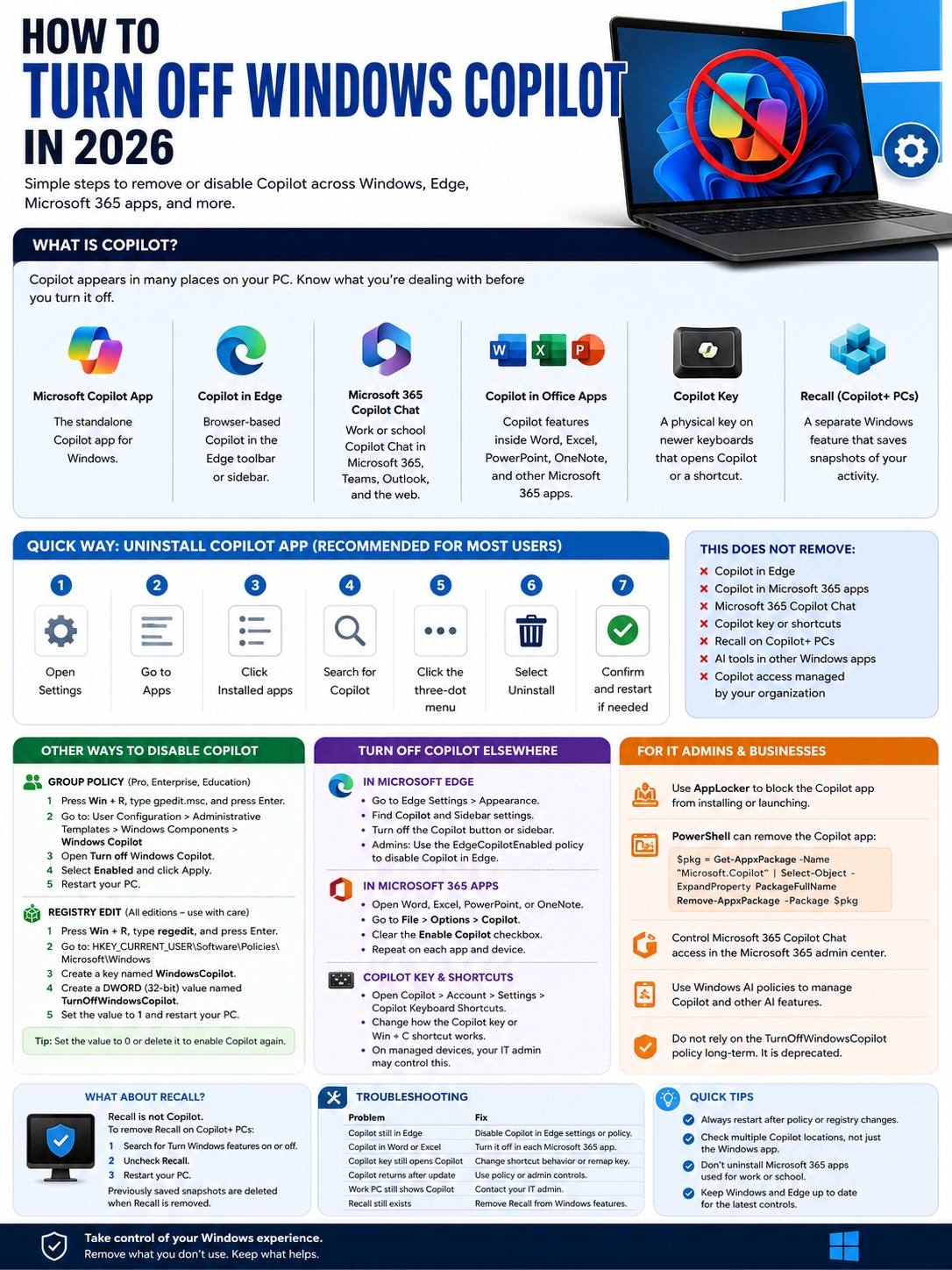
For most Windows 11 users, the easiest fix is to uninstall the Microsoft Copilot app from Settings > Apps > Installed apps. Microsoft also lists this as the standard way to remove the Copilot app from Windows.
|
What You Want |
Best Method |
Best For |
|
Remove the Copilot app |
Settings > Apps > Installed apps > Copilot > Uninstall |
Regular Windows 11 users |
|
Hide the button only |
Unpin Copilot or adjust taskbar settings |
Users who may use it later |
|
Block Copilot with policy |
Group Policy or Registry |
Windows 11 Pro, Enterprise, Education |
|
Stop it across company PCs |
AppLocker or Microsoft admin controls |
IT teams |
|
Remove Copilot from Edge |
Edge settings or Edge policy |
Browser users |
|
Disable Copilot in Office apps |
Turn it off inside each Microsoft 365 app |
Word, Excel, PowerPoint users |
|
Remove Recall |
Turn Windows features on or off |
Copilot+ PC users |
Fastest method for most people
- Open Settings.
- Go to Apps.
- Click Installed apps.
- Search for Copilot.
- Select the three-dot menu beside Microsoft Copilot.
- Click Uninstall.
- Confirm the change.
That removes the standalone Copilot app. It won’t remove Copilot from Edge, Word, Excel, or your work account. Those have separate controls.
First, Know Which Copilot You’re Dealing With
This is where many people get stuck.
You may remove the Copilot app and still see Copilot in Edge. Or you may disable it in Word but still see it on the Windows taskbar. That doesn’t always mean something went wrong. It usually means you’re dealing with a different Copilot feature.
|
Copilot Type |
Where You’ll See It |
What It Does |
|
Microsoft Copilot app |
Start menu, taskbar, Installed apps |
The consumer Copilot app for Windows |
|
Microsoft 365 Copilot Chat |
Microsoft 365, Teams, Outlook, web |
Work or school Copilot Chat |
|
Copilot in Edge |
Edge toolbar or sidebar |
Browser-based Copilot |
|
Copilot in Office apps |
Word, Excel, PowerPoint, OneNote |
App-level writing and productivity help |
|
Copilot key |
Newer Windows keyboards |
Opens Copilot or a related shortcut |
|
Recall |
Copilot+ PCs |
A separate Windows AI feature, not Copilot itself |
Why this matters
You don’t want to remove the wrong app.
If you use Microsoft 365 for work, school, Outlook, Teams, or shared files, don’t blindly uninstall anything with “Microsoft 365” in the name. The regular Microsoft Copilot app and the Microsoft 365 Copilot experience are not the same thing.
Start by checking where Copilot appears. Then use the right fix for that place.
How to Turn Off Windows Copilot from Settings
This is the cleanest method for personal PCs. No Registry edits. No command line. No admin tools.
|
Step |
What to Do |
Why It Helps |
|
1 |
Open Settings |
Uses the normal Windows app manager |
|
2 |
Go to Apps |
Shows installed programs |
|
3 |
Open Installed apps |
Lets you search the app list |
|
4 |
Search for Copilot |
Helps you avoid removing the wrong app |
|
5 |
Click Uninstall |
Removes the standalone Copilot app |
|
6 |
Restart if needed |
Clears leftover taskbar or Start menu links |
Step-by-step guide
- Press Windows + I.
- Click Apps.
- Select Installed apps.
- Type Copilot in the search box.
- Find Microsoft Copilot.
- Click the three-dot menu.
- Choose Uninstall.
- Confirm your choice.
That’s it.
This method works well if you simply don’t want the Copilot app on your PC anymore.
Read Also: How to Set Up Dual Monitors on Windows in 2026
What this does not remove
Uninstalling the Windows Copilot app will not always remove:
- Copilot in Microsoft Edge.
- Copilot in Word, Excel, or PowerPoint.
- Microsoft 365 Copilot Chat from a work account.
- The Copilot key on your keyboard.
- Recall on Copilot+ PCs.
- AI tools inside Paint, Photos, or Notepad.
- Copilot access controlled by your company or school.
So if Copilot still appears somewhere, don’t panic. You may need to disable it in that specific app.
How to Turn Off Windows Copilot with Group Policy
Group Policy gives you more control, but it is not available on every Windows edition. You usually need Windows 11 Pro, Enterprise, or Education.
Microsoft still documents the Turn off Windows Copilot policy. But there’s an important catch: Microsoft now marks the related TurnOffWindowsCopilot policy as deprecated. That means it may disappear in a future Windows release.
|
Group Policy Detail |
Current Status |
|
Policy name |
Turn off Windows Copilot |
|
Registry value |
TurnOffWindowsCopilot |
|
Works on |
Windows policy-managed editions |
|
Status in 2026 |
Deprecated |
|
Main effect |
Blocks Windows Copilot and removes its taskbar icon |
|
Best use |
Short-term control on supported Windows editions |
Steps to disable Copilot with Group Policy
- Press Windows + R.
- Type gpedit.msc.
- Press Enter.
- Go to:
User Configuration > Administrative Templates > Windows Components > Windows Copilot - Double-click Turn off Windows Copilot.
- Select Enabled.
- Click Apply.
- Click OK.
- Restart your PC.
A quick warning
This method may still work, but it is no longer the best long-term option for businesses. Microsoft now recommends stronger admin controls, such as AppLocker, for blocking the consumer Copilot app on managed devices.
For a home or personal Pro PC, Group Policy can still be useful. For a company fleet, your IT team should use managed controls instead.
How to Turn Off Windows Copilot with Registry Editor
Windows 11 Home users usually don’t have Group Policy Editor. The Registry method gives you another route.
Use care here. The Registry is not a place to experiment. A wrong edit can cause problems. Create a restore point before you start.
|
Registry Item |
Value |
|
Hive |
HKEY_CURRENT_USER |
|
Path |
Software\Policies\Microsoft\Windows\WindowsCopilot |
|
DWORD name |
TurnOffWindowsCopilot |
|
Value to disable |
1 |
|
Value to re-enable |
0 or delete the DWORD |
Registry steps
- Press Windows + R.
- Type regedit.
- Press Enter.
- Go to:
HKEY_CURRENT_USER\Software\Policies\Microsoft\Windows - Right-click Windows.
- Select New > Key.
- Name it WindowsCopilot.
- Click the new WindowsCopilot key.
- Right-click the blank space on the right.
- Select New > DWORD (32-bit) Value.
- Name it TurnOffWindowsCopilot.
- Double-click it.
- Set the value to 1.
- Restart your PC.
How to undo the change
To bring Copilot back:
- Open Registry Editor again.
- Go to the same path.
- Delete TurnOffWindowsCopilot, or set it to 0.
- Restart your PC.
This method helps when the uninstall option does not solve the problem. But for most people, Settings should be the first choice.
How IT Teams Can Block or Remove Copilot in 2026
Work PCs need a different approach. If your device belongs to a company, school, or organization, you may not have full control over Copilot. Your admin may manage it through Microsoft 365, Intune, Edge policies, AppLocker, or Windows AI policies.
Microsoft now recommends AppLocker instead of relying on the older TurnOffWindowsCopilot policy for blocking the consumer Copilot app in managed environments.
|
Admin Method |
What It Does |
Best Use |
|
AppLocker |
Blocks Copilot from installing or launching |
Company-wide control |
|
PowerShell |
Removes the Copilot app package |
Scripted cleanup |
|
WindowsAI policies |
Controls Windows AI behavior |
Managed Windows devices |
|
Microsoft 365 admin center |
Controls Copilot Chat access |
Work and school accounts |
|
Edge policies |
Controls Copilot inside Edge |
Browser-level control |
|
Taskbar policies |
Controls what users see |
Cleaner desktop experience |
PowerShell removal for admins
Admins can remove the Microsoft Copilot app package with PowerShell. A common command pattern is:
$packageFullName = Get-AppxPackage -Name “Microsoft.Copilot” | Select-Object -ExpandProperty PackageFullName
Remove-AppxPackage -Package $packageFullName
Test this before using it across many machines. Different Windows builds and provisioning states can behave differently.
Microsoft 365 Copilot Chat is separate
This part matters.
A company may remove the Windows Copilot app and still allow Microsoft 365 Copilot Chat through Teams, Outlook, Microsoft 365, or the browser. That access usually depends on Microsoft 365 admin settings, licenses, and work account policies.
So if your goal is to block Copilot at work, don’t stop at Windows. Check Microsoft 365 controls too.
How to Turn Off the Copilot Key and Keyboard Shortcut
Newer Windows laptops may include a dedicated Copilot key. Microsoft introduced it as part of its AI-focused PC push.
If you don’t use Copilot, that key can feel wasted. Worse, you may press it by accident.
|
Key or Shortcut |
What It May Do |
How to Handle It |
|
Copilot key |
Opens Copilot or a related Copilot prompt |
Change the key behavior where supported |
|
Windows + C |
Opens Copilot app or quick view |
Adjust Copilot shortcut settings |
|
Work device shortcut |
May open Microsoft 365 Copilot |
Your IT admin may control it |
|
Remapping tools |
Redirect the key to another action |
Use only if built-in settings are limited |
Change Copilot shortcut behavior
Try this first:
- Open Copilot.
- Go to Account.
- Open Settings.
- Select Copilot Keyboard Shortcuts.
- Change how the shortcut works.
Some Windows builds also include keyboard controls inside Windows Settings. Look under keyboard, text input, or personalization settings.
If you use a work device, the option may be locked by policy.
How to Turn Off Copilot in Microsoft Edge
Copilot in Edge is its own thing. Removing the Windows Copilot app does not automatically remove the Copilot button from Edge.
|
Edge Control |
Best For |
What It Does |
|
Edge settings |
Personal users |
Hides or reduces Copilot access |
|
EdgeCopilotEnabled policy |
IT admins |
Enables or disables Copilot in Edge |
|
HubsSidebarEnabled policy |
IT admins |
Controls the Edge sidebar |
|
Microsoft365CopilotChatIconEnabled |
IT admins |
Controls newer Copilot Chat toolbar behavior |
Steps for personal users
- Open Microsoft Edge.
- Click the three-dot menu.
- Go to Settings.
- Search for Copilot.
- Open the Copilot or sidebar settings.
- Turn off the Copilot button if the option appears.
- Check sidebar settings if it still shows.
You can also review Edge privacy settings. Copilot in Edge may use page context, open tabs, or browsing context depending on your settings and account type. Turn off anything you don’t want it to use.
Admin note
Edge controls changed over time. Some older guides only mention the sidebar. That may not be enough now. In newer Edge versions, admins may need specific Copilot Chat icon policies to control what appears in the toolbar.
How to Turn Off Copilot in Microsoft 365 Apps
Copilot in Word, Excel, PowerPoint, OneNote, and Outlook is controlled separately from Windows.
If you remove the Windows Copilot app, Copilot may still show inside Office apps.
|
Microsoft 365 App |
Where to Look |
|
Word |
File > Options > Copilot |
|
Excel |
File > Options > Copilot |
|
PowerPoint |
File > Options > Copilot |
|
OneNote |
App settings or Copilot settings |
|
Outlook |
Outlook settings or organization controls |
Steps to disable Copilot in Office apps
- Open the app, such as Word or Excel.
- Click File.
- Select Options.
- Open Copilot.
- Clear Enable Copilot.
- Click OK.
- Restart the app.
You may need to repeat this in each app and on each device. If your work or school manages Microsoft 365, your admin may control the setting.
Copilot vs Recall: Don’t Mix Them Up
A lot of people searching for Copilot settings are actually worried about Recall.
Recall is not the same as Copilot. It is a separate Windows feature on Copilot+ PCs. It can save snapshots of activity so users can search and retrace what they were doing.
|
Feature |
Is It Copilot? |
How to Disable It |
|
Microsoft Copilot app |
Yes |
Uninstall from Settings |
|
Copilot in Edge |
Yes |
Disable in Edge settings or policy |
|
Copilot in Microsoft 365 |
Yes |
Disable in each app or through admin controls |
|
Recall |
No |
Remove from Windows features |
|
Click to Do |
No, separate AI feature |
Turn off in Windows AI settings where available |
How to remove Recall
- Search for Turn Windows features on or off.
- Open it.
- Find Recall.
- Uncheck it.
- Restart your PC.
If you already saved Recall snapshots, removing Recall should also delete the saved snapshots. Still, check your Windows privacy settings if privacy is your main concern.
Troubleshooting: Why Copilot Still Appears After You Turn It Off
If Copilot shows up again, it usually means one of three things:
- You removed only one Copilot app.
- Another Microsoft app has its own Copilot button.
- Your organization manages the setting.
|
Problem |
Likely Reason |
What to Do |
|
Copilot still appears in Edge |
Edge has separate Copilot controls |
Disable it in Edge settings |
|
Copilot appears in Word |
Microsoft 365 Copilot is separate |
Turn it off inside Word |
|
Copilot key still opens something |
Keyboard shortcut still works |
Change shortcut behavior |
|
Copilot comes back after update |
Store, Windows update, or policy restored it |
Use policy or admin controls |
|
Work PC still shows Copilot |
Your organization manages it |
Contact IT support |
|
Recall still appears |
Recall is not Copilot |
Remove Recall separately |
Check Installed apps again
Go to:
Settings > Apps > Installed apps
Search for:
- Copilot
- Microsoft Copilot
- Microsoft 365 Copilot
- Microsoft 365
Read the app name carefully before removing anything. If your work depends on Microsoft 365, don’t uninstall the wrong app.
Restart after policy changes
Some Group Policy and Registry changes need a restart.
On Windows Pro or Enterprise, you can also run:
gpupdate /force
Then restart the PC.
Final Thoughts
The best way to turn off windows copilot in 2026 depends on where Copilot is showing up.
Start with the simple fix: uninstall Microsoft Copilot from Settings > Apps > Installed apps. That removes the main Windows app for most personal users.
If Copilot still appears, check the source. Edge, Microsoft 365 apps, the Copilot key, Recall, and work-account Copilot Chat all have their own controls. One switch won’t cover everything anymore.
For Windows Pro users, Group Policy and Registry edits can help. Just remember that Microsoft now treats the older TurnOffWindowsCopilot policy as deprecated. For businesses, AppLocker and Microsoft 365 admin controls are the safer long-term route.
The short version is simple: remove the Windows app first, then clean up the places where Copilot still appears. That gives you a calmer Windows setup without breaking anything important.
FAQs About How to Turn Off Windows Copilot
|
Question |
Quick Answer |
|
Can I remove Copilot completely? |
You can remove the Windows app, but other Copilot features may remain. |
|
Does Windows 11 need Copilot? |
No. Windows can run without the standalone Copilot app. |
|
Is Recall the same as Copilot? |
No. Recall is a separate feature. |
|
Can Windows updates bring Copilot back? |
Yes, depending on settings, app provisioning, or policies. |
|
Can admins block Copilot? |
Yes. Microsoft recommends AppLocker for the consumer app. |
Is it safe to uninstall Microsoft Copilot?
Yes, for most personal PCs. Windows does not need the standalone Copilot app to work. Just make sure you uninstall Microsoft Copilot, not a Microsoft 365 app you use for work or school.
Why do I still see Copilot after uninstalling it?
Because Copilot appears in more than one place. Edge, Microsoft 365 apps, work accounts, and keyboard shortcuts all have separate controls.
Does disabling Copilot make Windows faster?
Not in a major way. It may reduce clutter and stop accidental launches, but it won’t turn a slow PC into a fast one. If your PC feels sluggish, also check startup apps, storage, background processes, malware, and pending updates.
Can I turn off windows copilot on Windows 11 Home?
Yes. Start with the Settings method. If that does not work, you can use the Registry method, but be careful.
Does Group Policy still work?
It may still work, but Microsoft marks the TurnOffWindowsCopilot policy as deprecated. That means it may go away later. Businesses should use stronger admin tools like AppLocker instead.
Can I disable Copilot in all Microsoft 365 apps at once?
For personal settings, usually no. You may need to disable it inside each app, such as Word, Excel, and PowerPoint. For organizations, admins can manage access through Microsoft 365 settings.
Can I stop Copilot from using my Edge page?
Yes, check Copilot and privacy settings inside Edge. You can limit whether Copilot uses page content, tabs, or browsing context, depending on your version and account type.