
Personal messages, client requests, family groups, work calls. Put them all in one WhatsApp inbox, and things can get messy fast.
An urgent customer message may disappear under a flood of group notifications. You might send a personal photo from your work number or reply to a client while thinking you’re using your private account.
For years, the easiest fix was carrying a second phone. Some Android users cloned the WhatsApp app. Others installed modified versions that promised extra accounts but came with privacy and security risks.
You don’t need to do that anymore.
WhatsApp now lets you keep two separate accounts inside one app. Android users received the feature in 2023, while WhatsApp officially announced support for iPhone in March 2026.
Each account needs its own phone number. Once both numbers are verified, they can remain logged in on the same device. You can switch between them without signing out or entering a new verification code every time.
This guide explains how to set up two WhatsApp accounts one phone, manage both profiles, fix common problems, and choose the safest setup for personal or business use.
Can You Officially Use Two WhatsApp Accounts on One Phone?
Yes. WhatsApp officially allows users to add two accounts to one phone.
The accounts stay separate. Each one has its own phone number, profile, chats, groups, calls, privacy choices, and notification settings.
|
Feature |
Support in 2026 |
|
Two accounts inside one WhatsApp app |
Yes |
|
Android support |
Yes |
|
iPhone support |
Yes |
|
Maximum number of native accounts |
Two |
|
Separate number for each account |
Required |
|
Both accounts stay registered |
Yes |
|
Separate privacy settings |
Yes |
|
Separate notification controls |
Yes |
|
App cloning required |
No |
Meta announced the Android version of the feature on October 19, 2023. The goal was simple: let people keep personal and work accounts on the same device without carrying two phones.
WhatsApp announced the iPhone rollout on March 26, 2026. The iOS version also shows the active account’s profile image in the bottom navigation area. That small visual cue can help you avoid messaging someone from the wrong number.
Adding another account doesn’t combine anything. Your contacts, chat history, groups, and settings remain linked to the account where they were created.
What You Need Before Adding Another Account
You need a second phone number. There’s no way around that requirement.
WhatsApp treats every phone number as a separate identity. One number cannot create two independent accounts.
|
Requirement |
Why You Need It |
|
A second phone number |
Each account needs a unique number |
|
Access to SMS or calls |
WhatsApp sends a registration code |
|
The latest WhatsApp version |
Older versions may not show Add Account |
|
An internet connection |
Required during registration |
|
Dual SIM, eSIM, or another active phone |
Makes verification easier |
|
Free storage space |
Both accounts store chats and media |
|
A recent backup |
Protects existing conversations |
Do You Need Two SIM Cards?
Not always.
You need two active phone numbers, but both SIMs don’t necessarily have to stay inside the same phone. You could receive the verification code on another device and enter it on your main phone.
Still, a dual-SIM phone makes the process easier. Both numbers remain under your control, and you can receive future verification messages without moving SIM cards.
Many Android phones support two physical SIM cards, one physical SIM and one eSIM, or two eSIMs. The exact setup depends on the model and mobile carrier.
Apple says supported iPhones can use Dual SIM through a physical SIM and eSIM. Newer models can also keep two eSIMs active, although regional and carrier restrictions may apply.
Avoid Temporary Numbers
Free online SMS services may look convenient, but they’re a poor choice for WhatsApp.
Public numbers can be shared by many people. Temporary numbers may expire. Some are later reassigned to someone else.
If you lose control of the number, you could struggle to recover the WhatsApp account after changing phones, reinstalling the app, or getting logged out.
Use a number you own and plan to keep.
How to Set Up Two WhatsApp Accounts One Phone on Android
Android users can add another account from WhatsApp Settings. You don’t need a phone manufacturer’s cloning tool or a second copy of the app.
|
Step |
What to Do |
|
1 |
Update WhatsApp through Google Play |
|
2 |
Open WhatsApp Settings |
|
3 |
Tap the account selector near your profile |
|
4 |
Choose Add Account |
|
5 |
Enter the second number |
|
6 |
Complete verification |
|
7 |
Set up the second profile |
Step 1: Update WhatsApp
Open the Google Play Store and search for WhatsApp Messenger.
Tap Update if a newer version is available. If you see Open, you already have the latest version currently offered to your device.
Stick to the official Google Play listing. Don’t download an APK from a random website just because the account option isn’t visible.
Step 2: Open the Account Menu
Launch WhatsApp and tap the three-dot menu in the upper-right corner.
Choose Settings.
Look beside your name or profile image. Depending on the app version, you may see a small arrow, profile selector, or account menu.
Tap it and select Add Account.
Step 3: Enter Your Second Number
Choose the correct country, then type the second phone number.
Check the country code carefully. Don’t add an extra zero before the local number unless the format shown on screen asks for it.
WhatsApp will send a registration code through SMS. A voice-call option may become available if the text doesn’t arrive.
Never give that code to another person. WhatsApp staff, mobile carriers, and legitimate support agents won’t ask you to share it in a message.
Step 4: Finish the Profile
Enter the name you want to use and add a profile image if needed.
The second account should now open inside WhatsApp. Its chats, profile details, groups, calls, notifications, and privacy settings remain separate from the first account.
For most Android users searching for two WhatsApp accounts one phone, this is the cleanest method.
Read Also: How to Backup WhatsApp from iPhone to Android
How to Add a Second WhatsApp Account on iPhone
Until recently, iPhone users usually had to install WhatsApp Messenger for one number and WhatsApp Business for the other.
That changed in 2026.
WhatsApp announced native two-account support for iPhone on March 26, 2026. The feature lets two numbers remain logged in inside the standard WhatsApp app.
|
Step |
What to Do |
|
1 |
Update WhatsApp through the App Store |
|
2 |
Open the Settings tab |
|
3 |
Tap the profile or account selector |
|
4 |
Choose Add Account |
|
5 |
Enter the second number |
|
6 |
Verify the number |
|
7 |
Review the new account’s settings |
Step 1: Install the Latest Update
Open the App Store and search for WhatsApp.
Tap Update if the option appears.
WhatsApp described the iPhone feature as a rollout. That means some users may receive it before others. A missing button doesn’t always point to a phone problem.
Step 2: Find the Account Selector
Open WhatsApp and tap Settings at the bottom of the screen.
Tap your profile area or the account selector near your name. Choose Add Account when the option appears.
The exact placement may shift as WhatsApp updates the interface.
Step 3: Verify Your Number
Enter the second phone number and complete the verification process.
An iPhone with Dual SIM makes this simpler because both numbers can stay active on the same device. Carrier support still matters, especially when using eSIM.
After verification, check the second account’s name, photo, privacy controls, alerts, media downloads, and backup settings.
Don’t assume WhatsApp copies every choice from your first profile. Treat the two accounts separately.
How to Switch Between WhatsApp Accounts
Once both accounts are registered, switching takes only a few taps.
You won’t need to sign out. You also won’t need a fresh SMS code during normal switching.
|
Task |
What to Do |
|
Change accounts |
Open the selector and tap the other profile |
|
Check which account is active |
Look at the name and profile image |
|
Edit privacy settings |
Switch accounts first |
|
Change notification settings |
Open settings inside that account |
|
Return to the first profile |
Use the same selector |
Open WhatsApp Settings or tap your profile area. Select the account you want to use.
Both profiles stay registered on the phone.
Make the Accounts Easy to Tell Apart
Use clearly different profile pictures.
A personal photo may work for your private number. A company logo or professional headshot may suit the work account.
Different notification tones can also help. You’ll know whether an alert came from family, friends, or a client before opening the app.
Still, take a second to check the active profile before sending anything sensitive. It’s easy to switch quickly and forget which account you’re using.
Using WhatsApp Messenger and WhatsApp Business Together
The built-in account switcher works well for most people. But using WhatsApp Messenger and WhatsApp Business as separate apps still makes sense in some cases.
Each app needs a different phone number.
|
Setup |
Best For |
|
Two accounts inside WhatsApp Messenger |
Two personal or general numbers |
|
WhatsApp Messenger plus WhatsApp Business |
Personal and professional communication |
|
Separate app icons |
Stronger visual separation |
|
Business labels and quick replies |
Customers, orders, and support |
|
Separate numbers |
Required |
WhatsApp Business includes tools that the regular app doesn’t offer, such as:
- Business profiles
- Quick replies
- Greeting messages
- Away messages
- Chat labels
- Product or service catalogs
- Basic customer management features
This setup works well for freelancers, small shops, consultants, agencies, and service providers.
The separate icons also reduce mistakes. You know the regular app contains personal chats, while the Business app contains customer conversations.
The trade-off is extra management. You’ll have two apps to update, two sets of permissions, and two places using phone storage.
Multiple Accounts and Linked Devices Aren’t the Same
These two WhatsApp features often get mixed up.
Multiple Accounts puts two separate numbers on one phone.
Linked Devices gives one account access across several devices.
|
Feature |
Multiple Accounts |
Linked Devices |
|
Number of identities |
Two separate numbers |
One number |
|
Main purpose |
Keep two accounts on one phone |
Use one account on several devices |
|
Second number required |
Yes |
No |
|
Works with a computer |
Not by itself |
Yes |
|
Can include another phone |
Two accounts on the main device |
Another phone can act as a companion |
|
Official limit |
Two accounts |
Up to four linked devices |
Use Multiple Accounts when you have:
- A personal number and a work number
- Two numbers from different countries
- A private number and a public contact number
- Two separate WhatsApp identities
Use Linked Devices when you want:
- WhatsApp on your phone and laptop
- The same chats on a tablet
- One account on two phones
- Browser access without creating a second account
Don’t enter the same number as the second account. WhatsApp allows one registered account per phone number.
How to Manage Notifications, Storage, and Backups
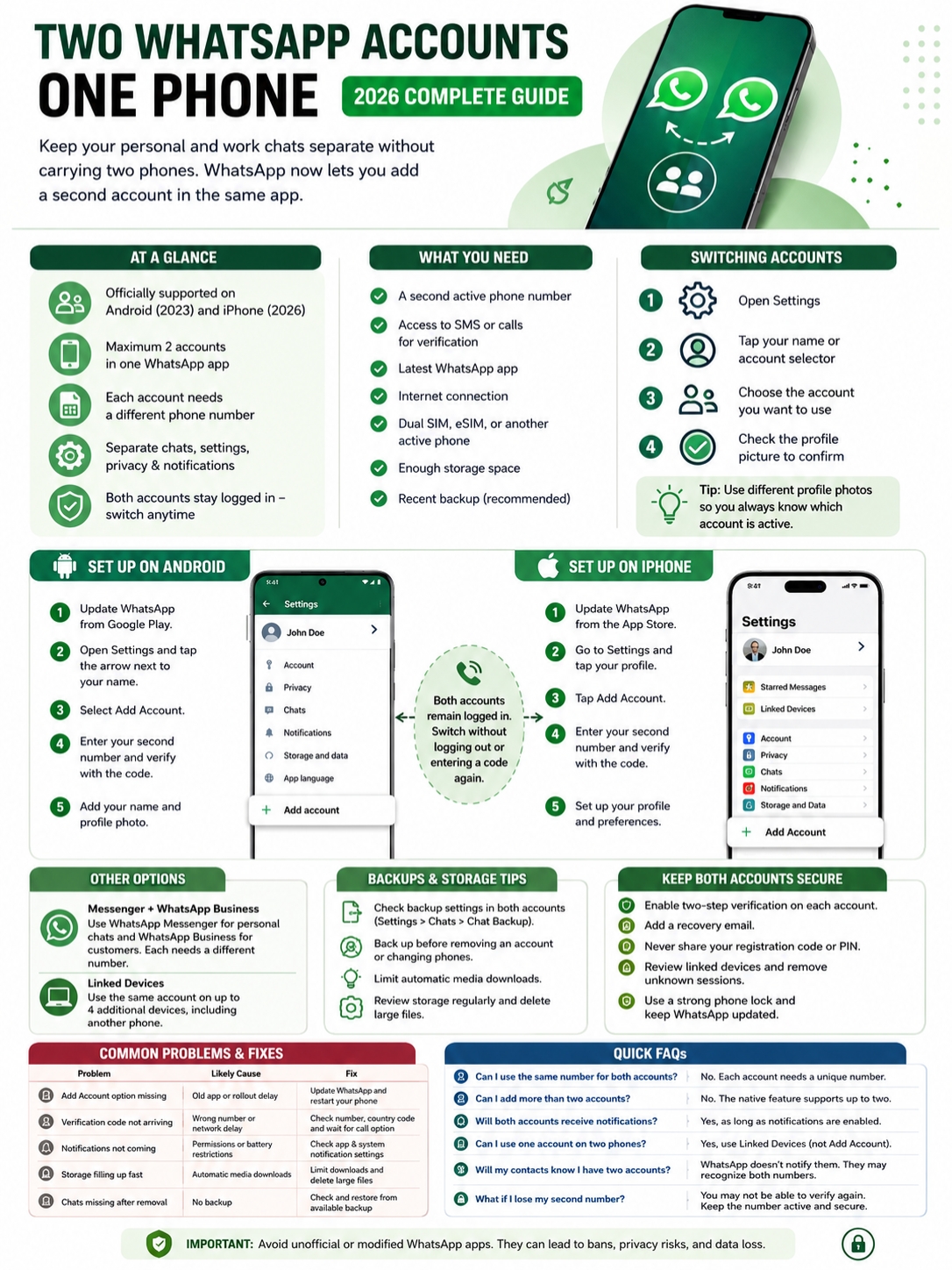
Two accounts can mean twice as many notifications, photos, documents, and videos.
Without a little housekeeping, WhatsApp can become noisy and start taking up a lot of storage.
|
Area |
What to Check |
|
Notifications |
Mute unnecessary chats and groups |
|
Media downloads |
Limit automatic downloads |
|
Storage |
Delete large or old files |
|
Backups |
Check each account separately |
|
Privacy |
Review settings inside both profiles |
|
Account removal |
Back up chats before removing anything |
Control Notifications
You may want work messages during office hours but not late at night.
Switch into each account and review:
- Message alerts
- Group alerts
- Call notifications
- Notification tones
- Muted chats
- High-priority alerts
Your phone’s system settings also matter. If one account appears silent, make sure the operating system hasn’t blocked WhatsApp notifications or restricted background activity.
Stop Media From Filling Your Phone
Large groups often send videos, photos, voice notes, and documents throughout the day.
Turn off automatic video downloads if you don’t need them. You can also limit downloads when using mobile data.
Open WhatsApp’s storage manager from time to time. Large forwarded videos and old group files are often the biggest space wasters.
Check Backups on Both Accounts
Don’t assume one backup covers everything.
Switch to the first account and open:
Settings > Chats > Chat Backup
Check the date and cloud account.
Then switch to the second WhatsApp account and repeat the process.
Do this before changing phones, reinstalling WhatsApp, logging out, or removing one of the accounts.
Account removal can delete local chats and may affect the backup linked to that profile. Back up anything important first.
How to Protect Both Accounts
A second account gives you more flexibility. It also gives scammers another number to target.
Secure both profiles separately.
|
Security Step |
Why It Matters |
|
Enable two-step verification |
Adds a private PIN |
|
Add a recovery email |
Helps recover the PIN |
|
Never share login codes |
Stops account takeovers |
|
Review linked devices |
Finds unfamiliar sessions |
|
Lock your phone |
Protects both accounts |
|
Keep WhatsApp updated |
Installs fixes and security updates |
|
Avoid modified apps |
Reduces privacy and ban risks |
Turn On Two-Step Verification
Switch to your first account and open:
Settings > Account > Two-step verification
Create a six-digit PIN and add an email address you can access.
Then repeat the process on the second account.
This PIN is different from the one-time verification code WhatsApp sends by SMS.
Keep Registration Codes Private
A common scam starts with a simple message:
“I accidentally sent a code to your number. Can you send it back?”
Don’t do it.
That code may be the key to your WhatsApp account. Anyone who gets it could try to register your number on another phone.
Review Linked Devices
Open Linked Devices inside each account.
Remove any browser, computer, tablet, or phone you don’t recognize.
A device linked to your personal account won’t automatically appear under your work account. Check both.
Common Problems and How to Fix Them
Most issues have a straightforward cause. Start with the simple checks before reinstalling anything.
|
Problem |
Likely Cause |
Fix |
|
Add Account is missing |
Old app or delayed rollout |
Update WhatsApp and restart the phone |
|
Verification code doesn’t arrive |
Wrong number or network delay |
Check the country code and wait |
|
First account disappears |
The same number was registered again |
Use a different number |
|
One account has no alerts |
Notifications or background activity blocked |
Check app and phone settings |
|
Storage fills too quickly |
Automatic media downloads |
Limit downloads and remove large files |
|
Chats disappear after removal |
No recent backup |
Restore from an available backup |
|
Account shows a warning |
Modified WhatsApp app |
Return to the official version |
The Add Account Option Is Missing
Update WhatsApp through Google Play or the App Store.
Close the app completely, restart your phone, and check again.
On iPhone, the feature may still arrive gradually across accounts and regions. Avoid downloading unofficial installers to force access.
The Verification Code Doesn’t Arrive
Check these details:
- Make sure the number is correct.
- Confirm the country code.
- Check that the SIM can receive messages or calls.
- Turn off airplane mode.
- Wait for the on-screen timer.
- Don’t request several codes in a row.
Too many failed requests can lead to a longer waiting period.
Messages Come From the Wrong Account
WhatsApp doesn’t merge the two accounts. You probably replied while the wrong profile was active.
Use different profile images and check the account indicator before sending a message.
Why You Should Avoid Unofficial WhatsApp Clones
Modified WhatsApp apps often advertise features such as extra accounts, hidden online status, custom themes, or deleted-message recovery.
The promises sound tempting. The risks aren’t worth it.
|
Risk |
What Could Happen |
|
Account restrictions |
Some features may stop working |
|
Temporary or permanent ban |
You may lose access |
|
Weak privacy controls |
Personal data may be exposed |
|
Malware |
The app may steal files or login details |
|
Broken backups |
Chats may fail to restore |
|
Unreliable updates |
The app may stop working suddenly |
|
Number theft |
Attackers may capture verification data |
WhatsApp warns users against fake and unofficial versions of its app.
Use one of the supported options instead:
- WhatsApp’s native Add Account feature
- WhatsApp Messenger and WhatsApp Business
- Linked Devices for one account on several devices
For two WhatsApp accounts one phone, the official account switcher should be your first choice.
Final Thoughts
|
Your Situation |
Best Choice |
|
Two personal numbers |
Native Add Account feature |
|
One personal and one work number |
Native switcher or WhatsApp Business |
|
One account on a phone and laptop |
Linked Devices |
|
One account on two phones |
Companion-device setup |
|
Customer service across a team |
Official WhatsApp Business tools |
|
Add Account option missing |
Update the app and check again |
You no longer need two phones, cloned apps, or constant logins just to keep WhatsApp conversations separate.
Update the official app, open the account selector, add your second number, and complete verification. Then review notifications, privacy, storage, and backups for both profiles.
Use different profile pictures so you can tell the accounts apart at a glance. Enable two-step verification on each number. Check linked devices regularly. Never share a registration code.
For anyone trying to manage two WhatsApp accounts one phone in 2026, the official account switcher is the simplest and safest place to start.
FAQs About Two WhatsApp Accounts on One Phone
|
Question |
Answer |
|
Can both accounts use one number? |
No |
|
Can both stay logged in? |
Yes |
|
Can I add a third account? |
Not through the native feature |
|
Do I need two physical SIM cards? |
No, but you need two active numbers |
|
Can I use Messenger and Business together? |
Yes, with different numbers |
|
Can I remove only one account? |
Yes, but back it up first |
Can I Use the Same Phone Number for Both Accounts?
No. Each WhatsApp account needs its own phone number.
You can’t create two separate profiles with one number.
Can I Add Three WhatsApp Accounts?
Not through WhatsApp’s standard multiple-account feature.
The native system currently supports two accounts on one device.
Will Both Accounts Receive Notifications?
Yes, as long as WhatsApp has permission to send alerts and the phone hasn’t restricted background activity.
Some calls or messages from the inactive account may prompt you to switch profiles.
Can I Use One WhatsApp Account on Two Phones?
Yes. Use Linked Devices and set up the other phone as a companion device.
That keeps one account across both phones. It doesn’t create a second profile.
Can I Remove the Second Account Without Deleting It Permanently?
You can remove an added account from the device without immediately deleting the full WhatsApp identity.
Still, removing it may erase local chats and affect its backup. Save important conversations first.
Will My Contacts Know I Added Another Account?
WhatsApp doesn’t send a general announcement.
People who have both numbers saved may recognize the profiles through your name, photo, groups, or messages.
What Happens If I Lose the Second SIM?
The account may continue working while it remains logged in.
The problem comes later. You may not be able to verify the number after reinstalling WhatsApp, changing phones, or getting signed out.
Keep the second number active and under your control.
Can I Use a Landline Number?
Some numbers may complete registration through a voice call instead of SMS.
Support can vary by number type and account setup. Use a number you can answer directly and keep long term.