
Spotlight is one of those Mac features that’s easy to overlook. Many people press Command-Space, open an app, and stop there.
That barely scratches the surface.
With the right mac spotlight shortcuts, you can find a buried document, preview a PDF, locate a file in Finder, convert measurements, search copied text, and run common actions without touching the mouse.
Apple gave Spotlight a major update in macOS Tahoe 26. The newer version includes separate search modes for apps, files, actions, and Clipboard history. It can also run supported shortcuts and app actions straight from the search window.
Some of those features are exclusive to macOS Tahoe. The basic controls, including Command-Space, Quick Look, arrow-key navigation, and Command-R, also work on many older macOS versions.
This guide explains what each shortcut does, when to use it, and how to fix Spotlight when it stops behaving as expected.
What Can Spotlight Do on a Mac?
Spotlight sits at the heart of macOS search. It can look through apps, documents, folders, contacts, emails, calendar events, reminders, settings, and other indexed content.
On macOS Tahoe, it can go further. You can search Clipboard history, run actions, and launch shortcuts created in Apple’s Shortcuts app.
Results appear as you type. You can open them, preview them, copy them, or jump to their location.
|
Spotlight task |
Example |
What it saves you from doing |
|
Open an app |
Search Pages and press Return |
Browsing the Applications folder |
|
Find a document |
Search annual budget |
Digging through folders |
|
Preview a file |
Select it and press Space |
Opening the full app |
|
Locate a document |
Select it and press Command-R |
Searching manually in Finder |
|
Run a calculation |
Type 42*18 |
Opening Calculator |
|
Convert a unit |
Type 32 ft to meters |
Searching online |
|
Find copied text |
Press Command-4 |
Copying the item again |
|
Run an action |
Search Send Email |
Opening and navigating another app |
What appears in Spotlight depends on several things. Your macOS version matters, as do your language, region, installed apps, privacy settings, and enabled search categories.
Mac Spotlight Shortcuts Worth Learning
You don’t need to memorize dozens of commands. A small group of shortcuts handles most everyday searches.
Apple uses these symbols for common modifier keys:
- Command: ⌘
- Option: ⌥
- Shift: ⇧
- Control: ⌃
- Return: ⏎
- Escape: Esc
Here are the main mac spotlight shortcuts and what they do.
|
Action |
Shortcut |
Availability |
|
Open or close Spotlight |
Command-Space |
Standard Spotlight shortcut |
|
Open Spotlight with a Search key |
Search key, when available |
Depends on the keyboard |
|
Open the selected result |
Return |
Available on recent macOS versions |
|
Preview a result |
Space |
Uses Quick Look |
|
Move to the next result |
Down Arrow |
Standard navigation |
|
Move to the previous result |
Up Arrow |
Standard navigation |
|
Display a file’s path |
Hold Command |
Shows its location |
|
Show a file in Finder or its app |
Command-R |
Standard file-location shortcut |
|
Show a file with the mouse |
Command-double-click |
Mouse or trackpad option |
|
Open a Finder search window |
Option-Command-Space |
Searches through Finder |
|
Search applications |
Command-1 |
macOS Tahoe 26 |
|
Search files |
Command-2 |
macOS Tahoe 26 |
|
Search actions and shortcuts |
Command-3 |
macOS Tahoe 26 |
|
Search Clipboard history |
Command-4 |
macOS Tahoe 26 |
|
Filter results |
/ |
Current Spotlight interface |
|
Leave an action and return to search |
Esc |
Tahoe action workflow |
Some Apple keyboards include a dedicated Search key. Its position can vary by model, so don’t assume it will always appear on the same function key.
Open and Control Spotlight Without a Mouse
Press Command-Space and start typing. Spotlight is ready immediately, so there’s no need to click the search field first.
Use the Up and Down Arrow keys to move through the results. Press Space to preview the selected item. Press Return to open it.
This simple routine covers most everyday searches.
|
Keyboard sequence |
What happens |
|
Command-Space, type an app name, Return |
Opens the app |
|
Command-Space, type a filename, Space |
Previews the file |
|
Command-Space, type a filename, Command-R |
Shows the file’s location |
|
Command-Space, Down Arrow, Return |
Opens a lower result |
|
Command-Space, Esc |
Closes Spotlight or backs out of an action |
Spotlight’s window can also be moved and resized. A larger window makes document previews easier to read, especially when several results have similar names.
The Up Arrow can behave differently depending on where the keyboard focus sits. In the result list, it moves to the previous item. In the search field, it may bring back an earlier Spotlight search.
That can feel inconsistent at first, but it’s expected behaviour.
Use Command-1 to Command-4 for Cleaner Searches
A broad Spotlight search can get messy. A single word might bring up apps, files, settings, actions, contacts, and web suggestions at once.
macOS Tahoe fixes much of that clutter with four dedicated browse modes.
|
Browse mode |
Shortcut |
What it searches |
|
Applications |
Command-1 |
Apps installed on the Mac |
|
Files |
Command-2 |
Files and folders |
|
Actions |
Command-3 |
System actions and Apple Shortcuts |
|
Clipboard |
Command-4 |
Available Clipboard history |
Command-2 is handy when an app and a file share the same name. A normal search for “Pages,” for example, may show the Pages app first. Switching to Files mode keeps the focus on documents.
Command-3 strips away most standard results and shows actions or shortcuts you can run.
Command-4 opens Clipboard history, provided that feature has been turned on.
These browse modes arrived with the redesigned Spotlight in macOS Tahoe 26. They won’t normally appear in macOS Sequoia, Sonoma, or earlier releases.
The older shortcuts still work. Command-Space opens search, Space previews a result, Return opens it, and Command-R helps locate it.
Filter Spotlight by App, File Type, or Location
The fastest search isn’t always the broadest one. When Spotlight gives you too many results, narrow the field.
You can search inside supported apps. Type the app’s name, press Tab, and then enter the term you want to find.
For example:
Notes + Tab + project meeting
You can use the same method with a storage location:
iCloud Drive + Tab + invoice
|
Search goal |
What to type |
Example |
|
Search inside an app |
App name, then Tab |
Notes + Tab + meeting |
|
Search a location |
Location, then Tab |
iCloud Drive + Tab + invoice |
|
Show only PDFs |
Slash and file type |
|
|
Find images |
Metadata keyword |
kind:images Dhaka |
|
Find folders |
Metadata keyword |
kind:folder invoices |
|
Search by author |
Keyword and colon |
author:John |
|
Search by title |
Keyword and colon |
title:Project Atlas |
You can also filter by item type. Type /PDF, press Return, and then add your search term.
Spotlight supports several kind: searches, including:
- kind:applications
- kind:contacts
- kind:folders
- kind:email
- kind:events
- kind:reminders
- kind:images
- kind:movies
- kind:music
- kind:audio
- kind:pdf
- kind:presentations
Other useful search terms include:
- from:
- to:
- author:
- tag:
- title:
- name:
- keyword:
- contains:
A search such as kind:pdf contains:contract is often more useful than simply typing “contract.” It cuts out unrelated emails, notes, and web suggestions.
Read Also: How to Reset SMC and NVRAM on a Mac
Preview a File Before Opening It
Similar filenames create problems. You may have several copies of the same report, image, contract, or presentation stored in different places.
Opening each one is slow. It also increases the chance that you’ll edit or send the wrong version.
Select a Spotlight result and press Space. Quick Look opens a preview without launching the full app.
Hold Command to see the item’s path. Press Command-R to show it in Finder or the app connected to that result.
|
What you need |
Shortcut |
What happens |
|
Preview a file |
Space |
Opens Quick Look |
|
Check the file path |
Hold Command |
Displays its location |
|
Go to the file |
Command-R |
Shows it in Finder or its app |
|
Open the item |
Return |
Launches the selected result |
|
Start a Finder search |
Option-Command-Space |
Opens Finder in search mode |
A good habit is to preview the file first, check its location, and then open it.
That extra second can save you from working on an outdated copy.
Run Actions Straight From Spotlight
Spotlight in macOS Tahoe doesn’t just find things. It can also do things.
Apple says the redesigned version can run hundreds of supported actions. These may come from macOS, Apple apps, third-party apps, or shortcuts you created in the Shortcuts app.
Press Command-3 to search actions only.
Type the task, select the result, fill in any required details, and press Return.
|
Action |
What it can do |
|
Add File to Note |
Adds a chosen file to an Apple Note |
|
Change Case |
Changes the capitalization of copied text |
|
Start FaceTime Call |
Begins setting up a call |
|
Random Number |
Picks a number within a chosen range |
|
Recognize Music |
Identifies nearby audio |
|
Remove Image Background |
Removes the background from an image |
|
Send Email |
Creates an email |
|
Translate Text |
Translates selected or copied text |
Press Esc if you pick the wrong action. Spotlight will return to the regular search view.
Available actions vary from one Mac to another. Some depend on installed apps. Others require permission to access contacts, files, messages, or other personal data.
Quick Keys Aren’t Regular Keyboard Shortcuts
Quick Keys are easy to confuse with standard shortcuts, but they work differently.
A normal keyboard shortcut uses physical keys, such as Command-Space.
A Quick Key is a short typed trigger connected to an action. Apple uses ft as an example for FaceTime. Once assigned, you might open Spotlight and type:
ft Ashley
Spotlight can then prepare a FaceTime action for that contact.
Apple may suggest a Quick Key after you use an action. You can also edit the trigger yourself.
Keep it short, but don’t use a common word. A trigger such as mail or note could interfere with ordinary searches. Something more specific is usually easier to manage.
Search Clipboard History With Command-4
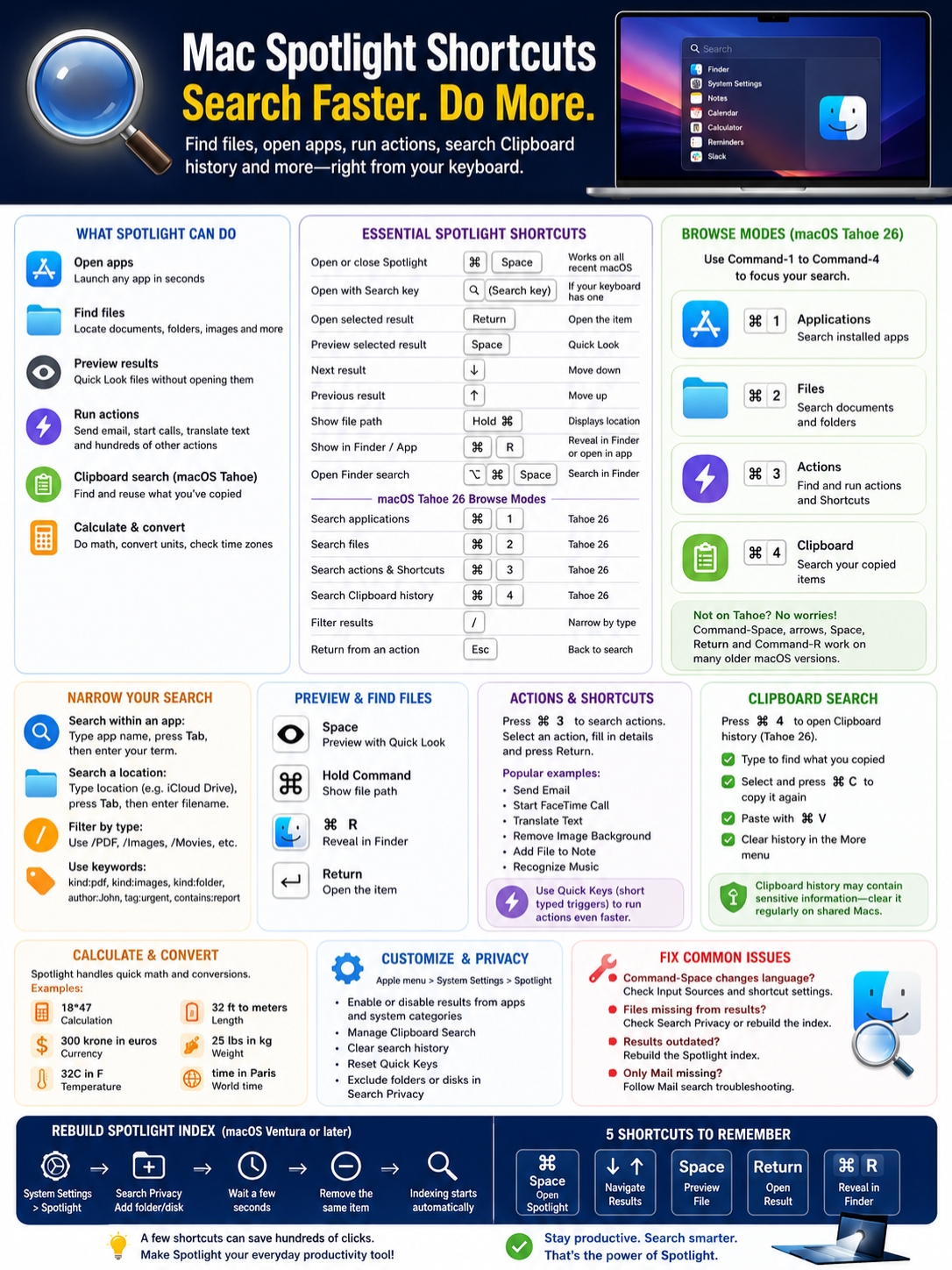
Clipboard Search solves a common problem: copying something new and then realizing you still need the previous item.
On macOS Tahoe, press Command-4 to open Clipboard history. Spotlight may ask you to enable the feature the first time.
Type part of the text you copied earlier. Select the matching item and press Command-C to copy it again. Move to the app where you need it and press Command-V.
|
Clipboard task |
Control |
|
Open Clipboard Search |
Command-4 |
|
Search old copied items |
Type a word or phrase |
|
Copy an item again |
Command-C |
|
Paste it |
Command-V |
|
Erase the history |
More menu > Clear History |
|
Turn the feature off |
System Settings > Spotlight |
This feature is useful, but it also creates a privacy concern.
Anything copied to the Clipboard may appear in the history. That could include private messages, account details, internal work notes, addresses, or other sensitive text.
Clear the history after handling confidential material, especially on a shared Mac.
Clipboard Search also isn’t a password manager. Store passwords in a dedicated password manager, not in a searchable Clipboard history.
Use Spotlight as a Calculator and Converter
For quick calculations, Spotlight is often faster than opening Calculator.
Type the expression directly into the search field. The result appears while you type.
Spotlight can handle basic maths, currency estimates, temperatures, distances, weights, and world times.
|
Task |
Example query |
|
Multiplication |
956*23.94 |
|
Division |
2020/15 |
|
Currency conversion |
300 krone in euros |
|
Temperature conversion |
32C in F |
|
Distance conversion |
32 ft to meters |
|
Weight conversion |
25 lbs in kg |
|
Local time |
time in Paris |
|
Time-zone query |
Japan local time |
This works well for everyday estimates.
Currency rates change, though. Don’t rely on Spotlight alone for contracts, tax work, international payments, trading, or bookkeeping. Check the final figure against an official or trusted financial source.
Change Spotlight Search and Privacy Settings
Open Apple menu > System Settings > Spotlight to control what appears in your results.
You can disable categories you never use, manage Clipboard Search, clear search history, reset Quick Keys, and block certain folders or disks from indexing.
|
Setting |
What it changes |
|
Results from Apps |
Controls which app content appears |
|
Results from System |
Controls system categories |
|
Clipboard Search |
Allows or blocks copied-item history |
|
Spotlight Search History |
Manages earlier searches |
|
Reset Quick Keys |
Restores Quick Key settings |
|
Search Privacy |
Excludes folders or disks |
|
Show Related Content |
Controls additional suggested content |
Turning off unwanted categories can make Spotlight feel much cleaner.
Someone who uses Spotlight mainly for files and apps, for example, may not need every web, contact, or system suggestion.
Be careful with Search Privacy. Excluding a private folder may make sense. Excluding a large part of the startup disk can cause files to disappear from search when you still need them.
Fix a Command-Space Shortcut Conflict
On some Macs, Command-Space changes the keyboard language instead of opening Spotlight.
That usually means the shortcut conflicts with an input-source setting.
To change it:
- Open the Apple menu.
- Choose System Settings.
- Select Keyboard.
- Open Keyboard Shortcuts.
- Choose Spotlight.
- Double-click the current shortcut.
- Press the replacement key combination.
|
Problem |
Setting to check |
|
Command-Space changes language |
Input Sources and Spotlight |
|
The shortcut does nothing |
Spotlight shortcut status |
|
A warning icon appears |
Conflicting shortcut categories |
|
An external keyboard acts differently |
Modifier Keys |
|
Command and Option feel reversed |
Keyboard modifier mapping |
Pick a key combination that another app isn’t already using.
Mac users with Windows-style keyboards should also check the Modifier Keys settings. The physical labels on those keyboards don’t always match the way macOS interprets them.
Fix Missing or Outdated Spotlight Results
Sometimes the shortcut works, but the results don’t.
A file may be missing because its folder has been excluded. The index may also be outdated or incomplete.
Start with the simple checks.
|
Problem |
Likely cause |
What to do |
|
A folder never appears |
It was excluded |
Check Search Privacy |
|
Results are outdated |
Indexing problem |
Rebuild the index |
|
Only emails are missing |
Mail-specific issue |
Troubleshoot Mail search |
|
Command-1 to Command-4 are missing |
Older macOS version |
Check the installed macOS |
|
Clipboard results don’t appear |
Feature is disabled |
Turn on Clipboard Search |
|
Results feel too broad |
Too many categories are enabled |
Disable unwanted categories |
|
Reindexing fails |
Permission problem |
Check disk or folder ownership |
How to Rebuild the Spotlight Index
On macOS Ventura 13 or later:
- Open System Settings.
- Select Spotlight or Siri & Spotlight.
- Open Search Privacy or Spotlight Privacy.
- Add the affected folder or disk.
- Wait a few seconds.
- Select the same location and remove it.
- Close System Settings.
Removing the location from the privacy list tells macOS to index it again.
The process may take a while. A large drive with thousands of files will take longer than a single folder.
Don’t rebuild the entire startup-disk index as a routine habit. Use it when Spotlight repeatedly misses files or shows results that are clearly out of date.
Final Thoughts
Trying to learn every Spotlight command at once isn’t necessary.
Start with these five:
|
Habit |
Shortcut |
|
Open Spotlight |
Command-Space |
|
Move through results |
Up and Down Arrow |
|
Preview a result |
Space |
|
Open the result |
Return |
|
Locate the file |
Command-R |
Once those become automatic, add the Tahoe browse modes.
Use Command-2 when you only want files. Use Command-3 for actions. Use Command-4 when you need something you copied earlier.
The best mac spotlight shortcuts are the ones you’ll actually use. A handful of commands can turn Spotlight into an app launcher, file finder, preview tool, calculator, converter, Clipboard browser, and action panel.
That’s a lot of work from one small search box.
Frequently Asked Questions
|
Question |
Main point |
|
What does Command-R do? |
Shows the result in Finder or its app |
|
Why does Up Arrow change behaviour? |
It depends on keyboard focus |
|
Are Quick Keys regular shortcuts? |
No, they are typed action triggers |
|
Is Clipboard Search secure storage? |
No, it isn’t a password manager |
|
Do Tahoe shortcuts work on Sequoia? |
The newer browse modes may not appear |
Can Spotlight Open Over a Full-Screen App?
Yes. Command-Space usually opens Spotlight on top of a full-screen app.
It may fail if another app has taken over the same keyboard shortcut.
Why Does Command-R Behave Differently With Some Results?
Command-R shows the selected result in Finder or the relevant app. The exact behaviour depends on the type of result.
For a normal document, it will usually reveal the file in Finder. A result tied to another app may open in that app instead.
Can Spotlight Search Finder Tags?
Yes. Use tag: followed by the tag name.
For example:
tag:urgent
This can quickly find files carrying the Urgent Finder tag.
Can Spotlight Search Text Inside a Document?
It can search inside many supported file types, but the result depends on how the file was created and indexed.
A document with selectable text is easier to search. A scanned PDF made entirely from images may not appear for a text search unless optical character recognition has been applied.
The file must also be stored in a location Spotlight indexes.
Are Quick Keys the Same as Mac Keyboard Shortcuts?
No.
A keyboard shortcut uses keys pressed together, such as Command-Space.
A Quick Key is typed into Spotlight and triggers an action. For example, ft might start a FaceTime action.
Can Clipboard Search Be Turned Off?
Yes.
Open System Settings, select Spotlight, and disable Clipboard Search. You can also clear the stored history from the Clipboard search view.
Why Don’t Command-1 to Command-4 Work on My Mac?
Those browse-mode shortcuts are part of the redesigned Spotlight in macOS Tahoe 26.
They may not appear on a Mac running macOS Sequoia 15, Sonoma 14, or an earlier release.