
The battery may stop charging. The fans might suddenly sound like a small jet engine. Your Mac may forget its startup disk, choose the wrong screen resolution, or refuse to wake up properly.
On an Intel Mac, two common fixes can help: resetting the System Management Controller, or SMC, and resetting NVRAM.
They sound similar, but they do different jobs.
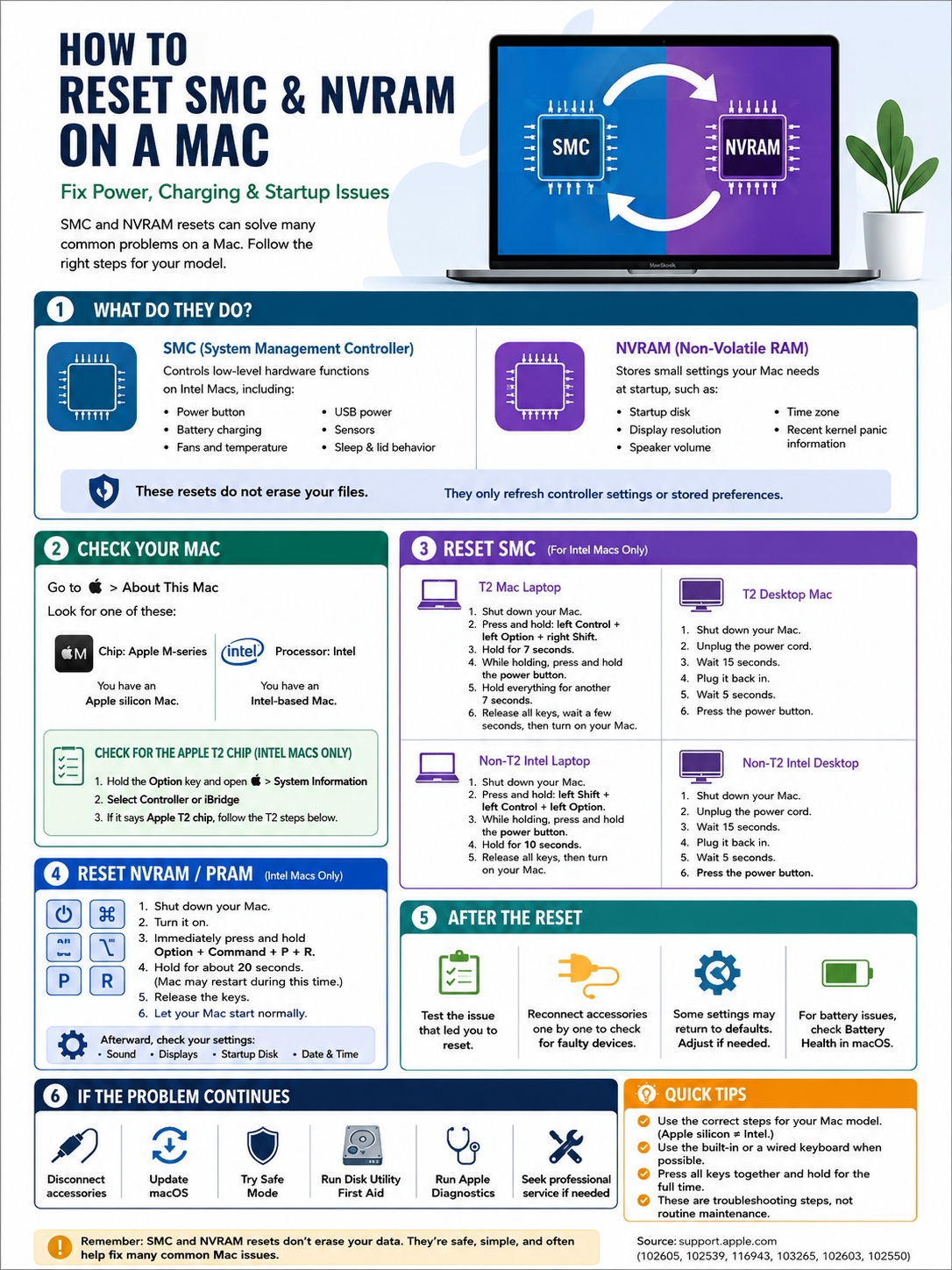
The SMC handles power, charging, fans, sensors, and other hardware behavior. NVRAM stores a small group of settings, including sound volume, display resolution, startup disk, and time zone.
The steps also depend on the Mac you own. Newer Apple silicon Macs don’t use the old keyboard shortcuts. Intel Macs do, and some Intel models need different instructions depending on whether they have Apple’s T2 Security Chip.
This guide shows you how to reset SMC NVRAM Mac settings without wiping your files or following the wrong steps.
What SMC and NVRAM Actually Control
Before pressing any keys, it helps to know what you’re resetting.
The SMC manages several low-level hardware functions on Intel Macs. These include battery charging, fan speed, USB power, the power button, keyboard lighting, lid sensors, and sleep behavior.
NVRAM works differently. It stores a small set of system preferences that the Mac may need before macOS finishes loading.
Older guides often use the term PRAM. Apple now mainly uses NVRAM, but both terms usually refer to the same type of reset in everyday troubleshooting.
|
Component |
What It Does |
Problems It May Affect |
|
SMC |
Controls power and hardware behavior |
Charging, fans, heat, sleep, USB power and sensors |
|
NVRAM |
Stores selected startup settings |
Sound, resolution, startup disk and time zone |
|
PRAM |
Older name linked to similar settings |
Usually reset using the NVRAM steps |
|
Factory reset |
Erases personal content and settings |
Used before selling or fully wiping a Mac |
Neither reset deletes your documents, photos, apps, or user accounts.
That said, an NVRAM reset may return a few preferences to their default values. You may need to choose your startup disk again, adjust the volume, or correct your display settings afterward.
An SMC reset doesn’t reset NVRAM. They’re two separate procedures.
Check Which Mac You Have First
This is the step people skip most often.
Don’t rely on the shape of the Mac or the year you bought it. Apple sold Intel and Apple silicon models around the same time, especially during the 2020 transition.
Open the Apple menu and select About This Mac.
Look for one of these labels:
- Chip: The Mac uses Apple silicon.
- Processor: The Mac uses an Intel processor.
|
What You See |
Type of Mac |
SMC Method |
NVRAM Method |
|
Chip: Apple M-series |
Apple silicon |
Restart or shut down and start again |
No manual reset needed |
|
Processor: Intel |
Intel Mac |
Follow the correct Intel steps |
Option-Command-P-R |
|
Intel plus Apple T2 chip |
T2-equipped Intel Mac |
Use the T2 procedure |
Option-Command-P-R |
|
Intel without T2 |
Older Intel Mac |
Use the non-T2 procedure |
Option-Command-P-R |
How to Check for the T2 Security Chip
Some Intel Macs include Apple’s T2 Security Chip. This matters because T2-equipped Mac laptops use a different SMC reset sequence.
To check:
- Hold the Option key.
- Open the Apple menu.
- Select System Information.
- Look for Controller or iBridge in the sidebar.
- Check whether the panel lists an Apple T2 chip.
T2-equipped Macs include several MacBook Air, MacBook Pro, iMac, Mac mini, iMac Pro, and Mac Pro models released between 2018 and 2020.
Still, checking System Information is safer than guessing.
How to Reset SMC NVRAM Mac Settings on Apple Silicon
Apple silicon Macs make this much easier.
You don’t need to hold Shift, Control, Option, and the power button. Those instructions belong to Intel Macs.
On an Apple silicon Mac, SMC-related functions reset automatically when you restart the computer or shut it down and turn it back on.
The old Option-Command-P-R NVRAM shortcut isn’t needed either.
|
Task |
What to Do on Apple Silicon |
|
Refresh power-management functions |
Restart the Mac |
|
Perform a full power cycle |
Shut down, then turn it back on |
|
Reset NVRAM manually |
Not required |
|
Open startup options |
Hold the power button while starting |
|
Open Apple Diagnostics |
Hold Command-D from startup options |
Restart an Apple Silicon Mac
- Connect the Mac to power.
- Save your work.
- Open the Apple menu.
- Select Restart.
- Let the Mac boot normally.
You can also choose Shut Down, wait until the screen and lights go off, and then press the power button again.
That’s it.
If someone tells you to use the old four-key SMC shortcut on an M-series Mac, they’re giving you Intel instructions.
If the restart doesn’t help, unplug nonessential accessories and test again. USB hubs, docks, external drives, display adapters, and faulty cables can all create symptoms that look like a Mac hardware problem.
How to Reset the SMC on an Intel Mac
An SMC reset makes sense when the problem involves power or physical hardware behavior.
Common signs include:
- The battery won’t charge properly
- The Mac doesn’t respond to the power button
- The fans run at high speed for no clear reason
- The laptop feels unusually hot
- USB ports don’t provide stable power
- Keyboard lighting behaves strangely
- The Mac sleeps or wakes unexpectedly
- The built-in camera stops working
|
Intel Mac Type |
Reset Method |
Timing |
|
T2 Mac laptop |
Left Control + left Option + right Shift, then power |
7 seconds, then another 7 |
|
T2 desktop Mac |
Unplug the power cable |
Wait 15 seconds, reconnect, wait 5 |
|
Non-T2 Intel laptop |
Left Shift + left Control + left Option + power |
Hold for 10 seconds |
|
Non-T2 Intel desktop |
Unplug the power cable |
Wait 15 seconds, reconnect, wait 5 |
Intel Mac Laptop With a T2 Chip
Apple recommends trying a simple power-button reset first.
- Shut down the Mac.
- Press and hold the power button for 10 seconds.
- Release it.
- Wait a few seconds.
- Press the power button normally.
Still having trouble? Use the full SMC reset.
- Shut down the Mac.
- Press and hold:
- Control on the left side
- Option on the left side
- Shift on the right side
- Hold the three keys for seven seconds.
- Keep holding them and press the power button.
- Hold all four for another seven seconds.
- Release everything.
- Wait a few seconds.
- Press the power button to start the Mac.
The side of the keyboard matters here.
T2-equipped laptops use the right Shift key. Using the left Shift key may stop the reset from working.
Intel Desktop Mac With a T2 Chip
- Shut down the Mac.
- Unplug the power cable.
- Wait 15 seconds.
- Plug the cable back in.
- Wait five seconds.
- Press the power button.
This method applies to supported Intel iMac, iMac Pro, Mac mini, and Mac Pro models with the T2 chip.
Intel Mac Laptop Without a T2 Chip
Older Intel laptops use a slightly different key combination.
- Shut down the Mac.
- Press and hold:
- Left Shift
- Left Control
- Left Option
- Press and hold the power button while keeping those keys down.
- Hold everything for 10 seconds.
- Release the keys.
- Press the power button normally.
This time, you use the left Shift key.
That small difference trips up a lot of people.
Intel Desktop Mac Without a T2 Chip
- Shut down the Mac.
- Unplug the power cable.
- Wait 15 seconds.
- Reconnect the cable.
- Wait five seconds.
- Press the power button.
When you follow a reset smc nvram mac guide, always check the processor and T2 status first. The wrong shortcut won’t damage the Mac, but it probably won’t fix anything either.
Read Also: How to Use Hot Corners on Mac
How to Reset NVRAM or PRAM on an Intel Mac
Reset NVRAM when the problem involves a stored system setting.
It may help when:
- The Mac keeps choosing the wrong startup disk
- The screen resolution changes by itself
- Startup volume behaves strangely
- The time zone keeps resetting
- A stored setting won’t stay selected
Before resetting NVRAM, try changing the affected setting in System Settings. The reset is more useful when the normal controls don’t fix the issue.
|
Step |
Action |
|
1 |
Shut down the Intel Mac |
|
2 |
Press the power button |
|
3 |
Immediately hold Option-Command-P-R |
|
4 |
Keep holding for around 20 seconds |
|
5 |
Release the keys |
|
6 |
Check any settings that returned to default |
Reset NVRAM Step by Step
- Shut down the Intel Mac.
- Press the power button.
- Immediately hold Option-Command-P-R.
- Keep holding the keys for about 20 seconds.
- Release them.
- Let the Mac finish starting.
The Mac may appear to restart during the process.
On some models, you may hear the startup sound more than once. On others, the Apple logo may appear, disappear, and then appear again.
After startup, check:
- System Settings > Sound
- System Settings > Displays
- System Settings > General > Startup Disk
- System Settings > General > Date & Time
You may need to restore a few preferences manually.
What If the Shortcut Doesn’t Work?
Timing matters.
Press the keys immediately after turning on the Mac. If you wait until the Apple logo appears, you may be too late.
A Bluetooth keyboard can also cause trouble because it may not connect early enough during startup. Use the built-in keyboard or a wired keyboard when possible.
A firmware password can block certain startup shortcuts as well.
If the Mac boots into Windows through Boot Camp, select macOS as the startup system before trying the reset again.
What Changes After the Reset?
You probably won’t see a message saying, “The SMC reset worked.”
Instead, test the problem that brought you here.
If the fans were running loudly, see whether they calm down. If the battery wasn’t charging, reconnect the power adapter and watch the battery status. If the Mac kept forgetting its startup disk, check whether the setting now stays in place.
|
Item |
SMC Reset |
NVRAM Reset |
|
Personal files |
Not deleted |
Not deleted |
|
Installed apps |
Not removed |
Not removed |
|
User accounts |
Not removed |
Not removed |
|
Startup disk |
Usually unchanged |
May need to be selected again |
|
Display resolution |
Usually unchanged |
May return to default |
|
Sound level |
Usually unchanged |
May return to default |
|
Time zone |
Usually unchanged |
May need checking |
|
Power behavior |
May improve |
Not its main purpose |
These resets don’t replace a proper backup.
A Mac with repeated startup, battery, or storage trouble should be backed up before you move on to advanced repair steps.
How to Test the Mac Afterward
Don’t stop at the login screen.
Test the exact issue under normal use.
|
Original Problem |
What to Check |
|
Battery not charging |
Power adapter, cable, port and Battery Health |
|
Fans running constantly |
CPU usage, airflow and connected devices |
|
Mac won’t turn on |
Power source and power-button response |
|
Wrong startup disk |
Startup Disk settings |
|
Display problem |
Resolution, refresh rate, cable and adapter |
|
USB power issue |
Connect one device directly without a hub |
|
Camera not working |
Try more than one supported app |
|
Sleep or wake problem |
Disconnect docks, drives and USB devices |
Reconnect accessories one at a time.
That simple step can reveal a faulty hub, drive, cable, or adapter faster than another reset.
For battery problems, use the Battery Health information built into macOS. Third-party apps can be useful, but they don’t always tell the full story.
If macOS shows Service Recommended, the battery may be worn or damaged. An SMC reset can’t restore lost battery capacity.
What to Do If the Reset Doesn’t Fix It
SMC and NVRAM resets aren’t magic fixes.
They can clear certain power, thermal, or settings problems. They can’t repair a damaged charging port, worn battery, broken fan, failed sensor, bad storage device, or logic-board fault.
If the reset smc nvram mac process doesn’t help, move on instead of repeating it over and over.
|
Next Step |
When It Helps |
Erases Data? |
|
Disconnect accessories |
Startup, power, display and sleep issues |
No |
|
Update macOS |
Software, firmware and compatibility problems |
Usually no |
|
Safe Mode |
Startup software and login-item problems |
No |
|
Disk Utility First Aid |
File-system and disk errors |
Usually no |
|
Apple Diagnostics |
Possible hardware failure |
No |
|
Reinstall macOS |
Persistent system problems |
Usually no |
|
Professional repair |
Battery, port, fan, sensor or board faults |
Depends on the repair |
Start in Safe Mode
Safe Mode loads only the software macOS needs to start.
It can help you work out whether a login item, extension, cache, or startup process is causing the problem.
On Apple Silicon
- Shut down the Mac.
- Hold the power button until startup options appear.
- Select the startup disk.
- Hold the Shift key.
- Click Continue in Safe Mode.
On an Intel Mac
- Turn on or restart the Mac.
- Immediately hold the Shift key.
- Release it when the login window appears.
- Sign in.
You should see Safe Boot in the menu bar when the Mac starts correctly in Safe Mode.
Run Disk Utility First Aid
Disk Utility can find and repair some file-system and directory errors.
For a startup disk, run it from macOS Recovery.
- Start the Mac in macOS Recovery.
- Open Disk Utility.
- Select View > Show All Devices.
- Run First Aid on each volume.
- Continue with the container.
- Finish with the physical storage device.
Back up important files first when possible.
Disk Utility can repair software-level disk errors, but it can’t fix physically failed storage hardware.
Run Apple Diagnostics
Apple Diagnostics checks for possible hardware problems.
On Apple Silicon
- Shut down the Mac.
- Hold the power button until startup options appear.
- Release the button.
- Hold Command-D.
On an Intel Mac
- Turn on the Mac.
- Immediately hold the D key.
- Release it when the test screen appears.
- Try Option-D if the normal method doesn’t work.
Before running the test:
- Install available macOS updates
- Disconnect nonessential devices
- Connect the Mac to power
- Place it on a flat, stable surface
- Make sure the vents aren’t blocked
Write down any reference code that appears. It can help Apple Support or a repair technician identify the problem.
Common SMC and NVRAM Reset Mistakes
The reset steps aren’t hard, but small mistakes can stop them from working.
|
Mistake |
Why It Causes Trouble |
What to Do Instead |
|
Using Intel shortcuts on Apple silicon |
The old steps don’t apply |
Restart the Mac |
|
Using the wrong Shift key |
T2 and non-T2 procedures differ |
Check the keyboard side carefully |
|
Using Bluetooth too early |
The keyboard may not connect in time |
Use the built-in or wired keyboard |
|
Pressing keys one by one |
The shortcut requires them together |
Hold all required keys at once |
|
Releasing too soon |
The reset may not complete |
Follow the full timing |
|
Resetting after every update |
It isn’t routine maintenance |
Use it only for matching symptoms |
|
Expecting a factory reset |
These resets don’t erase data |
Use Erase All Content and Settings |
|
Repeating the reset endlessly |
The cause is probably elsewhere |
Try diagnostics or service |
Avoid random Terminal commands that claim to clear or “repair” NVRAM.
Terminal can change firmware variables. One wrong command can create a new startup problem. For ordinary troubleshooting, stick with Apple’s documented keyboard procedure.
Final Thoughts
The reset process is simple once you know which Mac you have.
On an Apple silicon Mac, connect it to power and restart it. You don’t need an Intel SMC shortcut, and you don’t need to reset NVRAM manually.
On an Intel Mac, check for the T2 chip before resetting the SMC. T2 and non-T2 laptops use different Shift keys and different timing.
To reset NVRAM on an Intel Mac, turn it on and immediately hold Option-Command-P-R for around 20 seconds.
A correct reset smc nvram mac procedure may fix certain charging, fan, power, display, sound, or startup-setting problems. It won’t fix every fault.
If one proper attempt doesn’t help, stop repeating it. Disconnect accessories, update macOS, try Safe Mode, run Apple Diagnostics, or check the startup disk with Disk Utility.
Persistent battery, charging, fan, port, storage, or startup problems may need professional repair.
Frequently Asked Questions
Does Resetting SMC or NVRAM Delete Files?
No. These procedures don’t erase your personal files, apps, photos, or accounts.
They’re completely different from a factory reset.
Can You Reset NVRAM on an Apple Silicon Mac?
Apple doesn’t require a manual NVRAM reset on Apple silicon Macs.
The Option-Command-P-R shortcut is for Intel models.
Should You Reset Both SMC and NVRAM?
Only when the symptoms point to both.
Use an SMC reset for Intel power, fan, charging, or hardware-control issues. Use an NVRAM reset for startup disk, volume, resolution, or time-zone problems.
Does the Reset Order Matter?
There’s no required order.
If you plan to perform both on an Intel Mac, complete one reset, let the Mac start, shut it down, and then do the other.
Why Does My Intel Desktop Mac Forget Settings When Unplugged?
The small battery that helps preserve NVRAM settings may be failing.
If the Mac repeatedly forgets its time zone or sound settings after losing power, it may need service.
Can a Firmware Password Block an NVRAM Reset?
Yes.
Some startup shortcuts won’t work while a firmware password is enabled. Disable the password before trying the shortcut again.
Can I Use a Windows Keyboard?
Possibly.
The Alt key usually works as Option, while the Windows-logo key often works as Command. A Mac keyboard is still more reliable for startup shortcuts.
Can an SMC Reset Fix a Worn Battery?
No.
It may fix a charging-control glitch on an Intel Mac, but it can’t restore the lost capacity of an old battery.
Should I Reset SMC and NVRAM After Every macOS Update?
No.
These aren’t maintenance tasks. Use them only when you have a specific problem that matches what the SMC or NVRAM controls.
Why Did the Mac Start Normally Instead of Resetting NVRAM?
You may have pressed the keys too late.
A wireless keyboard, firmware password, damaged key, or Boot Camp setting can also block the shortcut.