
Switching from an iPhone to Android used to feel like moving house without boxes. Some files came across. Others disappeared. Then you spent the next week signing back into apps and hunting for missing photos.
The process is far smoother in 2026.
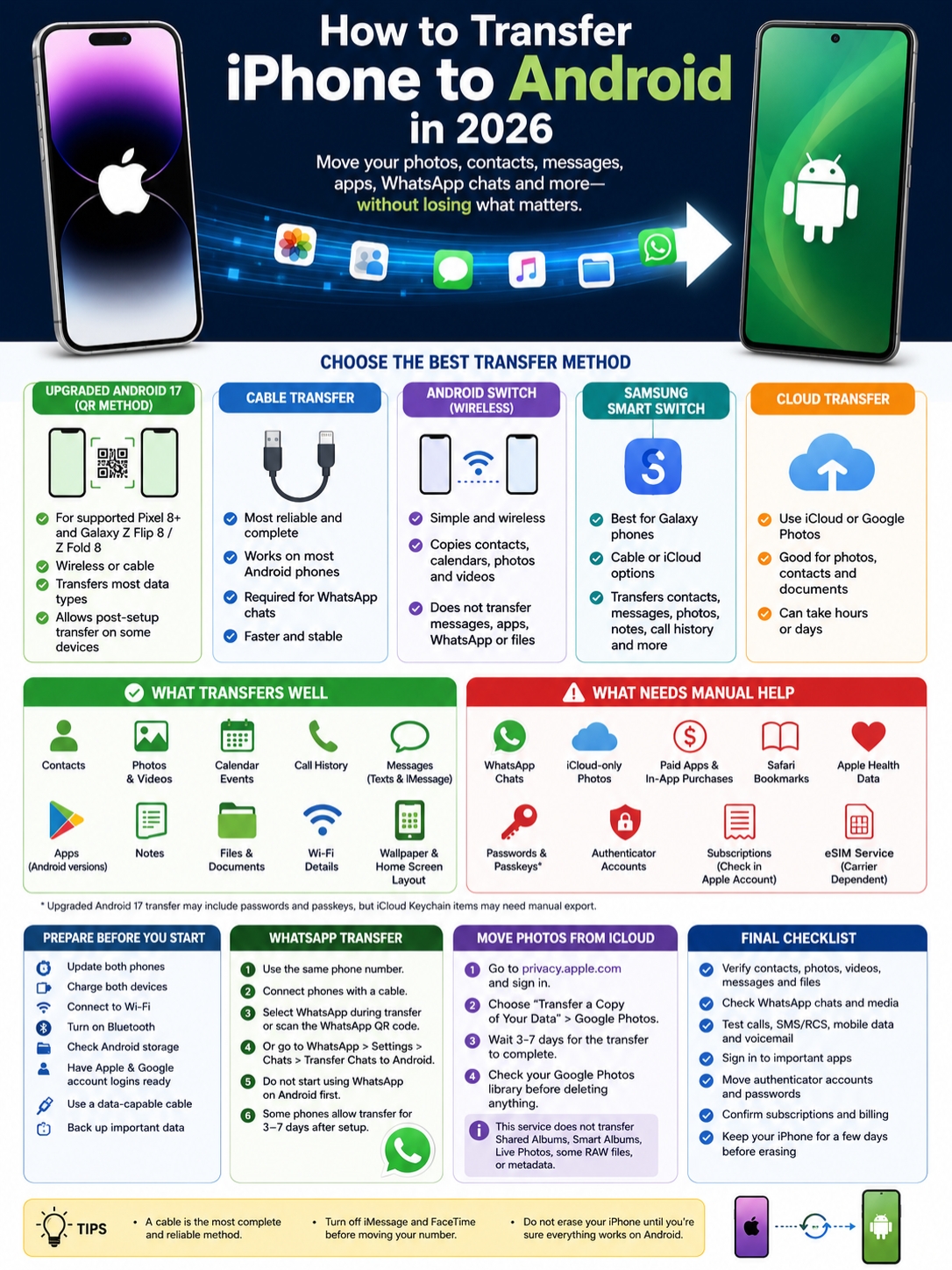
Apple, Google, and Samsung now offer tools that can move most of your everyday data. That includes contacts, photos, videos, calendars, text messages, apps, call history, files, notes, and some phone settings.
Still, no single transfer method works the same way on every device.
The best way to transfer iPhone to Android depends on your new phone, its Android version, your mobile carrier, and the type of data you want to keep. WhatsApp chats, iCloud Photos, passwords, authentication apps, paid apps, and eSIM service often need extra attention.
This guide walks you through the process without the usual guesswork.
What Changed for iPhone-to-Android Transfers in 2026?
|
Change |
What It Means |
|
Apple Transfer to Android |
iOS 26.3 can start the transfer directly from Settings |
|
Upgraded Android transfer |
Supported Android 17 phones can copy more data |
|
QR pairing |
Compatible phones can connect without a cable |
|
Transfer after setup |
Some newer Android phones can import data later |
|
eSIM support |
Selected phones and carriers can move an eSIM |
|
Better app-data support |
Some apps can transfer data when developers allow it |
The biggest change is that Apple now supports the move from its side.
On an iPhone running iOS 26.3, open:
Settings > General > Transfer or Reset iPhone > Transfer to Android
Your iPhone can then scan a QR code shown on the new Android phone. From there, you choose what to copy.
Apple says the process can move contacts, photos, calendars, call history, messages, accessibility settings, wallpaper, and the Home Screen layout. Some third-party app data can also move, but only when the app developer supports it.
Google’s newer transfer system works with Android 17, but there’s an important catch. Android 17 alone doesn’t guarantee access.
Google currently lists support for:
- Pixel 8 and newer
- Samsung Galaxy Z Flip 8
- Samsung Galaxy Z Fold 8
More phones may gain support later. For now, check your phone’s setup screen or official support page before assuming the upgraded transfer will appear.
Older Android phones can still use the standard cable process or the Android Switch app.
Get Both Phones Ready First
|
What to Prepare |
Why It Matters |
|
Install software updates |
New transfer features depend on current software |
|
Charge both phones |
Large transfers can take several hours |
|
Check Android storage |
The transfer may fail if space runs out |
|
Connect to Wi-Fi |
Needed for setup, apps, and cloud content |
|
Turn on Bluetooth |
Required for newer QR-based transfers |
|
Find a data cable |
Charging-only cables won’t copy files |
|
Check your passwords |
You may need Apple, Google, carrier, and app logins |
|
Back up key files |
Gives you a safety net |
Don’t start the transfer with one phone at 12% battery and the other nearly full.
Charge both devices first. Keep them plugged in if you have a large photo or video library.
Update the iPhone and Android phone to the latest software available. Newer transfer tools often depend on recent system updates.
You’ll also need enough free storage on the Android phone. A 128GB phone can’t hold 180GB of iPhone data.
Before you begin, have these details close by:
- Your iPhone passcode
- Apple Account login
- Google Account login
- Carrier login or account PIN
- Password manager access
- Two-factor authentication recovery codes
- A compatible USB cable or adapter
Google says many transfers finish in under 30 minutes. A phone packed with years of photos, videos, and messages may take several hours.
It also helps to increase the iPhone’s Auto-Lock time temporarily. That keeps the screen from locking halfway through a cable transfer.
Choose the Right Transfer Method
|
Method |
Best For |
Main Drawback |
|
Upgraded Android 17 transfer |
New supported Pixel and Galaxy phones |
Not available on every Android 17 device |
|
Cable transfer |
The most complete transfer on most phones |
Requires the right cable |
|
Classic Android Switch wireless |
Contacts, calendars, photos, and videos |
Leaves out many data types |
|
Samsung Smart Switch |
Moving to a Galaxy phone |
Samsung devices only |
|
Cloud transfer |
iCloud Photos, contacts, and documents |
Can take days |
|
Manual transfer |
Individual files and unsupported apps |
More work |
A cable remains the safest choice for most people.
The classic wireless Android Switch method is useful, but limited. It normally copies:
- Contacts
- Calendar events
- Photos
- Videos
It usually doesn’t copy:
- Apps
- Text messages
- Call history
- WhatsApp chats
- Notes
- Local files
- Voice recordings
- Device settings
The upgraded Android 17 process can copy far more, but only on supported phones.
Use a cable when you want the most complete result. It’s also the better option when your Wi-Fi is unstable or you have a large amount of data.
How to Transfer iPhone to Android With the New QR Method
|
Step |
What to Do |
|
1 |
Start setting up the Android phone |
|
2 |
Choose to copy data from an iPhone |
|
3 |
Display the transfer QR code |
|
4 |
Scan it with the iPhone |
|
5 |
Approve the connection |
|
6 |
Choose what to copy |
|
7 |
Keep the phones close |
|
8 |
Finish WhatsApp and eSIM setup separately if asked |
Turn on the new Android phone and start the setup process.
When asked whether you want to copy data, choose iPhone or iPad. A supported phone should display a QR code.
Scan that code with the iPhone Camera app.
You can also begin from the iPhone:
- Open Settings.
- Tap General.
- Choose Transfer or Reset iPhone.
- Tap Transfer to Android.
- Place both phones next to each other.
- Scan the QR code on the Android phone.
- Choose the data you want.
- Tap Continue.
If the camera won’t scan the code, you may be able to enter a session ID and pairing code manually.
Depending on the phone, the upgraded transfer may copy:
- Contacts
- Photos and videos
- Calendars
- Call history
- Text messages
- iMessage attachments
- Apps
- Notes
- Files and folders
- Music
- Voice Memos
- Wallpaper
- Home Screen layout
- Alarms
- Wi-Fi information
- Passwords and passkeys
- Some device settings
- Some third-party app data
- Eligible eSIM service
That list sounds impressive, but don’t assume every item will move perfectly. Support can still vary by phone model, carrier, region, account type, and app.
How to Transfer Data With a Cable
|
Step |
Action |
|
1 |
Select iPhone during Android setup |
|
2 |
Connect the phones |
|
3 |
Unlock the iPhone |
|
4 |
Tap Trust |
|
5 |
Choose your data |
|
6 |
Start the transfer |
|
7 |
Keep both phones connected |
|
8 |
Check the copied content |
For most people, this is still the best way to transfer iPhone to Android.
An iPhone with USB-C may connect directly to a USB-C Android phone. Older Lightning iPhones may need a Lightning-to-USB-C cable or adapter.
Make sure the cable supports data. Some cheap cables only charge devices.
Once connected, unlock the iPhone. Tap Trust when the prompt appears and enter your passcode.
The Android phone will scan the iPhone and show the content it can copy. You may see options for:
- Contacts
- Photos
- Videos
- Calendar events
- Text messages
- Call history
- Apps
- Notes
- Documents
- Audio files
- Voice recordings
- Wallpaper
- Phone settings
- WhatsApp chats
Select the items you need and start the transfer.
Don’t unplug the phones just because the Android Home Screen appears. Apps may still be installing. Messages may still be indexing. Files may still be copying in the background.
Wait until the phone confirms that the process is complete.
Read Also: How to Recover Deleted Photos on iPhone
How Classic Wireless Android Switch Works
|
Data Type |
Classic Wireless Transfer |
|
Contacts |
Yes |
|
Calendar events |
Yes |
|
Photos |
Yes |
|
Videos |
Yes |
|
Apps |
No |
|
Text messages |
No |
|
|
No |
|
Call history |
No |
|
Local files |
No |
|
Notes |
No |
|
Settings |
No |
The classic wireless method uses the Android Switch app on the iPhone.
Your iPhone needs iOS 15 or later. Both phones should stay close together during the transfer.
During Android setup:
- Choose to copy data from an iPhone.
- Select the wireless option.
- Scan the QR code with the iPhone.
- Install or open Android Switch.
- Approve the connection.
- Pick the available content.
- Keep both phones nearby.
This option works well when you mainly care about photos, videos, contacts, and calendars.
It isn’t the right choice if you need messages, local documents, call logs, apps, WhatsApp chats, or phone settings.
Move WhatsApp Chats the Right Way
|
Requirement |
What You Need |
|
Phone number |
The same number on both phones |
|
Cable |
Required for the official transfer |
|
Google Account |
Needed on the Android phone |
|
WhatsApp status |
Don’t start using WhatsApp on Android first |
|
Old phone |
Must remain unlocked and accessible |
|
Timing |
Some phones allow a short post-setup window |
WhatsApp needs its own process.
You can’t restore an iCloud WhatsApp backup directly on Android. The chats must move from the iPhone itself.
During a cable transfer, make sure WhatsApp is selected. The Android phone may show a QR code. Scan it with the iPhone Camera app.
You may also find the transfer option inside WhatsApp:
Settings > Chats > Transfer Chats to Android
The wording may differ slightly depending on the app version.
On some newer Android phones, WhatsApp moves after the main phone setup. Look for:
Settings > Accounts and Backup > Android Switch > Transfer WhatsApp Chats
Then connect the cable and follow the prompts.
Keep these limits in mind:
- Use the same phone number.
- Don’t start chatting on the Android phone first.
- Old and new chat histories can’t be merged.
- Restoring old chats may replace messages already received on Android.
- Some phones give you three to seven days after setup.
- Others may need a factory reset if you skipped the transfer.
- Third-party WhatsApp transfer tools aren’t officially supported.
Check your chats, photos, videos, documents, and voice notes before deleting WhatsApp from the iPhone.
Move Photos Stored in iCloud
|
Where the Photos Are |
Best Method |
|
Stored on the iPhone |
Copy during phone setup |
|
Stored only in iCloud |
Use Apple’s cloud transfer service |
|
Already in Google Photos |
Sign in with the same Google Account |
|
Shared Albums |
Check manually |
|
Live Photos |
Export important ones separately |
|
Large photo library |
Check Google storage first |
Photos saved locally on the iPhone should move during the main transfer.
The problem is with files stored only in iCloud.
Apple offers a direct way to copy an iCloud Photos library to Google Photos. Sign in to Apple’s Data and Privacy service and choose Transfer a Copy of Your Data.
Apple says the process normally takes three to seven days. You need:
- Two-factor authentication
- Enough Google Account storage
- Access to both Apple and Google accounts
Some content won’t move cleanly. Apple lists several possible exclusions:
- Shared Albums
- Smart Albums
- Live Photos
- Some RAW files
- Some metadata
- Photo Stream content
- Files outside iCloud Photos
- Original versions of edited images
Apple normally sends the most recent edited version of a photo, not both the edit and the original.
Videos may also lose their album arrangement.
Check Google Photos carefully before deleting the iCloud copy.
What Transfers and What Doesn’t?
|
Content |
What to Expect |
|
Contacts |
Usually transfers |
|
Calendars |
Usually transfers |
|
Local photos and videos |
Usually transfers |
|
iCloud-only media |
Needs a separate cloud transfer |
|
Free apps |
Android versions may download |
|
Paid apps |
Usually need to be purchased again |
|
In-app purchases |
Don’t transfer automatically |
|
Safari bookmarks |
Usually not included |
|
Apple Health data |
Not included |
|
Apple Music |
Works after installing the Android app |
|
Authenticator accounts |
Need app-specific migration |
|
Passwords |
Must be checked manually |
Apps don’t move from iOS to Android in the same form.
The transfer tool looks for an Android version in Google Play. Free apps may reinstall automatically. Paid apps usually need to be bought again.
In-app purchases may not carry over either.
Subscriptions are different. Many services let you continue after signing in with the same account. That includes apps such as Spotify, Netflix, Dropbox, and Apple Music.
Apple Music has an official Android app, so your library and playlists should reappear after you sign in.
Passwords are less predictable.
The upgraded transfer process may copy some passwords and passkeys. Credentials stored in iCloud Keychain may still need manual export or setup.
Before wiping the iPhone, test:
- Email accounts
- Banking apps
- Password manager
- Passkeys
- Work apps
- Smart-home services
- Social media accounts
- Cloud storage
- Shopping apps
Authentication apps need special care. Google Authenticator, Microsoft Authenticator, Authy, and similar tools have their own migration steps.
Move those accounts before you erase the iPhone. Losing access to two-factor codes can lock you out of important services.
Move Your SIM, eSIM, and Messages
|
Item |
What to Do |
|
Physical SIM |
Move it if both phones support the same size |
|
Supported eSIM |
Use the built-in transfer option |
|
Unsupported eSIM |
Ask your carrier for a new activation |
|
iMessage |
Turn it off |
|
FaceTime |
Turn it off |
|
RCS |
Enable it on Android |
|
Voicemail |
Check with your carrier |
Before moving your number, turn off iMessage and FaceTime.
Go to:
Settings > Apps > Messages > iMessage
Turn it off.
Then open:
Settings > Apps > FaceTime
Turn that off too.
This step removes your number from Apple’s messaging network. Without it, messages from iPhone users may continue going to iMessage instead of your Android phone.
If you no longer have the iPhone, Apple offers an online iMessage deregistration tool.
Some messages may take a few hours to start arriving normally.
Moving a Physical SIM
A physical SIM is usually simple. Remove it from the iPhone and place it in the Android phone.
This only works when both phones use the same SIM size and your carrier allows the move.
Moving an eSIM
The newer transfer system can move an eSIM on selected phones and carriers.
Support isn’t universal.
Apple currently lists selected carriers in countries including:
- United States
- United Kingdom
- Germany
- France
- Japan
If automatic transfer doesn’t appear, contact your carrier. It may provide a QR code, app-based activation, or replacement eSIM.
Pixel and Samsung Transfer Notes
|
Phone |
Recommended Tool |
Key Detail |
|
Pixel 8 and newer with Android 17 |
Upgraded Android Switch |
Supports the newer QR process |
|
Pixel 9 and newer |
Android Switch after setup |
Can import more data later |
|
Galaxy Z Flip 8 and Z Fold 8 |
Upgraded transfer or Smart Switch |
Both options may appear |
|
Other Galaxy phones |
Samsung Smart Switch |
Cable and iCloud methods |
|
Older Android phones |
Standard cable transfer |
More complete than wireless |
Google Pixel
Pixel 8 and newer phones running Android 17 support Google’s upgraded transfer process.
Some Pixel 9 and newer devices can also import more data after setup. Look under:
Settings > Accounts and Backup
A cable is still useful when Wi-Fi fails or when you need WhatsApp chats.
Samsung Galaxy
Samsung Smart Switch gives Galaxy owners several options.
A cable transfer can copy:
- Contacts
- Calendars
- Messages
- Notes
- Call history
- Browser bookmarks
- Photos and videos
- DRM-free music
- Documents
- Voice Memos
- Wi-Fi information
- Alarms
- Suggested Android apps
Samsung also supports transfer from an iCloud backup.
The iCloud method is convenient, but it may not copy as much as a direct cable connection. Sync the iPhone with iCloud before starting.
Fix Common Transfer Problems
|
Problem |
What to Try |
|
No QR code appears |
Use a cable |
|
QR code won’t scan |
Enter the pairing details manually |
|
Transfer freezes |
Restart both phones |
|
Android storage fills up |
Copy fewer categories |
|
Photos are missing |
Check iCloud Photos |
|
WhatsApp is missing |
Restart the official WhatsApp transfer |
|
Messages don’t arrive |
Deregister iMessage |
|
Cable isn’t detected |
Unlock the iPhone and tap Trust |
|
eSIM won’t activate |
Contact the carrier |
|
Messages look incomplete |
Wait for indexing to finish |
If the transfer stays frozen for more than 15 minutes, stop it.
Restart both phones and try again. Copy fewer categories if needed. You can move photos or videos separately later.
If the cable isn’t detected:
- Unlock the iPhone
- Reconnect the cable
- Tap Trust
- Try another cable
- Remove any USB adapter and reconnect it
- Check that the cable supports data
Missing photos are often still sitting in iCloud. Open iCloud Photos or Google Photos and compare the libraries.
Messages may take time to appear. A large message history can take hours to index after the transfer.
Work or school iPhones may also block certain data. Device-management profiles can limit transfers or interfere with WhatsApp migration.
Don’t remove a company management profile unless your employer approves it.
Check Everything Before Erasing the iPhone
|
Category |
What to Check |
|
Contacts |
Names, phone numbers, and email addresses |
|
Photos |
Old albums, recent shots, videos, and edits |
|
Messages |
Individual chats and group threads |
|
|
Chats, media, documents, and voice notes |
|
Files |
Downloads, PDFs, and work documents |
|
Calendar |
Personal and shared events |
|
Apps |
Banking, travel, work, and subscription apps |
|
Security |
Passwords, passkeys, and authentication codes |
|
Mobile service |
Calls, data, SMS, RCS, and voicemail |
|
Subscriptions |
Check billing through Apple |
Don’t erase the iPhone on the same day unless you have no other choice.
Keep it for a few days and test the Android phone properly.
Open old photos from different years. Search for an old message. Play videos. Open documents. Check WhatsApp attachments. Test mobile data, phone calls, voicemail, SMS, and RCS.
Sign in to your most important apps.
Pay special attention to:
- Banking
- Work accounts
- Password managers
- Authentication apps
- Cloud storage
- Social media
- Subscription services
Deleting an iPhone app doesn’t cancel a subscription. Check Apple’s subscription settings before you wipe or sell the phone.
Erase the iPhone only after you’ve confirmed that the transfer worked.
Final Thoughts
|
Priority |
Best Option |
|
Most complete transfer |
Upgraded transfer or cable |
|
Photos and contacts only |
Classic wireless Android Switch |
|
WhatsApp chats |
Official cable process |
|
iCloud-only photos |
Apple cloud transfer |
|
Samsung Galaxy |
Samsung Smart Switch |
|
Passwords and security |
Check manually |
|
eSIM service |
Confirm carrier support |
The safest way to transfer iPhone to Android in 2026 is to use the upgraded QR process on a supported phone or connect both devices with a cable.
Classic wireless transfer is fine for photos, contacts, videos, and calendars. It isn’t enough when you need messages, apps, WhatsApp chats, local files, call history, or phone settings.
Take extra care with WhatsApp, iCloud Photos, passwords, authentication apps, iMessage, and eSIM service.
Most of all, don’t rush to erase the iPhone. Check your data one category at a time. Make sure your accounts work. Test your phone number. Open old files.
A careful final check takes a little time. Losing years of photos or access to an important account takes far longer to fix.
Frequently Asked Questions
|
Question |
Quick Answer |
|
Can I repeat the transfer? |
Some newer phones allow additional transfers |
|
Does the process erase the iPhone? |
No, it copies the data |
|
Can WhatsApp move to a new number? |
Change the number before transferring |
|
Will hidden photos transfer? |
It depends on where they’re stored |
|
Can I move data from a broken iPhone? |
Only backed-up or accessible data |
|
Will Sign in with Apple still work? |
Often, but app support varies |
Can I Transfer More Data After Android Setup?
Some newer phones support post-setup transfers.
This includes selected Pixel and Samsung devices. Look under Settings > Accounts and Backup.
Older phones may need a factory reset before they can run the full transfer again.
Does the Transfer Delete Data From the iPhone?
No.
The process copies your data. It doesn’t erase the iPhone.
Cloud photo transfer also creates a copy. It doesn’t delete the original Apple library.
Can I Move WhatsApp to a Different Number?
Not during the transfer.
Change the WhatsApp number on the iPhone first. Then move the account and chat history to Android.
The number on both phones must match during migration.
Can I Transfer Data Without a Google Account?
You may be able to copy some local files, photos, or contacts.
A Google Account is still needed for Google Play, app downloads, backups, and several Android transfer features.
Will Live Photos Still Work?
Not always.
Some Samsung transfer methods support Live Photos. Apple’s direct iCloud-to-Google Photos service does not move them in the same form.
Export important Live Photos as videos before switching.
Will Apple Notes Transfer?
Notes may transfer through a cable or the upgraded process.
Check notes that contain:
- Drawings
- Scanned documents
- Attachments
- Locked content
- Shared collaboration
- Tables or formatting
Don’t delete the originals until you confirm they opened correctly on Android.