
Writing a WhatsApp message early is easy. Remembering to send it later is where things fall apart.
Maybe you need to wish someone a happy birthday at midnight. Perhaps you want to remind a client about a meeting, follow up on a payment, or send an update when a work shift begins. Whatever the reason, sending the message at the right moment matters.
That’s why so many Android users want to schedule WhatsApp message delivery.
The problem is simple: regular WhatsApp still doesn’t give every Android user a built-in scheduling button. WhatsApp has been working on the feature, but it hasn’t rolled out widely.
For now, you have three practical options:
- Use a third-party scheduling app.
- Set a reminder and send the message yourself.
- Use WhatsApp Business tools if you have a business account.
Each option has its own trade-offs. Some offer more automation. Others protect your privacy better. Here’s how they work and what you need to know before using them.
Can You Schedule a WhatsApp Message on Android?
Yes, but not directly through the regular WhatsApp app in most cases.
WhatsApp still doesn’t offer a widely available feature that lets you write a personal message, choose a date and time, and leave the app to send it later.
Third-party Android apps can handle the job by opening WhatsApp and copying your actions. They usually need Accessibility access and permission to run in the background.
A reminder works differently. It alerts you at the right time, but you still tap Send yourself.
WhatsApp Business users have more options. They can schedule away messages, and some accounts can schedule business broadcasts.
|
Method |
Automatic? |
Best For |
Main Drawback |
|
Regular WhatsApp |
No |
Personal chats |
No public scheduling feature |
|
Third-party scheduler |
Sometimes |
Routine personal messages |
Needs sensitive permissions |
|
Confirmation-based scheduler |
Partly |
Messages that need review |
Requires a final tap |
|
Alarm or calendar reminder |
No |
Private or important messages |
You send it manually |
|
WhatsApp Business away message |
Yes |
After-hours replies |
Only works after someone contacts you |
|
Business broadcast |
Yes |
Customer updates |
Not available to every account |
Does WhatsApp Have a Built-In Scheduler?
Not for most Android users.
You can’t usually type a message, hold the Send button, select tomorrow at 9:00 a.m., and expect WhatsApp to handle the rest.
That feature has appeared in WhatsApp’s development work, but it hasn’t become a standard public feature yet. Beta reports have shown signs of scheduled messages for personal and group chats. Still, a feature found in development code may change, remain limited, or disappear before release.
This is where many online guides get confusing. They often mix WhatsApp with other apps.
Google Messages, for example, can schedule SMS and RCS messages. Instagram also supports scheduled direct messages. Those features don’t automatically carry over to WhatsApp.
Check Your App Before Installing Anything
WhatsApp rolls out new features in stages. It’s worth checking your own app first.
- Update WhatsApp through Google Play.
- Open a personal chat.
- Type a short test message.
- Press and hold the Send button.
- Look for a scheduling option.
Most users still won’t see one. That’s normal.
|
Claim |
Current Status |
|
Everyone can schedule personal WhatsApp messages |
No |
|
WhatsApp is working on native scheduling |
Yes |
|
The feature has appeared in Android development |
Yes |
|
WhatsApp has announced a public release date |
No |
|
Holding the Send button works for everyone |
No |
|
WhatsApp Business includes some scheduling tools |
Yes |
How to Schedule WhatsApp Message Delivery with SKEDit
SKEDit is one of the better-known Android scheduling apps. You can download it from Google Play.
The app can schedule messages for individual contacts, groups, and WhatsApp Business chats. It works by copying the taps you would normally make yourself.
That means the message doesn’t sit on WhatsApp’s servers waiting for a future delivery time. SKEDit uses your phone to open WhatsApp, find the chat, enter the message, and press Send.
Your phone must stay switched on. It also needs an internet connection when the schedule runs.
Know What You’re Installing
SKEDit is not a feature built into WhatsApp.
The company offers separate business services that may use Meta’s official business tools, but the regular Android scheduling app relies on device automation.
Treat it as a third-party workaround. Don’t confuse it with an official WhatsApp scheduler.
1. Download the Correct App
Open Google Play and search for SKEDit: Scheduler & Auto Reply.
Check the developer name before installing it. Avoid copied apps or APK files from unknown websites.
Keep Google Play Protect turned on. It scans apps for harmful behavior and may warn you if something looks unsafe.
2. Choose WhatsApp
Open SKEDit and tap the plus button.
Select either:
- WhatsApp Business
Choose the app linked to the number you want to use.
3. Pick the Contact or Group
Select the person or group that should receive the message.
For your first test, don’t choose a client, manager, or large group. Use your own second number or ask a friend to help.
Contacts with similar names can be easy to mix up. Check the profile picture or number before saving the schedule.
4. Write the Message
Type the message you want to send.
Depending on the app version, you may also see options for:
- Repeating schedules
- Attachments
- Templates
- Multiple recipients
- Status updates
Start with plain text. Make sure the basic setup works before trying anything more complicated.
5. Choose the Date and Time
Set the delivery date and time.
Double-check:
- AM or PM
- Your phone’s time zone
- The recipient’s local time
- The date
- Any repeat rule
Avoid scheduling several messages for the exact same minute. On-device automation can struggle when too many actions start at once.
Read Also: How to Lock WhatsApp Chats with Password
6. Turn On “Ask Me Before Sending”
This is the safer setting.
When the scheduled time arrives, SKEDit sends you a notification. You unlock your phone, review the message, and confirm it.
That extra step is useful. It lets you:
- Check the recipient
- Fix a typo
- Cancel an outdated message
- Keep your normal screen lock
- Avoid sending something at the wrong moment
Unlock the phone before tapping the notification. The action may fail if the device is still locked.
7. Run a Test
Schedule a harmless message for five or ten minutes later.
Keep your phone connected to Wi-Fi or mobile data. Check whether the notification appears and whether the message reaches the right chat.
Never trust a new setup with an urgent or sensitive message.
|
Setup Check |
Why It Matters |
|
Phone is switched on |
The app sends from your device |
|
Internet is active |
WhatsApp needs a connection |
|
Accessibility is enabled |
The app needs to copy your actions |
|
Recipient is correct |
Prevents embarrassing mistakes |
|
Background access is allowed |
Helps the schedule start on time |
|
Screen lock is compatible |
WhatsApp may need to open |
|
Test message works |
Confirms your phone supports the setup |
Use a Reminder Instead of Full Automation
A reminder may sound less impressive, but it’s often the smarter choice.
You still send the message yourself. In return, you don’t have to give another app access to your screen, contacts, or message drafts.
This works well for private conversations, payment details, work updates, legal information, or anything that may change before the scheduled time.
Build a Simple Reminder System
- Write the message in a notes app.
- Add the recipient’s name at the top.
- Set an alarm, task, or calendar reminder.
- Put the send time in the reminder title.
- Open the WhatsApp chat when the alert appears.
- Read the latest messages first.
- Paste the draft and send it.
You can also save the draft in WhatsApp’s Message yourself chat.
Write the recipient’s name and delivery time above the message. This reduces the chance of forwarding it to the wrong person.
Manual sending gives you one big advantage: context.
A client may pay an invoice before your reminder goes out. A meeting time may change. A personal issue may be resolved. That final check can prevent an awkward message.
|
Reminder Method |
Privacy |
Reliability |
What You Do |
|
Phone alarm |
High |
High |
Open WhatsApp and send |
|
Calendar event |
High |
High |
Review the draft first |
|
Task app |
Varies |
High |
Send, then mark complete |
|
Notes reminder |
Varies |
High |
Copy and paste |
|
Message yourself |
Good |
High |
Forward or copy manually |
Schedule Messages with WhatsApp Business
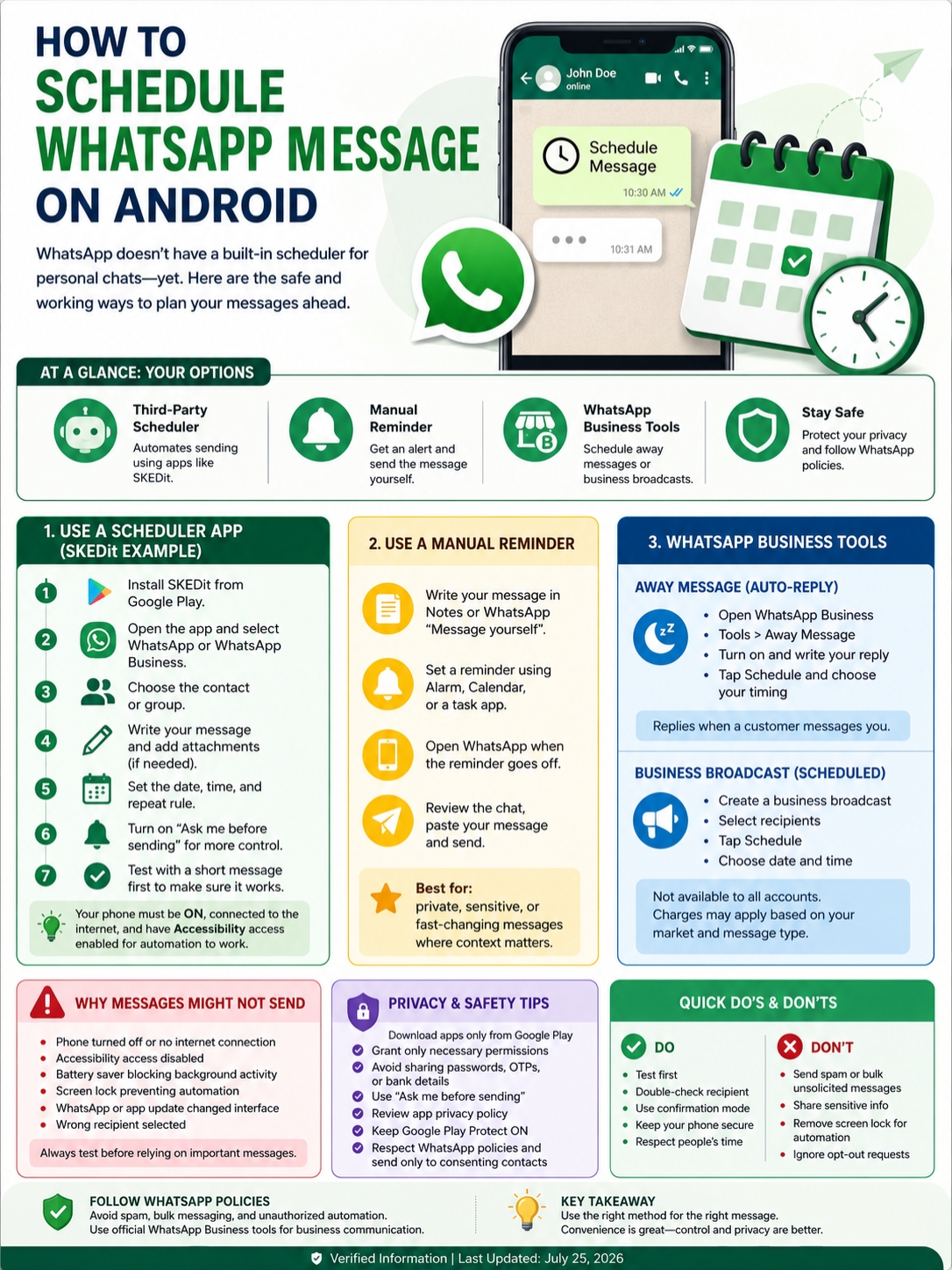
WhatsApp Business offers real automation tools, but they don’t all do the same job.
An away message replies after a customer contacts you. A scheduled business broadcast sends a planned message to several customers. The official WhatsApp Business Platform supports larger business workflows.
Set Up an Away Message
An away message tells customers that you’re not available.
To create one:
- Open WhatsApp Business.
- Go to Tools.
- Tap Away message.
- Turn on Send away message.
- Write your reply.
- Tap Schedule.
- Choose the timing.
- Select the recipients.
You can usually choose:
- Always send
- Custom schedule
- Outside business hours
An away message is reactive. Someone must contact you first.
It doesn’t let you pick a silent conversation and send a normal message later.
Schedule a Business Broadcast
Some WhatsApp Business accounts can schedule business broadcasts.
This feature lets an eligible business choose a future delivery date and time for a customer message. The phone must have internet access when the broadcast is due.
Availability varies. Some businesses won’t see the option at all. WhatsApp may also limit access based on the account, region, or policy history.
Business broadcasts may involve charges. The cost can depend on the market, message type, and number of successful deliveries.
Use the Official Business Platform for Larger Campaigns
A company that sends appointment reminders, order updates, verification notices, or regular customer campaigns should look at the official WhatsApp Business Platform.
It provides a more reliable path than Android screen automation.
Businesses must also collect proper consent. A customer who gave a number for delivery updates may not expect weekly promotions.
Respect opt-outs. Don’t keep messaging people who ask you to stop.
|
Business Feature |
Sends First? |
Best Use |
|
Away message |
No |
After-hours replies |
|
Greeting message |
No |
Welcoming new customers |
|
Quick reply |
No |
Reusing saved text |
|
Business broadcast |
Yes |
Customer reminders and campaigns |
|
Business Platform |
Yes |
Larger approved workflows |
Why Scheduled Messages Sometimes Fail
Third-party schedulers depend on several phone settings. One blocked permission can stop the whole process.
The Phone Is Off
An on-device scheduling app can’t work when the phone is switched off.
The phone must stay powered on until the message sends.
There’s No Internet Connection
WhatsApp needs Wi-Fi or mobile data.
If the phone is offline, the message may remain pending or fail.
Accessibility Access Was Removed
Android may remove permissions from apps you haven’t used for a while.
Open your Accessibility settings and check whether the scheduling app still has access.
Battery Settings Blocked the App
Some Android phones aggressively limit background apps.
Samsung, Xiaomi, Oppo, Vivo, Realme, OnePlus, Pixel, and other brands use different battery menus. Look for background activity, battery optimization, or app power management.
Change the setting only for the app you trust. Don’t disable battery protection across the entire phone.
The Screen Lock Stopped the Process
Some automatic schedulers can’t open WhatsApp while the phone is locked.
You may see advice telling you to remove your PIN or password. That’s a poor trade.
Keep your screen lock. Use confirmation mode instead.
WhatsApp Changed Its Layout
Screen automation depends on buttons staying in the same place.
A WhatsApp update may move the search bar, contact list, or Send button. When that happens, the scheduler can stop working.
Update both apps, restart the phone, and test again.
|
Problem |
Likely Cause |
What to Do |
|
Nothing happens |
Accessibility is off |
Turn it back on |
|
Message arrives late |
Background activity is blocked |
Review battery settings |
|
WhatsApp opens but doesn’t send |
Lock screen or app update |
Use confirmation mode |
|
Wrong chat opens |
Recipient selection error |
Recreate the schedule |
|
Message stays pending |
No internet connection |
Restore Wi-Fi or mobile data |
|
App suddenly stops working |
Android or WhatsApp changed |
Update and test again |
Check the Privacy and Account Risks
Accessibility access gives an app a lot of control.
It may let the app view parts of your screen and perform actions for you. That’s why Android treats it as a sensitive permission.
Before installing a scheduler, check:
- The developer name
- Recent update history
- Permissions
- Privacy policy
- Google Play Data Safety section
- Data deletion options
- Recent one-star reviews
- Whether the app uses an official API
Don’t rely on a Play Store label alone. Developers provide much of the information in the Data Safety section themselves.
End-to-End Encryption Has Limits
WhatsApp protects personal messages with end-to-end encryption once they move through WhatsApp.
A separate scheduler may handle the draft before that happens.
That means the scheduler may be able to read, store, or process the text, depending on how the app works.
Don’t place the following in a third-party scheduler:
- Passwords
- Security codes
- Banking details
- Identity documents
- Legal instructions
- Private health information
- Confidential company data
Could WhatsApp Restrict Your Account?
WhatsApp does not allow unauthorized bulk messaging, spam, or abusive automation.
A single birthday message is different from sending hundreds of promotions. Still, third-party automation comes without an official guarantee.
The risk rises when you send:
- Large batches
- Unwanted promotions
- Repeated messages
- Messages to random numbers
- High-frequency campaigns
- Content people report as spam
Use the official WhatsApp Business tools for serious customer communication.
|
Situation |
Safer Option |
|
Private personal message |
Manual reminder |
|
Birthday wish |
Confirmation-based scheduler |
|
Large customer campaign |
WhatsApp Business Platform |
|
Unsolicited promotion |
Don’t send it |
|
Banking or password details |
Send manually |
|
App asks you to remove screen lock |
Keep the lock and use confirmation |
Final Thoughts
There’s still no perfect way to schedule WhatsApp message delivery on Android.
A third-party scheduler can handle simple messages, but it needs deep access to your phone. Use confirmation mode, keep your screen lock turned on, and test everything first.
For private or important messages, set a reminder and send them yourself. It takes one extra tap, but you stay in control.
Businesses should use WhatsApp Business broadcasts or the official Business Platform whenever possible. Those tools are better suited to customer communication and larger campaigns.
WhatsApp may eventually release its own scheduler for everyone. Until that happens, be careful with guides that claim the feature already works on every Android phone.
Plan the message early. Check the recipient. Read it once more. Then send it the safest way.
Frequently Asked Questions
Why Don’t I See a Schedule Button in WhatsApp?
WhatsApp hasn’t released personal message scheduling to all Android users. Some guides may be describing a beta feature, Instagram, or Google Messages.
Can Someone Tell That I Scheduled the Message?
Usually not. A message sent through Android automation normally looks like a regular WhatsApp message. There’s no standard “scheduled” label.
Will SKEDit Work If My Phone Is Off?
No. The app runs on your phone, so the device must stay switched on and connected to the internet.
Can I Keep My Screen Lock Enabled?
Yes. Use the Ask Me Before Sending option. You’ll need to unlock the phone and confirm the message at the scheduled time.
Can I Schedule a Message to an Unsaved Number?
Some third-party apps support manually entered numbers. Still, it’s easy to make a mistake. It can also increase the chance of spam reports. Save the number first when the message matters.
Can Google Assistant Schedule WhatsApp Messages?
Google Assistant may help send a message right away on some phones. It isn’t a dependable tool for future WhatsApp delivery.
Use a calendar reminder instead.
Will a Business Broadcast Send Without Internet?
No. The phone needs an internet connection when the broadcast is scheduled to go out.
Can I Edit a Scheduled Business Broadcast?
Eligible WhatsApp Business users can usually view, edit, or delete scheduled broadcasts from the business tools section.
|
Question |
Answer |
|
Is native personal scheduling widely available? |
No |
|
Does the phone need internet? |
Yes |
|
Can sending be fully automatic? |
Sometimes, with security trade-offs |
|
Is SKEDit an official WhatsApp feature? |
No |
|
Are business broadcasts available to everyone? |
No |
|
Is manual confirmation safer? |
Yes |