
Changing browsers sounds simple until you remember how many passwords your old browser has saved.
Email accounts. Shopping sites. Streaming services. Work tools. Banking portals. Most people don’t know how many logins they have until they try to move them.
The good news is that you don’t need to copy each password by hand. You can import passwords into Chrome through Google Password Manager. On a computer or Android phone, this usually means uploading a CSV file. On an iPhone or iPad, some password apps can transfer passwords and passkeys directly.
The process itself takes only a few minutes. The part that needs care is the exported password file. CSV files aren’t encrypted. Anyone who opens the file may be able to read every username and password inside it.
This guide walks through the safest way to move your passwords, fix common import errors, and clean up the temporary files once you’re done.
What You Need Before You Start
Don’t export anything yet. First, make sure Chrome is ready to receive the passwords.
Check which Chrome profile is open. Many people use separate profiles for work and personal browsing. Importing into the wrong one can leave your passwords in an account you didn’t intend to use.
Also confirm that Chrome is signed in to the correct Google Account. Passwords saved to Google Password Manager can become available on other devices using that same account.
|
What to check |
Why it matters |
|
Chrome profile |
Prevents passwords from landing in the wrong profile |
|
Google Account |
Controls where passwords are stored and synced |
|
Chrome version |
Older versions may show different menus |
|
File type |
Chrome expects a CSV for standard imports |
|
CSV headings |
The file needs the correct column names |
|
Password count |
Chrome limits each import to 3,000 passwords |
|
Backup |
Keeps your original vault available if something goes wrong |
Check the CSV Format
Chrome expects three main columns:
- url,username,password
A simple file might look like this:
- https://example.com,[email protected],ExamplePassword
The headings matter. Chrome may reject a file that uses names such as website, login, or account instead of the expected terms.
The order of the columns can vary, but the file should clearly include:
- url
- username
- password
Chrome’s normal CSV import focuses on these three fields. It may not carry over secure notes, attachments, identity records, authentication secrets, or custom fields from a full password manager.
That’s why it’s smart to keep your old password vault until you’ve checked everything.
How to Import Passwords Into Chrome on a Computer
The main desktop route runs through Google Password Manager.
|
Step |
What to do |
|
1 |
Open Chrome |
|
2 |
Select the three-dot menu |
|
3 |
Open Passwords and autofill |
|
4 |
Select Google Password Manager |
|
5 |
Open Settings |
|
6 |
Find Import passwords |
|
7 |
Select Select file |
|
8 |
Choose your CSV file |
|
9 |
Follow the prompts |
|
10 |
Check the imported logins |
The exact wording may shift slightly as Chrome updates, but the import option should sit inside Google Password Manager settings.
Test a Small Batch First
A large import can be hard to troubleshoot. Start with a small copy of the file containing five or ten passwords.
Try a mix of account types:
- One account that uses an email address
- One account that uses a username
- A site with more than one saved login
- A work account
- A site with a recently changed password
Then visit those websites and see whether Chrome fills the correct details.
If everything works, import the rest.
Import Through Google Password Manager Online
You can also import through the Google Password Manager website.
Sign in to the correct Google Account, open Password Manager settings, choose the import option, and upload the CSV.
This route can help when Chrome’s menu looks different or the built-in import button is hard to find.
Before you upload anything, double-check the account shown in the top-right corner. It’s easy to use the wrong Google profile when several accounts are signed in.
Can Chrome Import Directly From Another Browser?
Sometimes.
Chrome includes an Import bookmarks and settings tool. Depending on the browser, operating system, and information Chrome detects, it may import:
- Bookmarks
- Browsing history
- Search engine settings
- Saved passwords
- Autofill information
The problem is consistency. Chrome may find bookmarks but not passwords. It may also fail to detect the old browser at all.
For a password-only move, a CSV import through Google Password Manager is usually more predictable.
How to Export Passwords From Edge, Firefox, Safari, and Other Apps
Before you can import passwords into Chrome, you need to get them out of the browser or password manager where they’re currently stored.
Most desktop apps offer a CSV export.
|
Current app |
Best export option |
Main caution |
|
Microsoft Edge |
Export passwords as CSV |
Desktop only |
|
Mozilla Firefox |
Export logins as CSV |
File is readable |
|
Apple Passwords on Mac |
Export all passwords to CSV |
Some Apple-only items are excluded |
|
Safari on iPhone or iPad |
Export passwords from Safari settings |
Export isn’t encrypted |
|
1Password |
Export login items as CSV |
Not every vault field transfers |
|
Bitwarden |
Export as CSV for Chrome |
Passkeys and some item types may be left out |
|
Other managers |
Use the official CSV export tool |
Column names may differ |
Export Passwords From Microsoft Edge
On a desktop computer:
- Open Edge.
- Open the menu.
- Go to the password settings.
- Select the extra options menu.
- Choose Export passwords.
- Confirm your identity if asked.
- Save the CSV in a private folder.
Edge doesn’t offer the same password export option on Android or iPhone.
The exported file isn’t protected. Don’t upload it to shared cloud storage or email it to yourself.
Read Also: How to Block Ads on Chrome Without Extensions
Export Passwords From Firefox
Firefox can export saved logins from its password manager.
- Open the Firefox menu.
- Select Passwords or Logins and Passwords.
- Open the three-dot menu.
- Choose Export Passwords or Export Logins.
- Approve the warning.
- Authenticate if Firefox asks.
- Save the CSV.
Firefox may display a warning because the exported file can be read without a password. Take that warning seriously.
Export Passwords From a Mac
Recent versions of macOS include a dedicated Passwords app.
- Open Passwords.
- Select File.
- Choose Export All Passwords to File.
- Confirm the export.
- Save the CSV locally.
Apple may exclude certain items, including some shared credentials, Wi-Fi passwords, and Sign in with Apple details.
Safari can also export a wider browsing-data package. That broader export may include history, bookmarks, extensions, payment information, and passwords. For a simple Chrome password move, the Passwords app’s CSV export is usually easier to work with.
Export From 1Password, Bitwarden, Dashlane, or LastPass
Most dedicated password managers offer several export formats.
Choose CSV when Chrome is the destination.
Be careful here. A manager’s own backup format may preserve more information than CSV, including notes, custom fields, attachments, and other vault items. Chrome can’t import most of those proprietary formats.
A sensible approach is to keep two exports:
- A CSV for Chrome
- A secure backup in the password manager’s preferred format
Store the backup safely. Delete the CSV after the migration.
How to Import Passwords Into Chrome on Android
Chrome for Android also uses Google Password Manager.
|
Step |
What to do |
|
1 |
Open Chrome |
|
2 |
Tap the three-dot menu |
|
3 |
Open Settings |
|
4 |
Select Google Password Manager |
|
5 |
Open its Settings |
|
6 |
Tap Import passwords |
|
7 |
Authenticate |
|
8 |
Choose the CSV |
|
9 |
Tap Import |
|
10 |
Test and remove the file |
Chrome allows up to 3,000 passwords in each import. A Google Account can hold up to 10,000 saved passwords.
Moving the CSV onto a phone creates a few extra risks. The file may end up in:
- Downloads
- Google Drive
- OneDrive
- A messaging app
- A file-sharing folder
- An automatic backup
After the import, search the phone for the file name and remove every copy you find.
How to Import Passwords and Passkeys on iPhone or iPad
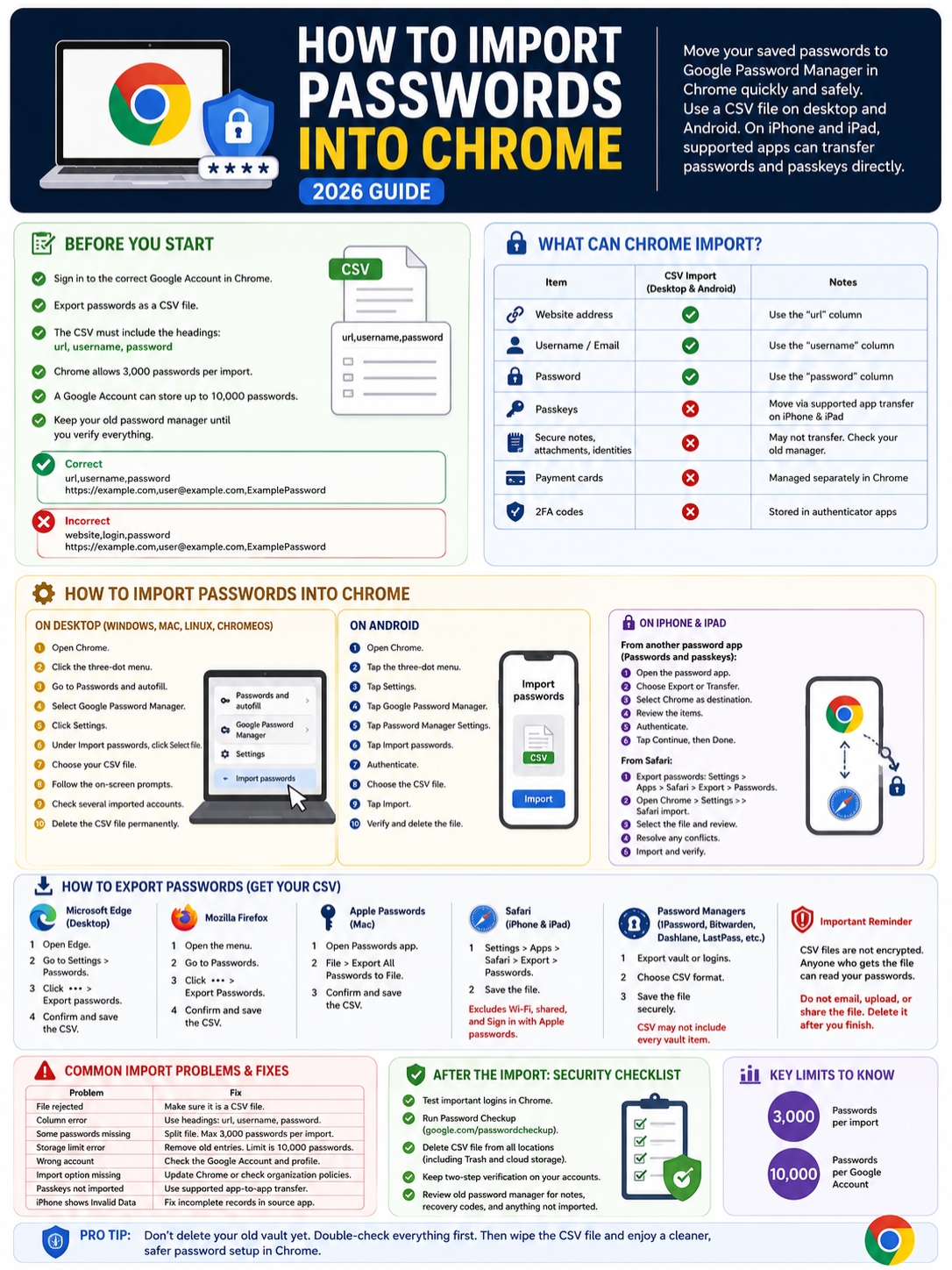
The iPhone and iPad process works differently.
Some supported password apps can transfer credentials directly into Chrome. This method may include both passwords and passkeys.
|
iPhone or iPad method |
What it can move |
|
Direct app transfer |
Passwords and supported passkeys |
|
Safari import in Chrome |
Passwords and selected Safari data |
|
Desktop import followed by sync |
Passwords stored in the same Google Account |
|
Basic CSV import |
Password records, not a full passkey transfer |
Transfer From Another Password App
The general process looks like this:
- Sign in to Chrome with the correct Google Account.
- Open the password app you’re leaving.
- Choose its export or transfer option.
- Select Chrome as the destination.
- Review the credentials in Google Password Manager.
- Authenticate.
- Confirm the transfer.
Some apps may flag incomplete records as invalid. This often happens when an entry has no site address, username, or usable credential.
Move Safari Passwords on iPhone or iPad
Safari passwords can be exported from the iPhone or iPad settings.
The route is usually:
Settings > Apps > Safari > Export > Passwords
Save the export locally, then open Chrome and look for its Safari import option.
Chrome may show conflicts when the same account already exists in Google Password Manager. Review these one by one. Don’t automatically replace an existing password just because the imported version looks newer.
The saved file isn’t encrypted. Delete it as soon as you’ve confirmed the move.
How to Fix Chrome Password Import Errors
Most import failures have a simple cause.
|
Problem |
Likely cause |
What to do |
|
Chrome rejects the file |
Wrong file type |
Export it again as CSV |
|
Column error |
Headings don’t match |
Use url, username, and password |
|
Some entries are missing |
File has more than 3,000 rows |
Split it into smaller files |
|
Account limit warning |
Google Account is near 10,000 passwords |
Remove old entries or use another manager |
|
Passwords appear in the wrong profile |
Wrong Chrome profile was active |
Switch profiles and import again |
|
Import option is missing |
Chrome is outdated or managed |
Update Chrome or check company policies |
|
Passkeys didn’t move |
CSV can’t carry them normally |
Use supported app-to-app transfer |
|
iPhone shows invalid data |
Some records are incomplete |
Fix them in the source app |
Fix the CSV Headings
This may fail:
- website,login,password
Change it to:
- url,username,password
Use a trusted text editor or spreadsheet app. Avoid online CSV tools because the file contains sensitive data.
Save the finished file as CSV, not XLSX.
Split a Large CSV File
Chrome accepts up to 3,000 passwords in a single import.
For a larger vault, create several files:
- passwords-part-1.csv
- passwords-part-2.csv
- passwords-part-3.csv
Each file needs the same heading row:
- url,username,password
Keep the total Google Password Manager storage limit in mind. A single Google Account can hold up to 10,000 passwords.
The Import Button Is Missing on a Work Computer
Your employer or school may manage Chrome through browser policies.
Administrators can restrict password importing. When Chrome says it’s managed by an organization, the missing option may be intentional.
Don’t try to work around the restriction. Ask the administrator whether personal password imports are allowed.
Passwords Don’t Appear on Another Device
Check the Google Account on both devices.
A personal Gmail account and a work Google Workspace account will have separate password collections. The same is true for different Chrome profiles.
Also confirm that Chrome is allowed to use passwords saved in your Google Account.
Protect Your Accounts After the Move
Importing the passwords is only half the job.
You still need to test them, remove the export file, and deal with unsafe credentials.
|
After-import task |
Why it matters |
|
Test important accounts |
Catches old or broken entries |
|
Delete the CSV |
Removes a readable password list |
|
Empty Trash or Recycle Bin |
Clears the obvious deleted copy |
|
Check cloud storage |
Finds automatically uploaded copies |
|
Run Password Checkup |
Flags weak, reused, or exposed passwords |
|
Keep two-step verification active |
Adds protection beyond the password |
|
Review the old vault |
Finds notes, codes, and records that didn’t move |
Delete Every Copy of the Export
Check more than just Downloads.
Look in:
- Desktop
- Documents
- Recycle Bin or Trash
- Google Drive
- OneDrive
- iCloud Drive
- Email attachments
- Messaging apps
- External drives
- Phone file managers
A CSV password export is essentially a readable list of keys to your accounts. Leaving it behind defeats the point of using a password manager.
Run Google Password Checkup
Open Google Password Manager and run Password Checkup.
It can flag passwords that are:
- Known to have appeared in a breach
- Too weak
- Used on several websites
Change compromised passwords first. Then work through reused and weak ones.
Moving an unsafe password into Chrome doesn’t make it safer. It only changes where it’s stored.
Final Thoughts
The easiest way to import passwords into Chrome in 2026 is through Google Password Manager.
On a computer or Android device, export the passwords as a CSV, check the headings, and upload the file through Password Manager settings. Keep each import below 3,000 entries.
On an iPhone or iPad, supported apps may transfer passwords and passkeys directly. Safari users can also export their credentials and bring them into Chrome.
Take your time with the last few steps. Test your important accounts. Check the old vault for anything the CSV missed. Run Password Checkup. Then delete every copy of the export file.
The migration isn’t finished when Chrome says the import succeeded. It’s finished when the passwords work and the unencrypted CSV is gone.
Frequently Asked Questions
Can I import an Excel file into Chrome?
Not directly. Chrome expects a CSV file.
Open the Excel file and save it as CSV. Then check that the headings include url, username, and password.
Can Chrome import passkeys from a CSV file?
No. A standard CSV is designed for website addresses, usernames, and passwords.
On iPhone and iPad, some password apps can transfer passkeys directly to Chrome through a supported credential-transfer process.
Will importing passwords delete them from my old browser?
No. Exporting normally creates a copy.
Your old passwords stay in Edge, Firefox, Safari, or your password manager until you remove them yourself.
Can I import more than 3,000 passwords?
Yes, but not in one file.
Split the collection into several CSV files, with no more than 3,000 password entries in each.
Will Chrome copy my secure notes?
Don’t count on it.
Chrome’s standard import focuses on the site address, username, and password. Copy important notes, recovery codes, attachments, and custom fields separately.
Can I move passwords between two Google Accounts?
Yes.
Export the passwords from the first account, switch to the destination Chrome profile, and import the CSV there.
Double-check the active profile before uploading the file.
Why did only some passwords import?
Possible reasons include:
- Incorrect CSV headings
- More than 3,000 entries in one file
- Empty username or password fields
- Broken CSV formatting
- Unsupported vault fields
- Passkeys mixed into a password export
- The Google Account reaching its storage limit
Compare the missing entries with the original vault before deleting anything.
Should I uninstall my old password manager immediately?
No.
Keep it until you’ve tested your main accounts and checked for data that didn’t move. That may include passkeys, recovery codes, secure notes, attachments, and two-factor authentication details.