
Buy a new Android phone and you’ll probably find more than the apps you chose to install.
Manufacturers and mobile carriers often preload games, shopping apps, streaming services, cloud tools, duplicate browsers, and promotional software. Some are useful. Many aren’t.
The easy ones can be uninstalled. Others sit inside the system with no Uninstall button.
You can still disable Android bloatware without rooting your phone or unlocking its bootloader. Android already includes a Disable option for many preinstalled apps. When that button is missing, you can use Android Debug Bridge, better known as ADB.
The process isn’t difficult, but it does require care. Some apps that look pointless may support calls, notifications, Wi-Fi, software updates, or other important features.
The safest plan is simple: start with Android Settings, disable one app at a time, and keep a record of every change.
What Counts as Android Bloatware?
Bloatware is a loose term for preinstalled software you don’t need or want.
It may come from:
- The phone manufacturer
- Your mobile carrier
- A retailer
- A commercial partner
- A third-party app developer
Common examples include trial games, shopping apps, manufacturer news feeds, duplicate media players, social apps, and carrier account tools.
That doesn’t mean every preinstalled app is bloatware.
Android uses many background components that don’t appear in the app drawer. These packages may handle permissions, Bluetooth, downloads, contacts, SIM services, security, device setup, or system updates.
Google confirms that some system apps can’t be deleted. Depending on the phone, you may be able to turn them off instead.
|
Type of App |
Common Example |
General Advice |
|
Promotional app |
Shopping or partner service |
Often safe to disable |
|
Trial content |
Preinstalled game or streaming trial |
Usually low risk |
|
Duplicate tool |
Second browser, notes app, or media player |
Check defaults first |
|
Carrier utility |
Account, activation, or voicemail app |
Research before disabling |
|
Manufacturer service |
Cloud, transfer, or device-sharing tool |
Depends on your usage |
|
Core Android component |
System UI, Settings, package installer |
Leave it alone |
Don’t judge an app by its icon or visible name. A boring-looking package may control an important feature behind the scenes.
Disable, Uninstall, Hide, and Force Stop: What’s the Difference?
Android gives you several ways to deal with an unwanted app. They don’t all do the same thing.
Uninstall removes an app for the current user.
Disable turns an app off. It stops running normally and usually disappears from the app drawer.
Hide removes the icon but leaves the app active.
Force stop closes the app for now. Android or another app may start it again later.
|
Action |
What It Does |
Reversible? |
Storage Effect |
|
Uninstall |
Removes the app for the user |
Usually |
May free app files and data |
|
Disable |
Turns the app off |
Yes |
Usually small |
|
Hide |
Removes the visible icon |
Yes |
None |
|
Force stop |
Ends the current process |
Yes |
None |
|
Clear data |
Deletes local settings and files |
Not fully |
Can free app data |
|
Restrict permissions |
Blocks access to selected features |
Yes |
None |
Disabling a system app doesn’t erase its original installation file from Android’s protected system area.
That’s an important distinction. You may stop the app, hide it, and prevent it from running, but you shouldn’t expect a large storage boost.
The main benefit is a cleaner phone with fewer unwanted services and notifications.
What to Do Before You Disable Android Bloatware
Don’t download a random “safe debloat list” and start copying commands.
Android package names vary across brands, models, carriers, countries, and software versions. A package that’s harmless on one phone may support an essential feature on another.
Samsung, Google, Xiaomi, Motorola, OnePlus, and other manufacturers all build Android differently.
Before changing anything, take a few precautions.
|
Preparation Step |
Why It Matters |
|
Back up important files |
Protects your photos, documents, and account data |
|
Install pending updates |
Gives you a stable starting point |
|
Record every package |
Makes recovery much easier |
|
Change one app at a time |
Helps identify what caused a problem |
|
Restart after a few changes |
Reveals hidden service failures |
|
Test calls and connections |
Confirms that essential features still work |
|
Avoid bulk scripts |
Reduces the chance of disabling the wrong package |
Create a simple log like this:
Phone model:
Android version:
Visible app name:
Package name:
Action taken:
Reason:
Result after restart:
Also check whether the app is set as your default:
- Browser
- Phone app
- Messaging app
- Home launcher
- Keyboard
- Digital assistant
- Payment service
Install and configure a replacement before turning off a default app.
How to Disable Android Bloatware Through Settings
Start with the built-in Disable button.
This is the easiest and safest way to disable Android bloatware. It doesn’t require a computer, Developer options, or terminal commands.
The exact menu names vary, but the usual path looks like this:
- Open Settings.
- Tap Apps or App management.
- Open All apps or See all apps.
- Select the app you want to turn off.
- Tap Disable.
- Read the warning.
- Confirm the change.
- Restart the phone.
On Google Pixel phones, the path is usually:
Settings → Apps → All apps → Select the app → Disable
Samsung Galaxy phones use a similar process:
Settings → Apps → Select the app → Disable
Some Galaxy phones also show a Disable option when you press and hold an app icon.
|
What You See |
What It Usually Means |
|
Uninstall |
The app can be removed normally |
|
Disable |
The app is preinstalled but can be turned off |
|
Force stop only |
The manufacturer may have protected the app |
|
Uninstall updates |
You can remove updates but not the base app |
|
No management options |
The package may be essential or restricted |
After disabling an app, check the features you use every day:
- Incoming and outgoing calls
- Text messages
- Wi-Fi
- Mobile data
- Bluetooth
- Camera sharing
- Push notifications
- Google Play downloads
- Fingerprint or face unlock
- System updates
Something stopped working? Re-enable the last app you changed. Don’t disable five more apps and hope the problem disappears.
How to Disable Android Bloatware With ADB
ADB is Google’s command-line tool for communicating with an Android phone.
It comes with the official Android SDK Platform Tools package. ADB can run supported system commands after you enable USB debugging and approve the connected computer.
You don’t need root access. You also don’t need to unlock the bootloader.
You do need to enter the correct package name.
|
Requirement |
What You Need |
|
Computer |
Windows, macOS, Linux, or another supported system |
|
Software |
Android SDK Platform Tools |
|
Connection |
Data-capable USB cable |
|
Phone setting |
Developer options and USB debugging |
|
Authorization |
Approval of the computer’s RSA key |
|
Skill level |
Basic comfort with command-line tools |
Step 1: Download Android Platform Tools
Download the Android SDK Platform Tools package from Google’s Android Developers website.
Extract the folder to a location you can find easily.
For example:
C:\platform-tools
On macOS or Linux, you might place it in:
~/platform-tools
Open Command Prompt, PowerShell, Terminal, or another command-line tool inside that folder.
Step 2: Turn On Developer Options
Developer options are hidden by default.
The usual process is:
- Open Settings.
- Go to About phone.
- Find Build number.
- Tap it seven times.
- Enter your PIN or password.
- Return to Settings.
- Open Developer options.
- Turn on USB debugging.
On many Samsung phones, Build number appears under:
Settings → About phone → Software information → Build number
Menu names may differ slightly on other brands.
Read Also: How to Set Up Emergency SOS on iPhone
Step 3: Connect the Phone
Connect your phone with a USB cable that supports data transfer.
Keep the phone unlocked, then run:
adb devices
Your phone should show a USB debugging prompt. It asks whether you trust the computer’s RSA key.
Approve the request only if you own or trust the computer.
Run the command again.
A working connection should look something like this:
List of devices attached
XXXXXXXXXXXX device
If it says unauthorized, unlock the phone and accept the debugging prompt.
If no device appears, try:
- A different USB cable
- Another USB port
- Changing the USB mode to File Transfer
- Installing the correct Windows USB driver
- Restarting ADB
Use these commands to restart the ADB service:
adb kill-server
adb start-server
adb devices
Step 4: Find the Current Android User
Most phones use user 0 as the main account, but it’s better to check.
Android can contain:
- Secondary users
- Guest accounts
- Work profiles
- Private spaces
- Manufacturer-specific profiles
Run:
adb shell am get-current-user
The command returns a number. Save it.
You’ll use that number in later commands.
Step 5: Disable the Package
Use this format:
adb shell pm disable-user –user USER_ID PACKAGE_NAME
For example:
adb shell pm disable-user –user 0 com.example.partnerapp
Replace com.example.partnerapp with the real package name.
A successful command usually returns a message confirming that the package has been disabled.
Don’t paste a list of 50 commands at once. Disable one package, restart your phone, and test it.
Slow is safer here.
How to Find the Correct Package Name
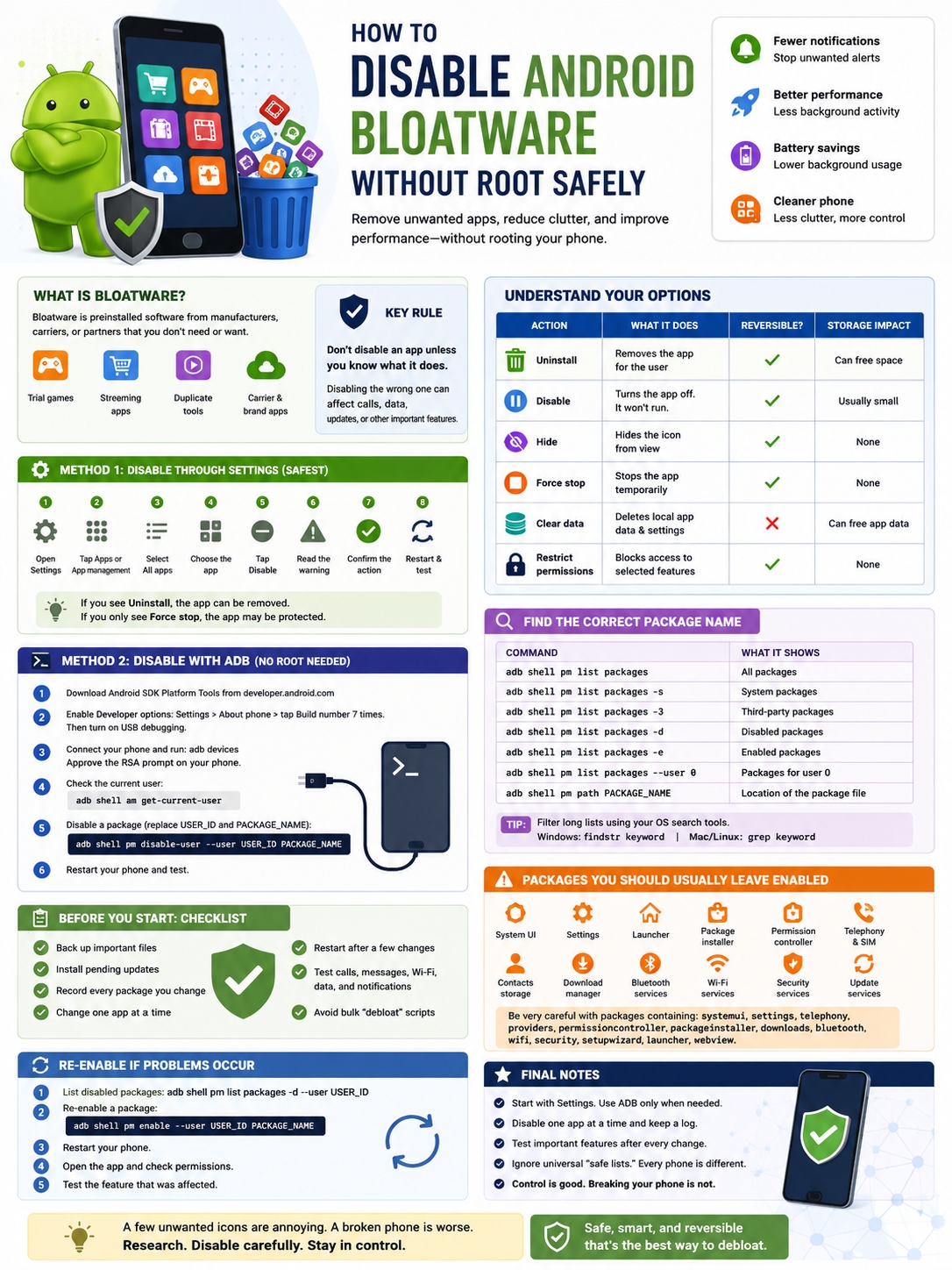
The name under an app icon isn’t always its Android package name.
An app called “Music” might use a package name based on the phone company, app developer, or an internal code name.
ADB can list the installed packages on your phone.
|
Command |
What It Shows |
|
adb shell pm list packages |
All packages |
|
adb shell pm list packages -s |
System packages |
|
adb shell pm list packages -3 |
Third-party packages |
|
adb shell pm list packages -d |
Disabled packages |
|
adb shell pm list packages -e |
Enabled packages |
|
adb shell pm list packages –user 0 |
Packages installed for user 0 |
|
adb shell pm path PACKAGE_NAME |
Location of the package file |
The full list can be long. Filter it using part of the app or company name.
On Windows:
adb shell pm list packages | findstr samsung
On macOS or Linux:
adb shell pm list packages | grep samsung
Replace samsung with another term, such as the carrier name or app developer.
Before disabling a package, check it from several angles:
- Compare the package name with the app’s information page.
- Search the exact package name with your phone model.
- Check the developer listed in the Play Store.
- Look for links to calling, security, setup, updates, or mobile data.
- Confirm that another app can take over its job.
Never disable a package just because its name looks strange.
System components often have strange names.
Android Packages You Should Usually Leave Enabled
There’s no universal list of packages that every Android user can safely disable.
Phone manufacturers modify Android. They add their own launchers, permission tools, cloud services, camera systems, update apps, and security features.
That means the same package may be optional on one phone and important on another.
|
Package Category |
What Could Break |
|
System UI |
Status bar, navigation, lock screen |
|
Settings |
Access to phone settings |
|
Launcher |
Home screen and app drawer |
|
Package installer |
App installations |
|
Permission controller |
Permission pop-ups and app access |
|
Telephony services |
Calls, SMS, and mobile data |
|
SIM services |
Carrier activation and network features |
|
Contacts storage |
Saved contacts and caller information |
|
Download manager |
Downloads and app files |
|
Bluetooth services |
Wireless accessories |
|
Wi-Fi services |
Wireless internet |
|
Security services |
Device protection and authentication |
|
Update services |
Android and firmware updates |
|
WebView provider |
Web pages inside apps |
|
Setup services |
Device setup after a reset or major update |
Be careful with packages containing words such as:
- systemui
- settings
- telephony
- providers
- permissioncontroller
- packageinstaller
- downloads
- bluetooth
- wifi
- security
- setupwizard
- launcher
- webview
These terms don’t automatically mean the package is untouchable. They do mean you should stop and research it properly.
Carrier software deserves extra care too. An app that looks like a simple account portal may also handle:
- Voicemail
- Wi-Fi calling
- SIM activation
- Network settings
- Emergency alerts
- Carrier updates
When you’re unsure, leave it enabled.
How to Re-Enable an App You Disabled
One big advantage of disabling apps is that you can usually reverse the change.
To list disabled packages, run:
adb shell pm list packages -d –user USER_ID
To restore a package, use:
adb shell pm enable –user USER_ID PACKAGE_NAME
For example:
adb shell pm enable –user 0 com.example.partnerapp
|
Problem |
What to Do |
|
A feature suddenly stopped |
Re-enable the last package |
|
Several apps were disabled |
Restore them in reverse order |
|
The app vanished from Settings |
Find it through ADB |
|
A default action stopped working |
Restore the app or choose a replacement |
|
The restored app still acts strangely |
Restart and check permissions |
|
You’ve finished using ADB |
Turn off USB debugging |
After restoring an app:
- Restart the phone.
- Open the app once.
- Check its permissions.
- Restore any default-app settings.
- Test the feature that failed.
Avoid using this command unless you’re sure:
adb shell pm clear PACKAGE_NAME
It deletes the app’s local data. That may include saved settings, accounts, downloads, or offline files.
Re-enabling an app and clearing its data are completely different actions.
What Improvements Can You Expect?
Disabling unwanted apps can make your phone feel cleaner and less annoying.
You may see:
- Fewer promotional notifications
- Less clutter in the app drawer
- Fewer apps running in the background
- Lower background data use
- A slightly calmer battery-usage screen
- Fewer unwanted app updates
Don’t expect miracles.
|
Possible Improvement |
Realistic Result |
|
Cleaner app drawer |
Very likely |
|
Fewer unwanted notifications |
Likely |
|
Less background activity |
Possible |
|
Lower mobile-data use |
Depends on the app |
|
Better battery life |
Usually small |
|
More available RAM |
Temporary |
|
More free storage |
Often limited |
|
Faster gaming |
Usually little or no change |
|
Faster phone startup |
Possible in a few cases |
The biggest win is often control, not speed.
Your phone has fewer distractions. Unwanted apps stop sending alerts. Duplicate tools disappear. Background services may use less data.
A promotional app that never ran won’t suddenly free several gigabytes of memory. A background-heavy carrier or shopping app may make a more noticeable difference.
Judge the result by what actually changes on your phone, not by exaggerated claims online.
Final Thoughts
The safest way to disable Android bloatware is to keep things simple.
Try the Disable button in Settings first. It’s easy to use and easy to reverse.
Turn to ADB only when the built-in option isn’t available. Download Platform Tools from Google, identify the correct package, confirm the Android user, and change one app at a time.
Keep a record of every package you disable. Restart your phone regularly and test calls, messages, Wi-Fi, mobile data, Bluetooth, notifications, app downloads, and system updates.
Most importantly, ignore one-size-fits-all debloat lists. Android phones don’t all use the same packages or dependencies.
Removing a few unwanted icons is useful. Breaking your launcher, mobile network, security tools, or update system isn’t.
|
Final Safety Check |
Best Choice |
|
Start with Android Settings |
Yes |
|
Confirm the package name |
Yes |
|
Use the correct user ID |
Yes |
|
Disable one app at a time |
Yes |
|
Keep a recovery log |
Yes |
|
Test essential features |
Yes |
|
Run an unknown bulk script |
No |
|
Disable core system services |
No |
|
Expect huge speed gains |
No |
Frequently Asked Questions
Does Disabling Android Bloatware Require Root Access?
No.
You can disable supported apps through Android Settings or use ADB with USB debugging. Neither method requires root access or an unlocked bootloader.
Does Disabling a System App Free All Its Storage?
Usually not.
The app’s original system files normally remain on the phone. You may recover some space by removing updates or clearing app data, but disabling alone rarely creates a large amount of free storage.
Can I Disable an App for One Android User Only?
Yes, in many cases.
Use the correct user ID with the –user option:
adb shell pm disable-user –user 10 PACKAGE_NAME
This can disable an app for a secondary user while leaving it active for another account.
Can I Use ADB Without a USB Cable?
Yes.
Android 11 and later support wireless debugging. The phone and computer normally need to be on the same network, and you must pair them through Developer options.
USB is still easier for beginners.
The phone hasn’t approved the computer’s debugging key.
Unlock your phone and look for the USB debugging prompt. Tap Allow, then run adb devices again.
Why Is the Disable Button Missing?
The manufacturer may have marked the app as essential or blocked users from disabling it.
You may still be able to:
- Remove its updates
- Turn off notifications
- Restrict permissions
- Limit background battery use
- Disable it through ADB
Don’t assume ADB is safe simply because the Settings button is missing. Research the package first.
Is pm uninstall –user the Same as pm disable-user?
No.
pm disable-user turns the app off for a user.
pm uninstall –user removes the package from that user’s installed app set. The original system file may remain on the device, but restoring the app can require a different command.
For a first attempt, disabling is the safer choice.
Will Disabled Apps Return After an Android Update?
They can.
A system update, major manufacturer upgrade, carrier update, or factory reset may restore apps or reset package states. Check your app list again after a major update.
Can Disabling Bloatware Stop Software Updates?
Yes, if you disable the wrong package.
Manufacturer update tools, carrier services, setup components, and Google system services may look unimportant but still support updates. Leave them enabled unless you have solid device-specific information.