
You copy a date from an email, open your calendar, go back to the email, and then realize you’ve forgotten part of the message. Android split screen solves that problem by keeping two apps open on the display at the same time.
You can browse the web while taking notes. You can keep Maps open while messaging someone. You can also watch a lesson while writing down the important points.
The feature is already built into Android. You don’t need to install a separate multitasking app.
On most phones, the process looks like this:
Open the first app → Open Recent Apps → Tap the app icon → Choose Split screen → Select another app
The wording may change depending on whether you use a Google Pixel, Samsung Galaxy, Motorola, Xiaomi, Redmi, or POCO phone. The feature can also behave differently on tablets and foldable devices.
Android first added native split-screen support for phones in Android 7.0. It has become far more useful since then, especially on larger displays.
Android Split Screen at a Glance
Before getting into the device-specific steps, here’s what you need to know.
|
Question |
Answer |
|
Where do you start? |
Usually from Recent Apps or Overview |
|
How many apps can you open? |
Normally two |
|
Can you resize the apps? |
Yes, by dragging the divider |
|
Does every app support it? |
No |
|
Can you save app combinations? |
Yes, on selected Pixel and Samsung devices |
|
Do you need another app? |
No |
|
Is it easier on a tablet? |
Usually, because each app gets more space |
Split screen divides the display into two sections. Depending on the phone’s orientation, the apps may sit above and below each other or appear side by side.
You can drag the divider to give one app more room. You can also move the divider all the way to an edge when you want to close one app.
How to Use Android Split Screen
The standard method works on many Android phones, including Google Pixel and Motorola models.
Samsung and Xiaomi use similar steps, although some buttons have different names.
|
Step |
What to Do |
|
1 |
Open the first app |
|
2 |
Enter Recent Apps or Overview |
|
3 |
Tap the app icon above the preview |
|
4 |
Choose Split screen |
|
5 |
Select the second app |
|
6 |
Drag the divider to resize the apps |
|
7 |
Move the divider to an edge to close one app |
Most newer Android phones use gesture navigation by default.
- Open the first app.
- Swipe up from the bottom of the screen.
- Hold your finger for a moment, then release it.
- Find the app you want in the Overview screen.
- Tap the app icon above its preview.
- Choose Split screen.
- Select the second app.
The first app will move into one part of the display. Android will then ask you to choose another app for the remaining space.
Some people still prefer the classic Back, Home, and Recent Apps buttons.
- Open the first app.
- Tap the square Recent Apps button.
- Tap the app icon above the preview.
- Select Split screen.
- Choose the second app.
The Recent Apps button may appear on either side of the navigation bar. That depends on your phone and its settings.
Open Both Apps First
Here’s a simple time-saver: open both apps before starting split screen.
That way, both apps will already appear in your Recent Apps list. You won’t need to search through the app drawer after opening the first window.
Android Split Screen Steps by Phone Brand
Android phone makers don’t always put the split-screen button in the same place.
Use this table to find the most common route for your device.
|
Brand |
Usual Method |
Extra Features |
|
Google Pixel |
Overview → app icon → Split screen |
Taskbar and saved pairs on Fold and Tablet |
|
Samsung Galaxy |
Recents → app icon → Open in split screen view |
Edge panel, gestures, App pairs, Pop-up view |
|
Motorola |
Recents → app icon → Split screen |
Swipe to split on supported phones |
|
Xiaomi, Redmi, POCO |
Recents → hold app → split-screen icon |
Availability varies by model |
Google Pixel Phones
On a standard Pixel phone:
- Open the first app.
- Swipe up and hold to open Overview.
- Tap the app icon above its preview.
- Tap Split screen.
- Choose another app.
To leave split-screen mode, drag the center bar to the top or bottom of the display.
Keep in mind that standard Pixel phones don’t offer every large-screen multitasking feature. Google currently limits saved App pairs to supported Pixel Fold and Pixel Tablet models.
Pixel Fold
Pixel Fold gives you more ways to open two apps.
You can:
- Open Overview and tap Split
- Drag an app from the taskbar to one side
- Press and hold an app icon, then choose Split
Once both apps are open, you can save the combination as an App pair.
Open Overview and tap Save app pair. Android will add the shortcut to your Home screen, letting you reopen both apps together later.
This is handy for combinations you use every day, such as Gmail and Calendar or Chrome and Keep.
Pixel Tablet
On Pixel Tablet, slowly swipe up to reveal the taskbar. Then drag an app to the left or right side of the display.
To save an active pair:
- Open both apps.
- Swipe up and hold to open Overview.
- Find the combined app preview.
- Tap Save app pair.
The saved pair appears on the Home screen.
Some Pixel Tablet multitasking features require Android 15 or later.
Samsung Galaxy Phones and Tablets
Samsung calls its split-screen system Multi window.
The easiest method is:
- Open Recent Apps.
- Tap the app icon above its preview.
- Choose Open in split screen view.
- Select the second app.
Samsung also offers several shortcuts.
You can open the Edge panel and drag an app toward the top, bottom, left, or right side of the display. On supported Galaxy tablets and Fold devices, you can drag apps directly from the taskbar.
Use the Two-Finger Gesture
On Galaxy devices running One UI 6 or later, you may be able to start split screen with a two-finger swipe.
Open:
Settings → Advanced features → Multi window → Swipe for split screen
Turn the option on.
You can then swipe upward from the bottom of the screen with two fingers. The current app will move into split-screen view.
Save a Samsung App Pair
Once two apps are open:
- Tap the dotted divider between them.
- Tap the App pair icon.
- Choose where you want to save the shortcut.
Depending on the model, you may be able to save it to the Edge panel, Home screen, or taskbar.
Some Galaxy Fold models can save a three-app layout on the larger inner display.
Motorola Phones
Motorola usually follows the standard Android method.
- Open the first app.
- Swipe up and hold to open Recent Apps.
- Tap the app icon.
- Choose Split screen.
- Select the second app.
Some Motorola phones also support a feature called Swipe to split.
Look under:
Settings → System → Gestures
After turning it on, you can use a back-and-forth swipe gesture across the screen to start split-screen mode.
Not every Motorola model includes this shortcut, so don’t worry if you can’t find it. The Recent Apps method should still work on supported phones.
Xiaomi, Redmi, and POCO Phones
On many supported Xiaomi devices:
- Open Recent Apps.
- Press and hold the first app’s preview.
- Tap the split-screen icon.
- Choose the second app.
This is one area where model differences matter.
Some Xiaomi, Redmi, and POCO phones support split screen, while others don’t. Xiaomi’s own support pages confirm that availability can vary even between phones in the same product family.
For example, one Redmi Note model may support the feature while another closely related version does not.
The menu can also change between MIUI and HyperOS versions.
How to Resize, Swap, Replace, and Close Apps
The divider between the two apps controls most of the layout.
|
Action |
What It Does |
|
Drag the divider |
Gives one app more space |
|
Tap the divider handle |
Opens extra options on some phones |
|
Tap the swap icon |
Reverses the app positions |
|
Select another recent app |
Replaces one side on supported devices |
|
Drag the divider to an edge |
Closes one app |
|
Tap Home |
Leaves or minimizes the split session |
To resize the windows, press the divider and drag it.
In portrait mode, you’ll usually move it up or down. In landscape mode, you may move it left or right.
Samsung phones may show extra controls when you tap the divider. These can include options for swapping the apps, changing the layout, or saving the pair.
On Pixel phones, dragging the divider fully to the top or bottom closes one app and returns the other to full screen.
Rotating the phone may change a top-and-bottom layout into a side-by-side view. This depends on the apps, display size, and auto-rotate settings.
Read Also: How to Use Android Phone as Webcam in 2026
Split Screen on Tablets and Foldables in 2026
Split screen feels much better on a tablet or foldable phone.
On a small display, two apps can quickly become cramped. On a larger screen, each app has enough space for menus, documents, videos, and editing tools.
|
Feature |
Why It Helps |
|
Taskbar |
Makes it easier to drag apps into place |
|
Saved App pairs |
Opens common combinations with one tap |
|
Wider resizing range |
Gives each app more useful space |
|
Drag and drop |
Moves supported text, images, and files |
|
Desktop windowing |
Runs apps in movable windows |
|
Keyboard support |
Makes writing and shortcuts easier |
Android 12 made multi-window use more consistent on larger screens.
Android 16 went further. On displays that are at least 600dp wide, apps targeting API level 36 are generally treated as resizable and able to enter multi-window mode.
Android 17 was released on June 16, 2026. For apps targeting API level 37, Android removes the earlier developer opt-out for resizable windows on qualifying large-screen devices.
That should make split-screen access more consistent over time.
It doesn’t mean every app will suddenly look perfect, though. An app with a poor layout can still show clipped buttons, stretched images, awkward menus, or broken camera previews.
Desktop Windowing
Some Android tablets and connected displays now support desktop-style windows.
Instead of locking two apps into a fixed split, you can open several apps in separate windows. You can then move, resize, minimize, and organize them.
This setup works best with:
- A tablet
- A foldable phone
- An external display
- A keyboard
- A mouse or trackpad
Desktop windowing isn’t available on every Android device.
Why Android Split Screen Is Missing or Not Working
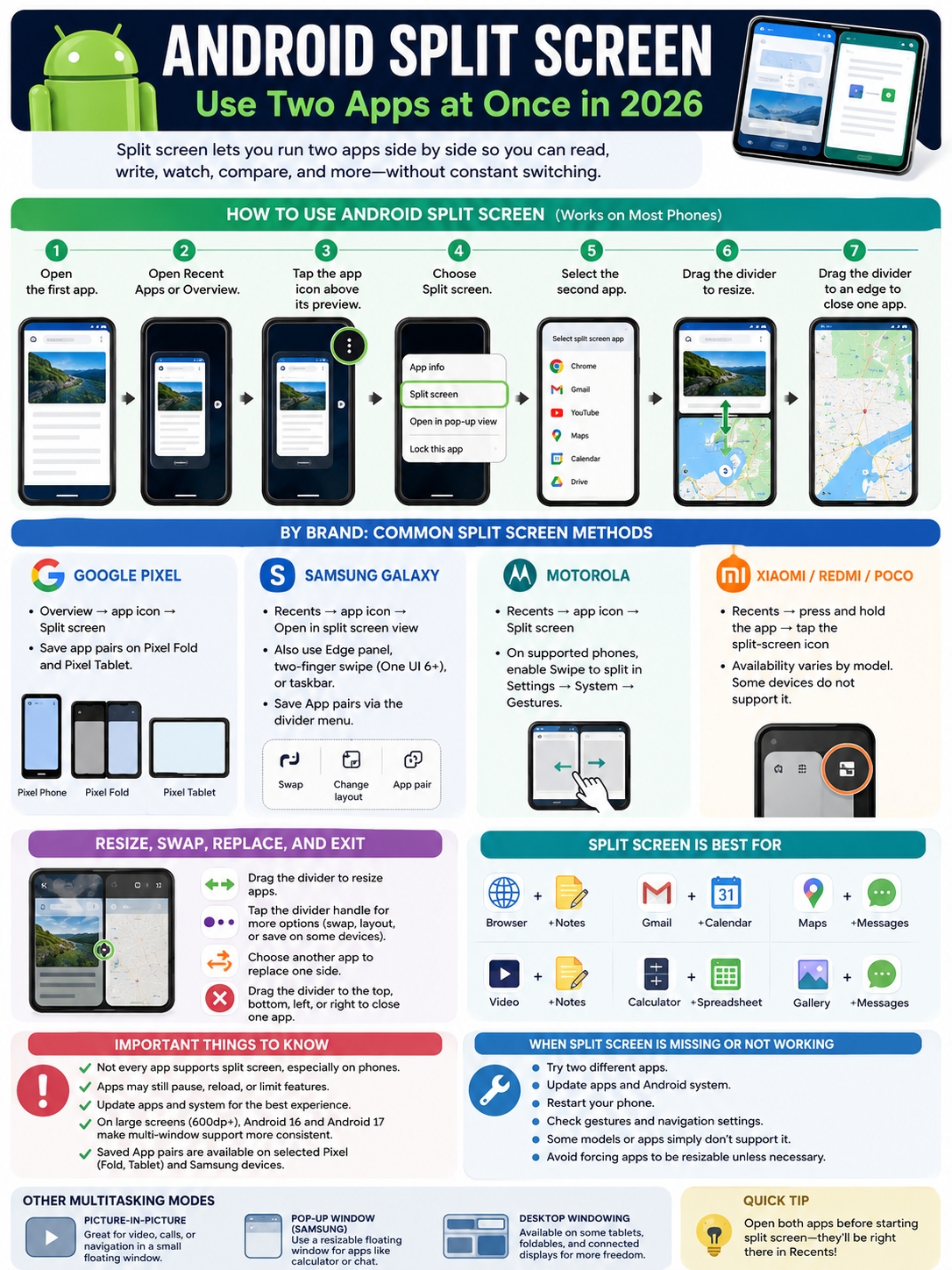
Can’t find the split-screen button? The phone may be fine.
The app might not support the feature. Your phone maker may have moved the option. A software bug may also be getting in the way.
|
Problem |
Likely Cause |
What to Try |
|
No split-screen option |
The app or phone doesn’t support it |
Test another app |
|
The second app won’t open |
It blocks multi-window mode |
Choose a different app |
|
An app reloads |
It didn’t save its state properly |
Update and reopen it |
|
Controls look cut off |
The app isn’t built for narrow windows |
Resize it or use full screen |
|
The steps look different |
Your phone maker changed the menu |
Check the model’s support guide |
|
It stopped after an update |
Temporary launcher or system bug |
Restart the phone |
|
The gesture doesn’t work |
It’s disabled or unsupported |
Use Recent Apps instead |
Test Two Different Apps
Start with common apps such as Chrome, Gmail, Calendar, Calculator, or Google Keep.
If those work, the original app is likely the problem.
Some games, camera apps, banking apps, streaming services, and security-sensitive tools may block split-screen mode.
Update Your Apps
Open:
Google Play Store → Profile picture → Manage apps & device
Install any available updates.
Developers often fix window-resizing problems through app updates. An outdated app may crash, reload, or display controls incorrectly in a smaller window.
Check for a System Update
Go to:
Settings → System → Software updates
To check your current Android version, open:
Settings → About phone → Android version
The exact wording may differ depending on the brand.
Restart the Phone
A quick restart can fix temporary problems with the launcher, Recent Apps screen, memory, or an app that has become stuck.
It’s a basic step, but it’s often worth trying before changing deeper settings.
Gesture navigation can occasionally conflict with certain manufacturer shortcuts.
Switch to three-button navigation temporarily, then try opening split screen from Recent Apps.
This is especially useful if the app cards won’t stay open long enough for you to tap the app icon.
Don’t Force Unsupported Apps Unless Necessary
Some Android phones include a Developer options setting that forces activities to become resizable.
It may push an unsupported app into split-screen mode, but it won’t fix the app’s design.
You may end up with:
- Missing buttons
- Overlapping text
- Stretched images
- Broken camera previews
- Forms that reset
- Controls outside the visible area
For everyday use, it’s better to use another app or return to full screen.
Best App Pairings for Split Screen
The best combinations usually involve one app that gives you information and another that lets you act on it.
|
App Pair |
What It’s Good For |
|
Browser + Notes |
Research and note-taking |
|
Gmail + Calendar |
Checking dates while replying |
|
Maps + Messages |
Sharing or confirming directions |
|
Video + Notes |
Following lessons or tutorials |
|
Calculator + Spreadsheet |
Checking numbers |
|
Document + Browser |
Verifying names, dates, or sources |
|
Gallery + Messages |
Reviewing and sending photos |
|
File manager + Email |
Finding and attaching files |
On a compact phone, avoid pairing two apps with crowded interfaces. A spreadsheet beside a full desktop website may feel too tight.
A better combination would be a detailed app beside something simple, such as a calculator, chat window, or note.
Tablets and foldables can handle more demanding combinations.
Some apps also let you drag text, links, images, or files between windows. Both apps must support the content you’re moving.
Split Screen vs Picture-in-Picture and Floating Windows
Split screen isn’t always the right tool.
Sometimes you need one main app and a smaller floating window instead.
|
Mode |
Best Use |
Main Drawback |
|
Split screen |
Working actively in two apps |
Each app gets less space |
|
Picture-in-picture |
Video, calls, or navigation |
Only supported apps work |
|
Samsung Pop-up view |
Calculator, chat, quick tools |
Can cover the main app |
|
Desktop windowing |
Large displays and keyboards |
Not available everywhere |
|
Normal app switching |
Quick, occasional checks |
Requires repeated switching |
Picture-in-Picture
Picture-in-picture, or PiP, places a small video or navigation window over another app.
It works well when you mainly need to watch the second app rather than interact with it.
Common examples include:
- Video playback
- Video calls
- Turn-by-turn navigation
- Live streams
Apps must support PiP. Android can’t force every app to use it.
Samsung Pop-up View
Samsung’s Pop-up view turns an app into a floating, resizable window.
It’s useful for a calculator, messaging app, timer, or quick reference tool.
You can move the window around the display or minimize it into a small floating icon.
Final Thoughts
The easiest Android split screen method to remember is:
Open the first app → Open Recent Apps → Tap the app icon → Choose Split screen → Select the second app
|
Key Point |
What to Remember |
|
Start from Recent Apps |
It works on many Android brands |
|
Try another app if the button is missing |
Not every app supports split screen |
|
Use the divider |
Resize or close a window |
|
Save frequent combinations |
Available on selected Pixel and Samsung devices |
|
Use PiP for passive video |
It leaves more room for the main app |
|
Use desktop windows on large screens |
They offer more control |
Pixel, Samsung, Motorola, Xiaomi, Redmi, and POCO phones don’t handle split screen in exactly the same way. Menus can change between models and software updates.
The feature works best when the two apps support each other. Think browser and notes, email and calendar, video and study material, or calculator and spreadsheet.
On a small phone, keep the pairing simple. On a tablet or foldable, use the extra space, taskbar, saved pairs, and drag-and-drop tools.
Android split screen won’t replace full desktop multitasking. But for quick everyday tasks, it can save a surprising amount of time.
Uncommon Android Split Screen FAQs
|
Question |
Quick Answer |
|
Can two Chrome pages appear together? |
Yes, on supported Android tablets |
|
Can the same app open twice? |
Only if the app supports multiple instances |
|
Can I save an app pair? |
Yes, on selected Pixel and Samsung devices |
|
Do both apps stay active? |
Usually, but app behavior varies |
|
Can I drag content between apps? |
Yes, when both apps support it |
|
Does split screen clone an account? |
No |
Can I Open Two Chrome Pages Side by Side?
Yes, on supported Android tablets.
Open Chrome, press and hold a tab, then drag it to the edge of the screen. Chrome will open the tab in a second window.
This is different from opening Chrome beside another app.
Can I Open the Same App Twice?
Only when the app supports multiple instances.
Split screen doesn’t automatically copy an app or create another account.
Features called Dual apps, App clone, or Parallel apps are separate tools. They create a second copy of a supported app for another account.
Do Both Apps Keep Running?
Usually, yes.
Modern Android versions support multiple active windows. Still, an app may pause video, reload content, or reset a page because of its own design or memory use.
Games, camera apps, and streaming services are more likely to behave differently.
Can I Save My Favorite App Combination?
Yes, on supported devices.
Pixel Fold and Pixel Tablet can save App pairs to the Home screen. Eligible Samsung devices can save pairs to the Home screen, taskbar, or Edge panel.
Availability depends on the model and software version.
Does Split Screen Use More Battery?
It can, but there’s no fixed percentage.
Opening two simple documents may make little difference. Running Maps and streaming video together will use more battery, mobile data, processing power, and screen energy.
The apps matter more than the split-screen feature itself.
Can I Type in Both Windows?
Yes, but the keyboard works in the app that currently has focus.
Tap inside the other app before typing there.
The on-screen keyboard takes up a lot of space, so landscape mode or a physical keyboard may feel more comfortable.
Why Does an App Look Stretched?
The app probably wasn’t designed to adapt to smaller windows.
Try giving it more space with the divider. If that doesn’t help, use the app in full screen.
Can I Take a Screenshot of Only One Side?
Screenshot behavior depends on the phone, Android version, and manufacturer software.
Some newer Android versions support sharing or recording a single app instead of the whole screen. A normal screenshot may still capture both windows.
Apps that handle banking, streaming, or private information may block screenshots completely.