
You save an important page on your laptop. Later, you open Chrome on your phone and expect to see it there.
Sometimes it shows up right away. Sometimes it doesn’t.
That can be frustrating, but the bookmark usually isn’t gone. Chrome may be using a different Google Account, saving the link only on one device, or placing it inside a folder you haven’t checked.
You don’t need an extension or a separate bookmark app to sync Chrome bookmarks. Chrome can save your bookmarks to your Google Account and make them available on your other devices.
The feature works on Windows, Mac, Linux, Chromebook, Android, iPhone, and iPad. The menus look a little different on each platform, but the basic idea stays the same.
Sign in to Chrome with the same Google Account on every device. Then make sure Chrome is saving bookmarks to that account.
This guide walks through the full setup. It also covers backups, missing bookmarks, duplicate folders, passphrases, privacy settings, browser imports, and managed work or school devices.
How to Sync Chrome Bookmarks
To sync your bookmarks, sign in to Chrome on every device with the same Google Account. Then check that bookmarks are included in the information Chrome saves.
|
Device |
What to do |
|
Windows, Mac, or Linux |
Sign in to Chrome and check Settings > You and Google |
|
Chromebook |
Use the same Google Account that holds your bookmarks |
|
Android |
Open Chrome > More > Settings and save bookmarks to your account |
|
iPhone or iPad |
Sign in to Chrome and choose what to save |
|
New computer |
Sign in with your existing account and check all bookmark folders |
Chrome can save more than bookmarks. It can also save reading-list items, passwords, addresses, payment details, extensions, apps, settings, history, and open tabs.
You don’t have to save everything. You can choose bookmarks only.
How Chrome Bookmark Sync Works
Chrome bookmark sync works both ways.
When you add, rename, move, or delete a bookmark on one device, Chrome can apply the same change to your other devices.
|
Change you make |
What happens elsewhere |
|
Add a bookmark |
It appears on other connected devices |
|
Rename a bookmark |
The new name appears everywhere |
|
Move a bookmark |
It moves to the same folder |
|
Delete a bookmark |
It may disappear from every device |
|
Create a folder |
The folder appears on other devices |
|
Import an HTML file |
The imported links may sync too |
That last point matters.
Chrome sync is useful, but it isn’t a true backup system. It keeps your devices matched. It doesn’t always preserve an older copy of your bookmark collection.
If you delete a folder by mistake, that deletion may spread to your phone, tablet, laptop, and desktop.
Before making major changes, export your bookmarks as an HTML file.
Signing In to Gmail Isn’t the Same Thing
This trips up a lot of people.
You can sign in to Gmail or YouTube inside a browser tab without signing in to Chrome itself.
To check Chrome’s account:
- Open Chrome.
- Select the profile icon.
- Open Settings.
- Select You and Google.
- Check the full email address.
Don’t rely on the profile photo or display name. Two Google Accounts can look almost identical.
Local Bookmarks and Account Bookmarks Aren’t the Same
A bookmark can stay only on one device if Chrome isn’t saving it to your Google Account.
That means the link may disappear if you uninstall Chrome, erase the app data, remove the browser profile, or reset the device.
Account-saved bookmarks are different. They can return when you sign in to Chrome on another device with the same Google Account.
What You Need Before You Start
The setup is simple, but a few checks can save you from a messy bookmark merge.
|
What you need |
Why it matters |
|
A Google Account |
It stores your shared bookmark collection |
|
Chrome installed |
You need Chrome on each device |
|
The same account everywhere |
Different accounts hold different bookmarks |
|
Internet access |
Chrome needs a connection to share changes |
|
An updated browser |
Older versions can cause sign-in problems |
|
A bookmark backup |
It protects you from mistakes |
|
Your sync passphrase |
You may need it if custom encryption is enabled |
Pick Your Main Bookmark Collection
Start with the device that has your best-organized bookmarks.
Maybe your desktop has neat folders for work, finance, and research. Your phone may have hundreds of random links saved over the years.
Use the cleaner collection as your starting point.
Clean Up the Obvious Problems
You don’t need to organize every link before syncing. Still, it helps to fix the biggest problems first.
Check for:
- Duplicate folders
- Dead links
- Vague bookmark names
- Old project folders
- Personal links inside a work profile
- Important bookmarks stored in the wrong account
Then export a backup.
Update Chrome
On a computer:
- Open Chrome.
- Select More.
- Choose Help.
- Select About Google Chrome.
- Install any available update.
- Relaunch the browser.
On Android, update Chrome through Google Play.
On iPhone or iPad, update it through the App Store.
How to Sync Chrome Bookmarks on Windows, Mac, or Linux
The desktop steps are almost the same on Windows, macOS, and Linux.
|
Step |
Action |
|
1 |
Open Chrome |
|
2 |
Select the profile icon |
|
3 |
Sign in to your Google Account |
|
4 |
Open Settings > You and Google |
|
5 |
Select your account |
|
6 |
Choose what Chrome should save |
|
7 |
Make sure bookmarks are included |
|
8 |
Repeat on the other computer |
Sign In to Chrome
Open Chrome and click the profile icon near the top-right corner.
Sign in with the Google Account that should hold your bookmarks.
Be careful here. Chrome may suggest an account that already exists on the computer. Make sure it’s the right one.
Choose What Chrome Saves
Open:
More > Settings > You and Google
Select your account and review the information Chrome saves.
Make sure bookmarks are turned on.
You can leave other categories off if you don’t want to share history, open tabs, passwords, or payment details.
Open the Full Bookmark List
Go to:
More > Bookmarks and lists > Show all bookmarks
You can also open Bookmark Manager with a shortcut:
- Windows or Linux: Ctrl + Shift + O
- Mac: Command + Option + B
This view shows all your folders, including mobile and imported bookmarks.
Repeat on the Second Computer
Open Chrome on the second computer and sign in with the same Google Account.
Then open the full bookmark list.
A small collection may appear quickly. A large imported archive can take longer. Chrome doesn’t promise a fixed sync time, so don’t worry if everything doesn’t appear at once.
How to Sync Chrome Bookmarks on Android
Android uses mobile account settings, and the wording may look different from desktop Chrome.
You may see options such as Save in account instead of the older Turn on sync label.
|
Android task |
Menu path |
|
Check the account |
Chrome > More > Settings |
|
Choose saved data |
Settings > Account name > Save in account |
|
Open bookmarks |
Chrome > More > Bookmarks |
|
Add a bookmark |
Open a page > More > Add to bookmarks |
|
Update Chrome |
Google Play > Chrome > Update |
Sign In With the Right Account
- Open Chrome.
- Tap More.
- Tap Settings.
- Select or sign in to your Google Account.
- Check the full email address.
- Open the account-saving controls.
- Make sure bookmarks are included.
Android phones often have several Google Accounts. Don’t assume Chrome picked the right one.
Find Your Synced Bookmarks
Open:
More > Bookmarks
Then check every folder.
You may see:
- Bookmarks bar
- Other bookmarks
- Mobile bookmarks
- Imported
- Reading list
A bookmark saved on your computer may sit inside Bookmarks bar, not Mobile bookmarks.
Save New Links to the Right Folder
When you save a page:
- Open the page.
- Tap More.
- Add the bookmark.
- Edit the name if needed.
- Choose a folder.
This small habit saves time later. It stops your mobile bookmarks folder from turning into a long, unsorted list.
Android Has One Chrome Profile at a Time
Desktop Chrome supports several separate profiles. Android Chrome doesn’t work the same way.
Chrome on Android supports one Chrome profile at a time. That makes it even more important to check which Google Account is active.
How to Sync Chrome Bookmarks on iPhone or iPad
Chrome on iPhone and iPad can use the same bookmark collection as your computer or Android phone.
|
iPhone or iPad task |
Menu path |
|
Sign in |
Chrome > More > Settings > Sign In |
|
Choose saved data |
Settings > Your name > Save in Account |
|
Add a bookmark |
More > Add to Bookmarks |
|
Open bookmarks |
More > Bookmarks |
|
Update Chrome |
App Store > Chrome > Update |
Chrome currently requires iOS 17 or later on supported iPhones and iPads.
Sign In to Chrome
- Open Chrome.
- Tap More.
- Tap Settings.
- Tap Sign In.
- Choose your Google Account.
- Confirm the email address.
Use the same account you use on your other devices.
Save Bookmarks to the Account
After signing in:
- Open More > Settings.
- Tap your name.
- Tap Save in Account.
- Choose what Chrome should save.
- Make sure bookmarks are included.
Open Your Bookmarks
Tap:
More > Bookmarks
Then open the folder you need.
Check Bookmarks bar, Other bookmarks, and Mobile bookmarks if a link seems missing.
Chrome and Safari Bookmarks Stay Separate
Safari usually saves bookmarks through iCloud. Chrome saves them through your Google Account.
Signing in to Chrome won’t create a live connection between the two.
You can move Safari bookmarks into Chrome by exporting them as an HTML file on a computer and importing that file into Chrome.
After that, the two collections remain separate.
How to Sync Chrome Bookmarks on a Chromebook
Chromebooks already rely heavily on Google Accounts, so the setup is usually quick.
|
What to check |
What it means |
|
Google Account |
It must match the account used elsewhere |
|
Guest mode |
Avoid it if you want bookmarks to remain |
|
Bookmark folders |
Check the full list |
|
Internet connection |
Chrome must be online |
|
Device management |
A school or employer may block sync |
Sign in to the Chromebook with the Google Account that holds your bookmarks.
Then open:
More > Bookmarks and lists > Show all bookmarks
If the Chromebook belongs to a school or employer, some settings may be locked by an administrator.
How to Sync Only Bookmarks
You don’t need to save every type of Chrome data.
|
Data type |
What it includes |
|
Bookmarks |
Saved pages and folders |
|
Reading list |
Pages saved for later |
|
History |
Sites you visited |
|
Open tabs |
Tabs open on other devices |
|
Passwords |
Saved login details |
|
Addresses |
Autofill information |
|
Payment details |
Supported payment information |
|
Extensions |
Desktop add-ons |
|
Settings |
Chrome preferences |
Open the account-saving controls and leave bookmarks enabled.
Turn off the categories you don’t want.
When Bookmark-Only Sync Makes Sense
You may want the same bookmarks on a work computer without sharing:
- Personal browsing history
- Open tabs
- Home addresses
- Saved cards
- Personal passwords
- Extensions
That setup gives you access to useful links without carrying your whole browser profile onto the device.
Use Separate Profiles for Work and Personal Bookmarks
Chrome profiles help keep different parts of your life apart.
|
Profile |
What it might contain |
|
Personal |
Shopping, travel, entertainment, banking |
|
Work |
Dashboards, client links, internal tools |
|
School |
Courses, journals, assignments |
|
Shared family computer |
A separate profile for each user |
Profiles can separate bookmarks, history, passwords, extensions, and settings.
Create a New Chrome Profile
- Select the profile icon.
- Choose Add.
- Sign in with the right Google Account.
- Give the profile a clear name.
- Use it only for that purpose.
Names such as Work, Personal, or School are much clearer than Person 2.
Back Up Your Bookmarks Before Syncing
Chrome sync is convenient, but it doesn’t replace a proper backup.
|
Backup step |
Why it helps |
|
Export to HTML |
Creates a portable copy |
|
Add the date |
Makes the latest file easy to find |
|
Store it elsewhere |
Protects against computer failure |
|
Back up before importing |
Helps undo a bad merge |
|
Keep several versions |
Preserves older folder structures |
Export Chrome Bookmarks
On a computer:
- Open Chrome.
- Select More.
- Choose Bookmarks and lists.
- Open Bookmark Manager.
- Select More inside the manager.
- Choose Export Bookmarks.
- Save the HTML file.
Use a clear filename, such as:
chrome-bookmarks-backup-2026-07-29.html
Keep a second copy on an external drive or trusted cloud-storage service.
Import a Bookmark Backup
To import an HTML file:
- Open Chrome.
- Select More.
- Choose Bookmarks and lists.
- Select Import bookmarks and settings.
- Choose the HTML file.
- Open it.
- Select Done.
Chrome may place imported links inside Other bookmarks or an imported folder.
Avoid importing the same file more than once. That can create duplicate links and folders.
Read Also: How to Block Pop-Ups in Chrome and Edge
Move Bookmarks From Another Browser to Chrome
You can move bookmarks from browsers such as Firefox, Edge, Safari, Brave, Opera, and Vivaldi.
The easiest method is usually HTML export and import.
|
Step |
What to do |
|
Export |
Save bookmarks as HTML in the old browser |
|
Import |
Open the file through Chrome |
|
Review |
Check the imported folder |
|
Clean up |
Remove duplicates and outdated links |
|
Save to account |
Connect the final collection to Chrome |
|
Back up again |
Export a fresh clean copy |
If you’re moving bookmarks from several browsers, import one file at a time.
Review each folder before importing the next one. That makes duplicates easier to spot.
Test Whether Bookmark Sync Is Working
Use a temporary bookmark for testing.
|
Test action |
What should happen |
|
Create a test folder |
It appears on another device |
|
Add a bookmark |
The link appears elsewhere |
|
Rename it |
The new name shows on both devices |
|
Move it |
The folder location changes |
|
Delete it |
It disappears from the synced collection |
A Safe Sync Test
- Create a folder called Chrome Sync Test.
- Save one harmless page inside it.
- Open Chrome on a second device.
- Check every bookmark folder.
- Rename the test bookmark.
- Look for the new name on the first device.
- Delete the test folder when you’re done.
Don’t use an important folder for this test.
Why Chrome Bookmarks Aren’t Syncing
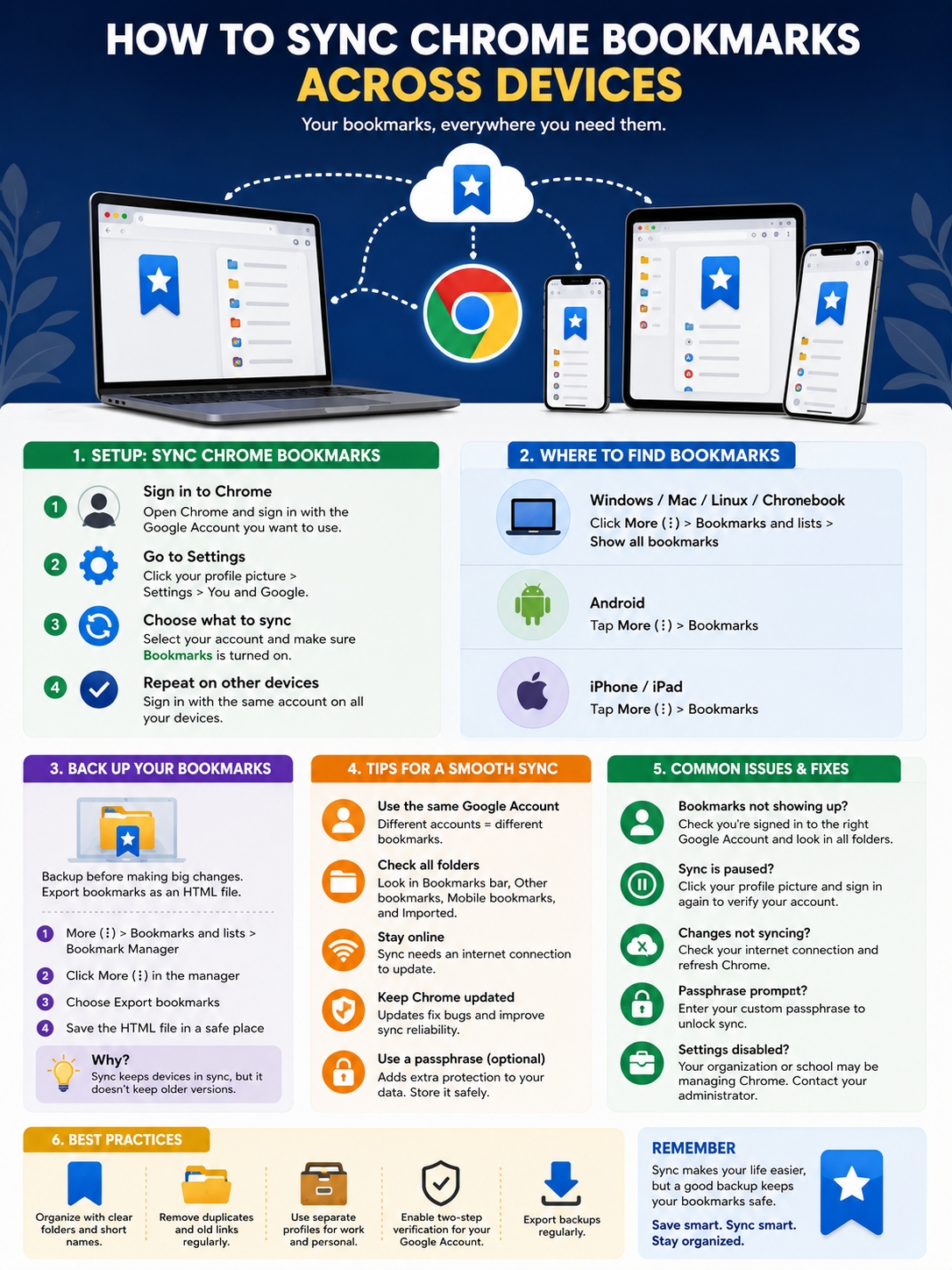
Most problems come down to the wrong account, the wrong folder, local-only saving, a paused sign-in, a passphrase, or a managed browser.
|
Problem |
Likely cause |
What to check first |
|
Nothing appears |
Wrong Google Account |
Compare full email addresses |
|
Only some folders appear |
Wrong folder |
Open the complete bookmark list |
|
New links stay on one device |
They aren’t saved to the account |
Check Save in account |
|
Chrome says “Paused” |
You need to verify your account |
Sign in again |
|
Sync stops after restart |
Chrome data is cleared on exit |
Review site-data settings |
|
Chrome asks for a passphrase |
Custom encryption is active |
Enter the original passphrase |
|
Settings are greyed out |
The browser is managed |
Contact the administrator |
|
Imported links appear twice |
The same file was imported more than once |
Review imported folders |
Check the Account First
This solves more problems than most people expect.
Open Chrome settings on every device and compare the complete email address.
Search Every Bookmark Folder
Open:
More > Bookmarks and lists > Show all bookmarks
Check:
- Bookmarks bar
- Other bookmarks
- Mobile bookmarks
- Imported
- Reading list
Use the search box if you remember part of the page title or URL.
Resume a Paused Account
Chrome may pause account syncing when it needs you to confirm your identity.
Choose Verify it’s you or sign in again when prompted.
Check Whether Chrome Clears Data on Exit
If Chrome keeps signing you out, review this path:
Settings > Privacy and security > Site Settings > Additional content settings > On-device site data
Make sure sites are allowed to save data on the device.
Also check for tools that erase Chrome data automatically, including:
- Privacy extensions
- Antivirus cleanup tools
- Cookie-removal utilities
- System cleaners
- Company security software
Check the Internet Connection
A device can’t send or receive bookmark changes while offline.
Try loading a new webpage. If that works, check whether a VPN, firewall, proxy, or restricted network is interfering with Google services.
Update and Restart Chrome
Install the latest Chrome update on each device. Then close the browser fully and restart the device.
This can fix temporary glitches, but it won’t solve an account mismatch.
Check Whether Chrome Is Managed
On a computer, type:
chrome://management
You can also check:
chrome://policy
These pages show whether a school, employer, device owner, or security product controls Chrome.
If the browser says Managed by your organization, some sync options may be blocked.
Chrome Sync Encryption and Passphrases
Chrome encrypts saved account data. You can also create a custom passphrase for extra control.
|
Passphrase point |
What it means |
|
Optional |
You don’t have to create one |
|
Separate from your password |
It may differ from your Google Account password |
|
Needed on new devices |
Chrome may ask for it |
|
Hard to recover |
Store it safely |
|
Resetting carries risk |
Back up your data first |
Create a Custom Passphrase
On a computer:
- Open Chrome.
- Sign in.
- Open Settings > You and Google.
- Select your account.
- Open Encryption options.
- Choose Use your own passphrase.
- Enter it twice.
- Save the setting.
Store the passphrase in a trusted password manager.
Don’t Reset Encrypted Data Too Quickly
A forgotten passphrase can make sync troubleshooting more complicated.
Before resetting anything:
- Export your bookmarks.
- Confirm which device has the full collection.
- Back up passwords separately if needed.
- Read Chrome’s warning carefully.
- Double-check the Google Account.
A sync reset should be a last step, not the first one.
Fix Duplicate and Merged Bookmarks
Old devices and repeated imports can create duplicate folders.
|
Problem |
Safer response |
|
A few duplicate links |
Remove them manually |
|
Duplicate folder trees |
Compare them before deleting |
|
Imported folders repeat |
Keep the correct copy |
|
Old links return |
Check every device and profile |
|
Thousands of duplicates |
Back up before using a cleanup tool |
Clean Up on One Computer
A desktop or laptop gives you the clearest view.
- Export a backup.
- Close Chrome on your other devices.
- Organize the collection on one computer.
- Reopen Chrome elsewhere.
- Check the final folder structure.
Be Careful With Bookmark Extensions
Some extensions can find duplicates or broken links. They can also ask for wide access to browser data.
Before installing one, check:
- The developer
- Recent updates
- Permissions
- Privacy policy
- User reviews
- Whether the extension is still maintained
For a small collection, manual cleanup is usually safer.
Privacy and Security Tips
Bookmarks can reveal more than people realize.
They may point to banking sites, health research, private work tools, travel plans, client platforms, or personal projects.
|
Security step |
Why it matters |
|
Use a strong password |
Protects your Google Account |
|
Turn on two-step verification |
Adds another sign-in check |
|
Separate work and personal profiles |
Prevents data mixing |
|
Lock your devices |
Stops casual access |
|
Avoid syncing on public computers |
Reduces exposure |
|
Review connected devices |
Helps spot unknown sign-ins |
|
Export backups |
Protects against mistakes |
Don’t Sign In to Chrome on a Public Computer
Avoid connecting your full Chrome profile on computers in hotels, libraries, airports, schools, or internet cafés.
Use Guest mode for temporary browsing.
When the Guest window closes, Chrome removes the browsing activity from that session.
Signing out of Gmail isn’t always enough.
When you stop using a shared computer:
- Sign out of Chrome.
- Remove the Chrome profile.
- Review devices connected to your Google Account.
- Sign out remotely if needed.
- Change your password if something looks suspicious.
Organize Synced Bookmarks So They Stay Useful
Syncing a messy collection simply puts the same mess on every device.
|
Habit |
Why it helps |
|
Use a few main folders |
Makes navigation easier |
|
Shorten bookmark names |
Helps on mobile screens |
|
Create project folders |
Keeps temporary research together |
|
Use an archive folder |
Reduces clutter |
|
Review regularly |
Removes dead and duplicate links |
|
Keep dated backups |
Gives you a recovery history |
Keep the Main Folder List Simple
A practical setup might include:
- Work
- Research
- Learning
- Finance
- Travel
- Shopping
- Personal
- Read later
- Archive
Avoid creating deep folder trees unless you genuinely need them.
Rename Long Page Titles
Page titles often look awkward inside a bookmark menu.
Instead of:
The Complete Definitive Guide to Understanding Website Analytics Platforms
Use:
Website analytics guide
Short names are much easier to scan on a phone.
Use Temporary Project Folders
Create short-term folders for tasks such as:
- Buying a laptop
- Planning a trip
- Redesigning a website
- Preparing taxes
- Taking an online course
Delete or archive the folder when the project ends.
Watch the Bookmark Count
Google says a Google Account can hold up to 100,000 Chrome bookmarks for cross-device access.
Most people won’t come close to that number. Still, years of imports and duplicates can create a surprisingly large collection.
Common Mistakes to Avoid
|
Mistake |
Better approach |
|
Signing in to Gmail only |
Check Chrome’s account settings |
|
Using similar Google Accounts |
Compare full email addresses |
|
Checking only the bookmark bar |
Open every folder |
|
Turning on sync without a backup |
Export HTML first |
|
Deleting folders on a phone |
Remember the deletion may spread |
|
Importing the same file twice |
Import once and review |
|
Mixing work and personal accounts |
Use separate profiles |
|
Resetting sync too early |
Try basic fixes first |
|
Treating sync as backup |
Keep dated exports |
|
Installing unknown cleanup tools |
Check permissions and reputation |
Final Thoughts
To sync Chrome bookmarks, use the same Google Account in Chrome on every device. Then make sure bookmarks are included in the data Chrome saves.
Start with the basics.
Check the full email address. Open every bookmark folder. Make sure Chrome is saving bookmarks to the account. Confirm the device is online.
Before importing, deleting, merging, or resetting anything, export an HTML backup.
Keep work and personal bookmarks in separate profiles. Use simple folder names. Rename unclear links. Turn on two-step verification for your Google Account.
Most sync problems have a simple cause. It’s usually the wrong account, the wrong folder, a paused sign-in, local-only bookmarks, or a managed browser setting.
Once those details are sorted, your bookmarks should stay available across Windows, Mac, Linux, Chromebook, Android, iPhone, and iPad.
FAQs About Syncing Chrome Bookmarks
Can I Sync Chrome Bookmarks Without a Gmail Address?
Yes, but you still need a Google Account.
A Google Account can use a non-Gmail email address. Use that same account in Chrome on every device.
Can I Sync Only One Bookmark Folder?
Not through Chrome’s normal settings.
Chrome treats bookmarks as one data category. It doesn’t offer a standard option to sync one folder while keeping the rest local.
Use a separate Chrome profile or Google Account when you need separate collections.
Can I Sync Bookmarks Between Two Google Accounts?
Not continuously.
You can export bookmarks from one account as an HTML file and import them into another. After that, the two collections remain separate.
Why Are Desktop Bookmarks Missing on My Phone?
They may be inside Bookmarks bar or Other bookmarks.
Open the full folder list instead of checking only Mobile bookmarks.
Why Aren’t Mobile Bookmarks on My Desktop Bookmark Bar?
Chrome usually stores phone-created links inside Mobile bookmarks.
Open Bookmark Manager on the desktop and move the links you want to the bookmark bar.
Does Deleting a Bookmark Remove It Everywhere?
It can.
When a bookmark is saved to your Google Account, deleting it may remove it from your other connected devices.