
Your phone sees the Wi-Fi network, but it won’t connect. Or it connects, then shows “No internet.” Maybe it gets stuck on “Obtaining IP address,” rejects a password you know is correct, or drops the connection every few minutes.
It’s frustrating, but the cause is usually easier to find than it first appears.
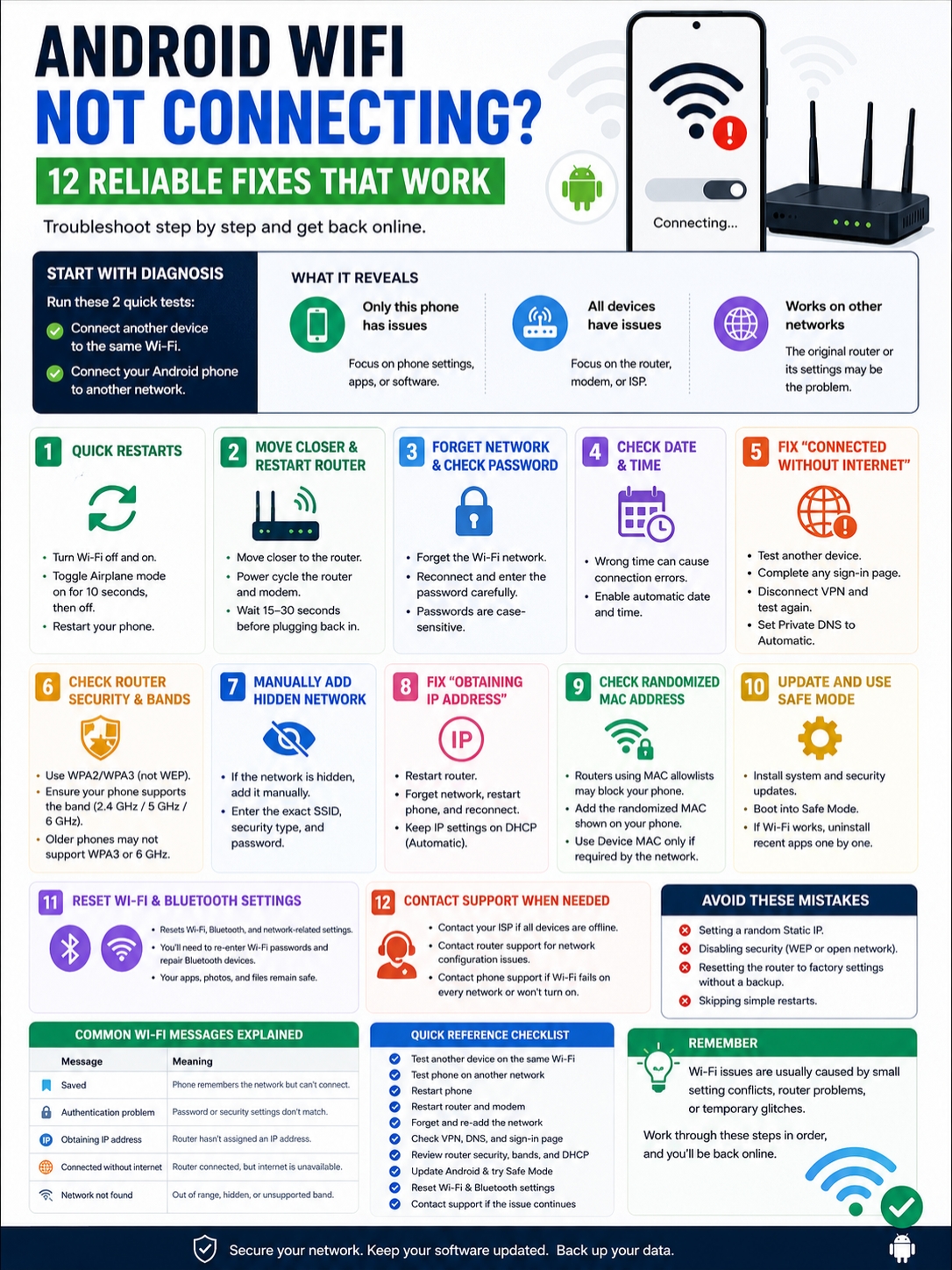
When android wifi not connecting becomes the problem, don’t start changing advanced router settings or resetting the entire phone. First work out where the fault actually is.
The problem usually sits in one of three places:
- The Android phone
- The Wi-Fi router or network
- The internet connection itself
A couple of quick tests can tell you which one deserves your attention. From there, you can move through the fixes in a sensible order instead of trying random settings and hoping something works.
Menu names can differ between Google Pixel, Samsung Galaxy, Motorola, Xiaomi, OnePlus, and other Android phones. If a path looks unfamiliar, search for the setting by name inside the Settings app.
First, Find Out What’s Failing
Before you change anything, run two simple tests.
First, connect another phone, laptop, or tablet to the same Wi-Fi network.
Then connect the problem Android phone to another trusted network or a mobile hotspot.
The results tell you a lot.
If every device fails on the same Wi-Fi, the phone probably isn’t the issue. Look at the router, modem, or internet provider.
If the Android phone fails on every network, the problem is more likely inside the phone. A saved setting, app, software bug, or hardware fault may be getting in the way.
If the phone connects elsewhere but not at home, focus on the home router.
Also pay attention to the exact message shown under the Wi-Fi name. Android’s wording often points toward the cause.
|
What You See |
What It Usually Means |
First Move |
|
Network doesn’t appear |
Weak signal, hidden network, unsupported band, or router issue |
Move closer and restart the router |
|
Saved |
Android remembers the network but can’t complete the connection |
Forget and reconnect |
|
Authentication problem |
Password or security settings don’t match |
Check the password and router security |
|
Obtaining IP address |
The router hasn’t assigned the phone an address |
Restart the router |
|
Connected without internet |
The phone reached the router, but not the internet |
Test another device |
|
Fails on every network |
Phone software, app, or hardware issue |
Update, use Safe Mode, or reset network settings |
A Wi-Fi symbol doesn’t always mean the internet is working. It only shows that the phone has connected to the router. The router may still be offline.
Android WiFi Not Connecting? Try These Quick Fixes First
Start with the easy steps. They’re quick, safe, and often enough to fix the problem.
Turn Wi-Fi Off and Back On
Open Quick Settings and tap the Wi-Fi button off. Wait a few seconds, then turn it on again.
This forces Android to scan for nearby networks and start a fresh connection attempt.
It sounds basic because it is. But temporary connection errors happen, and restarting the Wi-Fi radio often clears them.
Toggle Airplane Mode
Turn Airplane Mode on and leave it on for about 10 seconds. Then switch it off.
This resets the phone’s wireless connections, including Wi-Fi and mobile data.
Make sure Airplane Mode is fully off before testing the connection again. Some phones allow Wi-Fi to stay active while Airplane Mode is enabled, which can make the status confusing.
Restart the Phone
Choose Restart from the power menu.
A proper restart refreshes Android’s network services and closes apps that may be interfering with the connection.
Turning the screen off isn’t enough. The phone needs a full reboot.
Move Closer to the Router
A Wi-Fi network can appear in the list even when the signal is too weak for a stable connection.
Stand near the router and try again. If the phone connects there, signal strength is part of the problem.
Walls, floors, metal surfaces, mirrors, appliances, and distance can all weaken Wi-Fi.
Restart the Router and Modem
Unplug the router and modem from power.
Wait 15 to 30 seconds, reconnect them, and give the equipment a few minutes to start properly.
If you use separate modem and router units, reconnect the modem first. Wait until it is online, then reconnect the router.
One warning matters here: unplugging the router is not the same as pressing its reset button. The small recessed reset button may erase the router’s settings. Don’t press it unless you’re prepared to reconfigure the network.
|
Quick Fix |
What It Does |
What You Risk |
|
Toggle Wi-Fi |
Starts a fresh wireless connection |
Nothing |
|
Toggle Airplane Mode |
Resets wireless radios |
Calls pause briefly |
|
Restart the phone |
Refreshes Android network services |
Nothing |
|
Move closer |
Tests signal strength |
Nothing |
|
Restart the router |
Refreshes the local network and internet session |
Other users disconnect briefly |
Forget the Network and Enter the Password Again
Android saves the password and connection settings for every network you join.
That saved profile can stop working after someone changes the router password, renames the network, updates its security mode, or changes other router settings.
Open the Wi-Fi settings and choose the problem network.
On many phones, the path looks like this:
Settings > Network & internet > Internet > Saved networks
On Samsung phones, it may begin with:
Settings > Connections > Wi-Fi
Tap the network and choose Forget. Then select it again and enter the password from scratch.
Check the password carefully. Wi-Fi passwords are case-sensitive.
Common mistakes include:
- Typing O instead of 0
- Typing lowercase l instead of 1
- Missing a capital letter
- Adding an extra space
- Misreading S as 5
If another Android phone is already connected, it may be able to share the network with a QR code. If the QR code works but manual entry doesn’t, the password was probably typed incorrectly.
Check the Phone’s Date and Time
A badly incorrect date or time can interfere with network authentication and secure websites.
Search Settings for Date and time, then turn on:
- Set time automatically
- Set time zone automatically
This won’t fix every Wi-Fi issue, but it’s worth checking when the password is correct and the connection still fails.
|
What to Check |
Why It Matters |
What to Do |
|
Saved password |
It may no longer match the router |
Forget and reconnect |
|
Capital letters |
Wi-Fi passwords are case-sensitive |
Re-enter carefully |
|
QR code works |
Manual typing may be wrong |
Check each character |
|
Router security changed |
The old saved profile may be outdated |
Add the network again |
|
Date and time are wrong |
Secure connections may fail |
Use automatic settings |
Fix “Connected Without Internet”
This message means the phone has connected to the Wi-Fi router, but it can’t reach the internet.
The router may be offline. A public network may need a sign-in. A VPN may be blocking traffic. DNS settings may also be involved.
Test Another Device
Try the same Wi-Fi on a laptop or another phone.
If every device is offline, stop troubleshooting the Android phone. Check the router, modem, and internet provider instead.
Look at the lights on the modem and router. A red, orange, blinking, or missing internet light may point to an outage or line problem.
You can restart the equipment once. If every device remains offline, contact the internet provider.
Open the Public Wi-Fi Login Page
Hotels, airports, hospitals, universities, planes, and cafés often use a sign-in page.
The phone connects to the Wi-Fi first. The network then blocks internet access until you accept the terms, enter a code, or sign in.
Look for a notification that says Sign in to Wi-Fi network.
If it doesn’t appear:
- Disconnect and reconnect to the network.
- Open a browser.
- Try loading a regular website.
- Temporarily disconnect any VPN.
- Set custom Private DNS back to Automatic.
Public Wi-Fi login pages sometimes fail to appear when a VPN or custom DNS service blocks the redirect.
Disconnect the VPN for a Test
A VPN can make Wi-Fi look broken even when the wireless connection itself is fine.
Open:
Settings > Network & internet > VPN
Disconnect the VPN briefly and try loading a webpage.
If the internet starts working, the VPN may have a server problem, an active kill switch, an expired login, or an always-on rule that blocks traffic outside the VPN.
Try another VPN server or update the app before reconnecting.
On a work-managed phone, contact the IT team before changing a required VPN profile.
Check Private DNS
Open:
Settings > Network & internet > Private DNS
Android usually handles Private DNS automatically. Leave it that way unless you intentionally use a custom provider.
If you entered a custom hostname and Wi-Fi stopped working, switch the setting to Automatic and test again.
Don’t turn Private DNS off permanently just because a network feels slow. First check whether the custom provider is the real problem.
|
Problem |
Quick Test |
Likely Fix |
|
Every device is offline |
Test another phone or laptop |
Restart equipment or call the ISP |
|
Public Wi-Fi won’t open |
Check for a sign-in page |
Complete the login |
|
Internet works with VPN off |
Disconnect VPN briefly |
Change server or update VPN settings |
|
Custom DNS causes failure |
Switch to Automatic |
Correct the provider hostname |
|
Only one app is offline |
Test another app and browser |
Fix the affected app |
Check Router Security and Wi-Fi Bands
When android wifi not connecting happens on only one router, the router’s settings may be the problem.
Check the Security Mode
Most modern home routers use WPA2, WPA3, or a mixed WPA2/WPA3 mode.
An older Android phone may fail to connect to a WPA3-only network. A newer phone may also struggle with an outdated or badly configured router.
If the router offers a supported WPA2/WPA3 compatibility mode, it can help when older and newer devices share the network.
Don’t switch to WEP or remove the password. Those options weaken the network and create a much bigger problem than a failed connection.
Read Also: What is WiFi 6 and Why You Should Use it?
Check 2.4 GHz, 5 GHz, and 6 GHz
Not every Android phone supports every Wi-Fi band.
2.4 GHz usually reaches farther and works better through walls, but it can be crowded.
5 GHz usually offers better speed and capacity at shorter distances.
6 GHz requires newer Wi-Fi 6E or Wi-Fi 7 hardware.
A phone’s Android version doesn’t prove that it supports 6 GHz. The hardware inside the phone matters.
For example, two phones running the same Android version may support different bands because they use different Wi-Fi chips.
Six-gigahertz networks also use WPA3 security. Older devices that don’t support Wi-Fi 6E or Wi-Fi 7 won’t see or join them.
If the phone can’t find the network, enable a 2.4 GHz or 5 GHz network on the router and test again.
Add a Hidden Network Manually
Some routers hide the network name, also called the SSID.
If the network doesn’t appear, choose Add network in Android’s Wi-Fi settings. Enter the exact network name, security type, and password.
The spelling must match exactly.
Hiding the network name doesn’t provide meaningful security on its own. A strong password and modern encryption still matter.
|
Router Setting |
What You May Notice |
What to Try |
|
WPA3 only |
Older phone rejects the network |
Use a supported mixed mode |
|
6 GHz only |
Phone can’t see the network |
Enable 2.4 GHz or 5 GHz |
|
Hidden SSID |
Network doesn’t appear |
Add it manually |
|
Access control |
One device is blocked |
Check the allowlist or blocklist |
|
Too many connected devices |
New devices can’t join |
Remove inactive clients |
|
Weak 5 GHz or 6 GHz signal |
Connection drops at a distance |
Move closer or use 2.4 GHz |
Fix “Obtaining IP Address”
When Android gets stuck on “Obtaining IP address,” the phone has found the router but hasn’t received the information it needs to join the local network properly.
The router normally assigns that information automatically.
Start with the simple sequence:
- Restart the router.
- Forget the network on the phone.
- Restart the phone.
- Connect again.
This gives the phone and router a clean chance to negotiate the connection.
Leave IP Settings on DHCP
For most home networks, Android’s IP setting should stay on DHCP or Automatic.
That lets the router assign the phone an available local IP address.
Don’t copy a random static IP from a forum, video, or another device. A proper static setup needs the correct:
- IP address
- Gateway
- Network prefix length
- DNS server
- Available address range
Get those values from the router administrator.
Using the wrong address can create a conflict with another device or leave the phone connected to Wi-Fi but unable to reach the internet.
Static IP should be a targeted fix, not a routine troubleshooting step.
|
IP Setting |
Best Choice |
When to Change It |
|
DHCP or Automatic |
Best for most home networks |
Leave it enabled |
|
Static IP |
Requires exact network values |
Use only when provided by an administrator |
|
Gateway |
Must match the router |
Don’t guess |
|
DNS server |
Must be valid and reachable |
Use trusted values only |
|
Address range |
Must avoid conflicts |
Check the router’s DHCP range |
Check the Randomized MAC Address
Android 10 and later use a randomized MAC address for Wi-Fi networks.
A MAC address identifies a network interface. Randomization helps stop networks from using the phone’s permanent hardware address to track it.
Most routers handle this without any problem.
Trouble can appear when a router uses MAC addresses for:
- Parental controls
- Device allowlists
- Reserved IP addresses
- Access schedules
- Paid or registered network access
- Device-specific restrictions
Open the affected network’s details and look for settings such as:
- Privacy
- MAC address type
- Randomized MAC
- Use device MAC
The best fix is usually to update the router’s rule so it recognizes the randomized MAC address shown on the phone.
Switch to Use device MAC only when a trusted home, school, or work network specifically requires it.
Keep randomization enabled on public networks when possible.
|
MAC Setting |
Normal Choice |
Change It When |
|
Randomized MAC |
Best for privacy |
Leave it enabled normally |
|
Device MAC |
Uses the phone’s permanent address |
Trusted network requires it |
|
Router allowlist |
Must include the active address |
The phone is being blocked |
|
Parental controls |
May need both addresses |
Rules don’t recognize the phone |
|
Reserved IP |
Must match the address in use |
Reservation points to the wrong MAC |
Update Android and Test Safe Mode
When the password, router, and basic settings all look fine, the next suspect is software.
Install Available Updates
Open:
Settings > System > Software updates
The menu may appear under About phone or Software update on some devices.
Install any available system and security updates. Then restart the phone.
Updates don’t guarantee a Wi-Fi fix, but they can include changes to the phone’s wireless drivers, security components, and network services.
Try Safe Mode
Safe Mode starts Android without most downloaded apps running.
If Wi-Fi works in Safe Mode, an installed app is probably interfering with the connection.
Pay close attention to apps such as:
- VPN tools
- Firewalls
- Ad blockers
- Antivirus apps
- Security suites
- Battery-saving apps
- Automation tools
- Work-profile software
- Device-management apps
The method for entering Safe Mode differs by phone. Check the manufacturer’s support page for the correct steps.
If Wi-Fi works there, uninstall recently added apps one at a time. Restart normally after each removal and test again.
|
App Type |
How It May Affect Wi-Fi |
|
VPN |
Blocks traffic when the tunnel fails |
|
Firewall |
Stops apps or system services from reaching the internet |
|
Ad blocker |
Interferes with DNS or network requests |
|
Security suite |
Applies filtering or connection rules |
|
Battery manager |
Restricts network activity |
|
Work-profile app |
Enforces company network policies |
Reset Wi-Fi and Bluetooth Settings
If nothing else has worked, reset the phone’s network settings.
On Pixel phones, the path may be:
Settings > System > Reset options > Reset Bluetooth & Wi-Fi
On Samsung phones, it often looks like:
Settings > General management > Reset > Reset Wi-Fi and Bluetooth settings
The wording differs, so search Settings for Reset Wi-Fi, Reset network, or Reset Bluetooth.
This reset does not normally delete photos, apps, documents, or messages.
It can remove:
- Saved Wi-Fi networks
- Stored Wi-Fi passwords
- Bluetooth pairings
- Some mobile network preferences
- Network-related custom settings
The exact result depends on the phone maker and Android version.
Write down any important Wi-Fi passwords first.
|
Reset Type |
What It Removes |
What It Keeps |
|
Wi-Fi and Bluetooth reset |
Saved networks and Bluetooth pairings |
Photos, apps, documents |
|
Mobile network reset |
Carrier and network preferences |
Personal files |
|
All settings reset |
Many system preferences |
Usually personal media |
|
Factory reset |
Apps, accounts, settings, and local data |
Only backed-up data can be restored |
When It’s Time to Contact Support
Some Wi-Fi problems aren’t settings problems.
Contact your internet provider when every device connects to the router but none can access the internet.
Contact the router manufacturer or network administrator when:
- Only one network rejects the phone
- The router security settings are unclear
- A device blocklist may be active
- The router won’t assign IP addresses
- The problem started after a router update
Contact the phone manufacturer or repair service when:
- Wi-Fi won’t turn on
- Wi-Fi turns itself off
- No networks appear anywhere
- The phone fails on every tested network
- Wi-Fi and Bluetooth stopped working together
- The problem continues in Safe Mode
- A network reset changes nothing
- The issue started after a drop, liquid exposure, or repair
Hardware problems become more likely when Wi-Fi and Bluetooth fail at the same time because both features may rely on related internal components.
Don’t Rush Into a Factory Reset
A factory reset erases apps, accounts, settings, and local data.
It should come near the end of the process, not the beginning.
Back up the phone first. Then speak with the phone maker or support provider if possible.
A factory reset may not help when the fault comes from damaged hardware, a router problem, or an app that gets restored after the reset.
|
What’s Failing |
Who to Contact |
|
Every device is offline |
Internet provider |
|
Only one Wi-Fi network fails |
Router support or administrator |
|
Phone fails on every network |
Phone manufacturer |
|
Wi-Fi won’t stay on |
Authorized repair service |
|
Failure started after physical damage |
Repair provider |
Frequently Asked Questions
Why Does My Android Connect to a Hotspot but Not Home Wi-Fi?
That usually means the phone’s Wi-Fi hardware is working.
Focus on the home router. Check its password, security mode, frequency bands, device restrictions, and DHCP settings.
Why Does Wi-Fi Work in Safe Mode?
A downloaded app is probably interfering with the connection.
VPNs, firewalls, ad blockers, security apps, battery managers, and work-profile tools are the main suspects.
Why Does a QR Code Work When the Password Doesn’t?
The typed password probably contains an error.
A QR code transfers the saved details directly, so it avoids mistakes involving capital letters, spaces, and similar-looking characters.
Why Won’t Public Wi-Fi Open the Login Page?
A VPN, custom Private DNS setting, or browser issue may be blocking the login redirect.
Disconnect the VPN, switch custom Private DNS to Automatic, reconnect, and look for the network sign-in notification.
Why Does “Use Device MAC” Fix the Connection?
The router may have a rule linked to the phone’s permanent MAC address.
Check parental controls, access lists, schedules, and reserved IP addresses. Updating the router to recognize the randomized MAC is usually the better long-term fix.
Will a Network Reset Delete My Photos?
No. A Wi-Fi and Bluetooth reset should not delete photos, videos, documents, or installed apps.
It will usually remove saved networks and Bluetooth pairings.
Why Can’t My Phone Find a 6 GHz Network?
The phone may not support Wi-Fi 6E or Wi-Fi 7.
The router also needs 6 GHz support and WPA3 security. Device hardware, router settings, and regional availability all play a part.
Why Does Wi-Fi Keep Disconnecting When the Screen Turns Off?
A battery-saving app, aggressive power setting, VPN, or manufacturer-specific network option may be restricting background connectivity.
Disable third-party battery managers first. Then check battery optimization settings for VPN or messaging apps that need a constant connection.
|
Symptom |
Best Place to Look |
|
Hotspot works, home Wi-Fi doesn’t |
Router settings |
|
Wi-Fi works in Safe Mode |
Recently installed apps |
|
QR code works |
Typed password |
|
Public Wi-Fi has no login page |
VPN, DNS, or captive portal |
|
Device MAC fixes the problem |
Router access rules |
|
6 GHz network is missing |
Hardware and router support |
|
Disconnects with screen off |
Battery and background settings |
Final Thoughts
When android wifi not connecting stops you from getting online, don’t treat every Wi-Fi problem as the same issue.
Start by testing another device on the same network. Then test the Android phone somewhere else. That tells you whether the fault sits with the phone, the router, or the internet provider.
After that, work through the easy fixes first:
- Toggle Wi-Fi and Airplane Mode
- Restart the phone
- Move closer to the router
- Restart the router
- Forget and reconnect to the network
- Check the password
Only move into VPN, Private DNS, Wi-Fi bands, security modes, DHCP, MAC addresses, Safe Mode, and network resets when the basic steps don’t work.
Avoid random static IP settings. Don’t weaken router security just to make an old device connect. And keep a factory reset as the last option, after you’ve backed up the phone and ruled out a router or hardware fault.
|
Best Troubleshooting Order |
What to Do |
|
1 |
Work out whether the phone, router, or internet is failing |
|
2 |
Toggle wireless settings and restart the phone |
|
3 |
Move closer and restart the router |
|
4 |
Forget the network and check the password |
|
5 |
Test public login, VPN, and Private DNS |
|
6 |
Check bands, security, DHCP, and MAC rules |
|
7 |
Update Android and use Safe Mode |
|
8 |
Reset Wi-Fi and Bluetooth settings |
|
9 |
Contact support before a factory reset |