
You open YouTube to watch one tutorial. Then a Short catches your eye. You tap it, swipe once, and before long, ten minutes are gone.
That’s why so many people want to turn off YouTube Shorts without giving up regular videos, music, podcasts, reviews, or educational content.
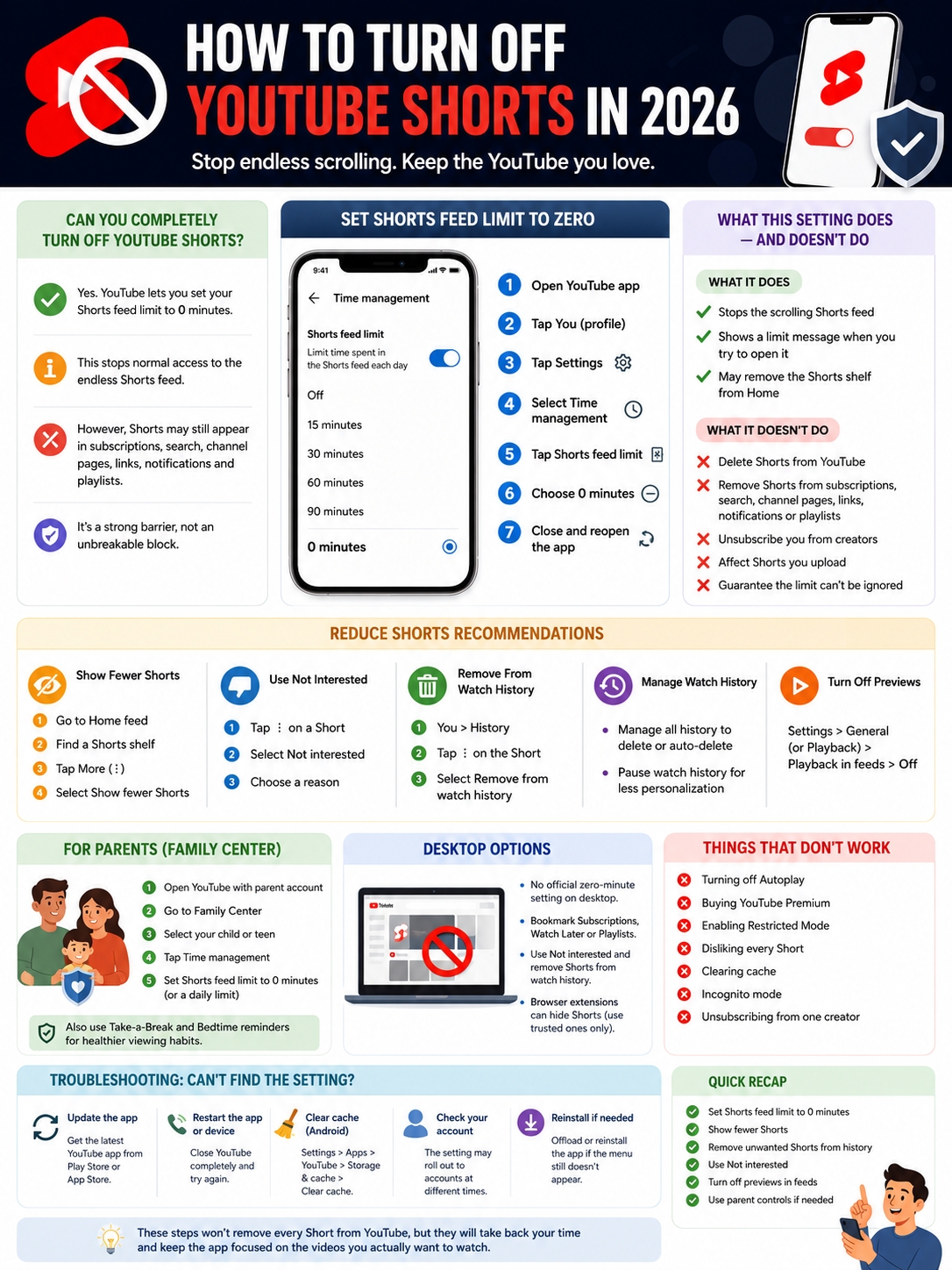
For years, YouTube gave users a few ways to reduce Shorts recommendations, but there wasn’t a proper off switch. That changed in 2026. The YouTube mobile app now lets you set the daily Shorts feed limit to zero minutes.
That sounds like a complete block, but it isn’t quite that simple.
The setting stops normal access to the endless Shorts feed. However, individual Shorts may still appear in subscriptions, search results, creator pages, notifications, playlists, or shared links.
This guide explains what the setting really does, how to turn it on, what to do if you can’t find it, and how to make YouTube feel much less cluttered.
Can You Turn Off YouTube Shorts Completely?
YouTube now offers an official zero-minute Shorts limit.
You’ll find it here:
YouTube app > You > Settings > Time management > Shorts feed limit > 0 minutes
Once you select zero minutes, YouTube should block normal access to the scrolling Shorts feed and show a limit notice instead.
Still, it doesn’t remove Shorts from every corner of the platform.
You may continue to see individual Shorts in your subscriptions, search results, channel pages, notifications, or direct links.
|
Question |
Answer |
|
Does YouTube offer an official Shorts control? |
Yes |
|
Can you set the limit to zero minutes? |
Yes |
|
Does it stop normal Shorts scrolling? |
Yes |
|
Does it remove every Short from YouTube? |
No |
|
Can Shorts still appear in subscriptions? |
Yes |
|
Is the setting available in the mobile app? |
Yes |
|
Is there a matching desktop setting? |
Not officially documented |
|
Does YouTube Premium remove Shorts? |
No |
The best way to describe it is simple:
Zero minutes turns off the Shorts feed, but it doesn’t erase the Shorts format from YouTube.
How to Turn Off YouTube Shorts on Android
The official control sits inside the YouTube app.
Set the Shorts Feed Limit to Zero
- Open the YouTube app.
- Sign in to your Google Account.
- Tap the You tab.
- Tap the Settings icon.
- Select Time management.
- Tap Shorts feed limit.
- Choose 0 minutes.
- Return to the Home screen.
- Close and reopen the app if nothing changes right away.
|
Step |
What to Tap |
What It Does |
|
1 |
You |
Opens your account area |
|
2 |
Settings |
Opens YouTube preferences |
|
3 |
Time management |
Shows viewing controls |
|
4 |
Shorts feed limit |
Displays limit options |
|
5 |
0 minutes |
Stops normal Shorts scrolling |
|
6 |
Reopen the app |
Refreshes the feed |
After you select zero minutes, opening the Shorts tab should bring up a message saying you’ve reached your limit.
On a standard adult account, YouTube may still let you ignore that message. So the feature adds a strong barrier, but it isn’t always an unbreakable lock.
Set It on Every Account You Use
The setting applies to the account you’re signed into.
If you switch between personal, work, brand, or family accounts, you’ll need to set the limit on each one.
The same applies if you watch YouTube while signed out. Your account settings may not carry over to a signed-out session.
How to Turn Off YouTube Shorts on iPhone and iPad
The steps on iPhone are almost the same.
- Open YouTube.
- Tap the You tab.
- Open Settings.
- Select Time management.
- Tap Shorts feed limit.
- Choose 0 minutes.
- Close and reopen the app.
|
Device |
Best Method |
Main Limitation |
|
Android phone |
Set the Shorts limit to zero |
The warning may be bypassed |
|
iPhone |
Set the Shorts limit to zero |
Shorts may still appear elsewhere |
|
Android tablet |
Check the same mobile menu |
The layout may look different |
|
iPad |
Check Time management |
Availability may vary |
|
Desktop browser |
Use recommendation or browser tools |
No official zero-minute control |
|
Smart TV |
Check account behavior manually |
No matching menu is documented |
If you can’t see the option on an iPad or Android tablet, check the same account on a phone. YouTube doesn’t always roll out the same menus to every device at once.
What the Zero-Minute Setting Actually Changes
The zero-minute limit targets the scrolling Shorts feed.
That’s different from removing every video YouTube labels as a Short.
A Short can still appear in several places. A creator you follow may upload one, for example, and it may show up in your Subscriptions feed even after you’ve set the limit to zero.
|
YouTube Area |
What Usually Happens |
|
Shorts tab |
Shows a limit notice |
|
Shorts shelf on Home |
May disappear |
|
Subscriptions feed |
Shorts may remain |
|
Creator channel pages |
Shorts tabs may remain |
|
Search results |
Shorts may still appear |
|
Shared links |
Individual Shorts may still open |
|
Notifications |
Shorts alerts may still arrive |
|
Playlists |
Saved Shorts remain |
|
YouTube Studio |
Creator tools stay the same |
|
Embedded videos |
Shorts may still play |
The setting also doesn’t:
- Delete Shorts from your history
- Remove every Shorts button
- Unsubscribe you from creators
- Hide all vertical videos
- Delete Shorts you uploaded
- Remove saved Shorts from playlists
- Apply to every account automatically
- Guarantee that an adult user can’t bypass the warning
That last point matters. The feature works best as a speed bump. It makes mindless scrolling less convenient, but it doesn’t always make it impossible.
Turn Off YouTube Shorts Without Losing Good Recommendations
You may still want YouTube to recommend useful long-form content.
In that case, don’t clear your entire watch history right away. Start with the narrower controls first.
A better setup is:
- Set the Shorts feed limit to zero.
- Choose Show fewer Shorts.
- Remove accidental Shorts from your watch history.
- Mark irrelevant clips Not interested.
- Keep watching the longer videos you genuinely enjoy.
- Leave watch history on unless you want a much less personalized Home page.
|
Action |
Effect on Shorts |
Effect on Regular Recommendations |
|
Set feed limit to zero |
Strong |
Low |
|
Show fewer Shorts |
Moderate |
Low |
|
Delete selected Shorts from history |
Moderate |
Low |
|
Use Not interested |
Moderate |
Low |
|
Pause all watch history |
Broad |
High |
|
Clear all watch history |
Broad |
High |
This approach works well if you still want recommendations for tutorials, documentaries, interviews, reviews, or podcasts.
Use “Show Fewer Shorts” on the Home Page
YouTube also offers a separate control called Show fewer Shorts.
This doesn’t block the feed. It simply tells YouTube to recommend fewer Shorts on Home and in other recommendation areas.
How to Use It
- Open the YouTube mobile app.
- Go to the Home feed.
- Scroll until you see a Shorts shelf.
- Tap More at the top of the shelf.
- Select Show fewer Shorts.
|
Control |
What It Does |
What It Doesn’t Do |
|
Shorts feed limit |
Restricts Shorts scrolling |
Doesn’t erase all Shorts |
|
Show fewer Shorts |
Reduces Shorts recommendations |
Doesn’t create a permanent ban |
|
Not interested |
Rejects one recommendation |
Doesn’t remove the whole format |
|
Don’t recommend channel |
Reduces suggestions from one channel |
Doesn’t unsubscribe you |
|
Remove from watch history |
Deletes a viewing signal |
Doesn’t hide Shorts immediately |
The wording matters here. YouTube says “fewer,” not “none.”
The Shorts shelf can return later as your viewing habits change. That’s why this setting works best alongside the zero-minute limit.
Mark Unwanted Shorts as “Not Interested”
When an unwanted Short appears:
- Tap the three-dot menu.
- Choose Not interested.
- Pick a reason if YouTube asks.
You may also see Don’t recommend channel.
Use that option carefully. A creator might post useful long videos as well as Shorts. Blocking the whole channel could hide content you actually want.
|
Option |
Best Used For |
|
Not interested |
One irrelevant video |
|
Don’t recommend channel |
An unwanted creator |
|
Dislike |
A negative response to the video |
|
Remove from watch history |
An accidental viewing signal |
|
Show fewer Shorts |
Reducing the format overall |
The key is to be selective.
You don’t need to dislike every Short you see. In fact, repeatedly opening clips just to reject them can still send a signal that you engage with that content.
Read Also: DHow to Recovereleted YouTube Videos
Remove Shorts From Your Watch History
Watch history plays a big role in YouTube recommendations.
If you watch several Shorts, even by accident, YouTube may assume you want more. Removing those videos can help clean up your feed without wiping out your useful history.
Delete One Short
- Open YouTube.
- Tap You.
- Open History.
- Find the Short.
- Tap the three-dot menu.
- Select Remove from watch history.
Remove More Activity
You can also open Manage all history through YouTube or your Google Account.
From there, you can:
- Delete individual videos
- Delete activity from a chosen date
- Clear all watch history
- Pause history
- Set an auto-delete period
|
History Action |
Best Use |
Trade-Off |
|
Delete one Short |
Correct one accidental view |
Takes manual effort |
|
Delete several Shorts |
Clean up a scrolling session |
Can take time |
|
Delete a date range |
Remove a larger block of activity |
May remove regular video history too |
|
Clear all watch history |
Reset recommendations |
Removes useful signals |
|
Pause watch history |
Stop new activity from being saved |
Weakens personalization |
Start small.
Deleting a few unwanted Shorts is usually enough. Clearing everything should be the last step, not the first.
Pause Watch History for a Simpler Home Page
Pausing watch history is a broader move.
It can reduce personalized recommendations, but it also affects long-form videos.
A common path is:
- Open YouTube.
- Tap You or your profile picture.
- Open Settings.
- Select Manage all history or History and privacy.
- Pause watch history.
|
Benefit |
Drawback |
|
Stops new views shaping recommendations |
Regular recommendations become less useful |
|
Reduces the impact of accidental Shorts |
Recently watched videos are harder to find |
|
Can make Home feel simpler |
Music and tutorial discovery may drop |
|
Works well for search-first viewing |
Less useful for people who enjoy discovery |
This setup works best if you usually search for a specific video, open saved playlists, or go straight to channels you follow.
It’s less helpful if you rely on YouTube to find new content for you.
Turn Off Moving Video Previews
Sometimes Shorts feel distracting even when you don’t open them.
Moving previews on the Home page can pull your attention in the same way. Turning them off makes the app feel calmer.
Look for Playback in feeds in YouTube’s settings and switch it off.
The option may appear under General or another playback-related menu, depending on your device.
|
Setting |
What It Controls |
Does It Disable Shorts? |
|
Shorts feed limit |
Daily Shorts scrolling |
Partly |
|
Playback in feeds |
Moving previews while browsing |
No |
|
Autoplay |
What plays after a regular video |
No |
|
Take a Break |
Viewing reminders |
No |
|
Bedtime reminder |
Nighttime prompts |
No |
|
Device app timer |
Total time in YouTube |
No, but limits the whole app |
Don’t confuse Playback in feeds with Autoplay.
Autoplay controls what happens after a regular video ends. It doesn’t stop the vertical Shorts feed.
Use Take-a-Break and Bedtime Controls
The zero-minute limit deals with Shorts. YouTube also offers tools for cutting down your total viewing time.
Take-a-Break Reminder
This setting shows a reminder after a chosen amount of viewing time.
You can dismiss it, but it creates a useful pause.
Bedtime Reminder
This setting shows a prompt during a time window you choose.
It can help if you tend to watch Shorts late at night.
|
Tool |
Best Use |
|
Zero-minute Shorts limit |
Avoiding the Shorts feed |
|
Custom Shorts limit |
Allowing controlled Shorts use |
|
Take-a-Break reminder |
Interrupting long sessions |
|
Bedtime reminder |
Reducing late-night viewing |
|
Phone app timer |
Limiting all YouTube use |
|
Family controls |
Managing a supervised account |
These reminders aren’t a replacement for the Shorts limit, but they can make the overall setup stronger.
How to Hide YouTube Shorts on Desktop
The official zero-minute control is documented for the YouTube mobile app.
YouTube doesn’t currently provide the same setting on desktop, so browser users need another approach.
Start Somewhere Other Than Home
Bookmark a page that leads to intentional viewing:
- Subscriptions
- Watch Later
- A personal playlist
- A trusted channel
- YouTube History
- A saved search
This won’t remove Shorts, but it helps you avoid the recommendation-heavy Home page.
Use Built-In Feedback
On desktop, use the options YouTube already gives you:
- Select Not interested
- Select Don’t recommend channel
- Remove Shorts from your watch history
- Use Show fewer Shorts in the mobile app on the same account
Use a Browser Extension Carefully
Some browser extensions can hide:
- The Shorts sidebar button
- Shorts shelves
- Shorts tabs on channel pages
- Shorts in search results
- Shorts in subscription feeds
|
Desktop Method |
Effectiveness |
Privacy Risk |
|
Bookmark Subscriptions |
Moderate |
Low |
|
Use Not interested |
Low to moderate |
Low |
|
Clean watch history |
Moderate |
Low |
|
Use custom content-blocker rules |
High |
Medium |
|
Install a Shorts-hiding extension |
High |
Medium to high |
|
Use a modified YouTube client |
Varies |
High |
Before you install an extension, check:
- Who made it
- What permissions it wants
- Whether it has a privacy policy
- How recent the reviews are
- When it was last updated
- Whether the source code is public
- Whether it only needs access to YouTube
Avoid any extension that asks you to type your Google password into a separate form.
Also keep in mind that YouTube changes its layout often. A filter that works today may stop working after an update.
Turn Off YouTube Shorts for a Child or Teen
YouTube’s Family Center lets parents set Shorts limits on supervised child and teen accounts.
Use Family Center
- Open YouTube with the parent account.
- Go to Family Center.
- Select the child or teen’s account.
- Choose Time management.
- Find the daily Shorts feed limit.
- Set it to 0 minutes.
|
Parent Control |
Purpose |
|
Zero-minute Shorts limit |
Stops normal Shorts scrolling |
|
Custom daily limit |
Allows a fixed amount of Shorts use |
|
Bedtime reminder |
Adds nighttime boundaries |
|
Take-a-Break reminder |
Adds viewing pauses |
|
Content settings |
Adjusts age-based access |
|
Channel or video blocking |
Restricts selected content |
A supervised setting is stronger than asking a child to turn on a reminder themselves.
Even so, no control covers every possible route.
A child may still open YouTube through:
- Another account
- A signed-out browser
- A shared device
- A smart TV
- An embedded video
- A link inside another app
Clear family rules still matter. The setting works best when children understand when YouTube is allowed and what they should do when something inappropriate appears.
Why the Zero-Minute Option May Be Missing
You may not see the setting right away.
Common reasons include:
- An outdated YouTube app
- A staged account rollout
- A device-specific layout
- A different signed-in account
- A school or work-managed device
- Cached app data
- A temporary app bug
- A tablet or TV interface with fewer controls
|
Problem |
Best Fix |
|
Time management is missing |
Update YouTube |
|
Zero minutes is missing |
Restart the app and check again |
|
One account has it, another doesn’t |
Set each account separately |
|
Shorts still appear on Home |
Refresh and use Show fewer Shorts |
|
Android menu looks outdated |
Clear the app cache |
|
iPhone menu won’t update |
Offload or reinstall YouTube |
|
A managed device blocks changes |
Contact the administrator |
|
Desktop has no setting |
Use browser or recommendation tools |
Update YouTube
On Android:
- Open Google Play.
- Search for YouTube.
- Tap Update.
- Restart the app.
On iPhone:
- Open the App Store.
- Tap your profile picture.
- Find YouTube.
- Tap Update.
- Reopen the app.
Clear YouTube’s Cache on Android
- Open Android Settings.
- Select Apps.
- Choose YouTube.
- Tap Storage and cache.
- Select Clear cache.
Avoid tapping Clear storage unless you need to. It may reset the app and sign you out.
Offload or Reinstall YouTube on iPhone
- Open iPhone Settings.
- Go to General > iPhone Storage.
- Select YouTube.
- Tap Offload App.
- Reinstall it.
- Check Time management again.
Methods That Don’t Turn Off YouTube Shorts
A lot of common tips sound useful but don’t actually disable Shorts.
|
Method |
What It Really Does |
|
Turn off Autoplay |
Stops another regular video from starting |
|
Buy YouTube Premium |
Removes most ads |
|
Enable Restricted Mode |
Filters some mature content |
|
Dislike one Short |
Sends feedback about one video |
|
Clear the cache |
Refreshes app files |
|
Mute the phone |
Removes sound |
|
Use Incognito |
Separates that session from normal history |
|
Unsubscribe from a creator |
Removes that channel from subscriptions |
|
Disable notifications |
Stops alerts |
|
Hide a menu button |
Hides an interface element only |
YouTube Premium Doesn’t Remove Shorts
Premium removes most ads and adds features such as background play and offline downloads.
It doesn’t create a Shorts-free version of YouTube.
Restricted Mode Isn’t a Shorts Filter
Restricted Mode screens out some mature content.
It doesn’t remove an entire video format, so suitable Shorts can still appear.
Autoplay Doesn’t Control Shorts
Autoplay decides whether another regular video starts after the current one.
It doesn’t control the endless vertical feed.
The Best “No Shorts” Setup
For the cleanest practical setup, combine several controls:
- Set the Shorts feed limit to 0 minutes.
- Choose Show fewer Shorts.
- Delete accidental Shorts from watch history.
- Mark unwanted recommendations Not interested.
- Turn off Playback in feeds.
- Open YouTube through Subscriptions or Watch Later.
- Reduce unwanted channel notifications.
- Repeat the setup on every account.
- Use a trusted desktop filter only if needed.
- Use Family Center for supervised children and teens.
|
User Type |
Best Setup |
|
Casual viewer |
Zero minutes + Show fewer Shorts |
|
Student |
Zero minutes + playback previews off |
|
Long-form viewer |
Zero minutes + selective history cleanup |
|
Parent |
Family Center + supervised limit |
|
Desktop user |
Subscription bookmark + browser filtering |
|
Search-first viewer |
Pause history only if needed |
|
Creator |
Keep viewing controls separate from publishing tools |
Final Thoughts
The easiest official way to turn off YouTube Shorts in 2026 is:
YouTube app > You > Settings > Time management > Shorts feed limit > 0 minutes
That setting gives you the strongest built-in control YouTube currently offers.
It can stop the endless Shorts feed and may remove Shorts from the Home page. Still, it won’t erase every Short from subscriptions, search, channel pages, direct links, notifications, or playlists.
For the best result, pair zero minutes with Show fewer Shorts, selective history cleanup, Not interested feedback, disabled feed previews, and a direct shortcut to Subscriptions or Watch Later.
YouTube may never feel completely Shorts-free, but this setup gets you much closer without giving up the parts of the platform you actually use.
Frequently Asked Questions
Is the Zero-Minute Setting a Permanent Block?
Not always.
It stops normal access to the Shorts feed, but a standard adult account may still allow you to ignore the warning.
Why Can I Still See Shorts After Setting Zero Minutes?
The setting mainly controls the scrolling feed.
Shorts may still appear in subscriptions, search, channel pages, direct links, notifications, or playlists.
Does Zero Minutes Remove Shorts From Home?
It may remove the Shorts shelf from Home, but behavior can vary by account, device, or app version.
Can I Use the Setting Without Signing In?
The official setting works through a signed-in YouTube account.
A signed-out session may not follow the same limit.
Can I Keep Long-Form Recommendations?
Yes.
Leave watch history on and use the Shorts-specific limit, Show fewer Shorts, and selective history cleanup.