
TikTok is fun until your phone starts running out of space.
One day, everything feels smooth. Videos load fast. The app opens without delay. Then, out of nowhere, TikTok starts lagging. Your phone storage drops. Videos freeze. The app feels heavier than it should.
Most of the time, the problem is cache.
If you want to clear tiktok cache, the process is simple. Open TikTok, go to Profile > Menu > Settings and privacy > Free up space, then tap Clear next to Cache. That’s the official in-app method TikTok recommends.
But there’s one thing you should know before tapping around. Cache, downloads, drafts, app data, and browser cookies are not the same thing. Clearing cache is usually safe. Deleting drafts or clearing full app storage is a different story.
This guide explains how to clear TikTok cache on iPhone and Android, what gets removed, what stays safe, and what to do if TikTok still takes up too much space afterward.
How to Clear TikTok Cache Fast
The quickest way works inside the TikTok app on both iPhone and Android.
Open TikTok. Tap Profile. Tap the Menu icon. Go to Settings and privacy. Tap Free up space. Then tap Clear next to Cache.
That’s it.
TikTok also shows options for downloads and drafts in the same area. Don’t clear those unless you know what you’re deleting.
|
Need |
Best Action |
Works On |
Risk Level |
|
Free temporary TikTok storage |
Use TikTok’s Free up space tool |
iPhone and Android |
Low |
|
Fix TikTok lag |
Clear cache, restart app, update TikTok |
iPhone and Android |
Low |
|
Clear app cache from phone settings |
Settings > Apps > TikTok > Storage > Clear cache |
Android |
Low |
|
Clear website data from links opened in TikTok |
Clear TikTok in-app browser cookies/cache |
iPhone and Android |
Medium |
|
Refresh your For You feed |
Use TikTok’s Refresh your feed option |
iPhone and Android |
Medium |
|
Remove all local TikTok data |
Clear storage, delete app, or reinstall |
iPhone and Android |
High |
For most users, the in-app cache clear is the safest choice. It removes temporary files without deleting your account, posted videos, likes, comments, or followers.
What Is TikTok Cache?
TikTok cache is temporary data saved on your phone.
The app stores small files so it can load faster the next time you open it. These files may include video data, thumbnails, page elements, search data, and other temporary app files.
Cache helps TikTok feel quick. But because TikTok is built around video, that cache can grow fast. If you scroll often, open profiles, watch Lives, or tap links, TikTok may quietly take more storage than you expect.
TikTok is also a massive app. The company announced in 2021 that it had more than 1 billion monthly active users. DataReportal’s 2026 global report also ranks TikTok among the world’s biggest social media apps. With that much video activity, it’s no surprise the app stores plenty of temporary data.
|
Cache Type |
What It Helps With |
Why It Grows |
|
Video cache |
Loads recently watched videos faster |
You watch lots of videos |
|
Thumbnail cache |
Loads profiles and feeds faster |
You browse accounts and feeds |
|
Temporary app files |
Keeps the app running smoothly |
TikTok saves reusable files |
|
In-app browser cache |
Loads websites opened inside TikTok |
You tap external links |
|
Search-related data |
Speeds up repeated actions |
You search and revisit pages |
Cache is not your account.
Your profile, followers, likes, comments, and posted videos don’t disappear when you clear cache. But drafts need extra care. Drafts can be stored locally on your phone, so you should always check them before deleting TikTok or clearing full app storage.
How to Clear TikTok Cache on iPhone
On iPhone, the best place to start is inside TikTok.
Unlike Android, iPhone does not give users a simple “clear cache” button for every app. Apple manages a lot of temporary files in the background. You can check app storage, offload apps, or delete apps, but clearing TikTok cache directly is easiest through TikTok’s own settings.
Steps to Clear TikTok Cache on iPhone
- Open the TikTok app.
- Tap Profile at the bottom.
- Tap the Menu icon in the top-right corner.
- Tap Settings and privacy.
- Tap Free up space.
- Find Cache.
- Tap Clear.
- Confirm by tapping Clear again.
|
iPhone Option |
What It Does |
When to Use It |
Warning |
|
TikTok Free up space |
Clears TikTok cache |
Best first step |
Safest option |
|
iPhone Storage screen |
Shows how much space TikTok uses |
Good for checking storage |
May not show cache separately |
|
Offload App |
Removes the app but keeps documents/data |
When storage is tight |
Check drafts first |
|
Delete App |
Removes the app and related data |
Last resort |
May remove local drafts |
|
Reinstall TikTok |
Gives you a fresh app install |
If TikTok keeps crashing |
Save drafts first |
To check TikTok’s storage on iPhone, go to:
Settings > General > iPhone Storage > TikTok
This shows how much space the app uses. If TikTok still takes up a lot of storage after clearing cache, check your drafts, downloads, and saved videos before deleting anything.
My advice: don’t rush to delete the app. Clear cache first. Restart TikTok. Then check storage again.
How to Clear TikTok Cache on Android
Android gives you more control than iPhone.
You can clear TikTok cache inside the app, or you can clear it from your phone settings. Both methods are safe when you choose Clear cache, not Clear storage.
That difference matters.
Clear cache removes temporary files.
Clear storage removes much more app data.
Method 1: Clear TikTok Cache Inside the App
- Open TikTok.
- Tap Profile.
- Tap the Menu icon.
- Tap Settings and privacy.
- Tap Free up space.
- Tap Clear next to Cache.
- Confirm your choice.
Read Also: How to Fix TikTok Not Working on WiFi
Method 2: Clear TikTok Cache from Android Settings
- Open your phone’s Settings app.
- Tap Apps or Applications.
- Find and tap TikTok.
- Tap Storage or Storage & cache.
- Tap Clear cache.
|
Android Option |
What It Clears |
Best Use |
Risk |
|
TikTok Free up space |
TikTok’s temporary cache |
Normal cleanup |
Low |
|
Android Clear cache |
Temporary app files |
Lag, crashes, storage issues |
Low |
|
Android Clear storage |
Full local app data |
Last resort |
High |
|
Uninstall TikTok |
App and local data |
Serious app problems |
High |
|
Clear in-app browser cookies/cache |
Website data from TikTok links |
Broken pages or privacy cleanup |
Medium |
If you only want to clear tiktok cache, avoid Clear storage. That option can log you out and remove local app data. It may also affect drafts or settings.
How to Clear TikTok Cache Without Deleting Drafts
This is where people get nervous, and I get it.
Nobody wants to lose a draft they spent time recording.
The safe way is simple: clear only the Cache option inside TikTok’s Free up space menu. Do not tap Drafts. Do not clear full app storage from Android settings. Do not delete TikTok before checking your drafts.
TikTok separates these sections:
- Cache
- Downloads
- Drafts
That’s helpful because it lets you clean the app without touching everything.
|
Item |
Removed When You Clear Cache? |
Notes |
|
Posted videos |
No |
They stay on your account |
|
Followers |
No |
Account-level data |
|
Likes and comments |
No |
Not affected by cache clearing |
|
Drafts |
No, if you only clear Cache |
Still check before deleting the app |
|
Downloads |
No, unless you clear Downloads |
Separate option |
|
Login session |
Usually no |
Reinstalling may log you out |
|
For You feed |
Not fully |
Use feed tools instead |
Creators should be extra careful. If you record videos inside TikTok and save them as drafts, review them before doing any deeper cleanup.
A good rule: if you see the word Drafts, slow down.
Clear TikTok Cache vs Downloads vs Browser Cookies
TikTok stores different types of data. Cache is only one part of it.
That’s why clearing cache may not always free as much space as you expect.
Here’s the difference.
|
Storage Type |
Where It Comes From |
When to Clear It |
What May Happen |
|
TikTok app cache |
Videos, thumbnails, temporary files |
TikTok feels slow or storage is low |
Videos may load slower at first |
|
Downloads |
Saved or downloaded content |
You no longer need saved files |
Downloaded items may disappear |
|
Drafts |
Unposted videos |
Only when you want to delete them |
Drafts are removed |
|
In-app browser cookies/cache |
Websites opened inside TikTok |
Links load badly or you want privacy cleanup |
You may be signed out of websites |
|
Full app storage/data |
Local app data and settings |
Last resort |
Can wipe local data |
TikTok also has an in-app browser. When you tap a website link inside TikTok, that page may open inside TikTok instead of your normal browser.
That browser can store cookies and cache too. If a website inside TikTok loads badly, keeps showing errors, or remembers old login details, clearing the in-app browser cookies and cache may help.
But don’t confuse that with the main TikTok cache. They solve different problems.
When Should You Clear TikTok Cache?
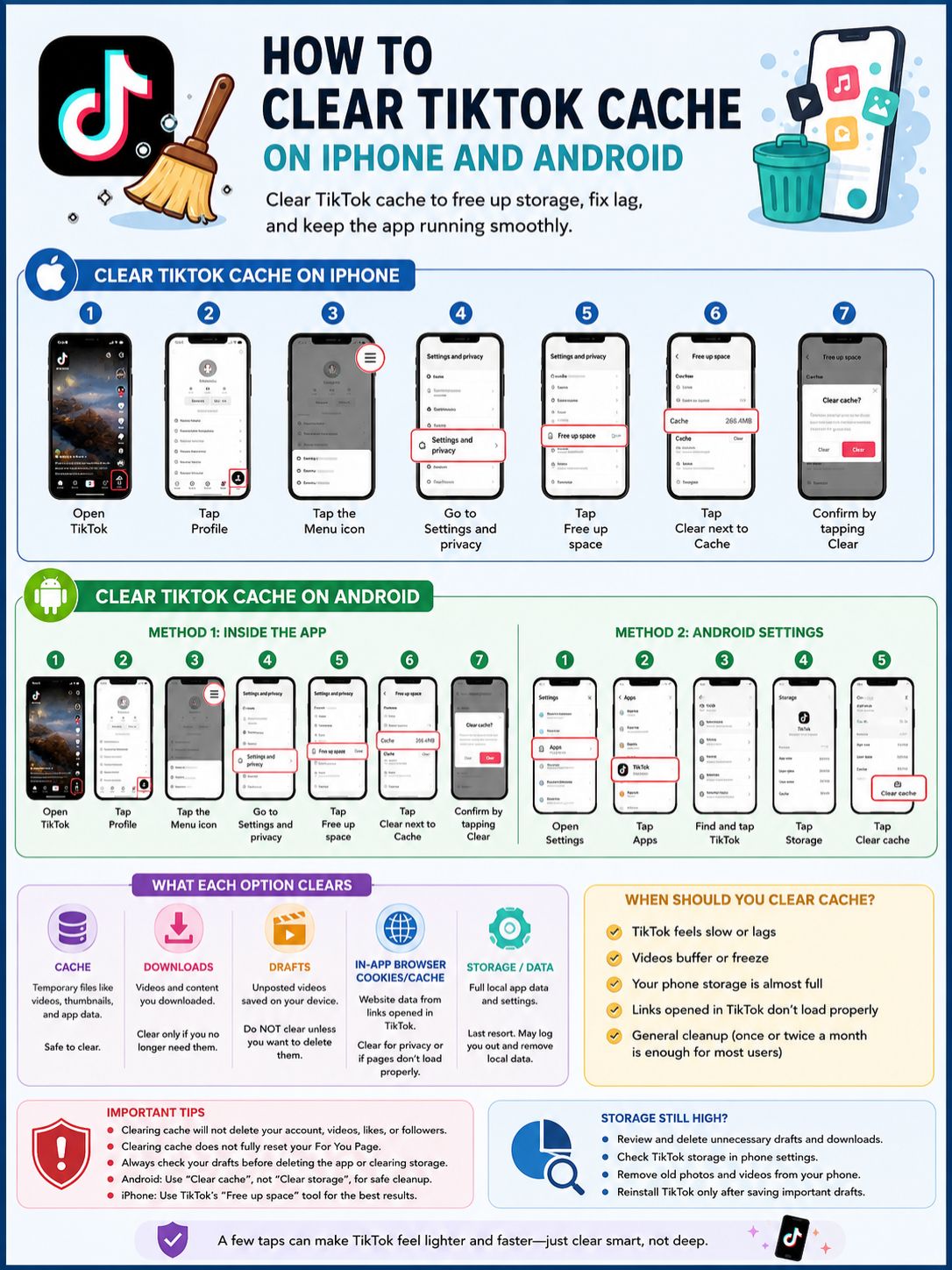
You don’t need to clear TikTok cache every day.
Cache helps apps run faster. If you clear it too often, TikTok will just rebuild it as you use the app again.
But clearing cache makes sense when the app starts acting up.
|
Situation |
Should You Clear Cache? |
Why |
|
TikTok feels slow |
Yes |
Old temporary files may slow things down |
|
Videos freeze or buffer often |
Yes |
Cache clearing is a safe first step |
|
Your phone storage is almost full |
Yes |
TikTok can store many temporary files |
|
Website links inside TikTok fail |
Clear in-app browser cache |
That targets website data |
|
You want to reset your For You Page |
No |
Use Refresh your feed |
|
You want to delete drafts |
No |
Manage Drafts separately |
If you use TikTok a lot, clearing cache once or twice a month is reasonable. If you use it casually, only clear it when TikTok feels slow or your phone storage gets tight.
Will Clearing TikTok Cache Reset the For You Page?
No. Clearing TikTok cache does not properly reset your For You Page.
This is one of the biggest myths around TikTok cache.
TikTok recommends videos based on many signals. These may include what you watch, like, share, skip, comment on, search for, and follow. Device settings, language, region, and other signals may also play a role.
So, clearing cache may remove temporary files, but it won’t erase TikTok’s whole understanding of your content habits.
|
Goal |
Use This TikTok Tool |
Why |
|
See less of a topic |
Not interested |
Tells TikTok you don’t want similar videos |
|
Start your feed fresh |
Refresh your feed |
Gives your For You feed a reset-style refresh |
|
Adjust topic preferences |
Manage topics |
Helps shape broad content areas |
|
Block certain words or hashtags |
Filter keywords |
Hides selected terms |
|
Control some personalization options |
Personalization settings |
Availability may vary by region |
If your For You feed feels messy, don’t waste time clearing cache again and again. Use TikTok’s feed tools instead.
Clear cache for storage. Use recommendation settings for the algorithm.
How to Free More Phone Storage After Clearing TikTok Cache
Sometimes TikTok still takes up a lot of space after you clear cache.
That usually means the storage is coming from something else. Drafts, downloads, app data, and phone videos can all take up space.
On iPhone
Go to:
Settings > General > iPhone Storage > TikTok
From there, you can see how much space TikTok uses. You can also offload or delete the app, but don’t do that until you check your drafts.
On Android
Go to:
Settings > Apps > TikTok > Storage
You can clear cache from there. You can also clear storage, but only use that as a last resort.
|
Cleanup Action |
iPhone |
Android |
Storage Impact |
|
Clear TikTok cache |
Yes |
Yes |
Small to large |
|
Delete TikTok downloads |
Yes |
Yes |
Medium |
|
Review and remove drafts |
Yes |
Yes |
Can be large |
|
Clear Android app cache |
No direct iOS equivalent |
Yes |
Small to medium |
|
Offload TikTok |
Yes |
No |
Medium |
|
Delete and reinstall TikTok |
Yes |
Yes |
Large, but risky |
|
Remove old phone videos |
Yes |
Yes |
Often large |
If you create videos often, drafts may be the real storage problem. A few high-quality video drafts can take more space than cache.
Check those before blaming cache.
What to Do If TikTok Still Lags After Clearing Cache
Clearing cache can help, but it won’t fix every issue.
TikTok may lag because of a weak internet connection, an outdated app, low phone storage, a bug, or a temporary service issue.
Try this order:
- Close TikTok fully.
- Open it again.
- Restart your phone.
- Check Wi-Fi or mobile data.
- Update TikTok from the App Store or Google Play.
- Clear TikTok cache.
- Clear in-app browser cookies/cache if links fail.
- Reinstall TikTok only after saving drafts.
|
Problem |
Possible Cause |
Best Fix |
|
Videos buffer |
Weak connection or old cache |
Check internet, clear cache |
|
TikTok crashes |
App bug, low memory, outdated app |
Restart, update, clear cache |
|
Links inside TikTok fail |
In-app browser cookies/cache |
Clear browser cookies/cache |
|
Storage remains high |
Drafts, downloads, app data |
Check Free up space sections |
|
For You Page feels wrong |
Recommendation signals |
Use Refresh your feed and Not interested |
If TikTok is having a platform issue, clearing cache won’t fix it. If your internet is unstable, cache clearing won’t fix that either.
Use cache clearing as one smart step, not a magic fix.
Common Mistakes to Avoid
Most TikTok cache problems come from one thing: tapping too fast.
Storage menus can be confusing. One wrong tap can delete more than you planned.
|
Mistake |
Why It’s Risky |
Better Choice |
|
Tapping Clear storage on Android |
Can remove full local app data |
Tap Clear cache instead |
|
Deleting TikTok before checking drafts |
Drafts may disappear |
Save drafts first |
|
Clearing Downloads by accident |
Removes saved files |
Read the label first |
|
Clearing cache every day |
Usually unnecessary |
Clear only when useful |
|
Expecting a For You Page reset |
Cache is not the algorithm |
Use Refresh your feed |
The safest habit is simple: read the label before tapping Clear.
Cache is safe. Drafts, downloads, and storage need more care.
Final Thoughts
The best way to clear tiktok cache is through TikTok’s own Free up space menu. It works on iPhone and Android, and it removes temporary files without touching your account.
On Android, you can also clear cache from phone settings. Just be careful. Clear cache is safe for normal cleanup. Clear storage is much stronger and can remove local app data.
On iPhone, start inside TikTok. iOS handles app storage differently, so TikTok’s built-in tool is the easiest first step.
Use cache clearing for storage problems, lag, freezing, and general cleanup. Use TikTok’s feed tools if your For You Page feels wrong. And before deleting anything bigger than cache, check your drafts.
A few taps can make TikTok feel lighter. Just don’t tap the wrong button.
FAQs About How to Clear TikTok Cache
|
FAQ Topic |
Quick Answer |
|
Draft safety |
Clearing cache should not delete drafts |
|
For You Page |
Cache clearing does not fully reset recommendations |
|
Android storage |
Clear cache and Clear storage are different |
|
iPhone storage |
iOS handles some temporary files automatically |
|
Browser cookies |
TikTok’s in-app browser has separate cookies/cache |
Does clearing TikTok cache delete drafts?
No. Clearing only the Cache option inside TikTok should not delete drafts. TikTok shows Drafts as a separate section. Still, check drafts before deleting or reinstalling TikTok.
Why is TikTok still using storage after I clear cache?
TikTok may still have drafts, downloads, app data, or in-app browser data. Cache is only one part of the storage TikTok uses.
Is Clear cache the same as Clear storage on Android?
No. They are very different. Clear cache removes temporary files. Clear storage removes much more local app data. Use Clear cache first.
Will clearing TikTok cache log me out?
Usually, clearing only TikTok cache should not log you out. But clearing full storage, deleting the app, or reinstalling TikTok may require you to sign in again.
Does clearing TikTok cache remove watch history?
No. Don’t rely on cache clearing to remove watch history or recommendation signals. TikTok uses broader account activity to shape your feed.
Does clearing TikTok cache remove a shadowban?
No reliable official source says clearing cache removes a TikTok restriction or “shadowban.” Cache clearing may fix app glitches, but reach problems usually need a different approach.
Why does TikTok cache come back after I clear it?
That’s normal. TikTok rebuilds cache as you use the app. When you watch videos, open profiles, search, or tap links, the app saves fresh temporary files again.
Should creators clear TikTok cache before editing videos?
Yes, if TikTok feels slow. But creators should check drafts first and avoid deleting the app unless their drafts are saved or no longer needed.
Yes. If you clear cookies and cache from TikTok’s in-app browser, you may get signed out of websites opened inside TikTok. Saved website preferences may also reset.