
Losing contacts on an iPhone feels personal. It is not just a list of numbers. It is your family, clients, work leads, doctors, delivery people, old friends, and people you always think you will remember but never do. The good news is that you can often recover iPhone contacts without running to a repair shop or paying for risky software.
In 2026, most lost iPhone contacts are not truly gone at first. They may be hidden inside iCloud, Gmail, Outlook, a work account, a SIM card, an old iPhone, or a backup. Sometimes the problem is even simpler: contact sync is turned off, the wrong account is selected, or the Contacts app is showing only one list.
This guide walks through the safest recovery methods first. We will start with quick checks, then move to iCloud, Gmail, Outlook, backups, SIM import, old devices, and no-backup recovery options.
Quick Answer: What Should You Try First?
Before you erase your iPhone or install a recovery app, check where your contacts were stored. If your contacts were synced with iCloud, Apple lets you restore archived contact versions from iCloud.com. If they were saved with Google, Google Contacts can recover deleted contacts from Trash within 30 days. If they came from Outlook, Microsoft also provides recovery options through Deleted and Recoverable folders.
Fast Recovery Map
Use this quick map if you do not know where to start.
|
Situation |
Best First Step |
Risk Level |
|
Contacts disappeared suddenly |
Check Contacts Lists and account sync |
Low |
|
Contacts were deleted from iCloud |
Restore contacts from iCloud.com |
Medium |
|
Contacts were saved in Gmail |
Use Google Contacts Trash or Undo changes |
Low |
|
Contacts were saved in Outlook |
Check Outlook Deleted or Recoverable folder |
Low to medium |
|
Contacts disappeared after reset |
Check iCloud or full backup restore |
Medium to high |
|
No backup exists |
Check old devices, SIM, Messages, Recents, and email |
Low |
|
You changed phones recently |
Check old phone, SIM, Gmail, iCloud, and Outlook |
Low |
My First Rule: Do Not Reset Too Early
A full reset should be the last move, not the first. I have seen people erase their phone too soon and make a simple sync issue harder to fix. Apple’s restore-from-backup process says that if an iPhone is already set up, it must be erased before restoring from an iCloud backup. That can replace newer data if you are not careful.
Why iPhone Contacts Disappear
Most missing contacts come from sync and account issues. iPhones can show contacts from iCloud, Gmail, Outlook, Yahoo, Exchange, SIM imports, and local storage. If one of those accounts gets turned off or removed, the contacts attached to it can disappear from the Contacts app. That does not always mean the contacts were deleted.
Common Reasons Behind Missing Contacts
Here are the usual causes in simple terms.
|
Cause |
What It Means |
What to Check |
|
iCloud Contacts turned off |
iPhone stopped showing iCloud contacts |
Settings > Apple Account > iCloud |
|
Gmail removed |
Google contacts no longer appear |
Settings > Apps > Contacts > Accounts |
|
Outlook sync disabled |
Work contacts disappeared |
Outlook or Exchange account settings |
|
Wrong list selected |
Contacts are hidden, not deleted |
Contacts app > Lists |
|
Default account changed |
New contacts saved somewhere else |
Contacts default account |
|
iCloud sync delay |
Contacts are still loading |
Wi-Fi, iCloud.com, restart |
|
Accidental deletion |
Deletion synced across devices |
iCloud.com Data Recovery |
Your Contacts May Be in Another Account
Many iPhone users assume every contact is stored in iCloud. That is not always true. If you added Gmail, Outlook, or a work email years ago, some contacts may live there. Apple allows users to add or remove accounts in Contacts, and users can choose a default account where new contacts are added.
Check the Lists View First
Open the Contacts app and tap Lists. Make sure iCloud, Gmail, Outlook, Exchange, and all available lists are selected. If only one list is selected, the rest of your contacts may look missing even though they are still there.
How to Recover iPhone Contacts from iCloud
This is the most important method if your missing numbers were saved with iCloud. Apple says iCloud automatically archives contacts, and users can restore an earlier archived version on iCloud.com. The current contact list is also archived first, so you can restore it back if needed.
When This Method Works Best
Use this if your contacts were deleted, overwritten, or changed while iCloud Contacts was turned on. It is also useful if the same missing contacts disappeared from your iPhone, iPad, and Mac.
|
Best For |
Not Best For |
|
Deleted iCloud contacts |
Contacts saved only in Gmail |
|
Contacts changed by mistake |
Contacts never synced to iCloud |
|
Contacts missing on all Apple devices |
Contacts saved only on SIM |
|
Accidental bulk deletion |
Very old deleted contacts with no archive |
Steps to Restore Contacts from iCloud.com
Go to iCloud.com/contacts from a browser and sign in with the Apple Account used on your iPhone. Open the App Launcher, choose Data Recovery, then select Restore Contacts. Pick an archive from before the contacts disappeared and confirm the restore. Apple notes that recently deleted contacts may take up to 24 hours to appear in the archive list.
Important Warning Before You Restore
This is not always a single-contact recovery tool. It restores an archived version of your iCloud contacts. If you added new contacts after the archive date, save them first. You can export important contacts as a vCard from iCloud.com before restoring.
Recover iPhone Contacts by Fixing iCloud Sync
Sometimes contacts are not deleted. They are just not syncing. This is the easier case. If contacts still appear on iCloud.com but not on your iPhone, the problem is probably your iPhone’s sync settings, internet connection, or Apple Account status.
Check iCloud Contacts Settings
Apple says iCloud Contacts must be turned on under Saved to iCloud for contact syncing to work. The same Apple Account must also be used on each device where you expect contacts to appear.
|
Step |
What to Do |
Why It Helps |
|
1 |
Open Settings |
Start from iPhone settings |
|
2 |
Tap your name |
Opens Apple Account settings |
|
3 |
Tap iCloud |
Shows iCloud sync options |
|
4 |
Tap See All next to Saved to iCloud |
Shows more iCloud apps |
|
5 |
Turn on Contacts |
Restarts iCloud contact sync |
|
6 |
Open Contacts app |
Check whether names return |
Turn Contacts Off and Back On Carefully
Go to Settings, tap your name, open iCloud, and turn Contacts off. If asked, choose Keep on My iPhone. Then turn Contacts on again and choose Merge if that option appears. This can refresh the connection without deleting local contacts.
Read Also: How to Find Lost iPhone Even If Powered Off
If Sync Still Fails
Restart the iPhone, check Wi-Fi, confirm the same Apple Account on iCloud.com, and wait a few minutes. If iCloud.com shows the contacts but the iPhone does not, the issue is with the device. If iCloud.com does not show the contacts either, move to iCloud Data Recovery.
Recover iPhone Contacts from Gmail
A lot of iPhone contacts are actually Google contacts. This happens when people move from Android to iPhone, use Gmail as their main email, or set Gmail as the default contact account without noticing. If the missing contacts were saved to Google, iCloud recovery will not bring them back.
Use Google Contacts Trash or Undo Changes
Google says deleted contacts can be moved out of Trash if they were deleted in the last 30 days. Google also says contacts deleted from Other contacts may not appear in Trash, but users can still recover them by undoing changes within the past 30 days.
|
Google Recovery Option |
Works For |
Time Limit |
|
Trash restore |
Deleted Google contacts |
30 days |
|
Undo changes |
Bulk edits or deleted Other contacts |
30 days |
|
Resync Gmail on iPhone |
Contacts hidden by sync issue |
No fixed limit |
|
Export Google Contacts |
Backup before changes |
Anytime |
Sync Gmail Contacts Back to iPhone
Open Settings, go to Apps, tap Contacts, then Accounts. Select your Gmail account and turn on Contacts. After that, open the Contacts app, tap Lists, and make sure Gmail is selected.
Mistakes to Avoid with Gmail Contacts
Do not assume the first Gmail account is the right one. Many users have personal, work, and old Android-related Google accounts. Sign in to Google Contacts from a browser and check each account before deciding your contacts are gone.
Recover iPhone Contacts from Outlook or Work Email
Outlook and Exchange accounts are common for office users, freelancers, and business owners. If your client or workplace contacts vanished, they may be stored in Microsoft 365, Outlook.com, or an Exchange account instead of iCloud.
Check Outlook Deleted Contacts
Microsoft says deleted Outlook contacts can appear in the Deleted folder. If they are not there, some accounts allow recovery from a Recoverable folder. This depends on the account type and retention settings.
|
Outlook Location |
What It Means |
What to Do |
|
Deleted folder |
Contact was deleted recently |
Restore it |
|
Recoverable folder |
Deleted from Deleted folder |
Use Recover deleted option |
|
Exchange admin controls |
Work account has retention rules |
Ask IT admin |
|
iPhone account sync |
Outlook still has contacts |
Turn Contacts sync on |
Turn Outlook Contacts On Again
On iPhone, open Settings, go to Apps, tap Contacts, then Accounts. Choose Outlook, Exchange, or Microsoft account and turn on Contacts. Then check the Lists view in the Contacts app.
When to Ask IT Support
If the account belongs to your company, do not keep guessing. Work accounts may have admin rules for deletion, retention, and contact syncing. Ask the IT team before using third-party tools.
Restore Contacts from an iCloud Backup
This method can work, but it has a catch. Restoring a full iPhone backup is not the same as restoring only contacts. Apple’s restore process requires the device to be on the setup screen. If the iPhone is already set up, Apple says you need to erase it before restoring from backup.
Use This Only When Safer Methods Fail
Try iCloud.com, contact lists, Gmail, Outlook, and old devices first. A full backup restore may bring contacts back, but it can also replace newer data on your phone.
|
Backup Option |
Best For |
Risk |
|
iCloud Contacts restore |
Deleted iCloud contacts |
Medium |
|
iCloud Backup restore |
Older full phone state |
High |
|
Computer backup restore |
Local backup before deletion |
High |
|
Gmail or Outlook restore |
Third-party synced contacts |
Low |
|
SIM import |
Older SIM-saved contacts |
Low |
Why Backup Restore May Not Always Bring Contacts Back
Apple says that when Calendar and Contacts information restores from iCloud Backup, old data may restore first, but iCloud then pushes updated Calendar and Contact data to the device and overwrites older data. So if the deletion already synced to iCloud, a backup restore may not solve the problem.
Before You Restore a Full Backup
Save current photos, files, WhatsApp data, notes, and any new contacts you still have. Check the backup date. Only restore a backup that was created before the contacts disappeared.
Recover Contacts from a Computer Backup
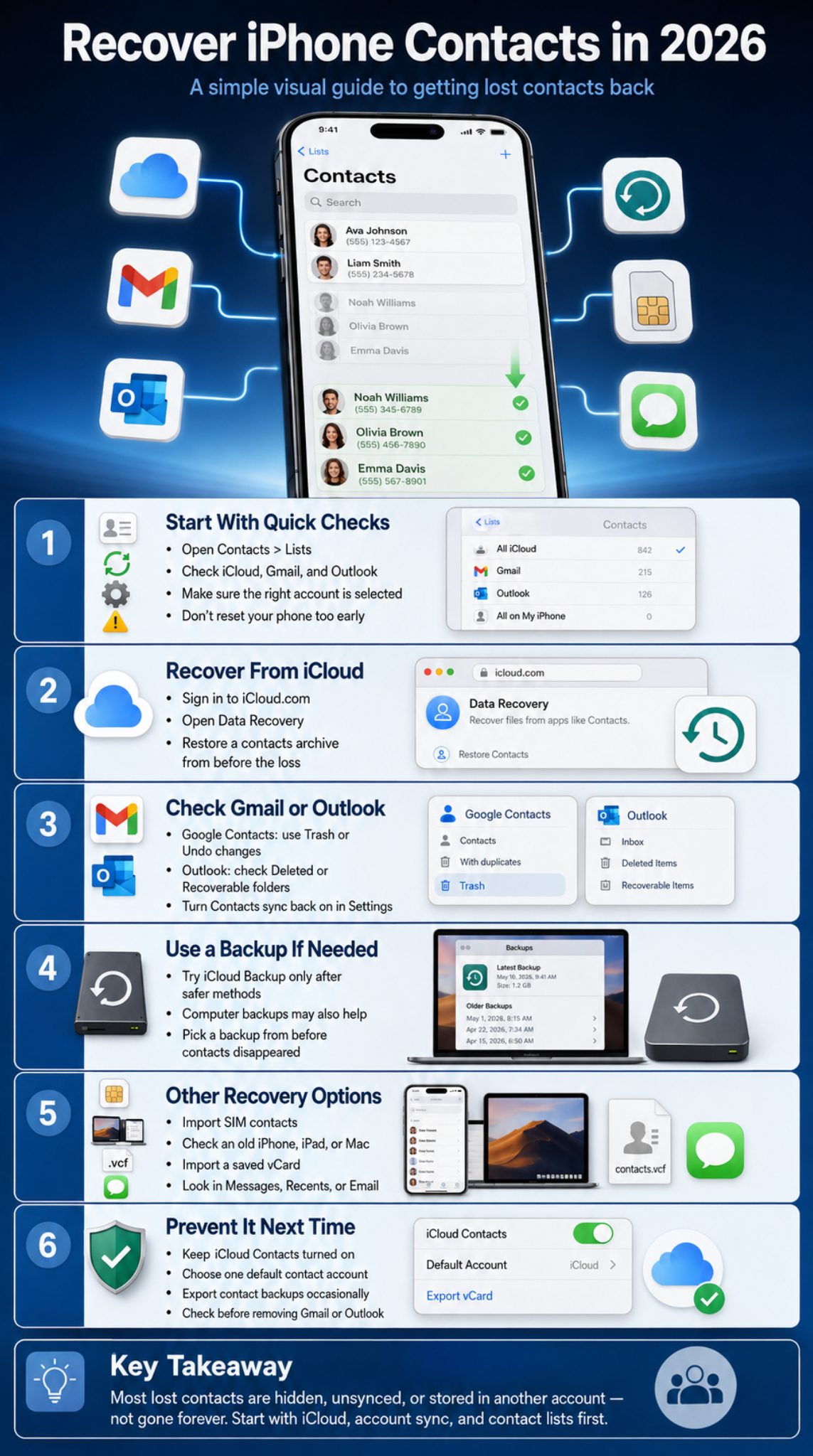
If you backed up your iPhone to a Mac or Windows PC before the contacts went missing, that backup may help. This is useful for people who do not rely only on iCloud. It can also help when contacts were stored locally on the iPhone at the time of backup.
Mac, Windows, Finder, Apple Devices, and iTunes
Apple says users can transfer data from a previous iPhone or iPad using a backup made with Finder, the Apple Devices app, or iTunes. This applies when you have a usable local backup from before the contact loss.
|
Backup Type |
Device Needed |
Best Use |
|
Finder backup |
Mac |
Newer macOS local backup |
|
Apple Devices app backup |
Windows |
Newer Windows device backup |
|
iTunes backup |
Older Mac or Windows setup |
Older local backups |
|
Encrypted backup |
Computer backup with more saved data |
Better full restore option |
Check the Backup Date First
The date matters more than the backup type. A backup made after the contacts disappeared will not help much. A backup made before the issue gives you a better chance.
Know the Trade-Off
A full computer backup restore may replace your current phone state. That is why I would use this only after checking iCloud, Gmail, Outlook, SIM, and old devices.
Recover Contacts from SIM Card, vCard, or Old Devices
This method is often overlooked. It is not the most modern option, but it still helps in some cases, especially when someone moved from an old phone, used a physical SIM, or received contacts as a vCard file.
Import Contacts from SIM Card
Apple’s support guidance says you can import contacts from a SIM card by inserting the previous SIM, opening Settings, tapping Apps, tapping Contacts, and choosing Import SIM Contacts. If asked, choose where to import the contacts.
|
Source |
Recovery Chance |
Best For |
|
SIM card |
Medium |
Older phone contacts |
|
vCard file |
High if file exists |
Exported contact backups |
|
Old iPhone |
High if not synced after deletion |
Previous device |
|
Mac Contacts app |
High if contacts still exist there |
Mac users |
|
iPad |
Medium to high |
Shared Apple Account users |
Import Contacts from a vCard
iPhone users can import contacts from a vCard by tapping a .vcf attachment in an email or message. iCloud.com also supports vCard import and export.
Check Old Apple Devices Carefully
If an old iPhone, iPad, or Mac still has the missing contacts, export them before turning sync back on. If the old device connects to the internet and syncs the deletion, the contacts may disappear there too.
Recover iPhone Contacts Without Backup
You can recover iPhone contacts without backup only if the contacts still exist somewhere. That “somewhere” may be iCloud archives, Google Contacts, Outlook, SIM, old devices, Messages, Recents, WhatsApp chats, email threads, invoices, or calendar invites.
Where to Look When There Is No Backup
Search your Phone app Recents, Messages, WhatsApp, Messenger, email inbox, LinkedIn messages, invoices, delivery apps, and calendar invites. You may not recover a perfect contact card, but you can rebuild the important names and numbers.
|
Place to Check |
What You May Find |
|
Phone Recents |
Unsaved phone numbers |
|
Messages |
Names, numbers, business details |
|
|
Phone numbers and profile names |
|
|
Signatures, phone numbers, company info |
|
Calendar |
Meeting guests and numbers |
|
Invoices |
Client and vendor contact details |
|
|
Professional contacts |
|
Old screenshots |
Saved phone numbers or business cards |
Be Honest About the Limit
If a contact was never synced, never backed up, not saved on SIM, not found in old messages, and already overwritten, full recovery may not be possible. That is frustrating, but it is better to know the truth before paying for software that promises magic.
Should You Use Third-Party Recovery Apps?
Use them only with caution. Some tools may scan local backups, but many overpromise. Avoid any tool that asks for your Apple Account password, pushes urgent payment before showing recoverable data, or claims it can recover anything from any iPhone in any condition.
How to Prevent Losing iPhone Contacts Again
Once you recover iPhone contacts, spend five minutes protecting them. It is boring, yes. But it is much better than trying to rebuild a contact list from old chats at midnight.
Choose One Default Contact Account
Apple lets users choose a default account where new contacts are automatically added. If you use iCloud as your main account, set iCloud as the default. If your workplace requires Outlook or Exchange, use that knowingly.
|
Prevention Step |
Why It Matters |
|
Turn on iCloud Contacts |
Keeps Apple devices synced |
|
Set a default account |
Stops contacts from scattering |
|
Export vCard backups |
Gives you a portable copy |
|
Keep Gmail or Outlook sync active |
Protects third-party contacts |
|
Check Lists after adding accounts |
Prevents hidden-contact confusion |
|
Avoid deleting contacts from synced devices |
Deletion can spread across devices |
Export Contacts Every Few Months
If your contacts are important for work, export them. Apple supports exporting iCloud contacts as vCard files, and Mac Contacts can export selected contacts or a full Contacts Archive.
Check Before Removing Accounts
Before deleting Gmail, Outlook, Yahoo, or Exchange from your iPhone, check whether contacts are attached to that account. Removing the account can remove those contacts from the Contacts app.
Common Mistakes to Avoid
People usually make recovery harder when they rush. The Contacts app is tied to accounts, sync settings, and backups. So the right order matters. Start with the least risky fix, then move to heavier options.
Do Not Restore the Wrong Archive
If you choose an iCloud contact archive from after the deletion, you may not get the missing contacts back. Pick a date from before the problem started.
|
Mistake |
Better Move |
|
Resetting the iPhone first |
Check iCloud, Gmail, Outlook, and Lists first |
|
Using the wrong Apple Account |
Confirm the Apple Account on iCloud.com |
|
Ignoring Gmail or Outlook |
Check every synced account |
|
Restoring a new backup |
Choose a backup from before deletion |
|
Paying for risky software first |
Try official recovery tools first |
|
Forgetting to export new contacts |
Save current contacts before archive restore |
Do Not Confuse iCloud Backup with iCloud Contacts
iCloud Contacts is a sync feature. iCloud Backup is a device backup. They overlap in the user’s mind, but they do not behave the same way. That difference is why an iCloud contact archive may work better than a full device restore.
Do Not Forget Newly Added Contacts
Before restoring an old archive, save contacts added after the archive date. You can export them, write them down, or share them as vCards.
Final Thoughts
The smartest way to recover iPhone contacts is to slow down and find where the contacts were stored. Start with the Contacts app Lists view. Then check iCloud.com, iCloud Data Recovery, Gmail, Outlook, and any work account. After that, look at backups, SIM import, old devices, vCards, messages, call history, and email records.
Do not erase your iPhone unless you understand what backup you are restoring and what current data you may lose. Most contact problems are sync problems, account problems, or hidden-list problems. Those are much easier to fix than a full reset.
After recovery, set one default contact account, keep iCloud or your chosen account synced, and export a backup once in a while. Future you will be grateful.
FAQs About Recovering iPhone Contacts
These questions target searchers who have already tried the basic fixes and still feel stuck.
Can I recover one deleted iPhone contact only?
Sometimes. If the contact was saved in Gmail or Outlook, you may be able to restore one contact from Trash or Deleted items. iCloud contact recovery usually restores an archived version of the whole contact list, not just one single contact.
Why are my contacts on iCloud.com but not on my iPhone?
That usually means the contacts still exist, but your iPhone is not syncing them properly. Check your Apple Account, iCloud Contacts setting, internet connection, and the Lists view inside the Contacts app.
Can I recover contacts after changing my Apple Account?
Yes, if the contacts are still attached to the old Apple Account. Sign in to iCloud.com with the old account and check Contacts or Data Recovery. Do not assume the new account has the old contacts.
Can I recover iPhone contacts after deleting Gmail from my phone?
Yes, if the contacts were stored in Gmail and still exist in Google Contacts. Add the Gmail account again, turn on Contacts sync, and check the Gmail list inside the Contacts app.
Will updating iOS bring back missing contacts?
Not usually by itself. An update may fix a sync bug, but missing contacts are usually tied to account settings, hidden lists, deleted records, or backup issues.
Can Apple Support recover permanently deleted contacts?
Apple Support can guide you through iCloud recovery options, but if no archive, backup, synced account, old device, or exported file exists, recovery may not be possible.
Why did my contact names disappear but phone numbers still show?
This often happens when the contact database is not syncing, but call or message history still exists. Check iCloud, Gmail, Outlook, and Lists before editing or deleting anything.
Is iCloud Data Recovery safe for contacts?
It is an official Apple method, but you still need to choose the right archive. Restoring contacts replaces the current contacts on all devices, while the current version is archived first.