
Bluetooth problems always seem to show up at the worst time.
Your mouse freezes during work. Your headphones connect but stay silent. Your keyboard disappears right before you need to enter a password.
When Mac Bluetooth is not working, the cause is usually less dramatic than it feels. The accessory may need charging. It may still be connected to another device. The saved pairing may have stopped working. A nearby hub or cable may also be causing interference.
The best way to fix it is to start small. Test the accessory, restart the connection, and work through the likely causes one by one. There’s no reason to delete system files or run random Terminal commands before trying the basics.
The steps below work with recent MacBook Air, MacBook Pro, iMac, Mac mini, Mac Studio, and Mac Pro models. Some menu names may look slightly different on older macOS versions.
First, Find Out What’s Failing
Before changing settings, figure out whether the problem comes from the Mac or the Bluetooth accessory.
Try connecting another Bluetooth device. A spare mouse, keyboard, speaker, controller, or pair of headphones will do.
Then test the original accessory with another phone, tablet, or computer.
This quick check can save a lot of time.
|
What Happens |
Likely Cause |
What to Try First |
|
Only one accessory fails |
Battery, pairing mode, or device firmware |
Restart and pair it again |
|
Nothing connects |
macOS service or Mac hardware |
Restart the Mac and check for updates |
|
Device connects but doesn’t work |
Wrong sound, input, or app setting |
Check system and app settings |
|
Connection drops near a dock |
Wireless interference |
Disconnect hubs and external drives |
|
Bluetooth won’t turn on |
Software or hardware problem |
Restart, update, and run diagnostics |
|
Device works on another Mac |
Setting or software conflict |
Forget the device and test safe mode |
Start with the battery. A Bluetooth device may still appear in the device list even when it doesn’t have enough charge to stay connected.
Next, make sure the accessory is actually in pairing mode. Turning it on isn’t always enough. Many headphones, speakers, controllers, and keyboards need a long press on a Bluetooth or power button before they become discoverable.
Check the manufacturer’s instructions when you’re unsure. Every device handles pairing a little differently.
Mac Bluetooth Not Working? Try These Quick Fixes
Start with the easiest steps. Test the device after each one.
That matters. When you change five settings at once, you won’t know which one solved the problem.
|
Quick Fix |
What It May Solve |
Difficulty |
|
Turn Bluetooth off and on |
Temporary connection failure |
Easy |
|
Restart the accessory |
Frozen device software |
Easy |
|
Restart the Mac |
Stuck macOS process |
Easy |
|
Charge the device |
Weak or unstable connection |
Easy |
|
Move the device closer |
Poor signal or obstruction |
Easy |
|
Disconnect extra devices |
Connection conflict |
Easy |
1. Turn Bluetooth Off and Back On
Open:
Apple Menu > System Settings > Bluetooth
Turn Bluetooth off. Wait about 10 seconds, then turn it back on.
You can also use Control Center in the menu bar.
This simple reset often clears a temporary connection problem. Keep in mind that turning Bluetooth off also pauses features that rely on it, including Handoff, Continuity, and Instant Hotspot.
On a desktop Mac, macOS may block you from turning Bluetooth off when your only keyboard, mouse, or trackpad uses Bluetooth. Connect a wired input device first if that happens.
2. Restart the Accessory
Turn the accessory off completely.
Wait a few seconds, then turn it back on.
For a Magic Mouse, use the switch underneath. A Magic Keyboard or Magic Trackpad has a switch along the back edge. Green should be visible when the device is on.
Third-party devices may use a different button or pairing sequence.
3. Restart the Mac
Choose:
Apple Menu > Restart
A proper restart does more than closing and reopening your MacBook lid. Closing the lid usually puts the Mac to sleep. It doesn’t reload macOS or restart its Bluetooth services.
Save your work first, then restart and test the device again.
4. Charge the Device
Plug the accessory into power or replace its batteries.
Don’t assume that a glowing light means the battery is fine. Some devices can turn on and appear in Bluetooth settings but still lack enough power to maintain a stable connection.
You can check the battery level of many connected accessories through Bluetooth settings or Control Center.
5. Move the Device Closer
Bring the accessory within a few feet of the Mac.
Remove anything blocking the signal, especially metal furniture, thick walls, cabinets, or large electronics.
Bluetooth has a useful range, but real-world obstacles can reduce it quickly.
Forget the Device and Pair It Again
Sometimes the Mac remembers a Bluetooth device, but the saved connection no longer works properly.
Removing the device and pairing it again creates a fresh connection.
|
Step |
What to Do |
|
1 |
Open System Settings |
|
2 |
Select Bluetooth |
|
3 |
Find the device |
|
4 |
Control-click its name |
|
5 |
Select Forget |
|
6 |
Restart the accessory |
|
7 |
Put it into pairing mode |
|
8 |
Click Connect when it appears |
After selecting Forget, turn the accessory off for a few seconds.
Turn it on again and activate pairing mode. Wait for it to appear under Nearby Devices, then click Connect.
A blinking light doesn’t always mean the device is ready to pair. Some products use different light patterns for charging, connecting, and pairing. Check the manual if the device never appears.
Check Nearby Phones, Tablets, and Computers
Your accessory may already be connected somewhere else.
Headphones, speakers, keyboards, and controllers often reconnect to the last device they used. That could be your phone, television, tablet, game console, or another computer.
Temporarily turn off Bluetooth on nearby devices. Then try pairing with the Mac again.
Multipoint headphones can connect to more than one device, but switching isn’t always smooth. Disconnect them manually during troubleshooting.
Pair Apple Accessories With a Cable
A Magic Keyboard, Magic Mouse, or Magic Trackpad can pair automatically when connected to a Mac with a compatible cable.
Follow these steps:
- Connect the accessory to the Mac.
- Turn the accessory on.
- Wait for the pairing notification.
- Disconnect the cable.
A Magic Mouse must be unplugged before you can use it because the charging port sits on the bottom.
This cable method is especially helpful when your wireless keyboard or mouse isn’t working well enough to finish the normal pairing process.
Fix a Device That Connects but Doesn’t Work
Seeing “Connected” in Bluetooth settings doesn’t always mean the Mac is using the device.
Your headphones may be connected while sound still comes through the Mac’s speakers. A headset microphone may also connect correctly but remain unselected in Zoom, Teams, Discord, or another app.
|
Problem |
Where to Look |
Likely Fix |
|
Headphones connect but Mac speakers play |
Sound > Output |
Select the headphones |
|
Headset microphone doesn’t work |
Sound > Input |
Choose the correct microphone |
|
Meeting app uses the wrong device |
Audio settings inside the app |
Change input and output |
|
Audio sounds dull during calls |
Apps using the headset microphone |
Close unnecessary microphone apps |
|
Mouse pointer jumps |
Battery, interference, or device software |
Charge and test without hubs |
|
Keyboard connects but won’t type |
Battery, input source, or software |
Check charge and keyboard settings |
Select the Correct Sound Output
Open:
Apple Menu > System Settings > Sound
Under Output, select your Bluetooth headphones, earbuds, or speaker.
Under Input, choose the microphone you want to use.
Now check the app itself. Zoom, Microsoft Teams, Discord, recording tools, and web browsers may ignore the system default and use their own audio settings.
Fix Poor Headphone Sound During Calls
Bluetooth headphones often sound worse when their built-in microphone is active.
This happens because the headphones switch into a mode that handles both incoming and outgoing audio. It works for calls, but music and other sound may become dull, quiet, or compressed.
Try this:
- Quit meeting, chat, recording, and voice apps.
- Open Control Center.
- Select Sound.
- Switch to the Mac’s internal speakers.
- Select the Bluetooth headphones again.
You can also use the Mac’s built-in microphone for calls while keeping the headphones selected for sound output. This often gives you better listening quality.
Update the Accessory’s Software
Some mice, keyboards, controllers, drawing tablets, and headsets rely on software from the manufacturer.
Check whether that software supports your macOS version. Old drivers and device utilities can cause strange behavior, even when Bluetooth itself is working.
Update the software, restart the Mac, and test again.
You can also quit the accessory app temporarily. If the device works normally without it, the software may be the real problem.
Read Also: How to Use Spotlight Search Shortcuts on Mac
Fix Bluetooth Lag, Dropouts, and Static
Bluetooth interference can be hard to spot.
The connection may work perfectly in one room and fail at a desk filled with hubs, drives, cables, speakers, and wireless equipment.
Bluetooth and many Wi-Fi devices use the crowded 2.4 GHz band. Nearby electronics can affect the signal.
|
Possible Source |
Simple Test |
|
USB-C or Thunderbolt dock |
Disconnect it temporarily |
|
USB 3 external drive |
Move it away from the Mac |
|
Poorly shielded cable |
Replace or reposition the cable |
|
Microwave oven |
Test while it’s off |
|
Wireless camera or speaker |
Turn it off temporarily |
|
Crowded 2.4 GHz Wi-Fi |
Use 5 GHz Wi-Fi where possible |
|
Metal desk or cabinet |
Move the Mac into an open space |
Disconnect Hubs and External Drives
USB 3 and Thunderbolt equipment can interfere with nearby wireless devices.
Unplug nonessential hubs, docks, drives, adapters, and cables. Then test Bluetooth again.
This is especially important with a Mac mini or Mac Studio. These computers often sit behind a monitor or beside several drives and cables, which can create a messy wireless environment.
Move drives and hubs farther away from the Mac. Better shielding and cable placement may also help.
Test Downloaded Audio
When Bluetooth audio keeps cutting out, play a downloaded file instead of streaming music or video.
This separates a Bluetooth problem from a Wi-Fi or streaming problem.
If downloaded audio plays smoothly but streamed audio keeps stopping, the network may be part of the issue.
Remove Physical Barriers
Keep a clear path between the Mac and the device.
Metal is one of the worst materials for wireless signals. Concrete, brick, water, plaster, and marble may also weaken the connection.
Don’t hide the Mac behind a monitor, inside a cabinet, or under a pile of cables while testing.
Update macOS and Look for Software Conflicts
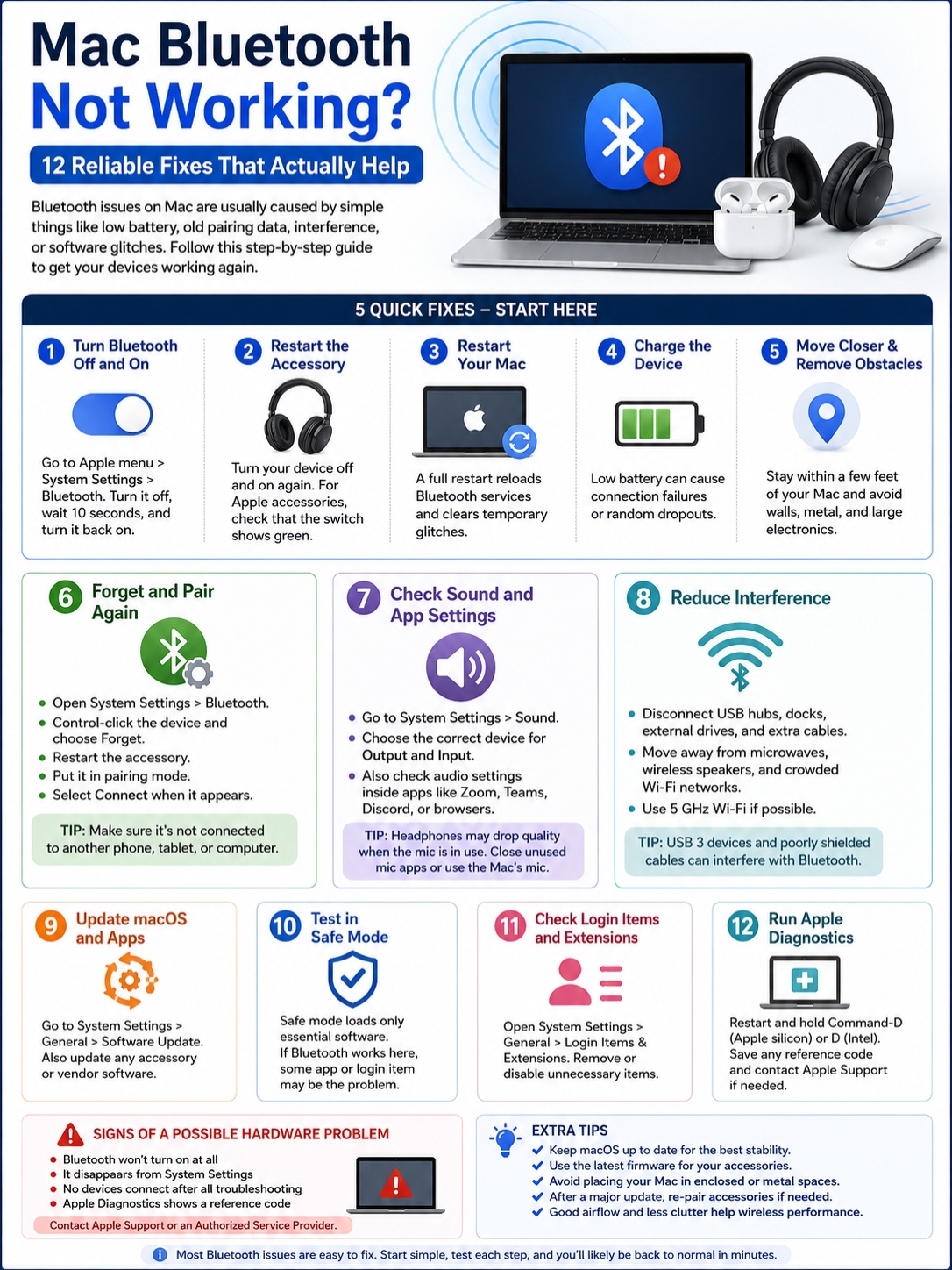
When Mac Bluetooth is not working with several accessories, check for software updates.
Updates can fix bugs, improve compatibility, and install firmware changes for supported Mac hardware.
|
Step |
What It Helps Identify |
|
Install macOS updates |
Known system or compatibility issue |
|
Start in safe mode |
Software that loads during startup |
|
Review login items |
Background app conflict |
|
Update accessory apps |
Old drivers or utilities |
|
Restart normally |
Whether the improvement lasts |
Install Available macOS Updates
Open:
Apple Menu > System Settings > General > Software Update
Install any update available for your Mac.
Back up important files before a major macOS upgrade.
Software Update only shows versions supported by your Mac, so you don’t need to guess which release is compatible.
Test Bluetooth in Safe Mode
Safe mode helps you check whether a startup app, driver, extension, or background utility is causing the problem.
On an Apple Silicon Mac
- Shut down the Mac.
- Hold the power button until startup options appear.
- Select the startup disk.
- Hold Shift.
- Click Continue in Safe Mode.
On an Intel Mac
- Turn on or restart the Mac.
- Immediately hold Shift.
- Release Shift when the login screen appears.
- Sign in.
You may need to sign in twice.
Test Bluetooth in safe mode. Then restart normally to leave safe mode.
When the accessory works in safe mode but fails after a normal restart, software is the likely cause.
Review Login Items and Background Apps
Open:
Apple Menu > System Settings > General > Login Items & Extensions
Temporarily remove nonessential apps from Open at Login.
Also review the apps allowed to run in the background.
Pay close attention to:
- Audio-routing tools
- Mouse and keyboard software
- Controller utilities
- Security programs
- Automation apps
- Old hardware drivers
- Display and dock software
Write down what you disable. Then restart and test Bluetooth.
If the problem disappears, turn the items back on one at a time until it returns.
Check for a Possible Hardware Problem
Hardware becomes a stronger possibility when Bluetooth disappears from settings, refuses to turn on after a restart, or fails with every known-working accessory.
|
Check |
What It Tells You |
|
Test several accessories |
Whether one device is at fault |
|
Open System Information |
Whether macOS reports Bluetooth hardware |
|
Run Apple Diagnostics |
Whether internal hardware may have failed |
|
Save diagnostic codes |
What to share with Apple Support |
|
Arrange professional service |
Whether the Mac needs repair |
Check Bluetooth in System Information
Hold Option and open the Apple menu.
Select System Information, then choose Bluetooth in the sidebar.
This page shows hardware and connection details detected by the Mac. It may help confirm whether macOS can see the Bluetooth controller and connected devices.
Treat it as a clue, not a final diagnosis. An entry in System Information doesn’t prove everything is working, and a missing detail doesn’t always confirm hardware failure.
Run Apple Diagnostics
Disconnect nonessential external equipment first. Keep the keyboard, mouse, display, Ethernet cable, and power connection attached if needed.
On an Apple Silicon Mac
- Shut down the Mac.
- Hold the power button until startup options appear.
- Release the button when you see Options.
- Hold Command-D until the Mac restarts.
On an Intel Mac
- Turn on the Mac.
- Immediately hold D.
- Try Option-D if the first method doesn’t work.
- Release the keys when the diagnostic screen appears.
Follow the instructions on-screen.
Newer macOS versions may ask you to choose a particular test. Older versions may run the tests automatically.
Save any reference code you receive.
Apple Diagnostics checks internal Mac hardware. It doesn’t test third-party accessories or rule out every software problem.
Skip Outdated Bluetooth Tricks
A lot of Mac troubleshooting advice online was written for much older versions of macOS.
Some of it still gets copied into new articles without checking whether it applies to current Macs.
|
Common Advice |
Better First Choice |
|
Reset Bluetooth from a hidden menu |
Restart, forget, and reconnect the device |
|
Delete Bluetooth preference files |
Use supported fixes first |
|
Paste random Terminal commands |
Avoid commands without a clear source |
|
Reset the SMC on every Mac |
Use model-specific instructions only |
|
Reset NVRAM for every wireless problem |
Don’t treat it as a standard Bluetooth fix |
|
Reinstall macOS immediately |
Update, use safe mode, and run diagnostics first |
Deleting preference files may erase settings without fixing the real problem.
Random Terminal commands are even riskier. They often come with no explanation, no rollback steps, and no guarantee that they match your version of macOS.
A macOS reinstall should be one of the last options, not the first.
Final Thoughts
When Mac Bluetooth is not working, start with the obvious things.
Check the battery. Restart the accessory. Toggle Bluetooth. Restart the Mac. Then forget the device and pair it again.
|
Best Order |
What to Do |
|
1 |
Test the accessory with another device |
|
2 |
Charge and restart it |
|
3 |
Toggle Bluetooth |
|
4 |
Restart the Mac |
|
5 |
Forget and reconnect the device |
|
6 |
Check Sound and app settings |
|
7 |
Disconnect hubs and cables |
|
8 |
Update macOS |
|
9 |
Test safe mode |
|
10 |
Run Apple Diagnostics |
Most Bluetooth problems don’t need Terminal commands, deleted system files, or a full macOS reinstall.
A simple pairing issue, low battery, wrong audio setting, or nearby dock is far more common.
When every device fails, Bluetooth disappears, or Apple Diagnostics returns a reference code, the problem may go beyond normal troubleshooting. Save the code and contact Apple Support or an authorized service provider.
Frequently Asked Questions
|
Question |
Quick Answer |
|
Can I turn Bluetooth on without a mouse? |
Yes, if the keyboard still works |
|
Why can’t my desktop Mac disable Bluetooth? |
Its only input device may use Bluetooth |
|
Does connected mean selected? |
No, sound input and output are separate |
|
Can a USB-C hub affect Bluetooth? |
Some hubs, drives, and cables can |
|
Does Apple Diagnostics test accessories? |
No, it checks internal Mac hardware |
Can I Turn Bluetooth On Without a Mouse?
Yes.
Press Command-Space, search for Bluetooth File Exchange, and press Return.
Press Return again if macOS asks whether you want to turn Bluetooth on.
This works when the keyboard is still available.
Why Can’t I Turn Bluetooth Off on My iMac or Mac Mini?
Your only keyboard, mouse, or trackpad may be using Bluetooth.
macOS may stop you from disabling Bluetooth because you would lose control of the computer.
Connect a wired keyboard or mouse first.
Why Are My Headphones Connected but Silent?
The Mac may not have selected them as the output device.
Open:
System Settings > Sound > Output
Choose the headphones.
Then check the sound settings inside the app you’re using.
Can a USB-C Hub Cause Mouse Lag?
Yes, in some setups.
The USB-C connector itself isn’t always the problem. USB 3 equipment, docks, external drives, and poorly shielded cables can interfere with nearby Bluetooth devices.
Disconnect the hub and test again.
Why Does Bluetooth Work After a Restart, Then Fail Again?
A background utility, login item, driver, or sleep-related bug may be involved.
Test safe mode. If Bluetooth works there, review your login items and background apps.
Does Apple Diagnostics Test My Bluetooth Mouse or Headphones?
No.
Apple Diagnostics checks hardware inside the Mac. It doesn’t test third-party headphones, keyboards, mice, or speakers.
Test the accessory with another device instead.