
Moving from Android to iPhone sounds simple until WhatsApp enters the picture.
Your contacts and photos may move in a few taps. Your chat history is different. Years of messages, family photos, voice notes, work files, and group conversations may all be stored inside WhatsApp.
Thankfully, there is an official way to transfer WhatsApp Android to iPhone. It uses Apple’s Move to iOS system and does not require a paid desktop tool.
The process works well, but only when you follow the steps in the right order. The iPhone usually needs to be new or factory reset. You must also use the same phone number on both devices.
A Google Account backup cannot be restored directly on an iPhone. Android and iPhone use different cloud backup systems. Move to iOS handles the actual transfer between the two phones.
This guide explains what you need, what moves, what stays behind, and what to do when the transfer gets stuck.
Can You Move WhatsApp Chats From Android to iPhone?
Yes. WhatsApp officially supports moving a personal WhatsApp account from Android to iPhone.
The transfer includes most of the data people care about, such as messages, group chats, photos, videos, voice notes, account details, and supported settings.
There is one major catch. You must run the transfer during the iPhone’s initial setup.
|
Question |
Answer |
|
Is there an official transfer method? |
Yes, through Move to iOS |
|
Is the transfer free? |
Yes |
|
Must the iPhone be new? |
It must be new or factory reset |
|
Can old and new chat histories be merged? |
No |
|
Must both phones use the same number? |
Yes, during the transfer |
|
Does it support WhatsApp Business? |
No |
|
Can an Android backup restore directly to iPhone? |
No |
What About Apple’s Newer Transfer Options?
Apple has introduced newer Android-to-iPhone transfer features for certain supported devices and software versions.
However, WhatsApp still directs users to Move to iOS for chat migration. Apple’s newer app-free transfer instructions do not clearly say that they replace the existing WhatsApp process.
For now, Move to iOS remains the safest and best-documented method for moving WhatsApp chats.
What You Need Before Starting
Most failed transfers come down to simple problems: old software, low storage, the wrong phone number, or an iPhone that has already been set up.
Check everything before you begin.
|
Requirement |
What You Need |
|
Android version |
Android 5.0 or later |
|
iPhone version |
iOS 15.5 or later |
|
Android app |
Move to iOS |
|
WhatsApp version |
Latest version on both devices |
|
Phone number |
The same number used on Android |
|
iPhone status |
New or factory reset |
|
Battery |
Both phones connected to power |
|
Connection |
Stable Wi-Fi or compatible cable |
|
Storage |
Enough space on the iPhone |
|
Account type |
Personal WhatsApp account |
Update Both Phones
On Android, open Google Play and update:
- WhatsApp Messenger
- Move to iOS
- Any available Android system software
You will install WhatsApp on the iPhone after the transfer finishes.
Old app versions can cause WhatsApp to disappear from the Move to iOS transfer list. They can also stop the chat preparation stage without giving you a useful explanation.
Check Your WhatsApp Storage
Open WhatsApp on Android and go to:
Settings > Storage and data > Manage storage
Look at how much space your chats and media use. Pay attention to large videos, documents, and heavily used group chats.
The iPhone needs enough room for your WhatsApp data and anything else you select during the move.
Do not aim for an exact match. Leave some extra space for temporary files and iPhone system data.
Keep the Same Phone Number
WhatsApp must verify the same number on the iPhone that you used on Android.
The SIM card does not contain your messages, but you still need access to the number. WhatsApp may send a verification code by SMS or phone call.
Planning to change numbers? Finish the transfer first. Once you have checked your chats on the iPhone, use WhatsApp’s Change Number feature.
How to Transfer WhatsApp Android to iPhone
The official process is not difficult, but it does not give you much room to improvise.
Charge both phones, place them next to each other, and avoid using them until the transfer finishes.
|
Step |
What to Do |
|
1 |
Prepare the Android phone |
|
2 |
Start setting up the iPhone |
|
3 |
Connect the phones with Move to iOS |
|
4 |
Select WhatsApp |
|
5 |
Let WhatsApp prepare the data |
|
6 |
Finish the iPhone transfer |
|
7 |
Install WhatsApp |
|
8 |
Import and check the chats |
Step 1: Prepare the Android Phone
Connect the Android phone to power and turn on Wi-Fi.
Temporarily turn off anything that could interrupt the connection:
- Mobile data
- VPN apps
- Battery saver
- Adaptive Wi-Fi
- Smart Network Switch
- Automatic mobile-data fallback
- Personal hotspot features
Open WhatsApp and make sure your chats are still there.
Do not uninstall the app.
You can also create a fresh Android backup before starting. It will not restore on the iPhone, but it gives you a backup in case you need to keep using the Android device.
Step 2: Start the iPhone Setup
Turn on the new or erased iPhone.
Follow the setup screens until you reach:
Transfer Your Apps & Data
Choose:
From Android
Then select the option to transfer with the Move to iOS app.
Already finished setting up the iPhone? You will need to erase it and begin again if you want to use the official WhatsApp migration process.
Step 3: Open Move to iOS
Open Move to iOS on the Android phone.
Accept the terms and allow the permissions it requests.
The iPhone will show a six-digit or ten-digit code. Enter that code on Android.
The iPhone then creates a temporary Wi-Fi network. Join it when prompted.
Android may warn that the network has no internet access. That is normal. The connection is being used to move data between the two phones.
Some compatible devices can also connect with a USB-C cable. A wired transfer may be faster and more stable, especially when you have a large media library.
Step 4: Select WhatsApp
Wait for the Transfer Data screen to appear on Android.
Select WhatsApp. You can also choose contacts, photos, calendars, files, and other supported content.
Tap Start when WhatsApp opens.
WhatsApp will prepare your chat history and media for transfer. This part may take a while, especially if your account contains years of videos and group messages.
When WhatsApp finishes, return to Move to iOS and tap Continue.
Step 5: Do Not Touch Either Phone
This is where patience matters.
Keep both phones plugged in and close together. Do not open apps, answer calls, change networks, or close Move to iOS.
The Android phone may say the process is complete before the iPhone does. Ignore it.
Wait until the loading bar on the iPhone reaches the end.
Using the Android phone during the transfer can interrupt the connection and leave some content behind.
Step 6: Finish Setting Up the iPhone
Once the loading bar finishes, tap Done on Android.
Complete the remaining setup steps on the iPhone. Sign in to your Apple Account and configure Face ID, security settings, and other options.
Read Also: How to Use Two WhatsApp Accounts on One Phone in 2026
Step 7: Install WhatsApp Messenger
Download WhatsApp Messenger from the App Store.
Make sure you install the personal WhatsApp app, not WhatsApp Business.
Open the app and verify the same number you used on Android.
WhatsApp should detect the transferred data. Tap Start when asked to import it.
Keep the app open until the process finishes.
Your messages may appear before every photo or video finishes loading. Large media collections often need more time to process.
What Moves and What Stays Behind?
The transfer covers most personal WhatsApp data, but not everything.
|
Usually Transferred |
Not Transferred |
|
Account information |
WhatsApp call history |
|
Profile photo |
WhatsApp display name |
|
Individual chats |
WhatsApp Business chats |
|
Group chats |
Existing iPhone chat history |
|
Community chats |
Media received through Channels |
|
Channel updates |
Google Account backup files |
|
Photos and videos |
Unsupported or damaged files |
|
Voice messages |
Exported chats as live conversations |
|
Documents |
|
|
Supported settings |
Call History Does Not Transfer
Your message history may move, but WhatsApp call records do not.
This includes past incoming, outgoing, and missed WhatsApp calls.
Channel Media May Be Missing
WhatsApp can move Channel updates, but it does not move media received through Channels.
That means a Channel post may appear while its image or video does not.
WhatsApp Business Is Not Supported
The official Android-to-iPhone migration does not currently support WhatsApp Business accounts.
That limitation matters for anyone who uses WhatsApp to manage customers, orders, or client records.
Do not erase the Android phone until you have preserved any business conversations you need.
Existing iPhone Chats Cannot Be Merged
You cannot combine an old Android chat history with a separate history already created on the iPhone.
For example, suppose you start using WhatsApp on the iPhone for a week and then try to import your old Android chats. WhatsApp will not merge the two sets of conversations.
The supported solution is to erase the iPhone and repeat the Move to iOS process.
What If the iPhone Is Already Set Up?
This is the part many people discover too late.
The official transfer tool works during initial setup. There is no normal WhatsApp button that imports a full Android history into an iPhone you are already using.
|
Option |
What Happens |
|
Erase the iPhone |
Lets you use Move to iOS |
|
Export selected chats |
Saves readable copies only |
|
Keep the Android phone |
Preserves access to old chats |
|
Use third-party software |
May work, but carries added risk |
Back Up Your iPhone Before Erasing It
Save anything created on the iPhone before you reset it.
Check:
- Photos and videos
- Contacts
- Notes
- Files
- Messages
- Authenticator apps
- Health information
- App data
- Passwords and passkeys
To erase the iPhone, go to:
Settings > General > Transfer or Reset iPhone > Erase All Content and Settings
After the reset, start again and choose From Android.
Be careful when restoring a full iPhone backup later. An older device backup may overwrite newer app data, including the WhatsApp installation you just imported.
Export Important Chats for Reference
You can export individual Android chats if you only need a readable record.
Open the conversation and choose:
More options > More > Export chat
You can export with or without media.
The result is usually a text file with optional attachments. You can save it to email, cloud storage, or another app.
There is one important limit: exported chats cannot be imported back into WhatsApp as normal conversations.
How to Fix Common Transfer Problems
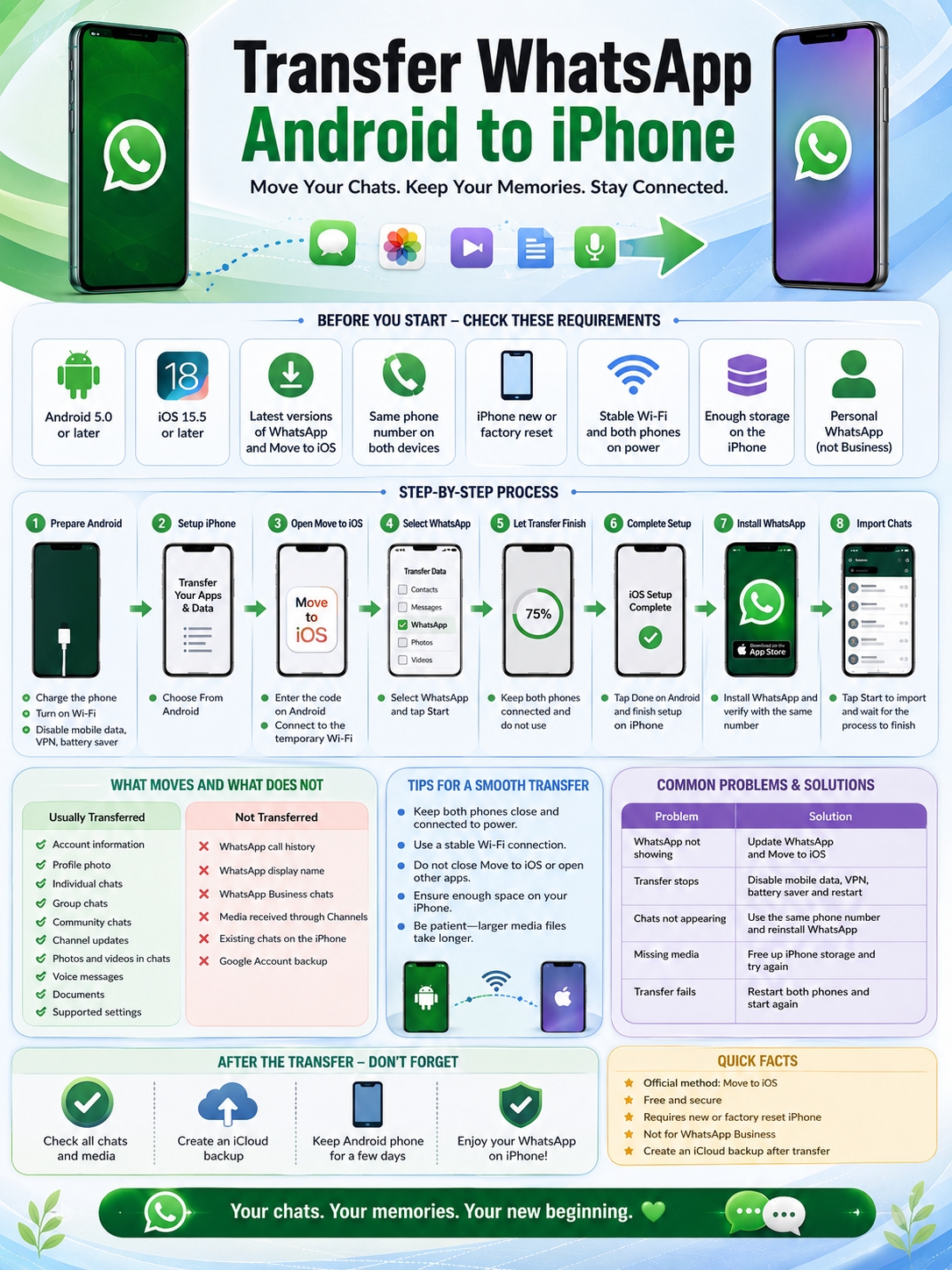
The official method is reliable, but it can still fail.
Connection problems and low storage cause most issues.
|
Problem |
Likely Cause |
What to Try |
|
WhatsApp does not appear |
Outdated apps |
Update WhatsApp and Move to iOS |
|
Transfer freezes |
Wi-Fi switching or battery controls |
Disable mobile data and battery saver |
|
Pairing code fails |
Broken temporary connection |
Restart both phones |
|
Chats do not appear |
Wrong number or missed import |
Use the original number |
|
Some media is missing |
Low storage or interrupted transfer |
Free space and repeat |
|
Old and new chats will not merge |
Separate histories |
Reset and start again |
|
Business chats are missing |
Unsupported account type |
Keep the Android copy |
Move to iOS Keeps Disconnecting
Leave Move to iOS open on the Android screen.
Turn off any setting that automatically changes your network. Different Android brands use different names for this feature.
Look for terms such as:
- Smart Network Switch
- Adaptive connectivity
- Switch to mobile data
- Intelligent Wi-Fi
- Auto network selection
Restart both phones if the connection keeps failing.
You can also forget saved Wi-Fi networks before trying again. This reduces the chance that Android will jump away from the iPhone’s temporary network.
The iPhone Runs Out of Space
A failed transfer may leave the iPhone looking full, even when the process never completed.
The usual fix is to erase the iPhone and start again.
Before retrying:
- Check the iPhone’s total capacity.
- Review WhatsApp’s Manage storage page.
- Delete videos you no longer need.
- Remove duplicate files.
- Transfer fewer non-WhatsApp items at the same time.
Large WhatsApp groups can hold far more media than expected. Clearing a few old videos can make a big difference.
WhatsApp Does Not Detect the Chats
Check the basics first:
- Did you install WhatsApp Messenger?
- Did you use the original phone number?
- Is the country code correct?
- Did Move to iOS finish completely?
- Does the iPhone have enough storage?
- Are both WhatsApp apps updated?
You can try deleting and reinstalling WhatsApp on the iPhone.
If the transferred data still does not appear, the official fix is usually to erase the iPhone and repeat the entire process.
It is frustrating, but a fresh transfer is often faster than trying to repair a broken one.
Check Everything Before Erasing Android
Do not wipe or trade in the old phone as soon as your chat list appears.
Take a few minutes to inspect the transfer properly.
|
What to Check |
What to Look For |
|
Recent chats |
Your latest messages |
|
Old chats |
Conversations from previous years |
|
Groups |
Complete group history |
|
Photos |
Images open correctly |
|
Videos |
Important clips play |
|
Voice messages |
Audio loads and plays |
|
Documents |
PDFs and files open |
|
Contacts |
Names appear correctly |
|
Backup |
iCloud backup completes |
Open a mix of recent and older conversations.
Search for a few messages you remember. Open important photos, videos, voice notes, and documents.
Some media may take longer to load than text. Leave the iPhone connected to Wi-Fi and power for a while.
Your old WhatsApp data normally remains on the Android phone until you uninstall the app or erase the device. Keep it there until you know the iPhone copy is complete.
Create a New iCloud Backup
The transfer gets your chats onto the iPhone. It does not automatically create an iCloud backup.
You need to do that yourself.
|
Backup Step |
Why It Matters |
|
Open Chat Backup |
Shows your current backup status |
|
Tap Back Up Now |
Creates the first iCloud copy |
|
Check iCloud storage |
Prevents failed backups |
|
Enable automatic backups |
Protects future messages |
|
Consider encrypted backup |
Adds another layer of security |
On the iPhone, open:
WhatsApp > Settings > Chats > Chat Backup
Tap Back Up Now.
Make sure iCloud Drive is enabled and your Apple Account has enough free storage.
You can also choose a daily, weekly, or monthly backup schedule. Decide whether you want videos included, since they can use a lot of iCloud space.
For stronger protection, consider turning on an end-to-end encrypted backup. Store the password or encryption key somewhere safe. WhatsApp cannot recover it for you if you lose it.
Should You Use Third-Party Transfer Software?
A quick search will bring up desktop tools that promise to move WhatsApp without resetting the iPhone.
Some may work. Others may fail halfway through or produce an incomplete chat history.
The bigger concern is access.
These tools may ask for:
- USB debugging
- Device passcodes
- Local WhatsApp databases
- Backup files
- Permission to read photos and documents
- Access to both phones
That is a lot of personal data to hand over to an unknown company.
|
Method |
Officially Supported? |
Main Concern |
|
Move to iOS |
Yes |
Requires a new or erased iPhone |
|
Export chat |
Yes |
Cannot restore into WhatsApp |
|
Third-party software |
No official support |
Privacy and reliability |
|
Manual file copying |
No |
Android files do not restore normally on iPhone |
Before using any third-party tool, check who owns it, where it stores your data, and whether it uploads files to a remote server.
Also check its refund policy. Many transfer tools advertise broad support but fail with newer Android or iOS versions.
The official method is not always convenient, but it remains the safer choice.
Final Thoughts
The safest way to transfer WhatsApp Android to iPhone is still Apple’s Move to iOS process.
The key is preparation. Update both phones, make sure the iPhone has enough space, and keep access to the original phone number.
Then leave the devices alone until the transfer is fully complete.
Once WhatsApp opens on the iPhone, do not assume the job is finished. Check old conversations, group chats, photos, videos, voice notes, and documents.
Finally, create an iCloud backup.
That last step turns the transferred history into a backup you can restore on a future iPhone. Only after that should you erase, sell, or trade in the Android phone.
|
Final Step |
Why It Matters |
|
Use a new or erased iPhone |
Required for the official process |
|
Keep the original number active |
Needed for verification |
|
Avoid interrupting the transfer |
Reduces missing data |
|
Check chats and attachments |
Catches problems early |
|
Create an iCloud backup |
Protects the transferred history |
|
Keep Android for a few days |
Gives you a fallback |
FAQs About Moving WhatsApp to iPhone
|
Question |
Quick Answer |
|
Can I transfer without resetting the iPhone? |
Not through the official method |
|
Can I change numbers during the transfer? |
No |
|
Does the SIM card store chats? |
No |
|
Can I import one chat only? |
No |
|
Does WhatsApp Business transfer? |
No |
|
Can exported chats be restored? |
No |
|
Does Android keep the old data? |
Yes, until erased |
Can I Transfer WhatsApp Without Move to iOS?
WhatsApp still points users to Move to iOS for Android-to-iPhone chat transfers.
Apple has added newer transfer tools for some devices, but WhatsApp has not clearly confirmed them as a replacement for its documented migration method.
Can I Use a Different Number on the iPhone?
Not during the initial import.
Use the same number that is active on the Android account. After the chats have moved, use WhatsApp’s Change Number feature.
Can I Transfer Only One Conversation?
You cannot import one Android chat into the normal WhatsApp chat list on iPhone.
You can export it as a text file for reference, but it will not behave like a live WhatsApp conversation.
Will Archived Chats Move?
Archived chats are part of your WhatsApp history and should move with the rest of the supported data.
Still, search for a few important archived conversations before erasing the Android phone.
Why Did My Messages Move but Some Photos Did Not?
Text often appears before every media file finishes processing.
Keep the iPhone connected to Wi-Fi and power. Check again after some time.
Missing files may also have been deleted from Android, damaged, or received through WhatsApp Channels.
Should I Delete WhatsApp From Android Right Away?
No.
Keep the Android copy until you have checked important chats, opened your media, and completed an iCloud backup.
That old phone is your fallback if something did not move correctly.