
Losing contacts on your Android phone can be nerve-wracking. One accidental tap, a failed sync, or switching devices can make important phone numbers disappear. Whether it’s family, work colleagues, or essential services, missing contacts can create real headaches.
Luckily, you can recover android contacts using built-in tools, backups, or smart tricks. In this guide, we’ll walk through every practical method, step by step, so you can get your contacts back without stress.
Before You Start: Know Where Your Contacts Were Stored
Not all contacts live in the same place. Understanding where they were saved makes recovery easier.
Google Account Contacts
Most Android phones sync contacts with Google by default. If you saved a number with your Gmail account, it may be recoverable via Google Contacts Trash or Google Backup.
Phone Storage Contacts
Older Androids or manual entries might save contacts to your phone. If deleted, these require backups or recovery apps.
SIM Card Contacts
Some numbers live on your SIM. While basic info is stored, SIM cards often lack emails, photos, and multiple numbers.
Brand-Specific Accounts
Samsung, Xiaomi, and other brands offer cloud backups. If you used them, check their recovery options.
|
Storage Type |
Recovery Possibility |
Notes |
|
Google Account |
High |
Use Trash or Backup Restore |
|
Phone Storage |
Medium |
Needs backup or recovery app |
|
SIM Card |
Medium |
Only basic info |
|
Brand Cloud |
High |
Samsung Cloud, Xiaomi Cloud, etc. |
Why Contacts Disappear on Android
Understanding why contacts vanish helps prevent future losses.
Accidental Deletion
Merging duplicates or cleaning up old numbers can remove contacts unintentionally.
Account Switches
Switching Google accounts can hide contacts that belong to another account.
Sync Issues
Turning off sync or encountering account errors can prevent contacts from appearing.
Display Filters
The Contacts app may be set to show only certain accounts, hiding others.
Device Reset or Transfer
Contacts stored locally can vanish after a factory reset or phone swap.
|
Cause |
How It Affects Recovery |
Quick Fix |
|
Accidental deletion |
Trash recovery possible |
Check Google Contacts Trash |
|
Account switch |
Contacts not in current account |
Switch accounts |
|
Sync off |
Contacts not updated |
Turn on sync |
|
Display filters |
Contacts hidden |
Adjust view settings |
|
Device reset |
Local contacts gone |
Restore from backup |
Quick Checks Before Full Recovery
Before diving into recovery methods, try these quick steps:
Check the Correct Google Account
Multiple accounts can confuse your contacts list. Ensure the correct Google account is active.
Search by Phone Number
Some contacts may lose their saved name but are still searchable by number.
Check Messaging Apps
WhatsApp, Telegram, and call logs may reveal lost numbers for manual restoration.
Refresh Sync
Turning contact sync off and on can fix minor display issues.
|
Check |
Steps |
|
Google Account |
Switch account in Contacts app |
|
Phone Number Search |
Enter last 4 digits |
|
Messaging Apps |
Check recent chats or call logs |
|
Sync |
Turn off/on in Settings → Google → Account sync |
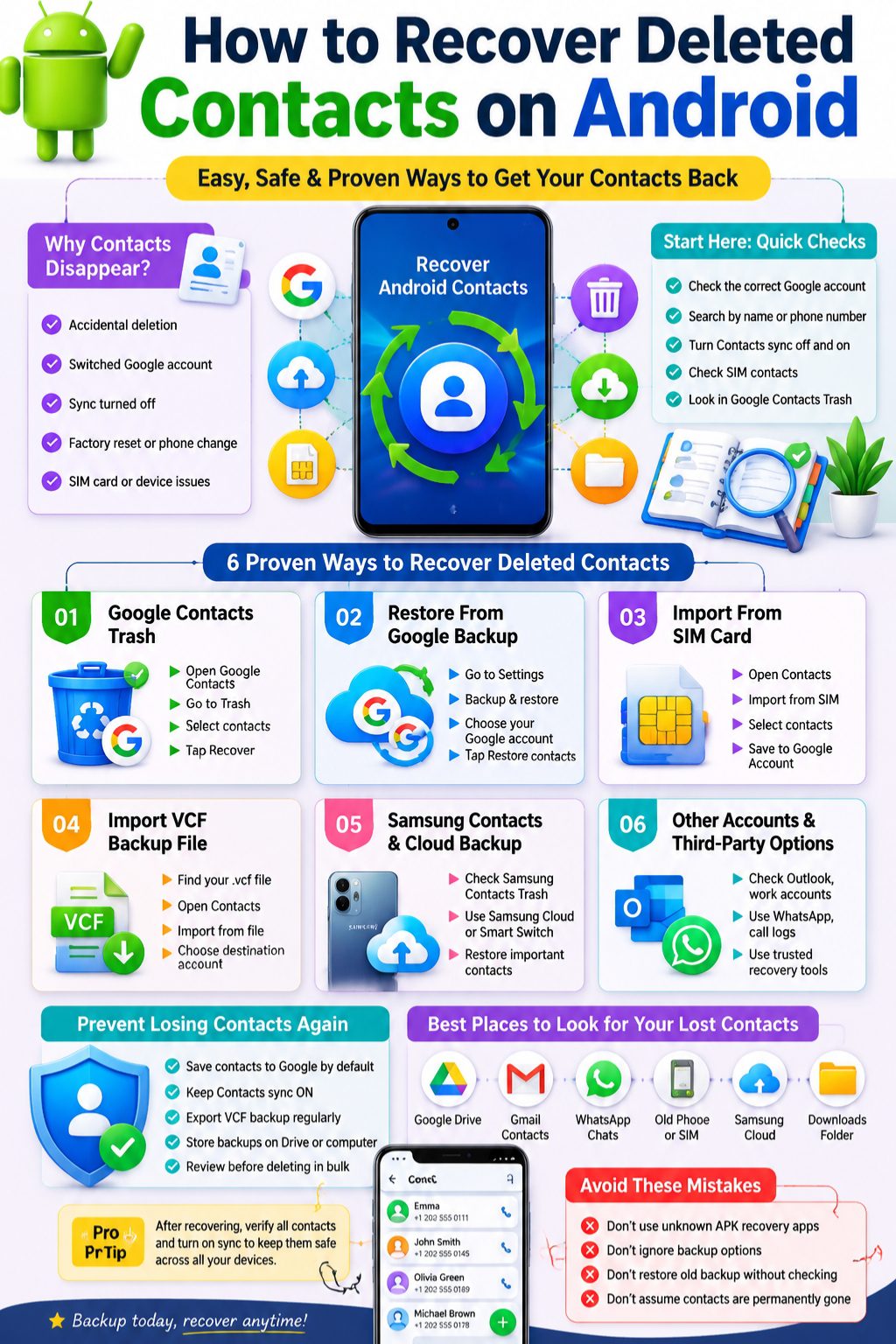
Method 1: Google Contacts Trash
When This Works
Best for recently deleted contacts synced with Google.
Recover via Phone
- Open Google Contacts app.
- Tap Fix & manage → Trash.
- Select contacts → Recover.
- Wait for sync.
Recover via Computer
- Visit contacts.google.com.
- Sign in → Trash → Select contacts → Recover.
- Sync phone to see restored contacts.
Read Also: How to Schedule Text Messages on Android
Limitations
- Contacts deleted beyond 30 days cannot be recovered.
- Wrong Google account selected = contacts won’t appear.
|
Platform |
Steps |
Notes |
|
Phone |
Contacts app → Trash → Recover |
Needs sync on |
|
Desktop |
contacts.google.com → Trash → Recover |
Sync back to Android |
Method 2: Restore From Google Backup
When to Use
After switching phones, factory reset, or device change.
Steps
- Go to Settings → Google → Backup & restore → Restore contacts.
- Select account and backup.
- Choose device storage/SIM if prompted.
- Tap Restore.
- Wait for sync completion.
Limitations
- Requires previous backup.
- May restore duplicates.
- Time-consuming for large lists.
|
Action |
Requirement |
Notes |
|
Restore |
Previous backup exists |
Sync may take minutes |
|
Choose destination |
Google account recommended |
Prevents future loss |
Method 3: Import From SIM Card
When It Helps
Works if contacts were originally saved on SIM.
Steps
- Open Contacts → Fix & manage → Import from SIM.
- Select destination account.
- Import contacts.
Limitations
- Only basic info.
- May create duplicates.
- Limited storage capacity.
|
SIM Recovery |
Pros |
Cons |
|
Import SIM contacts |
Quick and easy |
Limited info |
|
Save to Google |
Backup sync |
Duplicate contacts |
Method 4: Use VCF or Exported Backups
What Is VCF
A standard file storing contacts with names, numbers, and emails.
Where to Check
- Google Drive
- Email attachments
- SD card or device storage
- Cloud apps: OneDrive, Dropbox, Samsung Cloud
Steps to Import
- Contacts → Fix & manage → Import from file.
- Choose VCF → select account → import.
|
Backup Type |
Steps |
Notes |
|
VCF file |
Import via Contacts app |
Keep backup in cloud for safety |
|
Cloud backup |
Download → Import |
Use trusted service |
Method 5: Samsung Cloud or Trash Recovery
Samsung Contacts Trash
- Open Samsung Contacts → Menu → Trash.
- Select deleted contacts → Restore.
Samsung Cloud or Smart Switch
- Restore contacts from old backups.
- May bring duplicates or outdated info.
|
Samsung Method |
Pros |
Cons |
|
Trash recovery |
Fast |
Only recent deletions |
|
Cloud/Smart Switch |
Full backup |
Risk of duplicates |
Method 6: Other Accounts & Apps
- Microsoft Outlook / Exchange contacts
- WhatsApp chat history
- Carrier backup apps
These methods are supplementary and depend on the service used.
|
Source |
Notes |
|
Outlook |
Check via web or app |
|
Messaging apps |
Manual restoration |
|
Carrier apps |
Use official apps only |
Third-Party Recovery Apps
- Might help with local contacts.
- Risky: privacy concerns, permissions required.
- Choose apps carefully: reputable, minimal permissions, good reviews.
|
Factor |
Advice |
|
App source |
Only Google Play or official sites |
|
Permissions |
Avoid excessive access |
|
Success |
Limited on modern Android versions |
If Recovery Fails
- Rebuild important contacts first: family, work, emergency numbers.
- Use call logs, messages, WhatsApp chats.
- Ask friends/colleagues to send their info.
- Check old devices, SIM cards, and backup files.
|
Step |
Description |
|
Prioritize |
Most important numbers first |
|
Manual search |
Use call logs, SMS, WhatsApp |
|
Old backups |
Check previous phones and cloud |
Prevention Tips
- Save new contacts to Google by default.
- Keep sync on at all times.
- Export contacts every few months (VCF).
- Merge duplicates carefully.
- Verify backups before reset or new device.
|
Tip |
Benefit |
|
Google account |
Easy recovery & sync |
|
Regular export |
Backup in case of failure |
|
Merge duplicates |
Keeps list organized |
|
Verify backup |
Avoid accidental loss |
Final Thoughts
Recovering deleted contacts on Android is easier than it looks. Start with Google Contacts Trash or backup restore. If that fails, SIM import, VCF files, Samsung Cloud, or old backups can help. Third-party apps exist, but always weigh privacy and success chances. Once recovered, turn on sync, export backups, and save new contacts to Google to prevent future headaches. Following these steps, anyone can recover android contacts efficiently without panic.
FAQs
Can I recover deleted contacts after 30 days?
Only if a backup exists in Google, Samsung Cloud, VCF, or another service. Trash has a 30-day limit.
Can I recover contacts without a computer?
Yes. Most recovery steps are available directly on the Android phone.
Why did my contacts disappear suddenly?
Common causes include account switch, sync off, display filters, or accidental deletion.
Can I recover contacts from a lost phone?
Yes, if contacts were synced to Google, Samsung, or Outlook. Sign in on a new device.
Are third-party recovery apps safe?
Use caution. Prefer official apps, avoid unknown APKs, and check reviews.
How do I prevent contacts from disappearing again?
Save to Google, keep sync on, regularly export backups, and verify before resets.