
Snapchat Memories can hold years of photos, videos, jokes, trips, birthdays, and random late-night moments. But keeping everything only inside Snapchat is not always the safest idea. You may change phones, lose access to your account, run out of storage, or simply want your favorite Snaps inside your phone gallery.
That is why many users search for how to save snapchat memories camera roll files without losing quality or wasting time. The good news is simple: Snapchat lets you export one Memory, select multiple Memories, change future save settings, and request a full Memories download through My Data.
This guide explains everything in plain English. You will learn how to save one Snap, bulk export Memories, save future Snaps automatically, fix common problems, and protect old photos before deleting the app or switching phones.
Snapchat remains one of the most used social apps worldwide. Snap reported 956 million monthly active users and 483 million daily active users in Q1 2026, which shows how many people still depend on the app for daily photo and video sharing.
|
Quick Article Info |
Details |
|
Main task |
Save Snapchat Memories to phone gallery |
|
Works on |
iPhone and Android |
|
Best method for one Snap |
Export from Memories |
|
Best method for many Snaps |
Select multiple Memories or use My Data |
|
Best future setting |
Memories & Camera Roll |
|
Main risk |
Deleting or logging out before Memories are backed up |
What Are Snapchat Memories?
Snapchat Memories is the section inside Snapchat where saved Snaps and Stories are stored. You can open it by swiping up from the Camera screen.
It works like a private archive inside the app. You can search old Snaps, repost them, edit them, or move some private items to protected areas like My Eyes Only. But Memories and your phone’s Camera Roll are not the same thing.
Camera Roll means the photo or video is saved directly on your phone. On iPhone, it usually appears in the Photos app. On Android, it may appear in Gallery, Google Photos, or a Snapchat folder.
Why Saving Memories to Camera Roll Matters
Saving Memories to Camera Roll gives you more control. You can back up files to iCloud, Google Photos, a computer, or an external drive. You can also edit videos in other apps without opening Snapchat every time.
This matters even more now because Snap has introduced Memories Storage Plans for users with more than 5GB of Memories. Users under the free storage limit may not notice any change, but heavy Snapchat users should avoid keeping important photos only inside the app.
|
Memories vs Camera Roll |
Snapchat Memories |
Camera Roll |
|
Stored in |
Snapchat account/app |
Phone storage |
|
Best for |
Reposting and editing inside Snapchat |
Long-term access and backup |
|
Works without Snapchat |
No |
Yes |
|
Easy to move to cloud |
Limited |
Yes |
|
Risk level |
Depends on backup/account access |
Depends on phone/cloud backup |
Quick Answer: Save Snapchat Memories Camera Roll
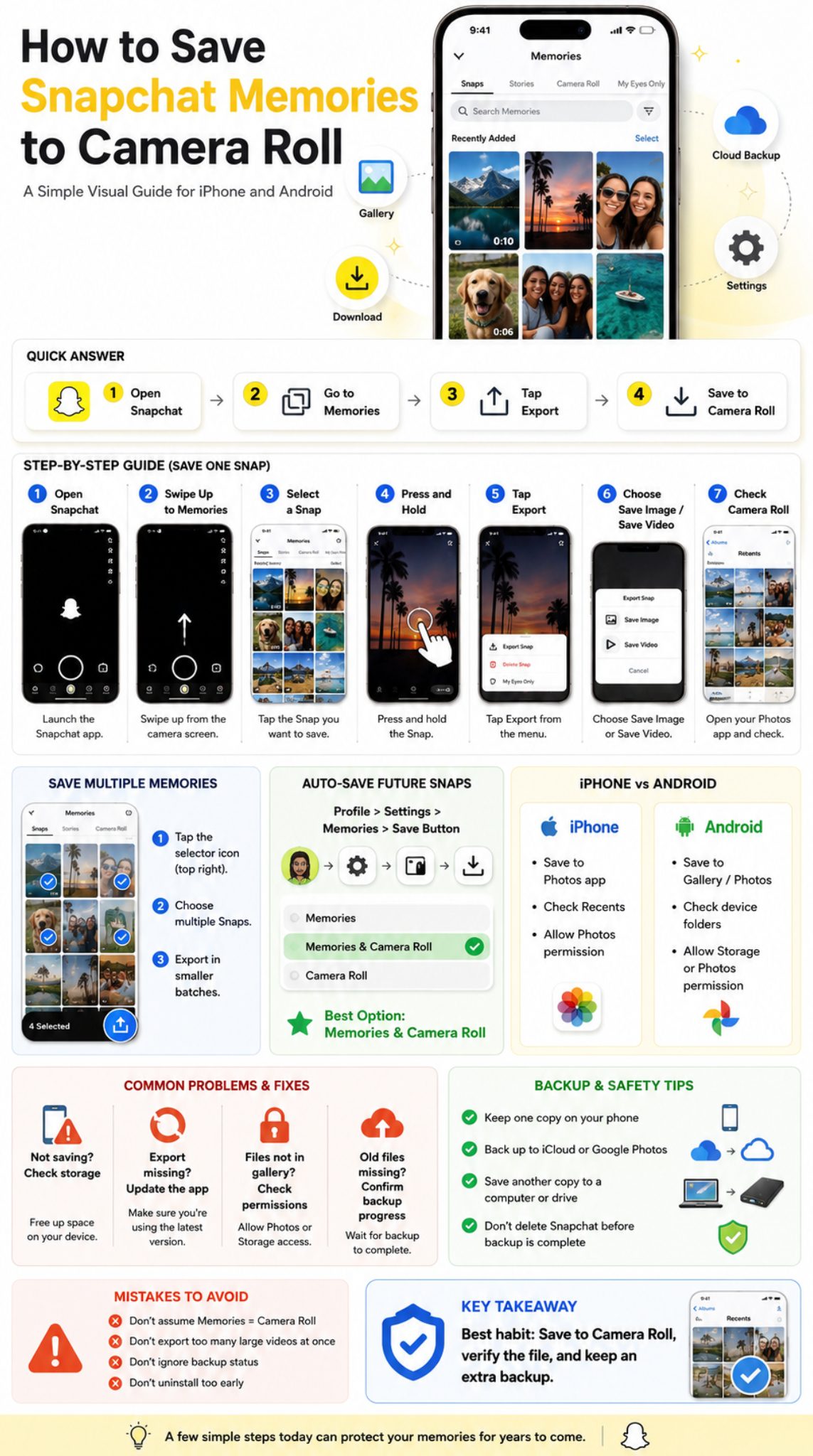
To save snapchat memories camera roll files, open Snapchat, swipe up from the Camera screen, press and hold the Memory, tap Export, and choose where you want to download it.
This is the fastest method when you only need one photo or video. It works for most saved Snaps, including old Memories, saved Stories, and videos you created in Snapchat.
If you want to save many Memories at once, Snapchat also lets you select multiple Snaps from the Memories screen and export them together.
Basic Steps at a Glance
- Open Snapchat.
- Swipe up from the Camera screen.
- Find the Memory you want to save.
- Press and hold the Snap.
- Tap Export.
- Choose Save Image, Save Video, Save to Camera Roll, or Download.
- Open your phone gallery to confirm it saved.
|
Method |
Best for |
Time Needed |
|
Export one Memory |
One photo or video |
Less than 1 minute |
|
Select multiple Memories |
A small batch of Snaps |
A few minutes |
|
My Data download |
Hundreds or thousands of Memories |
Can take longer |
|
Save Button setting |
Future Snaps |
One-time setup |
How to Save One Snapchat Memory to Camera Roll
Saving one Memory is the easiest method. Use this when you only need a few important photos or videos. It is also the best method if you want to check quality before saving a larger batch.
Open Snapchat and go to the Camera screen. Swipe up to open Memories. Find the Snap you want to save. Press and hold it until the menu appears.
Tap Export. Then choose the option that saves the file to your phone. The wording can change slightly depending on your device, but you may see Save Image, Save Video, Save to Camera Roll, Download, or Save to device.
Step-by-Step Method
- Open Snapchat.
- Swipe up from the Camera screen.
- Tap or browse to find the Memory.
- Press and hold the Snap.
- Tap Export.
- Select the phone-saving option.
- Check Photos, Gallery, or Google Photos.
What to Check After Saving
Do not assume the file saved correctly. Open your phone gallery and check the photo or video. If it is not there, wait a few seconds and refresh the app.
For videos, check whether the full clip saved. Large videos may take longer. If the export fails, try again with a stronger internet connection and enough phone storage.
|
Step |
What to Do |
Why It Matters |
|
Open Memories |
Swipe up from Camera |
Finds saved Snaps |
|
Hold the Snap |
Long-press the file |
Opens export menu |
|
Tap Export |
Choose download option |
Moves file outside Snapchat |
|
Save to phone |
Pick Camera Roll/device |
Stores it in gallery |
|
Verify file |
Open Photos/Gallery |
Confirms it worked |
How to Save Multiple Snapchat Memories at Once
If you have years of Memories, saving one Snap at a time feels painful. Snapchat gives you a faster option. You can select multiple Snaps inside Memories and export them together.
This is useful for trips, birthdays, old school photos, family events, or content you want to reuse for Instagram, TikTok, YouTube Shorts, or Facebook Reels.
Still, do not select hundreds of videos at once. Big exports can freeze, fail, or take a long time. Smaller batches are safer.
Bulk Export Steps
- Open Snapchat.
- Swipe up to Memories.
- Tap the selector icon at the top.
- Choose the Snaps you want to save.
- Tap Export.
- Choose Camera Roll, Download, or Save to device.
- Wait until the export finishes.
- Check your gallery.
Best Practice for Large Batches
Export in groups of 20 to 50 files if your phone is older or storage is low. For large videos, use even smaller batches.
Keep your phone charged. Stay on Wi-Fi when possible. Do not close Snapchat until the export finishes.
|
Bulk Saving Tip |
Reason |
|
Export smaller batches |
Reduces app freezing |
|
Use Wi-Fi |
Helps if files need syncing |
|
Keep phone unlocked |
Prevents interruption |
|
Check storage first |
Avoids failed downloads |
|
Verify after each batch |
Confirms files saved |
How to Automatically Save Future Snaps to Camera Roll
Manual export is fine for old Memories. But for future Snaps, changing your save settings is smarter. Snapchat lets you control where the Save Button stores your Snaps. You can choose Memories, Memories & Camera Roll, or Camera Roll.
For most users, Memories & Camera Roll is the best choice. It keeps one copy inside Snapchat and another copy on your phone. That gives you quick access in both places.
Camera Roll only is also useful if you do not want extra Snapchat storage use. But it means your Snap may not stay inside Memories unless you save it there separately.
Change the Save Button Setting
- Open Snapchat.
- Tap your profile icon.
- Tap the Settings gear.
- Go to My App under App & Privacy.
- Tap Memories.
- Tap Save Button.
- Choose Memories & Camera Roll or Camera Roll.
Which Option Should You Pick?
Choose Memories if you only want Snaps inside Snapchat. Choose Camera Roll if you only want them on your device. Choose Memories & Camera Roll if you want both.
For regular users, Memories & Camera Roll is the safest everyday setting. You can still access the Snap inside Snapchat, but you also have a normal phone copy.
|
Save Button Option |
What It Does |
Best For |
|
Memories |
Saves only inside Snapchat |
Users who mostly repost on Snapchat |
|
Memories & Camera Roll |
Saves in both places |
Most users |
|
Camera Roll |
Saves only to phone |
Users avoiding Snapchat storage |
|
No manual check |
Risky |
Not recommended for important Snaps |
How to Save Snapchat Memories to Camera Roll on iPhone
The iPhone process is simple, but the Photos permission can cause problems. If Snapchat cannot access Photos properly, the save option may fail or the exported file may not appear in the Photos app.
Start with the normal Memories export method. Open Snapchat, swipe up, press and hold a Memory, tap Export, and choose the save option. Then open the Photos app and check Recents.
If nothing appears, check iPhone permissions.
Read Also: How to See Best Friends on Snapchat in 2026
iPhone Permission Fix
Open iPhone Settings. Scroll to Snapchat. Tap Photos. Allow the level of access needed to save media.
Apple changes permission labels from time to time, so the wording may vary. The main point is simple: Snapchat needs permission to add media to your Photos app.
Also update Snapchat from the App Store if saving keeps failing.
|
iPhone Issue |
What to Check |
|
File not showing |
Open Photos and check Recents |
|
Export fails |
Allow Photos permission |
|
Video missing |
Wait and retry on Wi-Fi |
|
App freezes |
Update Snapchat |
|
Old Memories missing |
Clear cache and restart phone |
How to Save Snapchat Memories to Camera Roll on Android
Android phones may show different wording depending on the brand. Samsung, Xiaomi, Google Pixel, OnePlus, and other devices may use Gallery, Photos, Files, or Google Photos.
The core process is still the same. Open Snapchat, swipe up to Memories, press and hold the Snap, tap Export, and choose Download, Save to device, or a similar option.
After saving, open your Gallery or Google Photos app. If you do not see the file immediately, check the Snapchat folder or the Downloads folder.
Android Permission Fix
Open phone Settings. Go to Apps. Find Snapchat. Tap Permissions. Allow Photos and Videos or Storage permission.
If the option is already allowed, turn it off and back on. Then restart Snapchat and try exporting again.
Android storage behavior can vary by phone model. If your phone uses Google Photos as the main gallery, make sure the saved file is not hidden under a device folder.
|
Android Issue |
What to Do |
|
File not in Gallery |
Check Google Photos device folders |
|
Save option missing |
Update Snapchat |
|
Export fails |
Allow Photos and Videos permission |
|
Video not saving |
Free up storage |
|
App lagging |
Clear cache and restart |
How to Download All Snapchat Memories
If you want everything, use Snapchat’s My Data tool. This is better for users with years of Memories or thousands of Snaps.
The download usually comes as a zip file. After downloading it, you can extract the folder and check the Memories section. This method is easier on a computer because large files are harder to manage on a phone.
When My Data Is Better Than Manual Export
Use My Data when manual saving would take too long. It is helpful before deleting Snapchat, changing phones, cleaning your account, or backing up years of old photos.
Large data requests can take time. If you have many photos and videos, do not wait until the last minute before deleting the app or changing devices.
Simple My Data Steps
- Log in to your Snapchat account page.
- Open My Data.
- Turn on Export your Memories.
- Choose Request Only Memories.
- Select a date range.
- Confirm your email.
- Submit the request.
- Download the export when ready.
- Extract the zip file.
- Open the Memories section.
|
My Data Feature |
Details |
|
Best for |
Full Memories backup |
|
File type |
Zip download |
|
Good device |
Computer is easier |
|
Speed |
Depends on download size |
|
Useful before |
Deleting app or switching phones |
Why Snapchat Memories May Not Save to Camera Roll
Saving can fail for simple reasons. The most common causes are missing permissions, low phone storage, weak connection, outdated app version, or incomplete Memories backup.
Before logging out, switching devices, or uninstalling the app, make sure your Memories are fully backed up. This small check can save you from losing years of old Snaps.
If your Memories are missing or the app behaves strangely, update Snapchat, clear the cache, restart your phone, and check your connection.
Common Reasons
The app may not have permission to save to your phone. Your storage may be full. The file may still be syncing. The app may be outdated.
Another issue is closing Snapchat too quickly. If you export several videos and leave the app before the process finishes, some files may not save.
Quick Fixes
- Give Snapchat Photos, Videos, or Storage permission.
- Free up space on your phone.
- Update Snapchat.
- Restart the app.
- Restart your phone.
- Try exporting one file first.
- Use Wi-Fi for large videos.
- Clear Snapchat cache.
- Check Memories backup progress.
|
Problem |
Likely Cause |
Fix |
|
Export button not working |
App glitch |
Restart or update |
|
File missing from gallery |
Permission issue |
Allow Photos/Storage |
|
Video fails |
Low storage |
Free space |
|
Old Snap missing |
Not backed up or deleted |
Check backup status |
|
Bulk export fails |
Too many files |
Save smaller batches |
How to Make Sure Memories Are Backed Up
Before you delete Snapchat, log out, switch phones, or clear app data, check the backup status. This is not optional if your Memories matter.
If Backup Progress shows Complete, your Memories are backed up. If it shows Snaps Remaining or No Network Connection, wait before deleting anything.
A backup icon on a Snap or Story usually means it is not backed up yet. Give Snapchat time to finish syncing, especially if the files are large videos.
Backup Check Steps
- Open Snapchat.
- Tap your profile icon.
- Tap Settings.
- Go to My App.
- Tap Memories.
- Check Backup Progress.
- Make sure it says Complete.
What If Backup Is Not Complete?
Connect to Wi-Fi. Keep Snapchat open for a while. Avoid logging out. Do not uninstall Snapchat yet.
Also remember that Camera Roll media is not automatically backed up to Memories. If something only exists in your phone gallery, do not assume Snapchat has saved it.
|
Backup Status |
Meaning |
What to Do |
|
Complete |
Memories are backed up |
Safe to continue |
|
Snaps Remaining |
Some files still uploading |
Stay on Wi-Fi |
|
No Network Connection |
Backup paused |
Connect to internet |
|
Backup icon visible |
Item not backed up |
Wait before deleting |
|
Camera Roll only |
Not backed up to Memories |
Save separately |
Privacy Tips Before Saving Snapchat Memories
Not every Snap should sit openly in your Camera Roll. Your gallery may sync to cloud storage, appear in photo widgets, or show up when someone borrows your phone.
Before exporting private Memories, think about where they will go. If your phone syncs to family cloud storage or shared albums, private files may appear somewhere you did not expect.
You should also be careful with other people’s content. Saving or sharing someone else’s private photo or video without permission can break trust and may create serious privacy problems.
Keep Private Files Safe
Use a locked folder, hidden album, or secure cloud account for sensitive files. Review your auto-backup settings in iCloud, Google Photos, OneDrive, or any other photo backup app.
For personal Memories, create folders by year or event. This makes your backup cleaner and easier to search later.
|
Privacy Concern |
Safer Habit |
|
Private Snaps |
Use locked folder |
|
Shared cloud storage |
Check sync settings |
|
Other people’s content |
Ask permission |
|
Old sensitive files |
Review before upload |
|
Phone lending |
Hide private albums |
Common Mistakes to Avoid
The biggest mistake is deleting Snapchat before checking that everything saved properly. Another common mistake is thinking Memories and Camera Roll are the same thing.
They are not. A Snap inside Memories may not be inside your phone gallery. A photo inside Camera Roll may not be backed up to Snapchat Memories.
People also export too many files at once. This can cause failed downloads, missing videos, or app freezing.
Mistakes That Can Cost You Old Snaps
- Deleting Snapchat before exporting important Memories.
- Logging out before backup finishes.
- Saving only to Memories and not Camera Roll.
- Ignoring the Backup Progress status.
- Exporting too many videos at once.
- Forgetting phone storage limits.
- Not checking the Photos or Gallery app after saving.
- Keeping only one backup.
|
Mistake |
Better Option |
|
Delete app too early |
Export and verify first |
|
Trust one backup |
Use phone and cloud backup |
|
Save huge batch |
Export smaller groups |
|
Ignore warnings |
Check Backup Progress |
|
Forget permissions |
Allow Photos/Storage access |
Best Ways to Back Up Saved Snapchat Memories
Once the files are in Camera Roll, do not stop there. A phone can break, get stolen, or lose data during a reset. Camera Roll is better than app-only storage, but it is still not a complete backup plan.
Use at least one cloud backup and one local backup if the Memories are important. For family photos, travel videos, or old personal moments, this small effort can save years of content.
Backup Options
iPhone users can use iCloud Photos. Android users can use Google Photos. Anyone can move files to a laptop, external SSD, USB drive, or cloud folder.
Keep your folder names simple. Use years, events, or people’s names. Do not wait until your phone is full or damaged.
|
Backup Option |
Best For |
Note |
|
iCloud Photos |
iPhone users |
Easy automatic sync |
|
Google Photos |
Android and iPhone users |
Good search and albums |
|
Laptop folder |
Long-term storage |
Easy to organize |
|
External drive |
Extra safety |
Keep in safe place |
|
OneDrive/Dropbox |
Cross-device access |
Check storage limits |
Final Thoughts
Learning how to save snapchat memories camera roll files is worth the few minutes it takes. Memories may feel safe inside Snapchat, but your best photos and videos should not live in only one app.
For one or two Snaps, use Export. For future Snaps, change the Save Button setting to Memories & Camera Roll. For a full backup, use Snapchat’s My Data tool and download your Memories to a computer or phone.
Before logging out, uninstalling Snapchat, or switching devices, check that Backup Progress says Complete. Then verify your saved files in Photos, Gallery, or Google Photos.
The safest habit is simple: keep one copy in Snapchat, one copy on your phone, and one backup in cloud storage or on a computer. That way, your old Snaps stay with you even if your app, account, or phone changes later.
FAQs About Saving Snapchat Memories to Camera Roll
Can I save Snapchat Memories without losing them in Snapchat?
Yes. Exporting a Memory to Camera Roll normally creates a copy on your phone. It does not remove the original Memory from Snapchat.
Why do some Snapchat Memories save as today’s date?
When media is exported, your phone gallery may sort the file by download date instead of original capture date. This can make old Memories appear as new files in Photos or Gallery.
Can I save Snapchat Memories to an SD card?
On some Android phones, yes, but Snapchat usually saves first to device storage or gallery. After that, you can move the files to an SD card using your file manager.
Can I save Snapchat Memories to Google Photos?
Yes. First export the Memories to your phone. Then let Google Photos back them up, or upload them manually from your gallery.
Does Snapchat notify anyone when I save my own Memories?
No. Saving your own Memories to Camera Roll is private. Be more careful with Snaps from other people, especially if they were sent in chat.
Why is the Export option not showing?
The app may need an update, the file may not be fully loaded, or Snapchat may be glitching. Restart the app, update it, and check your internet connection.
Can I recover deleted Snapchat Memories?
In most cases, deleted or lost Memories cannot be recovered through normal Snapchat Support options. That is why checking backup status and exporting important files is so important.
Is My Data better than exporting manually?
For a few Snaps, manual export is faster. For hundreds or thousands of Memories, My Data is usually better because it is designed for larger downloads.
|
FAQ Theme |
Short Answer |
|
Keep Snapchat copy |
Yes, export creates a phone copy |
|
Save all Memories |
Use My Data |
|
Fix missing files |
Check permissions and backup |
|
Best future setting |
Memories & Camera Roll |
|
Recover deleted Memories |
Often not possible after deletion |