
We have all done it. You remember an important WhatsApp message at the worst possible time. Maybe it is a birthday wish you want to send at midnight, a client follow-up for the morning, or a quick reminder for your team. Then life happens, and the message never gets sent.
That is why many users want to schedule whatsapp messages without installing extra apps. It sounds like a basic feature, but WhatsApp has not offered one simple scheduling button for every regular user yet. The answer depends on your phone, account type, and what kind of message you want to send.
The good news is that you still have safe options. iPhone users can use Apple Shortcuts. Business users can use official WhatsApp Business tools. Android users can use practical reminder-based methods without handing over phone permissions to third-party apps.
This guide keeps things honest. No fake tricks. No risky APKs. No “secret setting” that does not exist for most users. Just the safest ways to plan WhatsApp messages without installing unknown scheduling apps.
Can You Schedule WhatsApp Messages Without Apps?
Yes, but there is a catch. You can schedule some WhatsApp messages without third-party apps, but the method changes based on whether you use iPhone, Android, WhatsApp Business, or WhatsApp Web.
For regular personal chats, iPhone has the strongest no-app option because Apple Shortcuts can run time-based automations. The Shortcuts app allows Time of Day triggers, which means users can set actions to run at a selected time.
For WhatsApp Business, the official app includes tools like away messages and scheduled business broadcasts. These are not the same as scheduling a normal personal message, but they are useful for customer replies and business updates.
|
User Type |
Best No-App Method |
Automatic? |
Best For |
|
iPhone user |
Apple Shortcuts |
Often yes |
Personal reminders, recurring messages |
|
Android user |
Calendar or alarm reminder |
No |
Manual scheduled sending |
|
WhatsApp Business user |
Away message |
Yes |
Customer replies |
|
Business broadcast user |
Scheduled broadcast |
Yes, where available |
Campaigns and customer updates |
|
WhatsApp Web user |
Desktop reminder |
No |
Manual send from computer |
What This Means for Regular Users
If you use normal WhatsApp on Android, you usually cannot fully automate a personal message without using a third-party scheduler. That is annoying, but it is better to know the truth than follow a fake tutorial.
For iPhone users, Shortcuts can help you set a timed WhatsApp message. Still, you should test it first because automation behavior may change with iOS settings, WhatsApp updates, or permission prompts.
For business users, WhatsApp Business gives more official options. But these tools are made for business replies and customer communication, not casual personal messages.
Schedule WhatsApp Messages on iPhone Using Shortcuts
The easiest no-third-party method for iPhone is Apple Shortcuts. It is already built into iOS, so you do not need to download a random scheduler from the App Store.
This method is useful because it uses Apple’s own automation system. You choose a time, set the action, add the WhatsApp message, and select the recipient. The automation can then run at the selected time if your settings allow it.
It works best for repeated messages, daily reminders, weekly updates, or simple planned texts. For emotional or sensitive messages, manual sending is still safer because context can change before the message goes out.
|
Step |
What to Do |
Why It Matters |
|
1 |
Open Shortcuts |
Uses built-in iPhone automation |
|
2 |
Create personal automation |
Sets the trigger |
|
3 |
Choose Time of Day |
Sends at your selected time |
|
4 |
Add WhatsApp action |
Connects automation with WhatsApp |
|
5 |
Add message and contact |
Defines what will be sent |
|
6 |
Test first |
Avoids wrong timing or wrong recipient |
How to Set It Up
Open the Shortcuts app on your iPhone. Tap Automation, then create a new personal automation. Choose Time of Day as the trigger and select when you want the message to run.
Next, search for WhatsApp in the action list. Choose the option that lets you send a message through WhatsApp. Add your message, select the contact, and save the automation.
If your iPhone shows a Run Immediately option, use it. If you see Ask Before Running, turn it off if available. Some personal automations can run without asking for confirmation, but that depends on the automation type and your device settings.
When This Method Works Best
This works well for simple, low-risk messages. For example, you can schedule a morning check-in, a weekly reminder, or a birthday greeting.
It is also useful for freelancers who need to remind clients about calls, invoices, or document approvals. You can prepare the message when you remember it, then let the automation handle the timing.
Still, do not depend on it blindly. Send a test message to yourself or a trusted contact before using it for anything important.
Common iPhone Problems
Sometimes the WhatsApp action may not appear in Shortcuts. In that case, update WhatsApp, open the app once, restart your iPhone, and check the Shortcuts action list again.
Some automations may open WhatsApp but still need a tap before sending. This can happen because of system permission rules, security settings, or app behavior.
Also, check the repeat setting. If you only want to send one message, do not leave the automation running daily or weekly.
Schedule WhatsApp Messages on Android Without Third-Party Apps
Android users have a harder time with this topic. Regular WhatsApp on Android usually does not offer a clean built-in scheduled-send option for personal messages.
That does not mean you have no solution. It means the safest no-app method is a reminder-based workflow. You prepare the message, set a reminder, and send it manually when the alert appears.
This is not fully automatic, but it avoids risky apps that ask for notification access, accessibility permissions, or message-reading ability. For many users, that trade-off is worth it.
|
Android Method |
Automatic? |
Safe? |
Best Use |
|
Google Calendar reminder |
No |
Yes |
Work follow-ups |
|
Phone alarm |
No |
Yes |
One-time reminders |
|
Google Keep note plus alarm |
No |
Yes |
Prepared message drafts |
|
WhatsApp draft plus reminder |
No |
Medium |
Quick personal messages |
|
Third-party scheduler |
Sometimes |
Depends |
Not covered in this no-app guide |
Use Google Calendar or Phone Reminders
Create a reminder with the contact name and message purpose. For example, “Send WhatsApp message to client about invoice at 10 AM.”
Write the message in the reminder description or in Google Keep. When the reminder appears, copy the text, open WhatsApp, and send it manually.
This sounds simple, but it works. It is especially useful for business follow-ups, birthday messages, meeting reminders, and family tasks.
Read Also: How to Read WhatsApp Messages Without Sender Knowing
Use an Alarm for Quick Messages
For one-time messages, an alarm can be enough. Set the alarm label clearly so you know exactly what to do.
Good alarm labels include “WhatsApp birthday wish,” “Message team about meeting,” or “Follow up with customer.” The clearer the label, the less chance you will ignore it.
This method is not fancy, but it is reliable. It also does not require access to your WhatsApp account.
Use WhatsApp Drafts Carefully
You can type a message inside a WhatsApp chat and leave it unsent. Then set an alarm to remind yourself to send it later.
This method is risky if you share your phone, tap the send button by mistake, or leave a sensitive message sitting in a chat. Use it only for simple messages.
For important or private messages, keep the draft in a note instead. Then paste it into WhatsApp when you are ready.
Use WhatsApp Business Away Messages
WhatsApp Business is better for scheduled communication than regular WhatsApp. The away message tool lets businesses reply automatically when they are not available.
This is not the same as scheduling a personal outgoing message. It only works when someone messages your business first. Still, it is one of the safest official ways to automate WhatsApp replies without third-party apps.
WhatsApp Business lets users turn on away messages, edit the message, choose a schedule, and select recipients.
|
Away Message Option |
What It Does |
Best For |
|
Always send |
Sends reply anytime |
Temporary closure |
|
Custom schedule |
Sends during selected hours |
Holidays or breaks |
|
Outside business hours |
Sends after working hours |
Customer support |
|
Recipient settings |
Controls who gets reply |
Better targeting |
How to Set Up an Away Message
Open WhatsApp Business and go to Tools or Business Tools. Tap Away Message and turn on Send away message.
Write a short message that explains when you will reply. Then tap Schedule and choose whether the message should always send, send during a custom time, or send outside your business hours.
After that, choose the recipients. You can usually send it to everyone, people not in your contacts, everyone except selected people, or only selected contacts.
Best Away Message Examples
A good away message should be short and useful. Do not make customers guess what happens next.
Example: “Thanks for your message. We are currently offline. Our business hours are 9 AM to 6 PM. We will reply as soon as we are back.”
For holidays, you can say: “Thanks for reaching out. Our team is away for the holiday and will reply on the next working day.”
When Away Messages Are Useful
Away messages work well for shops, agencies, clinics, online sellers, service providers, and freelancers. They help set expectations when you cannot reply immediately.
They are also helpful if customers message you at night. Instead of leaving them with silence, you can send a polite automatic reply.
The key is to keep the message human. A stiff robotic reply can make a small business feel cold.
Use Scheduled WhatsApp Business Broadcasts Where Available
WhatsApp Business also has broadcast tools for sending one message to many customers. In some cases, business users can schedule a broadcast to send later.
This is useful for business updates, but it should be used carefully. A broadcast should go to people who expect to hear from your business.
|
Broadcast Use Case |
Example Message Type |
Good Timing |
|
Appointment reminder |
“Your booking is tomorrow” |
24 hours before |
|
Product launch |
“New stock is available” |
Morning or afternoon |
|
Event update |
“Registration closes today” |
Business hours |
|
Service notice |
“We are closed tomorrow” |
Previous day |
|
Offer reminder |
“Sale ends tonight” |
Early evening |
How Business Broadcast Scheduling Helps
Scheduled broadcasts are useful when timing matters. You can prepare the message earlier and send it when customers are more likely to read it.
For example, a salon can schedule appointment reminders. A course provider can schedule class updates. An online shop can schedule stock alerts.
This saves time and keeps communication organized. It also reduces last-minute mistakes.
What to Avoid With Broadcasts
Do not use broadcasts to spam people. If customers did not ask for updates, too many messages can annoy them.
Keep the message clear and useful. Add context, avoid hype, and do not send messages late at night.
Also check whether the feature is available in your WhatsApp Business account. Feature availability can vary by region, account type, and app version.
Can You Schedule WhatsApp Messages on WhatsApp Web?
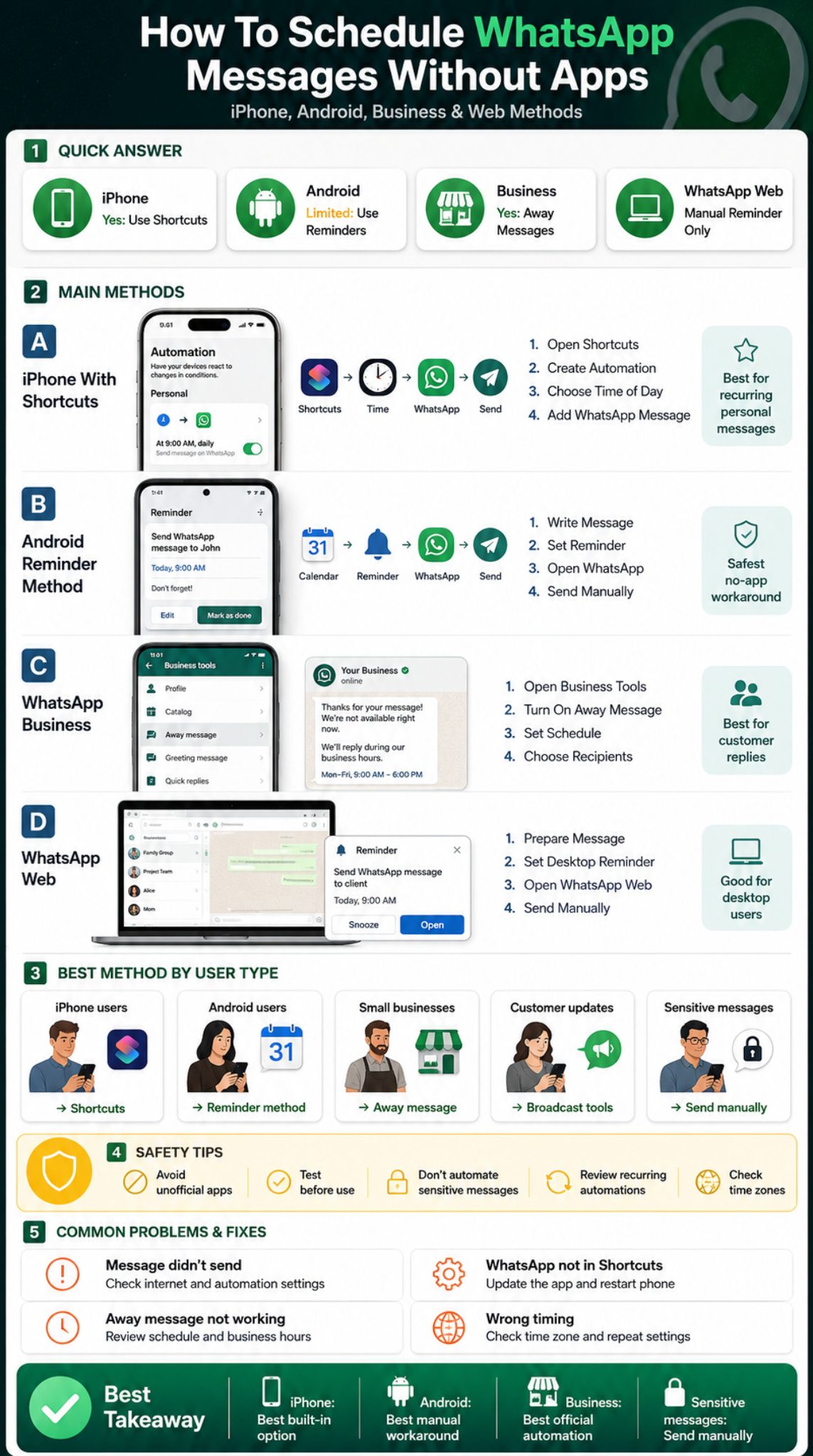
For regular users, WhatsApp Web does not usually provide a native scheduled-send button. You can write and send messages from your browser, but scheduling is not built into the standard experience for everyone.
Some browser extensions claim to schedule WhatsApp Web messages. However, those count as third-party tools, so they do not fit this guide.
If you want the safest no-app method on desktop, use a calendar reminder. Prepare the message in a document, set the reminder, then send it manually through WhatsApp Web.
|
Desktop Method |
Third-Party Tool? |
Risk Level |
Best For |
|
Calendar reminder |
No |
Low |
Manual sending |
|
Notes document |
No |
Low |
Prepared text |
|
Browser extension |
Yes |
Medium to high |
Not recommended for privacy |
|
Unofficial WhatsApp tool |
Yes |
High |
Avoid |
Safe Desktop Workaround
Open your calendar app and create a reminder for the exact date and time. Add the recipient name in the title.
Write the WhatsApp message in the reminder notes or a document. When the reminder appears, open WhatsApp Web and send the message.
This is not automatic, but it is clean and safe. It also works across Windows, Mac, Chromebook, and Linux.
Why Extensions Need Caution
Browser extensions can be useful, but they may ask for access to browser activity or web pages. That matters when you are using a messaging service.
Before installing any extension, check reviews, permissions, developer details, privacy policy, and update history.
If the message is private, business-sensitive, or customer-related, avoid unknown extensions.
Is WhatsApp Getting Native Scheduled Messages?
This is the part readers care about most. As of recent reports, WhatsApp has been seen testing or developing native scheduled messages, but the feature is not guaranteed for every user yet.
That means users should not assume the feature is available unless they can see it inside their own WhatsApp app. Do not trust random APKs or websites promising to unlock it early.
|
Feature Status |
What It Means |
|
Under development reports |
WhatsApp may release it later |
|
Not visible in your app |
You cannot use it yet |
|
Official business scheduling |
Available for some Business tools |
|
Third-party claims |
Check carefully before trusting |
|
Best current no-app option |
Shortcuts, Business tools, or reminders |
How to Check Your Own WhatsApp App
Update WhatsApp from the official App Store or Google Play Store. Open a chat and check whether any scheduling option appears when you prepare a message.
If you do not see it, do not force it. WhatsApp often rolls out features gradually, and beta discoveries do not always mean instant public release.
Also check WhatsApp’s official blog or Help Center for confirmed feature releases. That is safer than trusting viral posts.
Do Not Download Unofficial WhatsApp APKs
Avoid modified WhatsApp apps that promise early scheduled messages. They can create privacy, security, and account problems.
Unofficial apps may ask for permissions that normal users should not give. They may also break WhatsApp’s rules or expose personal data.
For most users, waiting for the official feature is better than risking your account.
Best Way to Schedule WhatsApp Messages by User Type
There is no single best method for everyone. The right choice depends on your device, comfort level, and message type.
If you are on iPhone, Shortcuts is the most practical no-third-party method. If you are on Android, reminders are safer than unknown scheduling apps. If you run a business, WhatsApp Business tools are the most official route.
Think about the message before choosing automation. A birthday wish is low-risk. A sensitive apology, legal update, health message, or financial reminder should probably be sent manually.
|
User Type |
Recommended Method |
Why |
|
iPhone personal user |
Shortcuts |
Built into iOS |
|
Android personal user |
Reminder method |
Safer than unknown apps |
|
Small business owner |
Away message |
Official WhatsApp Business tool |
|
Business marketer |
Scheduled broadcast |
Useful for customer updates |
|
Desktop user |
Calendar reminder |
Simple and private |
|
Sensitive-message sender |
Manual send |
Avoids awkward mistakes |
For Personal Users
Use scheduling only for simple messages. Examples include “Happy birthday,” “Do not forget the meeting,” or “I will call you tomorrow.”
If the message depends on emotion or context, do not automate it. A scheduled message can feel strange if something changes before it sends.
Personal messages still need common sense. Timing is helpful, but judgment matters more.
For Small Businesses
Small businesses should use WhatsApp Business features first. Away messages and broadcasts are safer than unofficial automation tools.
Use automation to set expectations, not to replace real customer care. Customers still want helpful replies from real people when the issue matters.
Also keep your messages short. People are more likely to read a clean 2-line update than a long promotional paragraph.
Privacy and Safety Tips Before You Schedule WhatsApp Messages
Scheduling sounds harmless, but it can create problems if you use the wrong method. Some third-party tools may ask for permissions that go beyond simple scheduling.
A no-app method is usually safer because you keep control inside your phone’s built-in tools or WhatsApp’s official business features. This matters more if your chats include customer details, invoices, family matters, or private documents.
Automation also creates timing risk. A message that feels right today may feel wrong tomorrow.
|
Safety Tip |
Why It Matters |
|
Avoid unofficial apps |
Protects account and privacy |
|
Test first |
Prevents wrong sends |
|
Review recurring automations |
Avoids repeated mistakes |
|
Avoid sensitive messages |
Context can change |
|
Use official tools |
Reduces permission risk |
Avoid Sensitive Scheduled Messages
Do not schedule messages about money, health, legal issues, relationship conflict, or private business matters unless you are completely sure.
These messages often need fresh context. Sending them automatically can create confusion or even harm trust.
When in doubt, set a reminder instead of automatic sending. That gives you one last chance to review the message.
Review Old Automations
If you set a recurring iPhone Shortcut, check it later. People often forget active automations until a message sends again unexpectedly.
Delete or disable automations after they are no longer useful. This is especially important for work reminders, customer messages, and repeated personal greetings.
A five-second review can save you from an awkward message.
Common Problems and Fixes
Even the safest method can fail sometimes. WhatsApp updates, iOS settings, battery restrictions, internet issues, and permission prompts can all affect scheduled or reminder-based workflows.
That is why testing matters. Never set up a message for the first time and trust it for something important.
Use a simple test message first. Send it to yourself or a close friend, then check whether the timing and recipient are correct.
|
Problem |
Likely Cause |
Fix |
|
Message did not send |
Phone offline or automation blocked |
Test again with internet on |
|
Shortcut asks for confirmation |
Automation setting issue |
Check Run Immediately or Ask Before Running |
|
Wrong contact selected |
Contact mismatch |
Recreate the automation |
|
Reminder ignored |
Weak reminder title |
Use clearer labels |
|
Away message not sending |
Schedule or recipient setting issue |
Review Business Tools settings |
If iPhone Shortcuts Does Not Work
Check whether WhatsApp and iOS are updated. Then open WhatsApp once before creating the Shortcut again.
Look for the WhatsApp action inside Shortcuts. If it still does not appear, restart the phone and try again.
Also check whether the automation is enabled. A disabled automation will not run, even if everything else looks correct.
If WhatsApp Business Away Message Fails
Check your schedule first. Many users set “outside business hours” but forget to set business hours correctly.
Then check recipient settings. If you limited the away message to selected contacts, other customers may not receive it.
Finally, check your internet connection and app version. Business tools work best when the app is updated.
Mistakes to Avoid When Scheduling WhatsApp Messages
The biggest mistake is thinking automation equals better communication. It does not. A scheduled message is useful only when the timing is predictable and the message is simple.
Another mistake is trusting every tutorial online. Some guides claim WhatsApp has a universal scheduling feature for everyone, but that may not match your app version.
Also, avoid overusing scheduled business messages. Customers can quickly lose interest if every message feels like a promotion.
|
Mistake |
Better Choice |
|
Scheduling emotional messages |
Review manually before sending |
|
Using unknown APKs |
Wait for official features |
|
Sending too many broadcasts |
Send only useful updates |
|
Forgetting recurring automations |
Delete them after use |
|
Ignoring time zones |
Check recipient location |
Do Not Schedule Too Far Ahead
The further ahead you schedule a message, the more likely something will change. A message planned today may not make sense next month.
For personal messages, keep scheduling short and simple. For business messages, review campaigns before they go out.
A scheduled message should feel timely, not outdated.
Do Not Over-Automate Business Chats
Customers can tell when a business relies too much on automated messages. Use away messages to manage expectations, but reply personally when needed.
For broadcasts, send messages only when there is a clear reason. A useful update builds trust. A random promotion does not.
Automation should support communication, not turn your WhatsApp account into a spam machine.
Final Thoughts on How to Schedule WhatsApp Messages
The safest way to schedule whatsapp messages without apps depends on your device and purpose. iPhone users can try Apple Shortcuts. Android users can use reminders if they want to avoid third-party tools. WhatsApp Business users get stronger official options through away messages and scheduled broadcasts.
For personal chats, be realistic. If WhatsApp’s native scheduled message feature is not visible in your app, do not chase risky shortcuts or unofficial downloads. Use a built-in reminder or iPhone automation instead.
For business users, keep messages useful, short, and respectful. Scheduling should make communication easier, not colder.
The simple rule is this: automate low-risk messages, manually review sensitive ones, and always test your setup before trusting it.
|
Best Final Choice |
Recommended Method |
|
Best for iPhone |
Apple Shortcuts |
|
Best for Android |
Calendar or alarm reminder |
|
Best for small business |
WhatsApp Business away message |
|
Best for customer updates |
Scheduled business broadcast |
|
Best for privacy |
Manual reminder method |
Frequently Asked Questions About Schedule WhatsApp Messages
Can I schedule WhatsApp messages without installing any third-party app?
Yes, but your options depend on your device. iPhone users can use Apple Shortcuts, while WhatsApp Business users can use official business tools like away messages or scheduled broadcasts. Android personal users usually need a reminder-based method if they want to avoid third-party apps.
Does WhatsApp have a built-in scheduled message feature for everyone?
Not universally for every regular user. WhatsApp has been reported to be testing or developing scheduled messages, but users should only rely on the feature if it appears inside their own app.
Can I schedule WhatsApp messages on Android without apps?
You can plan them, but not usually fully automate them without a third-party app. The safest method is to use Google Calendar, alarms, or reminders, then send the message manually when alerted.
Can I schedule WhatsApp messages on iPhone?
Yes, you can use the built-in Shortcuts app. Create a personal automation with a Time of Day trigger, choose a WhatsApp message action, add the recipient, and test it before using it for important messages.
Can WhatsApp Business send scheduled messages?
WhatsApp Business supports scheduled away messages, and business broadcast scheduling may be available for some users. These features are mainly for business replies and customer updates, not ordinary personal chat scheduling.
Will scheduled WhatsApp messages send if my phone is off?
For phone-based methods like iPhone Shortcuts, your phone usually needs to be on and able to run the automation. Reminder-based methods also need your phone to notify you at the right time.
Can I schedule a WhatsApp message to a group?
If you are using a manual reminder method, yes, you can remind yourself to send a message to a group. For automatic scheduling, availability depends on the method and whether WhatsApp supports that feature in your app version.
Are third-party WhatsApp schedulers safe?
Some may work, but they can ask for sensitive permissions. If privacy matters, use built-in phone tools or official WhatsApp Business features instead.
Can I cancel a scheduled WhatsApp message?
Yes, if you used Shortcuts, you can delete or disable the automation. If you used a reminder, delete the reminder. If you used WhatsApp Business scheduling, edit or turn off the scheduled message inside Business Tools.
What is the safest method to schedule WhatsApp messages?
For iPhone, Apple Shortcuts is the safest practical method. For Android, a reminder is the safest no-app workaround. For businesses, WhatsApp Business tools are the safest official option.