
We have all been there. You are sitting on the couch, your phone buzzes, and a message pops up from someone you are just not ready to deal with yet. Maybe it is a difficult client, a demanding friend, or just a group chat that is blowing up while you are trying to relax. You want to know what the message says, but the second you open it, those two blue ticks appear. Now, the sender knows you have seen it, and the pressure to reply starts building. It is a modern-day social trap.
The good news is that you do not have to be a prisoner to the blue tick. There are several ways to read your messages while staying completely under the radar. Whether you use an iPhone or an Android, you can take back control of your digital life. This guide will show you exactly how to read whatsapp without seen alerts appearing on the other end. We are going to look at everything from official settings to clever device hacks that keep your “Online” status a secret.
Communication should happen on your terms, not because an app is pressuring you. By the time you finish reading this, you will be a master of ghosting through your inbox without leaving a single trace. Let’s dive into the best methods to stay invisible.
Why We All Want to Read WhatsApp Without Seen Receipts
The desire for privacy in our digital interactions is not about being rude or deceptive. It is actually about mental health and boundary setting. In a world where we are expected to be reachable 24/7, the blue tick serves as a digital receipt that demands an immediate response. When you can read a message without the sender knowing, you give yourself the gift of time. You can think about your answer, check your calendar, or simply wait until you are in the right headspace to talk.
|
Privacy Factor |
Description |
Impact on User |
|
Reduced Anxiety |
No pressure to respond immediately after viewing. |
Lower stress levels. |
|
Boundary Control |
Decide when you are “available” to others. |
Better work-life balance. |
|
Information Gathering |
Read long messages to prepare a thoughtful reply. |
Higher quality communication. |
|
Conflict Avoidance |
Prevent arguments over “ignoring” messages. |
Smoother social relationships. |
The Psychology of the Blue Tick
Psychologists often talk about the anxiety caused by “read receipts.” It creates a sense of urgency that can lead to burnout. When we see that someone has read our message and hasn’t replied, we often jump to negative conclusions. On the flip side, when we are the ones who read the message, we feel guilty for making the other person wait. Breaking this cycle is the main reason people search for ways to read whatsapp without seen receipts.
The Evolution of Messaging Privacy
Messaging apps used to be simple, but now they are complex social environments. WhatsApp introduced the blue tick in 2014, and ever since, users have been looking for workarounds. As the app evolves, so do the methods for staying hidden. Understanding these shifts helps you stay one step ahead of the latest app updates that might try to force transparency on you.
Method 1: The Official Way to Toggle Privacy
The most obvious way to solve this problem is to use the settings built right into the app. WhatsApp knows that privacy is a major concern for its users, so they have provided an “all-or-nothing” switch. This is the cleanest method because it does not require any weird tricks or third-party software. It is permanent until you decide to change it back.
|
OS Platform |
Difficulty Level |
Reliability |
Reversibility |
|
Android |
Very Low |
100% |
Instant |
|
iOS (iPhone) |
Very Low |
100% |
Instant |
Turning Off Read Receipts on Android
To do this on an Android device, you need to open your app and tap the three dots in the top right corner. Go to Settings, then Privacy. Look for the toggle that says “Read receipts” and switch it off. It is that simple. From this moment on, no one will see blue ticks when you read their messages. However, keep in mind that this also means you won’t be able to see blue ticks when they read your messages. It is a fair trade for total anonymity.
Disabling Blue Ticks on iPhone
For iPhone users, the path is almost identical. Tap the Settings icon at the bottom right of the app, then select Privacy. Find the “Read Receipts” toggle and flip it to the off position. This works for all individual chats across your entire account. Just remember that this setting does not apply to group chats; in a group, everyone can still see who has read the message by checking the message info.
Method 2: Use the Android Widget to Read WhatsApp Without Seen
If you are an Android user, you have a secret weapon that iPhone users do not have. The home screen widget is a fantastic way to read whatsapp without seen notifications being triggered. This widget acts as a window into your incoming messages without ever actually “opening” the app. You can scroll through pages of text and even see multiple messages from different people, all while your app remains closed and your status stays offline.
|
Widget Feature |
Benefit |
User Tip |
|
Live Preview |
View full text of messages. |
Don’t tap the message! |
|
Scrollability |
Read long conversations. |
Resize the widget to full screen. |
|
Multi-Chat View |
See messages from various senders. |
Keep it on a separate home screen page. |
|
Stealth Mode |
No “Online” status triggered. |
Great for avoiding “Last Seen” updates. |
Setting Up Your Stealth Dashboard
To set this up, go to your home screen and long-press on an empty space. Tap on “Widgets” and scroll down until you find the WhatsApp section. Look for the 4×2 widget that shows message previews. Drag and drop it onto your home screen. You can then stretch the corners to make it larger. Now, every time a message comes in, it will appear in this box. You can read the whole thing and simply ignore it until you are ready to reply. Just be careful not to accidentally tap the widget, as that will launch the app and ruin your cover.
Read Also: How to Recover Deleted WhatsApp Messages Without Backup
Why the Widget Beats Airplane Mode
The widget is superior to many other hacks because it is passive. You do not have to turn off your internet or mess with your settings every time a message arrives. It just sits there, collecting your messages and displaying them for your eyes only. It is the closest thing to a “ghost mode” that currently exists on the Android platform.
Method 3: The Notification Bar Sneak Peek
Most people underestimate how much they can see just by looking at their phone’s notification shade. Both Android and iOS have improved their notification systems to show more content than ever before. This is a quick and dirty way to read messages on the fly. It is perfect for short messages or quick check-ins where you don’t need to see the entire history of the conversation.
|
Device Type |
Action |
Max Content |
Risk Level |
|
Android |
Drag down and expand. |
~5-10 messages. |
Medium (Accidental tap). |
|
iPhone |
Long press (Haptic Touch). |
~1-2 paragraphs. |
Low. |
Long Pressing on iOS
If you have an iPhone, you can use Haptic Touch to peek into a message. When a notification appears on your lock screen or in your notification center, do not just tap it. Instead, press and hold your finger on the notification. A small window will pop out, showing you a significant portion of the chat. This allows you to read the message without officially opening the app. Once you lift your finger, the window closes, and the message remains “unread” with no blue ticks in sight.
Expanding Alerts on Android
Android notifications are even more powerful. When a message arrives, swipe down from the top of the screen. You will see a small arrow next to the WhatsApp notification. Tap that arrow to expand the view. You can often see the last several messages sent by that person. As long as you don’t tap the “Reply” button or the notification itself, the sender will never know you were there. It is a simple way to read whatsapp without seen being registered.
Method 4: The Airplane Mode Strategy
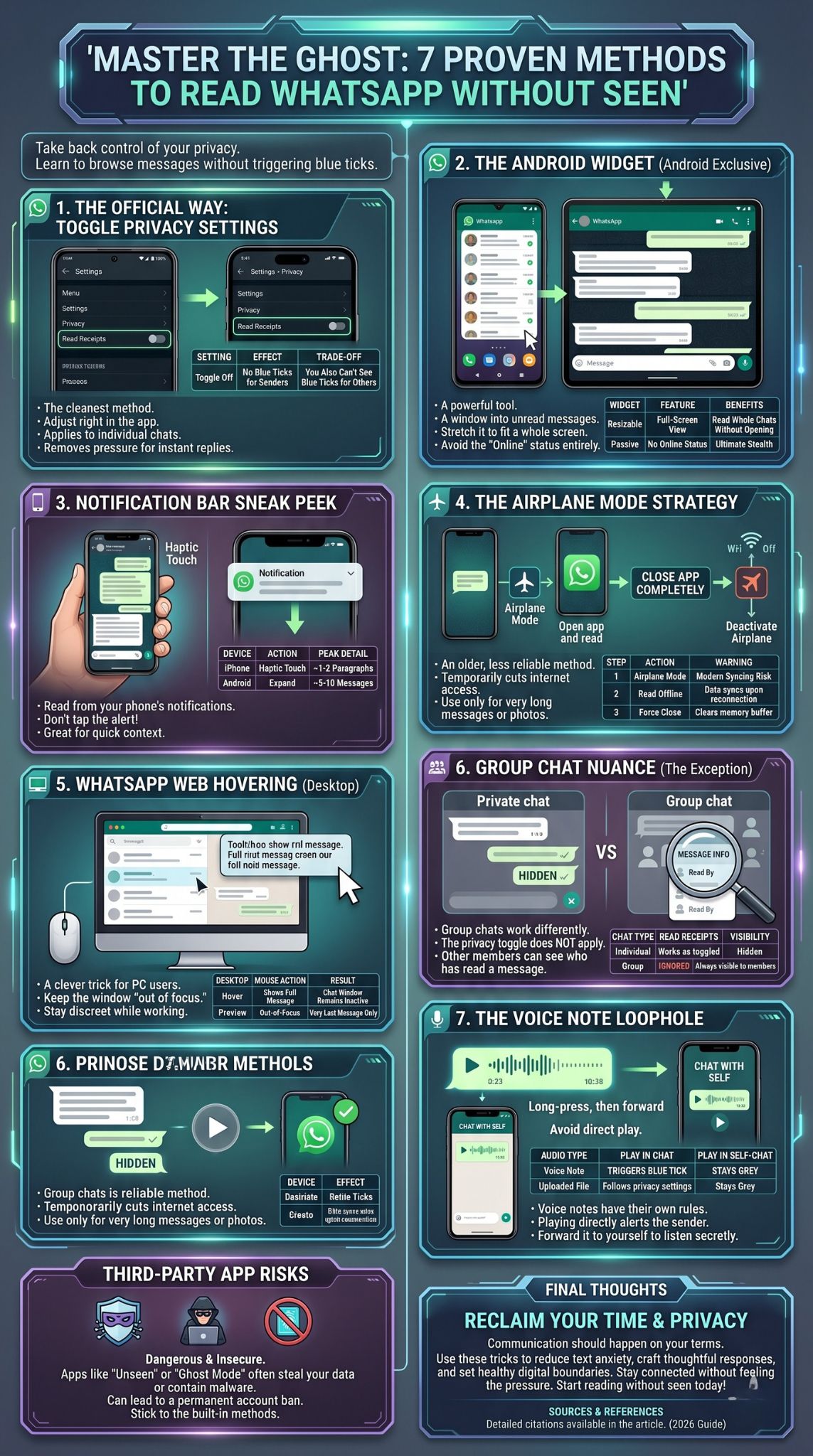
This is an old-school trick that still works, though it requires a bit more effort. The idea is to cut off the app’s ability to communicate with the internet before you open the message. If the app cannot talk to the server, it cannot send the “Read” command. This is useful for those times when you really need to see the context of a long conversation or look at a photo that was sent to you.
|
Step |
Action |
Why It Works |
|
1 |
Receive Message. |
Notification arrives but app is closed. |
|
2 |
Enable Airplane Mode. |
Kills Wi-Fi and Cellular data. |
|
3 |
Read Message. |
App opens but cannot send blue tick signal. |
|
4 |
Force Close App. |
Prevents app from syncing when internet returns. |
|
5 |
Disable Airplane Mode. |
Restores connection safely. |
Why Modern Syncing Makes This Tricky
A few years ago, this method was foolproof. Today, you have to be more careful. Modern smartphones are very good at “remembering” what you did while you were offline. If you open a message in airplane mode and then just turn the internet back on, the app might instantly send the blue ticks the moment it gets a signal. To avoid this, you must “Force Stop” the app in your phone’s settings before you turn your data back on. This clears the immediate memory and usually prevents the blue ticks from firing off.
When to Use This Method
Use the airplane mode trick only when the widget or notification bar isn’t enough. For example, if someone sends a long string of photos or a very lengthy document, the notification won’t show you everything. Airplane mode gives you the freedom to browse the entire chat history for that session without any prying eyes.
Method 5: WhatsApp Web Hovering
Many of us use WhatsApp Web while working on our computers. It is convenient, but it also makes it very easy to accidentally click on a chat and trigger a read receipt. However, the web version has a unique loophole that mobile phones don’t have. It involves the power of the mouse cursor. This is a great trick for office workers who need to stay discreet while managing their messages.
|
Desktop Action |
Result |
Security |
|
Mouse Hover |
Shows tooltip with full message. |
High. |
|
Sidebar Preview |
Shows last 30-40 characters. |
High. |
|
Desktop Notifications |
Shows message in corner of screen. |
Medium (Privacy risk). |
Using the Mouse to Peek
When you have the web interface open on your browser, look at your list of chats on the left side. When a new message comes in, it will show a small snippet of the text. Instead of clicking the chat, simply move your mouse cursor over the message and let it stay there for a second. A small “tooltip” box will often appear, showing you the full text of the latest message. This allows you to read whatsapp without seen markers being sent because the chat window itself was never activated.
Keeping the Browser Out of Focus
Another trick on the web version is to keep the window “out of focus.” If you have another window (like Word or a browser tab) open on top of the web app, you can see the messages arriving in the background. As long as the web app is not the “active” window you are clicking on, it often won’t trigger the read receipt for the very latest message. It is a bit finicky, but for those who spend all day on a PC, it is a lifesaver.
Security Risks and Third-Party Apps
If you search for “how to read whatsapp without seen” in any app store, you will see dozens of apps promising to give you “Ghost Mode” or “Unseen” status. These apps are very tempting because they promise to solve all your problems with one click. They work by intercepting your notifications and saving them in a separate database so you can read them outside of the official app.
|
Risk Factor |
Danger Level |
Why You Should Care |
|
Data Privacy |
High |
The app can read all your private messages. |
|
Account Ban |
Medium |
Using unofficial tools can get your account deleted. |
|
Malware |
High |
Many “free” privacy apps contain trackers or viruses. |
|
Battery Drain |
Low |
Constant notification monitoring kills battery life. |
Why You Should Avoid “Unseen” Apps
While these apps might work, they come at a heavy price. To use them, you have to give them permission to read your notifications. This means the app developers (who are often anonymous) can see everything sent to your phone. This includes bank alerts, private family photos, and security codes. Furthermore, the official messaging platform has been cracking down on third-party tools. If they detect you are using a modified version or a “helper” app, they might ban your phone number permanently. It is simply not worth the risk when the built-in methods work so well.
Safe Alternatives to Third-Party Tools
Instead of downloading a risky app, stick to the system-level features we discussed. The Android widget and the iPhone Haptic Touch are built by the OS manufacturers (Google and Apple). They are secure, they don’t steal your data, and they won’t get your account banned. Staying within the official ecosystem is the only way to ensure your private conversations stay private.
Managing Group Chats Privately
Group chats are the final frontier of messaging privacy. They operate under a different set of rules than one-on-one chats. This is where most people get caught. You might have your read receipts turned off, but in a group of ten people, the app wants to make sure everyone knows who is participating. This can be frustrating if you are trying to lay low in a work group or a family thread.
|
Feature |
Private Chat |
Group Chat |
|
Read Receipts Toggle |
Works. |
Does NOT work. |
|
Message Info |
Hidden. |
Shows exactly who read it and when. |
|
Blue Ticks |
Controlled by settings. |
Always appear once everyone reads it. |
The Difference Between Private and Group Ticks
In a private chat, if you turn off read receipts, the blue ticks are gone forever. In a group chat, that toggle is ignored. When you open a group message, the server logs that you have seen it. Anyone in the group can long-press on the message, tap “Info,” and see a list of everyone who has read it. This is why the notification bar and widget methods are so important for groups. They are the only way to read the content without your name appearing on that “Read By” list.
Strategies for “Ghosting” in Groups
If you are part of a very active group and want to keep up without being seen, the widget is your best friend. It will aggregate all the messages from the group, allowing you to read the entire conversation flow. Another tip is to “Mute” the group. This stops the constant buzzing and allows you to check the notifications on your own time using the “peek” methods. This way, you stay informed without being pressured to chime in every five minutes.
The Voice Note Loophole
Voice notes are a special case. Many people don’t realize that playing a voice note sends a completely different signal than reading a text. Even if you have all your privacy settings turned to “Off,” playing an audio file can often alert the sender that you have listened to it. The little microphone icon will turn blue, even if the text message ticks stay grey.
|
Audio Type |
Privacy Setting Effect |
Best Stealth Method |
|
Standard Voice Note |
Often ignores “Off” toggle. |
Forward to yourself first. |
|
Uploaded Audio File |
Usually follows privacy rules. |
Play in background. |
To get around this, you can use a clever “Forwarding” trick. When you receive a voice note you want to hear secretly, do not play it. Instead, long-press the audio file and forward it to a “Chat with Yourself” or a trusted friend who knows what you are doing. Play the audio in that second chat window. Since you aren’t playing it in the original conversation, the sender should not receive a notification that it has been heard. This is a vital tip for anyone trying to read whatsapp without seen receipts while still engaging with audio content.
Final Thoughts
In 2026, our attention is the most valuable thing we own. Apps are designed to keep us engaged, often at the expense of our peace of mind. Learning how to read whatsapp without seen receipts is more than just a tech trick; it is a way to reclaim your time. Whether you choose to turn off your read receipts officially or use the Android widget for a more flexible experience, you now have the tools to browse your messages in peace.
The most important thing to remember is that you are not obligated to be available 24/7. Technology should serve you, not the other way around. Use these methods to create a buffer between the world and your private life. You will find that when the pressure to respond immediately is gone, your conversations actually become more meaningful and less stressful.
Take a moment today to adjust your settings or set up that home screen widget. Your future, less-stressed self will thank you. Now you can stay connected on your own terms, reading every message while remaining a total digital ghost.
FAQs
Does the “Last Seen” status change if I use the widget?
No, using the Android widget does not trigger your “Online” status or update your “Last Seen” timestamp. This is because the widget pulls data from your phone’s notification log rather than opening the app’s main process. It is one of the safest ways to stay hidden.
If I read a message from my smartwatch, will the sender see blue ticks?
Usually, no. Most smartwatches (like the Apple Watch or Galaxy Watch) display a mirrored version of your phone’s notifications. Reading a preview on your wrist is the same as reading it in your phone’s notification shade. However, if you tap “Reply” or “Open on Phone,” the blue ticks will appear instantly.
Can I see if someone else has read receipts turned off?
You cannot see for sure, but you can guess. If you send a message and it stays as two grey ticks for a long time, but the person is clearly active or replies to you later, they likely have read receipts turned off. There is no way to “force” blue ticks on someone who has disabled them in their settings.
Does deleting a message for myself remove the blue tick for the sender?
No. Once you open a message and the blue ticks are sent, deleting the message from your phone only removes it from your view. The sender’s phone has already received the “Read” confirmation, and it will remain blue on their screen.
Why did my blue ticks appear even though I was in Airplane Mode?
This usually happens because the app synced the “Read” status the moment you turned your internet back on. To prevent this, you must force-stop the app in your phone’s system settings while you are still in Airplane Mode. This prevents the app from sending the stored “Read” command when the connection returns.