
Sitting down to watch a video or catch up on emails only to realize your phone has zero internet is incredibly annoying. We rely on our devices for almost everything, and a dropped connection brings productivity and entertainment to a complete halt. You open your settings, tap your home network, and stare at a loading circle that goes nowhere. Sometimes it says “connected without internet,” and other times it just refuses to authenticate at all.
Before you assume your device is broken or spend hours on hold with your internet service provider, take a breath. Network glitches are common, and getting your samsung galaxy wifi connection back online usually takes just a few minutes of troubleshooting. The software running your phone and the firmware inside your router are constantly talking to each other, and sometimes those lines of communication get crossed.
This guide breaks down exactly what causes these dropouts and walks you through eight step-by-step methods to get your network running smoothly again.
Why Is Your Samsung Galaxy WiFi Not Working?
Understanding the root cause of your connection problem helps you choose the right fix and prevents the issue from happening again. Connection drops typically happen because of a miscommunication between the software on your phone and the signals sent by your router. Sometimes your device holds onto outdated cache files that block new connections, or your router gets overloaded with too many smart devices fighting for bandwidth. Network security features, like randomized MAC addresses or incorrect time settings, can also cause your router to reject your device completely. Identifying these snags early saves you time and keeps your daily routine on track.
|
Problem Area |
Common Causes |
Typical Symptoms |
|
Router Overload |
Too many devices connected at once |
Network appears, but connection times out |
|
Authentication Error |
Changed password or corrupted save data |
Prompted to enter password repeatedly |
|
Software Bug |
Glitches after an Android or One UI update |
Wi-Fi toggle grayed out or turns off automatically |
|
Hardware Damage |
Dropped phone or water exposure |
Zero networks found anywhere you go |
IP Address Conflicts
Every device on your network gets assigned a specific digital label called an IP address. Sometimes, your router accidentally hands out the exact same IP address to your phone and another device, like your smart TV or laptop. When this happens, the router gets confused and cuts off internet access to prevent data collisions. Your phone might look connected, but nothing will load.
Outdated System Files
Your phone stores temporary background files to help apps and background services load faster. When you download a system update, these older files can clash with the new software. This creates bugs that specifically target your wireless radios, stopping them from sending or receiving data efficiently.
Read Also: What is WiFi 6 and Why You Should Use it?
8 Proven Fixes When Your Samsung Galaxy Won’t Connect to WiFi
Fixing network issues is a process of elimination, so you want to start with the fastest methods and work your way up to more advanced system resets. These steps apply to almost all modern Samsung devices running recent versions of One UI. The menus might look slightly different depending on your exact model, but the core settings are always in the same general location. Take your time, test your internet after every single step, and follow the instructions carefully to avoid accidentally erasing your customized preferences. Let’s get your samsung galaxy wifi working again.
|
Troubleshooting Step |
Time Required |
Data Loss Risk |
|
Toggle Airplane Mode |
30 seconds |
None |
|
Forget the Network |
1 minute |
Must re-enter password |
|
Restart Devices |
3 minutes |
None |
|
Disable Intelligent Wi-Fi |
1 minute |
None |
|
Fix Date and Time |
1 minute |
None |
|
Change MAC Address |
2 minutes |
None |
|
Reset Network Settings |
3 minutes |
Erases saved networks/Bluetooth |
|
Wipe Cache Partition |
5 minutes |
None |
Fix 1: Toggle Airplane Mode and WiFi
The easiest trick is often the only one you need. Toggling your airplane mode forces your phone to completely shut down its cellular and wireless antennas, dropping all active connections immediately. When you turn the setting back off, the phone is forced to search for radio signals from scratch.
Swipe down from the very top of your screen to open your quick settings panel. Look for the airplane icon and tap it once so it lights up. Wait about thirty to forty seconds. This gives the operating system enough time to clear out any minor software congestion. Tap the airplane icon again to disable it. Wait for your cellular bars to return, then tap your wireless icon to make sure it is turned on. Watch to see if it automatically grabs your home network.
Fix 2: Forget the Network and Reconnect
When you save a password on your phone, it creates a digital handshake profile for that specific router. If that profile gets corrupted, or if your router recently received an automatic firmware update, that old handshake will fail. The router will simply deny access.
Open your settings app and tap on connections. Tap on the wireless settings to see the full list of networks around you. Find the network you are trying to use and tap the small gear icon sitting right next to it. Look at the bottom of the screen and tap the trash can icon labeled forget. Your phone will immediately drop the connection. Give it a few seconds, tap the network name again, carefully type in your password, and hit connect. This forces the devices to create a brand new digital handshake.
Fix 3: Restart Both Your Phone and Your Router
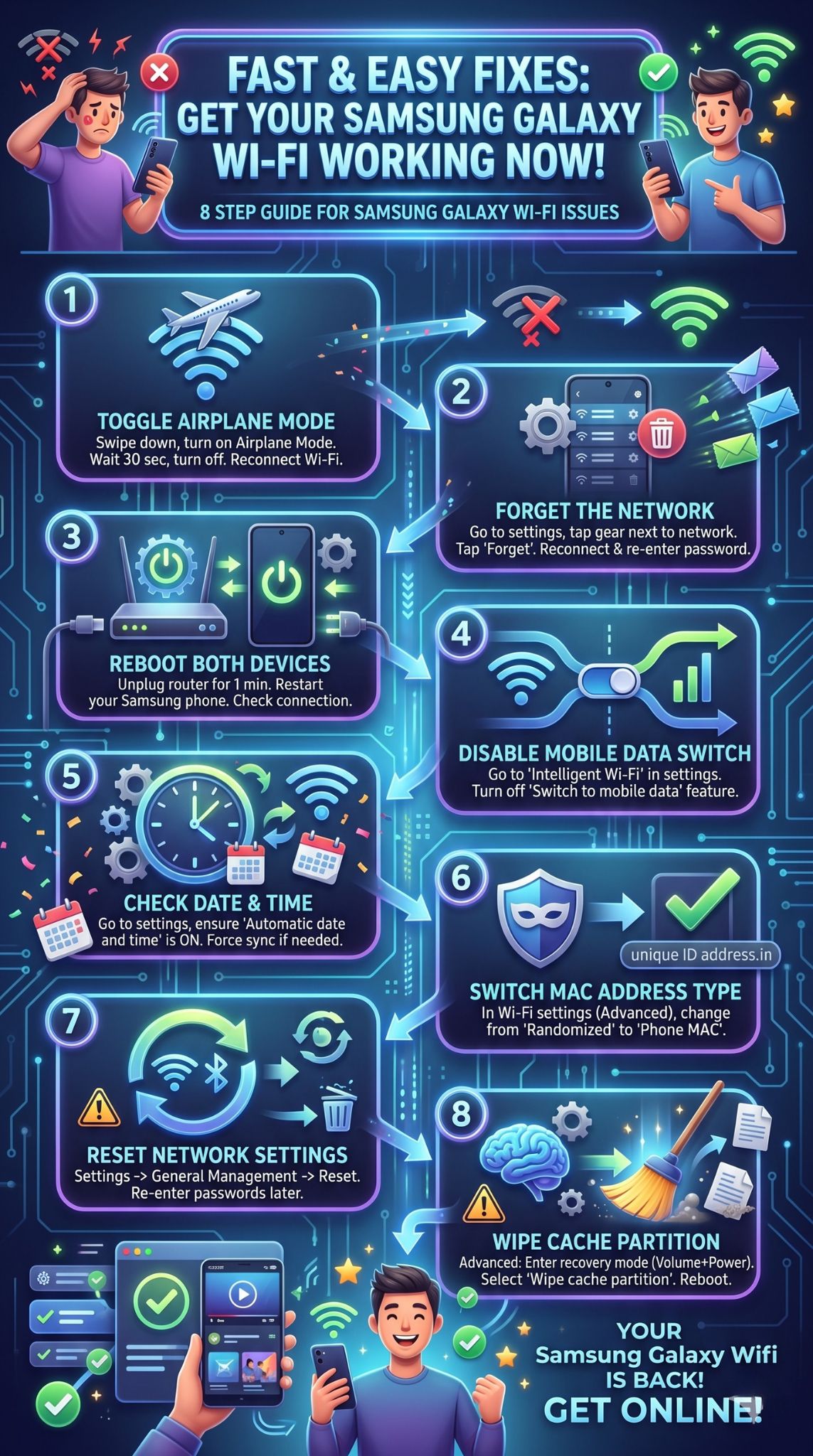
Think of a restart as a quick nap for your electronics. Over time, both your phone and your networking equipment build up a backlog of processed data in their memory. This can cause them to freeze up or stop handing out IP addresses.
Walk over to your router and modem. Unplug the power cables directly from the back of the units. Do not just press the power button, as unplugging them guarantees all residual electricity drains from the internal capacitors. Leave them completely unplugged for one full minute. Plug them back in and wait until all the indicator lights are solid green or white. While you wait, press and hold the power button on your Samsung phone and tap the restart option on the screen. Once everything is powered back up, try browsing a website.
Fix 4: Disable the Switch to Mobile Data Feature
Samsung includes a specific tool in One UI meant to keep your browsing seamless. It monitors your connection quality and automatically kicks you over to your cellular data if your home network dips in strength. Unfortunately, this feature is incredibly sensitive. If you walk behind a thick wall and the signal drops by a fraction, the phone might abandon the connection entirely.
Navigate to your wireless settings menu. Tap the three vertical dots located in the upper right corner of the screen. Select intelligent Wi-Fi from the drop-down menu. Look through the list until you find the toggle switch labeled switch to mobile data. Turn this feature off. Now your phone will remain stubbornly locked onto your home network, even if the signal strength fluctuates as you walk around your house.
Fix 5: Ensure Your Date and Time Settings Are Correct
Security is a massive part of modern networking. When your phone tries to load a website, the router checks the security certificates. These certificates rely on accurate timestamps to verify that the connection is safe and not being intercepted by a malicious third party. If your phone thinks it is yesterday, the router assumes something suspicious is happening and blocks your internet access.
Go into your main settings app and scroll all the way down to general management. Tap on date and time. You should see a toggle for automatic date and time. If it is turned off, turn it on so your phone pulls the exact time from the network towers. If it is already on, toggle it off for a moment. Manually set the time to be completely wrong, save it, and then turn the automatic toggle back on. This tricks the phone into forcing a fresh synchronization with the global time servers.
Fix 6: Switch Your MAC Address Type
Every piece of hardware that connects to the internet has a unique physical tracker called a Media Access Control address. To stop companies from tracking your phone as you walk from coffee shop to coffee shop, modern Android systems generate a fake, randomized address every time you connect somewhere new. Some older home routers have strict security settings that flag randomized addresses as untrusted devices.
Open your wireless settings and tap the gear icon next to your troubled network. You might need to tap a button that says view more or advanced to expand the menu. Scroll down until you find the option labeled MAC address type. Tap it, and change the selection from randomized to phone MAC. This tells your phone to use its real, permanent hardware address. Disconnect and reconnect to the network to see if the router finally accepts your device.
Fix 7: Reset Your Network Settings
If you are still struggling to get online, the software handling your connections might have a deep configuration error that basic toggles cannot reach. Resetting your network settings is a fantastic fix because it wipes out all custom radio data without touching your photos, messages, or downloaded apps.
Open your settings and head back down to general management. Scroll to the bottom and select reset. Look carefully for the option called reset network settings or reset Wi-Fi and Bluetooth settings. Tap it, and then tap the confirmation button. Your phone will take a few moments to scrub the data. Keep in mind that doing this will delete all your saved wireless passwords and unpair your Bluetooth headphones, so you will need to reconnect to your favorite devices afterward.
Fix 8: Wipe the Cache Partition
This is the most advanced software troubleshooting step you can take before wiping your phone completely. The system cache partition holds temporary files used by the Android operating system to boot up quickly. Sometimes, remnants of old software updates get stuck here and block your antennas from turning on.
Power your phone down completely. You must connect your phone to a computer or laptop using a USB cable to access this menu on newer models. Once plugged in, press and hold the volume up button and the power button at the exact same time. Let go of the buttons the moment you see the Samsung logo flash on the screen. You will boot into a black screen with technical text. Use the volume down button to scroll down to wipe cache partition. Press the power button to select it. Scroll down to yes and press the power button again. When the text at the bottom says complete, make sure reboot system now is highlighted and press the power button one last time.
When to Seek Professional Hardware Repair
Sometimes the problem is not digital at all. Physical hardware degrades over time, and the delicate antennas inside modern smartphones are incredibly sensitive to physical shock and moisture. If you have run through every software trick and your device still refuses to acknowledge any networks around you, it is time to look at the physical components. Taking your phone apart yourself is risky and voids your warranty, so understanding the warning signs of hardware failure helps you decide when to hand it over to a professional technician.
|
Symptom |
Probable Cause |
Recommended Action |
|
Toggle switch is completely grayed out |
Motherboard failure or broken antenna chip |
Visit authorized repair center |
|
Connection only works when touching the router |
Severed internal antenna wire |
Replace antenna assembly |
|
Device overheats when trying to connect |
Short circuit near the radio module |
Immediate professional diagnostic |
|
Issue started immediately after dropping phone |
Physical shock disconnected internal cables |
Open device to re-seat connections |
It is important to remember that water damage is progressive. Even if your phone has an IP68 water resistance rating, the internal seals wear down over the years. If you dropped your phone in a puddle a few weeks ago and the connections are just now starting to drop, corrosion might be eating away at the motherboard contacts. Back up all your important files immediately. Take the device to a certified repair shop where they can run a proper diagnostic scan on the motherboard and tell you exactly which physical parts need replacing.
Final Thoughts
Dealing with a dead network connection disrupts your entire day, but you are rarely dealing with a permanent disaster. By staying calm and working systematically through software glitches, IP conflicts, and router memory leaks, you can almost always resolve the issue without spending a dime. Your samsung galaxy wifi requires both your phone and your router to be in perfect sync, and simply forcing them to refresh their communication clears up the vast majority of problems.
Remember to keep your software updated and occasionally reboot your home network equipment to prevent these bugs from popping up in the first place. ~ “An ounce of prevention is worth a pound of cure.” ~ Keep this guide handy the next time your phone stubbornly refuses to load a webpage, and you will be back to streaming and browsing in no time.
Frequently Asked Questions (FAQs)
You usually see this error when trying to use public internet at a hotel, airport, or coffee shop. It means the network requires you to agree to their terms of service or enter a room number before granting internet access. If the login page does not pop up automatically, open your web browser and try to load a non-secure website like [http://neverssl.com](http://neverssl.com). This forces the router to redirect you to the required login screen.
Why is my phone conflicting with my dual-band router?
Modern routers broadcast two separate signals: a 2.4GHz band and a 5GHz band. Sometimes they combine these into one single network name, and your phone gets confused trying to constantly switch between the long-range 2.4GHz and the high-speed 5GHz signals. Logging into your router settings via a computer and separating them into two distinct names usually solves this.
Can changing my DNS settings fix connection drops?
Yes. Your Domain Name System translates website names into numbers your router can read. Sometimes your internet provider has terrible default DNS servers. You can change this by going to your advanced network settings, tapping Private DNS, and typing in a reliable public server like dns.google to bypass your provider’s sluggish system.
Will Wi-Fi Direct interfere with my home network?
Wi-Fi Direct is a feature that allows two devices to share files quickly without needing a router. If you recently used an app that relies on this feature to transfer photos to a smart TV or another phone, the radio might get stuck prioritizing that direct connection. Turning off Wi-Fi Direct in your advanced settings can immediately clear up standard network blocks.