
We have all been there. You walk out of a coffee shop, your phone drops its Wi-Fi connection, and suddenly nothing loads. You try to open a map, send a quick message, or check your bank balance, but you just get a loading wheel that spins forever. It feels incredibly frustrating, especially since our phones are practically useless without a stable internet connection.
If you are dealing with an iphone cellular data not working issue right now, take a breath. You likely do not need to buy a new phone or rush to an Apple Store. Most connection drops happen because of simple settings that got bumped, a temporary network hiccup, or a minor software glitch. We are going to walk through exactly how to get your internet back online.
Why Is My iPhone Cellular Data Not Working?
Finding the exact reason your internet dropped can save you a lot of time and headache. Mobile networks rely on a handshake between your physical phone, its internal software, and the local cell towers around you. When that handshake breaks down, your data stops flowing completely. The problem almost always falls into one of three main buckets. Let us look at what causes these specific breakdowns so you know exactly what you are dealing with before we start changing settings.
|
Issue Category |
Common Triggers |
Likelihood |
|
Software Glitches |
Outdated iOS, crashed background apps, corrupted network cache |
High |
|
Carrier Outages |
Tower maintenance, severe weather, unpaid bills, data throttling |
Medium |
|
Hardware Problems |
Dislodged SIM card, damaged SIM tray, internal antenna damage |
Low |
Software Glitches and iOS Bugs
Your phone is just a tiny computer, and computers get confused. Sometimes a specific app you left open in the background crashes and messes up the way your phone routes internet traffic. Other times, Apple releases an iOS update that has a hidden bug affecting how certain models talk to specific carrier networks. Even keeping your phone turned on for weeks without a reboot can let temporary files pile up until they block your internet access.
Carrier Outages and Account Issues
You might be trying to fix a phone that is not actually broken. Cell towers go down all the time for routine maintenance, power outages, or bad weather. If the tower nearest to you is offline, your phone has nothing to connect to. Beyond that, your specific mobile plan might be the culprit. If you hit your monthly high-speed data cap, your provider might throttle your internet speeds so heavily that it feels like you have no connection at all. An expired credit card on your billing account can also cause your carrier to pause your data access while keeping your voice calls active.
Hardware and SIM Card Complications
Sometimes the physical parts fail. If you use a traditional plastic SIM card, that little chip acts as your network ID. If you drop your phone, the card can shift a millimeter out of place inside the tray. Dust and pocket lint can also work their way inside the slot and block the metal contact pins. Without a perfect connection to that SIM card, your phone cannot prove to the network that you pay for data.
9 Proven Fixes for iPhone Cellular Data Not Working
Now that we know what usually breaks the connection, we can start fixing it. You should work through this list in order, starting with the fastest methods and moving down to the deeper system resets. Test your internet by opening a web browser after every single step. That way, you avoid doing anything drastic if a simple button press was all you needed.
|
Fix Number |
Action to Take |
Time Required |
Risk of Data Loss |
|
1 |
Toggle Airplane Mode |
30 Seconds |
None |
|
2 |
Verify Cellular Settings |
1 Minute |
None |
|
3 |
Restart iPhone |
2 Minutes |
None |
|
4 |
Update Carrier Settings |
1 Minute |
None |
|
5 |
Inspect SIM Card |
3 Minutes |
None |
|
6 |
Disable VPN / Relay |
2 Minutes |
None |
|
7 |
Reset Network Settings |
5 Minutes |
Will lose saved Wi-Fi |
|
8 |
Update iOS Software |
20+ Minutes |
None |
|
9 |
Contact Carrier |
Varies |
None |
1. Toggle Airplane Mode to Refresh Your Connection
This is the oldest trick in the book, but it works surprisingly well. Airplane mode cuts off every wireless radio inside your device. When you turn it on and off, you force your phone to dump its current connection to the cell tower and build a brand new one.
Swipe down from the top right corner of your screen to open the Control Center. Tap the airplane icon so it turns orange. Wait at least thirty full seconds. Do not rush this part, because the phone needs time to fully clear its connection cache. Tap the icon again to turn it off, watch the cell bars reappear at the top of your screen, and try loading a webpage.
2. Verify Your Cellular Data and Roaming Settings
It is incredibly easy to accidentally turn off your data while fumbling with your phone or pulling it out of your pocket. Open the Settings app and tap on Cellular. Look at the very top switch labeled Cellular Data. If the switch is grey, your internet is turned off. Tap it so it turns green.
If you are traveling internationally, or even just in a rural area where your carrier relies on partner networks, you need to check your roaming settings. Tap Cellular Data Options and look at Data Roaming. If it is off, turn it on. Just remember to check if your mobile plan includes free roaming, or you might see unexpected charges on your next bill.
3. Restart Your iPhone to Clear Background Errors
When fixing an iphone cellular data not working situation, a simple restart is your best friend. A hard reboot forces your phone to close all running processes, dump its temporary memory, and start the operating system fresh.
Press and hold the volume up button and the side power button at the same time. When the slide to power off bar appears, drag it all the way across. Let the screen go completely black and wait a full minute. Press and hold the power button until you see the Apple logo. Unlock your phone and see if your apps connect to the internet.
4. Check for and Install Carrier Settings Updates
Apple updates the main software, but your network provider pushes out tiny updates specifically for the cell towers. These carrier updates tell your phone how to handle new 5G bands, improve call quality, and fix known internet dropping bugs. If these files get too outdated, your connection will fail.
Connect to a Wi-Fi network if you can. Open Settings, tap General, and then tap About. Just leave the screen sitting there for about thirty seconds. If your carrier has a new update waiting, a prompt will pop up in the middle of the screen asking if you want to install it. Tap update. It takes two seconds and usually does not require a restart.
5. Remove, Inspect, and Reinsert Your SIM Card
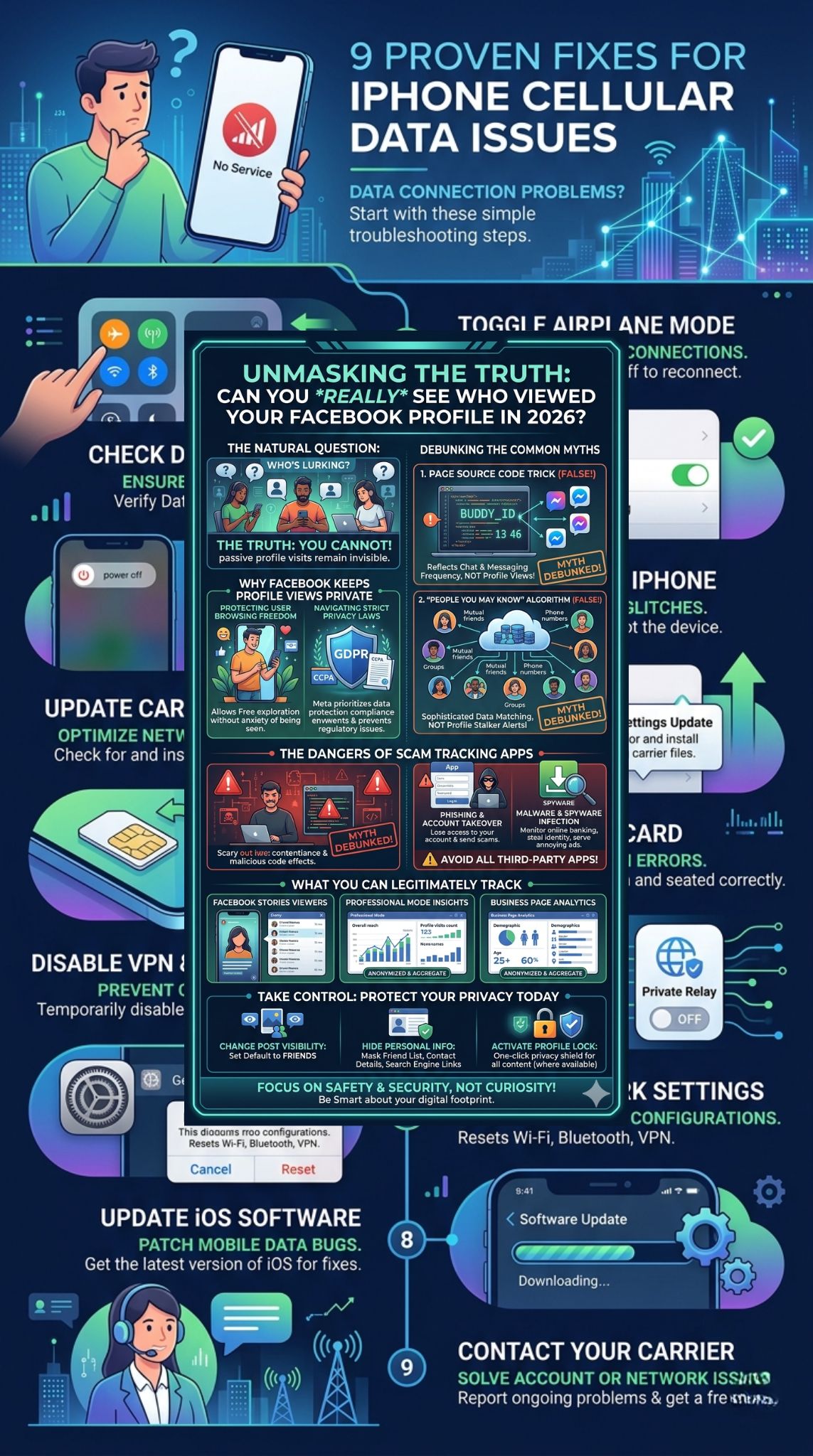
If you use a physical SIM card, it is time to check it. Turn your phone completely off. Grab the metal SIM ejector tool that came in the box, or unfold a paperclip. Push the tool firmly into the tiny hole on the side of your phone until the tray pops out.
Take the card out and look at the gold metal side. If it looks smudged or dirty, gently wipe it with a clean microfiber cloth. Do not use water or rubbing alcohol. Put the card perfectly flat back into the tray, matching the cut corner, and slide it back into the phone. Turn the device back on. If you use a dual-SIM phone, try putting the card on the opposite side of the tray to force the phone to read it again.
6. Temporarily Disable VPNs and Apple Private Relay
Privacy apps are great, but they are notorious for breaking mobile internet connections. If your VPN server goes offline, your phone will keep trying to push data through a dead tunnel, leaving you with no internet.
Open Settings, tap General, and tap VPN and Device Management. If you see a VPN listed as connected, toggle it off. Next, check Apple’s built-in privacy tool. Go back to the main Settings page, tap your name at the top, tap iCloud, and find Private Relay. Turn it off temporarily. Turn off your Wi-Fi and check if your mobile network is working again. If it is, you know the privacy software was causing the block.
7. Reset Your iPhone Network Settings
Another step for an iphone cellular data not working issue involves clearing out your custom network configurations. Over time, the files that handle your Wi-Fi and Bluetooth pairings get cluttered and corrupted. This step will delete all your saved Wi-Fi passwords and Bluetooth devices, so make sure you know your home network password before you do this. It will absolutely not delete your photos, texts, or apps.
Open Settings, tap General, and scroll all the way down to Transfer or Reset iPhone. Tap Reset, then tap Reset Network Settings. Put in your passcode and confirm. Your phone will reboot automatically. Once it wakes up, turn off the Wi-Fi and check your mobile network.
8. Update to the Latest iOS Version
To resolve the iphone cellular data not working bug permanently, you might just need the latest Apple software. If thousands of people are experiencing the same internet drop on the same carrier, Apple will release an emergency patch to fix it. If you have been ignoring those update notifications, your phone is missing out on critical network fixes.
You will definitely need to borrow a Wi-Fi connection for this. Open Settings, tap General, and tap Software Update. If you see an update waiting, tap download and install. Plug your phone into a charger and let it do its thing. Once it boots back up on the new software, test your cell connection.
9. Contact Your Cellular Carrier for Account Support
If you have done all eight steps above and your internet is still completely dead, the problem is not your phone. The issue is sitting on the carrier’s side of the fence. Your account might be flagged, your SIM card might be permanently fried, or your local cell tower might be struck by lightning.
Borrow a phone or use Wi-Fi calling to dial your carrier’s customer service line. Tell the automated system you need technical support. When you get a real person on the line, explicitly tell them you have already restarted your phone, reset your network settings, and checked your SIM card. This skips the basic script and gets them to look directly at your account standing and local tower status. They might need to send a refresh signal directly to your phone or mail you a brand new SIM card.
Final Thoughts
Dealing with an iphone cellular data not working issue is incredibly annoying, but it is very rarely permanent. Mobile networks are massively complicated webs of radio signals and software protocols, and it is honestly a miracle they work as well as they do most of the time. When things go wrong, the solution is usually just a matter of reminding your phone how to talk to the tower.
By starting with a simple airplane mode toggle and working your way through inspecting the SIM card and resetting the network files, you give yourself the best chance of fixing the problem without waiting on hold with tech support. Bookmark this page on your home Wi-Fi just in case your connection drops again in the future. Keep your software updated, avoid cheap metal phone cases that block your antennas, and your mobile internet should stay fast and reliable.
Frequently Asked Questions (FAQs)
Even after walking through the main troubleshooting steps, mobile networks can behave in strange ways. People often run into highly specific scenarios where their internet drops out under weird conditions. We combed through search trends to find the least obvious but most common questions people have when their connection fails.
|
Question |
Short Answer |
|
Can low battery affect my data? |
Yes, Low Power Mode restricts 5G and background data syncs. |
|
Do phone cases block signals? |
Heavy metal or magnetic cases can severely drop your antenna strength. |
|
What if my eSIM gets deleted? |
You must contact your carrier to issue a new digital QR code. |
|
Does a custom APN break data? |
Yes, incorrect Access Point Names stop your phone from finding the web. |
Can a custom APN profile break my data connection?
Yes. An Access Point Name is essentially the exact gateway address your phone uses to find the public internet. Most carriers set this automatically behind the scenes. However, if you recently traveled internationally and used a temporary travel SIM, or if you downloaded a custom profile for a specific work network, it might have altered your APN. If those settings are wrong for your home carrier, your data will not work. You can usually clear this by going to Settings, Cellular, Cellular Data Network, and tapping Reset Settings.
Why does data drop specifically when I enter certain buildings?
This happens constantly and is purely an environmental issue, not a phone issue. Many modern office buildings, hospitals, and big box stores are built with thick concrete, steel beams, and energy-efficient window coatings. These materials act like a giant Faraday cage, bouncing cell tower radio waves away instead of letting them inside. If your data works perfectly in the parking lot but dies in the grocery store aisle, your phone is fine. You just have to wait until you walk outside or connect to the store Wi-Fi.
Does battery saver mode restrict cellular data?
It absolutely does. When your battery dips into the red and you turn on Low Power Mode, your phone makes aggressive cuts to save juice. One of the first things it does is shut down background app refresh, meaning your email and social apps stop fetching data unless you open them. On newer models, Low Power Mode will completely turn off 5G connectivity and drop you back to standard LTE to save battery. If your data feels horribly slow or unresponsive, check to see if your battery icon is yellow.
What happens if my eSIM gets accidentally deleted?
Unlike a physical piece of plastic you can drop on the floor, an eSIM is purely digital. Sometimes, people accidentally delete their cellular plan from their settings menu while trying to clean up their phone. If you delete your eSIM, your data connection instantly dies. You cannot just undo this action. You have to treat it like losing a physical card. You must log into your carrier app over Wi-Fi or call them so they can push a new eSIM profile to your device, usually via a QR code you scan with your camera.