
We have all been there at two in the morning. You suddenly remember something important you need to tell your boss or a friend, but you know sending a buzz to their nightstand right now is a bad move. You could wait until morning, but let’s be honest, you will probably forget. This is why learning to schedule text android users have at their fingertips is such a massive win for your sanity.
Automation used to feel like something only tech geniuses did, but now it is a standard part of how we handle our digital lives. Whether you are trying to stay on top of work tasks without being a nuisance or just making sure you are the first to wish your mom a happy birthday, the ability to time your messages is a life-saver. It keeps your head clear and your relationships professional.
In this guide, we are going to look at every possible way to get this done. We will walk through the Google Messages app that most of us use, check out the specific tools Samsung gives its users, and look at some outside apps that offer even more power. By the end, you will be a master of the schedule text android workflow.
Why People Love Scheduling Their Texts
Think of scheduling as a way to declutter your brain. When you have a thought, you get it out of your system immediately, but the other person only gets it when it actually makes sense for them to see it. It is about being polite and staying organized at the same time.
Better Boundaries for Work and Life
In 2026, the lines between our personal lives and our jobs are thinner than ever. Sending a work-related text on a Saturday might feel fine to you while you are thinking about it, but it puts pressure on the person receiving it. By choosing to schedule text android messages for Monday morning, you respect their time off while ensuring your idea does not get lost in the weekend shuffle.
Managing Different Time Zones
If you have family or coworkers on the other side of the world, you know the math struggle of figuring out if it is 3 AM or 3 PM over there. Instead of doing mental gymnastics every time you want to chat, you can just set the message to go out during their lunch break. It takes the guesswork out of global communication and prevents you from being the person who wakes everyone up.
Never Missing a Milestone
We like to think we have great memories, but life gets busy. Scheduling a message for a birthday, anniversary, or graduation weeks in advance means you never have to send that awkward “sorry I forgot” text again. It makes you look incredibly thoughtful with almost zero effort.
|
Benefit |
How It Helps You |
|
Mental Clarity |
You can send the thought immediately and stop worrying about it. |
|
Professionalism |
Your boss gets texts during work hours, not during their dinner. |
|
Global Connection |
No more waking up international friends in the middle of the night. |
|
Reliability |
You never miss an important date or a scheduled reminder. |
How to Schedule Text Messages Using Google Messages
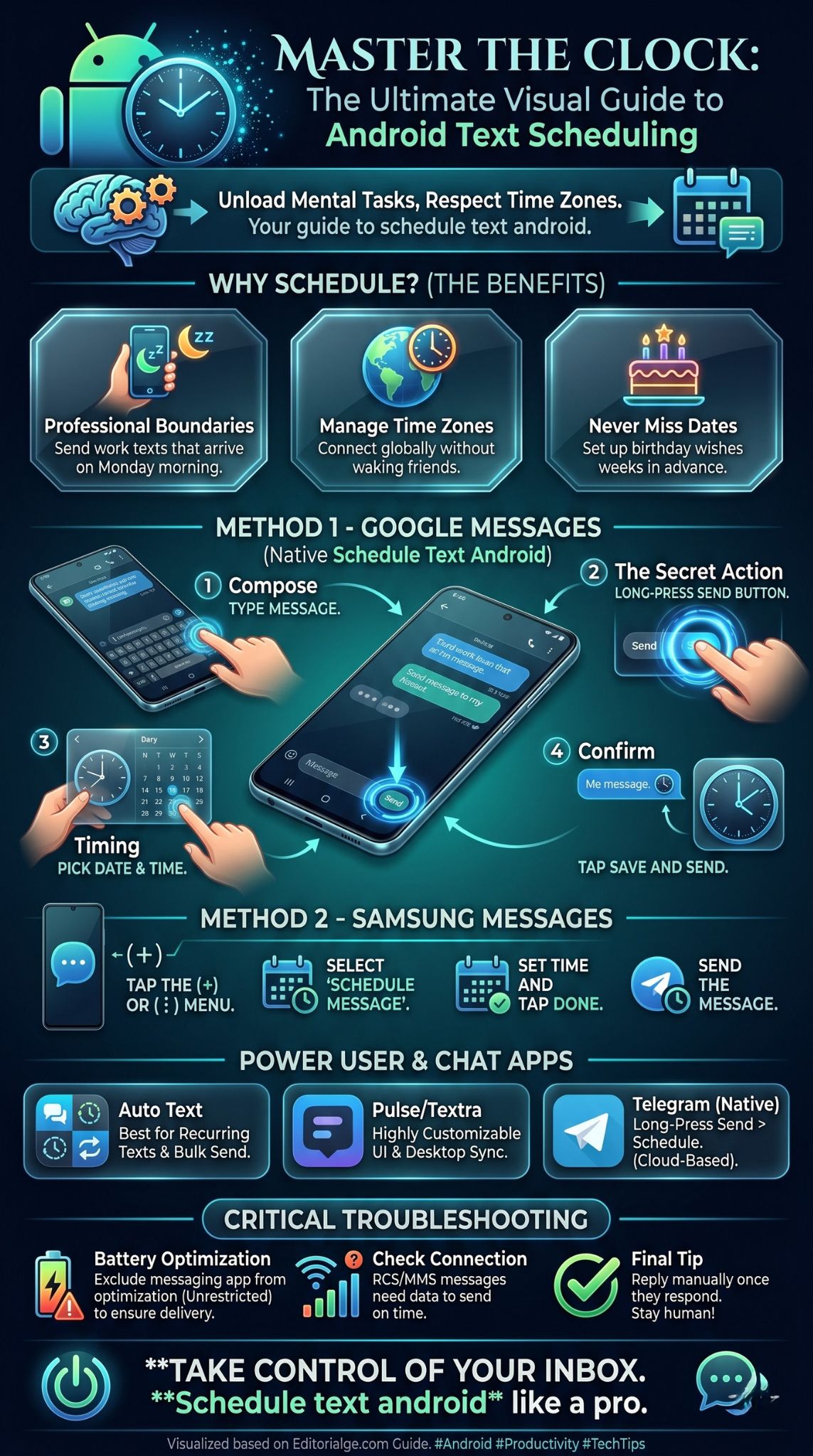
Google Messages is the go-to app for the vast majority of Android phones today. It uses something called RCS, which is basically the modern version of texting that acts more like an internet chat app. Google has made the process of scheduling incredibly simple, hiding it right behind the send button.
Step 1: Pick Your Contact and Type
Open the Google Messages app and jump into a conversation or start a new one. Type out whatever you need to say. You can add emojis, pictures, or even voice notes just like you usually do. Don’t hit the send button yet, though.
Step 2: The Long Press Secret
Instead of just tapping the send icon (that little paper airplane), you need to press and hold it. After about a second, a menu will pop up on your screen. This is the hidden schedule send menu that most people don’t even know exists.
Read Also: How to Get Dark Mode on Snapchat for Android
Step 3: Pick Your Timing
Google will give you a few quick suggestions like “Tomorrow, 8:00 AM” or “Later today.” If those don’t work, you can tap on “Pick date and time” to get specific. You will see a calendar where you can choose the day, followed by a clock where you can set the exact minute.
Step 4: Confirm and Watch
Once you hit save, you will notice a small clock icon on the send button. Tap it, and your message will appear in the chat with a light gray background and a clock next to it. It is now sitting in a queue, waiting for the right moment to fly out.
|
Google Messages Step |
What to Do |
|
Compose |
Type your message and add any attachments needed. |
|
Long Press |
Hold down the send button until the menu appears. |
|
Choose Time |
Select a preset or pick a custom date/time on the calendar. |
|
Save & Send |
Hit save and then tap the clock-adorned send button. |
H3: Managing Your Pending Google Messages
If you change your mind or see a typo, don’t worry. You can tap the clock icon next to your scheduled message at any time. You will have the option to send it right now, delete it completely, or update the text and the time. It gives you total control right up until the second it sends.
Scheduling Messages on a Samsung Galaxy
Samsung likes to do things a little differently. If you are using the default Samsung Messages app instead of Google’s version, the steps are located in a different spot. Samsung was actually one of the first companies to include this feature, and it remains very reliable for Galaxy owners.
Using the Plus Menu or Three Dots
Open your message and look for the plus (+) sign or the three-dot menu icon near the text box. Samsung buries the “Schedule message” option in this menu. Once you tap it, a clear calendar interface pops up. You pick your time, hit “Done,” and then send the message.
Why Samsung Users Might Prefer This
The Samsung app is built to work perfectly with the rest of the Galaxy ecosystem. If you are used to the Samsung interface, sticking with their native app for your schedule text android needs makes sense. It handles the timing well and shows a very clear “timer” icon so you know which messages are waiting to go out.
|
Samsung Feature |
Description |
|
Location |
Found in the (+) menu next to the text entry box. |
|
Interface |
Uses a simple, integrated calendar and clock picker. |
|
Visuals |
Scheduled messages show a clear blue or gray clock icon. |
|
Editing |
Tap the message to reschedule or cancel immediately. |
H3: Samsung Specific Scheduling Tips
Make sure you don’t schedule a message too far into the future. While the app can handle it, your phone needs to be on and connected to a network when that time comes. If your phone is dead or in airplane mode, the message will just sit there until you get a signal again.
Using Third-Party Apps for More Power
Sometimes the basic features in Google or Samsung Messages aren’t quite enough. If you run a small business or just really love automation, third-party apps can take things to the next level. These apps often allow for recurring messages or sending to large groups of people at once.
Do It Later (Auto Text)
This is probably the most popular app for anyone serious about scheduling. It doesn’t just do texts; it can handle emails, WhatsApp messages, and even Twitter posts. The best part is the “recurring” feature. You can set a message to go out every Tuesday at 10 AM without ever touching it again.
Pulse SMS and Textra
Pulse is great because it lets you text from your computer or tablet and keeps everything in sync. Textra is a fan favorite for people who love to customize how their app looks. Both have scheduling built in, and they are often faster and smoother than the default apps that come on your phone.
|
Third-Party App |
Key Selling Point |
|
Do It Later |
Best for recurring messages and multi-platform use. |
|
Pulse SMS |
Great for syncing texts across all your different devices. |
|
Textra |
Highly customizable with a very fast, light interface. |
|
SKEDit |
Specifically designed for business communication automation. |
H3: The Risks of Third-Party Apps
When you use an outside app to schedule text android messages, you are giving that app permission to read your contacts and send messages on your behalf. Always stick to well-reviewed apps on the Play Store. Also, remember that these apps often need you to turn off “battery optimization” so the phone doesn’t kill the app while it is waiting to send your message.
How to Schedule on Telegram and WhatsApp
Not everyone uses traditional SMS anymore. Most of our talking happens on apps like Telegram or WhatsApp. While WhatsApp is still a bit behind on this, Telegram has had native scheduling for a long time, and it works beautifully.
The Telegram Method
Telegram is actually better at this than Google Messages. You just long-press the send button and pick “Schedule Message.” The cool part is that Telegram handles this on their own servers. That means even if your phone dies or you lose your internet, the message will still send at the right time because it is already waiting in the cloud.
The WhatsApp Workaround
As of right now, the standard version of WhatsApp doesn’t have a “schedule” button. To do this, you usually have to use an automation app like “Shortcut” or “SKEDit.” These apps basically “mimic” you typing and sending the message. It is a bit clunky, but it is the only way to schedule text android users have for WhatsApp until Meta decides to add the feature natively.
|
Messaging App |
Native Scheduling? |
How It Works |
|
Telegram |
Yes |
Cloud-based; sends even if your phone is turned off. |
|
|
No |
Requires third-party automation or “Business” tools. |
|
Signal |
No |
Currently no native way to schedule for privacy reasons. |
H3: Why Cloud Scheduling is the Future
Apps like Telegram show why server-side scheduling is so much better. You don’t have to worry about your battery life or your cell signal at the moment of delivery. Once you hit “schedule,” the task is out of your hands and handled by the app’s powerful servers.
Troubleshooting Your Scheduled Messages
It can be frustrating when you think a message went out, only to find out later that it failed. Most of the time, the issue isn’t the app itself, but how Android is trying to save your battery. If your phone “sleeps” too deeply, it might forget to trigger the message.
Dealing with Battery Optimization
Android is very aggressive about closing apps that are running in the background to save power. If you are using a third-party app to schedule text android messages, you need to go into your settings and tell the phone to leave that app alone. Look for “Battery Optimization” in your settings, find your messaging app, and set it to “Don’t Optimize.”
Connection and Sync Issues
If you are using RCS (the “Chat features” in Google Messages), you need an internet connection to send. If your Wi-Fi drops out right when the message is supposed to send, it might fail or revert to a standard SMS. If it fails, you will usually see a red exclamation mark next to the message. You can just tap it to try sending it again manually.
|
Common Issue |
Likely Solution |
|
Message Didn’t Send |
Check if your phone was in Airplane Mode or had no signal. |
|
App Closed Unexpectedly |
Disable Battery Optimization for that specific app. |
|
Time is Wrong |
Double-check your AM/PM settings and your time zone. |
|
Recurring Fail |
Ensure the app has “Accessibility” permissions turned on. |
H3: Software Updates and Compatibility
Sometimes a big Android update can break how scheduling works, especially on older apps. Always make sure your messaging app is updated to the latest version from the Play Store. Developers are constantly patching bugs that might cause scheduled messages to get stuck in the outbox.
Advanced Use Cases for Scheduling
Once you get used to this feature, you will find all sorts of ways to use it. It isn’t just for avoiding late-night texts. It can actually be a full-on productivity system if you use it correctly.
The “Follow-Up” Strategy
When you finish a meeting, you can immediately schedule a “Thanks for the chat” text to go out two hours later. It makes you look incredibly organized and ensures you never forget to follow up with a client or a friend. It is like having a personal assistant living inside your phone.
Setting Reminders for Others
If you know your spouse needs to pick up milk on the way home, you can schedule a text for 5:00 PM while you are thinking about it at noon. This way, the reminder hits them right when they are leaving the office and it is most relevant. It is much more effective than telling them in the morning and hoping they remember ten hours later.
|
Scenario |
Strategy |
|
Business Lead |
Schedule a follow-up 24 hours after your first meeting. |
|
Grocery List |
Time the text for when your partner usually leaves work. |
|
Medicine Reminder |
Schedule a daily text to an elderly relative at a set time. |
|
Birthday Prep |
Schedule a “happy birthday” text a week in advance. |
H3: Etiquette for Automated Texting
Just because you can automate your life doesn’t mean you should be a robot. If someone replies to your scheduled message immediately, try to jump in and chat manually. If you are clearly “offline” but sending texts, it can feel a bit weird to the person on the other end. Use scheduling to start the conversation, but use your own thumbs to keep it going.
Technical Requirements for Modern Scheduling
To make sure you can schedule text android flawlessly, your phone needs to meet a few basic requirements. Most phones made in the last five or six years are perfectly fine, but it is good to know the specifics.
Android Version and App Support
You generally need to be on Android 7.0 or higher to use the built-in scheduling in Google Messages. If you are on a very old device, you might be forced to use third-party apps. Also, the recipient doesn’t need any special tech—they will receive your scheduled text as a normal SMS or RCS message regardless of what phone they use.
Data vs. SMS
Remember that scheduling an RCS message (one with high-quality photos or typing indicators) requires data. If you are out of data or off the grid, your phone might struggle to send that 4K video you scheduled for your friend’s birthday. For the most reliable results when you know you’ll be traveling, stick to plain text.
|
Requirement |
Detail |
|
OS Version |
Android 7.0 (Nougat) or newer for native Google support. |
|
Network |
Active SIM card with a valid text plan or data connection. |
|
App Version |
Latest version of Google Messages or Samsung Messages. |
|
Battery |
Phone must have enough charge to be “awake” at the set time. |
H3: The Role of RCS in Scheduling
RCS (Rich Communication Services) is the reason why scheduling has become so much more reliable recently. Unlike the old SMS system, RCS can “talk” back and forth with Google’s servers more effectively. This allows for better syncing and ensures that if you schedule a text on your phone, it stays scheduled even if you restart the device.
Final Thoughts on Android Text Scheduling
Mastering the ability to schedule text android messages is one of those small changes that has a big impact on your daily life. It is about taking control of your time and being more intentional with how you communicate. Instead of being a slave to your notifications or your own forgetfulness, you can decide exactly when your voice is heard.
We have covered a lot here, from the basic long-press in Google Messages to the more complex automation of third-party apps. The best thing you can do now is try it out. Schedule a simple “Hello” to a friend for ten minutes from now just to see how it looks. Once you see it work for the first time, you will realize how much mental energy you have been wasting trying to remember to send texts at the “perfect” time.
Whether you are using it for work, family, or just to keep yourself organized, scheduling is a tool that every Android user should have in their back pocket. It makes you a better communicator and a more productive person. So go ahead, set those birthday wishes and work updates now, and give yourself the rest of the day off from worrying about your inbox.
FAQs
What happens if my phone is off at the scheduled time?
If you are using Google or Samsung Messages, the text will not send while the phone is off. It will wait until you turn the phone back on and it finds a signal, then it will send immediately. If you need it to send even when your phone is dead, use Telegram’s scheduling feature.
Can I schedule a message to a group of people?
Yes, you can. In Google Messages, just start a group chat, type your message, and use the long-press trick on the send button. The entire group will receive the message at the time you choose.
Does scheduling a text cost extra money?
No, it does not cost anything extra. It uses your existing text message plan or data. It is just a feature of the app you are using, not a special service from your mobile carrier.
Can I see a list of all my scheduled messages in one place?
Most apps don’t have a single “master list” folder, but you will see the scheduled messages at the bottom of each individual conversation thread. They are usually easy to spot because they are a different color or have a clock icon next to them.
Will the other person see “Sent via Scheduler” or anything like that?
Not at all. To the person receiving the text, it looks exactly like a regular message. There is no way for them to know you wrote it three days ago unless you tell them yourself.