
For the longest time, Android users felt like second-class citizens when it came to app design. While iPhone users were enjoying a sleek, battery-saving dark interface, the Android crowd was stuck with a blinding white screen that felt like a flashlight in a dark room. Thankfully, things changed. Getting snapchat dark mode android is no longer a myth, but the steps can still feel a bit hidden depending on your device or region.
In this guide, we are going to break down every possible way to flip the switch. We will look at the official settings that finally rolled out to everyone, the premium shortcuts through Snapchat+, and even the “secret” developer tricks for those who still don’t see the option. Whether you are using a brand-new Pixel or an older Samsung, we have a way to make your late-night snapping much easier on the eyes.
The History of the Dark Mode Delay on Android
It is worth looking back at why this feature took years to arrive. Snapchat originally built its app using code that was heavily optimized for iOS. Because there are thousands of different Android devices with various screen sizes and processors, rewriting the entire UI to support a dark theme was a massive undertaking for their engineers.
For years, the “App Appearance” menu simply didn’t exist for the green robot users. It became one of the most requested features in the history of social media apps. Today, the feature is largely standardized, but some legacy bugs still cause it to disappear after certain updates. Understanding this history helps explain why sometimes you might need to use a workaround instead of a simple toggle.
Development Timeline for Android UI
|
Year |
Milestone |
Feature Status |
|
2021 |
iOS Launch |
Exclusive to Apple devices |
|
2022 |
Beta Testing |
Limited to specific regions on Android |
|
2023 |
Snapchat+ Rollout |
Paid users got early access |
|
2024 |
Global Release |
Native support for most flagship phones |
|
2026 |
Full Integration |
Adaptive theming and custom accents |
The Role of Early Beta Testers
The road to a stable dark theme was paved by beta testers. These users dealt with “inverted” images and unreadable text for months so that we could have the polished version we see today. If you are someone who likes living on the edge, joining the Snapchat Beta through the Play Store is still a great way to see UI changes before the general public.
The Official Way: Enabling Native Dark Mode
Most users can now access the snapchat dark mode android feature directly through the app settings without any special hacks. This is the “cleanest” way to do it because it ensures all the icons and chat bubbles look exactly how the designers intended. It also respects your phone’s battery-saving settings if you choose the right option.
To find this, you need to head into your profile settings. If the option isn’t there, it usually means your app version is outdated or your specific region is part of a “staged rollout.” Staged rollouts mean the company releases the update to 10% of users, then 20%, and so on, to make sure their servers don’t crash from the sudden change in data usage.
Read Also: How to Recover Old Snapchat Streaks: Complete Guide
Steps to Activate Official Dark Mode
|
Step |
Action |
What to Look For |
|
1 |
Open Profile |
Tap your Bitmoji in the top left |
|
2 |
Enter Settings |
Tap the Gear icon in the top right |
|
3 |
Find Appearance |
Scroll to “App Appearance” under My Account |
|
4 |
Select Theme |
Choose “Always Dark” or “Match System” |
|
5 |
Restart App |
Close and reopen Snapchat to apply changes |
Using the Match System Feature
The “Match System” setting is probably the best choice for most people. It links the app’s look to your phone’s overall theme. If your phone turns on dark mode at sunset, Snapchat will follow suit. This keeps your user experience consistent and prevents that sudden shock of brightness when switching from a dark home screen to a bright app.
Using Snapchat+ for Enhanced Theme Options
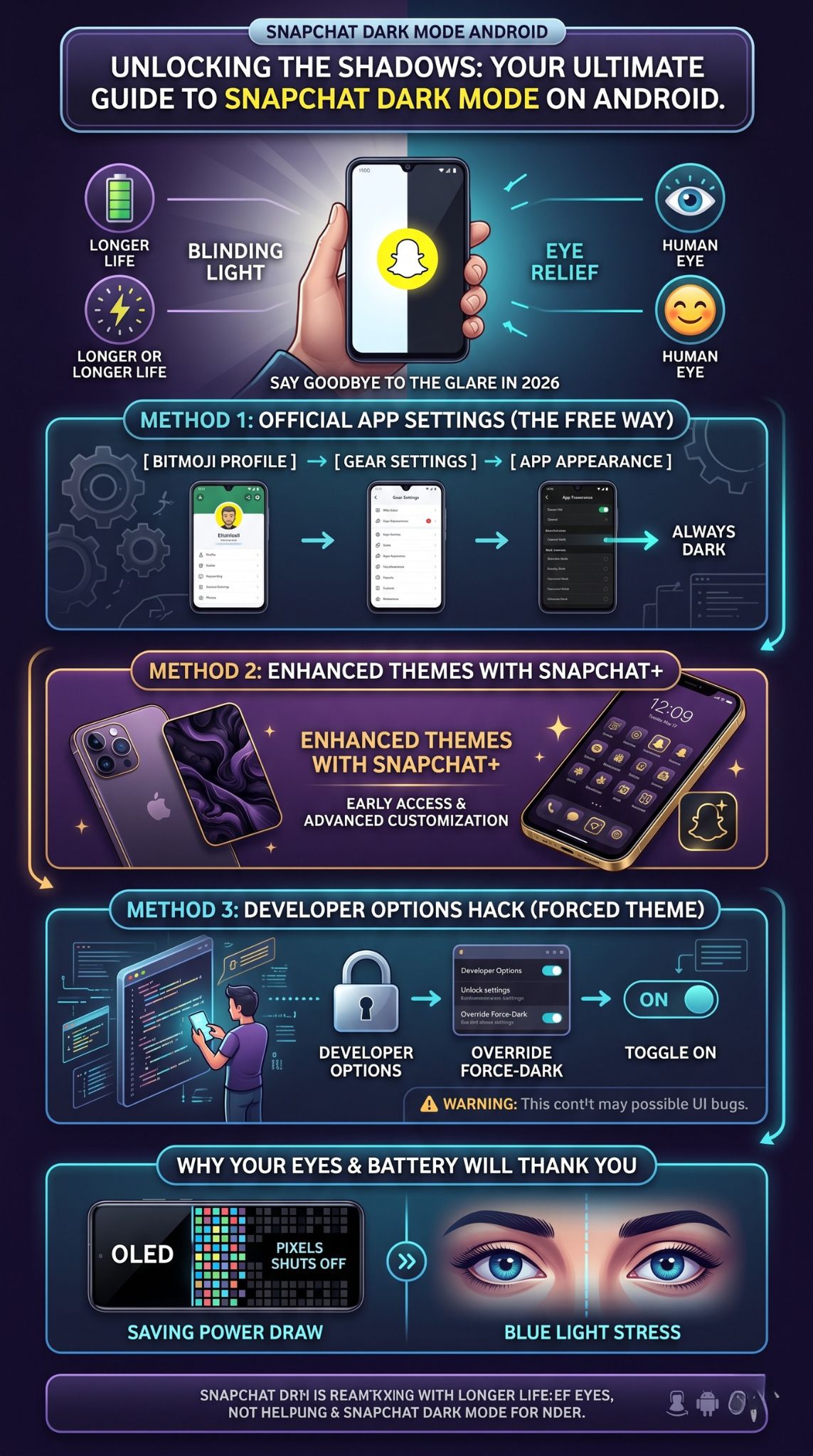
If you are a power user who wants more than just a basic black background, Snapchat+ is the way to go. This subscription service was actually the first place where snapchat dark mode android became a reality. Even now that the feature is free for many, subscribers get extra perks that make the interface feel much more personal.
Beyond just the dark theme, Snapchat+ allows you to change the app icon, see who rewatched your stories, and use “Ghost Trails” to see where your friends have been. For those who care about aesthetics, the subscription unlocks custom chat wallpapers that pair perfectly with a dark UI, making your conversations look like a piece of art rather than a standard chat window.
Exclusive Subscription Perks
|
Feature |
Description |
Benefit |
|
Custom Icons |
Change the home screen app icon |
Personalization |
|
Dark Mode Early Access |
Get the latest UI tweaks first |
Stability |
|
Chat Wallpapers |
Set dark-themed backgrounds for chats |
Readability |
|
Priority Support |
Faster help for UI bugs |
Reliability |
Is the Subscription Worth It?
If you only want dark mode, paying for a subscription might seem like overkill since the feature is rolling out for free. However, if you spend hours on the app every day, the added flair and the ability to customize your “solar system” of friends make it a compelling offer. It is also the most reliable way to get the feature if your specific phone model is being ignored by the free updates.
The Developer Options Hack: Forcing the Theme
Sometimes, technology just doesn’t cooperate. If you have updated the app and checked the settings but still don’t see “App Appearance,” you can take matters into your own hands. Android has a hidden “Developer Options” menu that allows you to force apps into a dark state, even if they aren’t coded to support it natively.
This method is a bit “rough around the edges.” Because you are forcing the phone to invert colors, some things might look a little weird. For example, a dark grey button might turn bright white, or an emoji might look like a ghost. But if you are desperate to save your eyes at 2 AM, this is a lifesaver that works on almost every modern Android device.
Unlocking Hidden System Settings
|
Requirement |
Steps |
Caution |
|
Build Number |
Tap 7 times in “About Phone” |
Don’t change other settings! |
|
Developer Menu |
Found in System > Developer Options |
Can affect system stability |
|
Force Dark Mode |
Toggle “Override force-dark” to On |
May invert some photo colors |
|
System Reboot |
Restart your phone for best results |
Needed for some UI layers |
The Risks of Forced Dark Mode
While this “force” method works for snapchat dark mode android, it can sometimes make the camera interface look a bit buggy. Since Snapchat is an app built entirely around the camera, you might see some flickering in the viewfinder. If that happens, it is best to toggle the setting off and wait for the official update. This trick is a “band-aid” solution, not a permanent fix.
Troubleshooting Common Dark Mode Issues
Even in 2026, tech bugs are a reality. You might find that your dark mode disappears after a phone update, or perhaps the app keeps reverting to the light theme every time you close it. This is usually due to “cache conflicts.” The app remembers old settings and gets confused when the new ones are applied.
Another common issue is regional restrictions. Believe it or not, some features are locked behind GPS locations. If you are traveling, you might lose access to certain UI elements. Clearing your app data or using a VPN can sometimes jumpstart the menu and bring the dark theme back into your settings list.
Quick Fixes for UI Bugs
|
Issue |
Potential Solution |
Success Rate |
|
Missing Menu |
Clear App Cache & Force Stop |
High |
|
Reverting to Light |
Disable “Battery Saver” mode |
Medium |
|
Inverted Photos |
Disable “Force Dark” in Developer Ops |
High |
|
App Crashing |
Reinstall Snapchat from Play Store |
Very High |
Why Clearing Your Cache Matters
Think of the cache like the app’s short-term memory. If it is full of “white theme” data, it might struggle to load the “dark theme” assets. By clearing the cache in the Snapchat settings (under Account Actions), you give the app a fresh start to load the correct files. You won’t lose your snaps or your memories by doing this; it just cleans up the temporary system files.
Why Your Eyes and Battery Will Thank You
Switching to snapchat dark mode android isn’t just about looking cool or following a trend. There is actual science behind why dark themes are better for your health and your hardware. Most modern Android phones use OLED or AMOLED screens. These screens work by lighting up individual pixels. When a pixel is black, it is literally turned off.
This means that if you are using a dark theme, your phone is using significantly less power. You could see a battery life improvement of up to 15% if you use dark mode across all your apps. Beyond the battery, the reduction in blue light exposure is huge. High-energy blue light from white screens can mess with your circadian rhythm, making it harder to fall asleep after a late-night chatting session.
The Benefits of Going Dark
|
Category |
Benefit |
Impact |
|
Eye Health |
Reduced strain and dryness |
Long-term comfort |
|
Battery Life |
Less power draw on OLED panels |
10-15% extra juice |
|
Sleep Quality |
Lower blue light exposure |
Better rest |
|
Aesthetics |
Higher contrast for photos |
Premium feel |
Protecting Your Vision
Digital eye strain is a real condition that causes headaches and blurred vision. By lowering the overall brightness of the app, you are giving your eyes a much-needed break. If you combine dark mode with your phone’s “Blue Light Filter” or “Night Light” feature, you create a viewing experience that is much more natural and less taxing on your optic nerves.
Final Thoughts
Getting snapchat dark mode android has been a long journey for the community, but it is finally here in a way that is easy to use and stable. Whether you go through the official settings, pay for the premium experience, or use the developer back door, the result is the same: a better, more comfortable way to stay connected with your friends.
If you still don’t see the feature, don’t panic. Check for updates daily and make sure your phone’s system software is current. As Snapchat continues to evolve, we can expect even more customization options that make the app feel like it was truly built for the Android platform. Until then, enjoy the darkness and save that battery life for more important things—like capturing the perfect snap.
Frequently Asked Questions
Why is there no “App Appearance” on my Snapchat?
This usually happens if you are on an older version of Android or if your region hasn’t received the server-side update yet. Try clearing your cache or checking the Play Store for a pending update.
Does dark mode save battery on all Androids?
It only offers significant battery savings on phones with OLED or AMOLED screens. If your phone has an LCD screen, the backlight stays on even for black pixels, though it still helps with eye strain.
Can I get dark mode on Snapchat without an app update?
The only way to do this is through the “Force Dark Mode” setting in your phone’s Developer Options, though this is a system-level override and not a native app feature.
Will dark mode affect the quality of my Snaps?
No, it only changes the user interface (menus, buttons, and backgrounds). Your photos and videos will still be captured and sent in their original quality and colors.
Is dark mode available on Snapchat Web for Android users?
Yes, if you use Snapchat in a mobile browser, you can usually enable dark mode through the browser’s own settings or by using the system-wide dark theme on your device.