
Few things cause instant anxiety quite like watching your smartphone freeze on the opening logo. You press the power button, feel the familiar vibration, and then nothing happens. The screen stays glued to the manufacturer brand name. Minutes pass. Sometimes, it restarts on its own, only to get trapped on the same logo again. Tech professionals call this being trapped in a boot loop, and it is incredibly frustrating.
When your device refuses to move past that initial splash screen, you instantly feel disconnected. Your photos, text messages, banking apps, and daily schedules are locked behind a glowing piece of glass. You might start wondering if you need to buy a whole new phone. Take a deep breath. You do not need to rush to a repair shop just yet. A frozen startup sequence is mostly a software hiccup. The hardware inside your phone is likely perfectly fine.
Your operating system simply tripped over a piece of bad code during its morning routine and does not know how to get back up. We can fix this together. This guide will walk you through exactly why your device is freezing and give you practical, step-by-step methods to get your phone working again. From simple button combinations to hidden recovery menus, we will start with the safest options that protect your data and only move to extreme measures if absolutely necessary.
If you are dealing with an android stuck boot screen right now, keep reading. We will get your digital life back online.
Understanding the Panic: What Exactly is a Boot Loop?
A boot loop happens when the operating system hits a critical error during the startup sequence. Think of it like a train trying to leave the station but finding a massive boulder on the tracks. It cannot go forward, so it backs up and tries again. Every time you turn on your phone, a highly specific chain of events happens in the background. The power button wakes up the bootloader, which hands the baton to the kernel, which then tries to load the main Android user interface. If any file in that chain is missing or corrupted, the system panics. Instead of turning on half-broken, the phone restarts itself to try and get a clean start. When that fails over and over, you are officially stuck.
|
Boot Issue Type |
Typical Symptoms |
Immediate Action Required |
|
Soft Boot Loop |
Phone reaches carrier logo, then restarts. |
Force restart the device. |
|
Hard Boot Loop |
Phone never passes the first manufacturer logo. |
Boot into safe mode. |
|
Frozen Screen |
Logo stays on screen endlessly without restarting. |
Drain battery or force shut down. |
|
Bootloader Stuck |
Screen shows a dead Android robot or text menu. |
Use volume keys to navigate out. |
The Startup Sequence Breakdown
To really understand the problem, you need to know how your phone wakes up. It is not like flipping a light switch. It is more like starting a car engine. The hardware needs to communicate with the software. When the boot process breaks down, it usually means the software cannot read a specific file it needs to turn on the screen or load your home launcher.
Why the Phone Keeps Restarting
The constant restarting is actually a safety mechanism built into Android. Google designed the operating system to protect itself. If the system detects that a core file is corrupted, it stops the boot process immediately. It does this to prevent further damage to the memory chips. ~It is better to restart than to run broken code~ is the logic behind the loop.
Common Culprits: Why Your Android is Stuck on the Logo
To fix a problem, you have to know what caused it. Phones rarely get stuck on the startup screen for no reason. Usually, a specific event triggered the system failure. The most frequent causes involve software conflicts, interrupted updates, or completely full storage drives. Sometimes, third-party apps clash with the core operating system. Other times, the physical buttons on the outside of the device are jamming. Knowing what you did right before the phone crashed will help you pick the right solution from this guide.
|
Cause Category |
Specific Trigger |
Likelihood |
|
Software |
Interrupted over-the-air update. |
Very High |
|
Storage |
Internal memory is 100% full. |
High |
|
Application |
Rogue third-party app crashing the system. |
Medium |
|
Hardware |
Stuck power button or dead battery cells. |
Low |
Botched System Updates and A/B Partitions
This is the number one reason people see an android stuck boot screen. If your phone was downloading a system update and the battery died or the Wi-Fi dropped, the system files might be half-written. The operating system tries to read a book with missing pages. Luckily, modern Android phones use a tech-savvy feature called seamless updates, or A/B partitions. If the phone fails to boot on the new partition three or four times, it should automatically switch back to the old, working partition. Sometimes, you just need to leave the phone alone for ten minutes and let it fix itself.
App Conflicts and Rogue Code
Not all apps play nicely with your phone. If you recently downloaded an app from outside the official Google Play Store, it might have deep system permissions that clash with Android. Customization apps, battery savers, and extreme memory cleaners are notorious for causing boot issues. When the phone tries to load the home screen, the rogue app intercepts the process and crashes the whole system.
Read Also: How to Find Hidden Apps on Android Phone
Hardware Wear and Insufficient Storage
People often forget that smartphones need empty space to function. If your internal storage is completely full, the phone cannot create the temporary files it needs to start up. It essentially chokes to death on its own data. Additionally, physical wear and tear can mimic software issues. A sticky power button that is jammed inward will force the phone to constantly restart, creating a fake boot loop.
Tier 1: The Non-Invasive Quick Fixes
Before we dive into complicated system menus, we always start with the basics. These quick fixes solve the issue in roughly half of all cases. They are completely safe and will not delete any of your photos, messages, or apps. Think of this tier as digital first aid. You are just trying to clear the temporary memory and give the phone a clean slate to work with. If your phone is stuck, you should try these methods before doing anything else.
|
Phone Brand |
Force Restart Button Combination |
Hold Time |
|
Samsung Galaxy |
Power + Volume Down |
10 to 15 seconds |
|
Google Pixel |
Power + Volume Down |
10 to 15 seconds |
|
OnePlus / Oppo |
Power + Volume Up |
10 to 15 seconds |
|
Older Androids |
Remove back cover and pull battery |
30 seconds |
The Forced Restart (Soft Reset)
A regular restart is like asking your phone to go to sleep. A forced restart pulls the plug. It cuts the power flow from the battery to the motherboard for a split second, forcing the processor to clear its temporary memory. For most modern devices, you press and hold the Power button and the Volume Down button at the exact same time. Do not let go when the screen flashes. Keep holding them firmly until the screen goes completely black and the manufacturer logo reappears.
Let the Battery Breathe (The Power Cycle)
Sometimes a battery gets incredibly confused about how much juice it actually has. The phone might think it has 50% power, but the voltage drops the second the processor tries to load heavy graphics. Plug your phone directly into a wall outlet using the original charger. Avoid plugging it into a laptop or a cheap car charger. Let it sit there for a full hour. Do not touch it. After an hour, try the forced restart combination while it is still plugged into the wall.
Tier 2: Intermediate Troubleshooting in Safe Mode
If the quick fixes did not work, we need to find out if a bad app is causing the problem. Safe Mode is a diagnostic tool built into every Android device. When you boot into Safe Mode, the phone only loads the original apps that came from the factory. It blocks everything you downloaded from the Google Play Store. If your phone turns on perfectly fine in Safe Mode, you know for a fact that your hardware is good and the operating system is intact.
|
Safe Mode Status |
What It Means |
Next Steps |
|
Phone boots successfully |
A third-party app is causing the freeze. |
Delete recently installed apps. |
|
Phone still loops |
The core Android system is corrupted. |
Move to Recovery Mode. |
|
Safe Mode won’t open |
Severe system damage or button issue. |
Check hardware or Factory Reset. |
|
Apps are grayed out |
Normal behavior for Safe Mode. |
Begin troubleshooting storage. |
Entering Safe Mode on Modern Androids
Getting into Safe Mode when the phone is off requires good timing. Press and hold the Power button to turn the phone on. The exact second you see the animated manufacturer logo appear on the screen, let go of the Power button and immediately press and hold the Volume Down button. Keep holding Volume Down until the phone finishes starting up. If you did it right, you will see the words Safe Mode hovering in the bottom left corner of your screen.
Identifying and Removing Problematic Apps
Once you are inside Safe Mode, your phone will look a bit strange. All your downloaded apps will be grayed out or missing. Go into your Settings menu and navigate to Apps. Sort the list by recently installed or recently updated. Think about when the boot loop started. Did you install a sketchy game or a new launcher right before the crash? Delete those apps immediately. After removing the suspects, restart your phone normally. If it boots up to your regular home screen, you just fixed the problem.
Tier 3: Advanced Recovery via System Menus
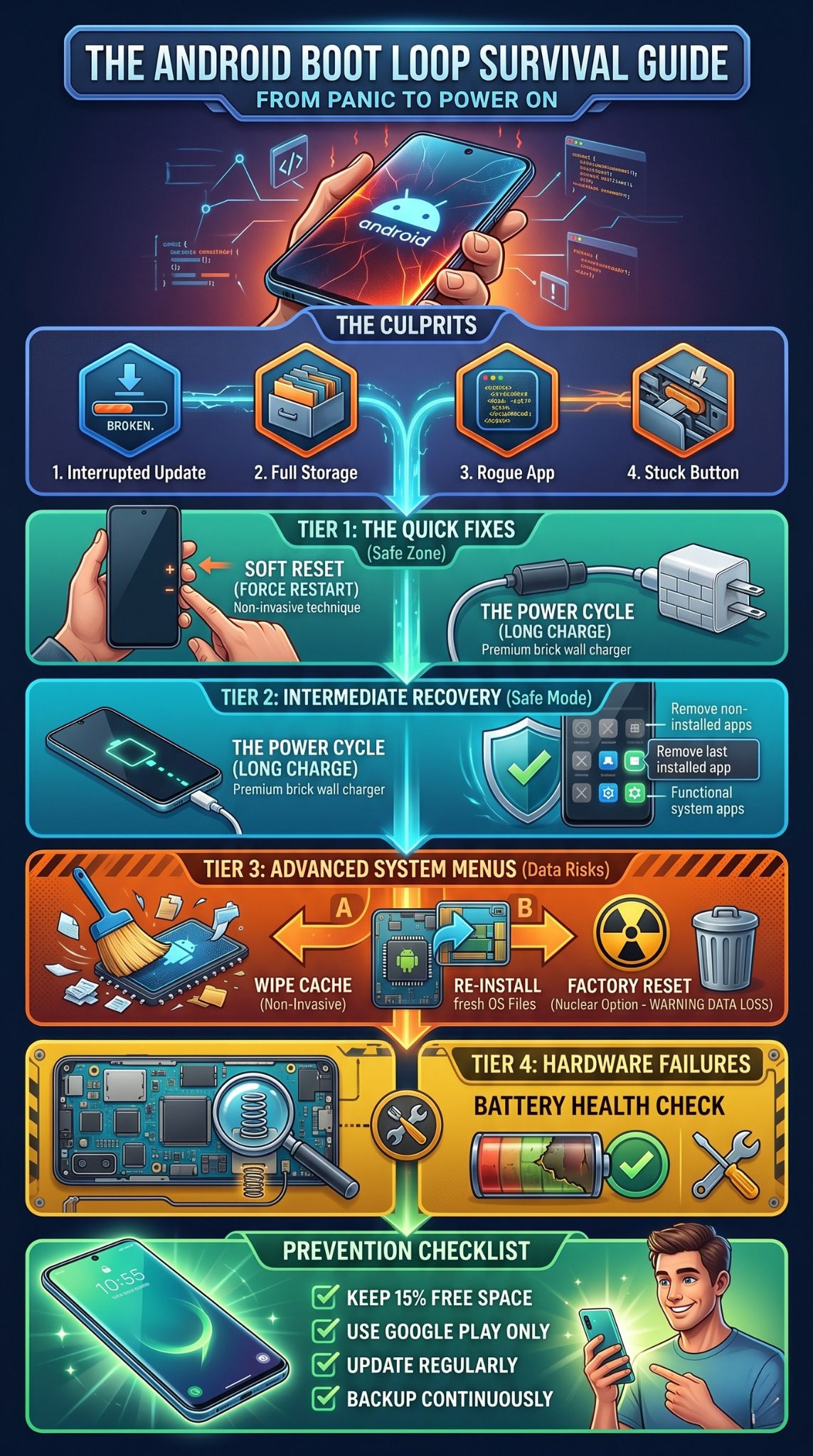
If Safe Mode fails, we have to go under the hood. Android phones have a hidden mini-operating system called Recovery Mode. It exists completely separate from your main files. Tech support agents use this menu to perform deep system maintenance. Navigating this menu feels a bit old-school because your touch screen will not work here. You have to use the volume buttons to scroll up and down, and the power button to select an option. Proceed with caution in this menu.
|
Recovery Menu Option |
What It Actually Does |
Data Loss Risk |
|
Reboot system now |
Restarts the phone normally. |
None |
|
Wipe cache partition |
Deletes temporary junk files. |
None |
|
Mount /system |
Accesses core files (Advanced users). |
Low |
|
Wipe data/factory reset |
Erases everything on the phone. |
Total Data Loss |
Wiping the Cache Partition
The cache partition is basically a digital scratchpad. Your phone stores temporary files here to make opening apps faster. Over time, this scratchpad gets messy. If a temporary file gets corrupted during a system update, the phone will freeze every time it tries to read it. Wiping the cache partition deletes these temporary files, but it does not touch your photos, messages, or passwords. To get here, turn the phone off, then hold Power and Volume Up until a text-based menu appears. Select Wipe Cache Partition, confirm it, and then select Reboot system now.
Factory Reset as the Last Software Resort
If wiping the cache does not fix the android stuck boot screen, you are out of gentle options. A factory reset is the nuclear approach. It will wipe the entire storage drive clean and reinstall the Android operating system from scratch. You will lose all data that is not backed up to the cloud. ~Do not do this unless you have accepted that losing your photos is the price of getting a working phone back.~ In the same Recovery menu, select Wipe data/factory reset. It will take several minutes. Once done, the phone will boot up as if you just pulled it out of the box on day one.
Tier 4: Dealing with Hardware and Battery Issues
If you performed a full factory reset and the phone still refuses to move past the logo, you are no longer dealing with a software bug. A hardware component inside the chassis is failing. The software is trying to talk to a piece of hardware, getting no response, and crashing. At this point, the troubleshooting moves from the digital world to the physical world. You need to look closely at how the device physically behaves to pinpoint the broken part.
|
Physical Symptom |
Likely Hardware Fault |
Potential Fix |
|
Phone loops rapidly, screen flashes. |
Power button is physically jammed. |
Clean button with isopropyl alcohol. |
|
Phone only boots when plugged in. |
Battery cells are completely dead. |
Replace internal battery. |
|
Phone gets extremely hot during boot. |
Motherboard short circuit. |
Professional board repair. |
|
Phone vibrates but screen stays black. |
Display ribbon cable disconnected. |
Open device and reseat cable. |
Inspecting Physical Buttons
Grab a flashlight and look closely at the power button and volume rockers. Do they click nicely, or do they feel mushy? Over years of use, dirt, lint, and sweat can build up in the tiny gaps around the buttons. If a button gets stuck in the pressed position, the phone registers a constant command to restart. Dip a cotton swab in high-concentration isopropyl alcohol and gently clean around the edges of the buttons. Click them rapidly to loosen any grime.
Battery Degradation and Motherboard Faults
Lithium-ion batteries do not last forever. After three or four years, they lose their ability to output high voltage. Booting an operating system requires a massive spike in power. If the aged battery cannot deliver that spike, the phone shuts down mid-boot. If your phone only stays on while plugged into a heavy-duty wall charger, your battery is the culprit. If a new battery does not fix it, the internal motherboard likely has a cracked solder joint or failing flash memory. You will need a professional technician to microsolder a new chip.
Proactive Measures: Stop the Boot Screen Freeze Before It Starts
Nobody wants to deal with a frozen phone twice. Once you finally get your device back to the home screen, you should change a few daily habits to keep the operating system healthy. Android is a robust platform, but it requires basic maintenance to run smoothly. By following a few simple rules regarding storage space and software updates, you can virtually guarantee you will never see another boot loop again. Prevention is always cheaper than a repair bill.
|
Maintenance Task |
Frequency |
Benefit for the Phone |
|
Check storage space |
Once a month |
Prevents system choke-outs. |
|
Restart the phone manually |
Once a week |
Clears RAM and background errors. |
|
Update apps via Play Store |
Automatic |
Patches bugs that cause crashes. |
|
Back up photos to cloud |
Continuous |
Saves data if a factory reset is needed. |
Managing Storage Space
Always keep at least 15% of your internal storage completely empty. The operating system needs room to breathe. When Android downloads an update or optimizes background apps, it creates large temporary files. If your 128GB phone has 127GB of photos on it, the system cannot function. Go into your settings, find the storage menu, and use the built-in cleaner to delete old duplicate photos and massive video files you no longer need.
Avoiding Unofficial App Sources
The Google Play Store has security scanners that check apps for malicious code. When you download APK files from random websites on the internet, you bypass all of Google’s security measures. These unofficial apps are often poorly coded and can easily corrupt your core system files. Stick to official app stores. Furthermore, make sure your phone has enough battery life before starting a major system update. Never start an update with less than 50% battery unless the phone is plugged into the wall.
Final Thoughts
Dealing with an android stuck boot screen feels overwhelming, but it is rarely a death sentence for your device. By walking through the troubleshooting steps logically, you can usually isolate the problem. Start with a simple force restart, check for rogue apps using Safe Mode, and clear out the system cache. Save the factory reset for an absolute emergency. Most software glitches can be smoothed out with a little patience. Keep your storage clean, avoid sketchy apps, and your phone will serve you well for years to come without freezing on the startup logo.
Frequently Asked Questions (FAQs)
Can leaving my phone in a hot car cause it to get stuck on the boot screen?
Yes. Extreme heat can temporarily scramble the flash memory or cause the battery voltage to drop sharply. If your phone overheated, let it cool down in a shaded room for an hour before trying to turn it on again. Never put a hot phone in the refrigerator.
What does it mean if my phone says No Command with a dead Android robot?
This is totally normal. It means you successfully entered the waiting room for Recovery Mode but need to input the final command to see the menu. While holding the Power button down, tap the Volume Up button exactly one time, and the hidden text menu will instantly appear.
Will flashing a custom ROM fix a hardware boot loop?
No. If your motherboard or battery is physically damaged, installing new software will not fix the broken component. Flashing a new ROM only works if the original operating system files were corrupted beyond repair.
How do I recover my photos if the phone will not go past the logo?
If your photos were not synced to Google Photos, data recovery is difficult. If you can get the phone to stay on in Recovery Mode, some advanced desktop software can pull data via a USB cable, but a factory reset will delete everything permanently. Try Safe Mode first to save your files.
Is it safe to use third-party PC software to fix an Android stuck boot screen?
Exercise extreme caution. While some reputable desktop repair tools exist, many heavily advertised programs are actually malware or will force a factory reset anyway. Always stick to the built-in Android Recovery Mode or official tools provided by your manufacturer, like Samsung Smart Switch.