
Most of us joined social media back when the goal was to collect as many connections as possible like digital trading cards. We didn’t think twice about who could see our network or how that information might be used. Fast forward to today, and the internet is a much louder, more crowded, and sometimes more invasive place. Privacy isn’t just a luxury anymore; it is a necessity for keeping your personal life and professional reputation intact. If you have ever felt a bit exposed by having your entire social circle out in the open, learning how to hide facebook friends list is one of the most effective ways to reclaim your digital space.
Digital boundaries are about more than just being “secretive.” They are about control. In an age where data scraping and social engineering are common, leaving your connections visible to everyone is like leaving your address book on a park bench. This guide will walk you through the nuances of profile security, ensuring that you can still enjoy the social aspects of the platform without the vulnerability that comes with a public friend list. Whether you are avoiding a nosy coworker or just want to keep your family life private, we have got you covered.
Why You Should Hide Facebook Friends List Visibility
Keeping your social circle private is a proactive step toward better cybersecurity and peace of mind. Many users do not realize that a public friend list is a goldmine for scammers who use “profile cloning” to trick people. By seeing who you are close to, they can impersonate you and send fraudulent messages to your actual friends. Beyond security, hiding your connections helps maintain a clear line between your work life and your personal life. It prevents people from making assumptions about you based on who you know and keeps your social dynamics where they belong—between you and your friends.
Preventing Targeted Phishing Scams
Scammers often browse public profiles to find targets for social engineering. If they can see your friends, they can create a fake account that looks just like one of your connections. They then send you a message, and because you recognize the name, you are more likely to click a malicious link.
Maintaining Professional Reputation
In the professional world, your associations can sometimes be scrutinized by employers or clients. If your list is public, people might see connections that lead to unwanted questions or professional awkwardness. Hiding the list ensures your career path stays separate from your weekend social life.
Avoiding Social Pressure and Drama
Sometimes, people get offended if they see you are friends with someone they dislike. By keeping your list private, you avoid the unnecessary headache of explaining your social choices. It allows you to maintain a diverse group of friends without the risk of sparking digital “feuds.”
Summary of Privacy Motivations
|
Reason for Privacy |
Impact Level |
Primary Benefit |
|
Scam Prevention |
High |
Stops profile cloning and phishing |
|
Workplace Boundaries |
Medium |
Prevents boss/clients from snooping |
|
Personal Security |
High |
Limits info available to stalkers |
|
Social Peace |
Low |
Reduces drama between mutual contacts |
Understanding the Different Privacy Options
Before clicking through the menus, you need to know what each setting actually does. Facebook offers a spectrum of privacy, ranging from “Public” to “Only Me.” The “Public” setting means anyone with an internet connection can see your friends. “Friends” limits it to your connections, but that still leaves hundreds of people with access. For those who want the highest level of security, the “Only Me” option ensures that no one else can see your full list, though they might still see mutual friends. Choosing the right setting depends on how much of your social map you want to share with the world.
The Public vs. Friends Setting
The Public setting is the most vulnerable, as it allows people who aren’t even logged in to see your network. The Friends setting is a middle ground, but remember that a “friend” can include that random person you met at a conference five years ago.
Friends Except and Specific Friends
These are “surgical” privacy tools. “Friends Except” lets you hide your list from specific people (like a nosy relative). “Specific Friends” allows you to do the opposite—hiding the list from everyone except a few trusted people.
The Gold Standard: Only Me
If your goal is to truly hide facebook friends list, “Only Me” is the way to go. This doesn’t mean you can’t see your friends; it just means the tab disappears for everyone else. It is the most robust way to protect your social graph from outside eyes.
Privacy Setting Comparison
|
Setting Name |
Who Can See Your Friends? |
Best Use Case |
|
Public |
Everyone (on and off the site) |
Public figures or brands |
|
Friends |
Only your confirmed friends |
Casual users with trusted networks |
|
Friends Except |
All friends minus specific people |
Avoiding specific “frenemies” |
|
Only Me |
No one but you |
Maximum privacy and security |
How to Hide Your Facebook Friends List on Desktop
Changing your settings on a desktop computer provides the clearest view of your privacy dashboard. The web interface allows you to quickly navigate the “How People Find and Contact You” section, where most of your visibility controls live. It is usually easier to perform a full privacy audit on a larger screen where you can see all the dropdown menus at once. Many users find the desktop version more reliable for ensuring that changes are saved and applied across all devices. Follow these steps to lock down your profile in just a few clicks.
Start by clicking your profile icon in the top right corner. From there, select “Settings & Privacy” and then click “Settings.” This takes you to the central hub for all your account’s data and visibility controls.
Locating the Visibility Tab
On the left-hand sidebar, look for the “Privacy” link. Once you click it, scroll down to the “How People Find and Contact You” section. This is where the platform groups all settings related to your searchability and list visibility.
Applying the “Only Me” Filter
Find the line that asks “Who can see your friends list?” Click the “Edit” button next to it. Select “Only Me” from the dropdown menu. The change is instant and will hide your connections from anyone else visiting your page.
Desktop Step-by-Step Guide
|
Step |
Action |
Desktop Shortcut |
|
1 |
Open Settings |
Profile Icon > Settings |
|
2 |
Select Privacy |
Left Sidebar > Privacy |
|
3 |
Find Friends List |
Scroll to “How People Find…” |
|
4 |
Change Audience |
Click Edit > Select Only Me |
How to Hide Your Facebook Friends List on Mobile
Since most people access social media via smartphones, knowing how to hide facebook friends list on the app is essential. The mobile interface is slightly more compact, but the steps are essentially the same for both iPhone and Android users. You will need to dive into the “Audience and Visibility” section of the app settings. It is a good idea to check this occasionally, as app updates can sometimes move menu items around. Having this privacy control in your pocket means you can secure your account even when you are on the go.
Accessing the Mobile Menu
Tap the three horizontal lines (the hamburger menu) in the corner of your app screen. Scroll down to the bottom and tap “Settings & Privacy,” then choose the “Settings” option to enter the main configuration area.
Read Also: How to See Who Viewed Your Facebook Profile in 2026
Finding the Audience and Visibility Section
Once inside settings, scroll down until you see the header for “Audience and Visibility.” This section is dedicated to what people see when they land on your profile. Tap on “How people find and contact you.”
Locking the List on Mobile
Tap the option that says “Who can see your friends list?” You might need to tap “See More” to reveal the “Only Me” option. Once you select it, a blue checkmark will appear, and your settings will be updated immediately.
Mobile App Checklist
|
Action |
Mobile Path |
Note |
|
Enter Menu |
Tap Menu Icon |
Bottom right on iOS, top right on Android |
|
Open Settings |
Gear Icon or “Settings” |
Located within “Settings & Privacy” |
|
Edit Visibility |
“How people find…” |
Under Audience and Visibility header |
|
Set Privacy |
Tap “Only Me” |
Ensure the checkmark appears |
The Mutual Friends Exception Explained
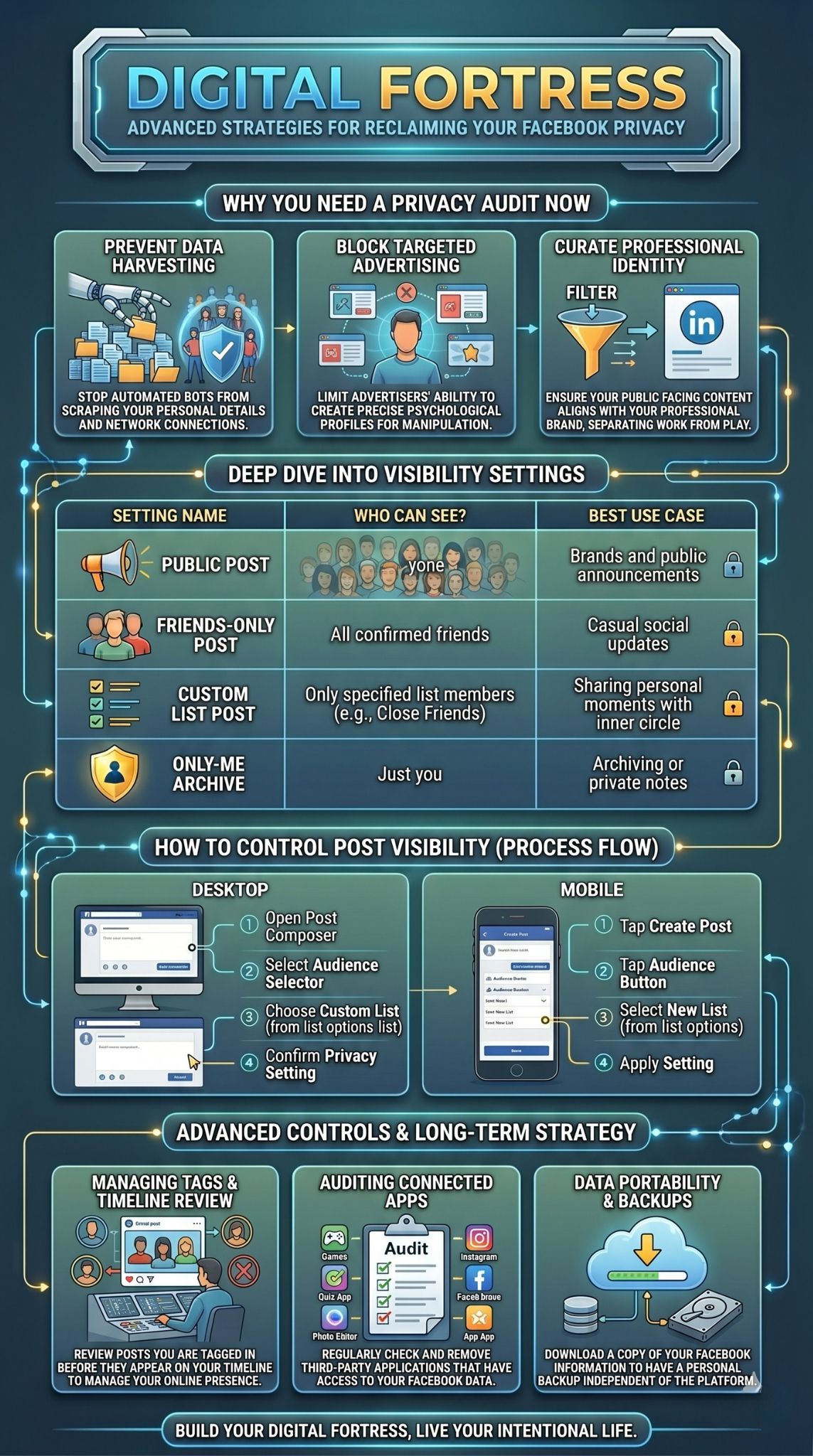
Even after you hide your list, you might notice that some names still appear when people visit your profile. This is due to the “Mutual Friends” feature, which the platform views as a shared piece of data. If you and another person are both friends with “Sarah,” Sarah’s name will show up on your profile for that person because they already have a connection to her. It is important to understand that you cannot fully hide these mutual connections unless the other person also hides their friends list. This is a common source of confusion for those trying to go completely “incognito.”
Why Mutual Friends Stay Visible
The logic behind this is that if two people share a connection, that connection is public knowledge between them. The platform prioritizes the “shared” nature of the friendship over individual privacy settings in this specific instance.
The Limits of “Only Me”
When you select “Only Me,” you are hiding the full list. You are not necessarily hiding the fact that you know specific people that the viewer also knows. This is a technical limitation of how social graphs are built.
How to Minimize Mutual Visibility
The only way to truly hide a mutual friend is for both parties to set their lists to private. If you are concerned about a specific person seeing your connection to someone else, you would both need to coordinate your privacy settings.
What different users see
|
Viewer Type |
What They See (List Hidden) |
What They See (List Public) |
|
Stranger |
Nothing |
Your entire friends list |
|
Mutual Friend |
Only the friends you share |
Your entire friends list |
|
You |
Your entire friends list |
Your entire friends list |
Customizing Visibility with Smart Lists
You don’t always have to choose between “everything” and “nothing.” Smart lists allow you to categorize your friends into groups like “Close Friends,” “Acquaintances,” or “Restricted.” This is perfect for those who want their actual friends to see who they know, but want to block coworkers or distant relatives from snooping. Using the “Restricted” list is a particularly powerful trick; people on this list stay your friends, but they only see your public posts and can’t browse your connections if you set your privacy to “Friends except Restricted.”
The Restricted List Strategy
Adding someone to your Restricted list is a polite way to keep them at arm’s length. They won’t know they are restricted, but they will effectively be blocked from seeing anything you don’t share with the general public.
Creating Custom Groups
You can create custom lists for specific purposes, such as “College Friends” or “Local Neighbors.” When you go to hide your friends list, you can choose to make it visible only to these specific groups.
Managing Acquaintances
The “Acquaintances” list is great for people you know but aren’t close with. You can set your friends list visibility to “Friends except Acquaintances” to ensure only your inner circle can see your network.
List Types and Benefits
|
List Type |
Best For |
Privacy Level |
|
Close Friends |
Family and besties |
High trust, low privacy |
|
Acquaintances |
People you met once |
Medium privacy |
|
Restricted |
Bosses, recruiters, or nosy relatives |
Maximum restriction |
|
Custom |
Niche groups (e.g., “Gaming Club”) |
Tailored to your needs |
Advanced Privacy Settings You Should Check
Hiding your friends list is a great start, but true privacy requires a multi-layered approach. While you are in the settings menu, you should also look at how people can find your profile via search engines or your contact information. Many people don’t realize that their phone number or email address can be used to look them up unless they specifically disable that feature. By tightening these additional screws, you create a much more secure profile that is harder for strangers or automated bots to track.
Search Engine Indexing
There is a setting that asks if you want search engines outside of the platform to link to your profile. If you want to be “un-Googleable,” you should turn this off. This prevents your profile from showing up in a standard Google search.
Tagging and Profile Review
You should also enable “Profile Review.” This ensures that if a friend tags you in a photo or post, it won’t appear on your timeline until you personally approve it. It gives you total control over the imagery associated with your name.
Contact Info Lookup
In the same menu where you hid your friends list, you will see options for “Who can look you up using the email address you provided?” Set these to “Only Me” or “Friends” to prevent random people with your contact info from finding your private page.
Advanced Privacy Audit Checklist
|
Feature |
Recommended Setting |
Why it matters |
|
Search Engine Link |
No / Off |
Keeps your profile out of Google results |
|
Tag Review |
Enabled / On |
You approve photos before they go public |
|
Email Lookup |
Only Me |
Stops people from finding you via email |
|
Phone Lookup |
Only Me |
Prevents search by phone number |
The Psychological Benefits of a Private Profile
We often talk about privacy in technical terms, but the mental health benefits of a private profile are significant. When your friends list is public, there is a subtle pressure to “curate” a perfect social life. You might worry about who sees you are friends with, or feel social anxiety when someone you don’t like appears in your mutual connections. By choosing to hide facebook friends list, you remove that performative element of social media and make the platform feel like a personal tool again rather than a public stage.
Reducing Social Comparison
Seeing other people’s massive friend lists can trigger feelings of inadequacy or FOMO (fear of missing out). When you hide yours, and stop looking at others, you focus more on the quality of your connections rather than the quantity.
Removing the “Stalker” Anxiety
There is a specific kind of stress that comes from knowing an ex-partner or an estranged family member could be “mapping” your life through your friends. Locking your profile eliminates this avenue for digital stalking.
Reclaiming Personal Agency
Social media should serve you, not the other way around. Taking the time to set boundaries is an act of digital self-care. it allows you to interact with your friends on your own terms, without feeling like you are being watched by an invisible audience.
Mental Health Impact Summary
|
Psychological Factor |
Benefit of Privacy |
Emotional Result |
|
Social Anxiety |
Less worry about being judged |
Peace of mind |
|
Performance Pressure |
No need to “show off” connections |
Authenticity |
|
Safety Concerns |
Lower risk of being monitored |
Security |
|
Conflict Avoidance |
Fewer “why are you friends with them?” talks |
Reduced stress |
Final Thoughts
The digital world in 2026 is faster and more connected than ever, but that doesn’t mean you have to be an open book. Taking the time to hide facebook friends list is a small but powerful way to protect your identity, your career, and your sanity. Privacy isn’t about having something to hide; it’s about having something to protect. By following the steps for both desktop and mobile, you ensure that your social network remains yours alone. Remember to check your settings every few months, as platforms often update their policies. Stay safe, stay private, and enjoy a more intentional social media experience.
FAQs
Can I hide my friends list from just one person without blocking them?
Yes, you can use the “Friends except…” setting. When you select this, you can type in that person’s name. They will still be your friend and can see your posts (unless you restrict those too), but they won’t be able to see your full friends list.
Why can I still see someone’s friends even if they said they hid them?
You are likely seeing “Mutual Friends.” Facebook always shows you the connections you have in common with another person, even if they have set their list to “Only Me.” You aren’t seeing their whole list—just the overlap with yours.
Does hiding my friends list also hide my followers?
No, followers and friends are handled by different settings. If you want to hide who follows you, you need to go to “Public Posts” in your settings and adjust the “Who can see your followers on your timeline” option.
Will my friends be notified if I hide my list?
Not at all. Facebook does not send out notifications for privacy setting changes. The only way someone would know is if they specifically went to your profile to look at your friends and noticed the list was missing.
If I hide my list, can people still see me on other people’s lists?
Yes. Hiding your list only controls what people see when they visit your profile. If your friend has their list set to “Public,” your name will still appear on their list for anyone to see.