
Let’s be honest: the standard iPhone “Reflection” or “Opening” chimes are iconic, but hearing them everywhere gets old fast. You are at a park, a phone rings, and ten people reach for their pockets. It is a bit robotic. Personalizing your phone should be easy, but for years, Apple made us jump through hoops involving desktop computers and bulky software.
The good news? By 2026, the walls have finally crumbled. You do not need a dusty laptop or a tangled Lightning cable to get your favorite song playing when your best friend calls. Whether you want a trending sound from social media or a classic movie clip, setting an iphone ringtone no itunes is now a standard mobile-first experience. This guide walks you through the newest shortcuts and hidden tricks to make your phone sound like you.
Why Move Away From iTunes for Ringtones?
For a long time, iTunes was the only “official” gateway for media. It was slow, prone to syncing errors, and felt like a chore. Today, our phones are powerful enough to handle file conversions and audio editing on their own. Moving away from desktop software means you can change your tone while sitting on a bus or waiting for coffee.
Apple’s shift toward the “Files” ecosystem and the standalone Music app has made the old iTunes method obsolete. Most people now store their audio in the cloud or download it directly from a browser. Dragging those files into a desktop app just to send them back to the same phone is a waste of time. Using modern methods gives you total control without the technical headaches of the past.
|
Reason to Skip iTunes |
Benefit to User |
|
No Cables Needed |
Complete the entire process wirelessly on your device. |
|
Direct Downloads |
Use files from Safari, iCloud, or Google Drive immediately. |
|
No Sync Errors |
Avoid the risk of wiping your music library during a sync. |
|
Speed |
Create and set a new tone in under three minutes. |
Understanding iPhone Ringtone Rules and Formats
Before we dive into the “how-to,” we need to talk about the “what.” iPhones are picky about audio files. You cannot just pick a five-minute MP3 and expect it to work. The system has specific guardrails to keep things running smoothly.
The M4R File Extension Explained
An iPhone ringtone is basically a renamed AAC (Advanced Audio Coding) file. While your music library uses .m4a, ringtones require the .m4r extension. This tiny letter change tells iOS to put the file in your “Sounds” menu instead of your “Music” app. Most modern methods handle this swap for you, but it is good to know what is happening under the hood.
The Strict Time Limit for Audio
Apple caps all ringtones at 40 seconds. If your file is even a second longer, it might not show up in your settings. For text tones, the limit is even shorter—usually around 15 seconds. It is always better to aim for a punchy 29-second clip to ensure the system accepts it without a fight.
|
Technical Requirement |
Specification |
|
File Format |
.m4r (AAC encoded) |
|
Max Duration |
40 seconds (30 suggested) |
|
File Size |
Usually under 1MB |
|
Sample Rate |
44.1 kHz |
Method 1: The iOS 26 Files App Trick (The Absolute Easiest Way)
With the release of iOS 26, Apple finally listened to the fans. There is now a “hidden” shortcut buried in the Share Sheet that allows for a direct iphone ringtone no itunes conversion. This is the fastest way if you already have a short audio clip saved to your device.
Prerequisites for the Files App Method
First, make sure your iPhone is updated to the latest software. You will also need your audio file saved in the Files app (either in the “On My iPhone” or “iCloud Drive” folder). Ensure the clip is already trimmed to under 30 seconds. If it is a full-length song, this specific “quick” method will fail, and you will need to use Method 2 instead.
Read Also: How to Block Spam Calls on iPhone Permanently
Open the Files app and find your audio. Long-press the file and select “Share.” In the list of actions, look for “Set as Ringtone.” The phone will ask you to name it, and then—poof—it is done. You can go straight to your Settings app to find it waiting for you at the top of the list.
|
Step |
Action |
|
1 |
Locate a <30s audio file in the Files app. |
|
2 |
Long-press the file and tap “Share.” |
|
3 |
Select the “Set as Ringtone” action. |
|
4 |
Confirm the name and check Settings > Sounds. |
Method 2: The GarageBand Method (The Classic Free Way)
If you aren’t on the latest iOS or you need to trim a long song, GarageBand is the gold standard. It is free, made by Apple, and works on almost every iPhone in use today. It feels a little like using a mini recording studio, but don’t let the buttons scare you.
Setting Up Your GarageBand Project
Open GarageBand and hit the “+” icon. Choose the “Audio Recorder” (the one with the microphone icon). Once inside, you will see a bunch of knobs. Ignore them. Tap the “Tracks” icon in the top left—it looks like a stack of bricks. This opens your empty timeline where the real work happens.
Importing Your Audio File
Tap the “Loop” icon in the top right. Select the “Files” tab and browse for your song. Once you see it, don’t just tap it—you have to long-press and drag it onto the timeline. If the song is too quiet, you can double-tap the track to adjust the volume or add a fade-in so you don’t jump out of your skin when the phone rings.
Trimming and Exporting Your New Ringtone
Drag the ends of the audio clip to get the perfect section. To save it, tap the downward arrow in the top left and select “My Songs.” Now, long-press your project, tap “Share,” and choose “Ringtone.” GarageBand handles the .m4r conversion and exports it directly to your system settings. This is the most reliable way to get an iphone ringtone no itunes without spending a dime.
|
GarageBand Action |
Result |
|
Audio Recorder |
Opens the workspace. |
|
Loop Browser |
Lets you pick your song file. |
|
Drag & Drop |
Places audio on the timeline. |
|
Share as Ringtone |
Converts and installs the file. |
Method 3: Exploring Third-Party Ringtone Apps
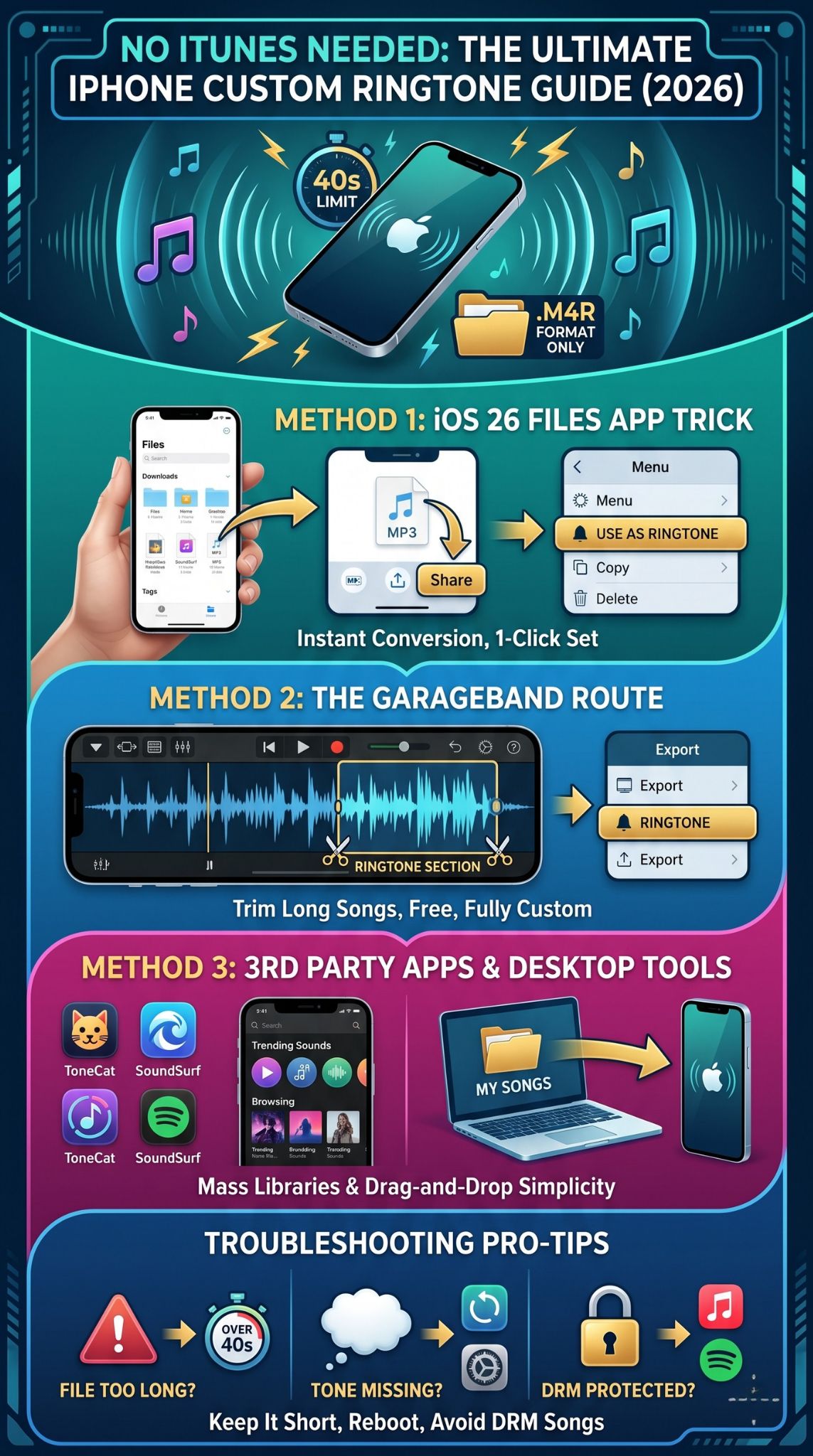
Sometimes you don’t have a song file ready and just want to browse a library. The App Store is full of “Ringtone Makers.” Most of these apps work as a middleman—they give you the tools to clip a song or download a trending sound, but they usually still send you to GarageBand for the final step due to Apple’s security rules.
Zedge: The Library of Sounds
Zedge is likely the most famous name here. It has a massive database of everything from animal noises to high-quality remixes. You browse the catalog, find something you like, and download it. While it won’t magically appear in your settings with one click, it saves you the trouble of hunting for audio files on the web.
Pi Music Player and Ringtone Maker
This app is great for people who have a lot of local music files. It has a very intuitive “cutter” tool. You can see the waveform of the music, which makes it much easier to pick the exact beat where you want the ringtone to start. It is a bit more user-friendly than GarageBand for beginners who just want to snip and go.
|
App Name |
Best Feature |
Price |
|
Zedge |
Huge library of pre-made sounds. |
Free (with Ads) |
|
Ringtone Maker Pro |
Precise waveform editing. |
$0.99 |
|
Ringtones for iPhone |
Trending TikTok/Social sounds. |
Free / Subscription |
Method 4: Desktop Alternatives (Using iMazing)
If you find editing on a tiny screen frustrating, you can still use a computer—just not iTunes. Third-party managers like iMazing or AnyTrans are much lighter and faster. They treat your iPhone like a simple USB drive, allowing for quick drag-and-drop actions.
Why Use Desktop Software Without iTunes?
iTunes often tries to “sync” your whole life, which can lead to deleted photos or duplicated songs if you aren’t careful. Third-party tools are “surgical.” They only change what you tell them to. If you have a folder of 20 cool sounds on your PC, you can move them all to your iPhone in about ten seconds without opening a single Apple app.
How to Transfer Audio via iMazing
Plug your phone into your Mac or PC. Open iMazing and click on the “Ringtones” icon. From there, you literally just drag your MP3 or M4A files from your computer folder into the iMazing window. The software detects the format, trims it if necessary, and saves it to your phone. It is the closest thing to a “plug and play” experience for an iphone ringtone no itunes.
|
Step |
iMazing Process |
|
1 |
Connect iPhone to PC/Mac via USB. |
|
2 |
Select the “Ringtones” tab. |
|
3 |
Drag and drop any audio file. |
|
4 |
Wait for the “Success” message. |
Method 5: Buying Directly From the Tone Store
If you have a dollar to spare and zero patience for “methods,” the Tone Store is still there. It is located inside the iTunes Store app (the purple icon) on your iPhone. This is the only way to get a tone that is 100% officially licensed and requires zero effort to install.
Search for your favorite artist, preview the 30-second clip, and hit the price button. Once the FaceID check clears, the tone is instantly added to your list. It is not as creative as making your own, but it is the fastest way to get a high-quality, professional sound. Plus, these tones are automatically backed up to your Apple ID, so they follow you to your next phone.
|
Feature |
Tone Store |
DIY Methods |
|
Effort |
Zero |
Low to Medium |
|
Cost |
Usually $0.99 – $1.29 |
Free |
|
Customization |
Pre-set clips only |
Full control over start/stop |
|
Backup |
Linked to Apple ID |
Must be manually moved |
Troubleshooting Common Custom Ringtone Errors
Even with the best tools, you might hit a snag. The iPhone’s “Sounds” menu is one of the oldest parts of the iOS interface, and it can be a bit glitchy. Don’t panic if your song doesn’t show up immediately; there is usually a simple reason why.
The File Is Too Long
This is the #1 mistake. If your file is 41 seconds long, the iPhone will simply ignore it. It won’t give you an error message; the file just won’t appear. Always double-check your trim in GarageBand or your desktop editor to make sure you are safely under that 40-second mark.
The Tone Is Not Showing Up in Settings
If you successfully exported the file but it’s missing from Settings > Sounds, try a “hard refresh.” Close the Settings app entirely by swiping up from the bottom of your screen. If that fails, restart your iPhone. This forces the system to re-index your media folders, which usually brings the new ringtone to the surface.
GarageBand Export Failures
Sometimes GarageBand will say “Export Failed.” This usually happens because the file name has weird symbols (like emojis or slashes) or because your storage is almost full. Try renaming the song to something simple like “MyTone1” and try again.
|
Problem |
Quick Fix |
|
Missing Tone |
Restart your iPhone. |
|
Greyed Out |
Ensure the file is .m4r, not .mp3. |
|
Export Error |
Check for 1GB+ of free storage space. |
|
Silence |
Check the “Silent” switch on the side of the phone. |
Legal Considerations for Using Custom Songs
We have to mention the “rules of the road.” When you create a custom ringtone from a song you bought or a YouTube clip, you are generally safe for personal use. As long as you aren’t selling the ringtone or playing it over a loudspeaker at a stadium, you aren’t going to get a knock on the door from a record label.
However, be aware that most streaming services like Apple Music or Spotify use “DRM” (Digital Rights Management). This means you cannot use a song you “downloaded for offline play” from a subscription service as a ringtone. You need to actually own the file or use a DRM-free source. If GarageBand says a song is “protected,” this is why.
|
Source Type |
Can be used? |
|
Purchased iTunes Song |
Yes (if not DRM protected) |
|
Apple Music Stream |
No |
|
Personal Voice Memo |
Yes |
|
Royalty-Free Audio |
Yes |
Final Thoughts
Setting a custom iphone ringtone no itunes used to feel like a secret tech project, but it is now an easy part of the iOS experience. Whether you want to use the latest iOS 26 “Files” shortcut for speed or GarageBand for a bit of creative flair, you have the power to make your phone sound exactly how you want.
Ditching the desktop doesn’t just save you time; it gives you the freedom to update your phone’s personality whenever the mood strikes. So, grab that favorite soundbite, trim it down, and give your iPhone a voice that doesn’t sound like everyone else’s.
Frequently Asked Questions (FAQs)
Can I set a custom ringtone for just one person?
Yes! Open your Contacts app, pick a person, tap “Edit,” and scroll to “Ringtone.” You can select your custom sound here so it only plays when they call.
Does setting a custom ringtone use a lot of battery?
Not at all. A ringtone is a tiny audio file that only plays for a few seconds at a time. It has no measurable impact on your daily battery life.
Can I use a video as a ringtone?
Not directly. You would need to use a “Video to MP3” converter app first to strip the audio away, then follow the steps in this guide to turn that audio into an .m4r file.
What happens to my tones if I restore my iPhone?
If you use iCloud Backup, your custom tones are usually included. However, it is always smart to keep a copy of your favorite .m4r files in a folder in your iCloud Drive just in case.
Why is my custom ringtone volume lower than the system ones?
This is usually because the original audio file was recorded at a low volume. When using GarageBand, you can increase the “Track Volume” before exporting to make it louder.