
Your Mac trackpad usually feels so smooth that you barely think about it. Then one day, the cursor freezes. The click stops working. Two-finger scroll disappears. Or your MacBook responds only when you press the trackpad harder than usual.
That is frustrating, especially when you do not have a mouse nearby.
If your mac trackpad not working issue started suddenly, do not panic first. In many cases, the problem is not a dead trackpad. It may be a setting, a dirty surface, a macOS glitch, a Bluetooth conflict, or a third-party app getting in the way.
But there is another side too. A hard-to-click MacBook trackpad, a raised trackpad, or a swollen bottom case can point to hardware trouble. That needs a different approach.
This guide walks you through the fixes in a safe order. Start with the easy checks. Then move to settings, software, Safe Mode, diagnostics, and repair signs.
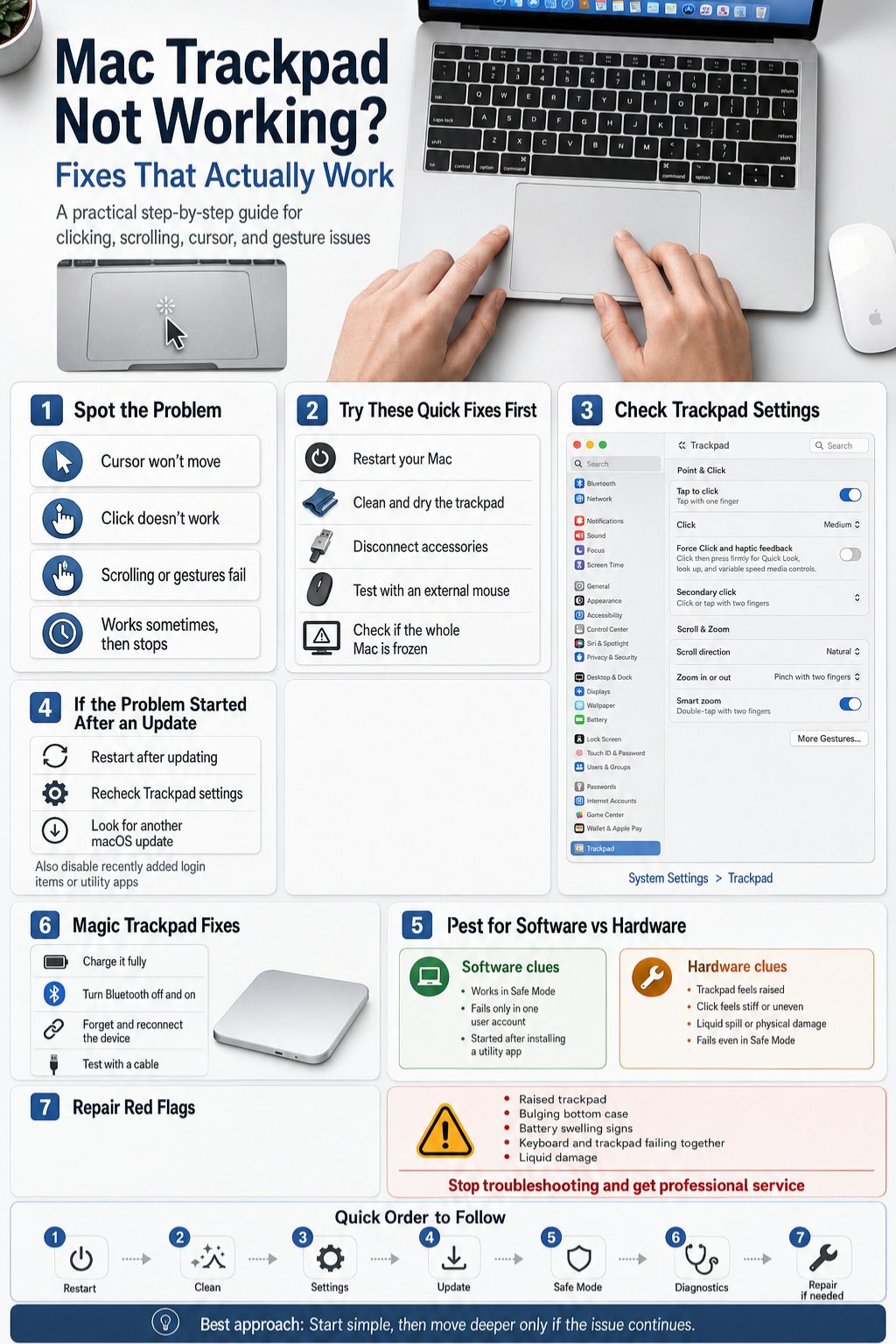
Before You Start: Identify the Exact Trackpad Problem
Not every trackpad issue has the same cause. A cursor that will not move is different from a trackpad that moves but will not click. Gesture problems are different again.
Before changing settings, take one minute to understand what is failing. This saves time and helps you avoid unnecessary resets. It also tells you when to stop troubleshooting and contact Apple or a repair professional.
A good first step is to connect a USB mouse or Bluetooth mouse. That lets you move around macOS while you test the built-in trackpad.
|
Problem Type |
What You May Notice |
Likely Cause |
|
Cursor not moving |
Pointer stays frozen |
System freeze, dirty trackpad, hardware issue |
|
Click not working |
Cursor moves but clicks fail |
Tap setting, Force Click, haptic issue, battery swelling |
|
Scrolling not working |
Two-finger scroll fails |
Trackpad settings, Accessibility settings, gesture conflict |
|
Gestures not working |
Swipe, zoom, Mission Control fail |
Disabled gestures, app conflict, macOS bug |
|
Magic Trackpad not working |
External trackpad disconnects |
Low battery, Bluetooth issue, pairing problem |
Cursor does not move at all
If the cursor does not move, first check whether the whole Mac is frozen. Try pressing Command + Tab. Try adjusting volume or brightness from the keyboard.
If nothing responds, the trackpad may not be the real issue. The Mac itself may be stuck.
If the keyboard works but the cursor does not move, the trackpad may be dirty, disabled by a setting, blocked by an external device, or facing a hardware fault.
Cursor moves, but clicking does not work
This is a common MacBook trackpad problem. You can move the pointer, but clicking does nothing. Sometimes tap-to-click works while physical clicking fails.
That difference matters. If tapping works but pressing does not, the problem may be related to click pressure, Force Click, haptic feedback, or trackpad hardware.
Scrolling or gestures are not working
If basic pointer movement works but scrolling fails, check the Trackpad settings first. Two-finger scroll, pinch zoom, swipe between pages, Mission Control, and App Exposé all depend on gesture settings.
A macOS update can also change how a gesture feels, especially if you recently changed versions or restored settings.
The trackpad works sometimes, then stops
Intermittent problems are tricky. They can come from low battery on a Magic Trackpad, Bluetooth interference, moisture, app conflicts, or heat.
For a MacBook, intermittent clicking can also be a warning sign if the trackpad feels raised, stiff, or harder to press than before.
Quick Fixes for Mac Trackpad Not Working
Start with the boring fixes. They work more often than people expect. A restart, a clean surface, and a quick accessory check can solve many trackpad problems without touching deeper settings.
Do these before resets or Terminal commands. They are safe, fast, and easy to reverse.
If your built-in trackpad is fully unusable, plug in a USB mouse. You can also use keyboard shortcuts, but a mouse makes this much easier.
|
Quick Fix |
Time Needed |
Best For |
|
Restart Mac |
2 to 3 minutes |
Frozen cursor, temporary glitches |
|
Clean trackpad |
1 to 2 minutes |
Sticky movement, missed taps |
|
Disconnect accessories |
2 minutes |
Click conflict, pointer conflict |
|
Test with external mouse |
1 minute |
Separating system issue from trackpad issue |
|
Check if Mac is frozen |
30 seconds |
Cursor and keyboard both stuck |
Restart your Mac first
A restart clears stuck processes and temporary input glitches. It sounds too simple, but it should be your first move.
Click the Apple menu and choose Restart. If the trackpad is unusable, hold the power button only if the Mac is completely stuck and you cannot restart normally.
After the Mac starts again, test the trackpad before opening many apps. This gives you a cleaner result.
Clean and dry the trackpad
Oil, dust, sweat, moisture, hand cream, and food residue can make a trackpad behave badly. The surface may look clean but still confuse touch detection.
Shut down the Mac. Use a soft, lint-free cloth slightly dampened with water. Do not spray liquid directly on the Mac.
Dry the surface before testing again. Also dry your fingers. Trackpads do not like moisture.
Disconnect external devices
Unplug USB hubs, external mice, drawing tablets, game controllers, and docking stations. Turn off nearby Bluetooth pointing devices if possible.
A stuck mouse button or conflicting input device can make your Mac act like the trackpad is broken.
Restart the Mac with only essential devices connected. Then test the trackpad again.
Check if your Mac is frozen
Sometimes the Mac is frozen, not the trackpad. Look for signs like a frozen clock, beach ball cursor, stuck app, or no keyboard response.
Try Command + Option + Escape to open Force Quit. If it opens, quit the frozen app and test the trackpad again.
If nothing works, restart the Mac and test before reopening the same apps.
Check Trackpad Settings on macOS
Many trackpad problems come from settings. This is especially true after a macOS update, a user profile change, or a restored backup.
Open Apple menu > System Settings > Trackpad. Check Point & Click, Scroll & Zoom, and More Gestures. On older macOS versions, the names may look slightly different.
Do not rush. A single disabled toggle can make scrolling, right-click, or tap-to-click feel broken.
|
Setting Area |
What It Controls |
Problem It Can Fix |
|
Point & Click |
Tap, click pressure, secondary click |
Click not working, right-click problem |
|
Scroll & Zoom |
Two-finger scroll, pinch zoom |
Scrolling or zoom issue |
|
More Gestures |
Swipe, Mission Control, App Exposé |
Gesture failure |
|
Accessibility |
Dragging, double-click speed, pointer behavior |
Drag and click issues |
Turn on Tap to Click
If physical clicking feels unreliable, turn on Tap to Click. This lets you tap the trackpad with one finger instead of pressing down.
This is not a hardware repair. It is a useful workaround and a good test.
If Tap to Click works but pressing still fails, your trackpad surface can detect touch. The problem may be click pressure, haptic feedback, Force Click, or hardware.
Adjust click pressure
On supported Mac trackpads, macOS lets you adjust click pressure. Try Light first. Then test Medium and Firm.
Some people think their MacBook trackpad is not clicking when the pressure setting is simply too firm for their habit.
If you recently changed settings or bought a used Mac, this is worth checking.
Turn off Force Click temporarily
Force Click lets you press deeper on supported trackpads for extra actions. It can be useful, but it can also confuse troubleshooting.
Turn Force Click and haptic feedback off for a short test. Then try normal clicking again.
If the trackpad feels better, keep it off or adjust your click pressure.
Read Also: Mac Won’t Connect to WiFi: Quick Fix Guide for 2026
Fix right-click or secondary click
If right-click does not work, open Trackpad settings and check Secondary Click.
You can usually choose one of these options:
- Click or tap with two fingers
- Click in bottom-right corner
- Click in bottom-left corner
If you came from Windows, the corner option may feel more natural. If you use Mac gestures often, two-finger click is usually smoother.
Fix scrolling and gestures
Open the Scroll & Zoom and More Gestures sections. Make sure the gestures you need are turned on.
Check two-finger scrolling, pinch to zoom, swipe between pages, swipe between full-screen apps, Mission Control, and App Exposé.
Also remember that gestures need the right number of fingers. One finger moves the pointer. Two fingers usually scroll. Three or four fingers may trigger Mission Control or app switching.
Mac Trackpad Not Working After macOS Update
A macOS update can fix trackpad bugs, but it can also expose settings problems or app conflicts. If the issue started right after an update, do not assume the trackpad is dead.
Start with a restart. Then check Trackpad settings, Accessibility settings, and login items. If gestures stopped working only in certain apps, update those apps too.
It is also smart to check for another macOS update. Apple often releases follow-up fixes after major software releases.
|
After Update Problem |
What to Try First |
|
Gestures stopped |
Recheck Trackpad settings |
|
Click feels different |
Adjust click pressure |
|
Cursor lags |
Restart and check login items |
|
Trackpad fails in one app |
Update or remove that app |
|
Trackpad fails everywhere |
Test Safe Mode and diagnostics |
Check for another update
Go to Apple menu > System Settings > General > Software Update. Let macOS check for updates.
Install any available update if your Mac supports it. Before a major upgrade, back up important files.
After updating, restart your Mac and test the trackpad again before opening heavy apps.
Review changed settings
Updates can make settings feel different even when nothing is truly broken. Trackpad gestures, scrolling behavior, and Accessibility options are the first places to check.
Look at Tap to Click, Secondary Click, Natural Scrolling, tracking speed, and dragging options.
Small changes here can make the trackpad feel normal again.
Apps that control gestures, windows, keyboards, mice, tablets, or shortcuts can interfere with trackpad behavior.
Common examples include gesture tools, window managers, keyboard remappers, drawing tablet drivers, cleaning apps, and mouse utilities.
Update them first. If the issue continues, disable them and restart.
Use Accessibility Settings for Pointer and Drag Issues
Some trackpad controls are not inside the Trackpad menu. macOS keeps important pointer and dragging settings under Accessibility.
Go to System Settings > Accessibility > Pointer Control. Then check Trackpad Options and related pointer settings.
This section is important if double-clicking, dragging, or three-finger drag stopped working.
|
Accessibility Setting |
Why It Matters |
|
Double-click speed |
Can make double-clicks feel broken |
|
Trackpad Options |
Controls dragging behavior |
|
Three-finger drag |
Helps drag items without pressing hard |
|
Ignore built-in trackpad |
Can disable built-in trackpad when another device is present |
|
Pointer speed |
A very slow pointer can feel frozen |
Check double-click speed
If double-clicking feels unreliable, the speed may be too fast. Slow it down and test again.
This is useful for users who feel the click works once, but not twice.
It can also help older users or anyone who prefers a slower click rhythm.
Turn on three-finger drag
Three-finger drag lets you move windows and files without pressing hard on the trackpad.
This is helpful if clicking hurts your finger or the physical click feels unreliable.
You can usually find it under Accessibility > Pointer Control > Trackpad Options.
Check “Ignore built-in trackpad” setting
macOS can ignore the built-in trackpad when a mouse or wireless trackpad is connected.
That setting can be useful at a desk, but confusing if you forget it is on.
If your MacBook trackpad stops working only when another device is nearby, check this setting.
Fix MacBook Trackpad Not Clicking
A MacBook trackpad that moves but will not click needs special attention. This can be a simple setting issue, but it can also be hardware.
Newer MacBook trackpads use haptic feedback to simulate a click. That means the click feeling depends on power, settings, and internal hardware.
If clicking suddenly feels flat, stiff, or dead, test carefully.
|
Test |
What It Tells You |
|
Tap to Click works |
Touch detection still works |
|
Physical click fails |
Click setting, haptic issue, or hardware |
|
External mouse works |
macOS can still process clicks |
|
Trackpad feels raised |
Possible swelling or physical damage |
|
Click fails in Safe Mode |
Possible deeper software or hardware issue |
Test tap versus press
Turn on Tap to Click and test it. If tapping works, you can still use the Mac while troubleshooting.
Then test physical clicking. Try different areas of the trackpad. On Force Touch trackpads, the click should feel fairly even across the surface.
If only one area fails, hardware may be involved.
Lower the click pressure
Go to Trackpad settings and set click pressure to Light.
Try normal clicking again. If this fixes the problem, the trackpad was not dead. It was just set too firm for your use.
If nothing changes, move to Safe Mode and diagnostics.
Watch for battery swelling signs
A swollen battery can press against the trackpad from inside the MacBook. That can make clicking stiff, uneven, or impossible.
Warning signs include:
- Trackpad feels raised
- Bottom case is not flat
- MacBook rocks on a desk
- Keyboard area looks lifted
- Trackpad click feels harder than before
- Battery status says Service Recommended
- MacBook gets unusually hot
Do not keep pressing harder. If the Mac looks swollen, stop using it and get service.
Fix Mac Trackpad Not Scrolling or Gestures Not Working
If the pointer moves and clicking works, but scrolling or gestures fail, the trackpad is probably not dead. The issue is usually settings, gesture confusion, or software conflict.
This is one of the easier problems to fix. Start in Trackpad settings, then check Accessibility and third-party apps.
Use a plain app like Safari, Notes, or Finder for testing. Do not test only inside one app.
|
Gesture Problem |
Likely Fix |
|
Two-finger scroll fails |
Check Scroll & Zoom |
|
Pinch zoom fails |
Enable zoom gesture |
|
Swipe between pages fails |
Check More Gestures |
|
Mission Control gesture fails |
Re-enable gesture |
|
Dragging fails |
Check Accessibility dragging options |
Check Scroll & Zoom
Open Trackpad settings and click Scroll & Zoom. Make sure scrolling is enabled.
Try turning Natural Scrolling off and on. Some users prefer the opposite direction, so scrolling can feel broken when the direction changes.
Test with two fingers on a web page or Finder window.
Check More Gestures
Open More Gestures and review each option.
Swipe between pages, swipe between full-screen apps, Notification Center, Mission Control, and App Exposé can all be turned on or off.
If you use multiple desktops, Mission Control gestures are especially important.
Test gestures in another user account
If gestures work in a new user account but not in your main account, the issue is probably user settings or app conflict.
Create a temporary user account from System Settings > Users & Groups.
You do not need to move your files. Just log in, test the trackpad, and compare.
Boot Into Safe Mode
Safe Mode is one of the best ways to separate system problems from third-party software problems.
In Safe Mode, your Mac starts with fewer background items and performs basic checks. If the trackpad works there, a login item, extension, or app may be causing the issue.
Safe Mode does not erase your files. It is a test environment, not a factory reset.
|
Safe Mode Result |
What It Means |
|
Trackpad works |
App or login item may be the cause |
|
Trackpad still fails |
Hardware or deeper system issue possible |
|
Gestures work only in Safe Mode |
Third-party utility likely involved |
|
Click still fails |
Check diagnostics and hardware signs |
Safe Mode on Apple silicon Macs
Shut down your Mac completely. Press and hold the power button until startup options appear.
Select your startup disk. Hold Shift and choose Continue in Safe Mode.
Log in and test the trackpad. The Mac may feel slower in Safe Mode. That is normal.
Safe Mode on Intel Macs
Restart or turn on your Mac. Immediately press and hold the Shift key.
Release it when the login window appears. Log in and test the trackpad.
If the issue disappears, restart normally and remove likely software conflicts.
What to do after Safe Mode
If the trackpad works in Safe Mode, check login items. Go to System Settings > General > Login Items.
Disable non-essential items. Restart normally and test again.
If the issue remains in Safe Mode, move to Apple Diagnostics.
Run Apple Diagnostics for Hardware Clues
Apple Diagnostics can help detect possible hardware problems. It is useful when your trackpad does not respond in Safe Mode or when the click feels physically wrong.
It may not catch every issue, but it gives you a better signal than guessing.
Write down any reference code you see. That code can help Apple Support or a technician understand the problem.
|
When to Run Diagnostics |
Why |
|
Trackpad fails in Safe Mode |
Software conflict is less likely |
|
Keyboard and trackpad both fail |
Possible internal hardware issue |
|
Trackpad is raised or stiff |
Possible physical problem |
|
External mouse works fine |
Built-in trackpad may be isolated |
|
Issue survives updates |
Hardware check becomes more important |
Apple Diagnostics on Apple silicon
Shut down your Mac. Press and hold the power button until startup options appear.
Then press Command + D on the keyboard.
Follow the on-screen instructions. Keep the Mac connected to power if possible.
Apple Diagnostics on Intel Macs
Shut down your Mac. Turn it on and immediately press and hold the D key.
Release when you see a progress bar or language screen.
If D does not work, try Option + D.
What diagnostic results mean
If Apple Diagnostics shows a reference code, do not ignore it. Search Apple’s support guidance or contact Apple Support.
If it finds no issue but the trackpad still fails, you may still need service. Diagnostics are helpful, but they are not perfect.
A physical symptom matters more than a clean test result.
Fix Magic Trackpad Not Working
Magic Trackpad problems are different because the device is external. The cause may be battery, Bluetooth, pairing, cable, or wireless interference.
The good news is that a Magic Trackpad is easier to test. You can pair it with another Mac or connect it with a cable.
Before replacing it, rule out charging and Bluetooth problems.
|
Magic Trackpad Issue |
First Fix |
|
Not connecting |
Charge and re-pair |
|
Random disconnects |
Check Bluetooth interference |
|
Lagging cursor |
Test with cable |
|
Click not working |
Check Trackpad settings |
|
Works on cable only |
Bluetooth issue likely |
Charge the Magic Trackpad
Connect the Magic Trackpad with a proper cable and let it charge.
A low battery can cause lag, dropouts, or failure to connect.
After charging, test again without changing too many settings at once.
Turn Bluetooth off and on
Open System Settings > Bluetooth. Turn Bluetooth off, wait a few seconds, then turn it back on.
If you cannot use the pointer, connect a USB mouse temporarily.
Then test the Magic Trackpad again.
Forget and reconnect the device
Remove the Magic Trackpad from Bluetooth settings and pair it again.
This can fix corrupted pairing or connection issues.
If possible, test the same Magic Trackpad with another Mac. If it fails there too, the device itself may be the problem.
Test with a cable
Connect the Magic Trackpad with a cable. If it works well by cable but not wirelessly, Bluetooth is likely the issue.
Move USB hubs, wireless chargers, and other wireless devices away from the Mac.
Metal desks and crowded Bluetooth environments can also cause problems.
Reset Options: Use Them Carefully
Many guides jump straight to resets. That is not always the best move.
Reset steps can help, but they should come after simple checks, settings, updates, Safe Mode, and app conflict testing.
The wrong reset advice can also confuse users because Apple silicon and Intel Macs behave differently.
|
Reset Option |
Best For |
Important Note |
|
Restart |
Temporary bugs |
Safe first step |
|
Safe Mode |
App conflict testing |
Does not erase files |
|
NVRAM reset |
Some Intel Mac issues |
Not used the same way on Apple silicon |
|
SMC reset |
Some Intel Mac power/input issues |
Model-specific |
|
Preference file deletion |
Stubborn user-level bugs |
Back up first |
Reset NVRAM on Intel Macs only when needed
NVRAM stores some low-level settings. On Intel Macs, resetting it can help with certain odd behavior.
But this is not the first fix for every trackpad issue.
Apple silicon Macs handle this differently, so do not follow old Intel-only instructions on a modern MacBook Air or MacBook Pro.
Be careful with SMC reset advice
SMC reset instructions depend on your Mac model. Some older Intel MacBooks have one method. Intel Macs with the T2 chip have another. Apple silicon Macs do not use the same process.
For Apple silicon, a full shutdown and restart is usually the practical first step.
Check the correct Apple guidance for your exact model before trying key combinations.
Avoid random Terminal commands
Some articles suggest deleting preference files or running Terminal commands. These may help in rare cases, but they can also create new problems.
Do not delete files you do not understand. Back up first.
For most readers, Trackpad settings, Safe Mode, login items, and diagnostics are safer steps.
When It Is Probably a Hardware Problem
Software fixes cannot repair a cracked, swollen, liquid-damaged, or physically failing trackpad.
If the trackpad feels different under your finger, pay attention. A physical change is more serious than a missing gesture.
This is where you should stop trying random fixes and get the Mac inspected.
|
Hardware Warning Sign |
What It May Mean |
|
Trackpad is raised |
Possible swelling or internal pressure |
|
Click is stiff or uneven |
Physical trackpad or battery issue |
|
Liquid spill happened |
Internal corrosion risk |
|
Keyboard and trackpad fail together |
Internal connector or logic board issue |
|
Bottom case is bulging |
Battery concern |
|
Trackpad fails in Safe Mode |
Hardware more likely |
Physical damage or liquid spill
If the MacBook was dropped or exposed to liquid, do not keep troubleshooting for hours.
Liquid damage can get worse over time. A trackpad may work at first and fail later.
Back up your files if possible and arrange service.
Swollen battery signs
A swollen battery is not just a trackpad issue. It is a safety issue.
Do not press the case flat. Do not keep charging it for long periods. Do not try to puncture or remove the battery yourself.
Get service from Apple, an Apple Authorized Service Provider, or a qualified repair provider.
Built-in trackpad fails everywhere
If the built-in trackpad fails at login, in Safe Mode, and after updates, hardware becomes more likely.
If an external mouse works normally, macOS is probably still processing pointer input.
That makes the built-in trackpad, internal connector, battery, or related hardware more suspicious.
What Not to Do When the Trackpad Stops Working
A bad trackpad can make people impatient. That is when mistakes happen.
Do not use force. Do not pour cleaner onto the surface. Do not open a modern MacBook unless you know exactly what you are doing.
Modern MacBooks are compact machines. A small mistake can damage the battery, cable, keyboard, display, or logic board.
|
Mistake |
Why It Is Risky |
|
Pressing harder |
Can worsen physical damage |
|
Spraying cleaner |
Moisture can enter openings |
|
Using abrasive cloth |
Can scratch the surface |
|
Following old reset guides |
May not apply to Apple silicon |
|
DIY battery work without skill |
Safety and warranty risk |
Do not press harder
If clicking fails, pressing harder is tempting. Do not do it.
If the trackpad is raised or stiff, force can make the situation worse.
Use Tap to Click or an external mouse while you diagnose the issue.
Do not spray liquid directly
A slightly damp cloth is enough. Spraying liquid directly onto the Mac can push moisture into openings.
Avoid harsh cleaners, aerosol sprays, abrasive pads, and too much water.
Clean gently and dry the surface before testing.
Do not open the MacBook casually
Older laptops were easier to work on. Modern MacBooks are not.
If you suspect battery swelling or internal damage, professional service is the safer route.
Self-repair is only reasonable for people with the right tools, parts, and experience.
How to Prevent Future Trackpad Problems
You cannot prevent every hardware failure, but you can reduce common trackpad issues.
Keep the surface clean. Keep macOS updated. Be careful with third-party utilities that control input behavior. Watch battery health on older MacBooks.
Also, build a habit of backing up. Troubleshooting is less stressful when your files are safe.
|
Prevention Tip |
Why It Helps |
|
Keep macOS updated |
Fixes bugs and improves compatibility |
|
Clean gently |
Prevents touch detection issues |
|
Avoid heat |
Reduces battery stress |
|
Watch battery health |
Catches service warnings early |
|
Limit input utilities |
Reduces software conflicts |
|
Back up regularly |
Protects files before repair |
Keep macOS updated
Updates can include bug fixes, compatibility improvements, security patches, and system refinements.
Check Software Update regularly. You do not always need to install a major upgrade on day one, but you should not ignore updates forever.
A fully outdated Mac is harder to troubleshoot.
Keep the surface clean and dry
A trackpad is a touch surface. It needs clean finger contact.
Keep drinks away from the Mac. Wipe the surface gently. Avoid using the MacBook with wet hands.
Small habits prevent many annoying problems.
Be selective with utility apps
Gesture apps, keyboard remappers, mouse tools, and window managers can be useful. But they can also create conflicts.
Install only what you need. Keep those apps updated.
If a trackpad problem starts after installing a utility, test by disabling it first.
Quick Troubleshooting Checklist
If you want the short path, follow this order. It moves from safest and easiest to deeper checks.
Do not skip straight to resets unless you already tried the basics.
This checklist works for most MacBook trackpad problems, including clicking, scrolling, cursor movement, and gesture issues.
|
Step |
Action |
|
1 |
Restart your Mac |
|
2 |
Clean and dry the trackpad |
|
3 |
Connect an external mouse |
|
4 |
Disconnect external devices |
|
5 |
Check Trackpad settings |
|
6 |
Turn on Tap to Click |
|
7 |
Adjust click pressure |
|
8 |
Check Accessibility pointer settings |
|
9 |
Update macOS |
|
10 |
Disable login items |
|
11 |
Test in Safe Mode |
|
12 |
Test in a new user account |
|
13 |
Run Apple Diagnostics |
|
14 |
Contact Apple Support if hardware signs appear |
Best order for most users
Start with restart, cleaning, and settings. These fix the highest number of everyday problems.
Then move to updates, login items, Safe Mode, and diagnostics.
If you see swelling, liquid damage, or physical trackpad changes, skip the software marathon and seek service.
When to stop troubleshooting
Stop when you see signs of hardware trouble.
That includes a raised trackpad, bulging case, liquid spill, cracked glass, stiff click, or keyboard and trackpad failing together.
At that point, more software fixes are unlikely to help.
Final Thoughts
A mac trackpad not working problem can feel serious, but many cases are fixable without repair. Start with simple checks. Restart the Mac, clean the trackpad, disconnect accessories, and review Trackpad settings.
If clicking is the issue, test Tap to Click, click pressure, and Force Click. If scrolling or gestures fail, check Scroll & Zoom, More Gestures, and Accessibility settings. If the problem started after a macOS update, check for another update and review login items.
But do not ignore physical signs. A raised trackpad, swollen bottom case, stiff click, liquid spill, or keyboard and trackpad failure together deserves proper service.
The smartest fix is not always the most technical one. It is the one that matches the real problem.
FAQs About Mac Trackpad Not Working
Why is my Mac trackpad not working suddenly?
A sudden trackpad problem can come from a frozen app, dirty surface, disabled setting, macOS glitch, Bluetooth conflict, or hardware issue. Restart first. Then clean the trackpad, check settings, and test with an external mouse.
Why does my MacBook trackpad move but not click?
This can happen when Tap to Click is off, click pressure is too firm, Force Click is confusing the action, or the haptic click is failing. If the trackpad feels raised or stiff, check for battery swelling or hardware damage.
How do I fix my Mac trackpad not scrolling?
Go to System Settings > Trackpad > Scroll & Zoom. Make sure scrolling is enabled. Also check Accessibility pointer settings and test in another app. If scrolling fails only in one app, update that app.
Why is my Mac trackpad right-click not working?
Right-click depends on Secondary Click settings. Open Trackpad settings and choose two-finger click, bottom-right corner, or bottom-left corner. If you use an external mouse, check its settings too.
Can a macOS update break trackpad gestures?
A macOS update can change settings, expose app conflicts, or introduce temporary bugs. It can also fix older issues. Restart, recheck Trackpad settings, update apps, and install any follow-up macOS update.
Should I reset SMC for a Mac trackpad problem?
Only if it applies to your Mac model. SMC reset advice is mainly for Intel Macs and depends on the exact model. Apple silicon Macs do not use the same SMC reset process. A normal shutdown and restart is the better first step.
Why does my Magic Trackpad keep disconnecting?
The battery may be low, Bluetooth may be unstable, or another device may be causing interference. Charge it, reconnect it, test with a cable, and move USB hubs or wireless chargers away from your Mac.
Can a swollen battery stop a MacBook trackpad from clicking?
Yes. A swollen battery can press against internal parts and make the trackpad stiff, raised, or hard to click. Stop using the MacBook if you see swelling or case separation. Get professional service.
Why does my trackpad work on the login screen but fail later?
That often points to user-level settings, login items, or third-party software. Test Safe Mode and a new user account. If the trackpad works there, look at apps that control gestures, keyboard shortcuts, windows, or input devices.
Can I use my Mac without the built-in trackpad?
Yes. You can use a USB mouse, Bluetooth mouse, Magic Trackpad, keyboard shortcuts, and Accessibility features. This is useful while you troubleshoot or prepare the Mac for service.
How do I know if the trackpad problem is hardware?
Hardware is more likely if the trackpad fails in Safe Mode, does not respond in diagnostics, feels raised or stiff, has liquid damage, or fails along with the keyboard. An external mouse working normally can also point toward a built-in trackpad issue.
When should I contact Apple Support?
Contact Apple Support or an authorized service provider if the trackpad remains dead after basic fixes, fails in Safe Mode, shows diagnostic errors, or has physical warning signs like swelling, liquid damage, cracks, or a stiff click.