
Nothing kills productivity faster than waiting for your PC to boot. Even with Windows 11’s sleek interface and modern features, startup delays are still common. Over time, your system can accumulate programs, background services, and other factors that slow it down.
If you’re tired of staring at the spinning circle every morning, this guide will help you speed up Windows 11 startup in 2026. From quick software tweaks to hardware upgrades, I’ll walk you through practical steps that actually make a difference.
Why Windows 11 Startup Might Be Slow
Even modern PCs can feel sluggish at boot. Understanding the root causes can save time and help you fix the problem faster.
Common Causes of Slow Boot
- Too many programs launching at startup
- Hard drives that are full or fragmented
- Outdated drivers or firmware
- Background apps and services running silently
- Pending system or software updates
How to Diagnose Startup Delays
Windows 11 comes with built-in tools to help you see what’s slowing your system down.
Steps to check startup performance:
- Task Manager: Press Ctrl + Shift + Esc, go to the Startup tab, and check the Startup impact column
- Event Viewer: Type eventvwr.msc > Windows Logs > System > filter boot events
- Performance Tools: Windows Performance Analyzer can pinpoint detailed boot issues
Table 1: Common Causes vs Diagnosis Tools
|
Cause |
How to Check |
Notes |
|
Startup apps |
Task Manager |
Identify high-impact apps |
|
Disk issues |
Storage Sense / Defrag |
SSDs need less defrag |
|
Outdated drivers |
Device Manager |
Update chipset, graphics, storage drivers |
|
Background services |
services.msc |
Disable safely unused services |
|
Pending updates |
Settings > Windows Update |
Install updates to avoid delays |
Optimize Startup Programs
Startup apps are often the biggest culprits. Each extra app adds seconds—or even minutes—to boot time.
Managing Startup Apps
- Open Task Manager > Startup
- Right-click apps you rarely use and select Disable
- Examples of candidates: Spotify, OneDrive, Teams (if not essential)
Using Windows Settings
- Go to Settings > Apps > Startup
- Toggle apps on/off. This method is cleaner for beginners
Third-Party Tools
Safe apps like Autoruns or CCleaner let you manage hidden startup programs, but only if you’re comfortable with advanced settings. Always back up before making major changes.
Table 2: Startup App Management
|
Method |
Steps |
Recommended Use |
|
Task Manager |
Ctrl+Shift+Esc > Startup |
Quick disable of apps |
|
Settings App |
Settings > Apps > Startup |
Beginner-friendly |
|
Autoruns / CCleaner |
Install & manage entries |
Advanced users; see hidden programs |
Upgrade Hardware for Faster Boot
Sometimes, software tweaks aren’t enough. Modern hardware can dramatically cut boot times.
SSD vs HDD
Traditional HDDs are slow. Moving Windows 11 to an SSD can reduce startup times from over a minute to just 10–15 seconds.
- NVMe SSD: Faster than SATA SSDs; highly recommended for 2026 setups
- Benefits: Faster app loading, lower system latency, quieter operation
RAM Considerations
- 8GB minimum for Windows 11; 16GB+ ideal for smooth boot and multitasking
- Low RAM can cause excessive paging and longer startup times
BIOS/UEFI Settings
- Enable Fast Boot in UEFI firmware
- Disable legacy boot options if unnecessary
- Keep firmware updated to reduce hardware-related delays
Table 3: Hardware Upgrades Impact on Startup
|
Upgrade |
Typical Boot Improvement |
Notes |
|
HDD → SSD |
60–70% faster |
NVMe preferred |
|
Add RAM (8GB→16GB) |
15–25% faster |
Helps with heavy apps |
|
BIOS Fast Boot |
5–10% faster |
Minimal, but cumulative |
Optimize System Settings
Fine-tuning Windows settings can shave seconds off your boot time without hardware upgrades.
Disable Unnecessary Animations
- Right-click Start > System > Advanced System Settings > Performance Options
- Choose Adjust for best performance or selectively disable animations
- Reduces CPU/GPU load at boot
Reda Also: How to Reset Windows 11 PC Without Losing Files
Adjust Virtual Memory
- Access Advanced System Settings > Performance > Virtual Memory
- Use recommended paging file size; avoid letting Windows automatically manage if SSD is installed
Fast Startup Feature
- Enable Fast Startup in Power Options > Choose what the power buttons do
- Pros: saves session state for quicker boot
- Cons: can interfere with dual-boot setups
Table 4: System Settings Tweaks
|
Setting |
Action |
Impact |
|
Animations |
Disable |
Lighter boot load |
|
Virtual Memory |
Set manually |
Avoid paging delays |
|
Fast Startup |
Enable |
Faster boot; caution for dual-boot |
Clean Up Your System
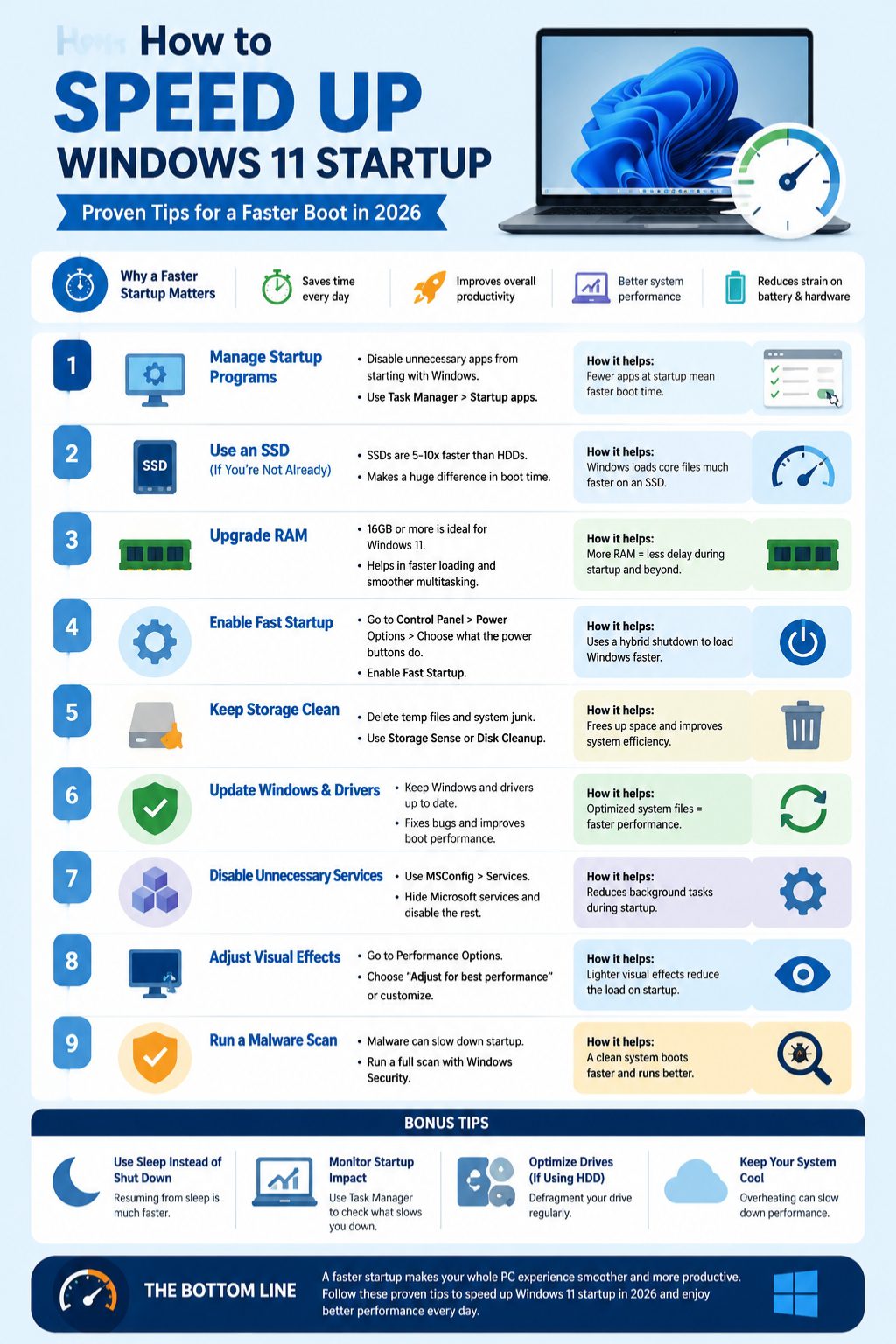
A cluttered PC is a slow PC. Removing junk and unnecessary programs can improve boot times.
Disk Cleanup and Storage Sense
- Use Settings > Storage > Storage Sense to automate cleanup
- Delete temporary files, cache, and old Windows updates
Remove Bloatware
- Uninstall apps you never use
- Consider Fresh Start (Windows 11 Settings > Recovery) to remove preinstalled bloat safely
Registry and System Tweaks
- Advanced users can tweak the registry to improve startup
- Always back up the registry before making changes
Table 5: System Cleanup Steps
|
Step |
Tool |
Notes |
|
Temporary files |
Storage Sense / Disk Cleanup |
Automate cleanup |
|
Bloatware |
Settings > Apps |
Remove unnecessary apps |
|
Registry tweaks |
regedit |
Backup mandatory |
Keep Drivers and Windows Updated
Outdated drivers or system files can drag startup times.
Update Device Drivers
- Focus on graphics, storage, and chipset drivers
- Use Device Manager or manufacturer sites for latest updates
Apply Windows Updates
- Regularly check Settings > Windows Update
- Security patches often fix background processes slowing boot
Table 6: Update Impact
|
Component |
How to Update |
Effect on Boot |
|
Graphics Driver |
Device Manager |
Reduces loading delays |
|
Storage Driver |
Device Manager |
Faster disk initialization |
|
Windows OS |
Windows Update |
Fixes background service lag |
Advanced Startup Optimization Techniques
For power users, advanced tweaks can further reduce startup times.
Clean Boot Windows 11
- Disable all non-Microsoft startup apps and services
- Helps identify software conflicts slowing boot
Use Performance Troubleshooter
- Built-in Windows tool
- Go to Control Panel > Troubleshoot > System Maintenance
Disable Unnecessary Services
- Open services.msc, disable unneeded services
- Examples: Print Spooler (if no printer), Remote Registry (safety first)
Boot Logging & Analysis
- Enable boot logging (msconfig > Boot > Boot Log)
- Tools like BootRacer or Windows Performance Toolkit help pinpoint slow startup programs
Table 7: Advanced Boot Optimization
|
Technique |
Steps |
Benefits |
|
Clean Boot |
msconfig |
Identifies conflicts |
|
Performance Troubleshooter |
Control Panel |
Auto optimization |
|
Disable Services |
services.msc |
Reduces boot load |
|
Boot Logging |
Enable boot log |
Track delays |
Regular Maintenance Habits
Prevent future slowdowns by keeping an eye on your system.
Monitor Startup Impact Monthly
- Task Manager > Startup tab
- Remove apps added by new software
Antivirus & Malware Scans
- Malware can drastically slow boot
- Use Windows Defender or trusted antivirus
Defragment (HDD Only)
- SSDs don’t need defragging
- Schedule defrag for HDD drives monthly
Table 8: Maintenance Checklist
|
Task |
Frequency |
Notes |
|
Monitor startup apps |
Monthly |
Remove new bloat |
|
Malware scans |
Weekly |
Keep system clean |
|
Disk defrag |
Monthly (HDD) |
Not needed for SSD |
Final Thoughts
Sluggish boot times are frustrating, but a combination of software tweaks, hardware upgrades, and regular maintenance can make a huge difference. Whether it’s managing startup apps, switching to an SSD, or disabling animations, each step counts.
If you follow these strategies, you’ll notice your PC starts faster, feels snappier, and you’ll spend less time staring at the spinning circle. Taking a few minutes to maintain your system now pays off in daily efficiency. Don’t wait—start optimizing today and speed up Windows 11 startup in 2026.
FAQs About Windows 11 Startup Speed
How do I make Windows 11 start faster?
Disable unnecessary startup apps, enable Fast Startup, and consider moving to SSD.
Does SSD improve Windows 11 startup speed?
Yes. SSDs, especially NVMe, significantly reduce boot times.
Can startup apps slow down Windows 11?
Absolutely. Some apps can add 5–20 seconds per app to boot.
Is disabling animations effective?
Yes. Turning off visual effects reduces CPU load at startup.
How often should I clean my PC for faster startup?
Monthly cleanup of temporary files and bloatware keeps boot times low.
Will dual-boot setups affect Fast Startup?
Yes. Fast Startup can interfere with dual-boot systems; consider disabling it.
Do driver updates really matter for boot speed?
Updated storage and chipset drivers help Windows initialize hardware faster.